
Model Context Protocol (MCP) finally gives AI models a way to access the business data needed to make them really useful at work. CData MCP Servers have the depth and performance to make sure AI has access to all of the answers.
Try them now for free →


Excel Add-In for Microsoft Access
Read, Write, and Update Access Data from Excel
The Excel Add-In for Microsoft Access is a powerful tool that allows you to connect with live data from Access databases, directly from Microsoft Excel. Use Excel to read, write, and update Microsoft Access data. Perfect for mass imports / exports / updates, data cleansing & de-duplication, Excel based data analysis, and more!
Install the Add-In, configure your Access connection, and go!
download buy now
Other Database Drivers
-

-

Redis
learn more » -

Couchbase
learn more » -

MarkLogic
learn more » -

Microsoft SQL Server
learn more » -

MariaDB
learn more » -

MySQL
learn more » -

PostgreSQL
learn more » -

SQLite
learn more » -

CSV/TSV Files
learn more » -

Pivotal GreenPlum
learn more » -

Snowflake
learn more » -

SQL Analysis Services
learn more » -

Teradata
learn more » -

xBase
learn more » -

XML Files
learn more »
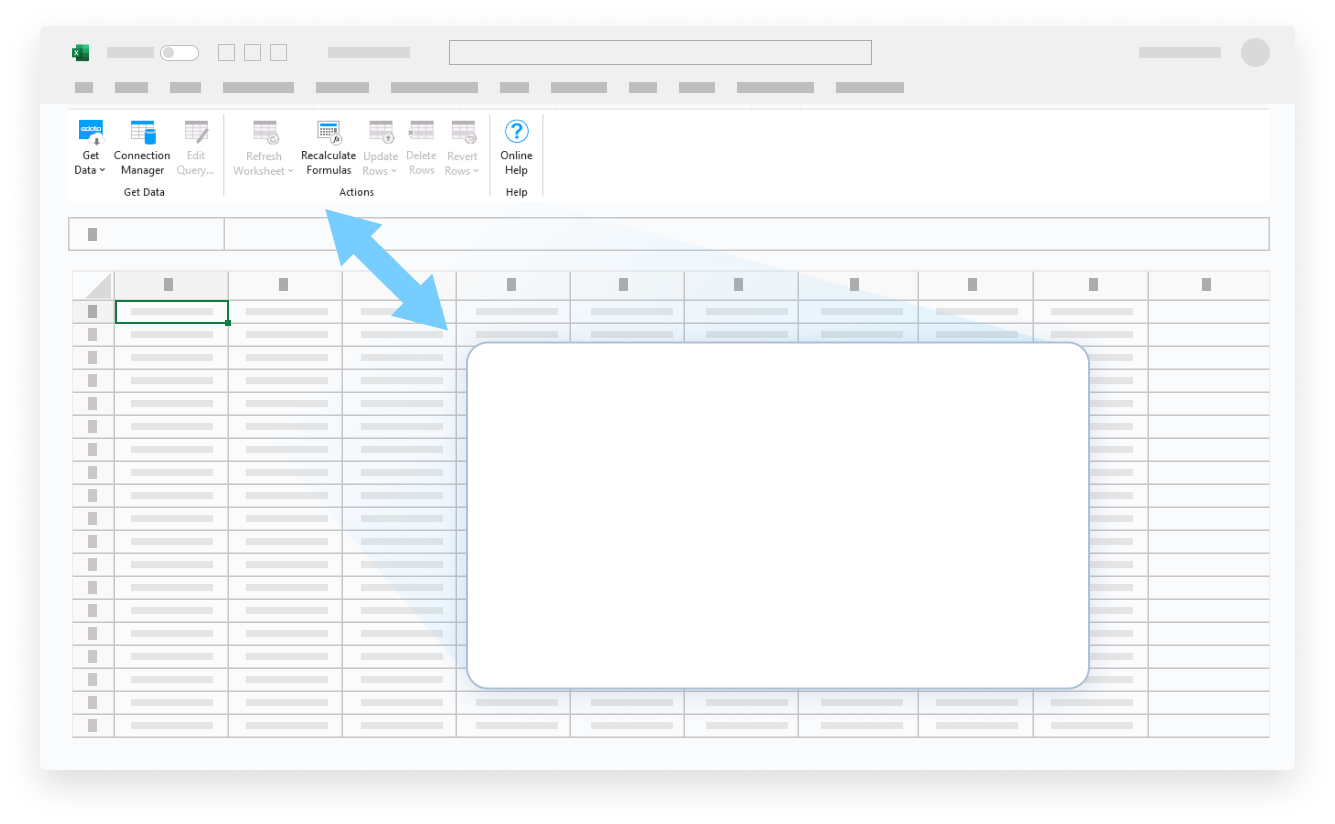


Your Access Data, Your Way!
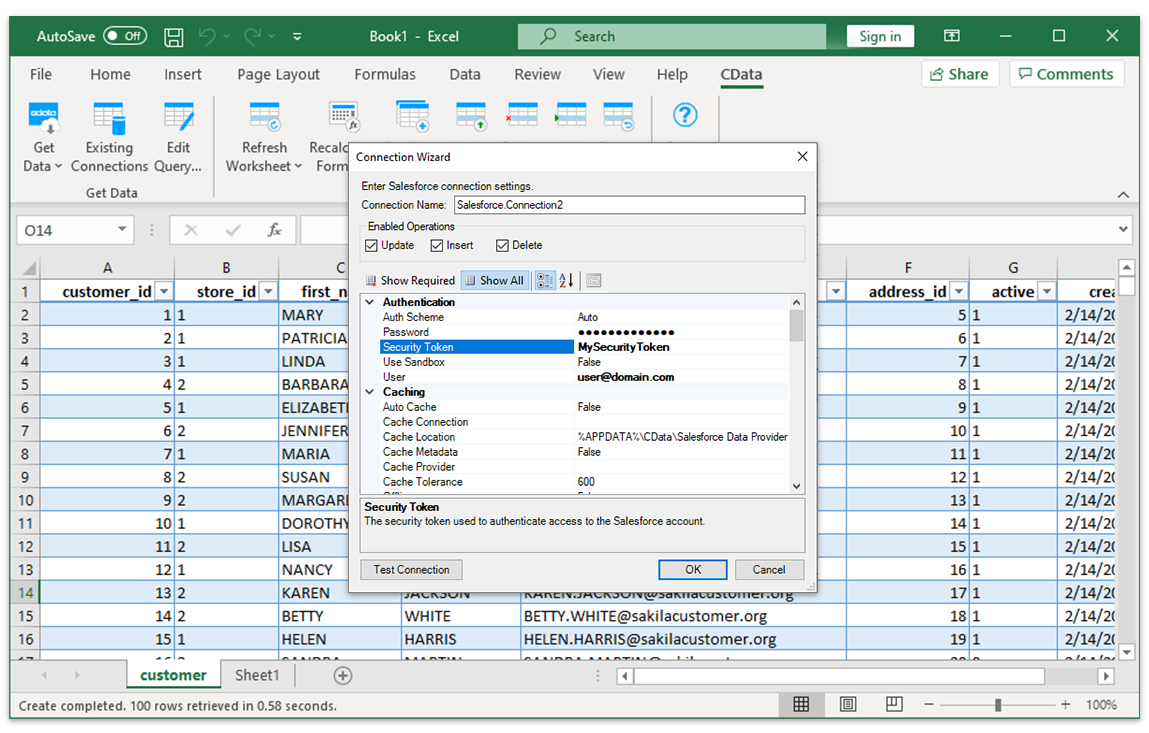
The Excel Add-In for Access provides the easiest way to connect with Microsoft Access data. Users simply supply their credentials via the connection wizard to create a connection and can immediately begin working with live Microsoft Access tables of data. The Excel Add-In is completely self-contained; no additional software installation is required.
Bi-Directional Access To Live Microsoft Access Data From Excel
The Excel Add-In for Access is integrated with the Excel toolbar and ribbon, providing direct access to live data with a single click.
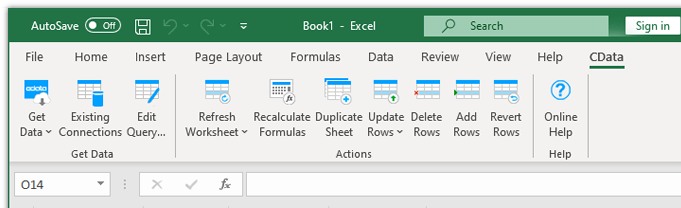
Easy-To-Use, Straightforward Configuration:
- Install the Add-In
- Login with User & Password
- Select Tables
Installing the CData Access Excel Add-In creates a dedicated toolbar in Excel, giving users instant access to Microsoft Access data for faster data analysis and reporting. From the Excel toolbar, users can select any of the installed CData Add-Ins to configure a connection.
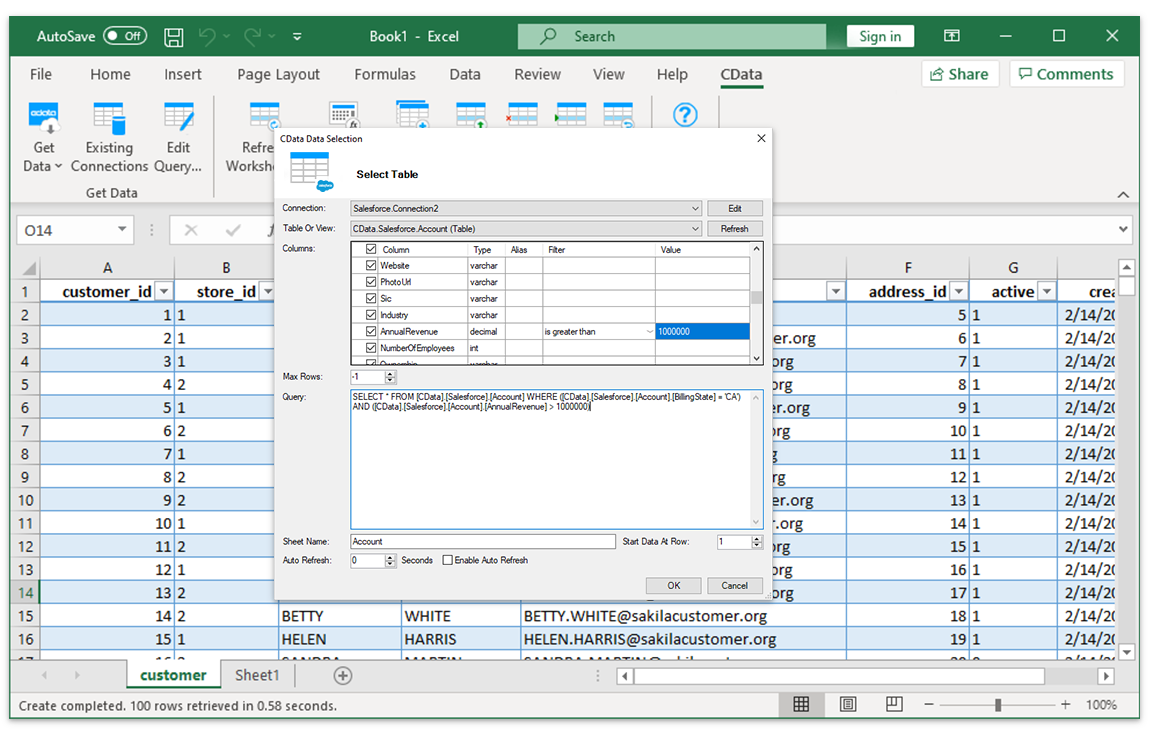
Select Tables and Columns
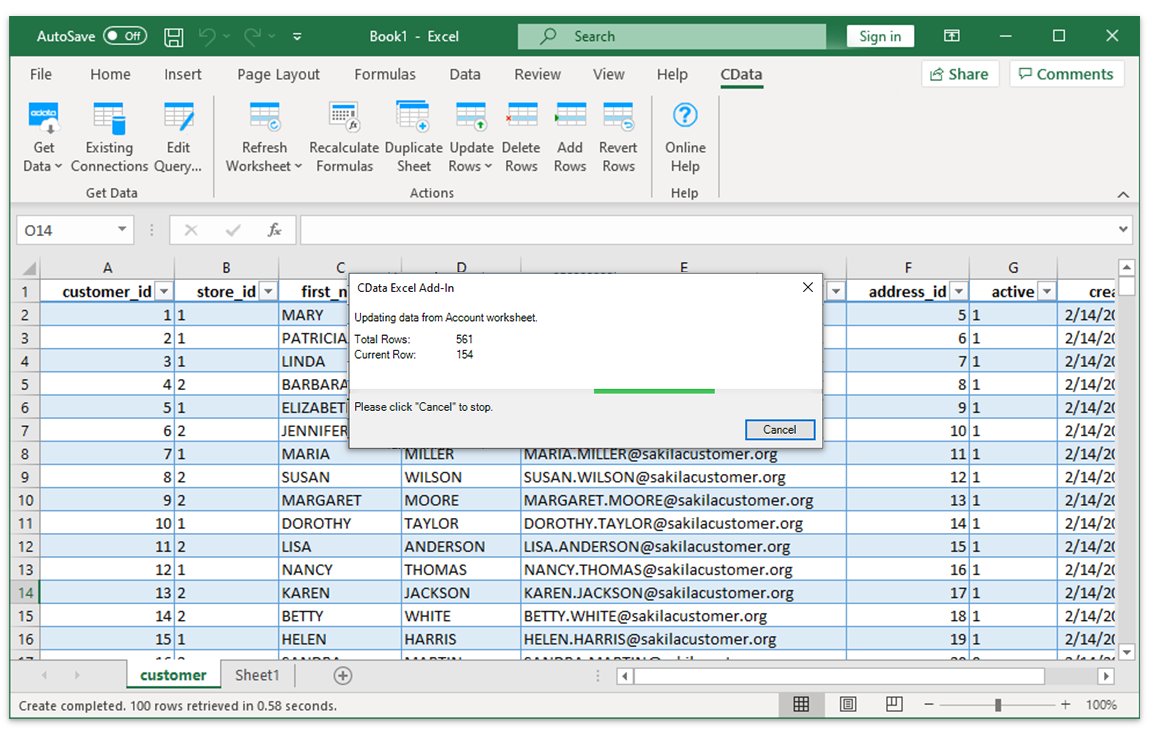
Once the data connection is configured, just specify the table and the Excel Add-In will populate a new Excel sheet with live Microsoft Access Data.
Microsoft Access Data With The Full Power of Excel
Perfect for mass imports / exports / updates, data cleansing & de-duplication, Excel based data analysis, and more!
- Modify and delete Records.
- Quickly export and backup data.
- Operate on data with Charts and Pivot Tables.
Frequent Access Excel Connectivity questions
Common questions about integrating Access with Microsoft Excel.
How do I connect Access to Excel?
The Access Excel Connector is fully integrated with the Excel toolbar and ribbon, providing direct access to live data with a single click. Installing the Access Excel Add-In creates a new CData data access toolbar in Excel that users can access to connect to remote data. From the Excel toolbar, users can select any of the installed CData Add-Ins to configure a connection to any data source. Once the Access Excel integration is configured, just select a table from Access and the Excel Add-In will populate a new Excel sheet with live Data.
Can I export Access to Excel?
Configuring a Access export to Excel is a thing of the past — no more downloading or copying & pasting to make sure you have the freshest data. The Access Add-In provides live direct connectivity to Access and does not require a Access Excel export. Simply click the Refresh button from the Excel Access plugin and the tool will download Access to excel instantly.
Is it possible to edit Access data from Excel?
Our integration enables live, bi-directional access to Access data directly from Excel. Easily pull live data into your spreadsheet, make changes, and push updates back to Access — all without leaving Excel. Edited cells are automatically highlighted to show differences from the source data. When ready, click the Update Rows button in the CData Add-In toolbar to sync your changes.
Is there a free trial available?
Absolutely. Free trials are available for all CData products. Your 30-day free trial of the Access Excel Connector will begin as soon as you have downloaded the Access Excel Add-In and completed the intallation process. The trial provides full, unrestricted access to all features and capabilities of the Access Excel Connector.
Start your trial today: Access Excel Add-In free download.
Popular Excel Videos:

Download the Access Excel Add-In
Building custom dashboards & reports that connect with live Access data has never been easier. Download the CData Excel Add-In for Access now, and get connected.
Download Now
