
Model Context Protocol (MCP) finally gives AI models a way to access the business data needed to make them really useful at work. CData MCP Servers have the depth and performance to make sure AI has access to all of the answers.
Try them now for free →



Authenticate and Call Salesforce REST APIs with Postman
Salesforce is a cloud-based CRM platform that helps manage sales, service, and marketing. It offers APIs to connect with external systems for smooth data exchange.
The Salesforce REST API allows users to access data such as accounts and leads using simple HTTP requests. Users can read, update, or delete data, making it ideal for testing and integration.
CData Drivers and Connectors for Salesforce simplify interacting with your Salesforce data, from authentication, through reading data, to making updates to your Salesforce system. This article guides the reader through the manual process of authentication and querying Salesforce via the REST API as an exercise to demonstrate how CData simplifies connectivity complexity.
Postman is a popular tool for working with APIs without writing code. It simplifies sending requests, handling OAuth 2.0 authentication, and testing Salesforce APIs in just a few steps.
Before getting started, make sure to set up OAuth in a Salesforce API application.
Connect Postman with Salesforce Using OAuth 2.0
There are three methods for connecting to the Salesforce API using OAuth and Postman:
- Username and Password OAuth 2.0 Flow (Direct login without browser)
- Web Server Flow (Login through web browser)
- Postman Automated Authorization Code Flow (OAuth 2.0 Flow)
Username and Password OAuth 2.0 flow
This method uses the user's Salesforce credentials and client credentials to get an access token directly, without needing a browser or user interaction.
- Get your Salesforce client credentials and security token
- Open Postman, create a new POST request to get the OAuth access token using the following URL:
https://login.salesforce.com/services/oauth2/token
- Navigate to the Body tab and select form-data
- Fill in the connection details as follows:
- Grant type: It specifies the OAuth 2.0 flow used to obtain an access token
- Client ID: The ID of your client application registered with Salesforce
- Client secret: The client secret provided by Salesforce
- Username: The email address used to log in to the Salesforce account
- Password: The account password followed directly by the security token (no spaces)
- Click on Send to initiate the request and obtain the access token
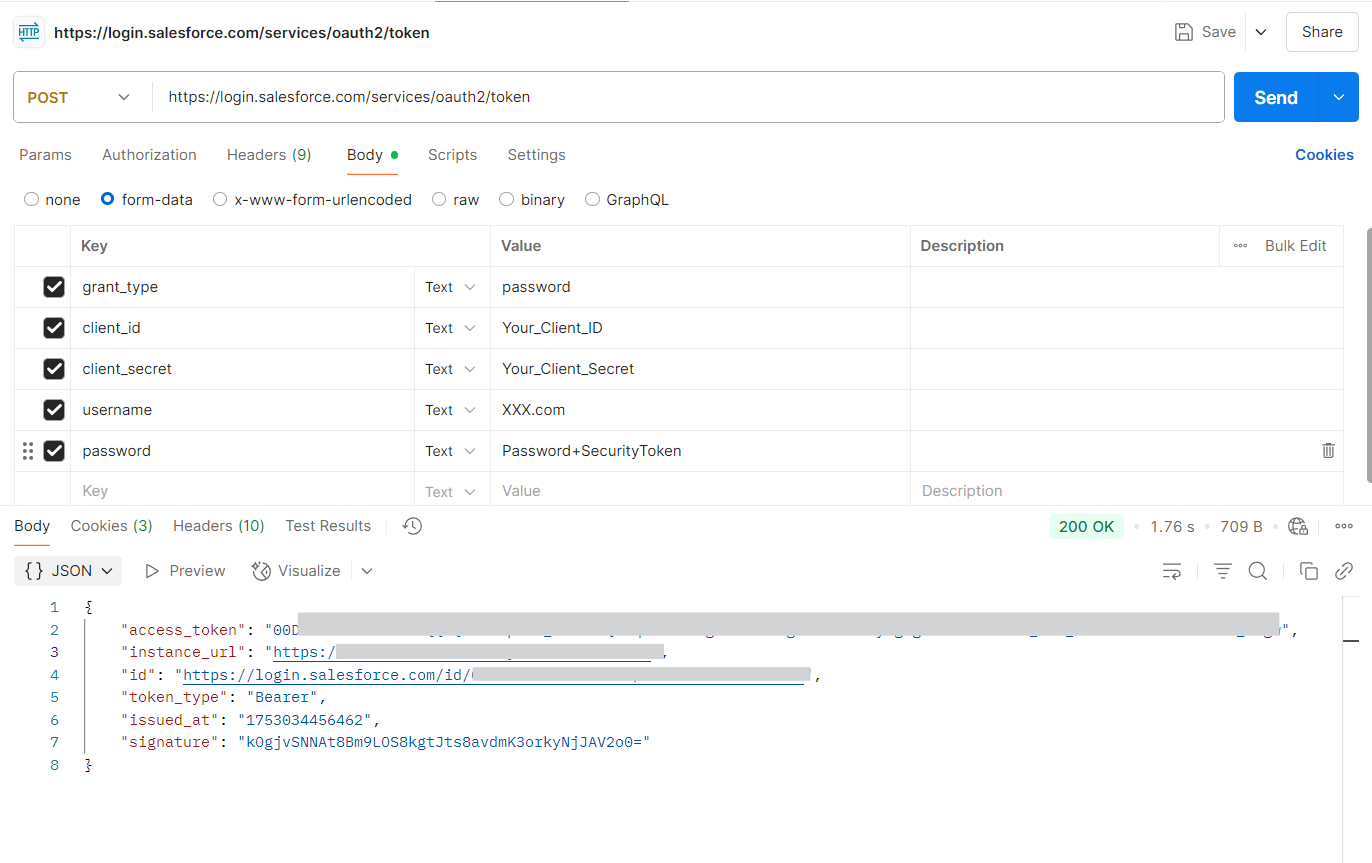
Salesforce returns this response after generating the access token successfully. The response includes the access token used for calling APIs and the instance URL, which acts as the Salesforce base URL. Begin retrieving or updating data in Salesforce using these details.
Web Server Flow (Login through web browser)
This method uses a web browser to securely log in and authorize access. It's best for testing and real user access.
- Create an URL with your client ID and redirect URI, set the response type, then open it in a browser to begin the login process
- It will redirect to the login page for authentication, sign in to the Salesforce account
- Click Allow to complete authentication
- A new window will appear displaying the authorization code.
- Open Postman, create a new Get request with:
- In the Params tab, enter the necessary values to exchange the authorization code for an access token
- Grant type: It specifies the OAuth 2.0 flow used to obtain an access token, such as authorization code
- Code: The authorization code obtained from the web browser after successful authentication
- Client ID: The ID for your client application registered with the API provider
- Client Secret: The client secret given to you by the API provider
- Redirect URI: The URL where Salesforce sends the authorization code after a successful login during the OAuth flow
- Click Send
https://login.salesforce.com/services/oauth2/authorize?response_type=code&client_id=XXXXX&redirect_uri=https://oauth.pstmn.io/v1/callback
Note: Before getting started, ensure that PKCE is unchecked in the OAuth settings of the Salesforce application.
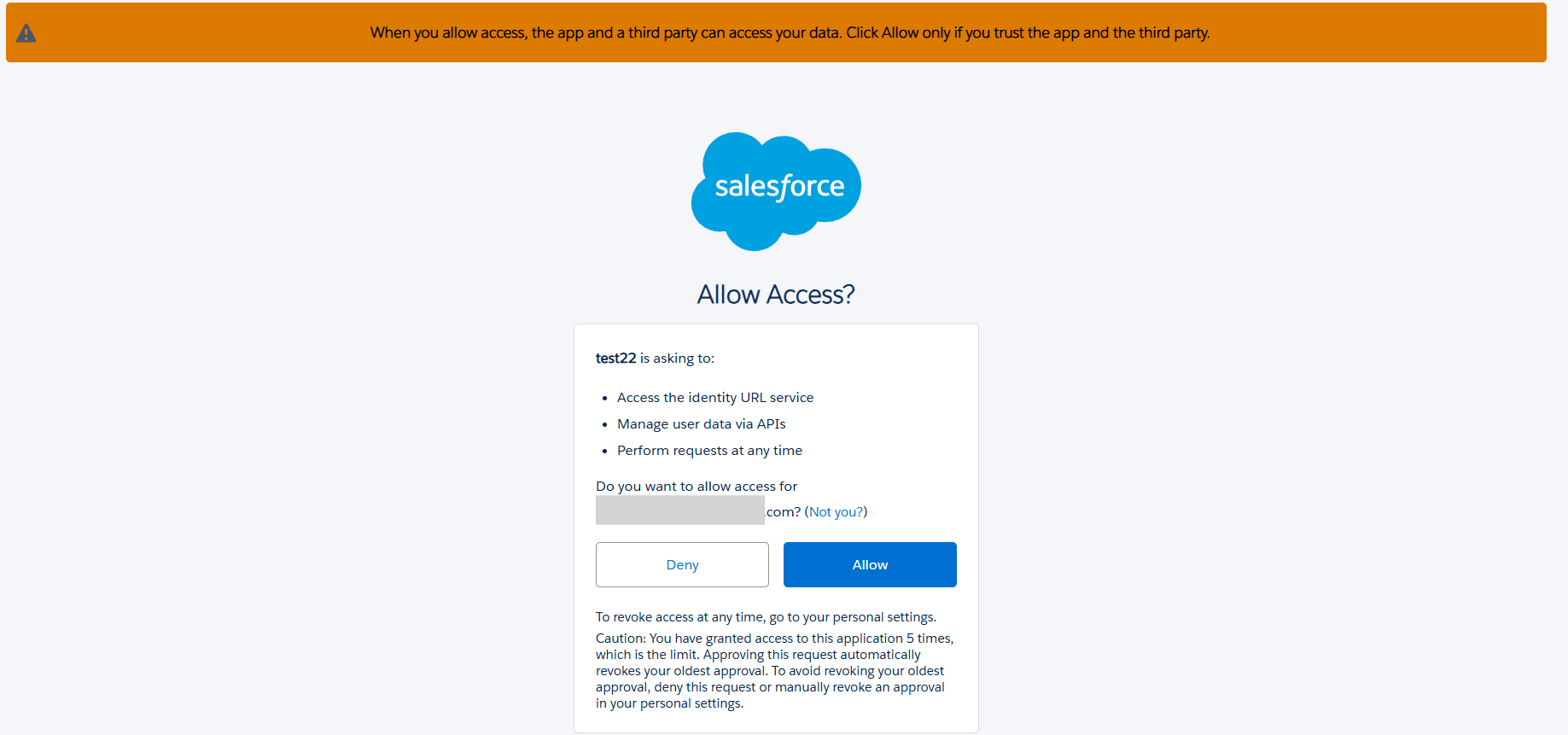
https://login.salesforce.com/services/oauth2/token?
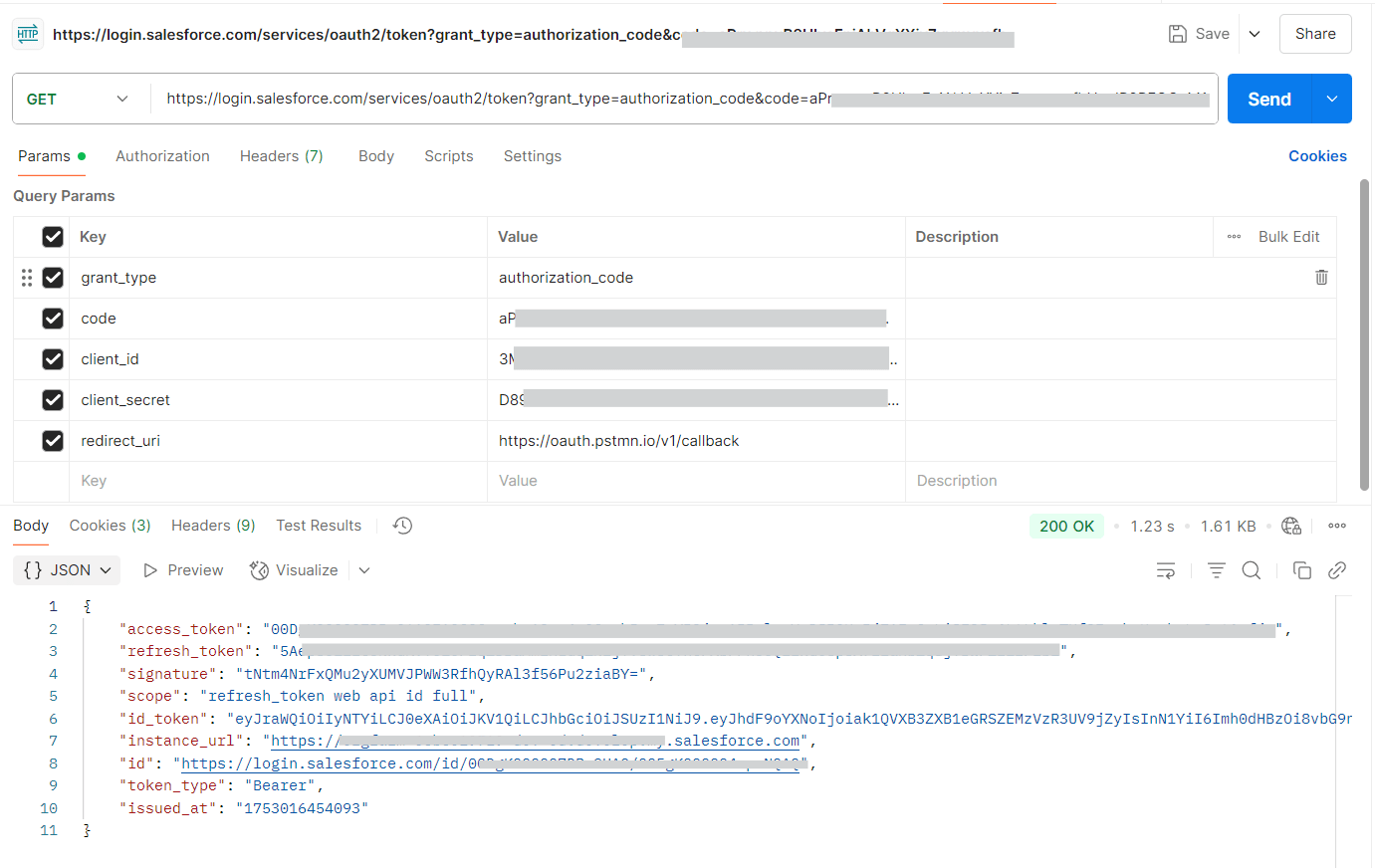
Salesforce responds with a success message after generating the access token. This response contains the access token for making API calls and the instance URL, which acts as the base URL for all Salesforce API requests. Begin retrieving or updating data in Salesforce using these details.
Postman Automated Authorization Code Flow
Postman handles the OAuth flow by logging in, getting the code, and exchanging it for an access token.
- Create new Get request with access token URL
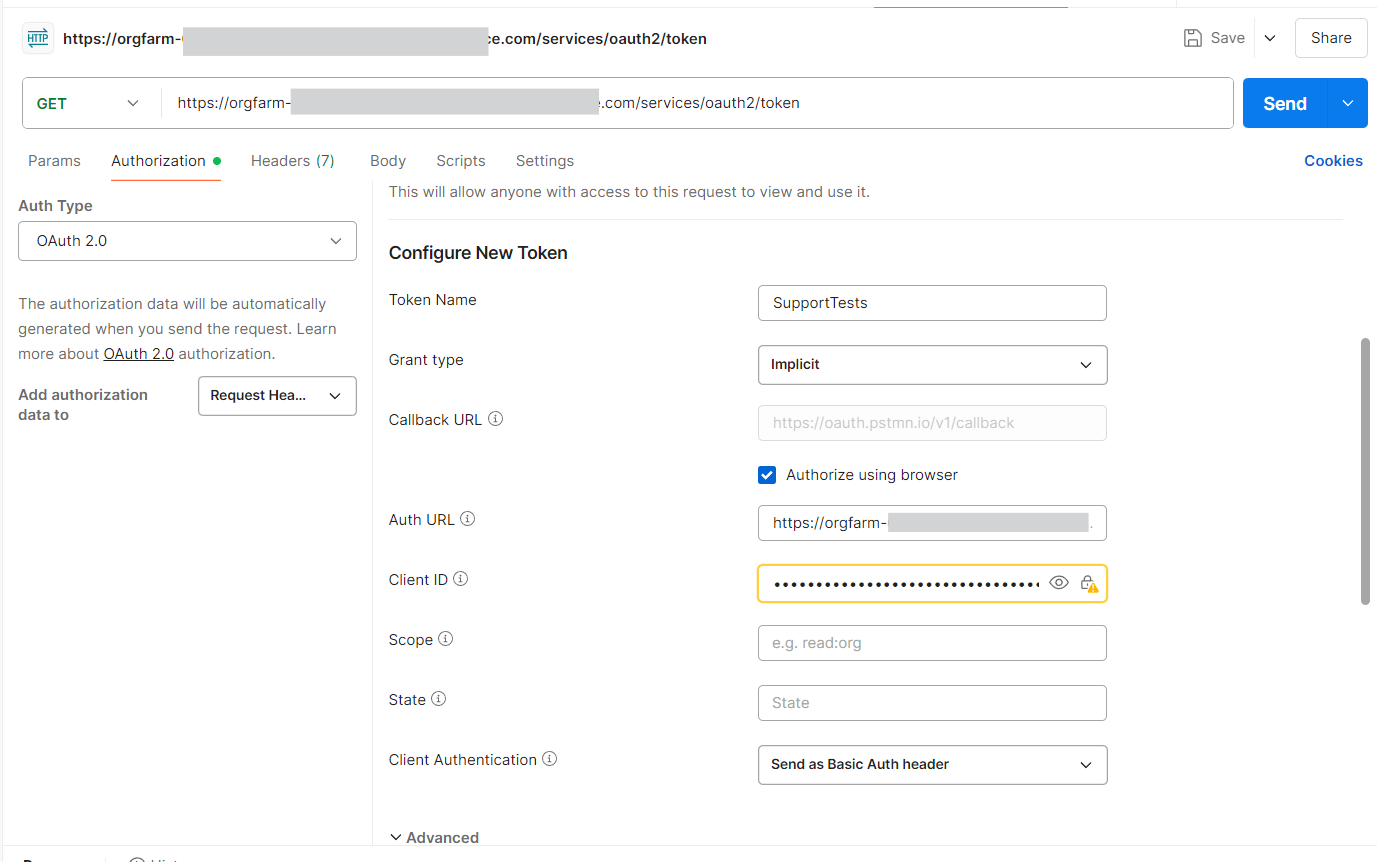
- Navigate to the Authorization tab, from the Auth Type drop down list, to select OAuth 2.0
- Fill in the configuration details:
- Token Name: The preferred name to use for the token
- Grant type: It defines how the client obtains an access token from the authorization server
- Callback URL: The client app redirects to a callback URL after authorization. This URL must be registered with the API provider. If not set, Postman uses a default one, which may not work. Use this instead: https://oauth.pstmn.io/v1/browser-callback
- Auth URL: The endpoint for the API provider authorization server, to retrieve the authorization code
- Access Token URL: The provider’s auth server endpoint used to trade the authorization code for an access token
- Client ID: The ID for the client application registered with the API provider
- Client Authentication: Send Basic Auth request in the header, or client credentials in the request body
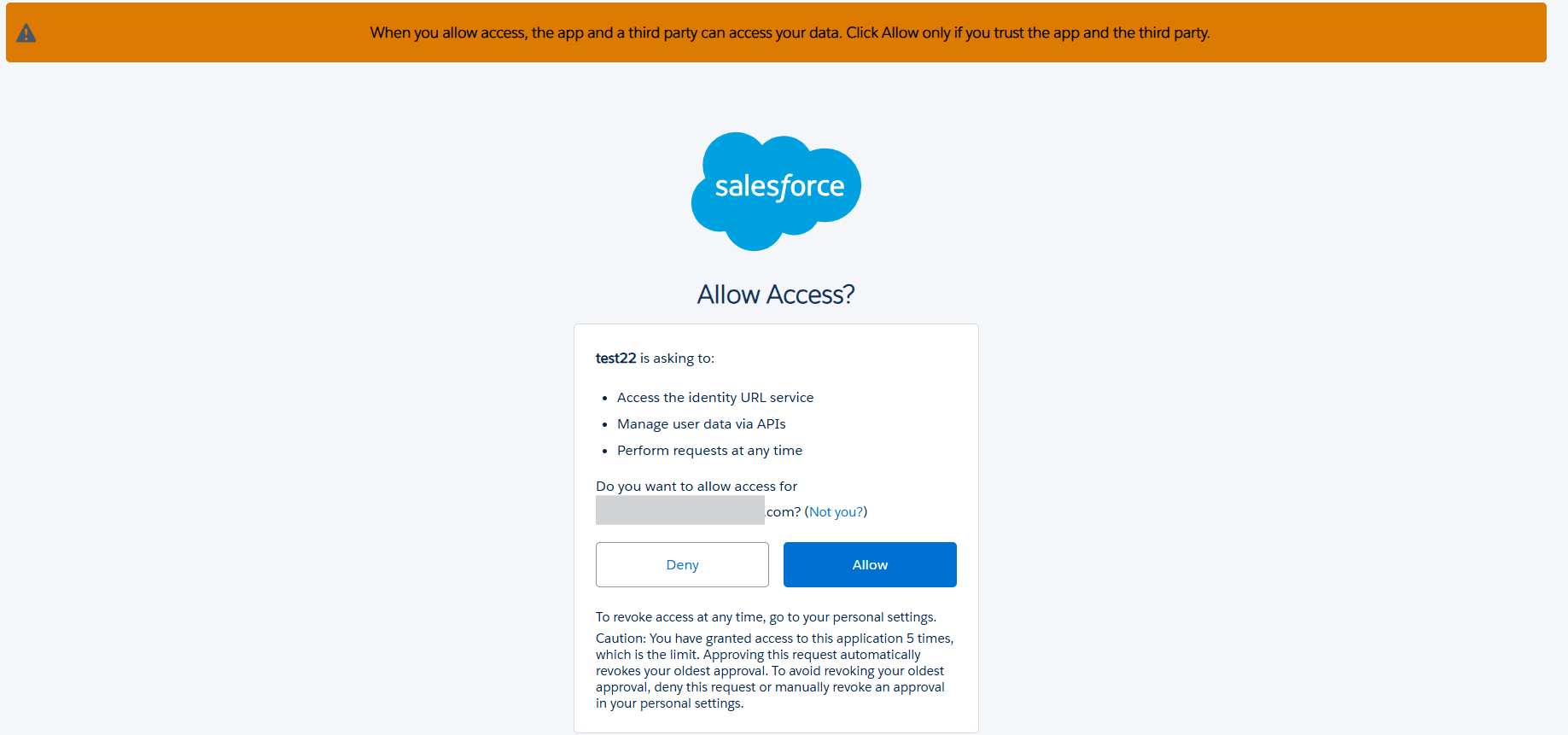
- Now, select Get New Access Token. It opens the login page for authentication, where the user logs in to the Salesforce account
- Choose Allow to grant permissions and complete authentication
- A new window appears, where the access token will be displayed
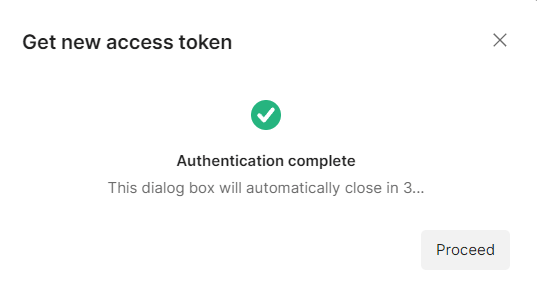
- Postman redirects and displays a popup saying, "Authentication Complete". Click Proceed to continue
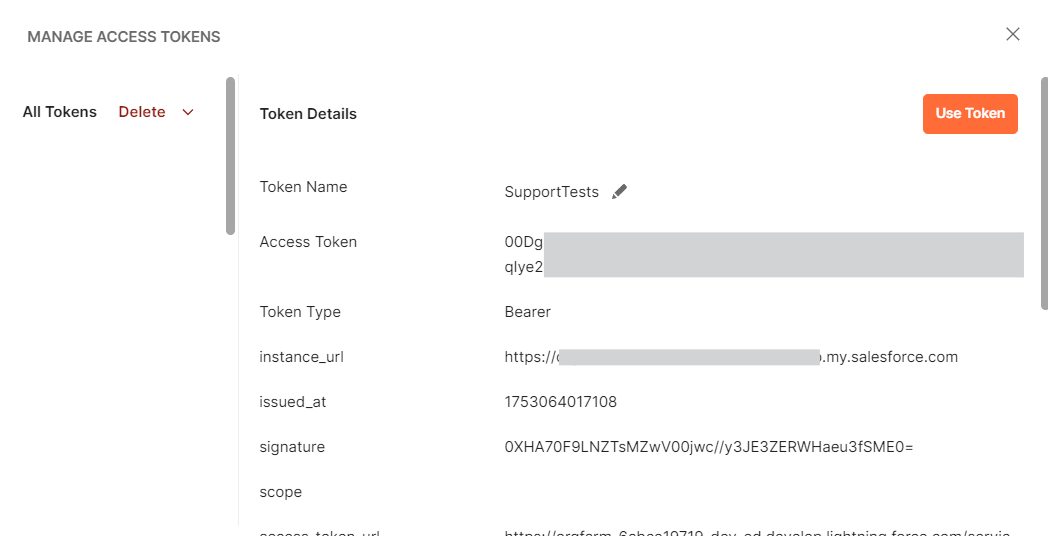
- The access token, instance URL, and related details appear. Choose Use Token to add it to the request
https://login.salesforce.com/services/oauth2/token
Query data from Salesforce using Postman
This step sends a GET request in Postman to retrieve Salesforce data, using the access token and instance URL received during authentication.
Manual Authorization Code Flow
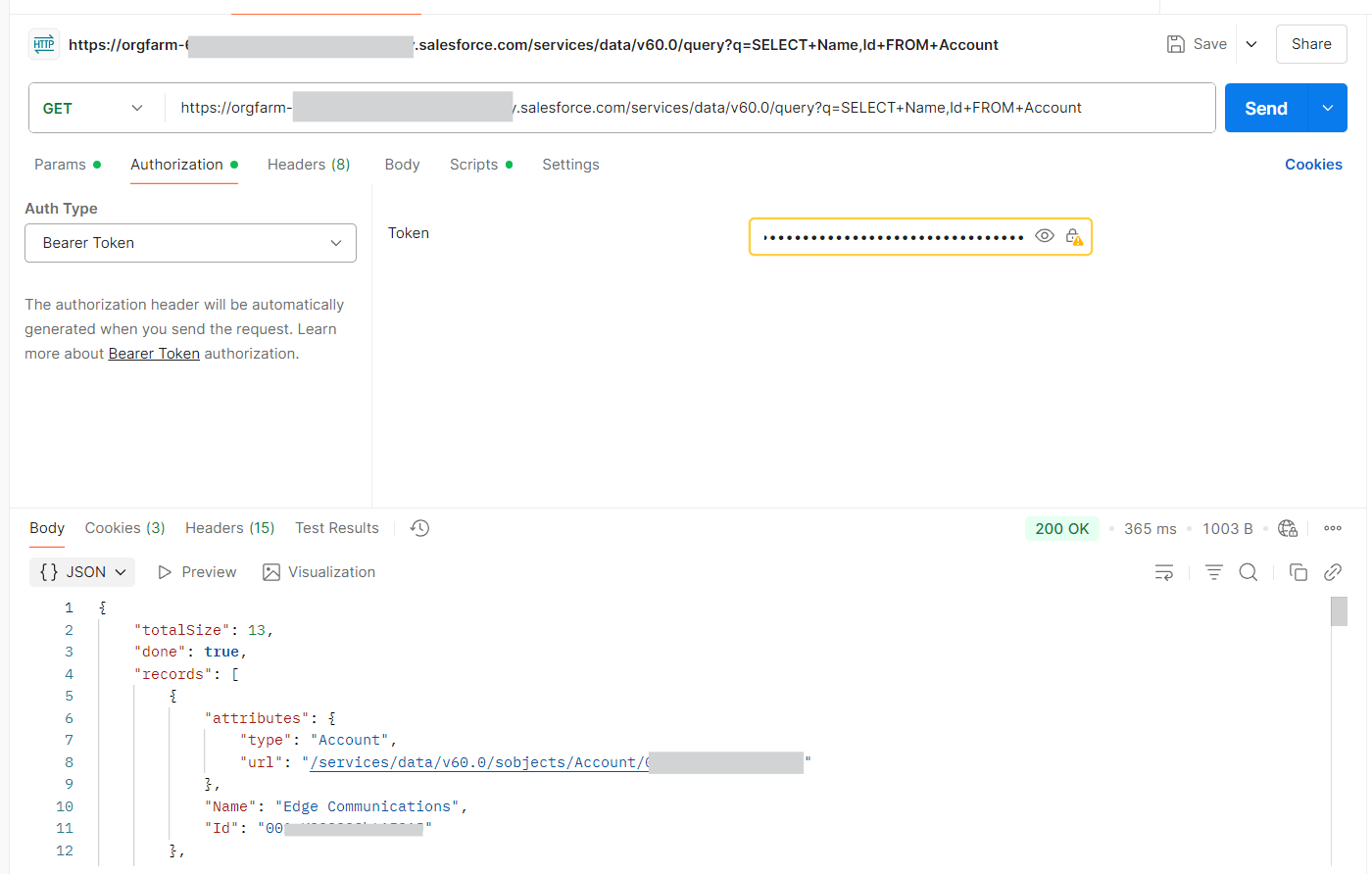
- After getting the access token, create a new GET request using the API URL and include the instance URL from the response
- Use the following sample endpoint:
- Navigate to the Authorization tab
- From the Auth Type drop-down list, select Bearer Token
- Enter the access token into the token field
- Click Send to execute the request
https://login.salesforce.com/services/data/v60.0/query?q=SELECT+Name,Id+FROM+Account
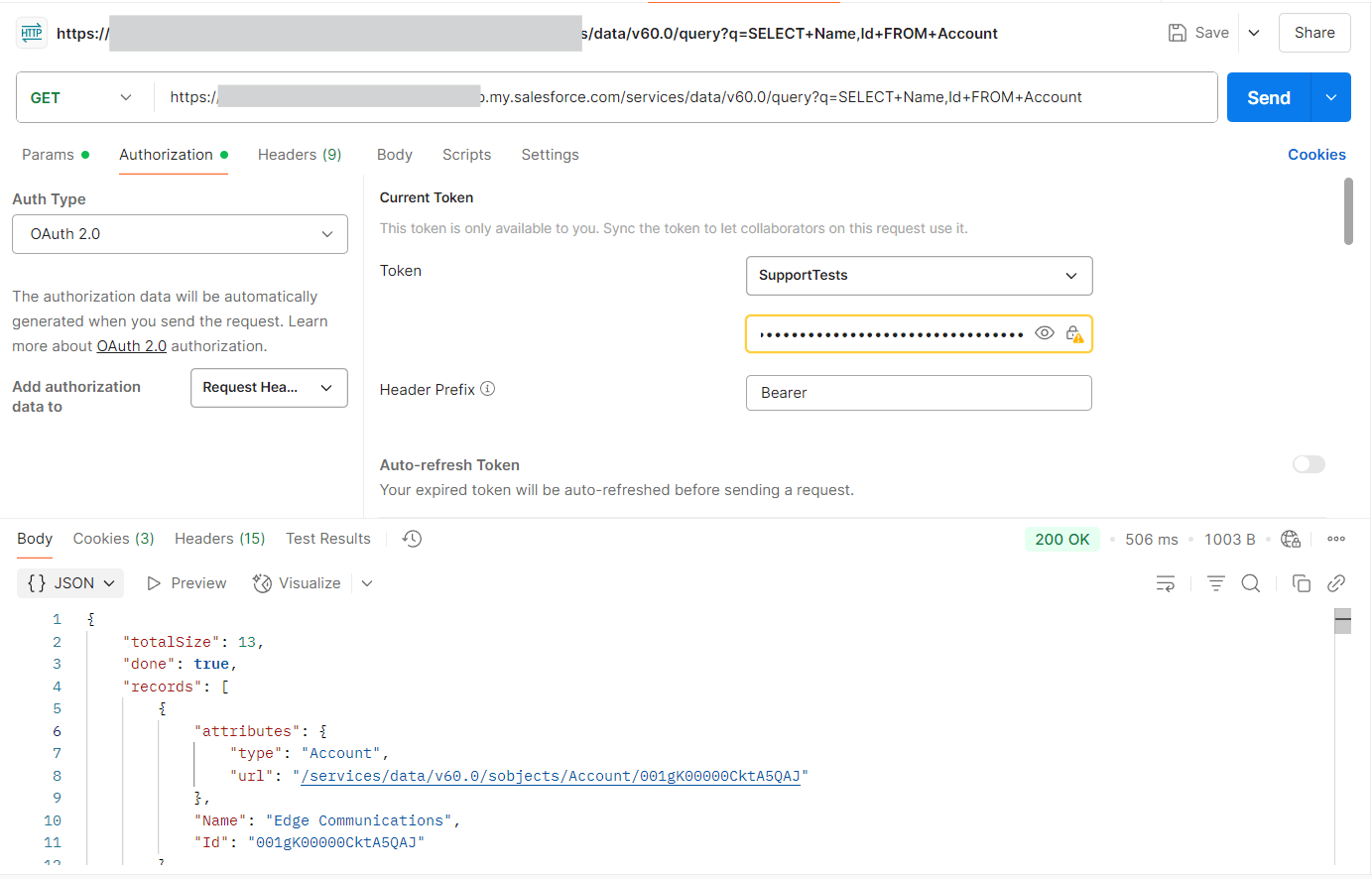
Postman Automated Authorization Code Flow
- After receiving the access token, use the same GET request with the API URL and include the instance URL from the response
- Use the following sample endpoint:
- Click Send to execute the request
https://login.salesforce.com/services/data/v60.0/query?q=SELECT+Name,Id+FROM+Account
More Information & Free Trial
CData drivers and connectors simplify working with Salesforce's REST API by managing the entire OAuth flow for the user, from initial authentication to token renewal. They enable easier integration of Salesforce data with BI tools, analytics platforms, ETL workflows and custom applications all secured through OAuth 2.0 authentication.
Try 30-day free trial to explore all features with no commitment. It's an effective and convenient way to streamline the Salesforce API integration.
If you have any other questions, please feel free to reach out to CData Support. Our team is here to assist you!
