
Model Context Protocol (MCP) finally gives AI models a way to access the business data needed to make them really useful at work. CData MCP Servers have the depth and performance to make sure AI has access to all of the answers.
Try them now for free →


Configure the CData Connect Cloud Connector for Looker Studio
Looker Studio, formerly known as Google Data Studio, empowers users to craft customized reports featuring data visualizations that can be shared with clients while reflecting your brand identity. When combined with CData Connect Cloud, you get instant, cloud-to-cloud access to data from the supported SaaS, Big Data and NoSQL sources for visualizations, dashboards, and more. This article shows how to use the CData Connect Cloud Connector to connect to your CData Connect Cloud instance from Looker Studio.
CData Connect Cloud provides a live cloud-to-cloud interface for all of your data, allowing you to easily build reports from live SaaS, Big Data and NoSQL sources in Looker Studio — without replicating the data to a natively supported database. As you build visualizations, Looker Studio generates queries to gather data. Using optimized data processing out of the box, CData Connect Cloud pushes all supported complexities (filters, JOINs, etc) directly to the underlying data source, leveraging server-side processing to quickly return the requested data.
User Guide
The CData Connect Cloud Connector gives you the ability to connect directly data to Looker Studio through CData Connect Cloud.
Install the Add-On
Before using the CData Connect Cloud Connector, you need to install the Connector to your Google Account.
- Navigate to the Integrations page in CData Connect Cloud and click on Looker Studio.
- Click the CData Connect Cloud Connector in the Looker Studio page that opens.
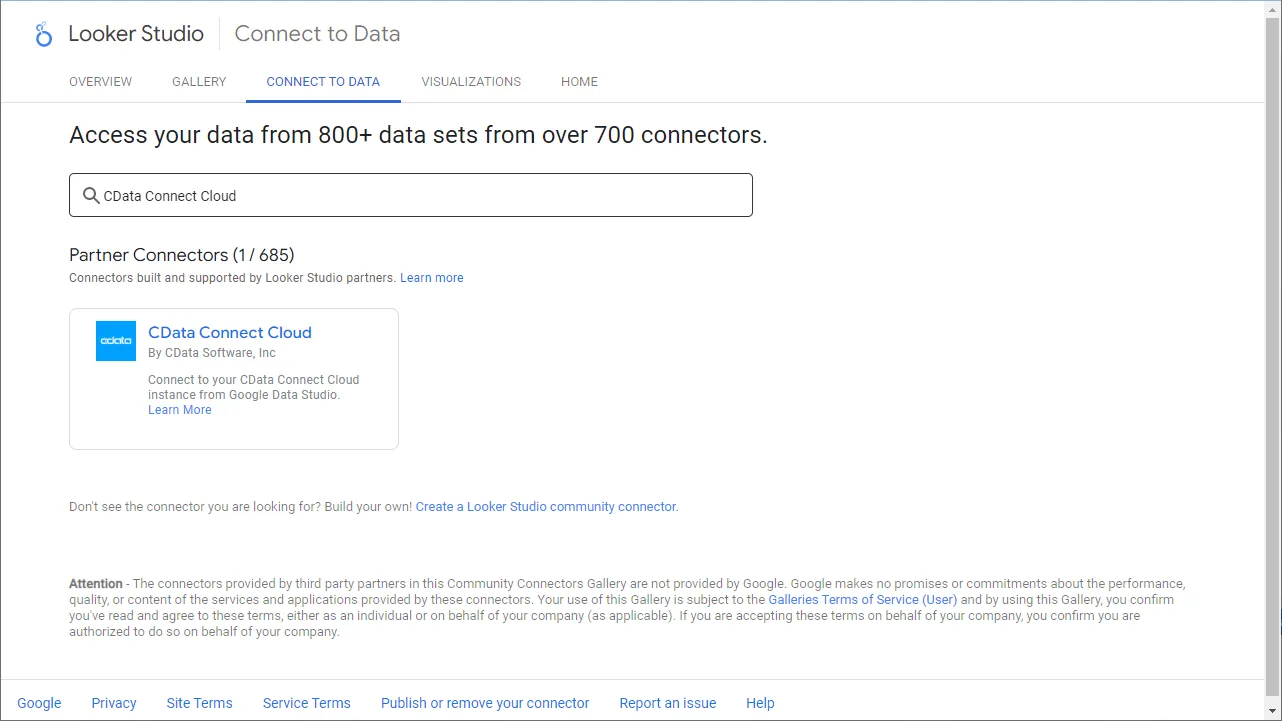
- Click Authorize and allow access to your Google account.
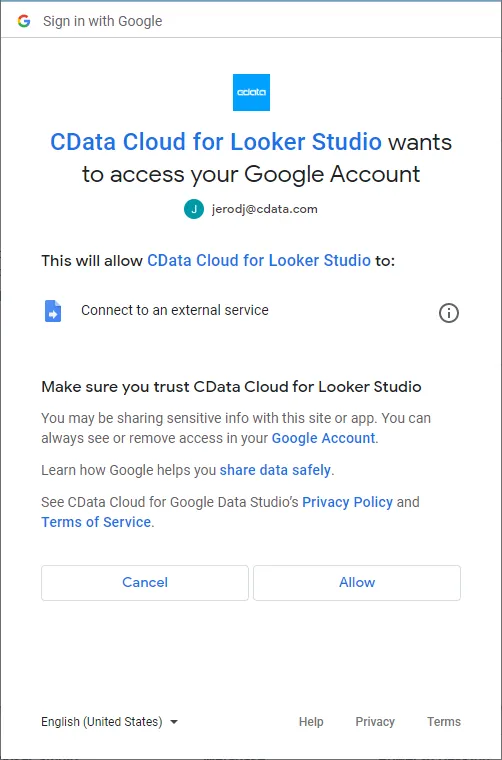
Connect to CData Connect Cloud
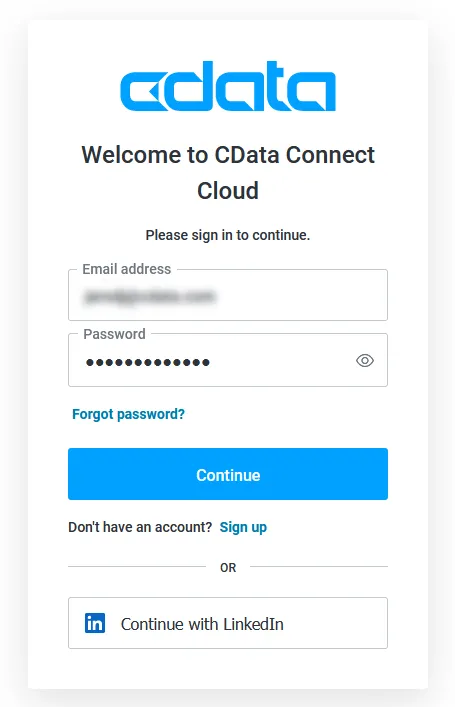
Once the Connector is authorized, you can access your CData Connect Cloud instance from within Looker Studio.
- Click Authorize to authenticate with your CData Connect Cloud instance
Connect to External Cloud Data
With the Add-On authorized, you are ready to connect to external cloud data from Looker Studio.
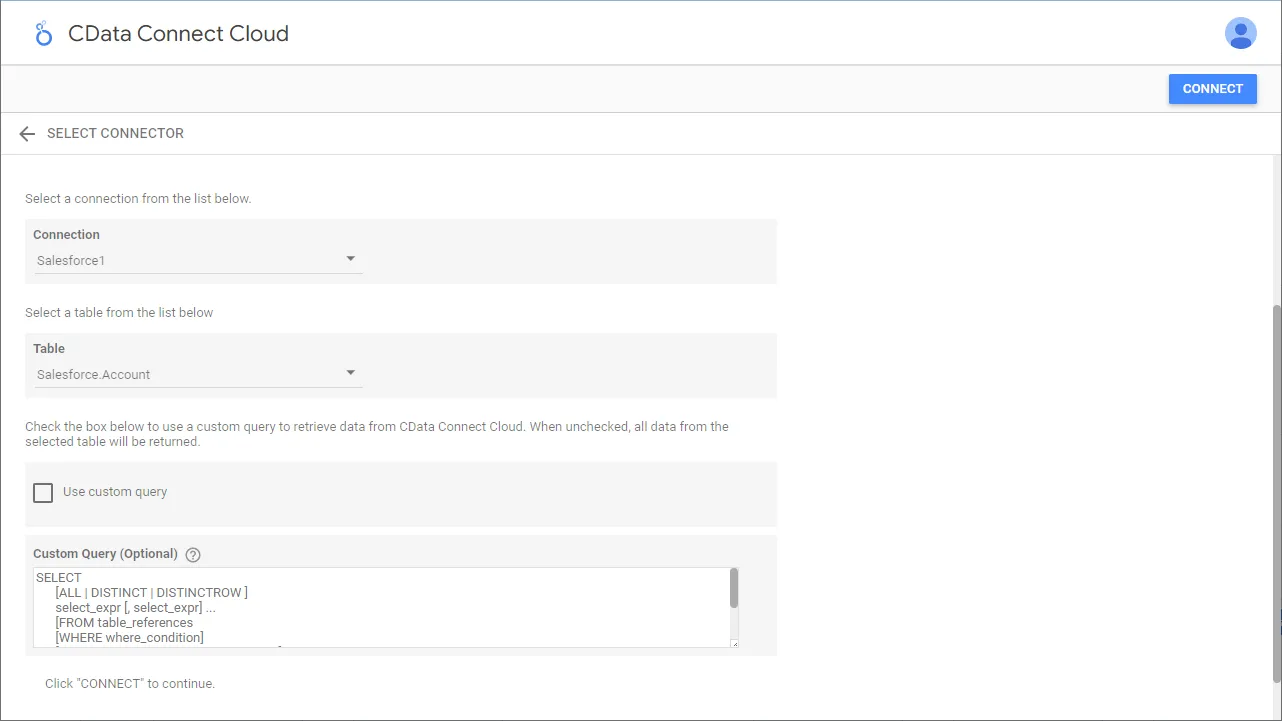
- In the CData Connect Cloud Connector in Looker Studio select a Connection and click Next
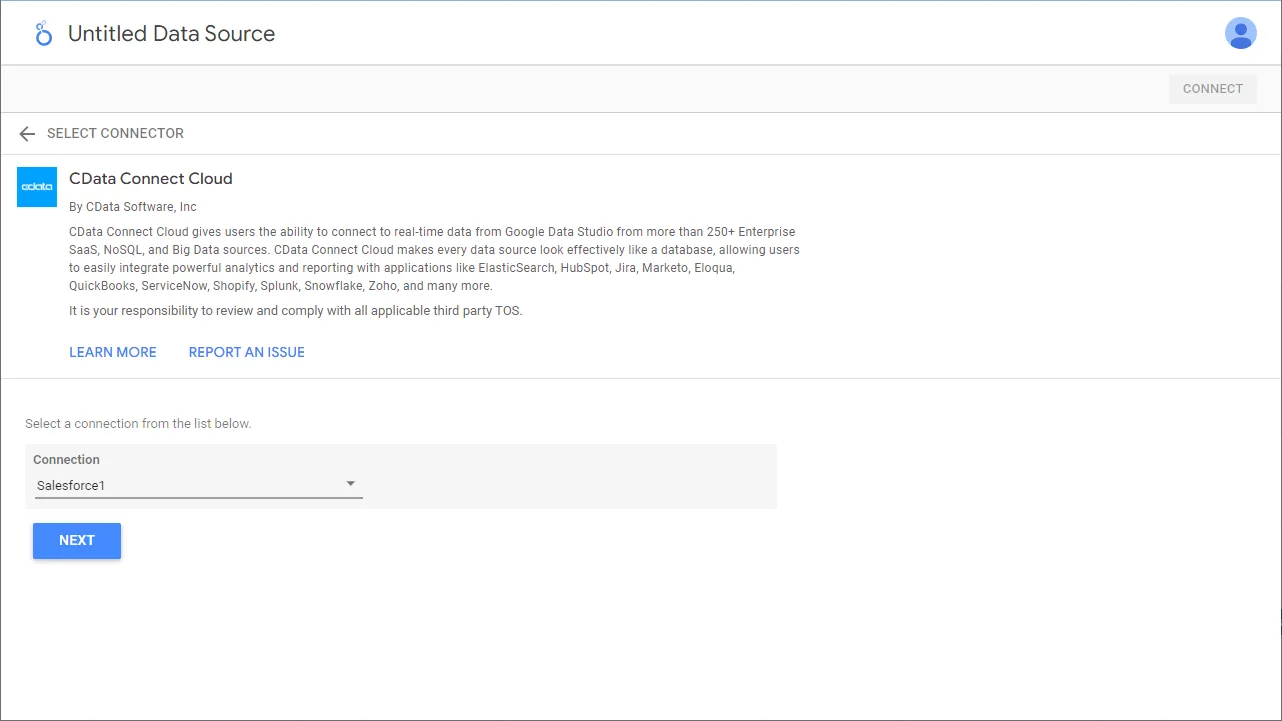
- Select a Table (or use a Custom Query) and click Connect to continue
Explore the Data
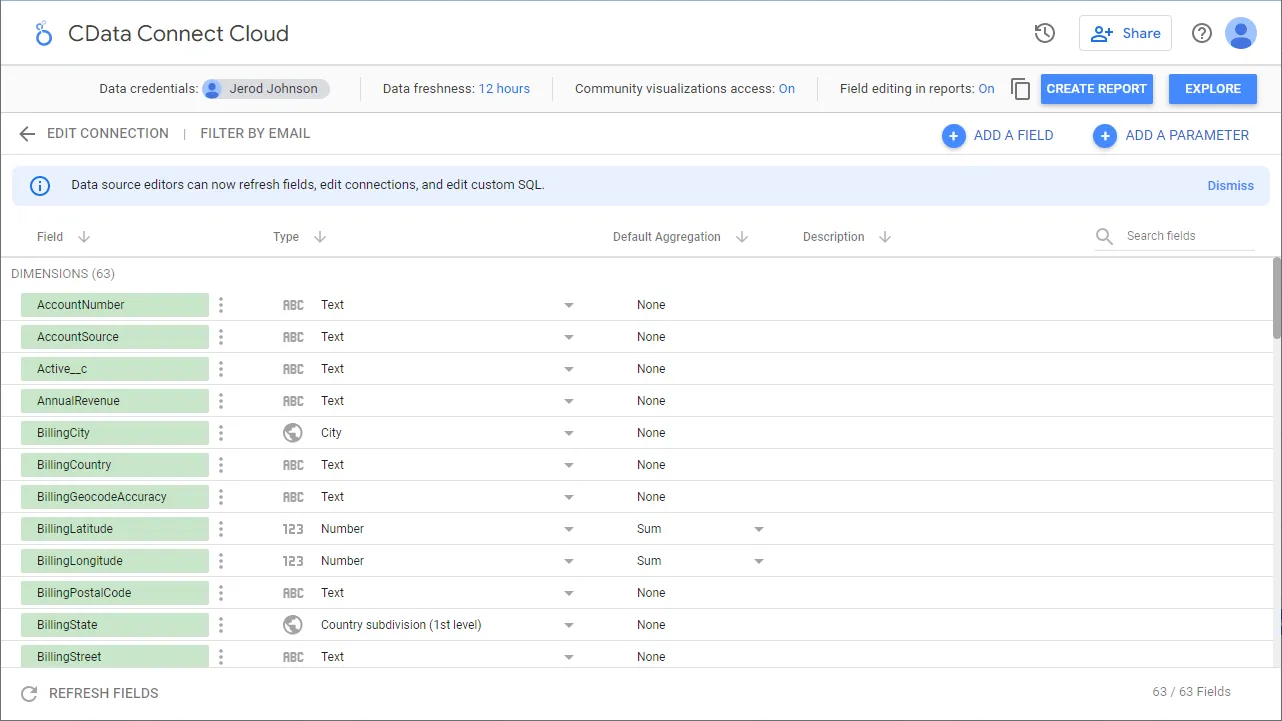
After selecting a Connection and Table, you can select and modify the fields and their metadata. Common data types are automatically detected, but you can change them to something else. When you are content with the schema, you can start generating your report.
Support
If you have any questions regarding the usage of the CData Connect Cloud Connector for Looker Studio, please view our Support Page.
Links
Terms of UsePrivacy Statement
