
Model Context Protocol (MCP) finally gives AI models a way to access the business data needed to make them really useful at work. CData MCP Servers have the depth and performance to make sure AI has access to all of the answers.
Try them now for free →


Connect Cloud Guide: SSO (Single Sign-On) and User Credentials
CData Connect Cloud is a consolidated connectivity platform that links applications to a broad ecosystem of real-time data sources through consistent, standards-compliant interfaces. CData Connect Cloud provides tools to access data seamlessly from any system, anywhere. Some of the key features of CData Connect Cloud are broad data connectivity, real-time data access, CRUD support, secure access, and comprehensive data modeling and dynamic discovery.
This article explores the Single Sign-On (SSO) and User Credentials features of Connect Cloud — and how to implement them.
Single Sign-On (SSO)
CData Connect Cloud supports Single Sign-On (SSO). When SSO is enabled for your account, users sign in through your chosen SSO provider instead of using CData Connect Cloud login credentials.
CData Connect Cloud supports the following SSO providers:
- SAML
- OpenID Connect
- Google Workspace
- Microsoft Azure AD
- Active Directory Federation Services (ADFS)
- Active Directory/LDAP
- Ping Federate
- Okta Workforce Identity Cloud
To enable SSO for your account, contact the CData sales team at [email protected].
User Credentials
By default, all users on an account can access data from a data source through the same login credentials. Query permissions can be customized per-user to restrict available operations, but all users access the same data under these restrictions.
Certain data sources support the ability to force each user on an account to log in to a connection with their own login credentials. This feature ensures that users can only access the data from accounts that they need to access. Furthermore, when a connection is configured in this way, it only counts as a single connection slot toward your account maximum.
If a data source supports User Credentials, a Data Credentials label appears in the Authentication section of the connection settings. Clicking the setting next to this label opens a dialog that allows you to set the desired mode for the connection.
How to Implement User Credentials
Follow these steps for User Credentials:
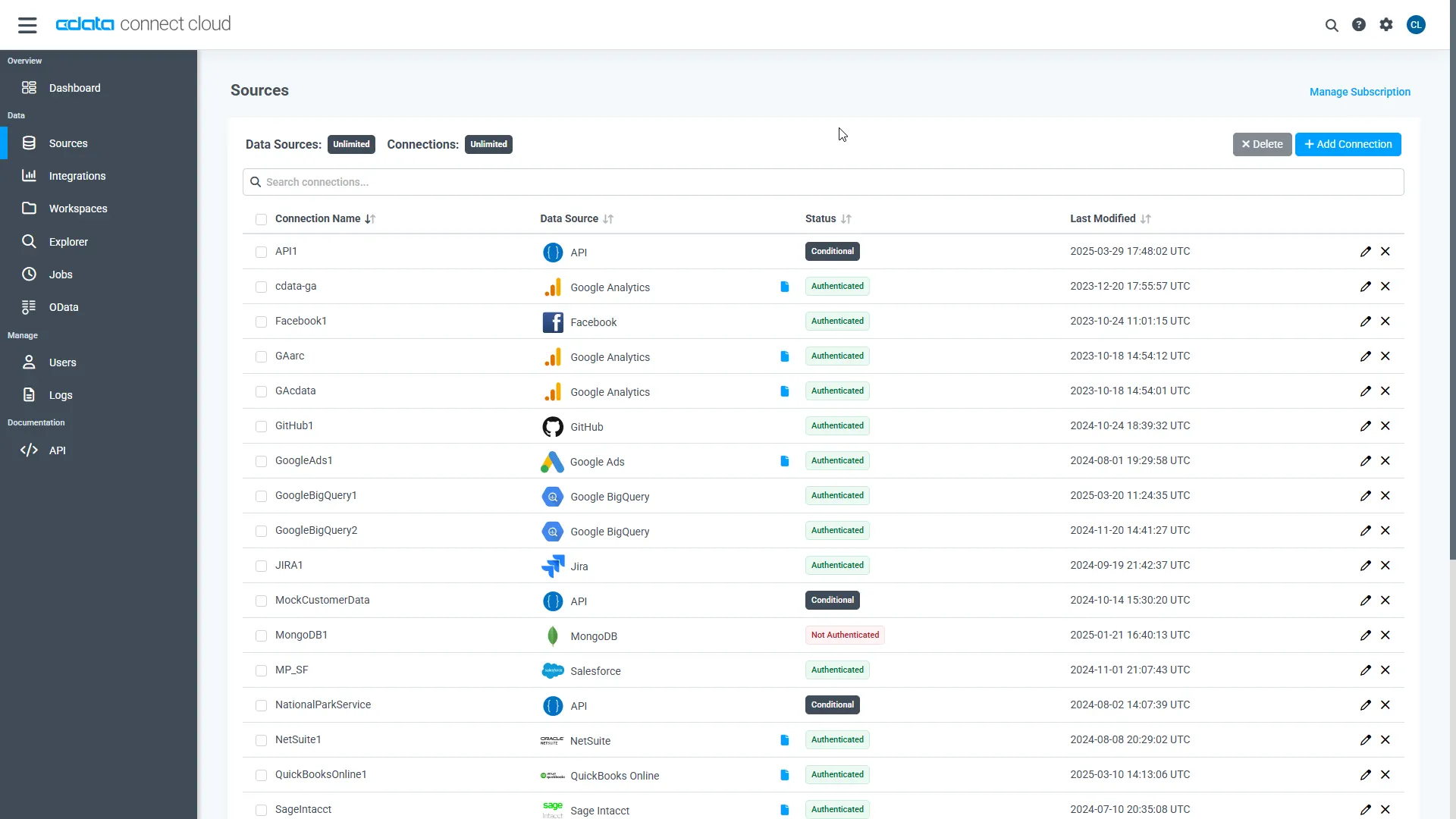
- Log-in to Connect Cloud and select Sources from the left sidebar.
-
Next, select an existing Connection (alternatively, create a new Connection, but User Credentials are not available until the connection has been saved and tested).
-
If a data source supports User Credentials, a Data Credentials label appears in the Authentication section of the connection settings.
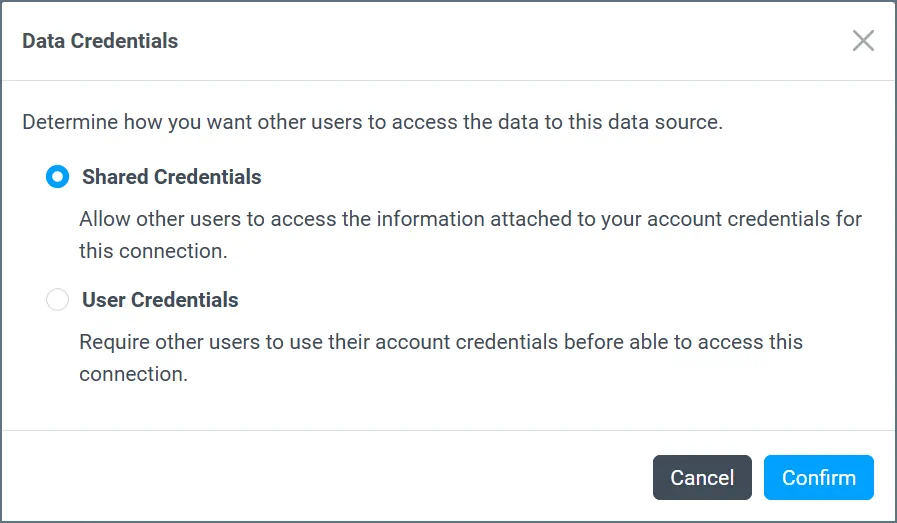
At this point, Query Users will need to enter their own credentials to connect to data, ensuring that each user access the same data through Connect Cloud that they would logging directly into the data source.
More Information & Free Trial
To learn more about CData Connect Cloud and get live data access to 200+ SaaS, Big Data, and NoSQL sources directly from your cloud applications, visit our CData Connect Cloud page or sign up for a free trial today!
