
Model Context Protocol (MCP) finally gives AI models a way to access the business data needed to make them really useful at work. CData MCP Servers have the depth and performance to make sure AI has access to all of the answers.
Try them now for free →


How to Easily Set Up OAuth Authentication in Salesforce
Salesforce is a cloud-based customer relationship management (CRM) platform that helps businesses manage sales, service, marketing, and more through a unified interface. It offers APIs and tools to integrate with external systems for seamless data exchange.
OAuth is an open standard authorization protocol that allows applications to securely access user data from other services without exposing passwords. It uses access tokens and different grant types to control what data an app can access. CData simplifies this process by handling token generation, refresh, and connections through user friendly drivers and connectors. This lets the user connect to platforms like Salesforce without writing complex code or managing OAuth manually.
Creating Salesforce API application
Salesforce uses OAuth 2.0 for secure API access, which requires setting up a connected application in advance. Follow the steps below:
- Sign in to your Salesforce account.
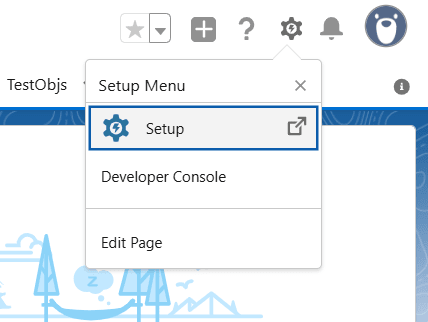
- On the Salesforce dashboard, click the gear icon and choose Setup from the menu.
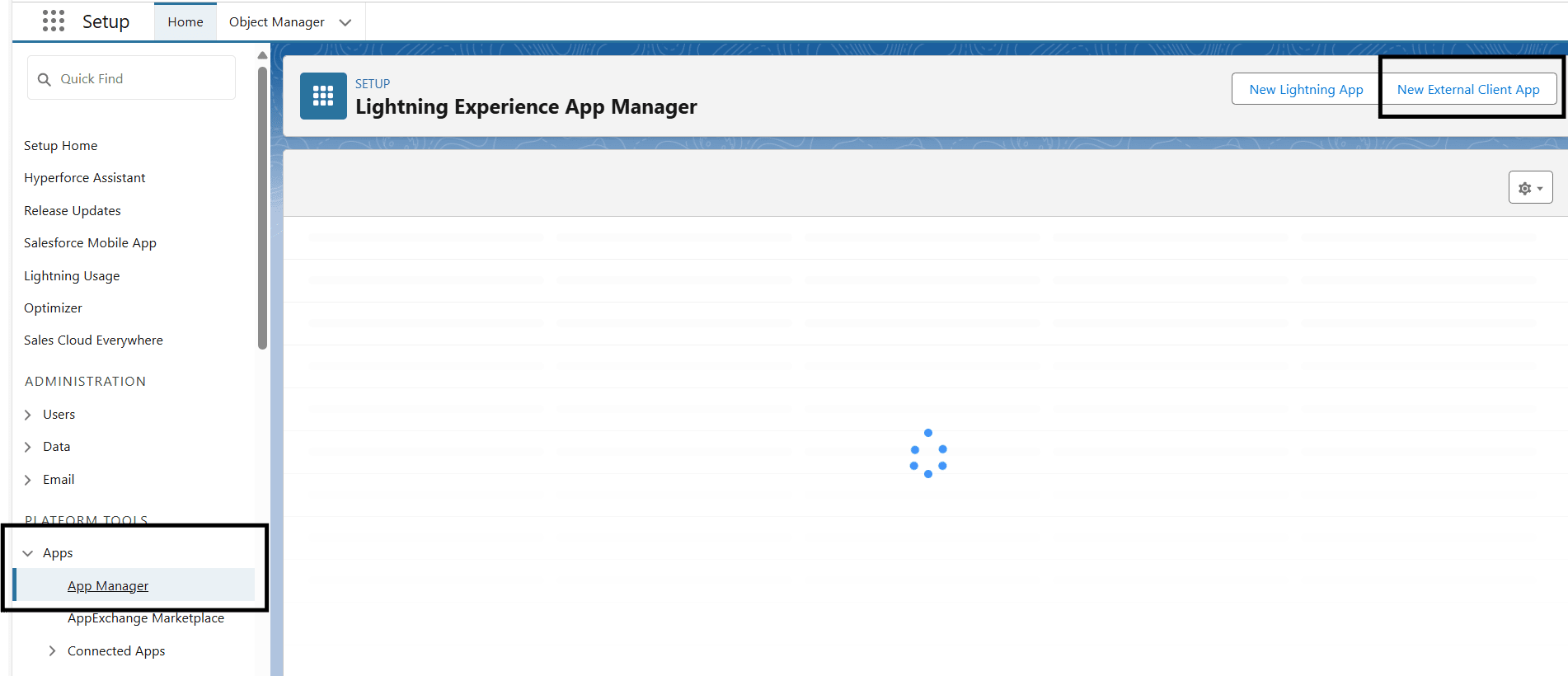
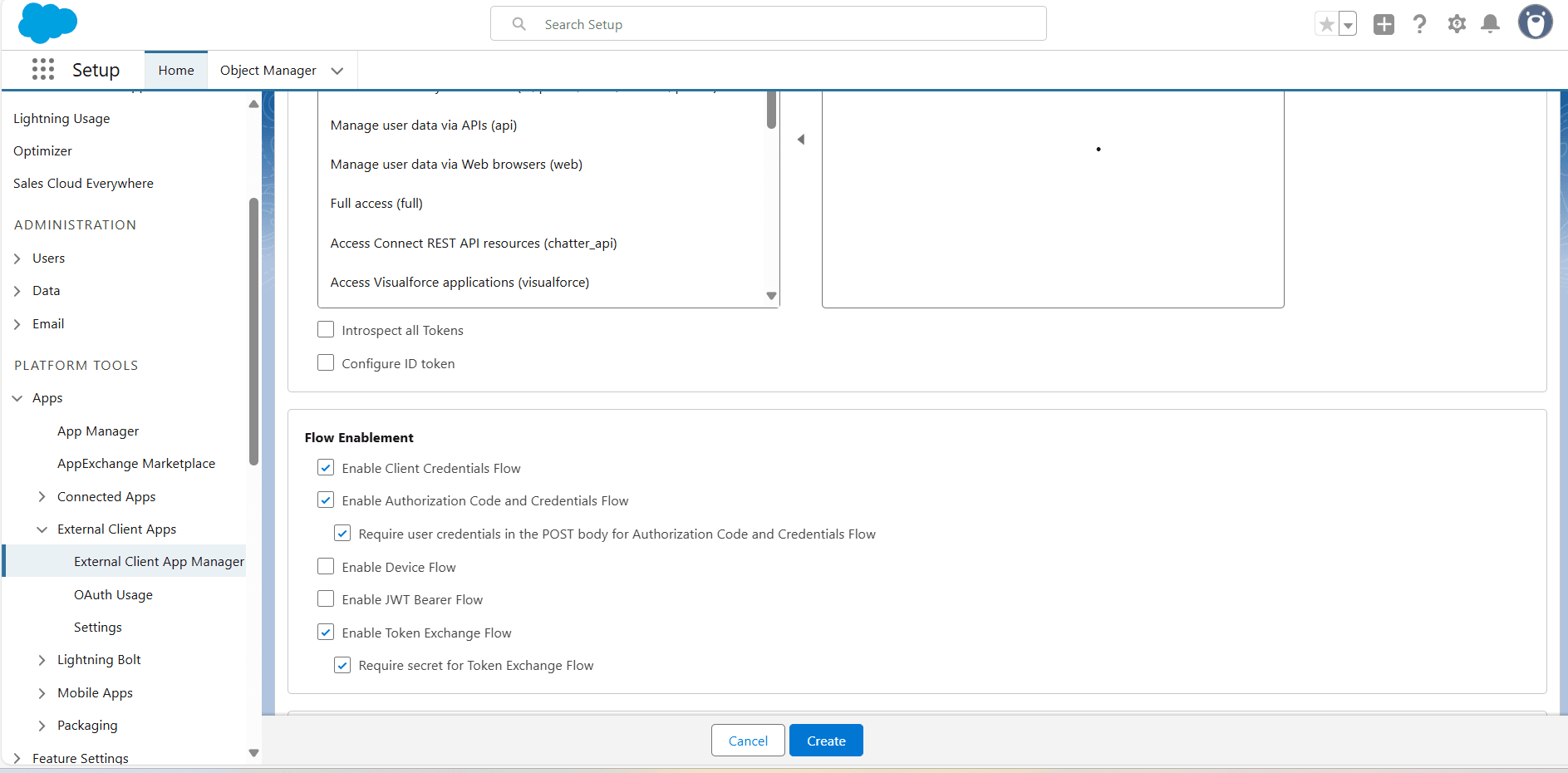
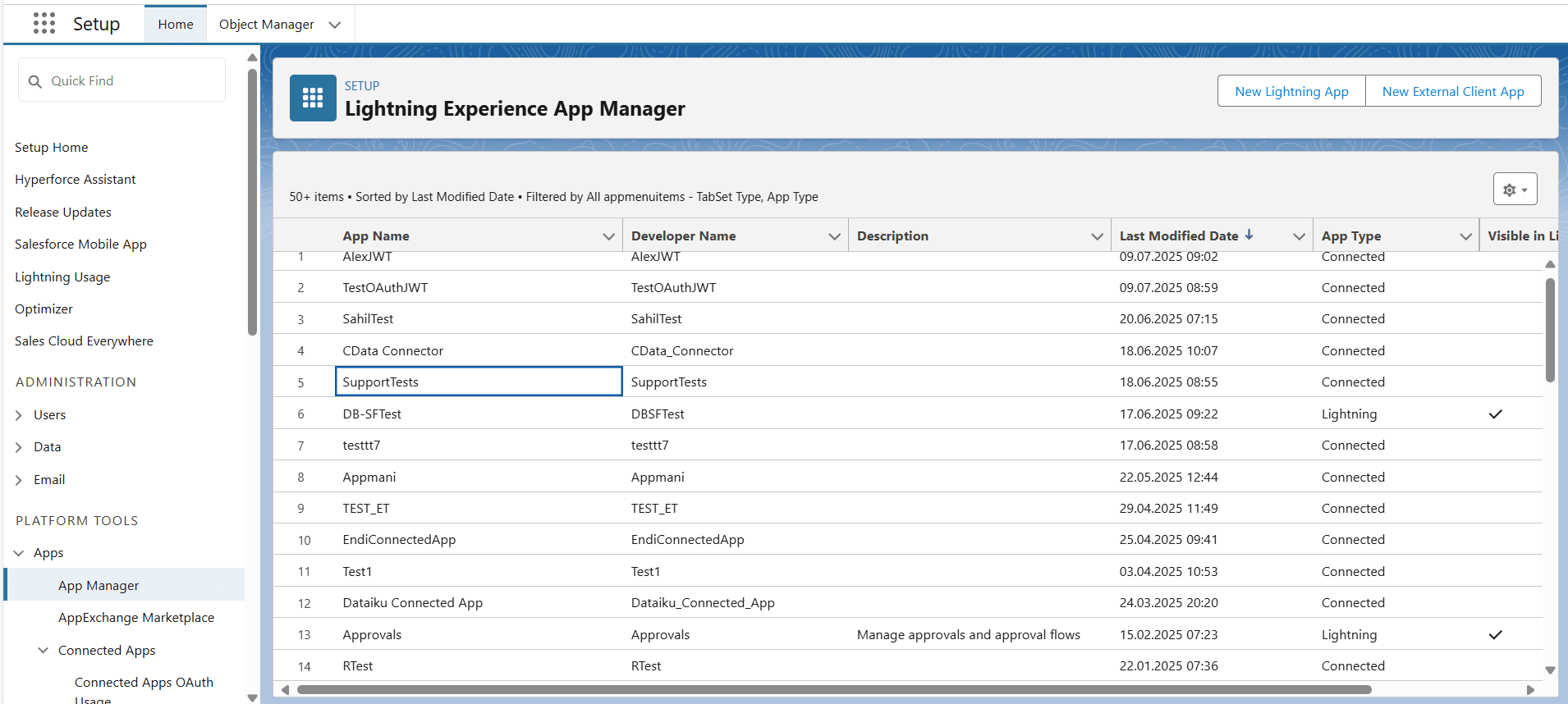
- In the left sidebar, go to Apps. then click App Manager. Now, click New External Client App to start creating a new application.
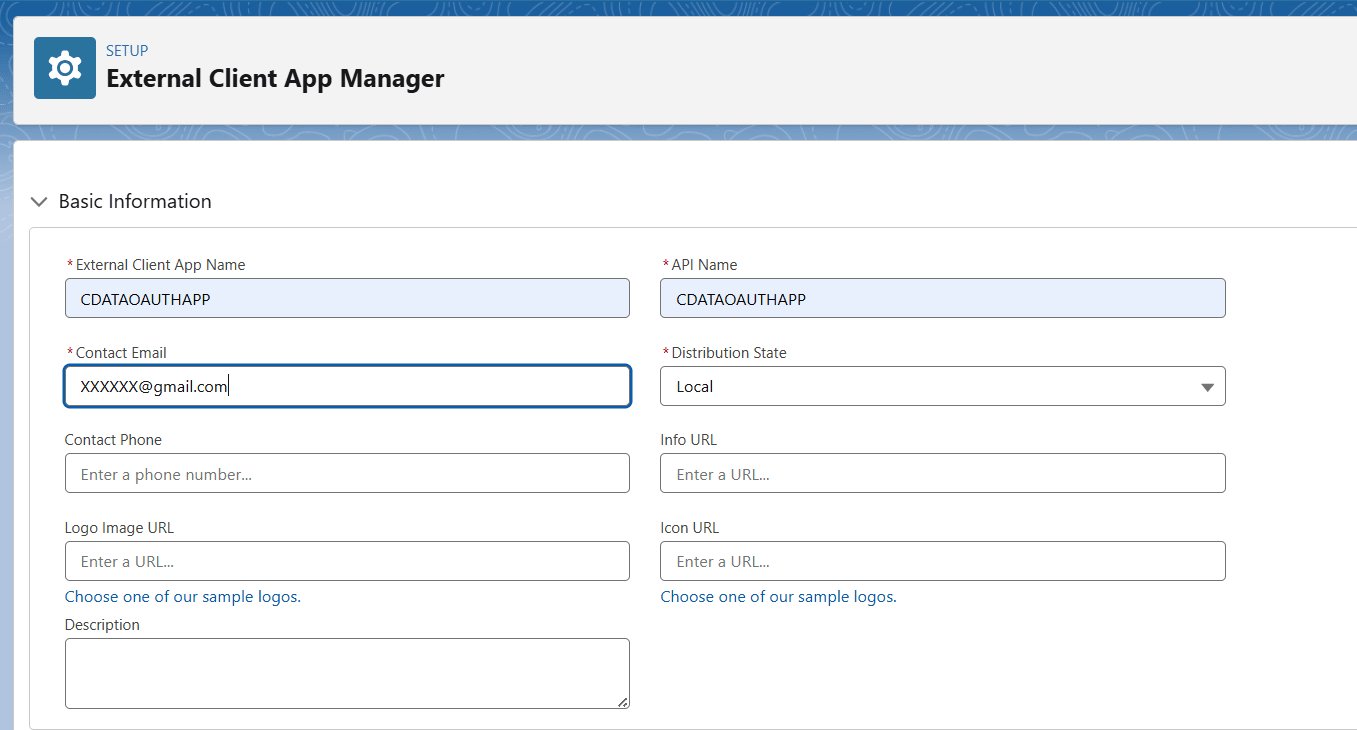
- Fill the given information for the application:
- External Client App Name : A name to identify the application.
- API Name: Automatically filled based on the application name, used internally.
- Contact Email: A valid email.
Configuring OAuth access in Salesforce
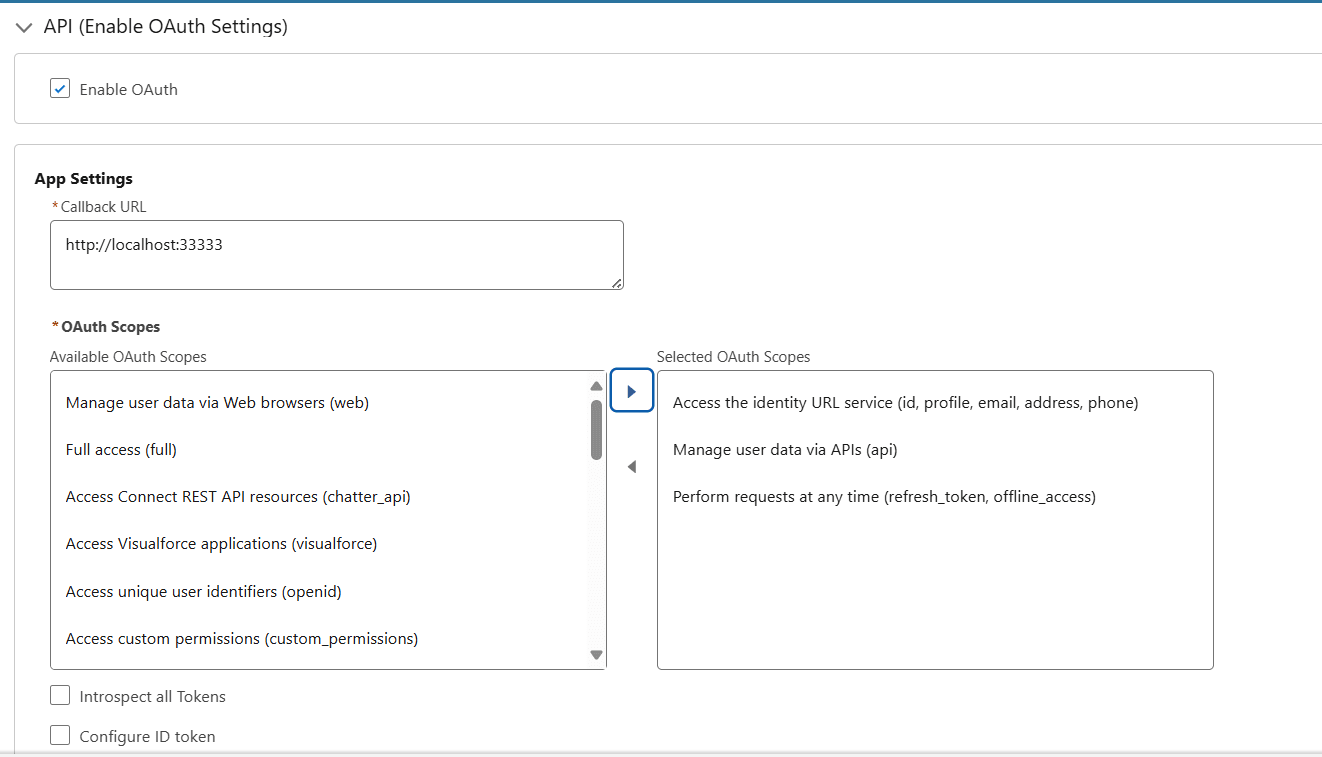
- Scroll down and click on API to enable OAuth Settings. Set the following app settings accordingly:
- Check the Enable OAuth option.
- Callback URL: For desktop apps, use an unused localhost port like https://localhost:33333 as the callback URL. For web apps, it must be a secure HTTPS link where Salesforce sends the response.
- OAuth Scopes: It defines what level of access the connected app has to the user’s Salesforce data and features. In OAuth scopes move these two (minimum) from left to right: Access and manage your data (api) and Perform requests on your behalf at any time (refresh_token, offline_access).
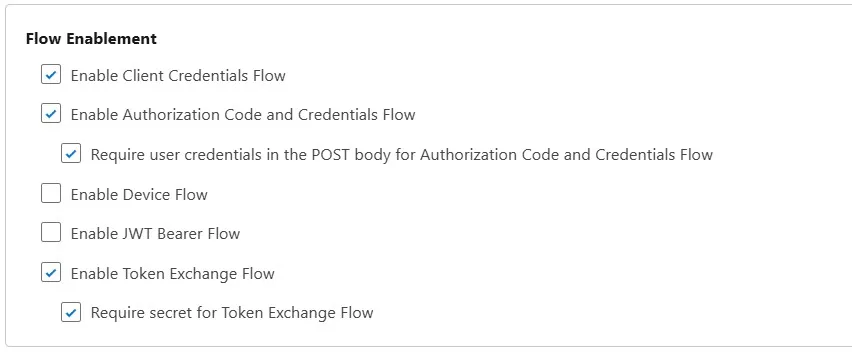
- Navigate to Flow Enablement , and enable the following options:
- Enable Client Credentials Flow.
- Enable Authorization Code and Credentials Flow.
- Enable the "Require user credentials in the POST body for Authorization Code and Credentials Flow".
- Enable Token Exchange Flow.
- Click Create to complete the process.
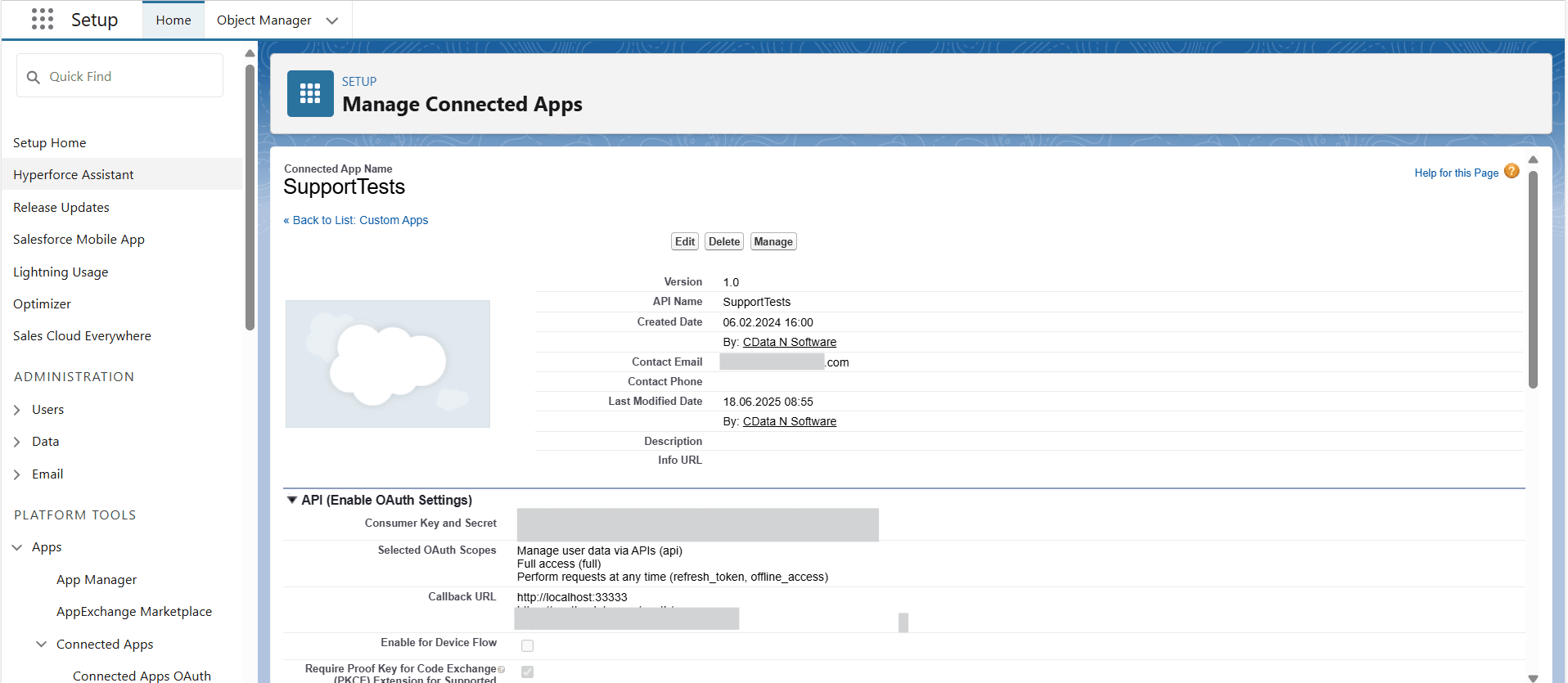
- The app gets created and appears in the App Manager list. Move to the right and click View from the dropdown menu.
- The page now shows the Client ID (Consumer Key), Client Secret (Consumer Secret), and Callback URL used by OAuth for the connection.
Provide the Client ID, Client Secret, and Callback URL in the CData JDBC driver setup or Postman. When prompted, sign in to Salesforce and authorize the app. The tool then obtains the access token and establishes a secure connection to Salesforce.
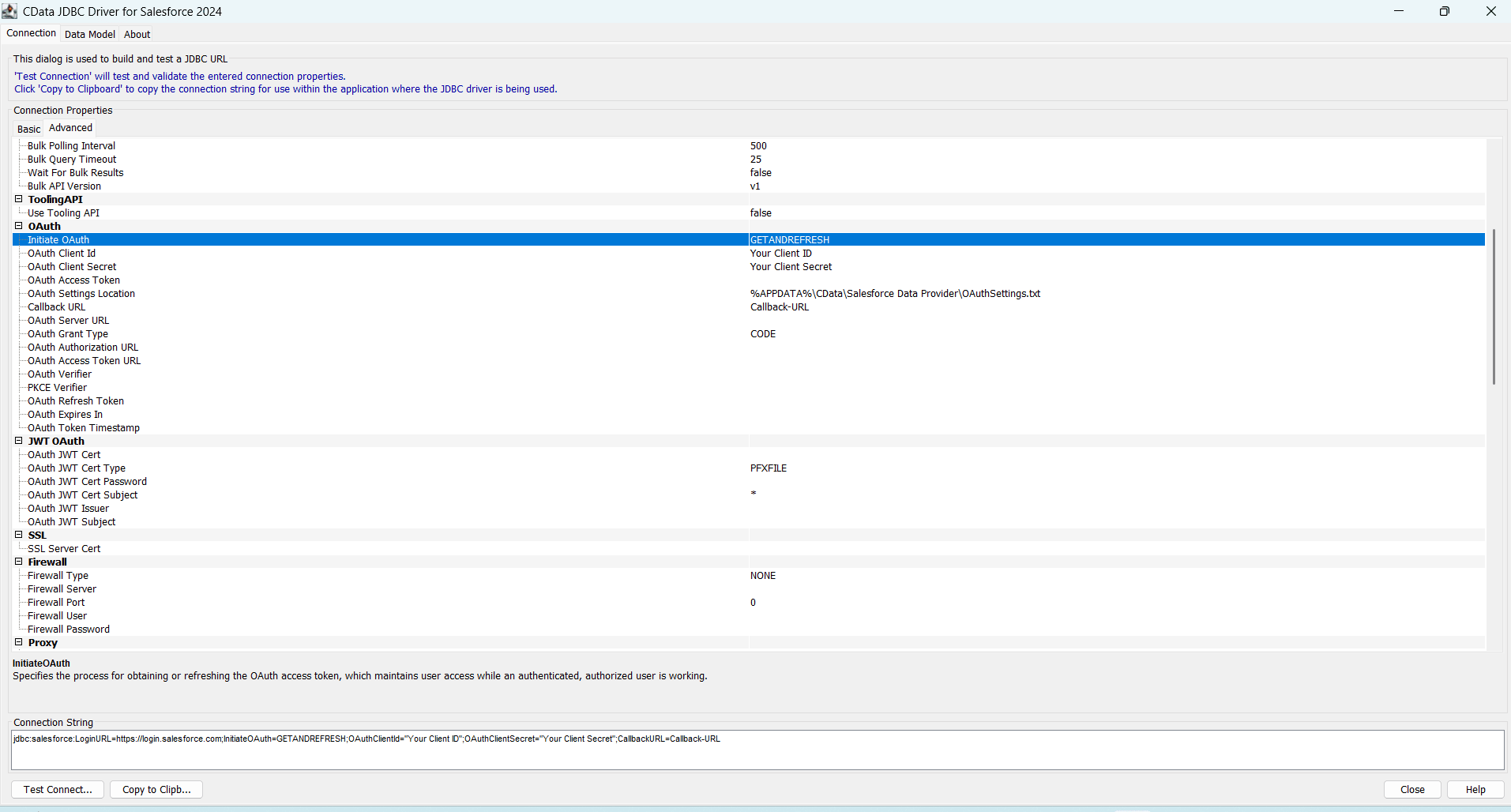
Configure OAuth in Salesforce to enable secure access using the Client ID and Secret. With CData drivers & connectors, you can easily connect BI tools, analytics platforms, and ETL workflows using OAuth 2.0.
Get Started Today
Start a free 30-day trial by choosing from any of the 270+ CData drivers and connectors, and also check out our step-by-step guide on Getting Started with OAuth in CData Solutions to know more about the implementation process.
Our dedicated Support Team is always here to help you with any questions or issues you may encounter.
