
Model Context Protocol (MCP) finally gives AI models a way to access the business data needed to make them really useful at work. CData MCP Servers have the depth and performance to make sure AI has access to all of the answers.
Try them now for free →


HCL Domino REST API Part 2: Schema and Scope Setting
In this article, we continue our deep dive into the HCL Domino REST API, focusing on configuring schema and scope settings to enhance data access and integration.
In the previous article, we set up the Domino Server and REST API environment. Now, we will configure access parameters for the HCL Notes application, ensuring structured data retrieval and secure API interactions.
REST API Design
Before we dive into configuration, it's essential to understand how the HCL Domino REST API exposes HCL Notes applications (.nsf files) as APIs.
The API allows developers to interact with Forms, Views, and Agents within HCL Notes applications, turning them into accessible API endpoints.
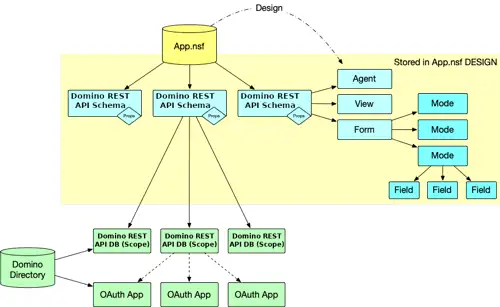
The following diagram illustrates how databases, schemas, and scopes interact within the Domino REST API:
Read more on the official HCL Domino documentation: Understanding Domino REST API
Domino's NoSQL-like architecture uses schemas to expose Forms, Views, and Agents as API data models. These schemas determine which elements are accessible via the API, enabling developers to work with structured data models derived from the HCL Notes application.
Forms act as the foundation for data models, with each form specifying readable and writable fields. Views provide a way to query and display collections of documents, and Agents can be exposed for execution through the API.
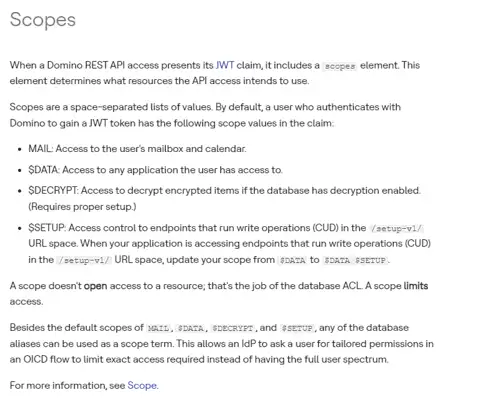
Schemas are exposed through "scopes," which are tied to OAuth applications. During authentication and authorization, the requested scope determines which schemas the API can access.
The Domino REST API also includes base scopes such as MAIL, $DATA, and $DECRYPT, which manage mail and data access permissions.
More details on scopes can be found here.
Target Application
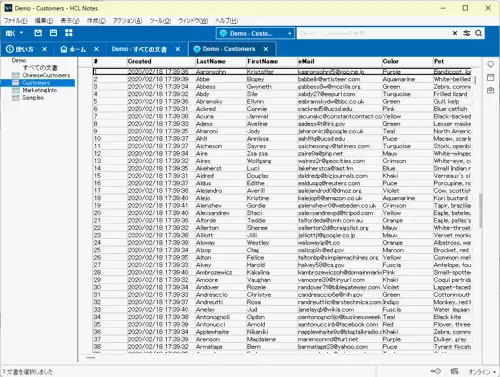
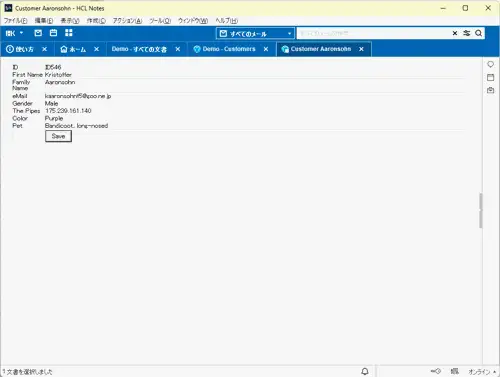
For this guide, we'll expose the Demo.nsf application, which manages customer information. This application includes forms like "Customer" and views such as "Customers" to organize and display data.
Setting Up HCL Notes Applications for REST API
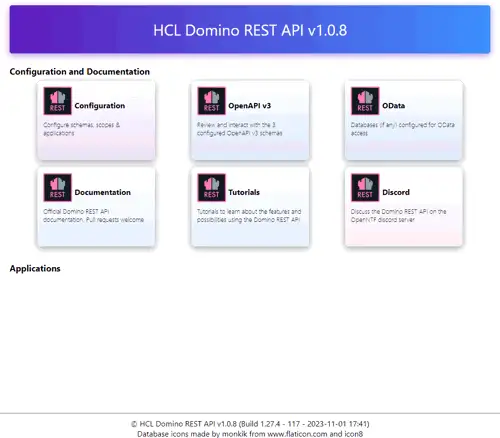
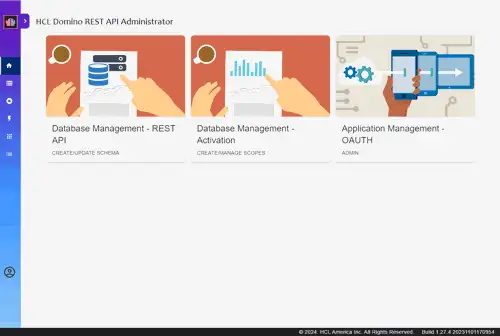
Configuring the API environment alone isn't enough to access HCL Notes applications directly. You need to set up schemas and scopes through the Domino REST API management interface, typically accessible via port 8880.
- Open the management screen and click on Configuration.
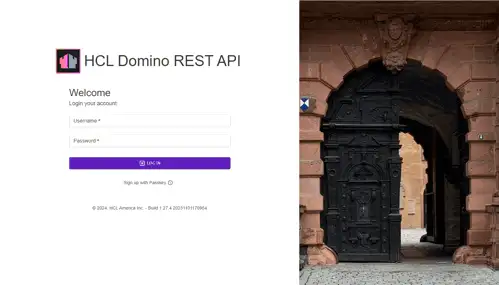
- Log in using your Domino Server credentials.
- Use the interface to configure schemas, scopes, and OAuth applications.
Adding a Schema
To expose HCL Notes application elements via the API, you'll first need to create a schema:
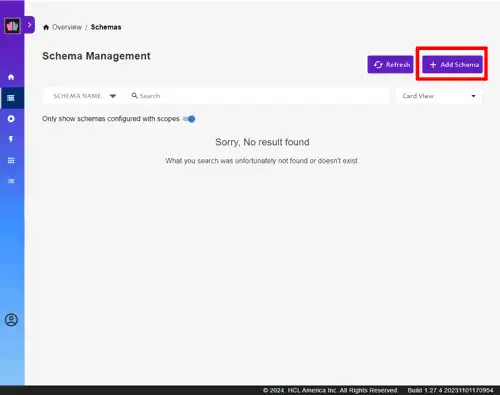
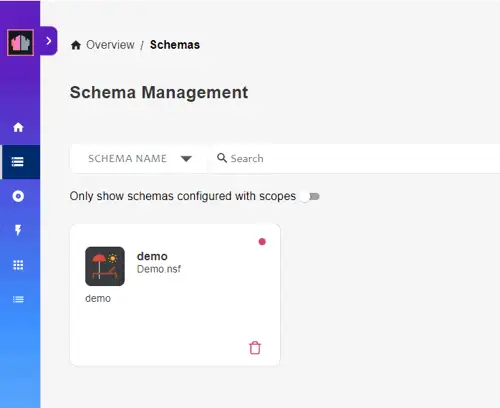
- Navigate to Schema Management and click +Add Schema.
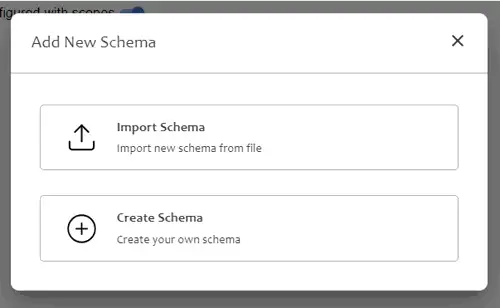
- You can choose to create a new schema or import an existing one. This time, we will create a new one, so go ahead and select Create Schema.
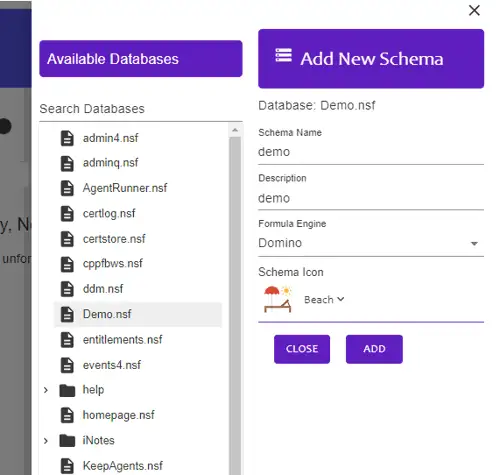
- A list of .nsf files on the connected Domino Server will be displayed. Select the application to be exposed, enter the Schema Name and Description, then click Add.
- This creates the foundation of the schema. By default, only schemas with scopes are displayed, so to view all schemas, uncheck Only show schemas configured with scope.
Adding Form and View Elements to the Schema
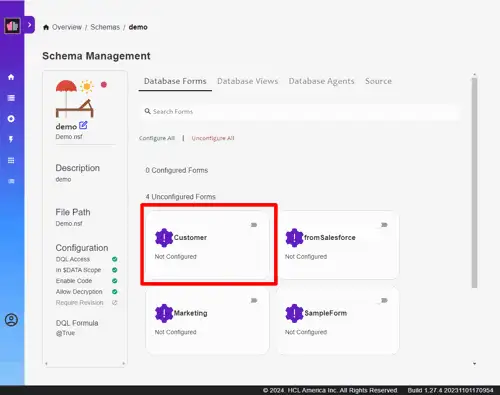
Next, we will add the settings for which Forms, Views, and Agents in this application will be exposed as APIs.
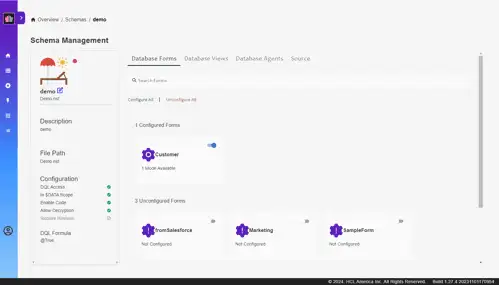
- Add the Customer Form:
- First, select the Customer form.
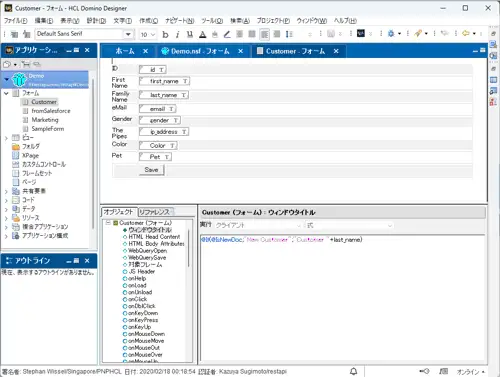
- In Domino Designer, the form appears like this:
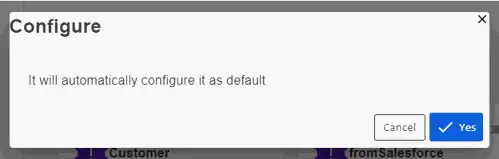
- You will be prompted to set it as the default. Confirm and set it as default.
- Configure Fields in the Customer Form:
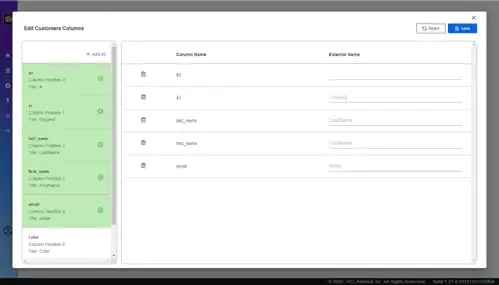
- Next, we'll open the target form and add the definition of which fields in this form will be exposed as APIs.
- Open the Customer form.
- Click the "+" button from the list of items on the left to add fields.
- Define which fields in this form will be exposed as APIs.
- Set properties such as Field Type and Read/Write permissions.
This completes the exposure of the Form element.
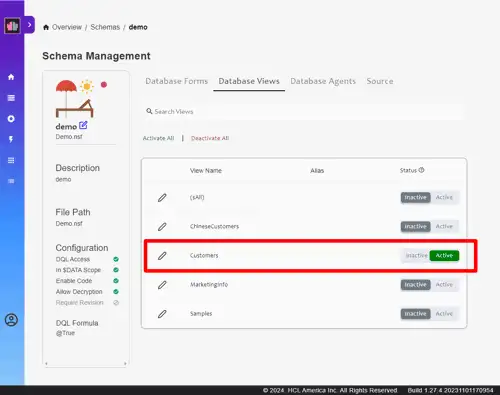
- Add the Customers View:
- Navigate to the Database Views tab.
- Activate the Customers view.
- Views can be used as they are, but you can also specify an alias for API exposure.
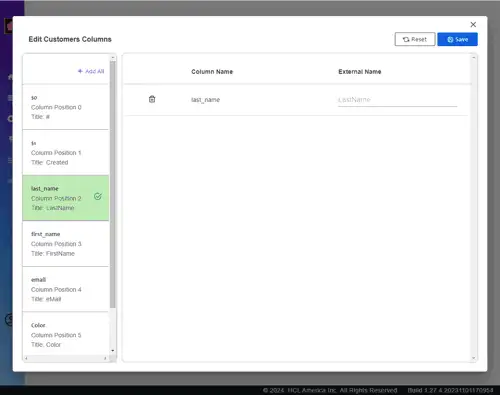
-
Although not covered in detail in this guide, Agents can also be exposed to be executed through the API:
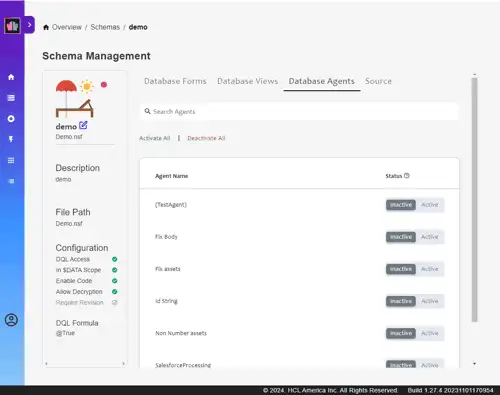
Adding a Scope
Once the schema is configured, add a Scope to make it accessible as an API:
- Go to Scope Management and click +Add Scope.
- Select the Demo schema, enter a Scope Name and Description, and add it.
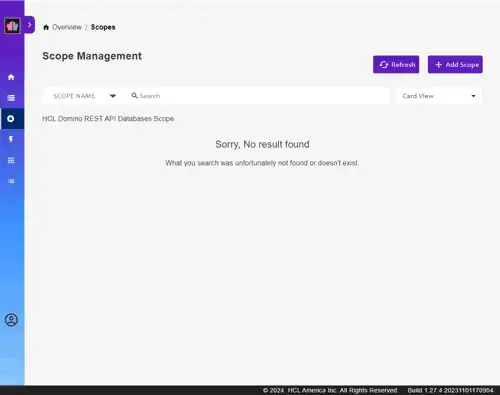
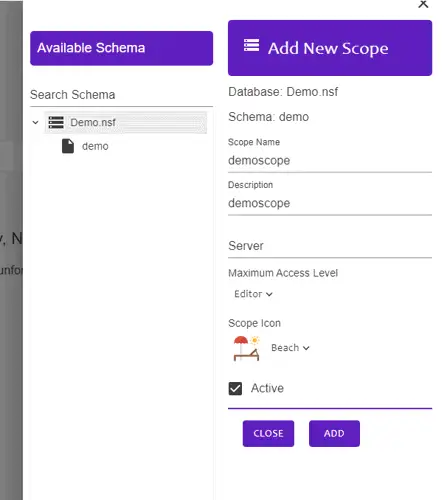
This completes the setup for making API requests.
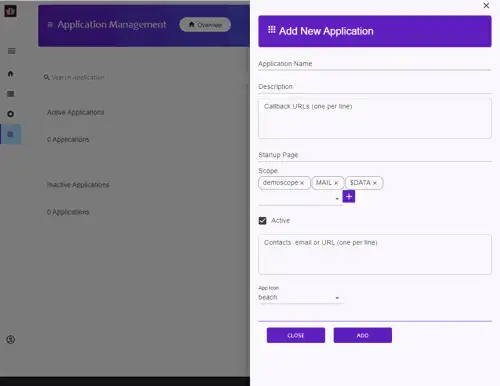
For basic internal use, this should be sufficient. However, if you plan to integrate with external services, you can register an application that bundles multiple scopes as an OAuth application and implement the authentication and authorization process.
Conclusion
You've now successfully set up schemas and scopes to expose an HCL Notes application via the HCL Domino REST API. This configuration allows secure and structured access to Forms, Views, and Agents within your HCL Notes applications, enabling seamless integration with external systems.
In the next part of this series, we'll use Postman to execute API calls and interact with the configured endpoints, demonstrating how to retrieve and manipulate data through the REST API: HCL Domino REST API Part 3: Use the REST API from Postman.
