Model Context Protocol (MCP) finally gives AI models a way to access the business data needed to make them really useful at work. CData MCP Servers have the depth and performance to make sure AI has access to all of the answers.
Try them now for free →


Quick Setup Guide for CData HubSpot Drivers
Introduction: Overview
- Overview: The CData Drivers and Connectors for HubSpot are a powerful suite of tools that allow you to connect with live HubSpot data, directly from BI, ETL, and custom applications. Access HubSpot like you would a database - read, write, and update Contacts, Deals, Emails, Companies, and more through a standard SQL interface.
- Objects and Schema: The drivers connect to HubSpot CRM and Marketing Hub via HubSpot REST APIs and provide access to contacts, companies, deals, tickets, and marketing data. The tools model HubSpot objects as relational tables and include dynamic property discovery, automatically detecting standard and custom properties for all object types.
- Operations: The tools support full create, read, update, and delete (CRUD) operations with SQL-92 support. Complex queries with associations between objects. Supports HubSpot's search API for efficient filtering.
- Typical use-cases:
- Microsoft Power BI: How to Create Power BI Visual Reports with Real-Time HubSpot Data
- Tableau: Visualize Live HubSpot Data in Tableau
- Google Looker Studio: Create Reports from HubSpot Data in Looker Studio
- Microsoft Excel: Access Live HubSpot data from Microsoft Excel
- Google Sheets: Access Live HubSpot Data in Google Sheets through Connect Spreadsheets
- Microsoft Access: How to Use a Microsoft Access Database to Update HubSpot Data in Real Time
- Informatica Power Center: Create Informatica Mappings From/To a JDBC Data Source for HubSpot
- DBeaver: How to Connect DBeaver to HubSpot via a JDBC Driver
- Visual Studio: DataBind Charts to HubSpot Data
- Authentication: The driver supports OAuth 2.0 authentication. CData provides embedded OAuth and users will not have to create their own OAuth applications or copy the credential information.
-
Editions:
CData Driver set up guide: Power BI Connector
Step 1: Installation
Analyzing HubSpot data in Power BI is a very popular use-case of CData Drivers for Hubspot. Here is the step-by-step guide on how to use CData Driver for HubSpot taking Power BI as an example. You can connect to HubSpot data directly from Power BI Desktop without any ETL tool or database in the middle, or any coding effort.
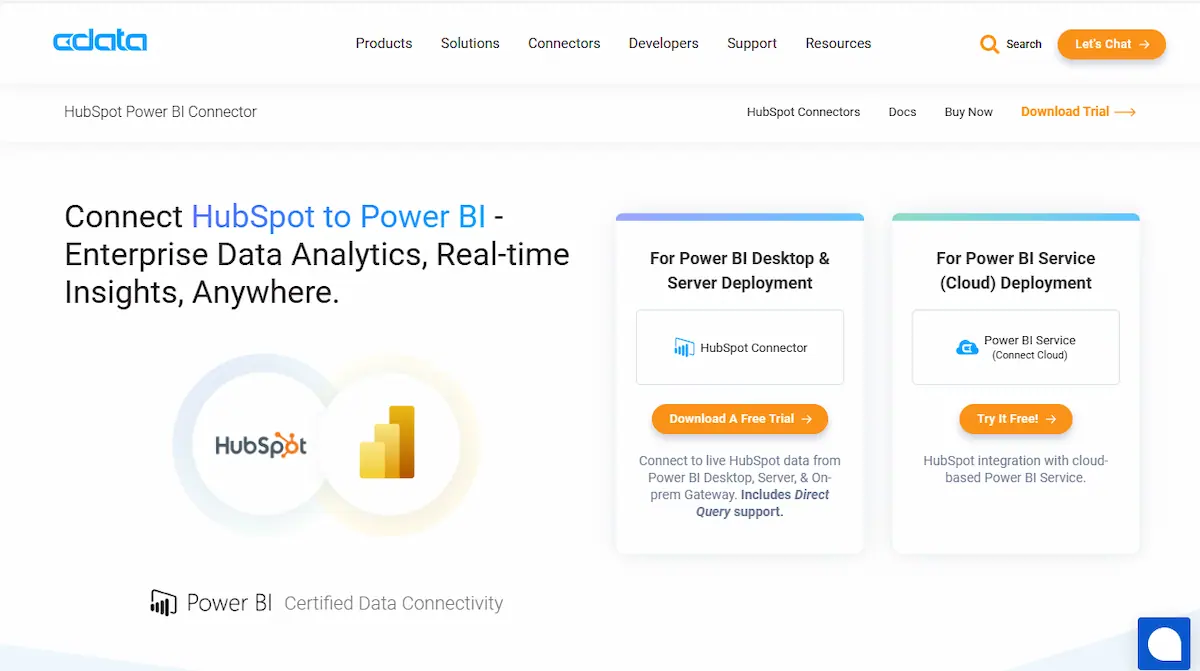
- Navigate to the CData website for CData Power BI Connector for HubSpot.
- Click “Download A Free Trial” button.
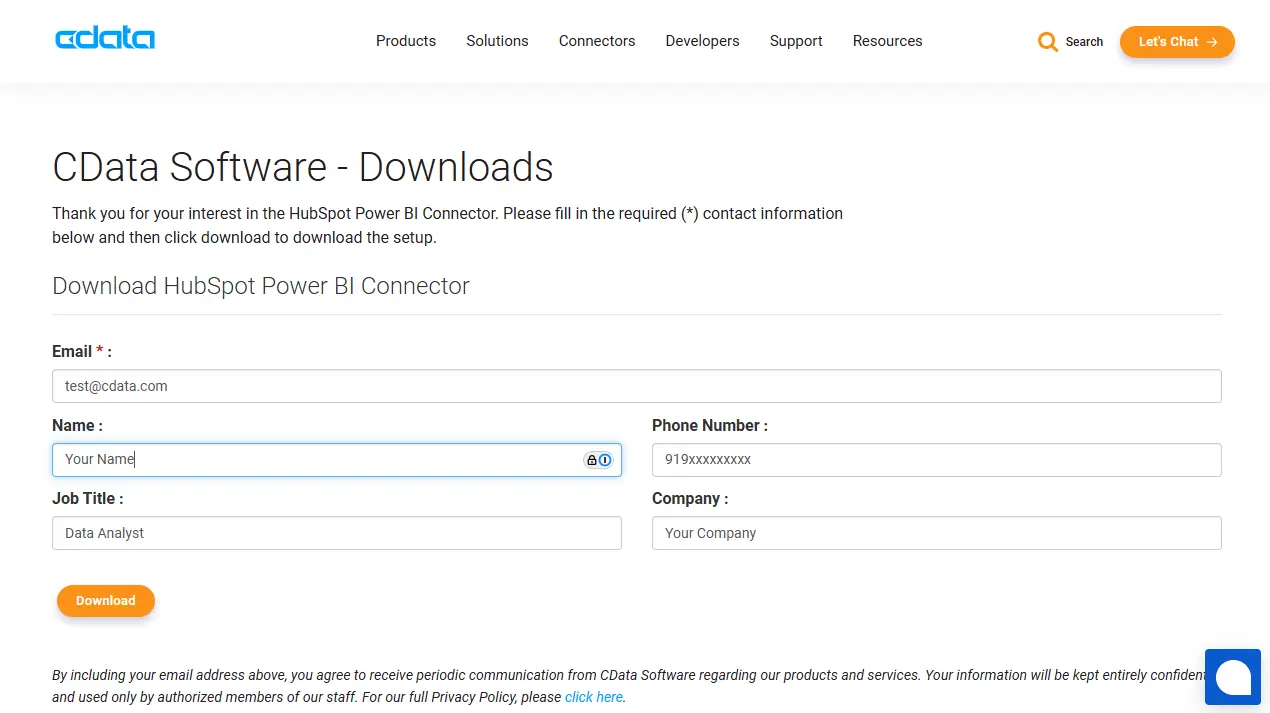
- Fill the Trial Request form and click the “Download” button.
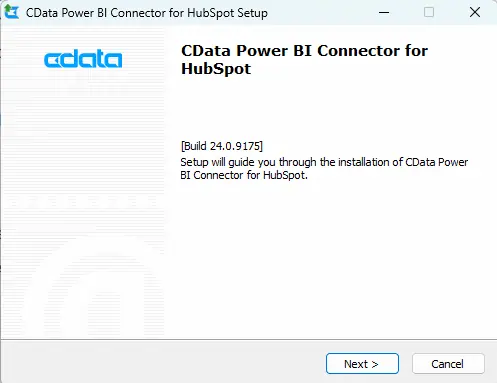
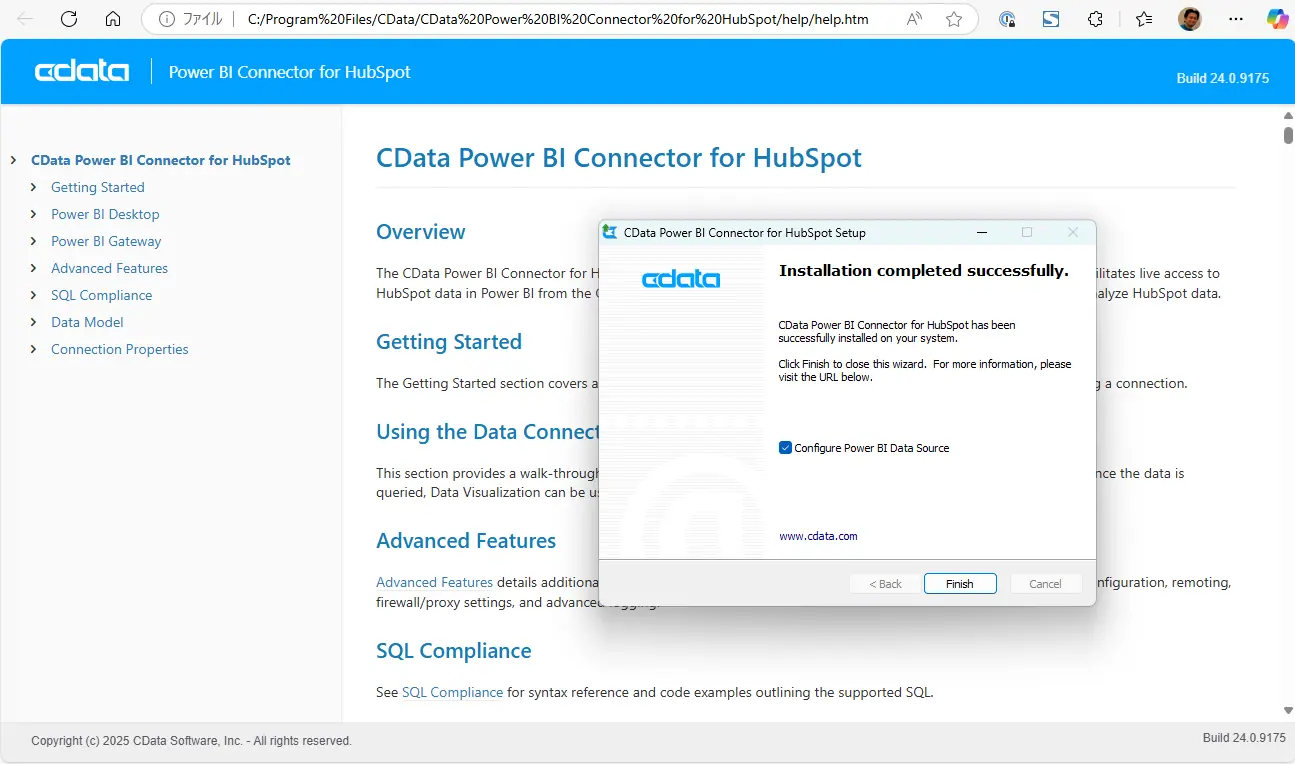
- “HubSpotPowerBIConnector.exe” will be downloaded. Run the installer, read and agree on the EULA, and navigate to complete the installation.
- Once the installation is complete, Check the “Configure Power BI Data Source” (checked by default), and click “Finish” button.
Step 2: DSN Configuration, Connecting to HubSpot
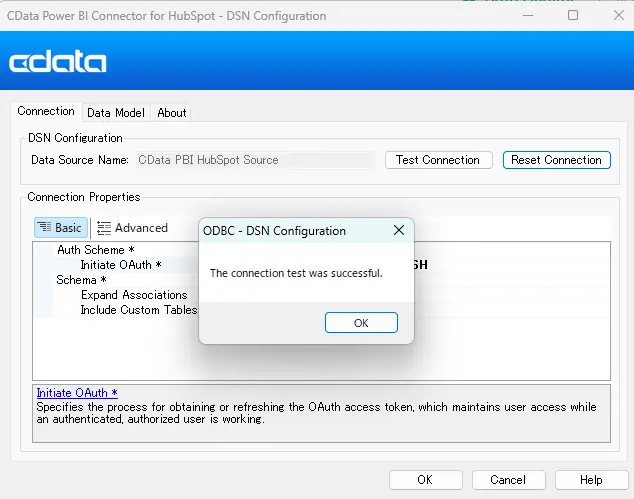
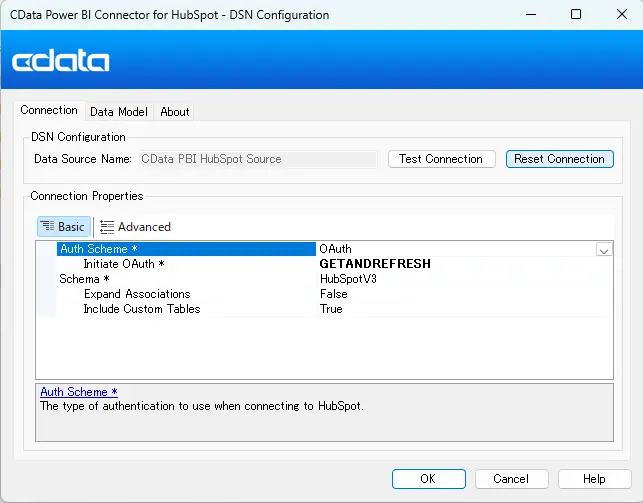
- After the installation finished, the DSN (Data Source Name) Configuration window will open. Here are the basic settings required to connect to HubSpot from CData Power BI Connector for HubSpot. For customization, please look at the Help documentation.
- Auth Scheme: OAuth
- Initiate OAuth: GETANDREFRESH
- Schema: HubSpotV3
- Expand Associations: False
- Include Custom Tables: True
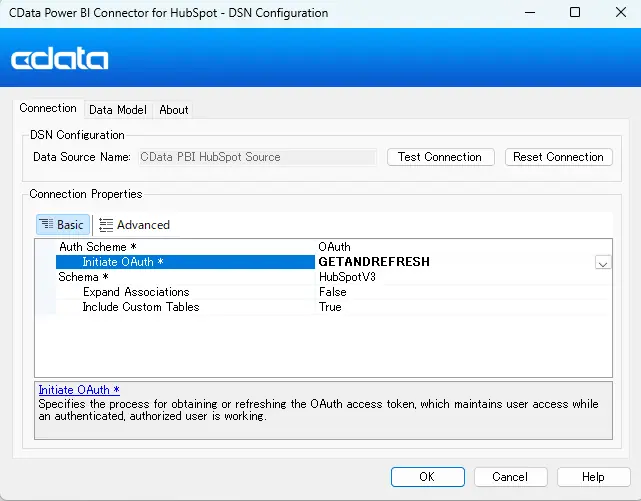
- Click “Test Connection”. The browser will open for you to authorize the access to your HubSpot account.
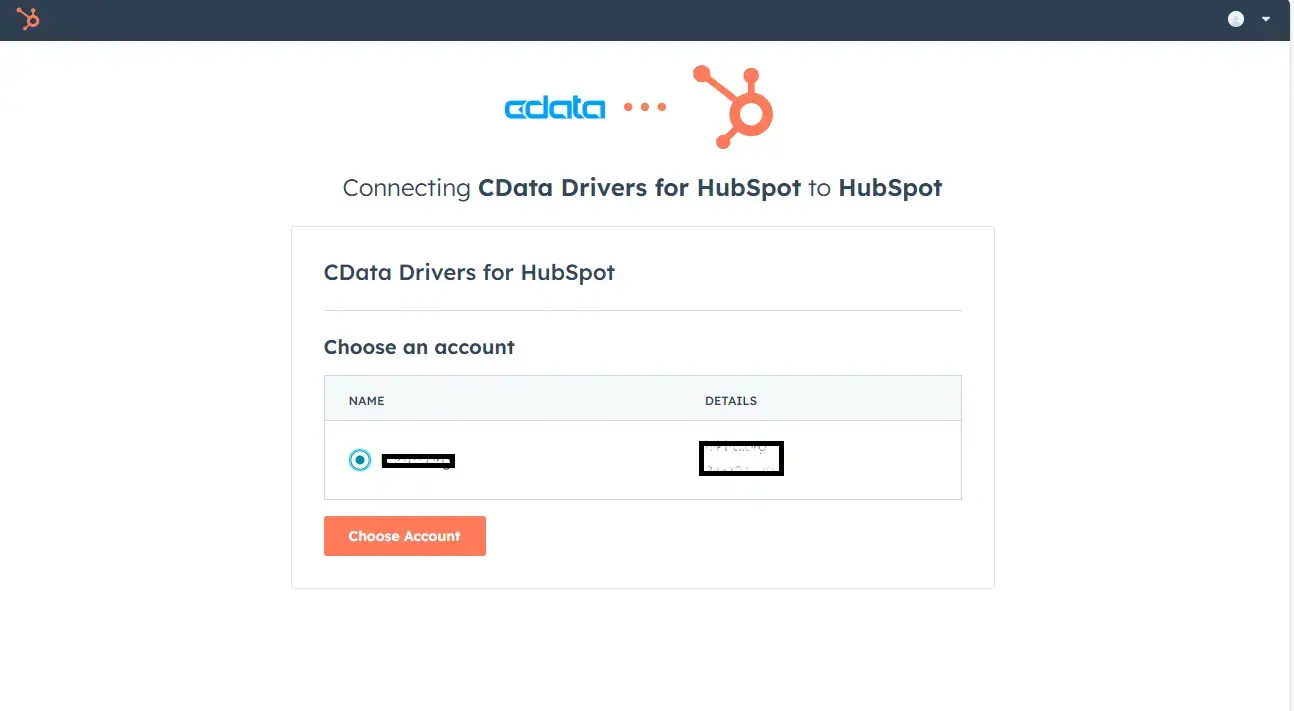
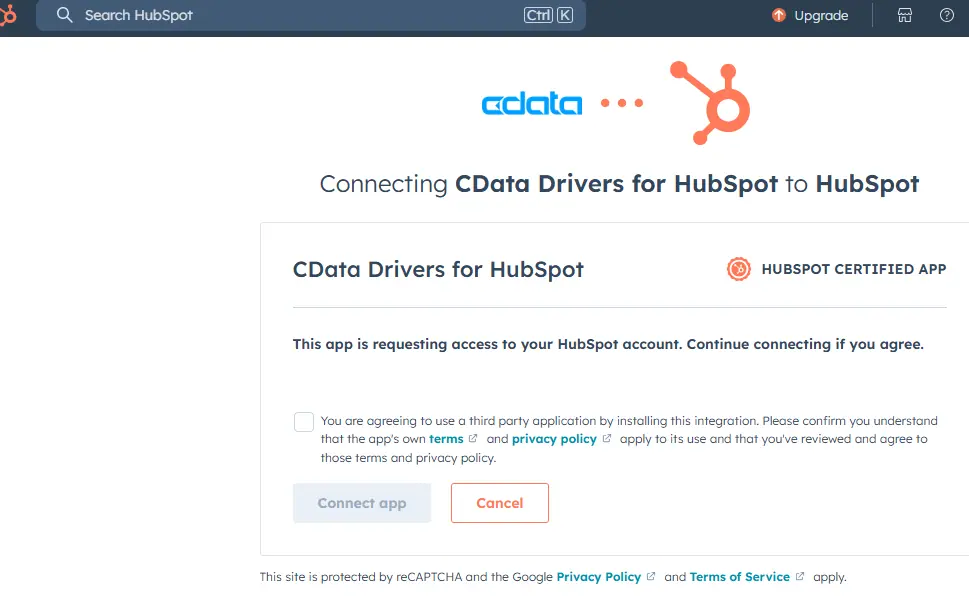
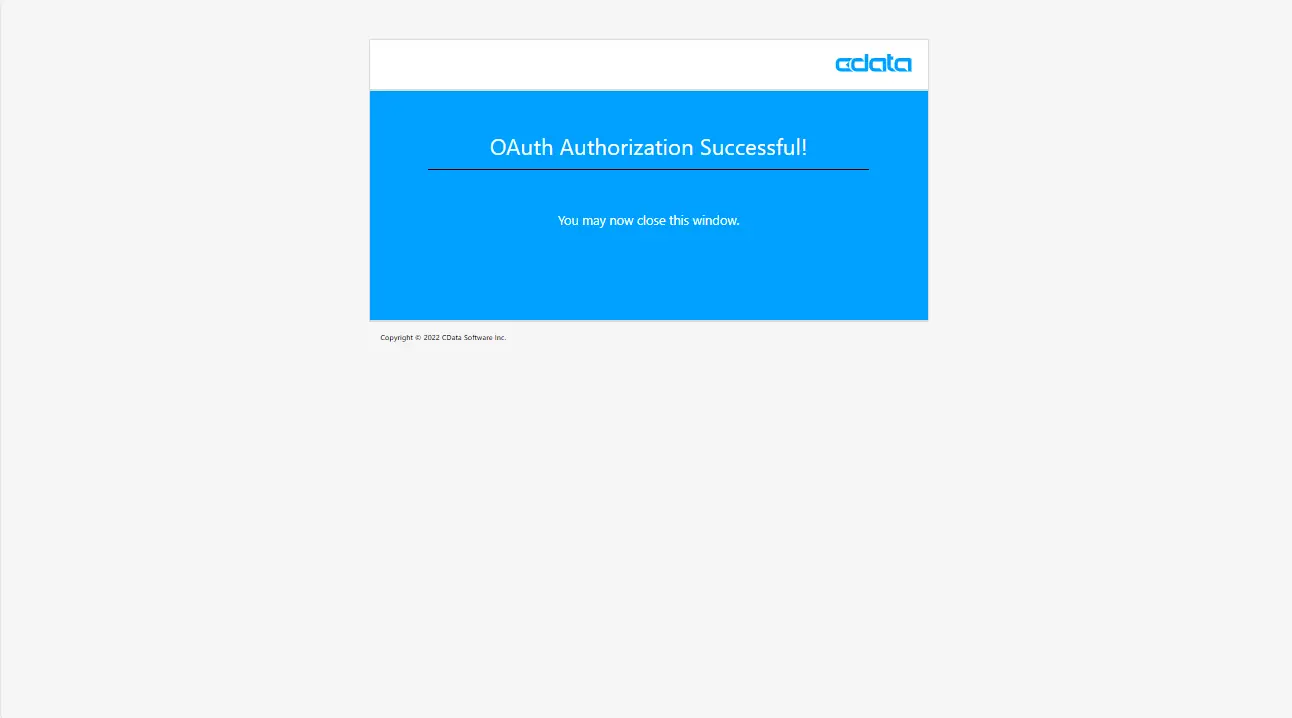
- Authorization Success status is shown.
- You can go back to the DSN Configuration Window. Success message is shown and close it by clicking “OK”.
- Close the DSN Configuration Window by clicking “OK”.
Connecting to HubSpot from Power BI
- Now, open Power BI Desktop. “Get data” → “More”.
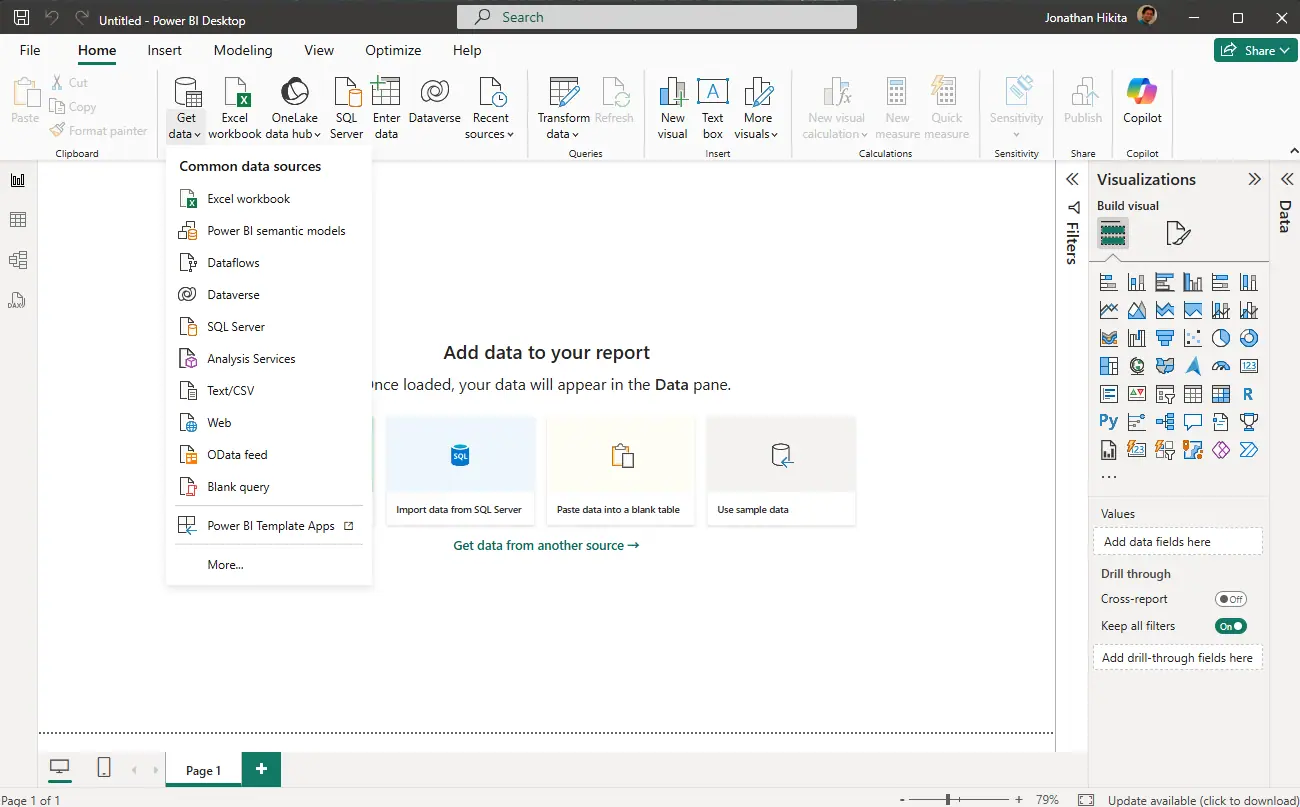
- Select “CData HubSpot (Custom) from Others and click “Connect” button.
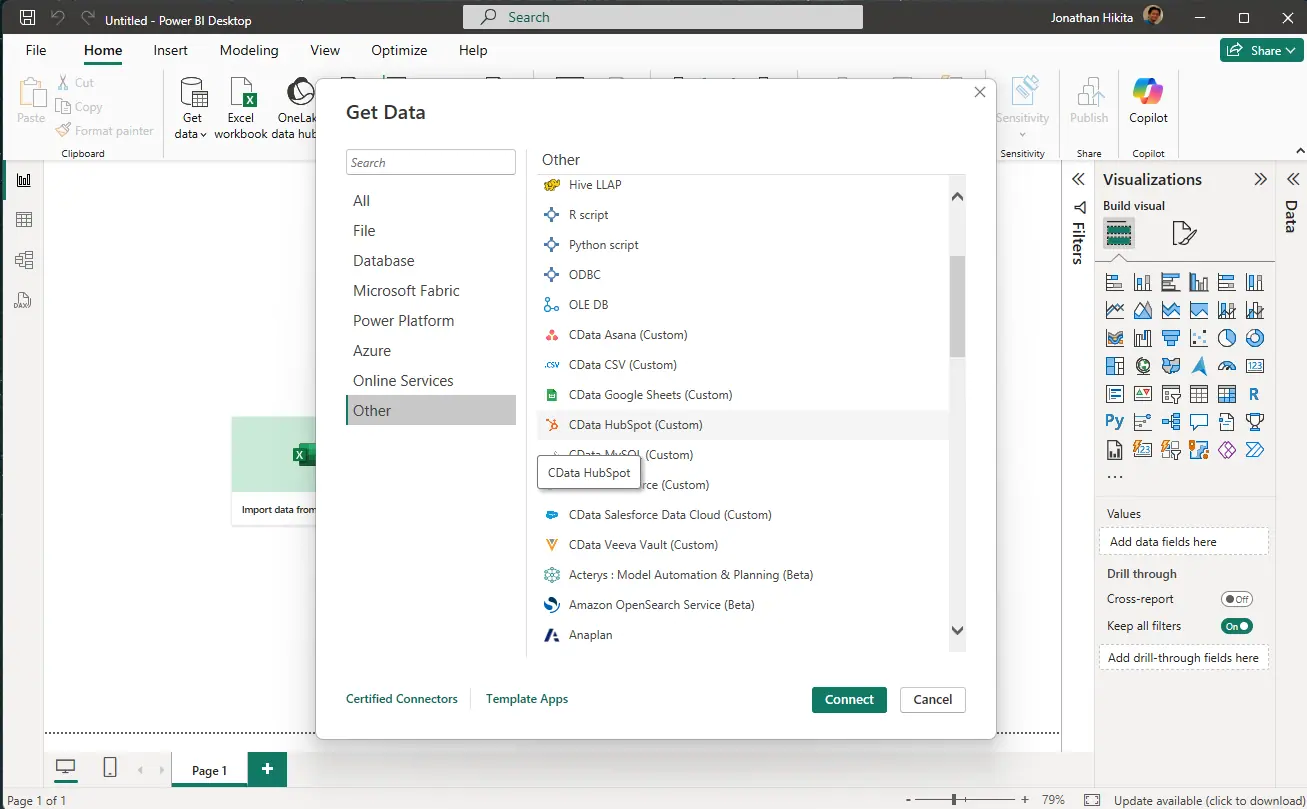
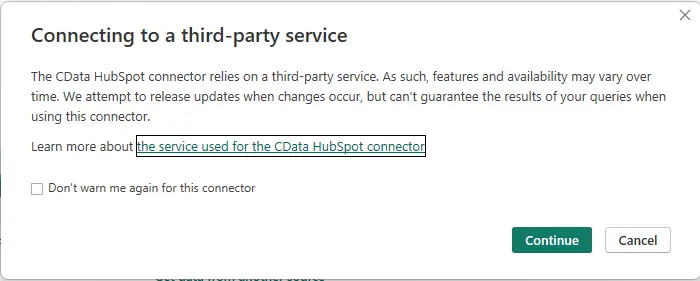
- Confirmation for connecting to a third-party service may show up, click “Continue” to proceed.
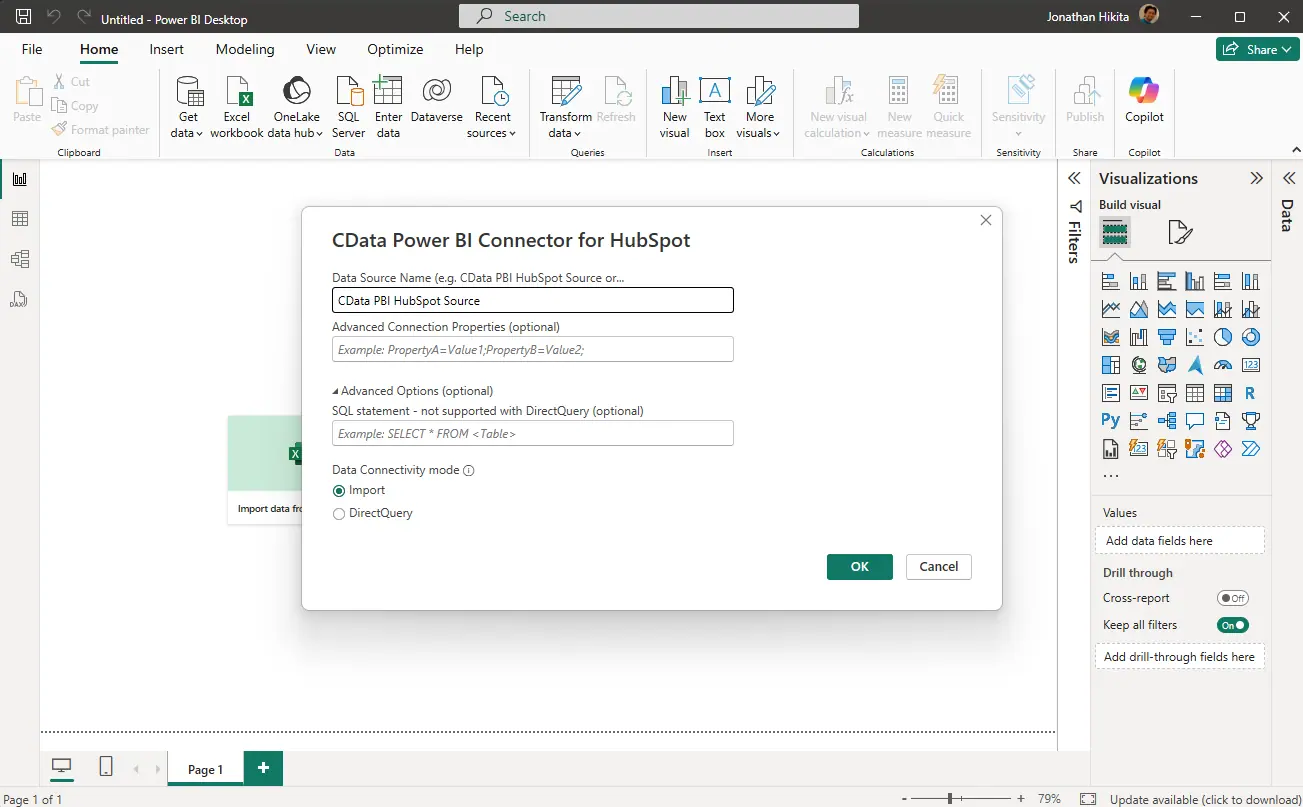
- Set the data source information
- Data Source Name: CData PBI HubSpot Source (or the name you set when configuring DSN)
- Advance Connection Properties: optional
- SQL statement: optional. You can use custom SQL with clauses like JOIN, WHERE, GROUP BY, ORDER BY etc. See the Documentation for more details.
- Data Connectivity mode: choose from Import / DirectQuery. Import mode (default) imports the data to Power BI Desktop, while DirectQuery mode executes live queries to HubSpot for each refresh.
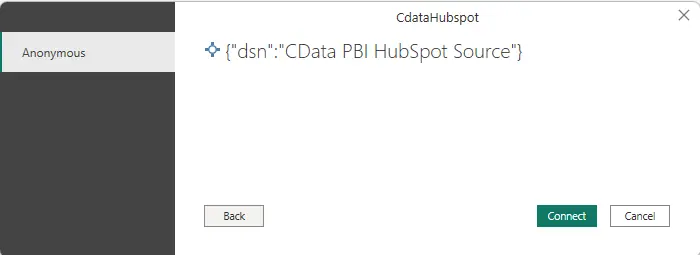
- Click “Connect” to proceed.
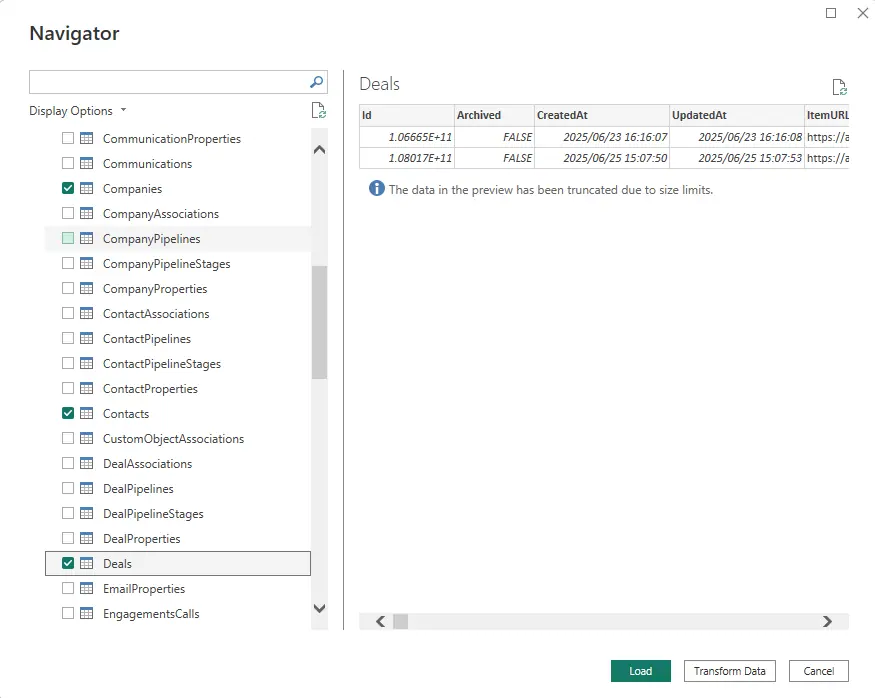
- The navigator opens and displays the HubSpot objects you can use in Power BI. Objects are modeled as tables so that you can use from Power BI easily. Select the objects you wish to analyze in Power BI. Click “Load” to import the data to Power BI.
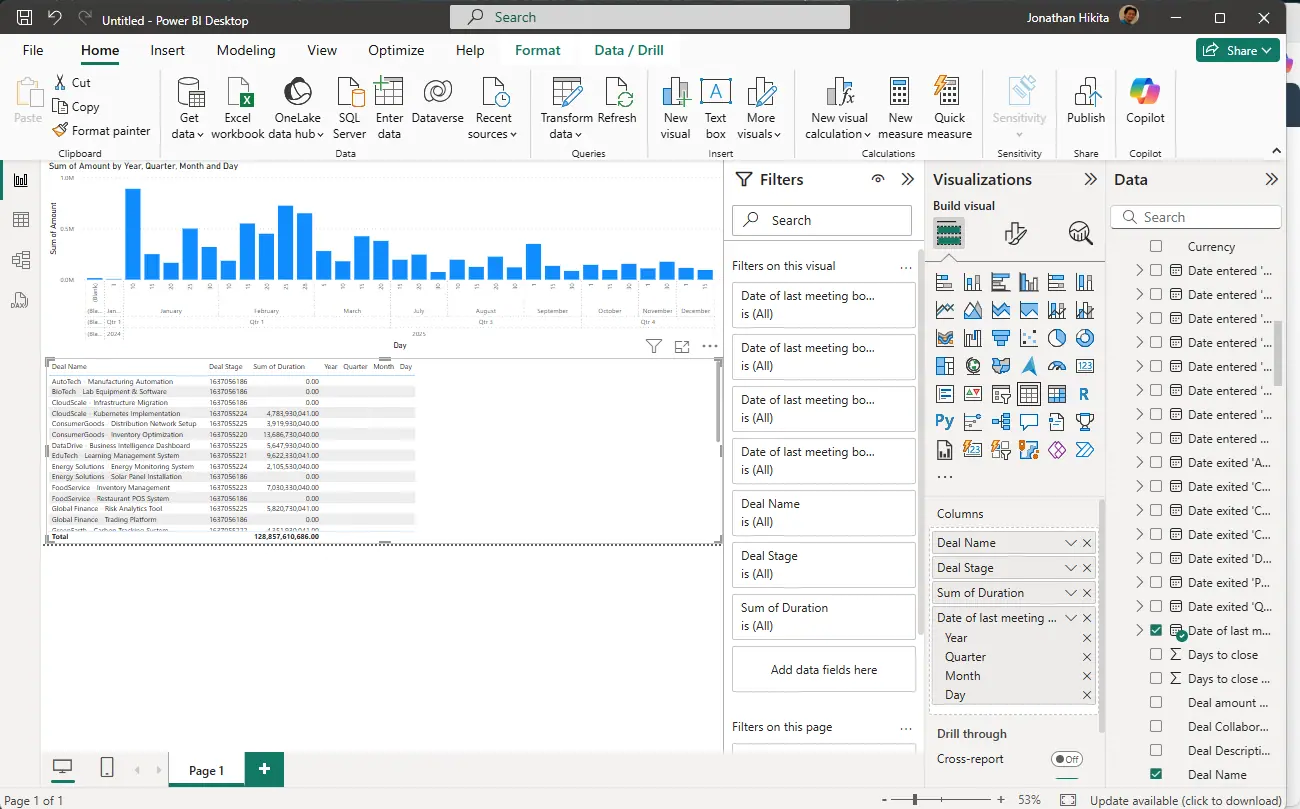
- Now your HubSpot data is available in Power BI.
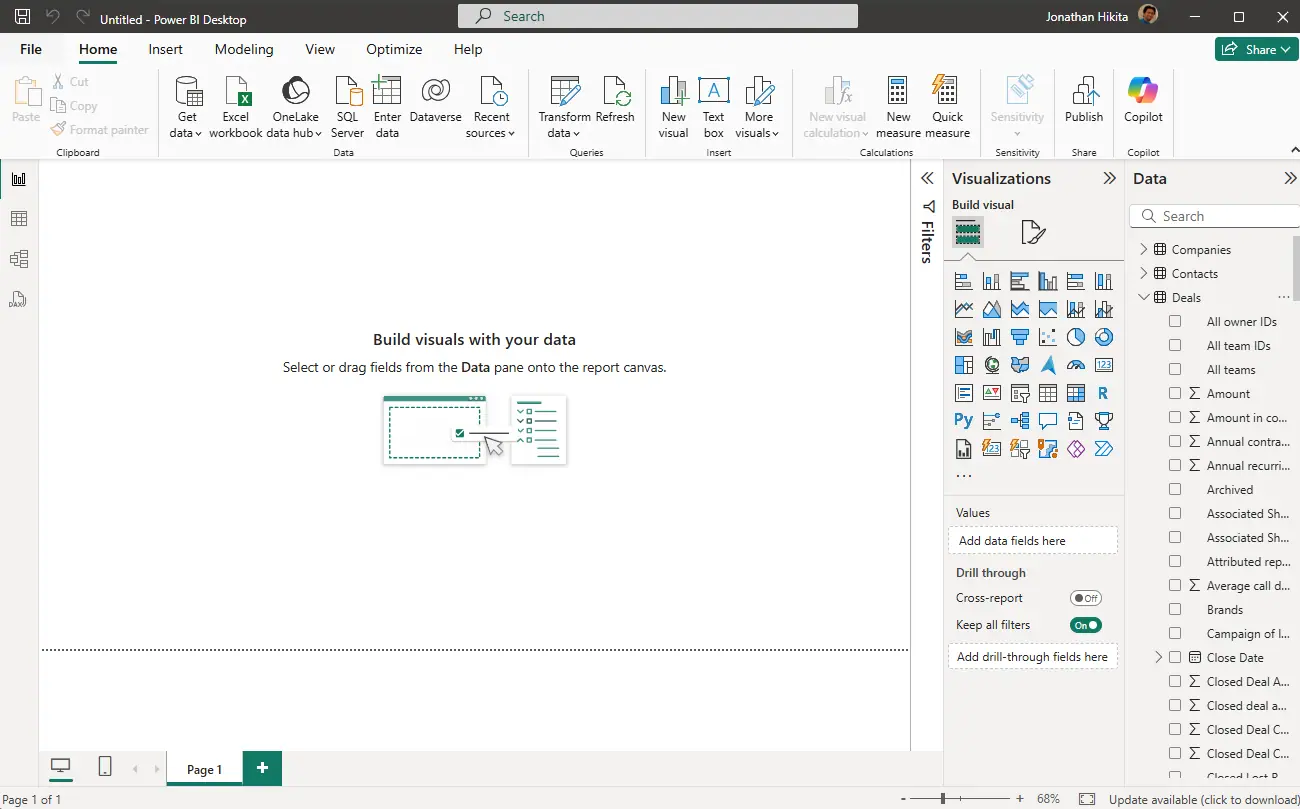
- You can create your report and analyze HubSpot data.
How to disconnect CData Drivers and Connectors from HubSpot
Disconnecting an established connection to HubSpot is easy. Open ConfigureODBC.exe in the installation location for CData Power BI Connector for HubSpot directory and click [Reset Connection].
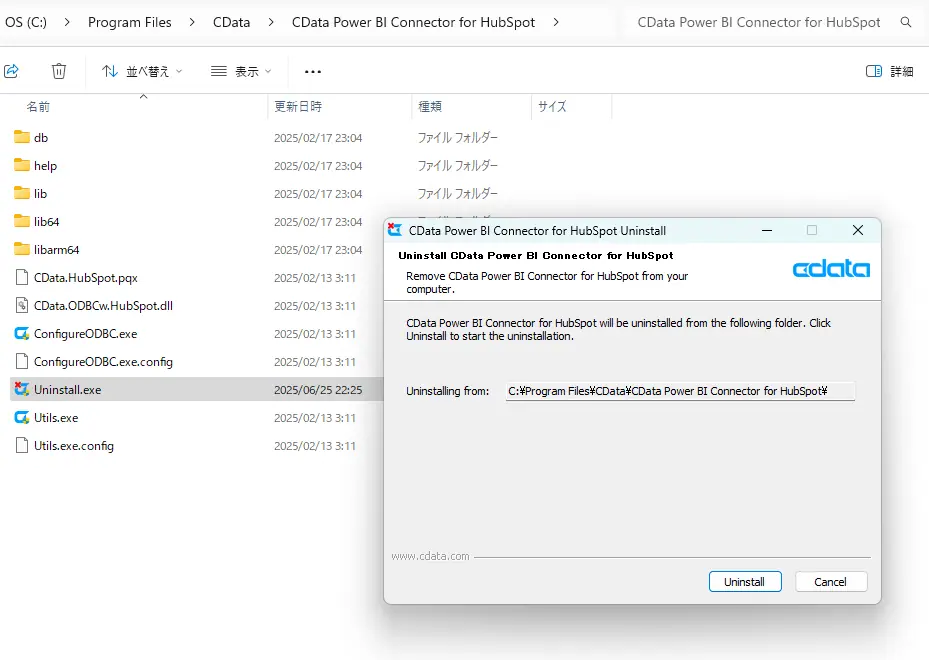
How to Uninstall CData Drivers: Power BI Connector
Go to the CData Power BI Connector for HubSpot directory and double click Uninstall.exe and click [Uninstall] button and the product will be uninstalled from your machine.