
Model Context Protocol (MCP) finally gives AI models a way to access the business data needed to make them really useful at work. CData MCP Servers have the depth and performance to make sure AI has access to all of the answers.
Try them now for free →


Connecting to Apache Doris with a CData MySQL Connector
Apache Doris is an MPP-based real-time data warehouse known for its high query speed. For queries on large datasets, it returns results in sub-seconds. It supports both high-concurrency point queries and high-throughput complex analysis. It can be used for report analysis, ad-hoc queries, unified data warehouse, and data lake query acceleration. Based on Apache Doris, users can build applications for user behavior analysis, A/B testing platform, log analysis, user profile analysis, and e-commerce order analysis.
Recent updates made to the CData MySQL driver enables connecting to and querying an instance of Apache Doris. This article will guide you through connecting to Apache Doris using the CData MySQL Connector in DBeaver using a Windows machine.
Prerequisites
- Windows with the latest WSL installed and configured.
- DBeaver installed on your Windows machine.
- Basic familiarity with SQL and database connections.
Download and Install Apache Doris
Before you begin, ensure you have the latest version of WSL (Windows Subsystem for Linux) installed. Detailed instructions for downloading and installing Apache Doris can be found in their official documentation: Apache Doris Quick Start Guide. Follow the steps outlined in their guide to get your Apache Doris instance up and running.
Create a Compatible User in Apache Doris
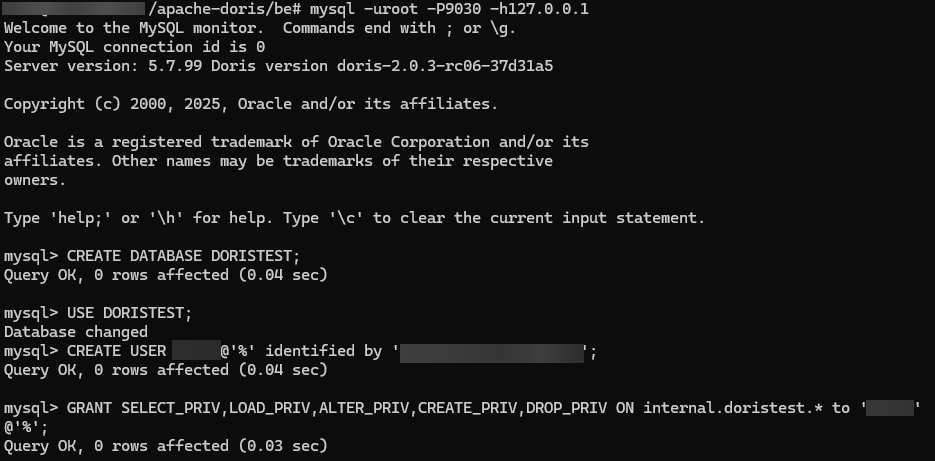
To ensure compatibility with CData drivers, you'll need to create a user in Apache Doris with the appropriate permissions. Execute the following SQL commands in your Doris client (e.g., through the mysql-client included with Doris):
- Connect to Doris using the MySQL client:
mysql -h 127.0.0.1 -P 9030 -u root
- Create a database and user:
CREATE DATABASE DORISTEST;
		USE DORISTEST;
		CREATE USER testuser@'%' identified by 'YourPasswordHere';
		GRANT ALL ON DORISTEST.* TO 'testuser'@'%';
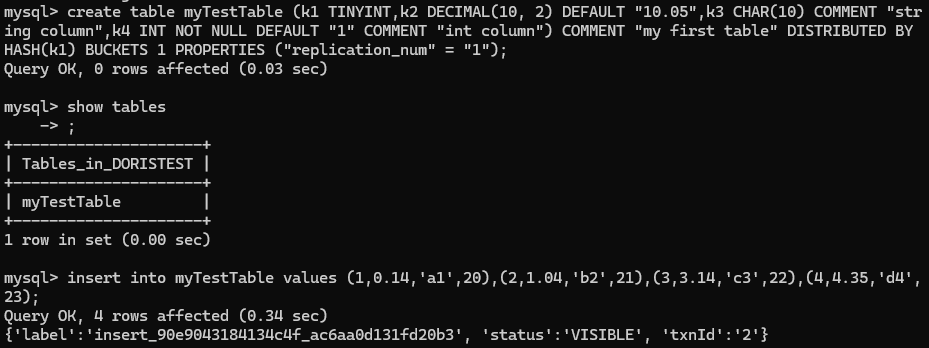
- Create a table in your Doris database & insert data:
create table myTestTable (k1 TINYINT,k2 DECIMAL(10, 2) DEFAULT "10.05",k3 CHAR(10) COMMENT "string column",k4 INT NOT NULL DEFAULT "1" COMMENT "int column") COMMENT "my first table" DISTRIBUTED BY
HASH(k1) BUCKETS 1 PROPERTIES ("replication_num" = "1");

insert into myTestTable values (1,0.14,'a1',20),(2,1.04,'b2',21),(3,3.14,'c3',22),(4,4.35,'d4',23);
Download and Install the CData MySQL JDBC Driver
First, download and install the MySQL JDBC Driver from the CData website: https://www.cdata.com/drivers/mysql/download/jdbc/.
Fill in the appropriate contact information.
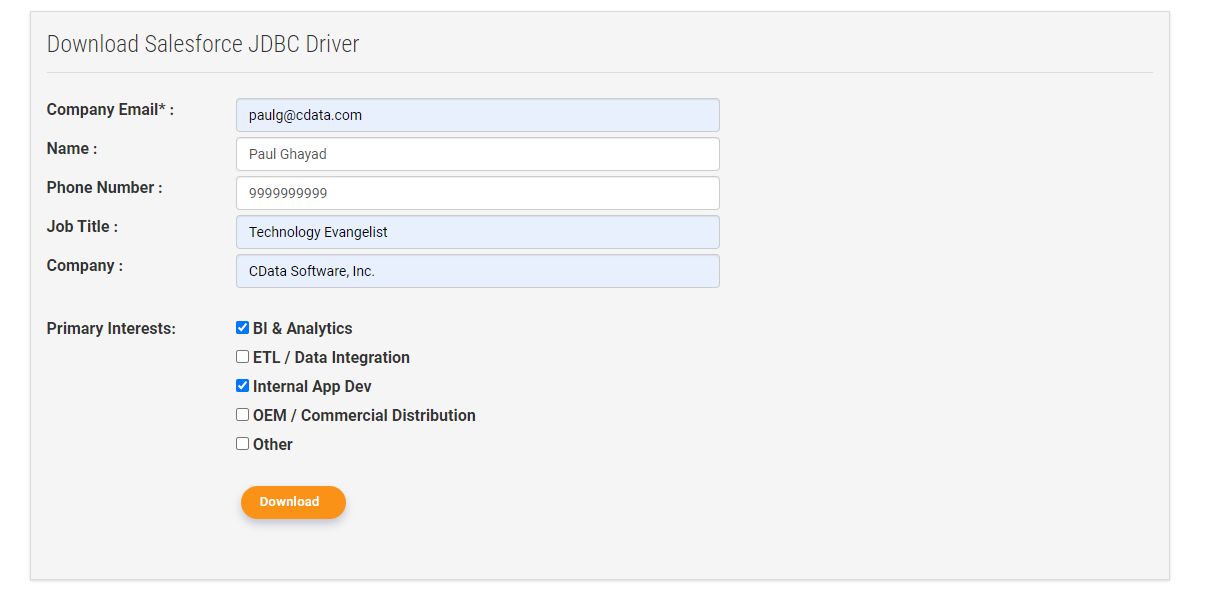
Note: If you are downloading a licensed installer, use your company email address and product key.
Install the driver:
- Run the installer and follow the installation wizard
- Note the installation directory (typically C:\Program Files\CData\CData JDBC Driver for MySQL\lib)
- Locate the JAR file: cdata.jdbc.mysql.jar
Configure the Driver & Connection in DBeaver
Complete the following steps to add the driver .jar file:
- Open the DBeaver application and, in the Database menu, select the Driver Manager option. Click New to open the Create New Driver form.
- In the Driver Name box, enter a user-friendly name for the driver.
- To add the .jar file, click Add File on the Libraries tab. Select the cdata.jdbc.mysql.jar file, located in the lib subfolder of the installation directory. (Note that the.lic file must be located in the same folder as the .jar file.)
- Click Find Class, and in the list select, "cdata.jdbc.mysql.MySQLDriver".
- In the URL Template field, enter jdbc:cdata:mysql:.
Connect to Doris in DBeaver
Note: If you are running Apache Doris in WSL, you will need to use your WSL IP address to connect from your Windows host. Alternatively, you can enable localhost forwarding (a WSL 2 feature) to connect via localhost.
- In DBeaver, create a new connection:
- Click New Database Connection
- Select your custom CData MySQL for Doris driver
- Configure the connection:
- Server: Enter your WSL IP address (e.g., 172.X.X.X) or localhost if you have localhost forwarding enabled.
- Port: 9030
- Database: DORISTEST
- Username: testuser
- Password: YourPasswordHere
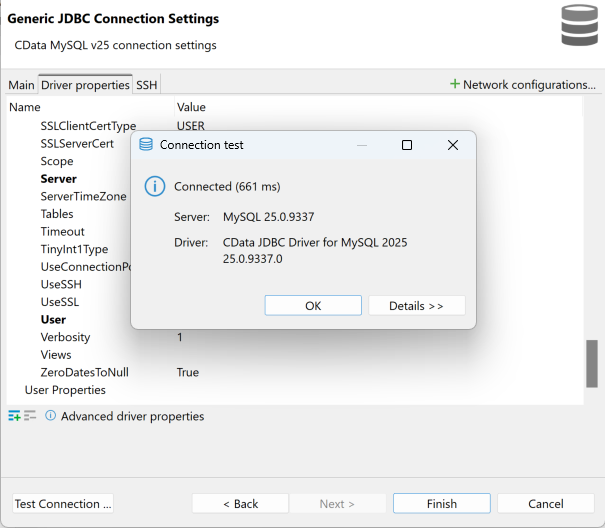
- Test the connection:
- Click Test Connection
- Resolve any connection issues
- Save the connection
Verifying the Connection
Once connected, verify everything is working:
- Navigate to your database:
- Expand the connection in DBeaver
- Navigate to DORISTEST database
- View tables and schemas
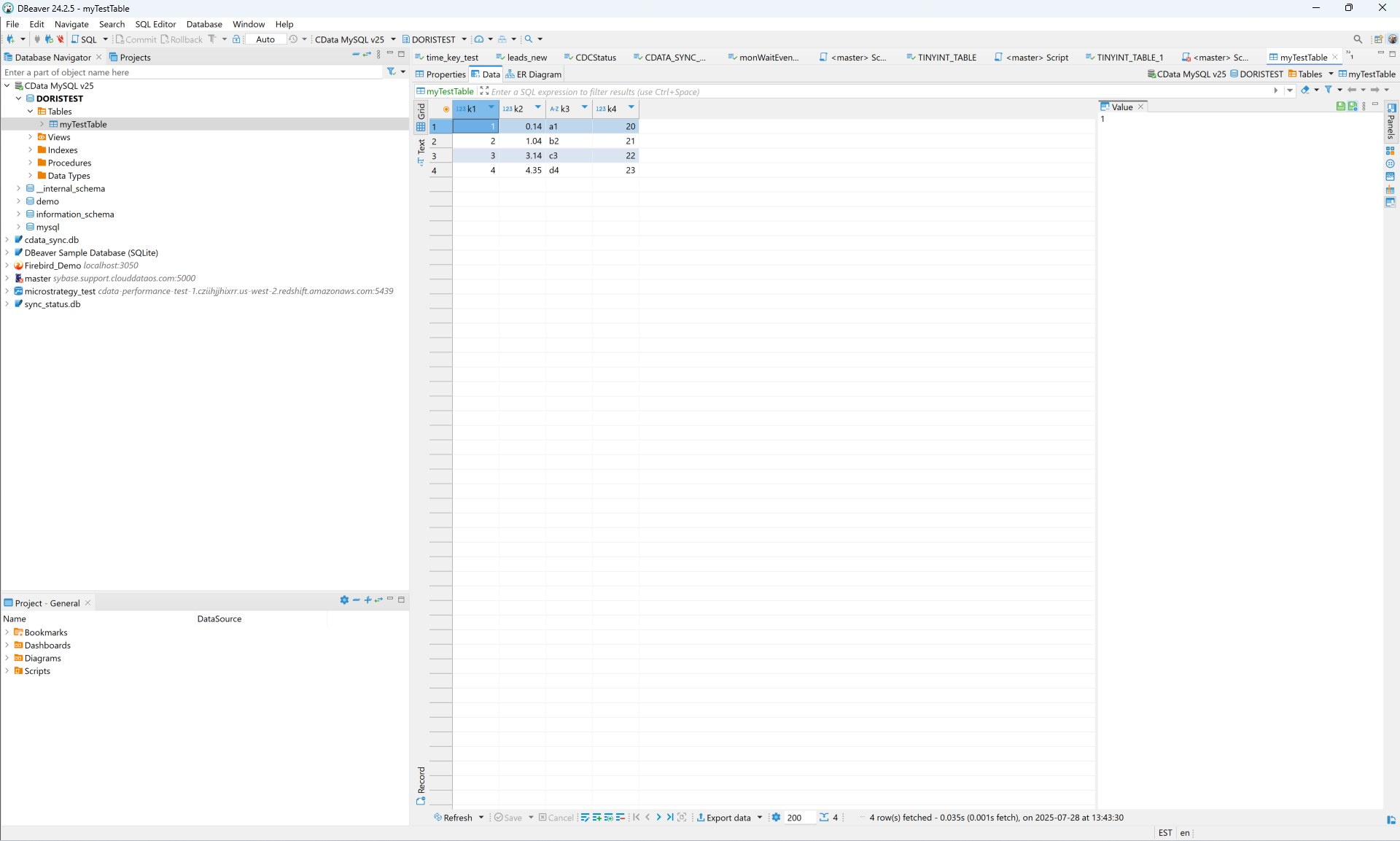
You have now connected to your Apache Doris database using the CData JDBC driver for MySQL!
Simplified Apache Doris connectivity with CData
The CData MySQL Connectors provide seamless connectivity to your Apache Doris data. To access the CData MySQL Connectors, visit our Apache Doris integration page and start your free 30-day trial today!
