
Model Context Protocol (MCP) finally gives AI models a way to access the business data needed to make them really useful at work. CData MCP Servers have the depth and performance to make sure AI has access to all of the answers.
Try them now for free →


Create Balance Sheet Detail Reports in QuickBooks Online Using a New Stored Procedure
QuickBooks Online (QBO) is a widely used cloud-based accounting platform that helps businesses manage finances, track expenses, and generate essential reports. One of the most important reports in QBO is the Balance Sheet Detail report, which provides a detailed breakdown of account activity and offers a clear view of a company's financial position.
To simplify access to this report, CData has introduced a stored procedure called CreateBalanceSheetDetailReport as a feature in its QuickBooks Online JDBC Driver. This allows users to generate balance sheet reports using simple SQL-based commands without the need for complex API integrations.
In this article, we explore two different ways to connect to QuickBooks Online using the CData QuickBooks Online JDBC driver and execute the CreateBalanceSheetDetailReport stored procedure using both DBeaver and Visual Studio Code (VS Code).
Prerequisites
Before connecting to the QuickBooks Online JDBC driver to create the Balance Sheet Detail report using the CreateBalanceSheetDetailReport stored procedure, make sure to download and install the latest version of VS Code (with Java extensions) and DBeaver on your system. Also, ensure that you have the following required prerequisites.
- A QuickBooks Online account with appropriate permissions
- Java JDK installed (8 or later)
- Download and install the CData QuickBooks Online JDBC Driver
Connect to QuickBooks Online using the JDBC driver
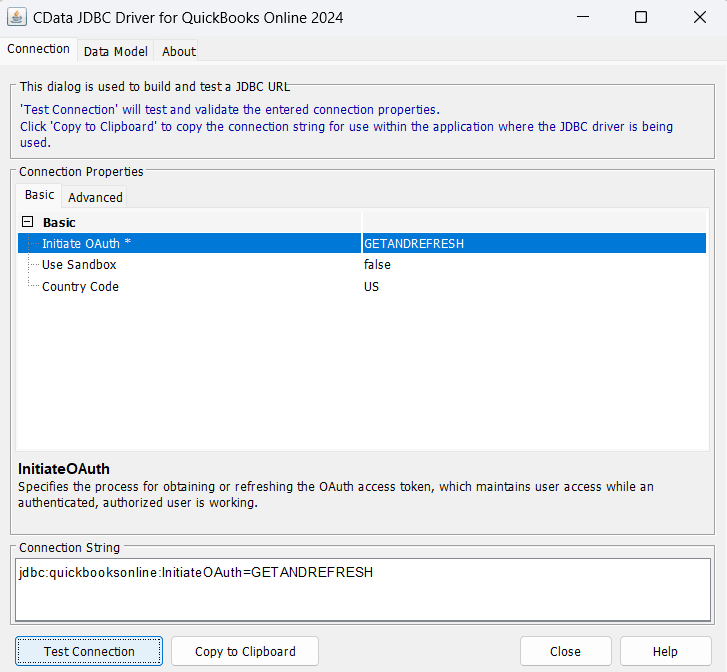
To construct the JDBC URL, use the connection string designer built into the QuickBooks Online JDBC driver. Either double-click the JAR file or execute the jar file from the command line.
java -jar cdata.jdbc.quickbooks.jar
Fill in the connection properties, copy and save the connection string to the clipboard (to be used in later sections).
Below is a typical connection string:
jdbc:quickbooksonline:InitiateOAuth=GETANDREFRESH;
Execute the Create Balance Sheet Detail Report stored procedure in DBeaver
DBeaver is a popular, open-source database management tool used by developers and data analysts to work with a wide range of databases through a unified interface. It supports JDBC drivers, making it a great choice for running SQL queries and stored procedures.
Once you've connected to QuickBooks Online using the CData JDBC driver, you can easily execute the CreateBalanceSheetDetailReport stored procedure directly from DBeaver. This procedure allows you to generate a detailed balance sheet report programmatically, pulling financial data without writing complex API codes.
To run the stored procedure in DBeaver:
- Create a new database for QuickBooks Online in the Driver Manager
- In the connection settings of the database, paste the JDBC URL (connection string) copied from the QuickBooks Online JDBC driver in the previous section
- Once connected, right-click on the QuickBooks Online database, open the SQL script from the SQL Editor, and enter the following T-SQL command:
EXEC CData.QuickBooksOnline.CreateBalanceSheetDetailReport
    @ReportName = 'BalanceSheetTestReport',
    @ReportDescription = 'This is just a test report',
    @StartDate = '01-12-2024',
    @EndDate = '06-06-2025'
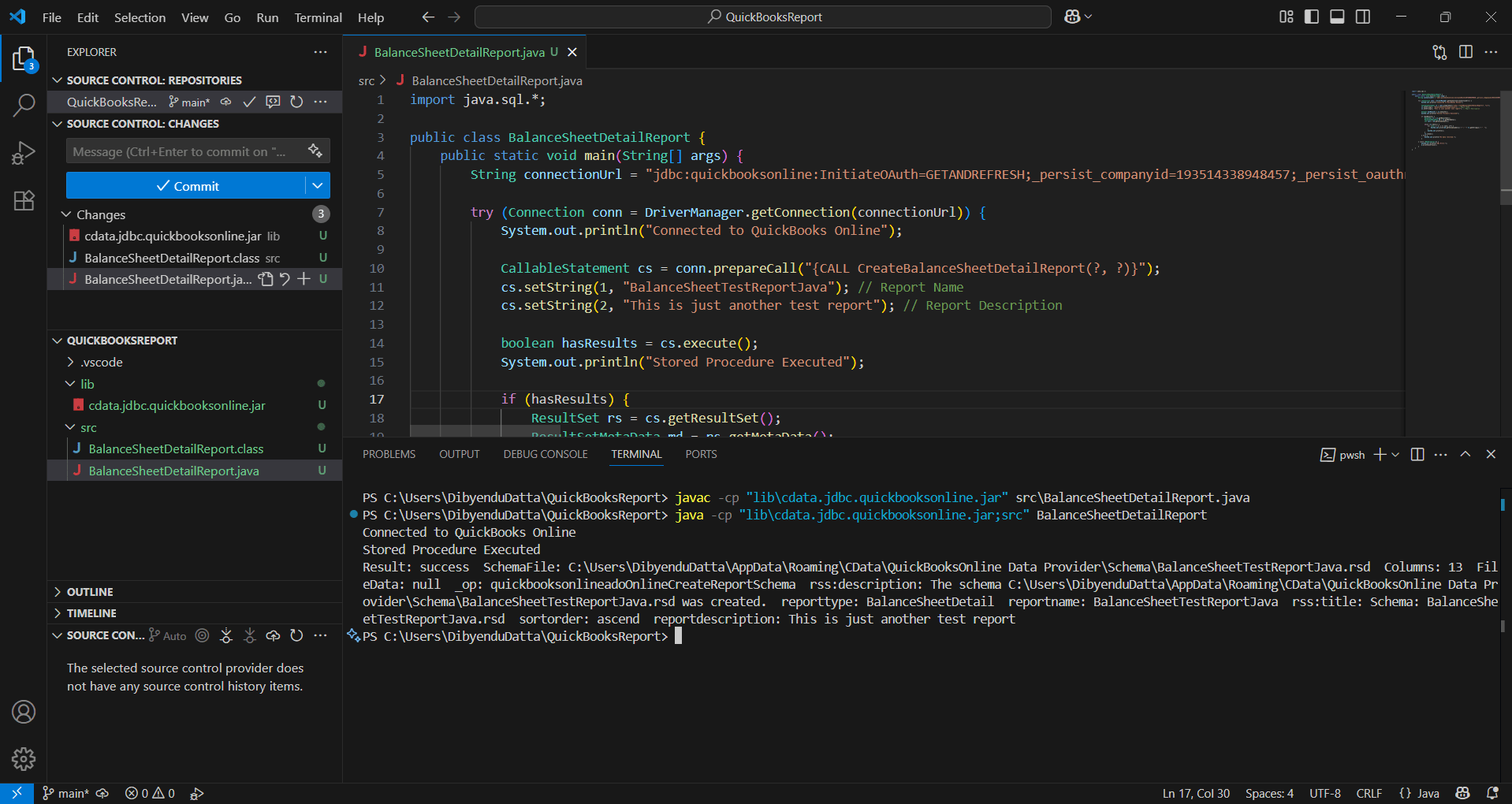
This command calls the stored procedure named CreateBalanceSheetDetailReport within the CData.QuickBooksOnline namespace. It tells the CData JDBC driver to generate a custom Balance Sheet Detail report in QuickBooks Online using the specified parameters.
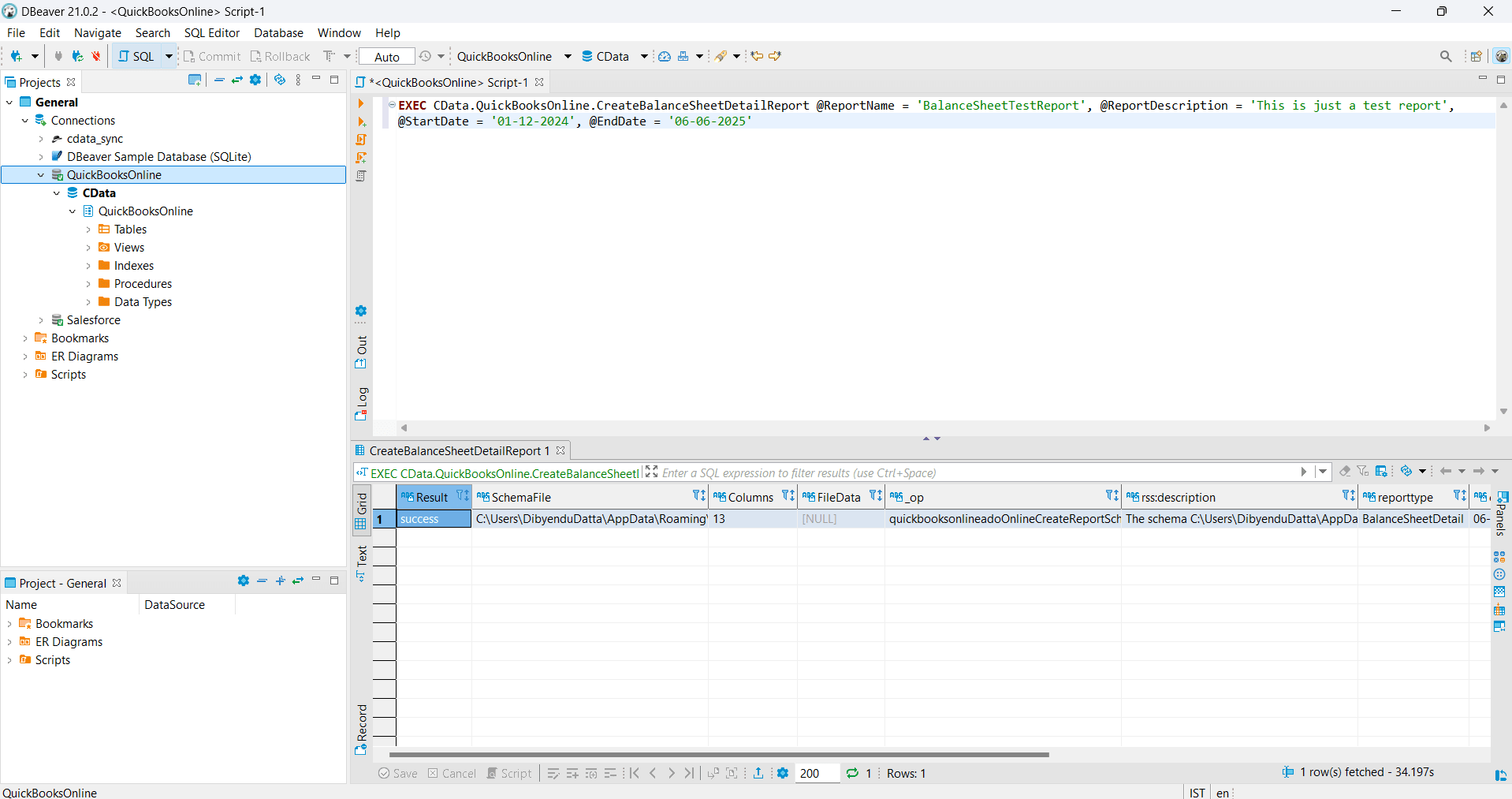
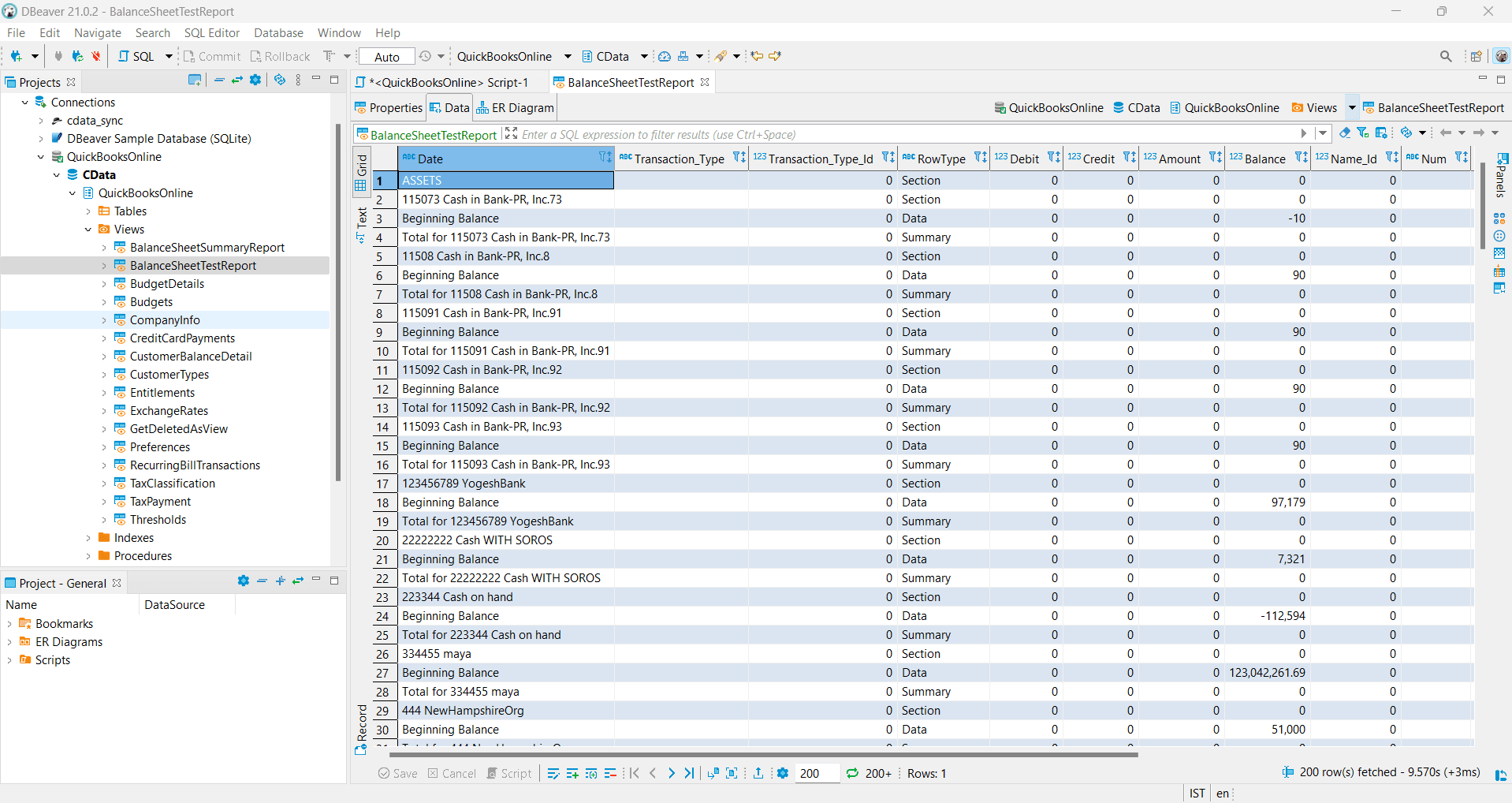
After successfully running the stored procedure, the new report view will appear in the "Views" list, as shown below. Right-click on the custom report and select "View View" to display the report.
The new report, along with all its contents, will then appear on the screen (as shown below).
Refer to the product documentation to know more about the CreateBalanceSheetDetailReport stored procedure and its parameters.
Execute the Create Balance Sheet Detail Report stored procedure in VS Code
VS Code is a lightweight code editor that integrates well with Java development tools and supports SQL-based workflows. When paired with the CData QuickBooks Online JDBC driver, it offers a simple way to connect to QuickBooks Online and perform operations such as generating a Balance Sheet Detail report using stored procedures.
Using Java and SQL, developers can easily trigger procedures like CreateBalanceSheetDetailReport to retrieve detailed financial data directly from their QuickBooks Online accounts, all within the VS Code terminal.
Follow the given steps to execute the stored procedure in VS Code:
- Create the project folder structure in terminal (using PowerShell or Command Prompt) and run the given commands:
cd C:\Users\Username mkdir QuickBooksReport cd QuickBooksReport mkdir lib mkdir src mkdir .vscode - lib: for the JDBC driver JAR file
- src: for your Java source code
- .vscode: for optional VS Code config files
- Open the project folder in VS Code. Use the following command:
code .
- Navigate to the installation folder for the CData QuickBooks Online JDBC driver, copy and place the .jar file (e.g., cdata.jdbc.quickbooksonline.jar) into the lib folder of the recently created project.
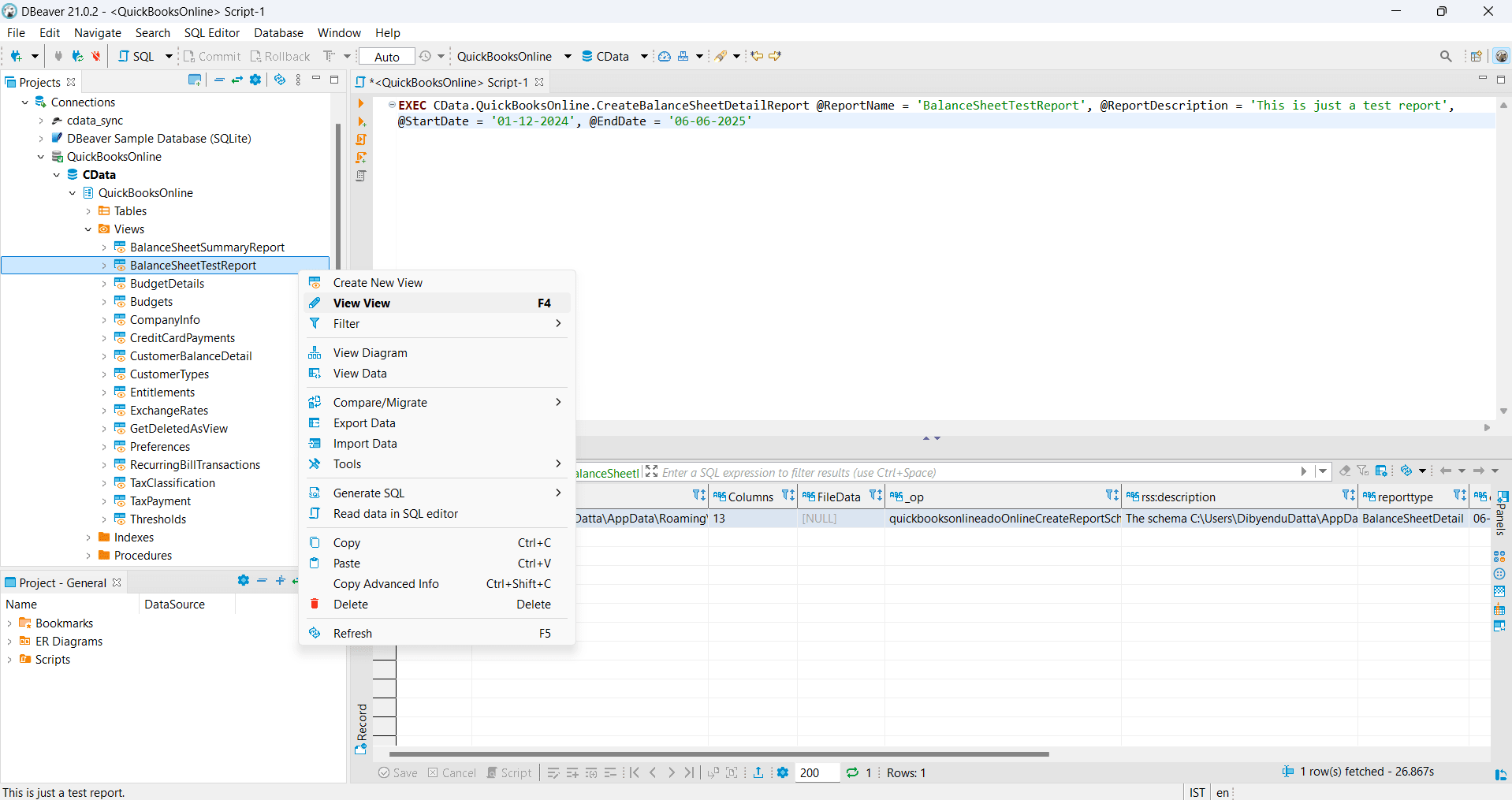
- In VS Code, create a file named BalanceSheetReport.java (or any report name of your choice) inside the src folder and paste the code below (make sure to update the String connectionUrl with the copied JDBC URL connection string that you saved in the earlier section):
- In the VS Code terminal (inside the QuickBooksReport folder), run:
javac -cp "lib\cdata.jdbc.quickbooksonline.jar" src\BalanceSheetReport.java
- Once compiled, run the Java class:
java -cp "lib\cdata.jdbc.quickbooksonline.jar;src" BalanceSheetReport
- The stored procedure runs successfully and returns the report metadata.
This sets up your project with separate folders for:
import java.sql.*;

    public class BalanceSheetDetailReport {

      public static void main(String[] args) {

        String connectionUrl = "jdbc:quickbooksonline:InitiateOAuth=GETANDREFRESH;_persist_companyid=xxx;_persist_oauthrefreshtoken=xxx;_persist_oauthexpiresin=3600;_persist_oauthaccesstoken=xxxx;_persist_oauthtokentimestamp=xxxx;";

        try (Connection conn = DriverManager.getConnection(connectionUrl)) {

          System.out.println("Connected to QuickBooks Online");

          CallableStatement cs = conn.prepareCall("{CALL CreateBalanceSheetDetailReport(?, ?)}");

          cs.setString(1, "BalanceSheetTestReportJava"); // Report Name
          cs.setString(2, "This is just another test report"); // Report Description

          boolean hasResults = cs.execute();
          System.out.println("Stored Procedure Executed");

          if (hasResults) {
            ResultSet rs = cs.getResultSet();
            ResultSetMetaData md = rs.getMetaData();
            int cols = md.getColumnCount();

            while (rs.next()) {
              for (int i = 1; i<= cols; i++) {
                System.out.print(md.getColumnLabel(i) + ": " + rs.getString(i) + "  ");
              }
              System.out.println();
            }
            rs.close();
          } else {
            System.out.println("No data returned.");
          }

        } catch (SQLException e) {
          System.err.println("SQL Error:");
          e.printStackTrace();
        }
      }
    }
Simplified QuickBooks Online connectivity with CData
The CData QuickBooks Online drivers and connectors make it easy for finance teams, developers, and analysts to access, automate, and analyze accounting data from QuickBooks Online. Whether you're building custom reports, integrating with BI tools, or streamlining financial workflows, CData provides flexible, real-time connectivity that fits effortlessly into your tech stack.
Ready to get started? Download a free 30-day trial of any of our CData drivers and connectors today! As always, our world-class Support Team is available to assist you with any questions you may have.
