
Model Context Protocol (MCP) finally gives AI models a way to access the business data needed to make them really useful at work. CData MCP Servers have the depth and performance to make sure AI has access to all of the answers.
Try them now for free →


Read and Modify Google Sheets Directly from Microsoft Access
Google Sheets is a free, online spreadsheet application offered by Google. It allows user to create, edit, and collaborate on spreadsheets online in real time, with automatic cloud saving. Microsoft Access is a desktop database management system from Microsoft that combines a relational database engine with a graphical user interface and software development tools. It allows users to store, retrieve, query, and analyze structured data with ease.
Connecting Microsoft Access to Google Sheets enables real-time access to spreadsheet data directly from a desktop database environment. This setup connects desktop tools with cloud platforms, helping improve efficiency and maintain accurate data. CData Microsoft Access drivers and connectors allow Microsoft Access to treat Google Sheets like a relational database, enabling SQL queries to read, insert, update, or delete data in the spreadsheets, like working with a local table in SQL Server.
Install and set up CData ODBC driver for Google Sheets
The CData Google Sheets for ODBC Driver lets desktop apps like Microsoft Access get and manage Google Sheets data like a local database.
- Install CData Google Sheets for ODBC Driver. After downloading, run the .exe file and finish the setup
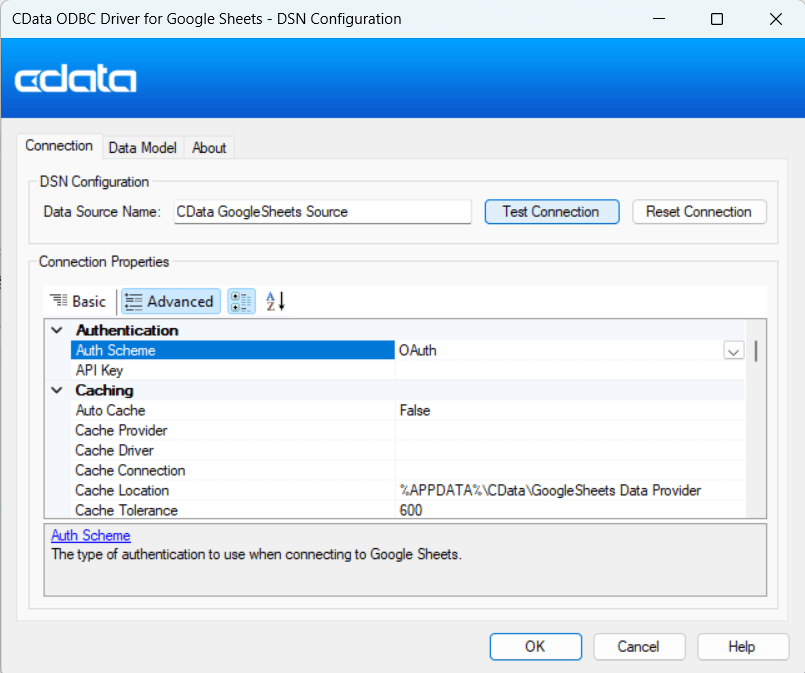
- Start the CData Google Sheets ODBC Driver to set up access to Google Sheets
- Click Test Connection to continue. The CData ODBC Driver for Google Sheets uses OAuth for browser sign in and does not need DSN changes unless customization is required.
- Now, once the redirect window appears for authentication, choose the appropriate Google account
- Click Continue to proceed with authorization
- After successful authorization, a confirmation message appears
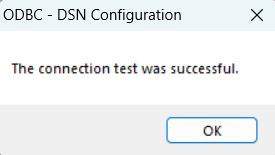
- OAuth access to Google Sheets completes with the CData Google Sheets ODBC Driver. Return to the DSN settings screen and click OK to establish the connection
Connect Microsoft Access table to Google Sheets
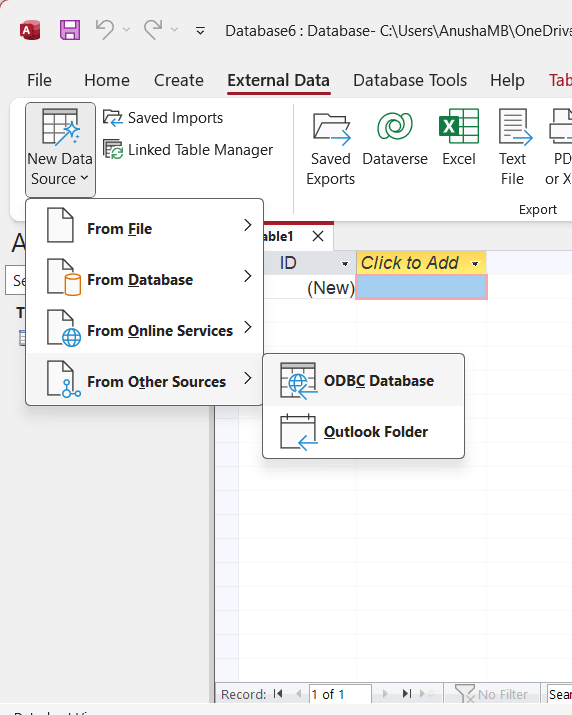
- Open Microsoft Access, navigate to External Data -> New Data Source -> From Other Sources -> ODBC Database.
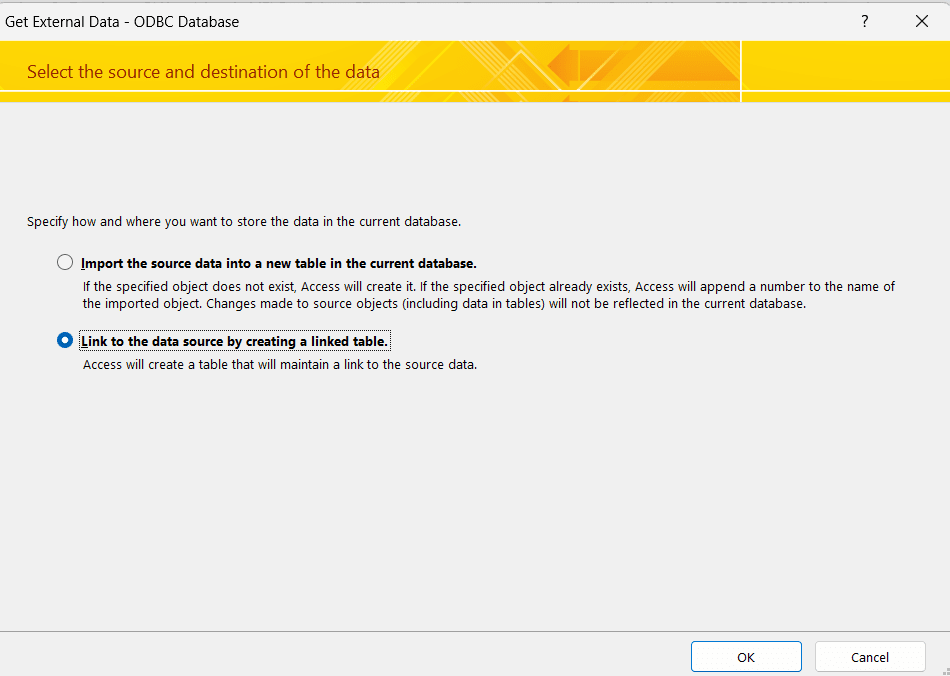
- Enable Link to the data source by creating a linked table and click OK
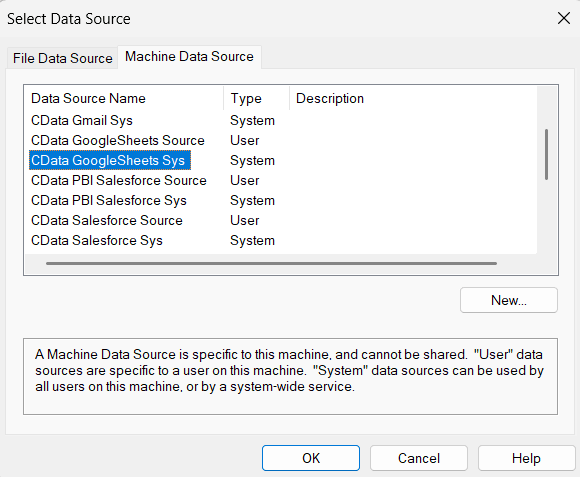
- From the Machine Data Source list, select CData Google Sheets sys and click OK
- Once it redirects to the authorization window, choose the appropriate Google account and click Continue
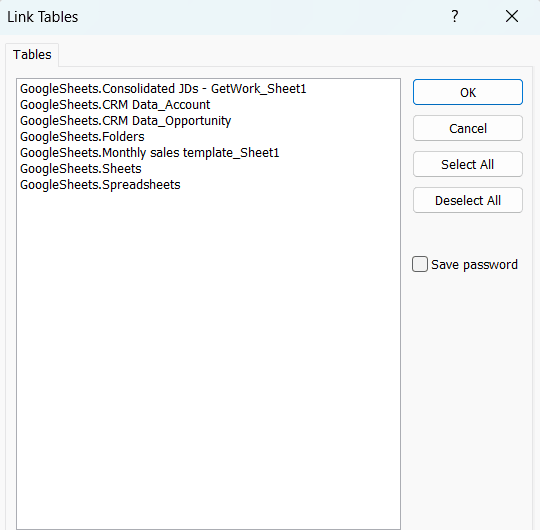
- Return to Microsoft Access, where a list of sheets appears from the account. Select the required sheet and click OK.
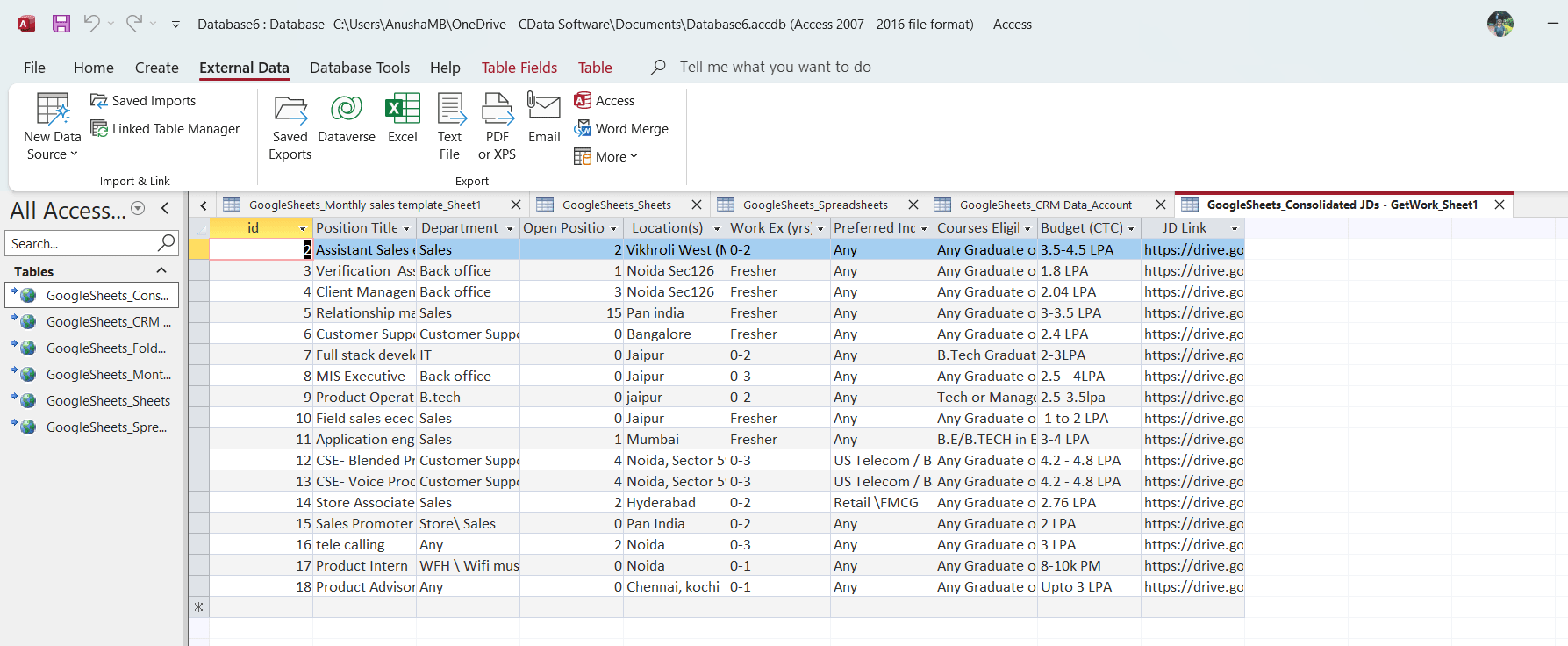
The Google Sheets data is now available as a linked table in Microsoft Access, and updates can also be made on the spreadsheet.
Get Started Today
Connecting Google Sheets with Microsoft Access using CData drivers and connectors makes it easy and efficient to manage the spreadsheet data, similar to working with SQL Server. Start your 30-day free trial today and experience easy integration, trusted connectivity, and real-time updates with CData Drivers and Connectors.
If you have any other questions, please reach out to CData Support. Our team is ready to help you!
