
Model Context Protocol (MCP) finally gives AI models a way to access the business data needed to make them really useful at work. CData MCP Servers have the depth and performance to make sure AI has access to all of the answers.
Try them now for free →


What You Need to Know to Migrate from Shopify REST APIs to GraphQL APIs
As those of you using the Shopify API probably already know, Shopify announced the legacy status of their REST API at the end of last year.
In this article, we illustrate how to use the GraphQL schema. To tell you the conclusion in advance, nothing really changes. CData Drivers model Shopify GraphQL data as tabular data regardless of the API. You can continue to query SELECT * From Orders via our drivers. In the 2025 Release, we have added many objects and columns to fill the gap between REST and GraphQL schema for smoother transition.
About the REST Admin API Legacy Status
First, let's confirm what the REST API and the GraphQL API are. There are currently two types of APIs that can access Shopify's administrative data such as orders and products: "REST Admin API" and "GraphQL Admin API". The REST Admin API has been available for a long time and is still used by many users, but since the release of the GraphQL Admin API, Shopify has been recommending using GraphQL as the main option.
As of October 1, 2024, the status of the REST Admin API is put to “legacy.” While users can continue to use the REST Admin API at present, migration to GraphQL is now recommended. To be clear, no specific deprecation date has been set yet, and the REST Admin API is still usable as of the time of writing this blog post.
What is GraphQL?
Now let's discuss GraphQL. GraphQL is a new API standard proposed by Facebook and is currently promoted by the GraphQL Foundation. While REST APIs are typically implemented based on HTTP characteristics, GraphQL uses its own query language to retrieve data in a hierarchical structure.
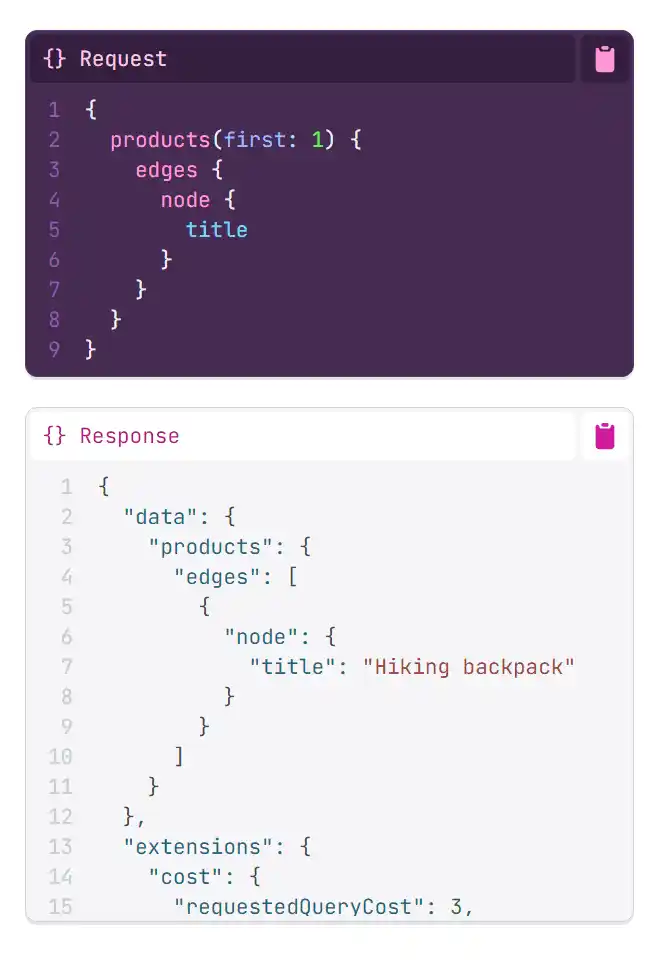
In our interpretation, it's an API specification that truly shines when you want to retrieve and display data where multiple resources are scattered across the screen, like Facebook's UI. It's quite different from REST API specifications that retrieve resources individually.
REST or GraphQL does not matter when modeled by CData Drivers
The CData Shopify Driver supports not only the REST Admin API but also the GraphQL Admin API. You can find both REST schema and GraphQL schema in our documentation.
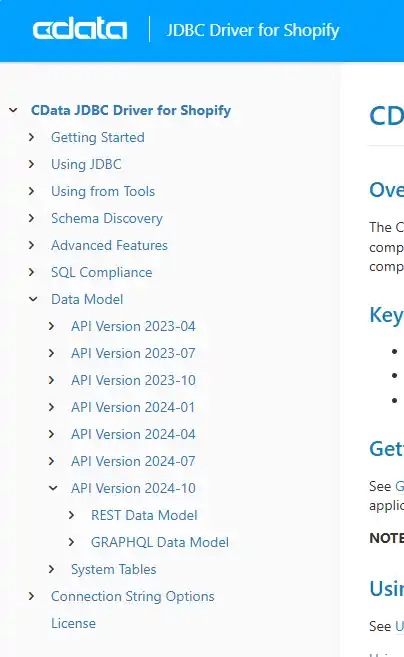
Given the announcement of the REST Admin API's legacy status, the Driver changed the default API to GraphQL. In general, when using the GraphQL Admin API, you typically need to be aware of GraphQL specifications, data structures, and API query costs for data access. However, by using the CData Shopify Driver, the data is automatically converted into a tabular data model that is easy to use for BI users using tools like Tableau and Power BI. You will not have to think about the differences between REST API and GraphQL.
REST API-based Order table sample:
For example, the Orders table - the image below shows the data model when retrieving via REST Admin API.
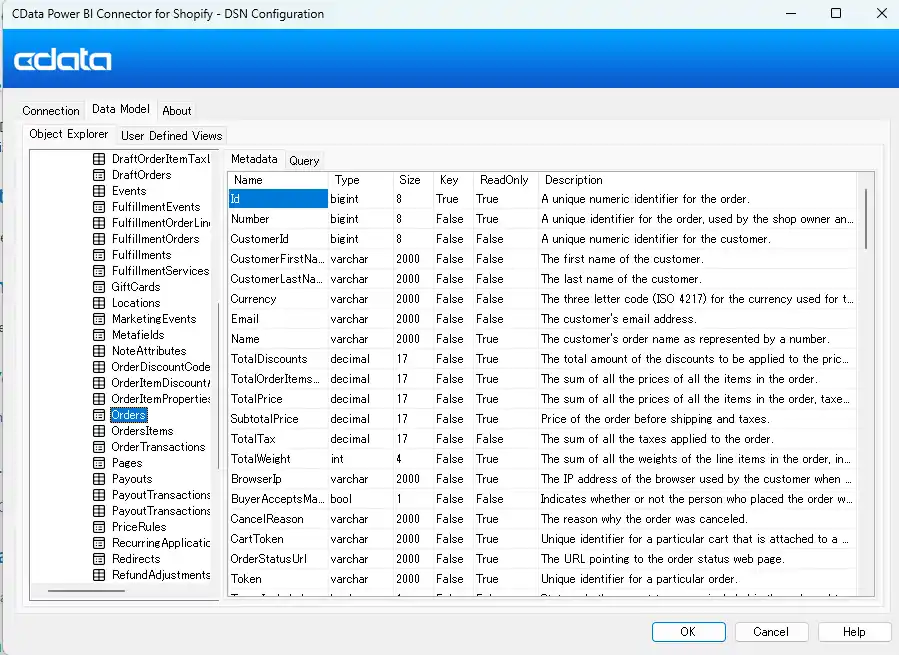
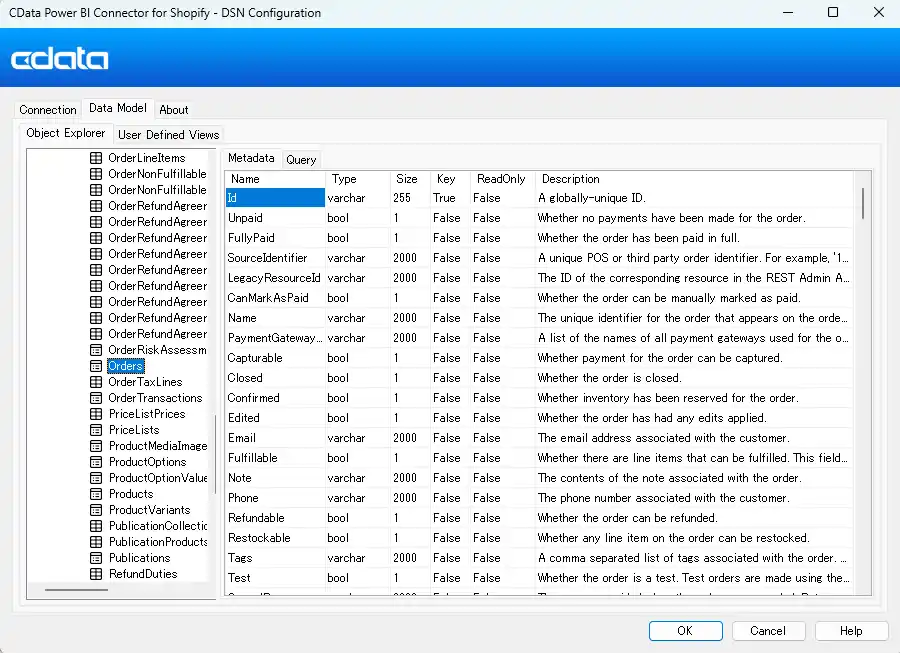
GraphQL based Order table sample:
The GraphQL Admin API can similarly retrieve data in a table structure. Some attention is needed as the number of tables and fields differ based on how GraphQL provides them.
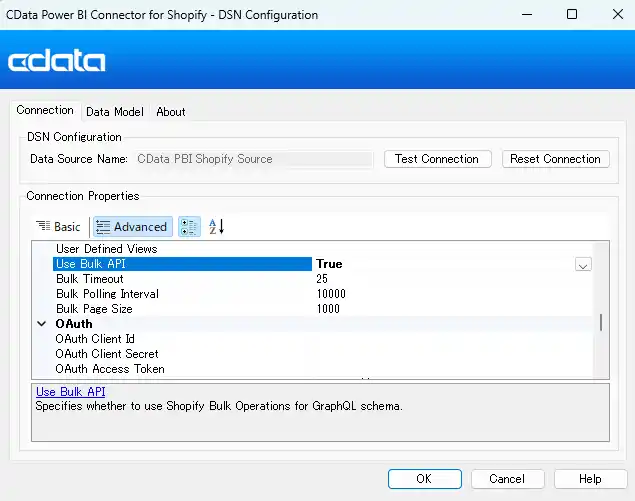
In addition, perhaps the most difficult aspect of the GraphQL mechanism is the API Limit/query cost. In GraphQL, query costs vary based on the fields you want to retrieve. Additionally, there can be gaps between request-based costs and actual retrieval result-based costs, making calculations complex. The CData Shopify Driver provides functionality to automatically uses the Bulk API optimized for large data retrieval internally, allowing you to utilize data without being conscious of GraphQL-specific query cost rules.
How to use the Shopify GraphQL Schema
We use Power BI Connector for Shopify as an example. Download Power BI Connector from here.
Step 1: Configure a DSN that connects to Shopify GraphQL
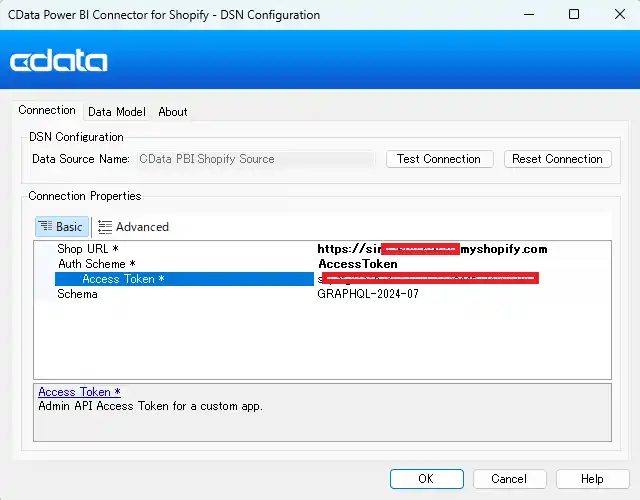
After installation, open DSN Configuration window and set the following connection properties:
- Shop URL: your Shop URL
- Auth Scheme: either OAuth or Access Token
- Access token (for this sample): your Access Token
- Schema: choose GRAPHQL-yyyy-mm
Click Test Connection.
Step 2: Test Queries
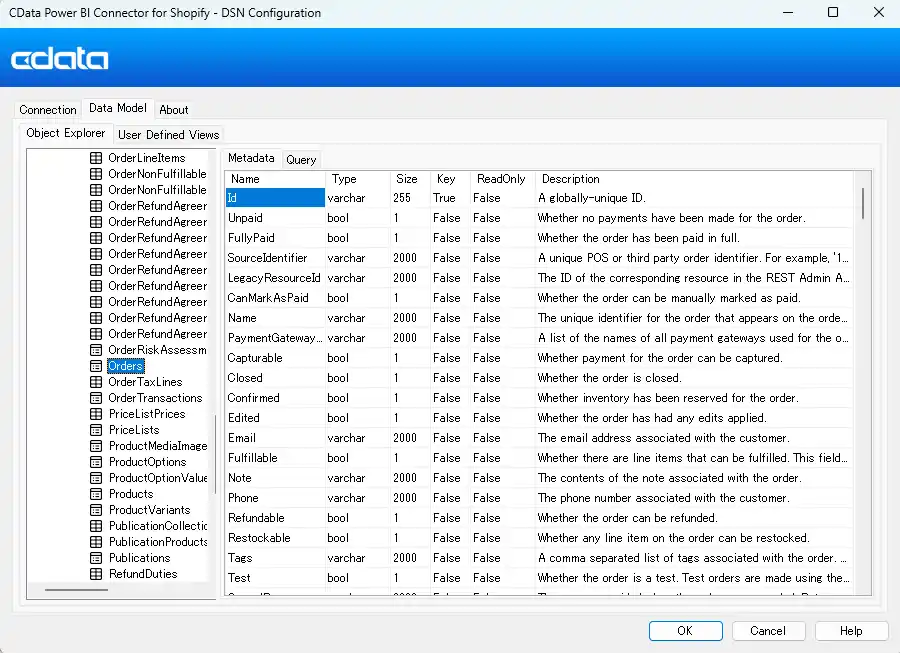
The connector includes a panel for connection testing, so it's good to test what kind of data can be retrieved beforehand. You can also check available fields from here.
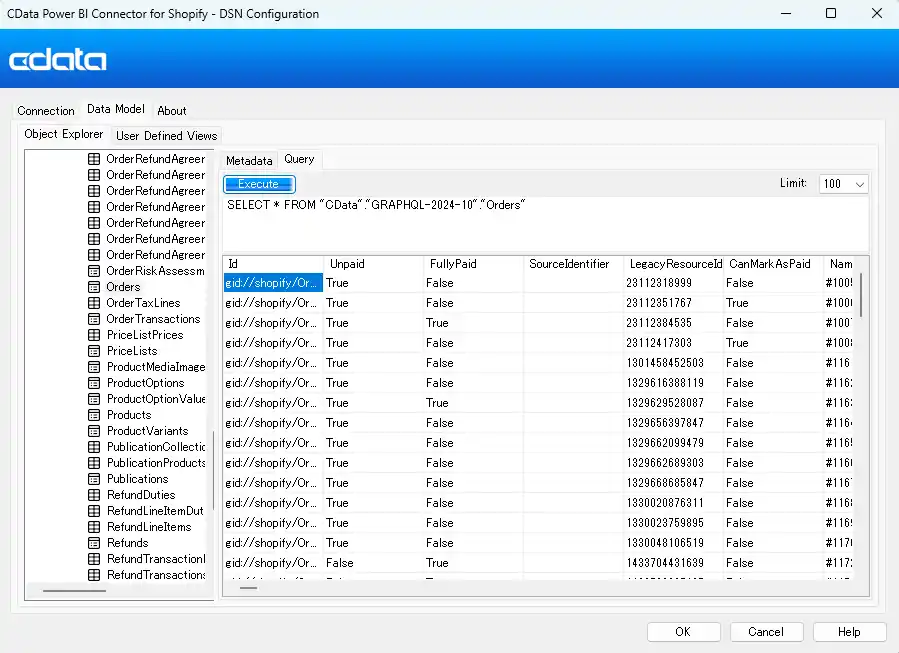
In the Query tab, you can actually issue SQL and check data retrieval results.
SELECT * FROM "CData"."GRAPHQL-2024-10"."Orders"
Step 3: Connect from Power BI
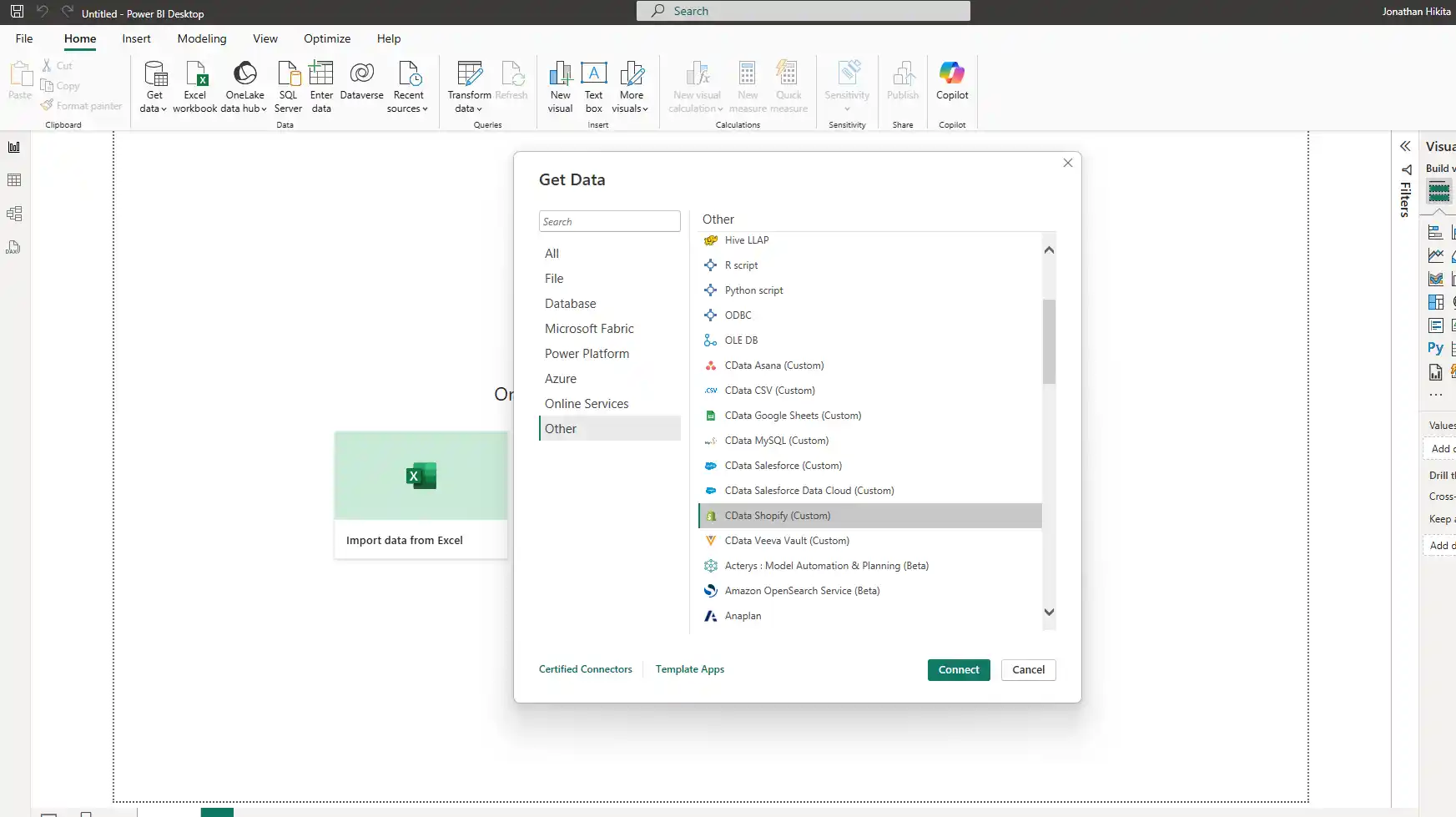
The driver works exactly the same after this to connect to Shopify from Power BI. Select CData Shopify as data source.
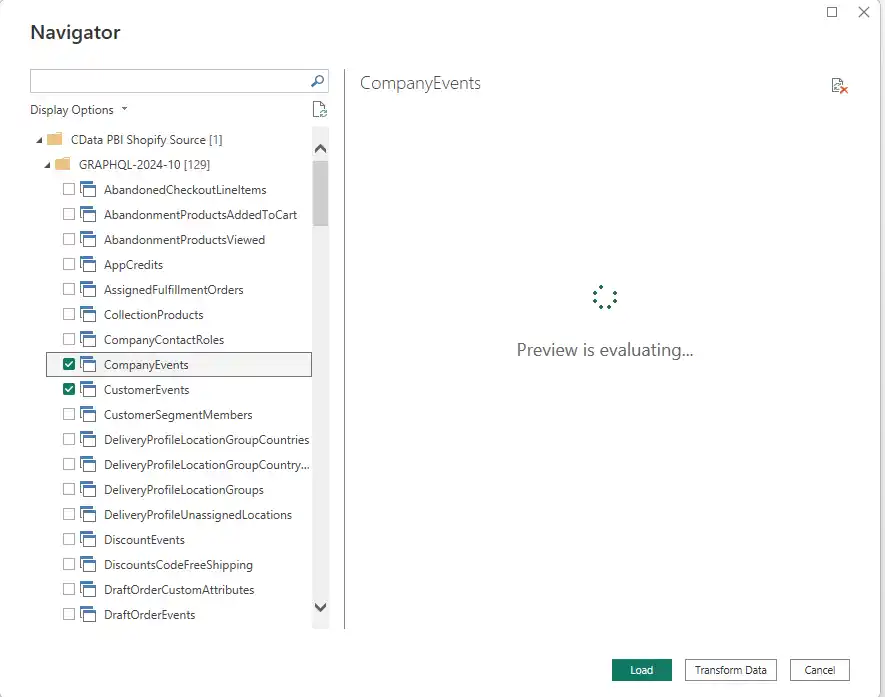
The Navigator will show the tables you can use in the GraphQL schema. Pick the table you want to analyze and import to Power BI.
More information and free trial
By using the CData Driver, you can use Shopify data from your favorite BI tools or Excel without being conscious of internal implementation changes or API specifications.
Learn more about the CData Drivers and Connectors for Shopify or download a 30-day free trial of CData Drivers for Shopify to see the CData difference for yourself.
