
Model Context Protocol (MCP) finally gives AI models a way to access the business data needed to make them really useful at work. CData MCP Servers have the depth and performance to make sure AI has access to all of the answers.
Try them now for free →


dbt Core Transformations with CData Sync
CData Sync supports the execution of ETL and ELT processes flexibly using dbt Core, dbt Cloud, or custom SQL transformations.
Data Build Tool (dbt) Core is an open-source, command-line tool that lets users define and execute data transformation workflows using SQL to manipulate and aggregate data. dbt Core's code-first approach gives organizations full control over the deployment, setup, and customization of their data transformation processes.
This article provides a step-by-step guide for using dbt Core with CData Sync.
Using dbt Core with CData Sync
Supported Destinations
Transformations of type dbt Core are supported for the following destinations:
- Snowflake
- Amazon Redshift
- Databricks
- PostgreSQL
- Google BigQuery
Setting up tools for dbt transformations
You need to set up dbt Core and other tools first to enable DBT transformations, as follows:
-
Install Git for Windows and Python 3.7 or later for Microsoft Windows.
Note: An application like Git is not required. However, such a repository is recommended because it provides versioning, enables you to share projects, and gives you more control of your source code.
In Git, locate and copy the following information for later use in the Sync settings for a DBT transformation:
-
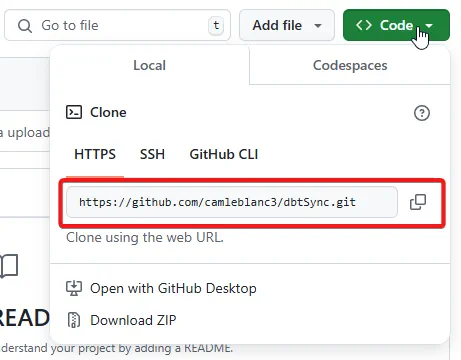
Git Repository URL - The repository URL is available in your Git repository window. Click Code to open the Clone dialog. The URL is on the HTTPS tab in the dialog. Copy the URL by clicking the copy icon on the right end of the URL field. Save the icon for use later in Sync.
-
Personal Access Token - To obtain your personal access token:
- Click your profile icon in the top right of the Git window and select Settings to open the Profile settings page.
- Select Developer Settings from the bottom of the left-side menu. This opens the Developer Settings page.
-
On this page, select Personal access tokens > Tokens (classic). This selection opens the Personal access tokens (classic) page where you can click Generate new token to create your personal access token.
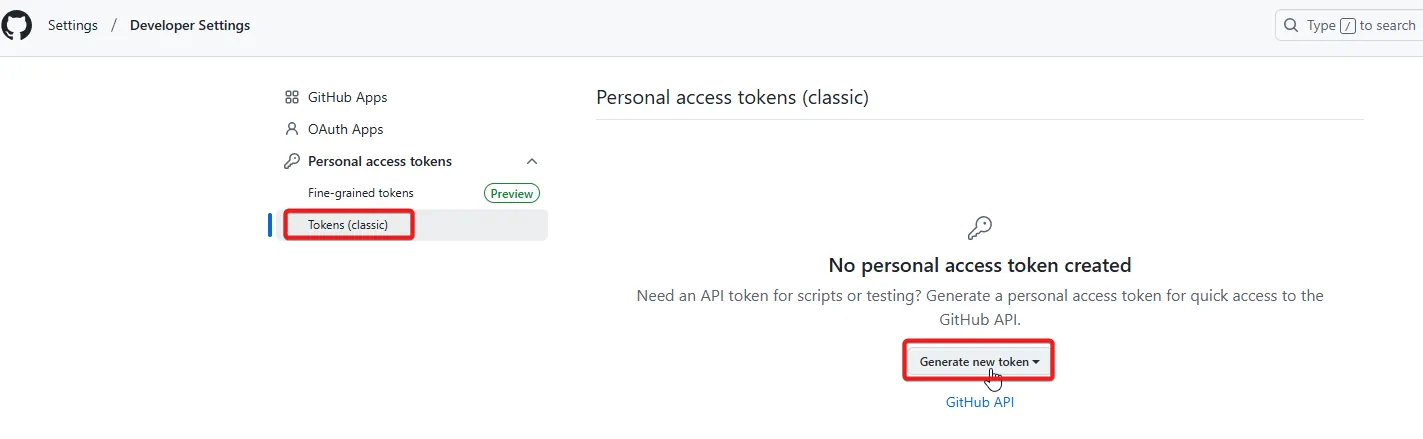
- Select the Repo check box in the Select scopes category. (You can set other criteria in this category as well, but it is not necessary.) For example, you might want to choose an expiration period (or no expiration) for your token under the Expiration category.
- Click Generate token at the bottom of the page. Copy and save the generated token for use later in Sync.
For more details about obtaining a personal access token, see Creating a personal access token.
-
Git Repository URL - The repository URL is available in your Git repository window. Click Code to open the Clone dialog. The URL is on the HTTPS tab in the dialog. Copy the URL by clicking the copy icon on the right end of the URL field. Save the icon for use later in Sync.
-
Install dbt Core and the adapter plug-in for your destination on the same machine where Sync is installed. Plug-ins are available for each of the destinations that are listed earlier and can be installed by using a pip command. For example, the pip command below installs dbt Core and the Google BigQuery plug-in:
pip install dbt-bigquery
After the installation is complete, you can check the installation with the following command:dbt --version
- Download your dbt projects locally by cloning your Git repository to your local machine. Sync clones the repository upon setup and before each run to ensure that any changes to the project are reflected in the next run from Sync.
- Create a transformation in Sync (using dbt projects that contain YML or SQL files), as described in the next section.
Creating a dbt transformation
To create a dbt transformation:
-
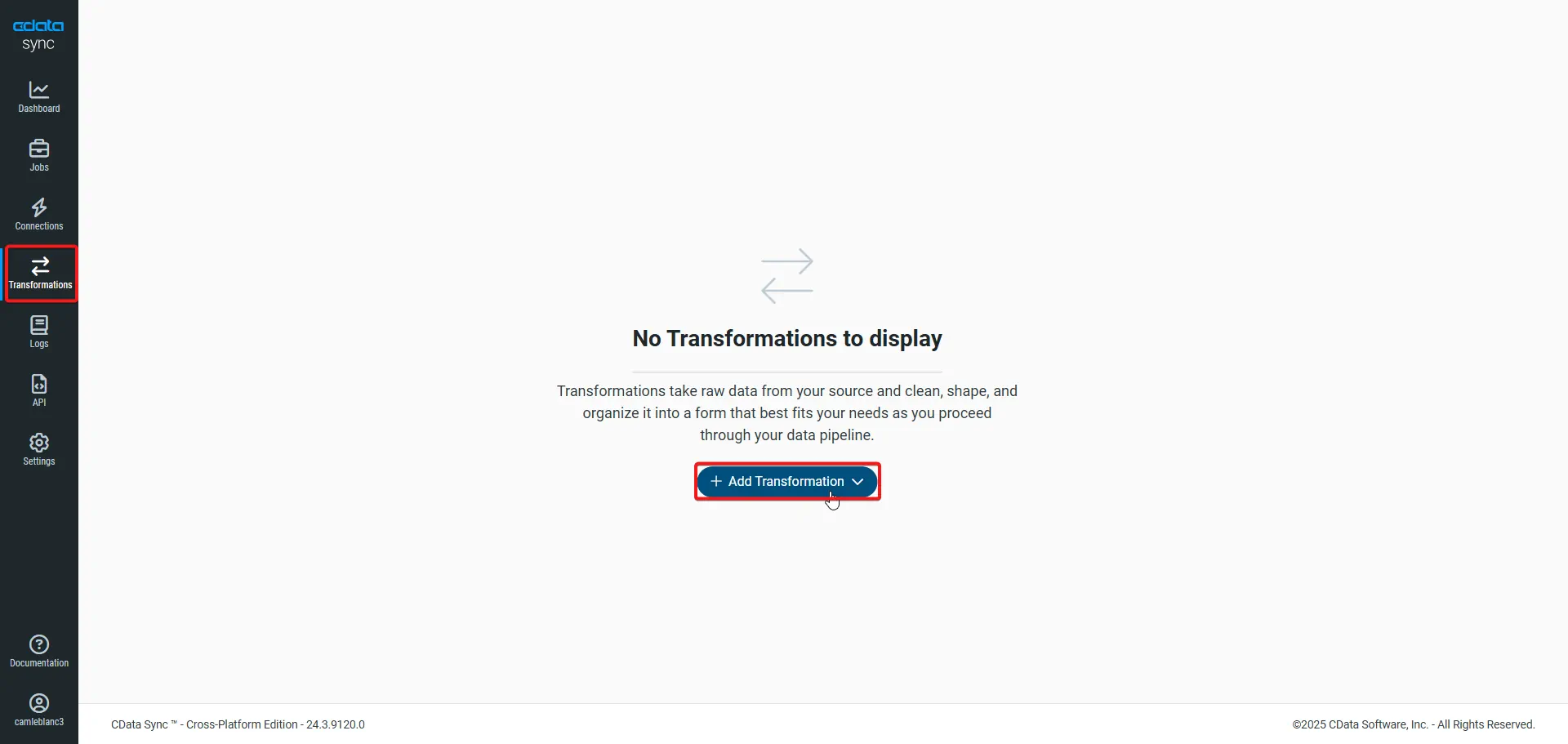
Open Sync and navigate to the Transformations page. Then, click Add Transformations.
-
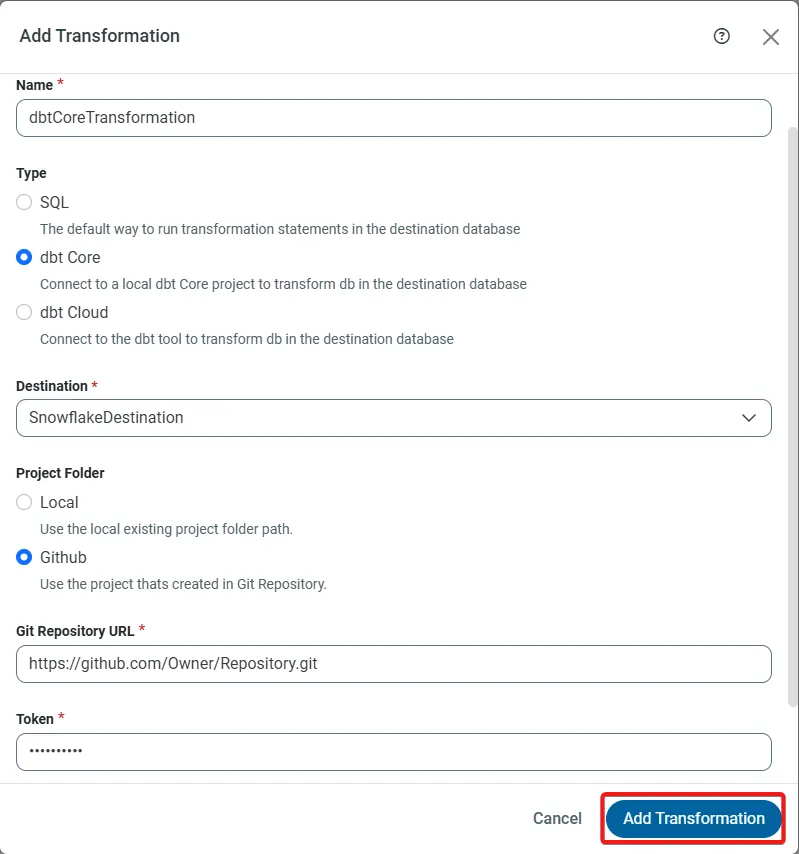
Fill out the fields in the Add Transformation dialog box, as follows:
- Name: Enter a name for your transformation.
- Type: Select dbt Core as the transformation type.
-
Project Folder: Select one of the following options. The default option is Local.
- Local: Enter the path for your existing local project folder. For this option, you also need to enter your dbt project folder page in the Folder Path field.
-
Github: Enter the URL for the project that you created earlier in Git. For this option, enter the following information:
- Git Repository URL: Enter your Git repository URL in the form https://github.com/Owner/Repository.git.
- Token: Enter the personal access token that you copied earlier in Git.
- Destination Schema - Add a destination schema of your choice.
-
Click Add Transformation.
Free Trial & More Information
Now that you have seen how to integrate dbt Core with CData Sync, visit our CData Sync page to read more information about CData Sync and download a free trial today! As always, our world-class Support Team is ready to answer any questions you may have.
