
Model Context Protocol (MCP) finally gives AI models a way to access the business data needed to make them really useful at work. CData MCP Servers have the depth and performance to make sure AI has access to all of the answers.
Try them now for free →


Replicate Salesforce Data to SAP Datasphere with CData Sync
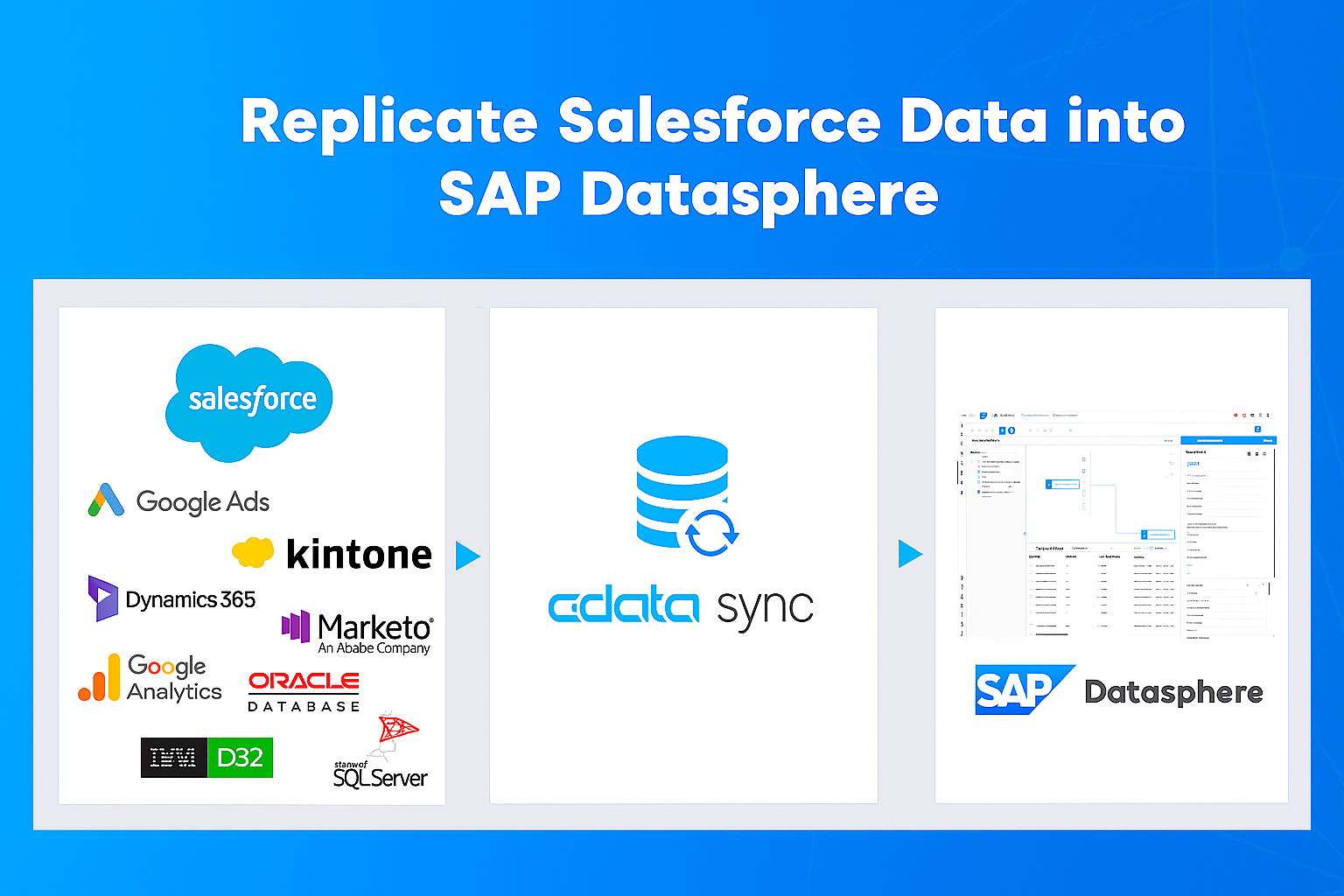
This article highlights how CData Sync facilitates seamless data replication into SAP Datasphere, a core component of the SAP Business Data Cloud.
What is SAP Datasphere?
SAP Datasphere serves as a pivotal data integration foundation within the SAP Business Data Cloud. It's a comprehensive platform that encompasses data collection, metadata management, and data modeling functionalities, all designed to make various enterprise data (including SAP data) easily accessible and usable for business departments. It covers the full spectrum of data management and data fabric capabilities.
For more details, visit: SAP Datasphere Overview
SAP Datasphere excels at importing external data, allowing you to bring in information not just from SAP ERP, but also from data lakes like Azure Data Lake Storage and Google Cloud Storage, and data warehouses such as BigQuery. This data can then be utilized as a remote, or virtual, table within Datasphere.
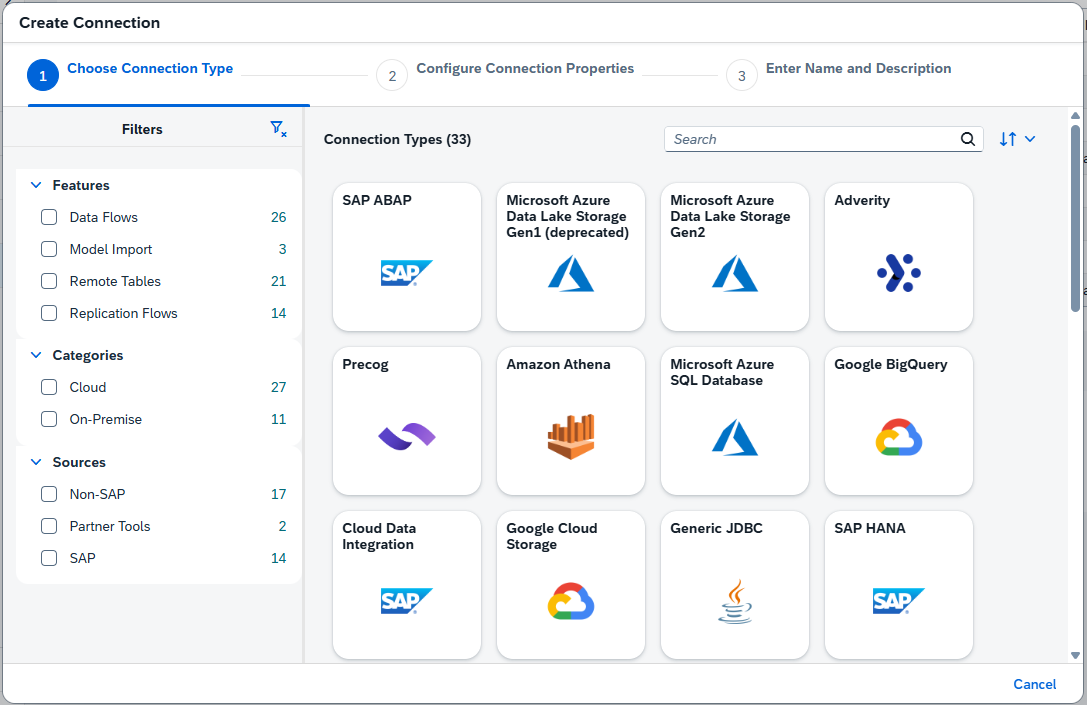
However, it currently lacks native connectors for SaaS platforms like Salesforce, Dynamics 365, or Kintone.
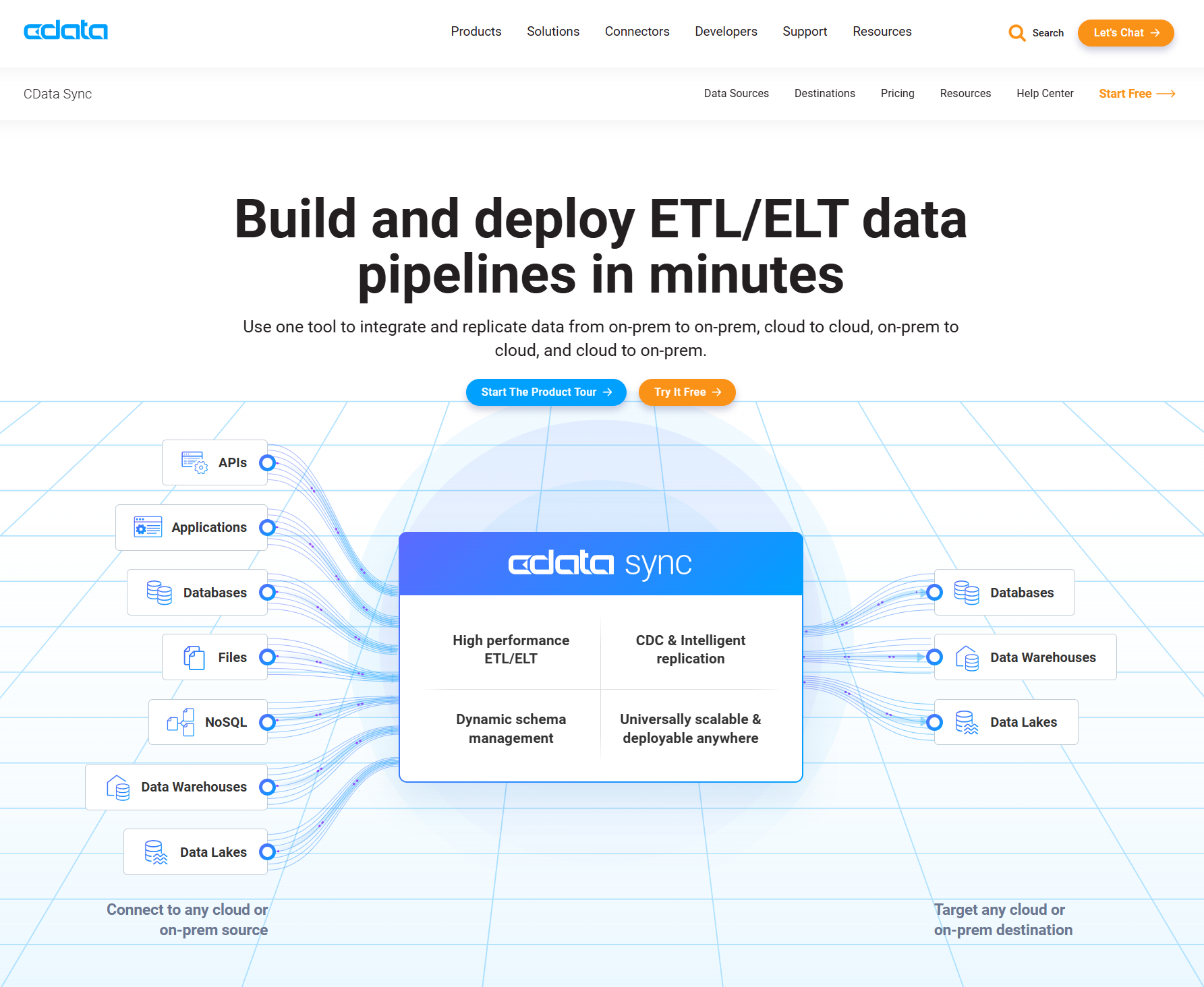
Let's explore how to use CData Sync to import and utilize data from an external cloud service like Salesforce in SAP Datasphere.
Integration Points
Data flows into Datasphere via two concepts:
- Spaces for modeling and end-user consumption
- OpenSQL schemas for external ETL tools to load data via SAP HANA protocol
CData Sync writes data into an OpenSQL schema, which you then consume in a user-facing Space.
For further information on these concepts, refer to the SAP help docs.
Setting Up a Space
A "Space" in SAP Datasphere is a dedicated environment for data processing. You'll need to create one if you don't have an existing space with sufficient permissions for your replication tasks.
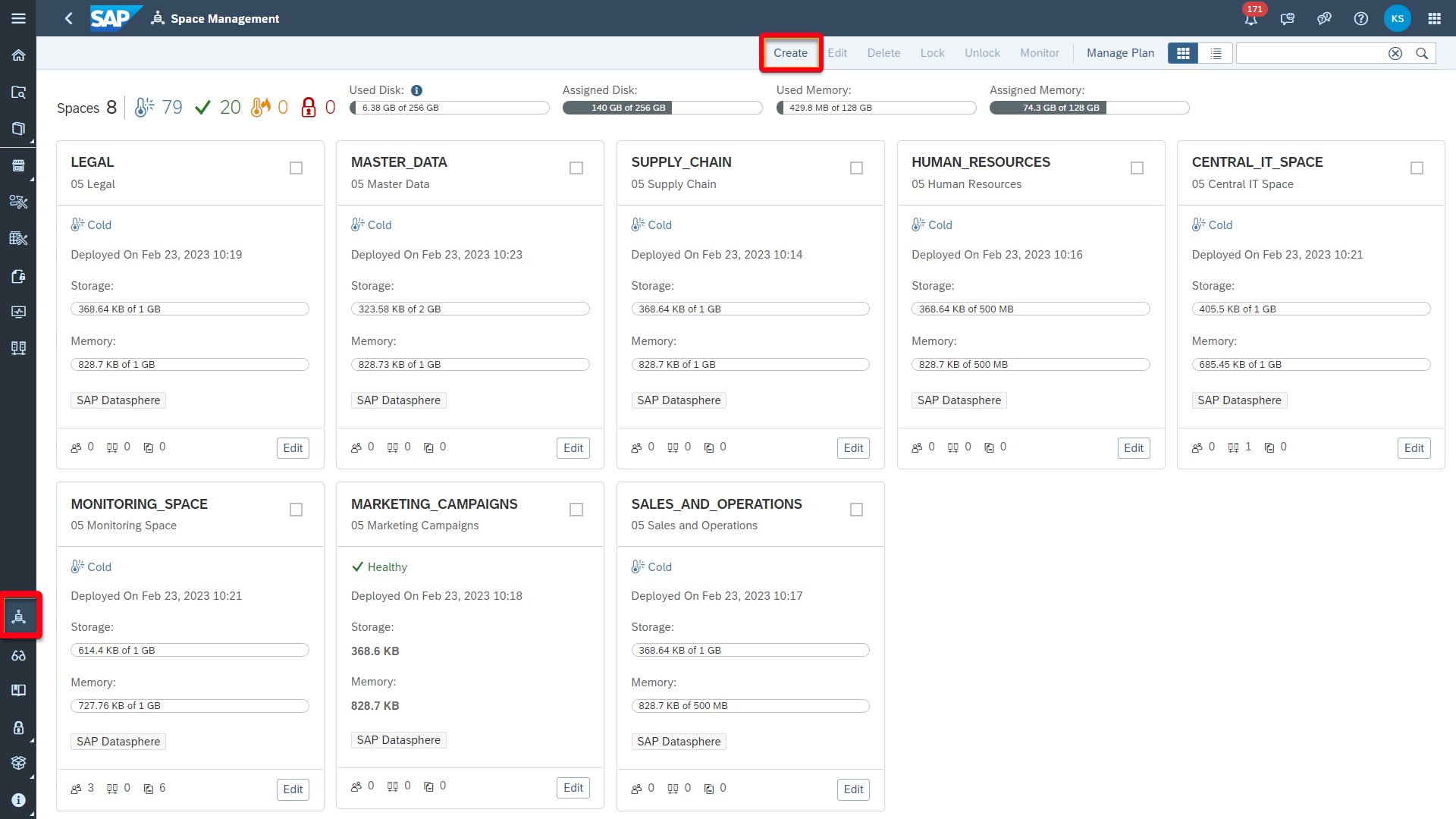
In SAP Datasphere, go to "Space Management" → "Create"
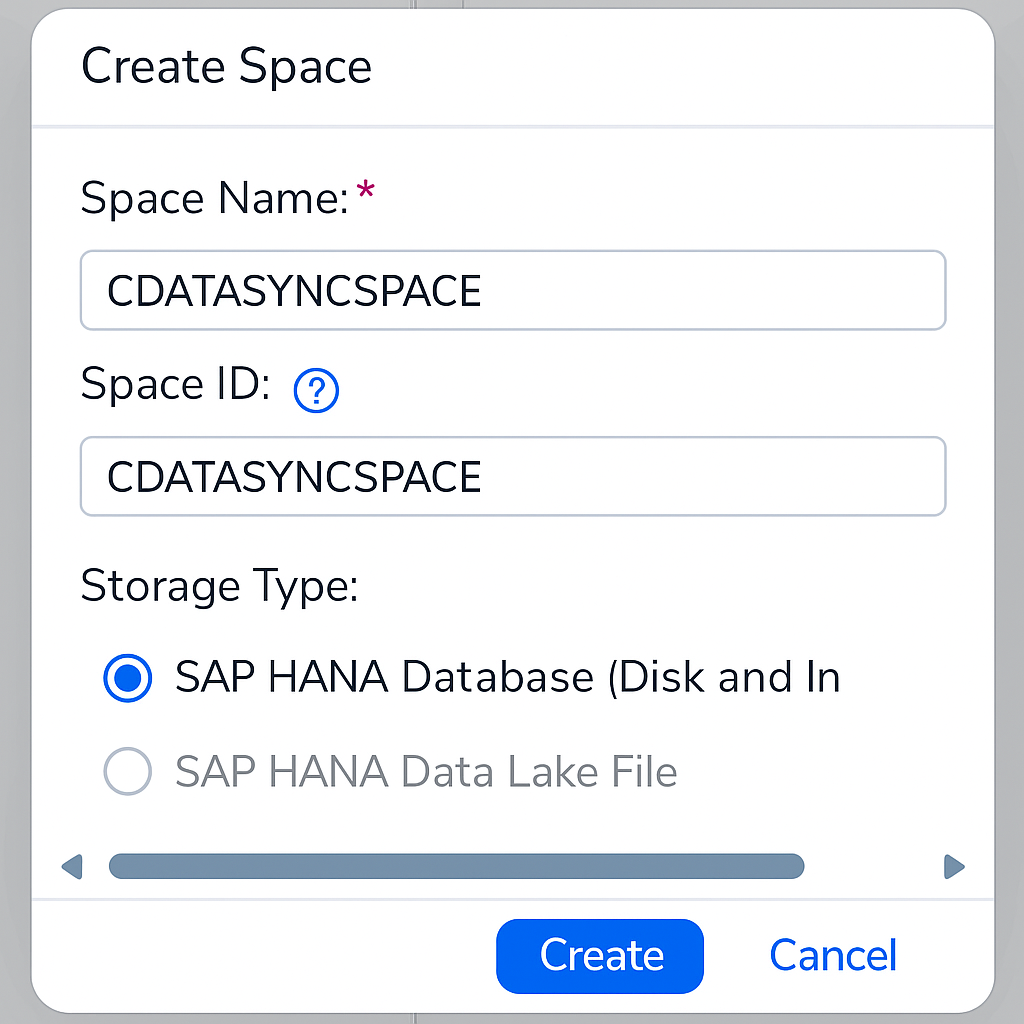
Create a space with any name you like (e.g. "CDATASYNCSPACE")
Creating a Database User
Once you have created your space, create a database user to connect to your OpenSQL schema.
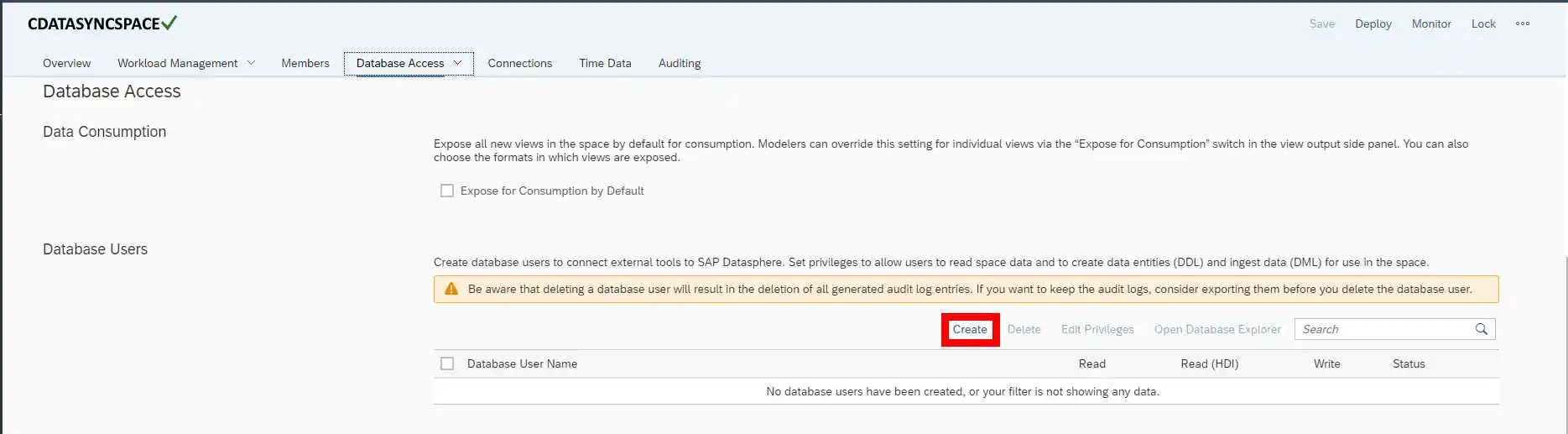
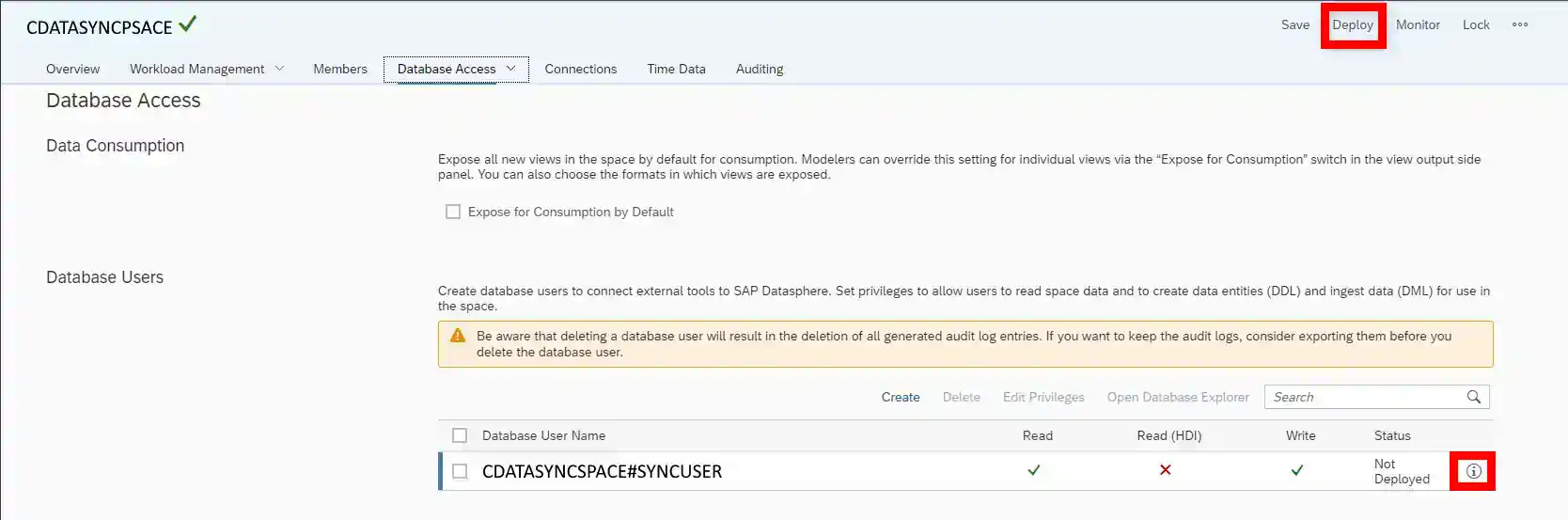
On the "Database Access" tab, in the "Database Users" list, click "Create".
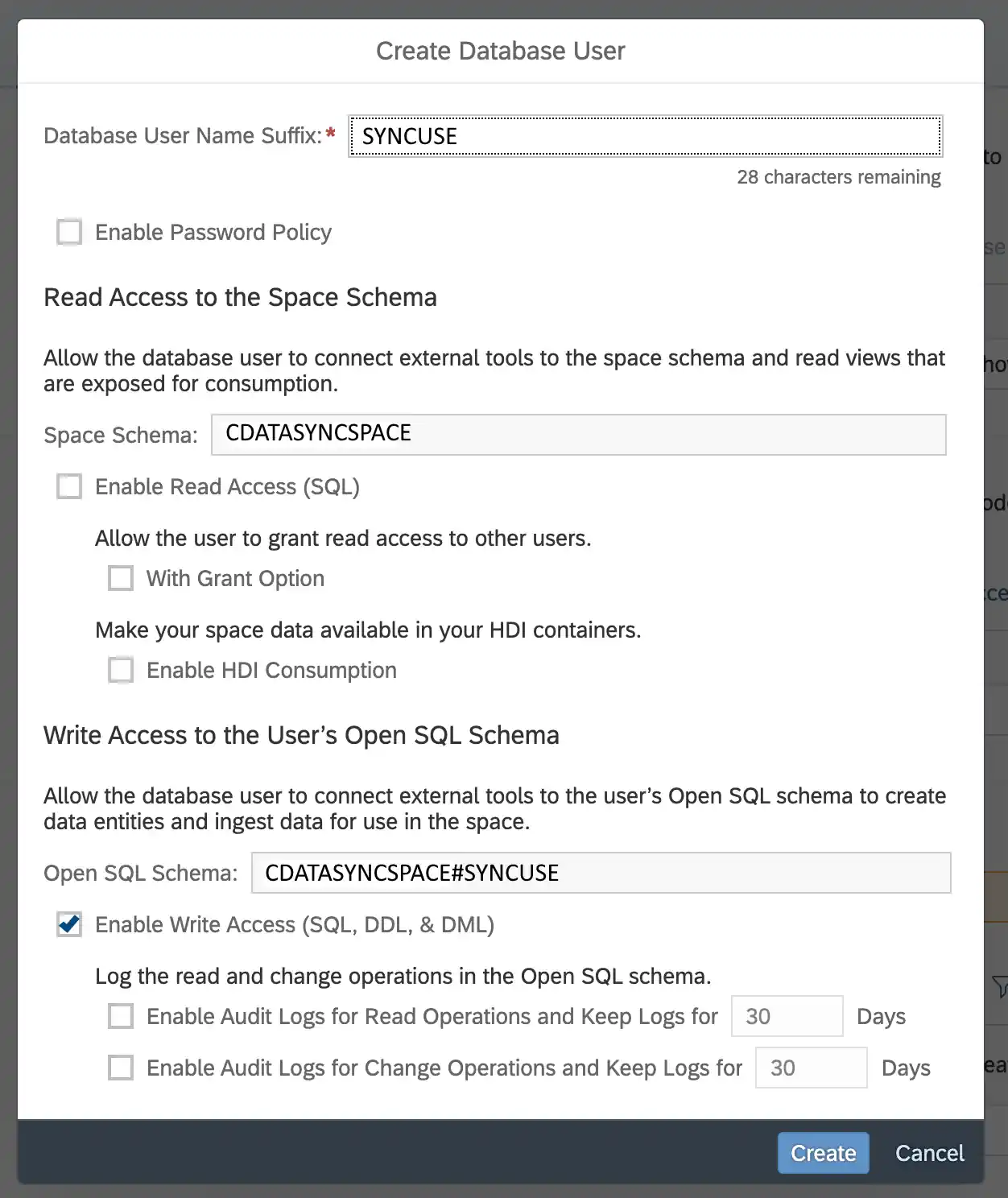
Set the desired "Database User Name Suffix" and grant the user "Enable write access (SQL, DDL, & DML)" permission to write access to the user's Open SQL schema.
After creating the Database User, click "Save" and "Deploy" to enable the Database User.
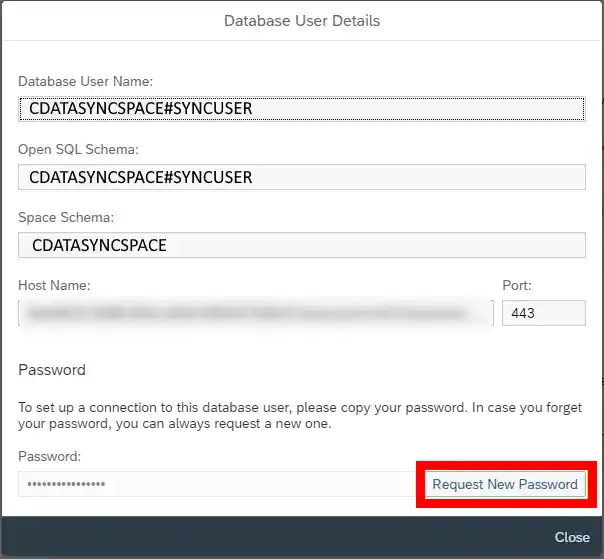
Once the deployment is complete, check the connection information. Click the Information button for the Database User you created.
To connect from CData Sync, note down the following information. Click "Request a new password" to obtain your password.
Adding CData Sync's Connection Source IP Address to the IP Allow List
For security, SAP Datasphere requires that only whitelisted IP addresses can connect to it. Details on how to add an IP address to the IP Allow List in SAP Datasphere can be found in the SAP Datasphere help docs here. Make sure to add the IP address for the machine hosting CData Sync.
Setting Up CData Sync
Now, let's configure CData Sync to connect to SAP Datasphere and your source data (e.g., Salesforce).
A fully-functional 30-day free trial of CData Sync can be downloaded here.
Adding a Connection
First, establish a connection to SAP Datasphere within CData Sync.
- Open CData Sync and navigate to the "Connections" tab.
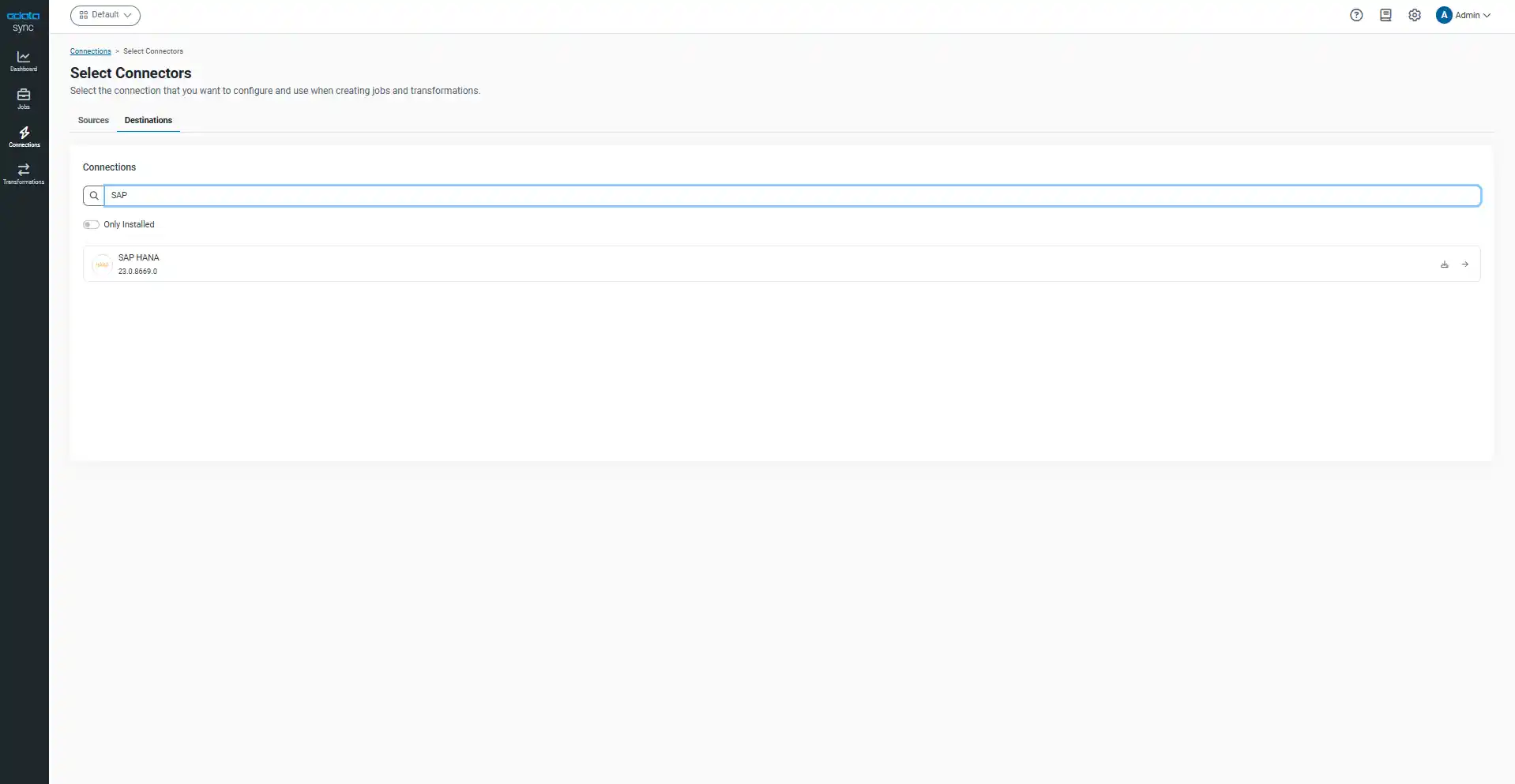
- Click "Add Connection" and select "SAP HANA" under the 'Destinations' tab.
- Now connect using the connection information for the database user you created previously.
| Property Name | Example Input | Remarks |
|---|---|---|
| Server | XXXXXXXX-XXXX-XXXX-XXXX-XXXXXXXX.hana.prod-jp10.hanacloud.ondemand.com | Enter the hostname. |
| Port | 443 | Enter the port number 443. |
| Auth Scheme | Password | |
| User | CDATASYNCSPACE#SYNCUSER | Enter the database user name. |
| Password | PASSWORD | Enter the password you requested. |
| Schema | CDATASYNCSPACE#SYNCUSER | Enter the Open SQL schema name. |
| Use SSL | True | Set this to True since you will be using SSL. |
4. Test the connection to ensure successful connectivity.
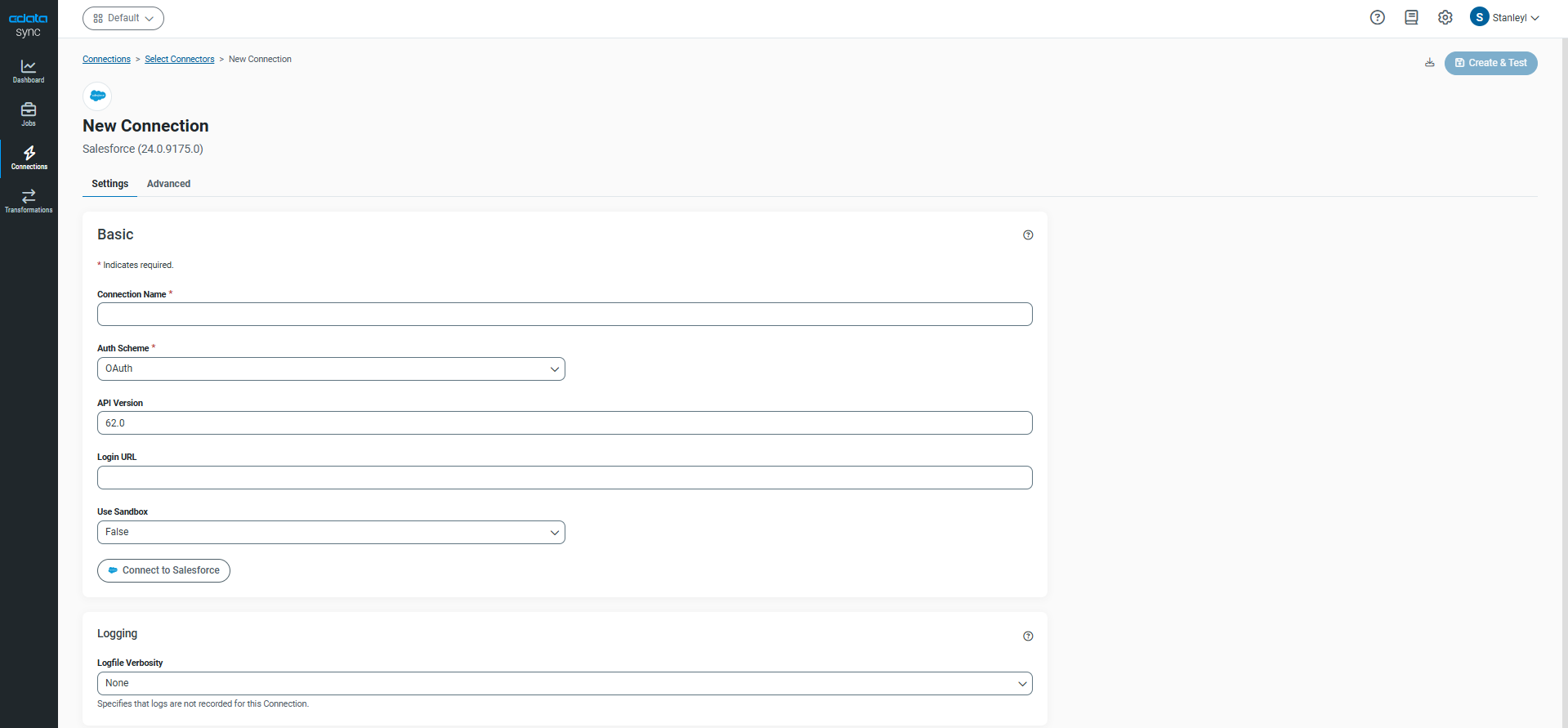
Next, add a connection for your source data, such as Salesforce.
- Click "Add Connection" again and select "Salesforce" under the "Sources" tab.
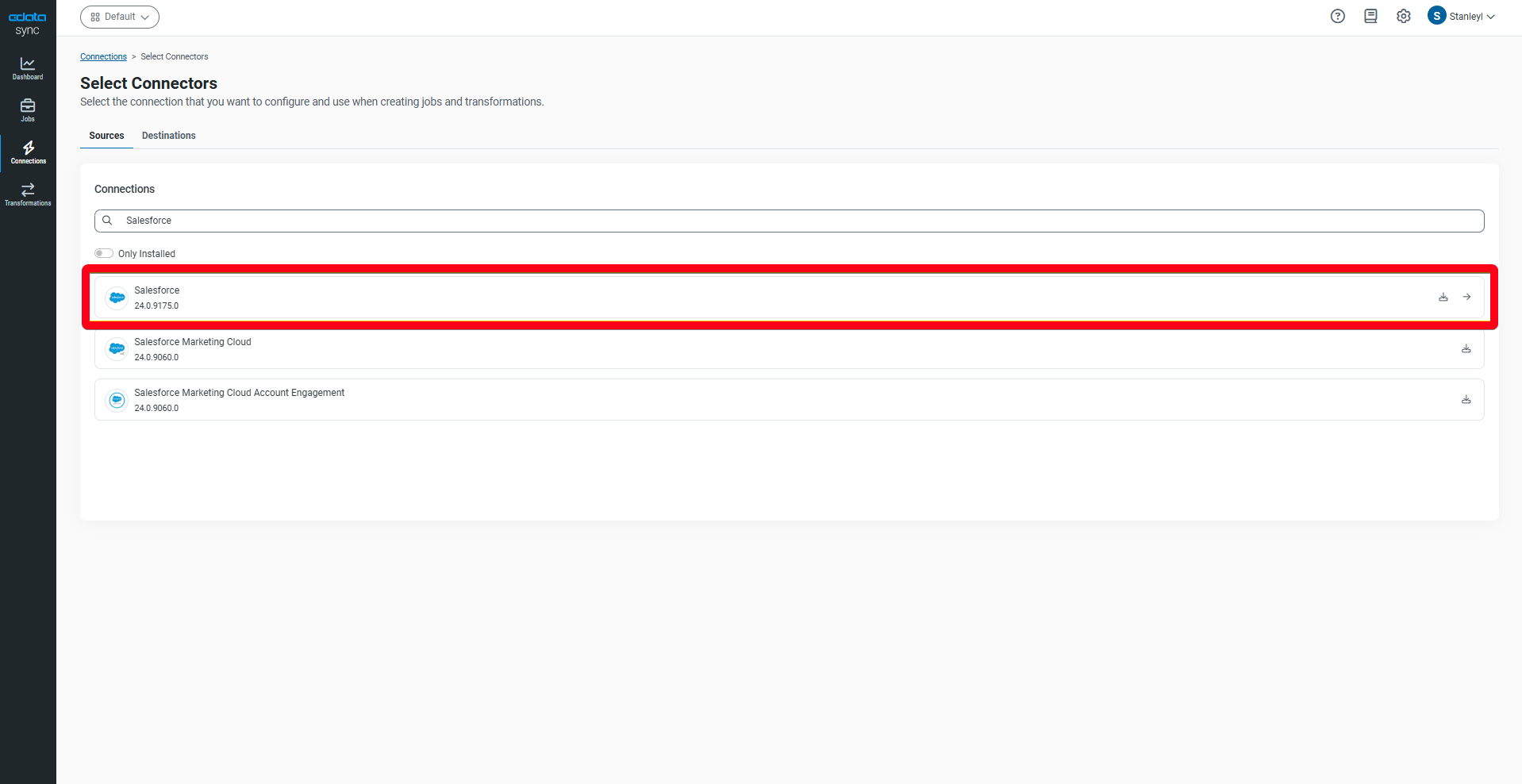
- Configure your Salesforce connection properties & test the connection.
Creating a Job
A "Job" in CData Sync defines the data replication process from a source to a destination.
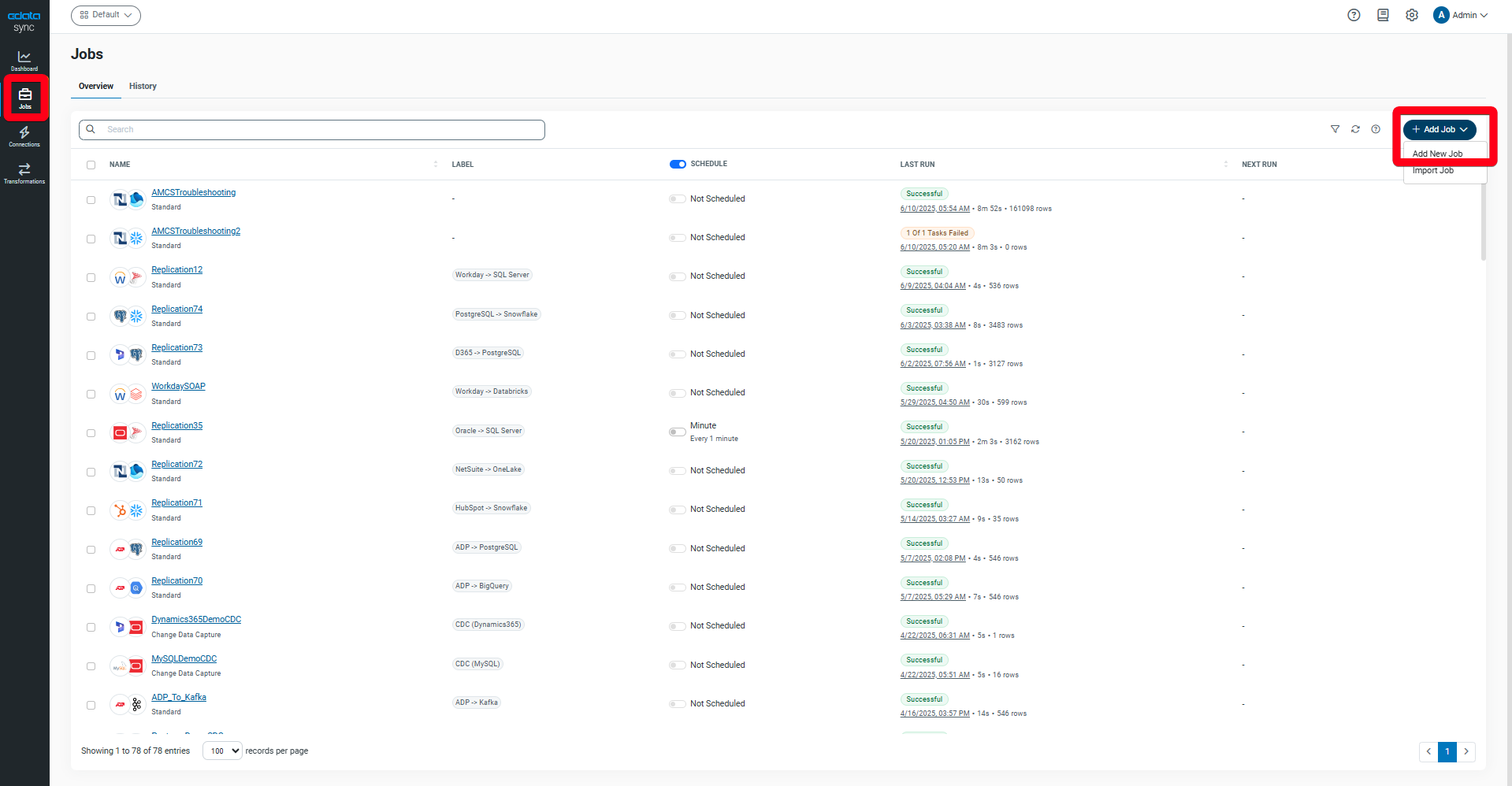
- Go to the "Jobs" tab in CData Sync.
- Click "Add Job."
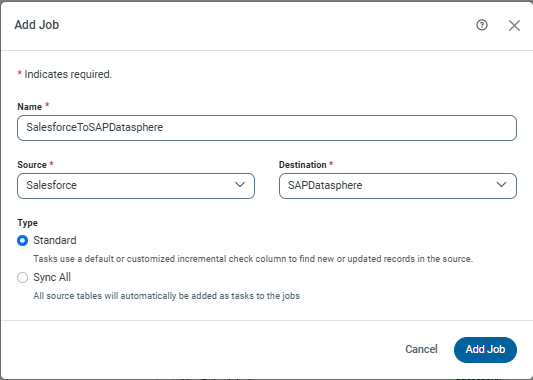
- Give your job a name.
- Select your configured Salesforce connection as the "Source" and the SAP Datasphere connection as the "Destination."
- Click "Add Job" to create it.
Once the job is created, you need to add "Tasks" to specify which tables to replicate.
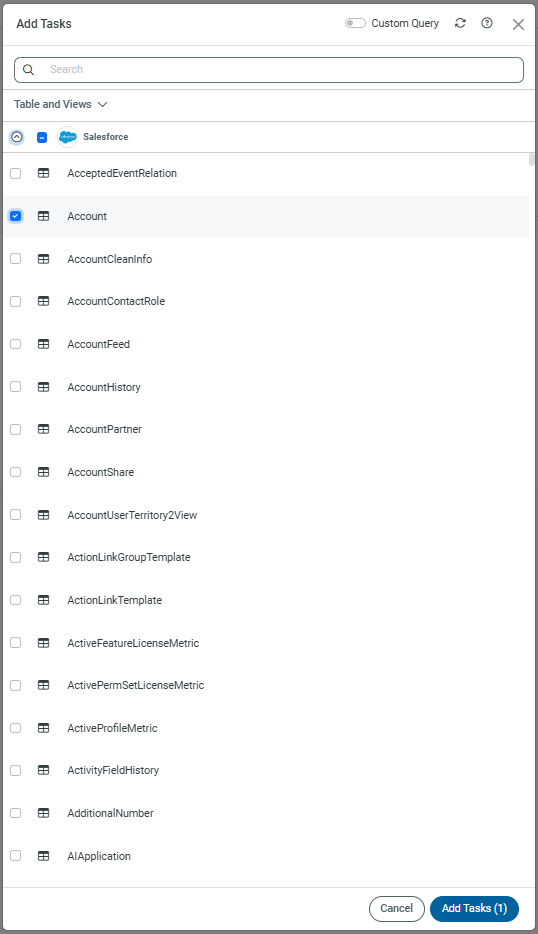
- From the "Tasks" tab, click "Add Task."
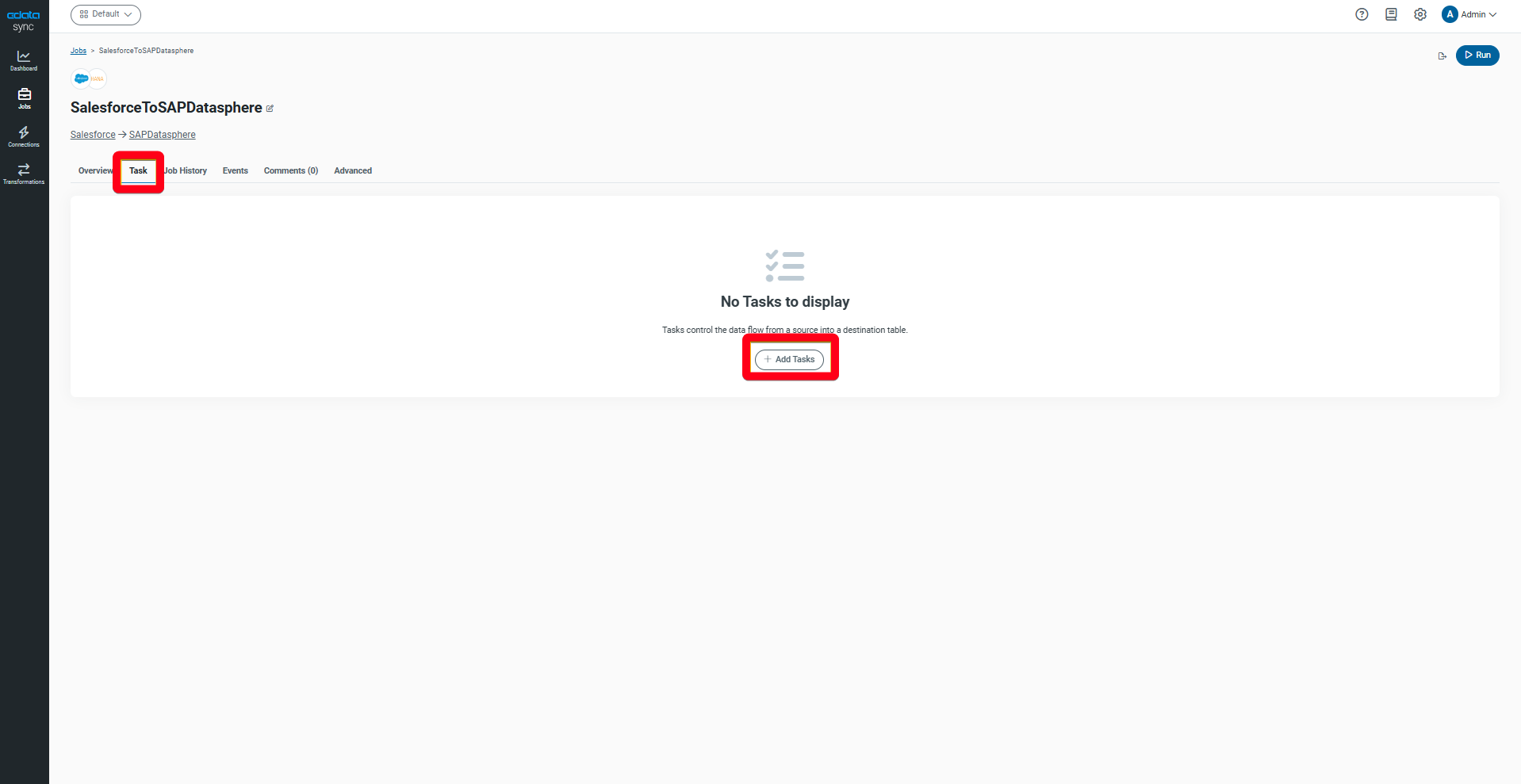
- Available tables and views from your source (Salesforce) will be displayed. Select the data you wish to replicate.
Manually Executing a Job
After registering your tasks, you can execute the job. While you typically schedule jobs for automated execution, for this demonstration, we'll run it manually.
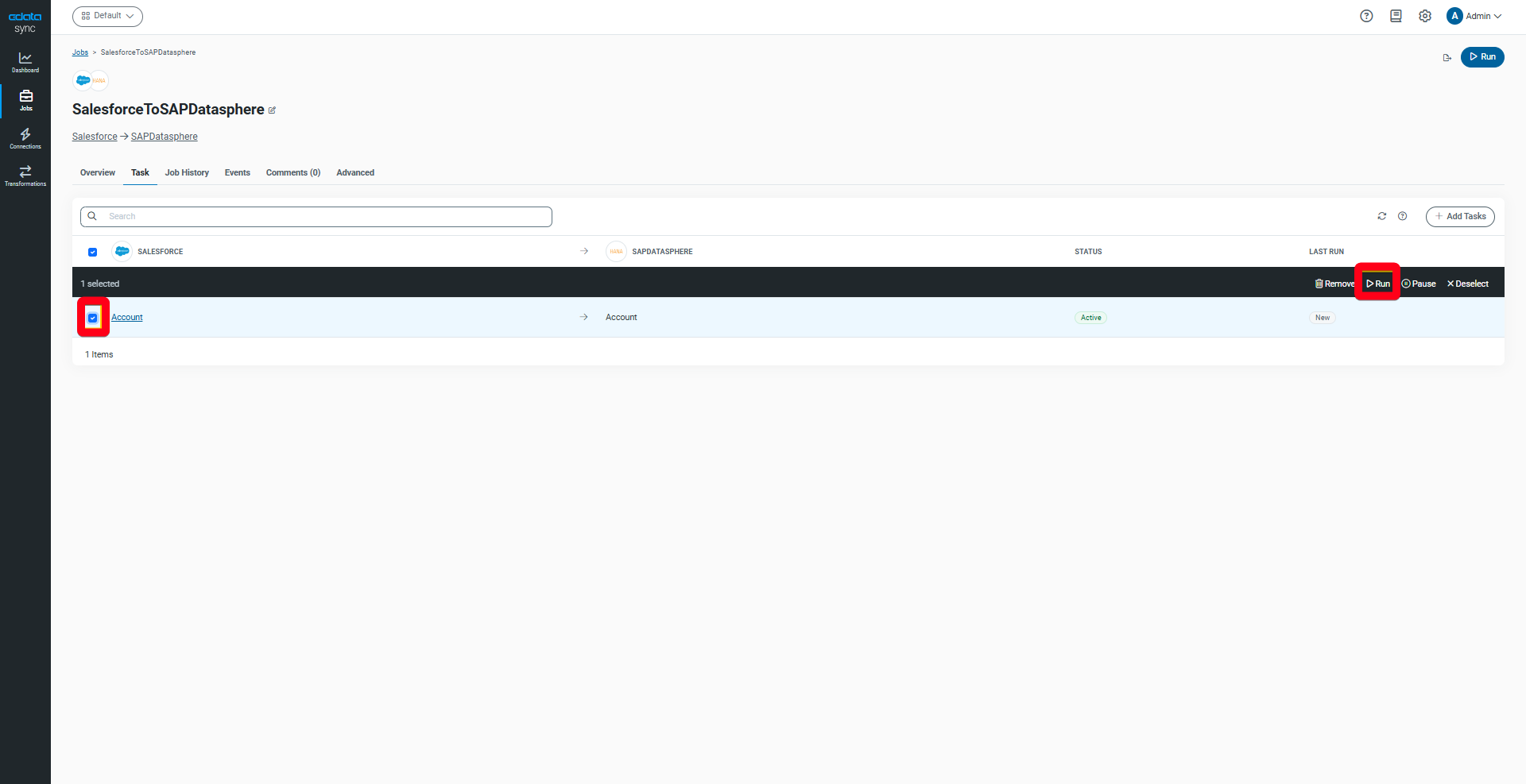
- Select the task you want to replicate from the task list.
- Click "Run."
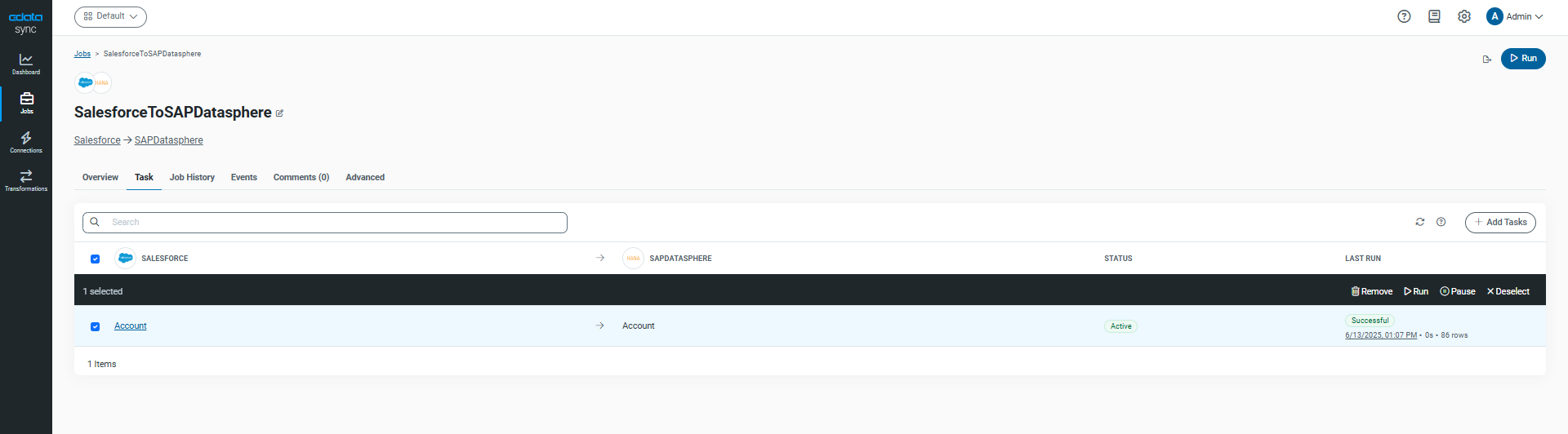
- The results will be displayed momentarily, indicating successful replication.
Viewing Data in the Database Explorer
Let's confirm that the data has been successfully registered in the Open SQL Schema within SAP Datasphere.
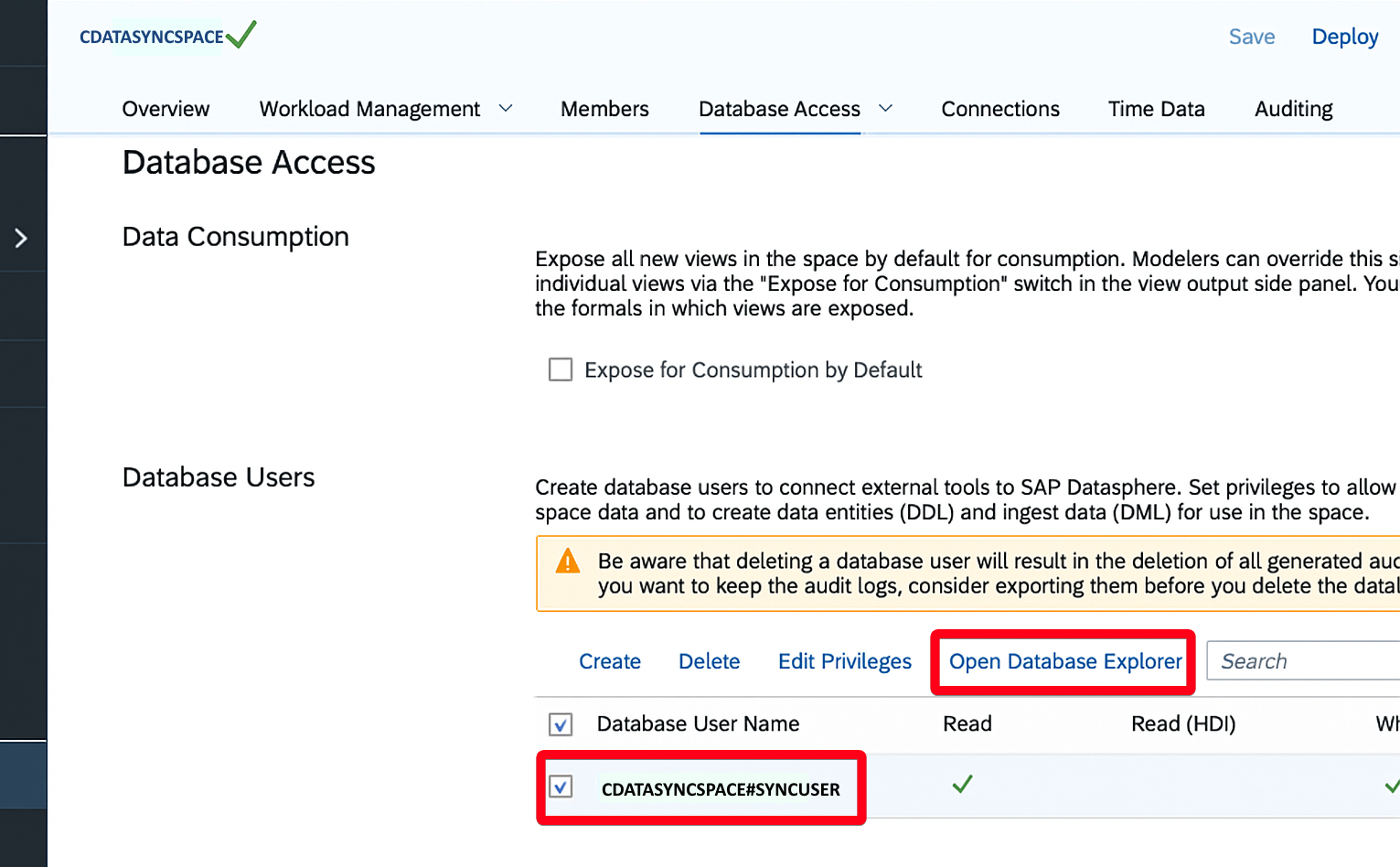
- From the SAP Datasphere database user screen, select the user you created earlier and click "Open Database Explorer."
- You'll be prompted to set up a new instance connection. Enter the User and Password for your database user to establish the connection.
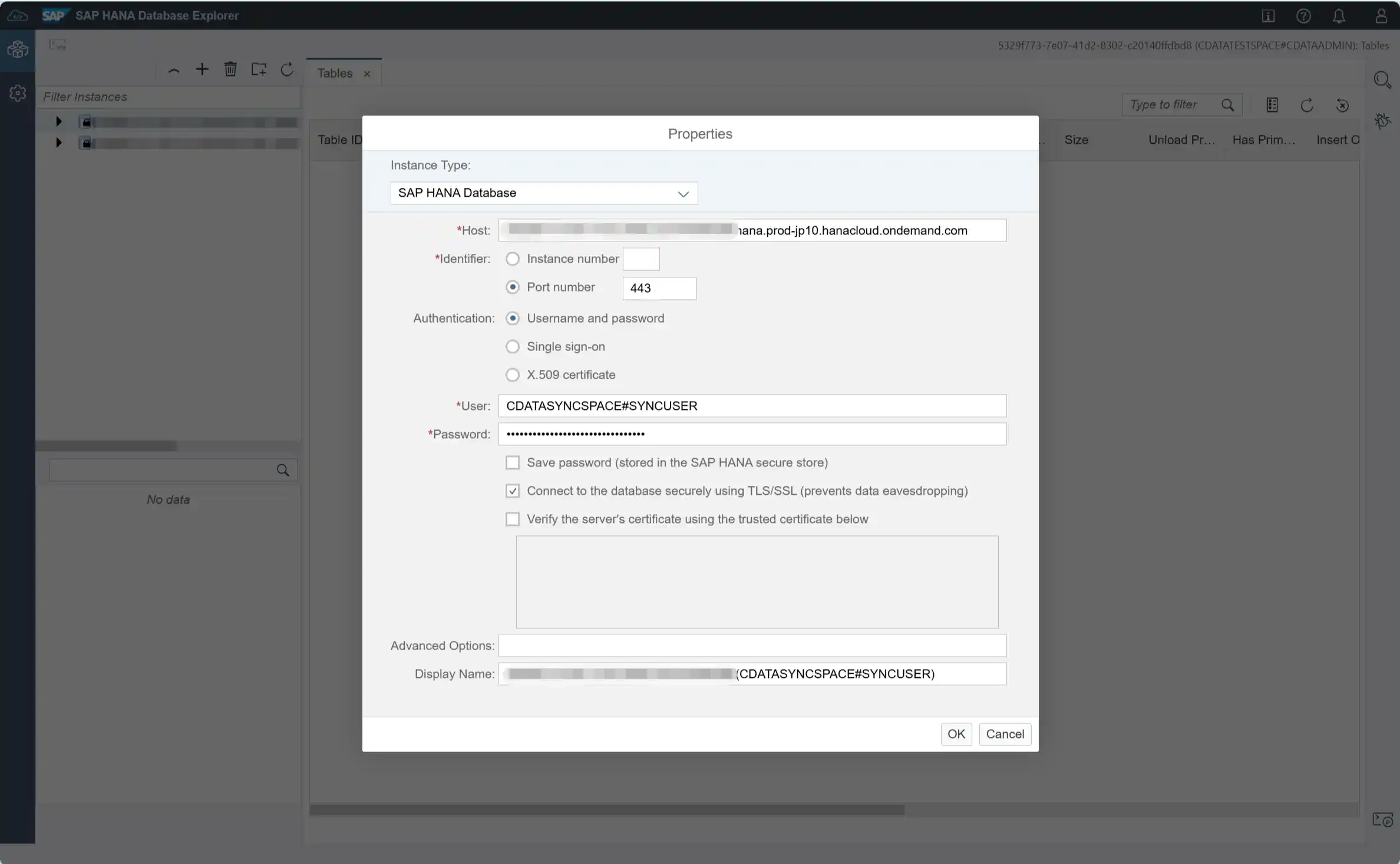
- Open the connection for your created instance and select "Tables." You will see the table created for storing the replicated data.
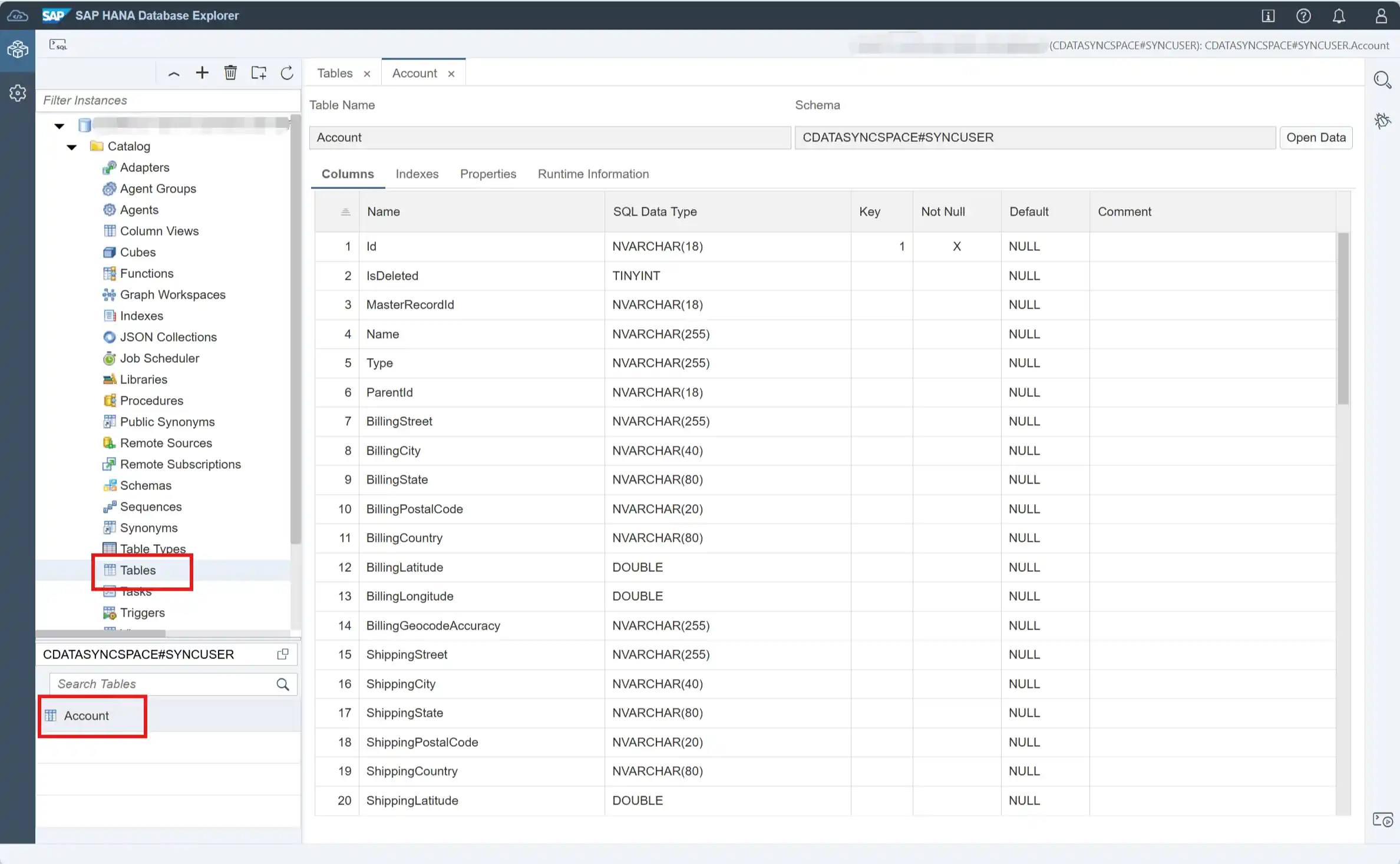
- Click "Open Data" to view the data. You should see the successfully replicated information!
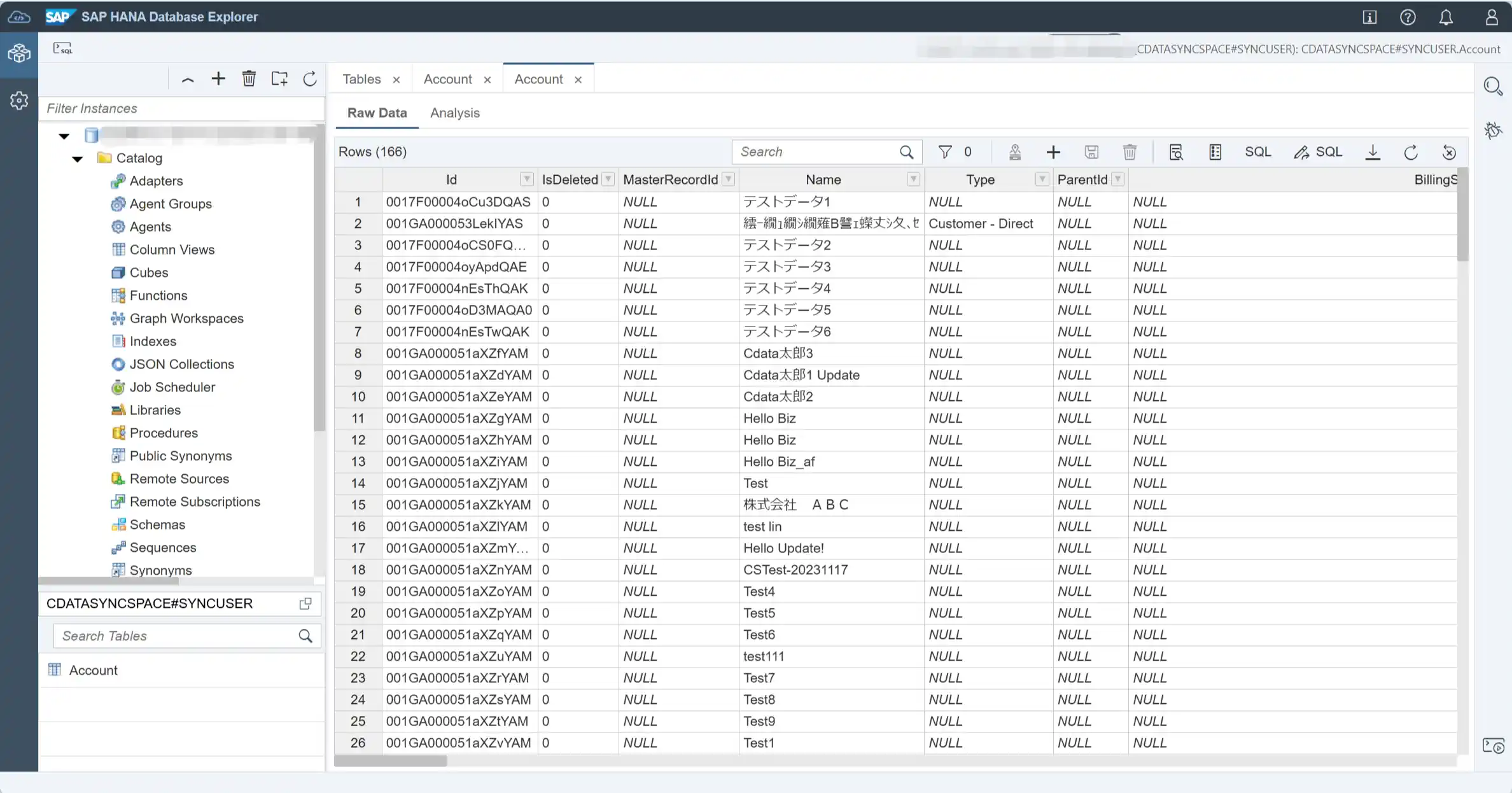
- From here, you can now use the Data Builder to reference this Open SQL Schema as a source and incorporate it into your data models.
Conclusion
As demonstrated, CData Sync offers a straightforward way to import a variety of external data into SAP Datasphere. While we used Salesforce as an example, CData Sync supports a vast array of SaaS applications, relational databases, and more. We encourage you to try it with your own specific data sources. Start your CData Sync trial today!
Should you have any questions or require assistance, please do not hesitate to contact us.
