
Model Context Protocol (MCP) finally gives AI models a way to access the business data needed to make them really useful at work. CData MCP Servers have the depth and performance to make sure AI has access to all of the answers.
Try them now for free →


Build an OLAP Cube in SSAS from Adobe Target Data
Establish a connection to Adobe Target data data from SQL Server Analysis Services, and use the Adobe Target Data Provider to build OLAP cubes for use in analytics and reporting.
SQL Server Analysis Services (SSAS) serves as an analytical data engine employed in decision support and business analytics, offering high-level semantic data models for business reports and client applications like Power BI, Excel, Reporting Services reports, and various data visualization tools. When coupled with the CData ADO.NET Provider for Adobe Target, you gain the capability to generate cubes from Adobe Target data, facilitating more profound and efficient data analysis.
In this article, we will guide you through the process of developing and deploying a multi-dimensional model of Adobe Target data by creating an Analysis Services project in Visual Studio. To proceed, ensure that you have an accessible SSAS instance and have installed the ADO.NET Provider.
Creating a Data Source for Adobe Target
Start by creating a new Analysis Service Multidimensional and Data Mining Project in Visual Studio. Next, create a Data Source for Adobe Target data in the project.
- In the Solution Explorer, right-click Data Source and select New Data Source.
- Opt to create a data source based on an existing or new connection and click New.
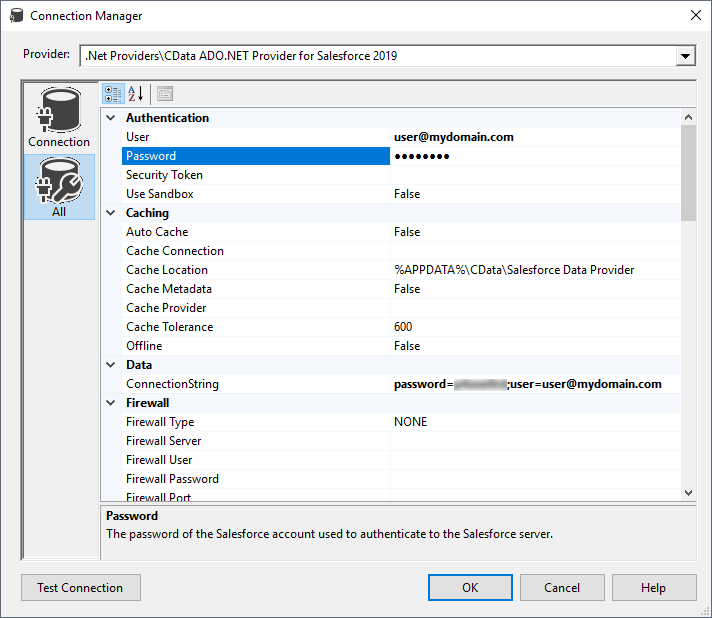
- In the Connection Manager, select CData ADO.NET Provider for Adobe Target, enter the necessary connection properties, and click Next.
To connect to Adobe Target, you must provide the Tenant property along with OAuth connection properties mentioned below. Note that while other connection properties can influence processing behavior, they do not affect the ability to connect.
To determine your Tenant name:
- Log in to Adobe Experience. The URL will look similar to: "https://experience.adobe.com/#/@mycompanyname/preferences/general-section".
- Extract the value after the "/#/@". In this example, it is "mycompanyname".
- Set the Tenant connection property to that value.
User Accounts (OAuth)
You must set AuthScheme to OAuthClient for all user account flows.
Note: Adobe authentication via OAuth requires updating your token every two weeks.
All Applications
CData provides an embedded OAuth application that simplifies OAuth authentication. Alternatively, you can create a custom OAuth application. Review Creating a Custom OAuth App in the Help documentation for more information.Obtaining the OAuth Access Token
Set the following properties to connect:
- InitiateOAuth: Set to GETANDREFRESH to automatically perform the OAuth exchange and refresh the OAuthAccessToken as needed.
- OAuthClientId : Set to the client Id assigned when you registered your app.
- OAuthClientSecret : Set to the client secret assigned when you registered your app.
- CallbackURL : Set to the redirect URI defined when you registered your app. For example: https://localhost:3333
With these settings, the provider obtains an access token from Adobe Target, which it uses to request data. The OAuth values are stored in the location specified by OAuthSettingsLocation, ensuring they persist across connections.
When you configure the connection, you may also want to set the Max Rows connection property. This will limit the number of rows returned, which is especially helpful for improving performance when designing reports and visualizations.
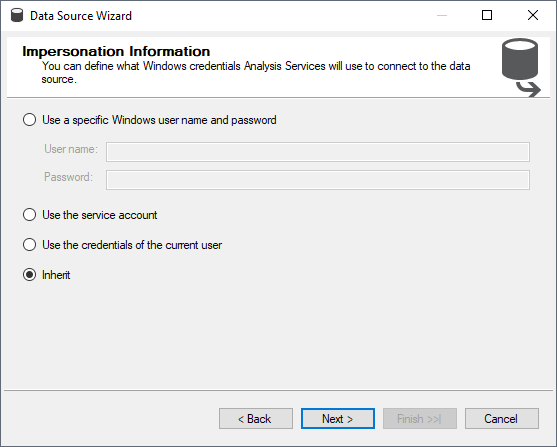
- Set the impersonation method to Inherit and click Next.
- Name the data source (CData Adobe Target Source) and click Finish.
Creating a Data Source View
After you create the data source, create the data source view.
- In the Solution Explorer, right-click Data Source Views and select New Data Source View.
- Select the data source you just created (CData Adobe Target Source) and click Next.
- Choose a foreign key match pattern that matches your underlying data source and click Next.
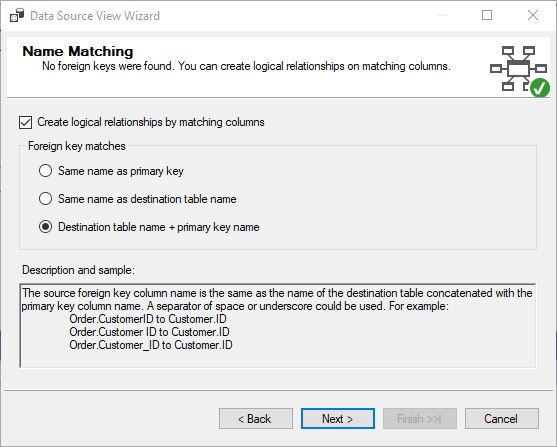
- Select Adobe Target tables to add to the view and click Next.
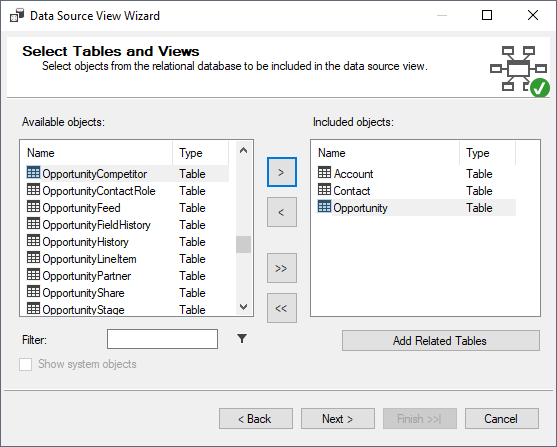
- Name the view and click Finish
Based on the foreign key match scheme, relationships in the underlying data will be automatically detected. You can view (and edit) these relationships by double clicking Data Source View.
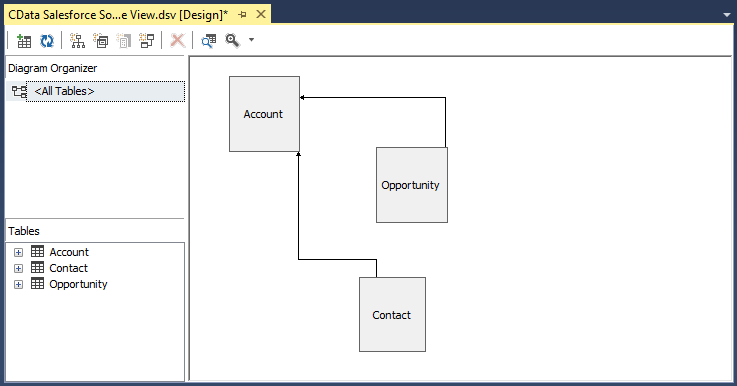
Note that adding a secondary data source to the Data Source View is not supported. When working with multiple data sources, SSAS requires both sources to support remote queries via OpenRowset which is unavailable in the ADO.NET Provider.
Creating a Cube for Adobe Target
The last step before you can process the project and deploy Adobe Target data to SSAS is creating the cubes.
- In the Solution Explorer, right-click Cubes and select New Cube
- Select "Use existing tables" and click Next.
- Select the tables that will be used for measure group tables and click Next.
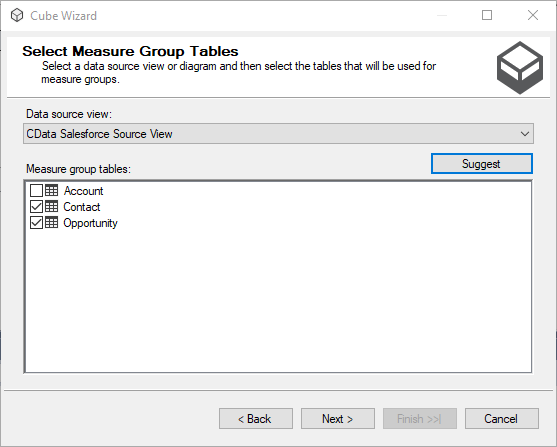
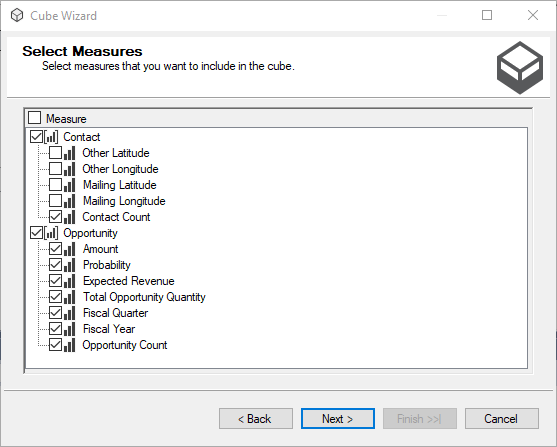
- Select the measures you want to include in the cube and click Next.
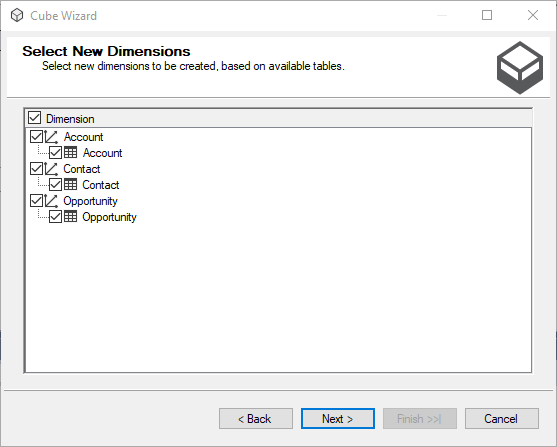
- Select the dimensions to be created, based on the available tables, and click Next.
- Review all of your selections and click Finish.
Process the Project
With the data source, data source view, and cube created, you are ready to deploy the cube to SSAS. To configure the target server and database, right-click the project and select properties. Navigate to deployment and configure the Server and Database properties in the Target section.

After configuring the target server and database, right-click the project and select Process. You may need to build and deploy the project as a part of this step. Once the project is built and deployed, click Run in the Process Database wizard.
Now you have an OLAP cube for Adobe Target data in your SSAS instance, ready to be analyzed, reported, and viewed. Get started with a free, 30-day trial of the CData ADO.NET Provider for Adobe Target.
Ready to get started?
Download a free trial of the Adobe Target Data Provider to get started:
Download NowLearn more:
 Adobe Target ADO.NET Provider
Easily connect .NET applications with real-time data. Use Adobe Target to manage the data that powers your applications.
