
Model Context Protocol (MCP) finally gives AI models a way to access the business data needed to make them really useful at work. CData MCP Servers have the depth and performance to make sure AI has access to all of the answers.
Try them now for free →


Connect to Adobe Target Data in HULFT Integrate
Connect to Adobe Target as a JDBC data source in HULFT Integrate
HULFT Integrate is a modern data integration platform that provides a drag-and-drop user interface to create cooperation flows, data conversion, and processing so that complex data connections are easier than ever to execute. When paired with the CData JDBC Driver for Adobe Target, HULFT Integrate can work with live Adobe Target data. This article walks through connecting to Adobe Target and moving the data into a CSV file.
With built-in optimized data processing, the CData JDBC driver offers unmatched performance for interacting with live Adobe Target data. When you issue complex SQL queries to Adobe Target, the driver pushes supported SQL operations, like filters and aggregations, directly to Adobe Target and utilizes the embedded SQL engine to process unsupported operations client-side (often SQL functions and JOIN operations). Its built-in dynamic metadata querying allows you to work with and analyze Adobe Target data using native data types.
Enable Access to Adobe Target
To enable access to Adobe Target data from HULFT Integrate projects:
- Copy the CData JDBC Driver JAR file (and license file if it exists), cdata.jdbc.adobetarget.jar (and cdata.jdbc.adobetarget.lic), to the jdbc_adapter subfolder for the Integrate Server
- Restart the HULFT Integrate Server and launch HULFT Integrate Studio
Build a Project with Access to Adobe Target Data
Once you copy the JAR files, you can create a project with access to Adobe Target data. Start by opening Integrate Studio and creating a new project.
- Name the project
- Ensure the "Create script" checkbox is checked
- Click Next
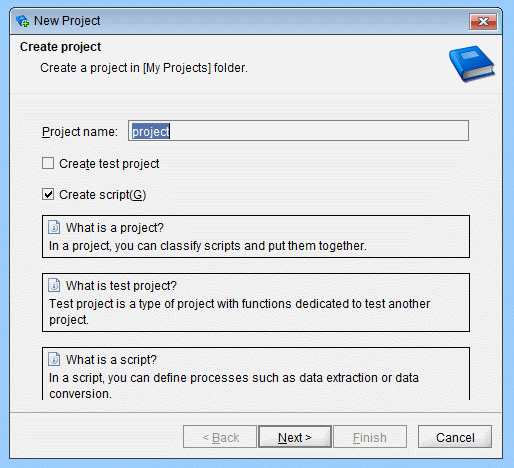
- Name the script (e.g.: AdobeTargettoCSV)
Once you create the project, add components to the script to copy Adobe Target data to a CSV file.
Configure an Execute Select SQL Component
Drag an "Execute Select SQL" component from the Tool Palette (Database -> JDBC) into the Script workspace.
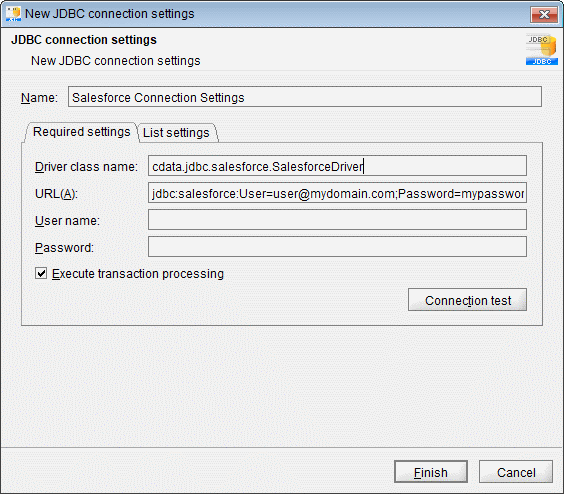
- In the "Required settings" tab for the Destination, click "Add" to create a new connection for Adobe Target. Set the following properties:
- Name: Adobe Target Connection Settings
- Driver class name: cdata.jdbc.adobetarget.AdobeTargetDriver
- URL: jdbc:adobetarget:Tenant=mycompanyname;InitiateOAuth=GETANDREFRESH
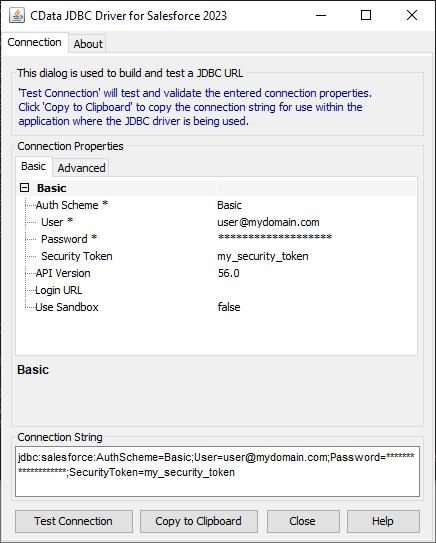
Built-in Connection String Designer
For assistance constructing the JDBC URL, use the connection string designer built into the Adobe Target JDBC Driver. Either double-click the JAR file or execute the JAR file from the command-line.
java -jar cdata.jdbc.adobetarget.jar
Fill in the connection properties and copy the connection string to the clipboard.
To connect to Adobe Target, you must provide the Tenant property along with OAuth connection properties mentioned below. Note that while other connection properties can influence processing behavior, they do not affect the ability to connect.
To determine your Tenant name:
- Log in to Adobe Experience. The URL will look similar to: "https://experience.adobe.com/#/@mycompanyname/preferences/general-section".
- Extract the value after the "/#/@". In this example, it is "mycompanyname".
- Set the Tenant connection property to that value.
User Accounts (OAuth)
You must set AuthScheme to OAuthClient for all user account flows.
Note: Adobe authentication via OAuth requires updating your token every two weeks.
All Applications
CData provides an embedded OAuth application that simplifies OAuth authentication. Alternatively, you can create a custom OAuth application. Review Creating a Custom OAuth App in the Help documentation for more information.Obtaining the OAuth Access Token
Set the following properties to connect:
- InitiateOAuth: Set to GETANDREFRESH to automatically perform the OAuth exchange and refresh the OAuthAccessToken as needed.
- OAuthClientId : Set to the client Id assigned when you registered your app.
- OAuthClientSecret : Set to the client secret assigned when you registered your app.
- CallbackURL : Set to the redirect URI defined when you registered your app. For example: https://localhost:3333
With these settings, the provider obtains an access token from Adobe Target, which it uses to request data. The OAuth values are stored in the location specified by OAuthSettingsLocation, ensuring they persist across connections.
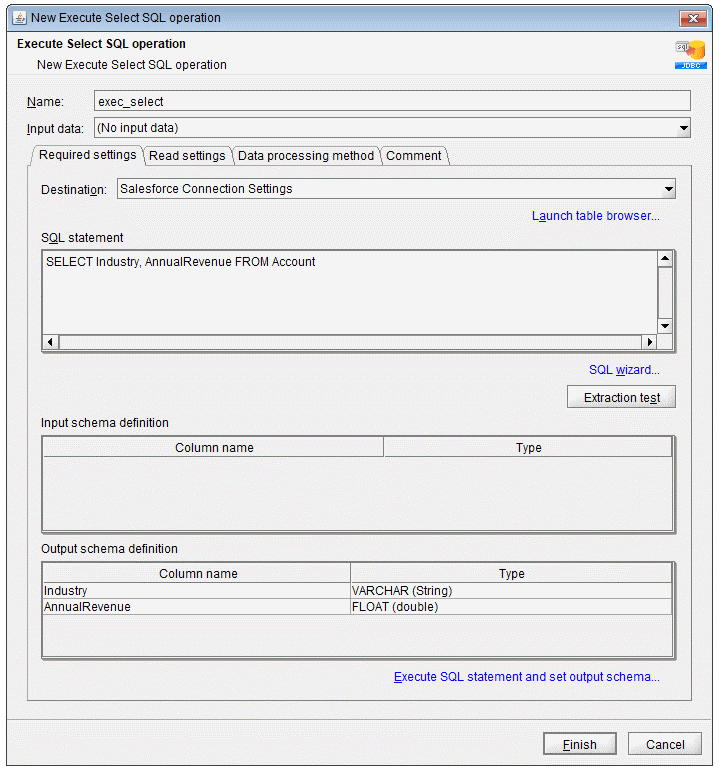
- Write your SQL statement. For example:
SELECT Id, Name FROM Activities
- Click "Extraction test" to ensure the connection and query are configured properly
- Click "Execute SQL statement and set output schema"
- Click "Finish"
Configure a Write CSV File Component
Drag a "Write CSV File" component from the Tool Palette (File -> CSV) onto the workspace.
- Set a file to write the query results to (e.g. Activities.csv)
- Set "Input data" to the "Select SQL" component
- Add columns for each field selected in the SQL query
- In the "Write settings" tab, check the checkbox to "Insert column names into first row"
- Click "Finish"
Map Adobe Target Fields to the CSV Columns
Map each column from the "Select" component to the corresponding column for the "CSV" component.
Finish the Script
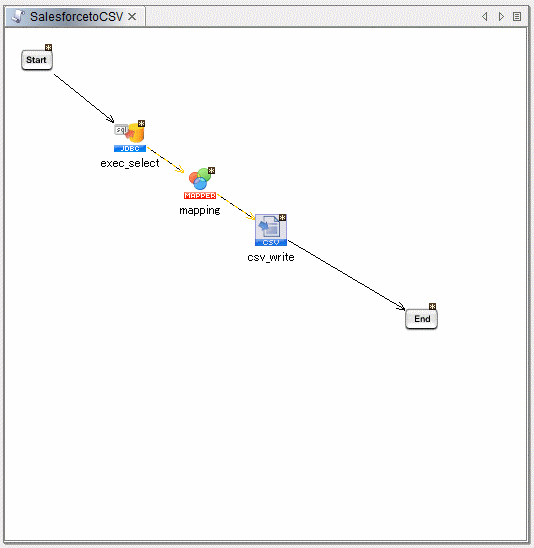
Drag the "Start" component onto the "Select" component and the "CSV" component onto the "End" component. Build the script and run the script to move Adobe Target data into a CSV file.
Download a free, 30-day trial of the CData JDBC Driver for Adobe Target and start working with your live Adobe Target data in HULFT Integrate. Reach out to our Support Team if you have any questions.
Ready to get started?
Download a free trial of the Adobe Target Driver to get started:
Download NowLearn more:
 Adobe Target JDBC Driver
Easily connect Java applications with real-time data. Use Adobe Target to manage the data that powers your applications.
