
Model Context Protocol (MCP) finally gives AI models a way to access the business data needed to make them really useful at work. CData MCP Servers have the depth and performance to make sure AI has access to all of the answers.
Try them now for free →


Use the CData JDBC Driver for Adobe Target in MicroStrategy Web
Connect to Adobe Target data in MicroStrategy Web using the CData JDBC Driver for Adobe Target.
MicroStrategy is an analytics and mobility platform that enables data-driven innovation. When you pair MicroStrategy with the CData JDBC Driver for Adobe Target, you gain database-like access to live Adobe Target data from MicroStrategy, expanding your reporting and analytics capabilities. In this article, we walk through adding Adobe Target as an external data source in MicroStrategy Web and creating a simple visualization of Adobe Target data.
The CData JDBC driver offers unmatched performance for interacting with live Adobe Target data in MicroStrategy due to optimized data processing built into the driver. When you issue complex SQL queries from MicroStrategy to Adobe Target, the driver pushes supported SQL operations, like filters and aggregations, directly to Adobe Target and utilizes the embedded SQL engine to process unsupported operations (often SQL functions and JOIN operations) client-side. With built-in dynamic metadata querying, you can visualize and analyze Adobe Target data using native MicroStrategy data types.
Connect to and Visualize Adobe Target Data using MicroStrategy Web
You can connect to Adobe Target in MicroStrategy Web by adding a data source based on the CData JDBC Driver for Adobe Target.* Before you begin, you will need install the JDBC Driver for Adobe Target on the machine hosting the MicroStrategy Intelligence Server that your instance of MicroStrategy Web is connected to. Once you have created a data source you can build dynamic visualizations of Adobe Target data in MicroStrategy Web.
- Open MicroStrategy Web and select your project.
- Click Add External Data, select Databases, and use Select Tables as the Import Option.
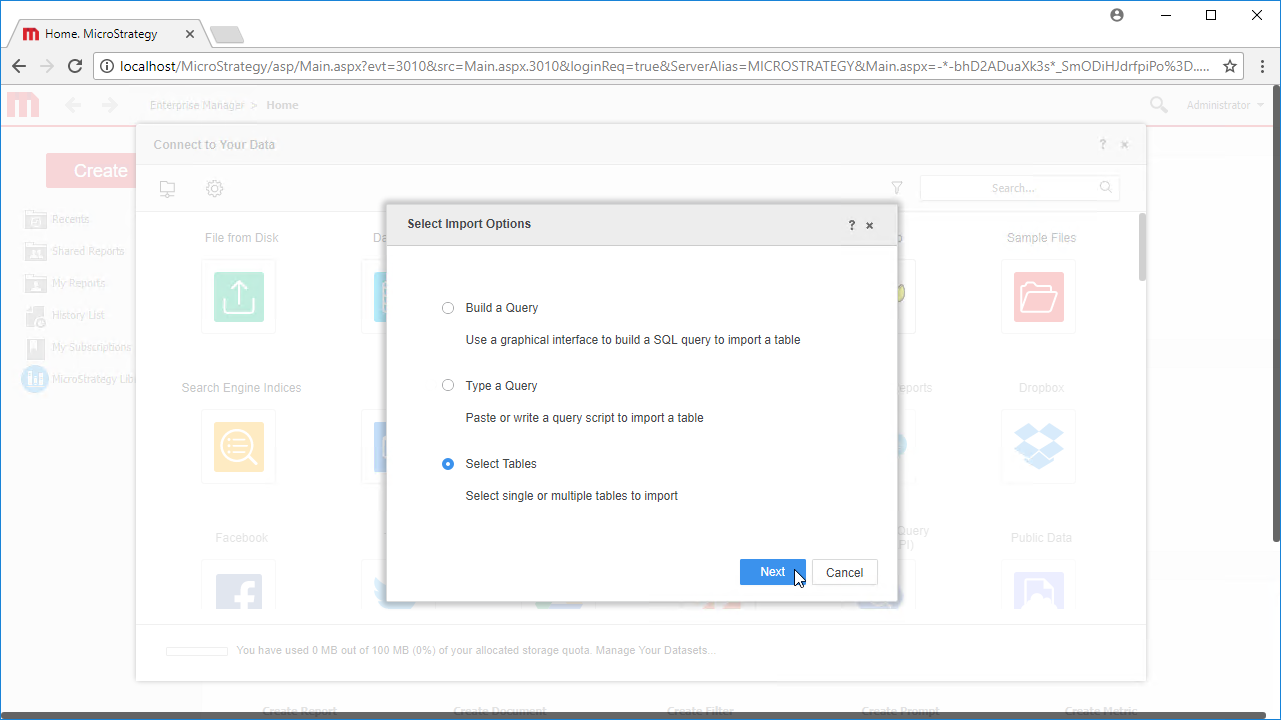
- In the Import from Tables wizard, click to add a new Data Source.
- Select Generic in the Database menu and select Generic DBMS in the Version menu.
- Click the link to show the connection string and opt to edit the connection string. In the Driver menu, select MicroStrategy Cassandra ODBC Driver (MicroStrategy requires a certified driver to interface through JDBC, the actual driver will not be used).
- Set the connection string to the following:
JDBC;MSTR_JDBC_JAR_FOLDER=PATH\TO\JAR\;DRIVER=cdata.jdbc.adobetarget.AdobeTargetDriver;URL={jdbc:adobetarget:Tenant=mycompanyname;};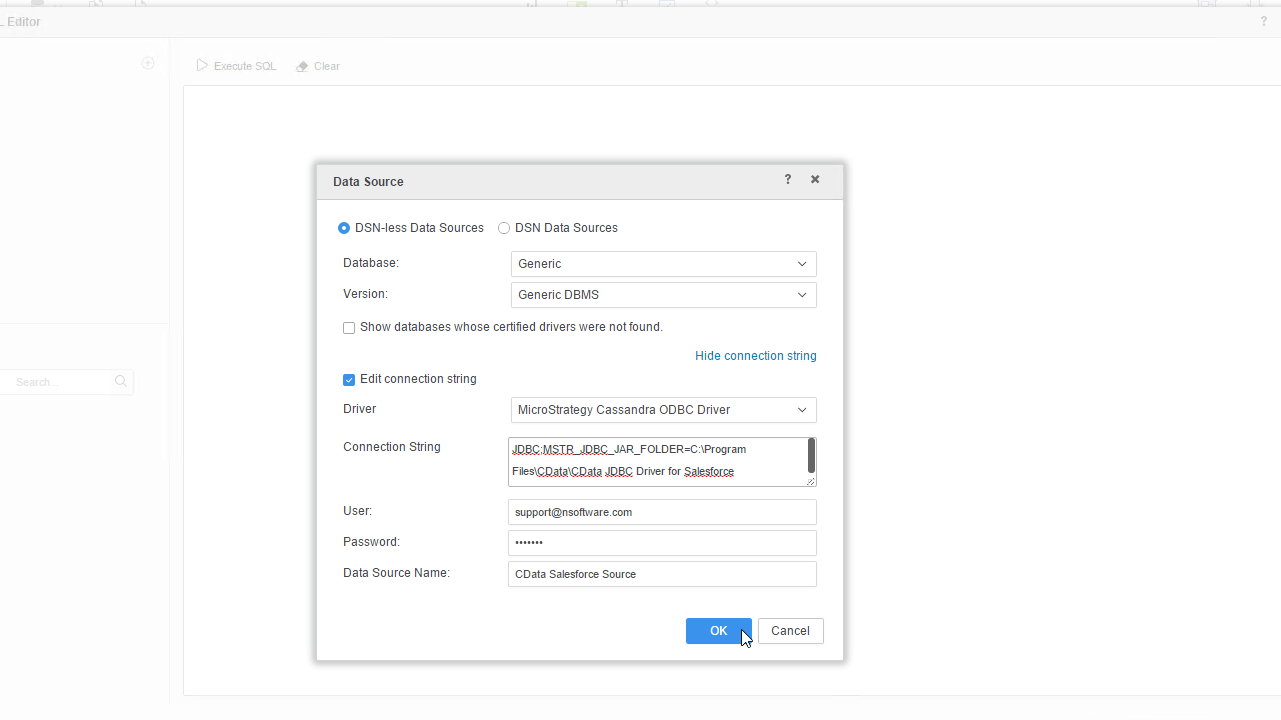
To connect to Adobe Target, you must provide the Tenant property along with OAuth connection properties mentioned below. Note that while other connection properties can influence processing behavior, they do not affect the ability to connect.
To determine your Tenant name:
- Log in to Adobe Experience. The URL will look similar to: "https://experience.adobe.com/#/@mycompanyname/preferences/general-section".
- Extract the value after the "/#/@". In this example, it is "mycompanyname".
- Set the Tenant connection property to that value.
User Accounts (OAuth)
You must set AuthScheme to OAuthClient for all user account flows.
Note: Adobe authentication via OAuth requires updating your token every two weeks.
All Applications
CData provides an embedded OAuth application that simplifies OAuth authentication. Alternatively, you can create a custom OAuth application. Review Creating a Custom OAuth App in the Help documentation for more information.Obtaining the OAuth Access Token
Set the following properties to connect:
- InitiateOAuth: Set to GETANDREFRESH to automatically perform the OAuth exchange and refresh the OAuthAccessToken as needed.
- OAuthClientId : Set to the client Id assigned when you registered your app.
- OAuthClientSecret : Set to the client secret assigned when you registered your app.
- CallbackURL : Set to the redirect URI defined when you registered your app. For example: https://localhost:3333
With these settings, the provider obtains an access token from Adobe Target, which it uses to request data. The OAuth values are stored in the location specified by OAuthSettingsLocation, ensuring they persist across connections.
Built-in Connection String Designer
For assistance in constructing the JDBC URL, use the connection string designer built into the Adobe Target JDBC Driver. Either double-click the JAR file or execute the jar file from the command-line.
java -jar cdata.jdbc.adobetarget.jar
Fill in the connection properties and copy the connection string to the clipboard.
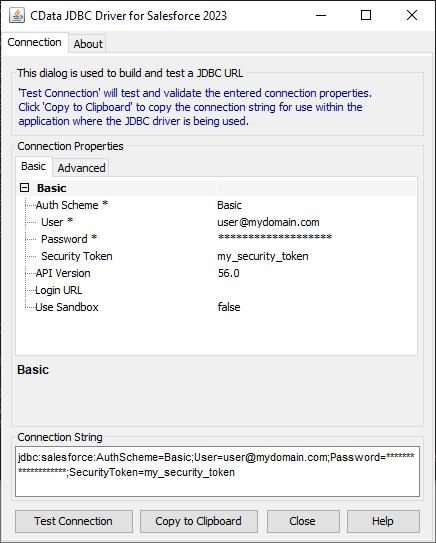
When you configure the JDBC URL, you may also want to set the Max Rows connection property. This will limit the number of rows returned, which is especially helpful for improving performance when designing reports and visualizations.
- Right-click on the new data source, and choose Edit catalog options.
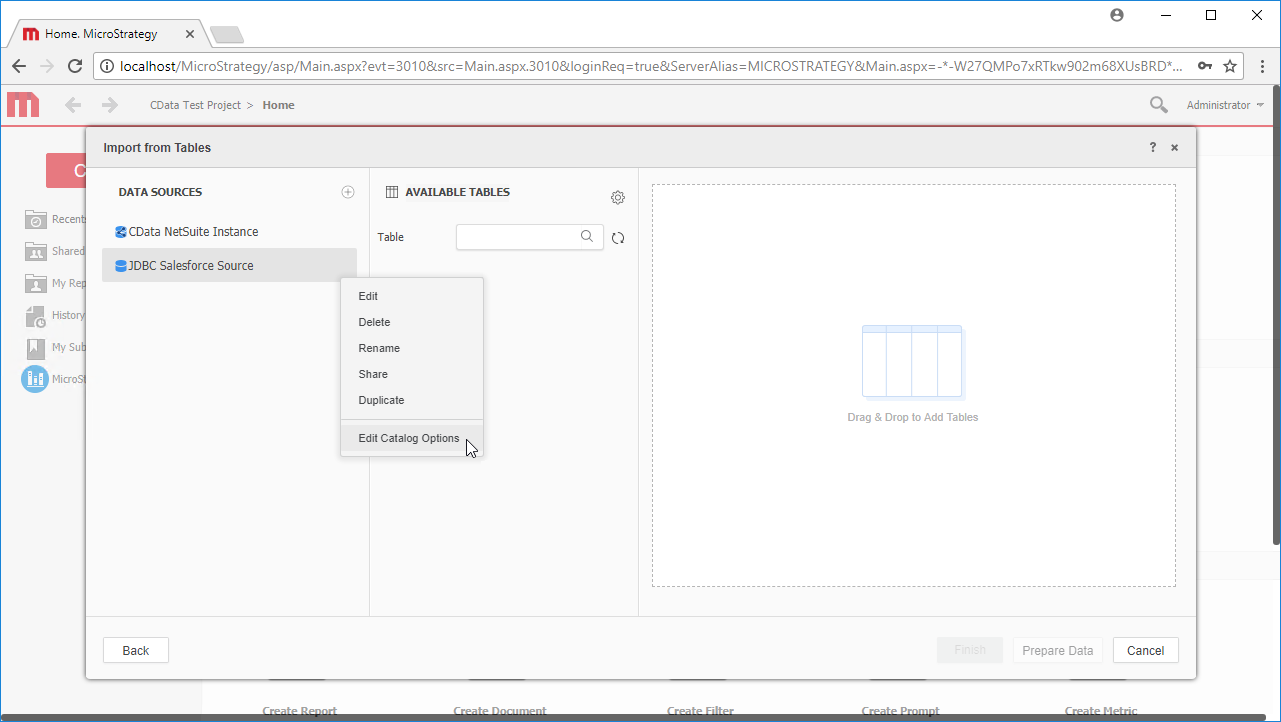
- Edit the SQL Statement to SELECT * FROM SYS_SCHEMAS to read the metadata from the JDBC Driver.
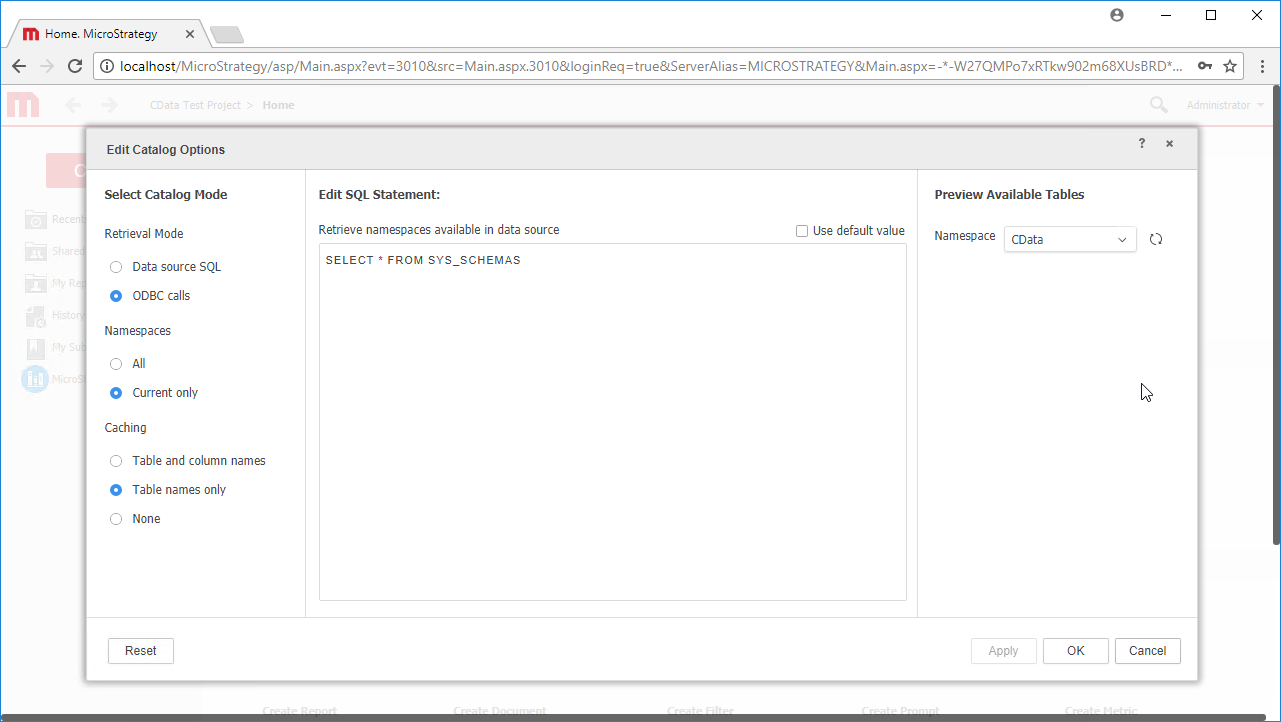
- Select the new data source to view the available tables. You may need to manually click the search icon in the Available Tables section to see the tables.
- Drag tables into the pane to import them.
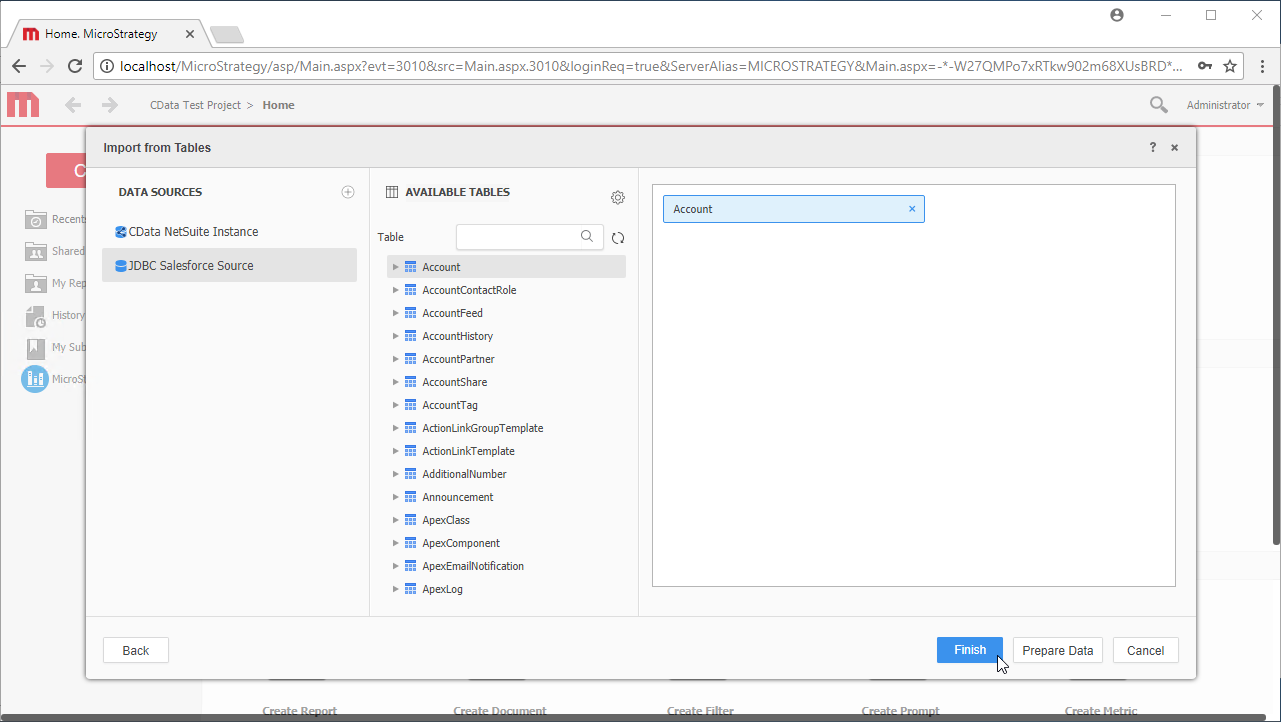 Note: Since we create a live connection, we can import whole tables and utilize the filtering and aggregation features native to the MicroStrategy products to customize our datasets.
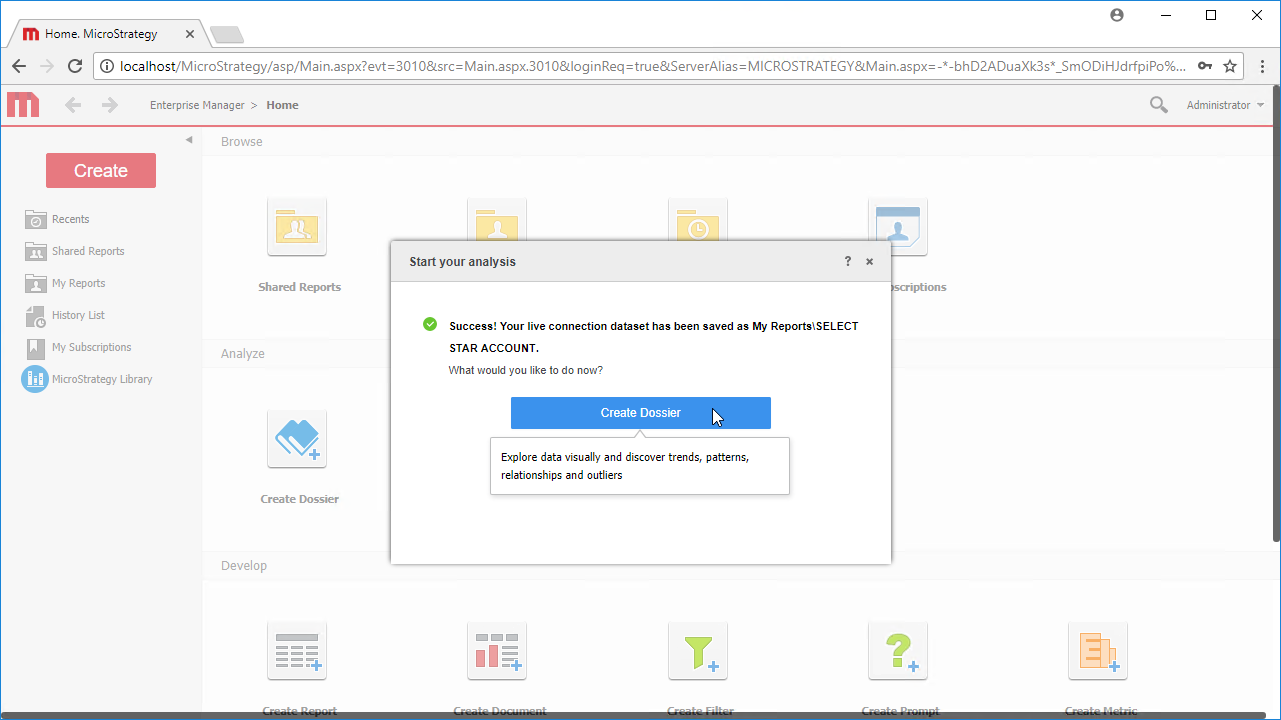
 - Click Finish, choose to the option to connect live, save the query, and choose the option to create a new dossier. Live connections are possible and effective, thanks to high-performance data processing native to CData JDBC drivers.
- Choose a visualization, choose fields to display and apply any filters to create a new visualization of Adobe Target data. Data types are discovered automatically through dynamic metadata discovery. Where possible, the complex queries generated by the filters and aggregations will be pushed down to Adobe Target, while any unsupported operations (which can include SQL functions and JOIN operations) will be managed client-side by the CData SQL engine embedded in the driver.
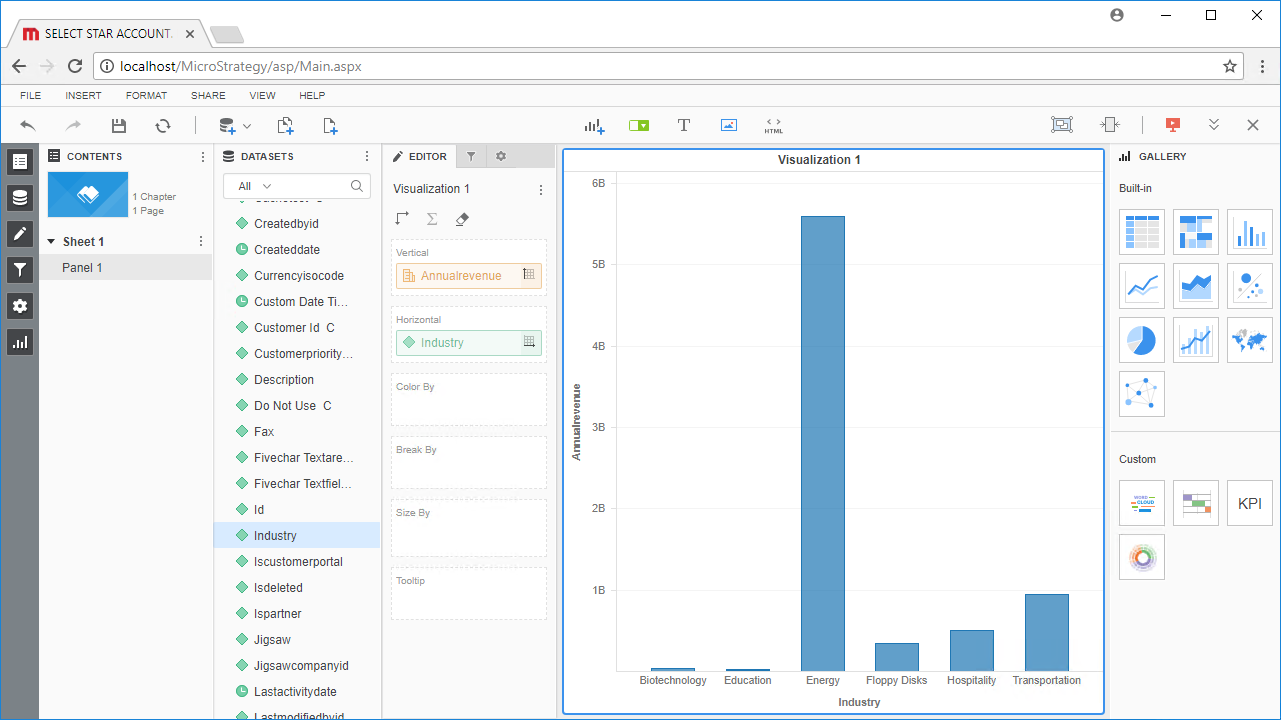
- Once you have finished configuring the dossier, click File -> Save.
Using the CData JDBC Driver for Adobe Target in MicroStrategy Web, you can easily create robust visualizations and reports on Adobe Target data. Read our other articles on connecting to Adobe Target in MicroStrategy and connecting to Adobe Target in MicroStrategy Desktop for more examples.
Note: Connecting using a JDBC Driver requires a 3- or 4-Tier Architecture.
Ready to get started?
Download a free trial of the Adobe Target Driver to get started:
Download NowLearn more:
 Adobe Target JDBC Driver
Easily connect Java applications with real-time data. Use Adobe Target to manage the data that powers your applications.
