
Model Context Protocol (MCP) finally gives AI models a way to access the business data needed to make them really useful at work. CData MCP Servers have the depth and performance to make sure AI has access to all of the answers.
Try them now for free →


Analyze Amazon Athena Data in Slingshot with CData API Server
Use the CData API Server to build an OData API on top of Amazon Athena data and visualize the live Data in Slingshot (formerly Reveal BI) for seamless insights.
Slingshot (formerly known as Reveal BI) is a data-driven work management suite that brings together analytics, team and project coordination, content sharing, and communication in a single platform. With CData API Server, you can generate OData APIs for live Amazon Athena data that are seamlessly consumable within Slingshot.
In this guide, we'll walk you through a step-by-step process to generate OData endpoints for Amazon Athena using CData API Server, and bring those endpoints into Slingshot to create real-time dashboards and streamline data analysis.
Let's begin!
Prerequisites
- CData API Server: Download a free trial from here.
- Slingshot Account and App: Log in or sign up and download from here.
- An active Amazon Athena account containing your data.
Overview
Here's an overview of the steps:
- Install the CData API Server, configure a connection to the Amazon Athena, and generate OData API endpoints for Amazon Athena data within the API Server for use in Slingshot.
- Connect these endpoints in Slingshot to build interactive dashboards and perform real-time analysis.
About Amazon Athena Data Integration
CData provides the easiest way to access and integrate live data from Amazon Athena. Customers use CData connectivity to:
- Authenticate securely using a variety of methods, including IAM credentials, access keys, and Instance Profiles, catering to diverse security needs and simplifying the authentication process.
- Streamline their setup and quickly resolve issue with detailed error messaging.
- Enhance performance and minimize strain on client resources with server-side query execution.
Users frequently integrate Athena with analytics tools like Tableau, Power BI, and Excel for in-depth analytics from their preferred tools.
To learn more about unique Amazon Athena use cases with CData, check out our blog post: https://www.cdata.com/blog/amazon-athena-use-cases.
Getting Started
Step 1: Install, Configure, and Connect CData API Server to Amazon Athena
1.1 Install the API Server
If you haven't already, download and install the CData API Server. Follow the installation wizard to complete the setup for your machine.
Once installed, you can start the server in the following ways:
- Windows: CData API Server runs as a service by default. Ensure the service is running, then open http://localhost:8080/ in your browser to access the API Server admin console.
- Linux/Mac: You can run the server manually or as a service. To start it manually, navigate to the installation directory and run java -jar apiserver.jar
- Alternatively, run service.sh with root privileges to set up API Server as a Linux system service.
1.2 Enable CORS
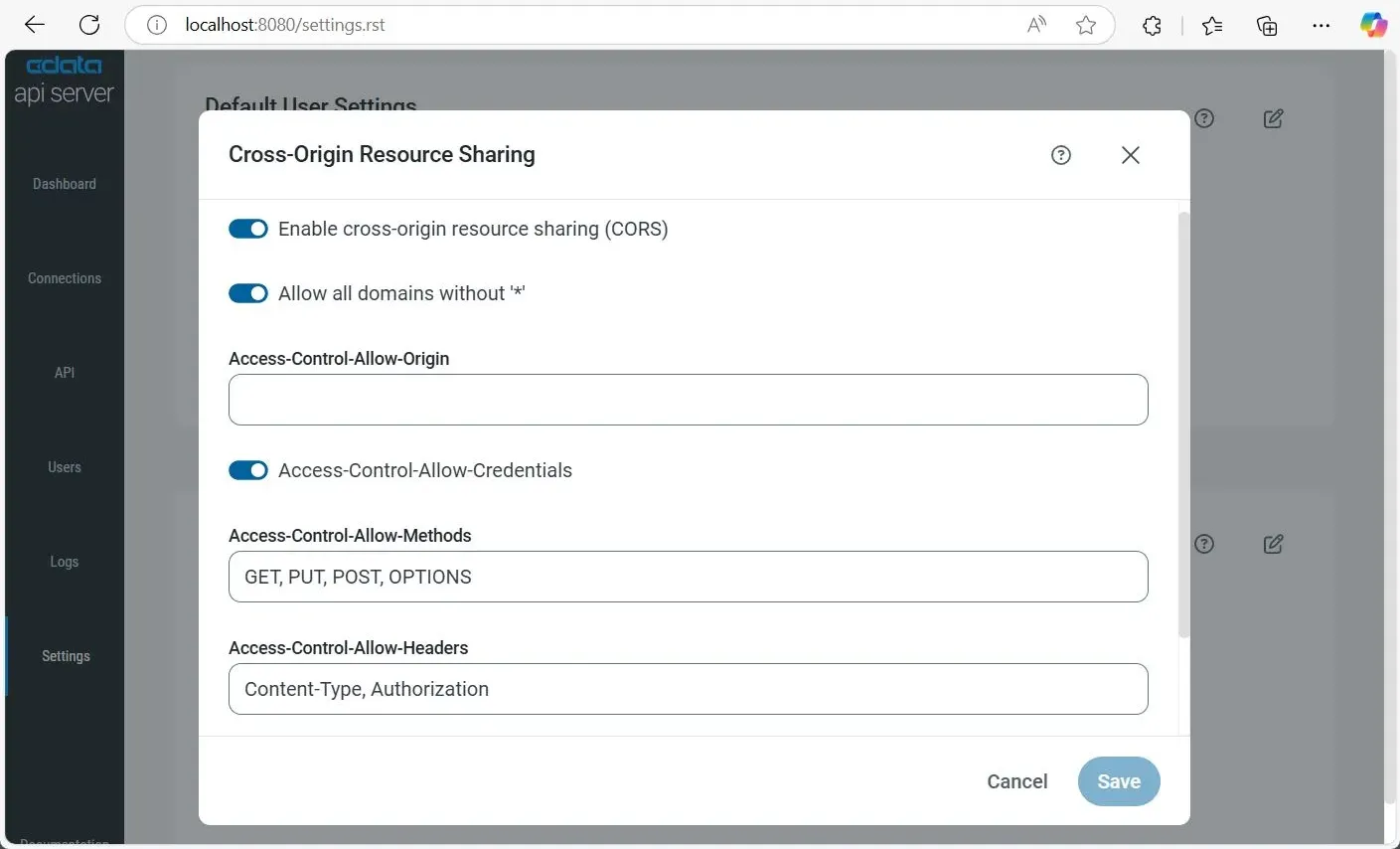
If the Slingshot app and API Server are hosted on different domains, CORS (Cross-Origin Resource Sharing) must be enabled to allow cross-domain communication. To enable CORS in the API Server:
- Go to Settings and click the icon to edit CORS settings.
- Enable Cross-Origin Resource Sharing (CORS).
- Enable Allow all domains without '*' to accept any origin.
- In Access-Control-Allow-Origin, enter your Amazon Athena origin domain or use * to allow all domains. This is suitable for public APIs.
- Enable Access-Control-Allow-Credentials to allow cookies and auth headers.
- In Access-Control-Allow-Methods, enter GET, PUT, POST, OPTIONS.
- In Access-Control-Allow-Headers, enter Authorization, Content-Type.
- Set Access-Control-Max-Age (default: 3600 seconds) to cache preflight requests.
- Click Save.
1.3 Configure the Amazon Athena Connection in API Server
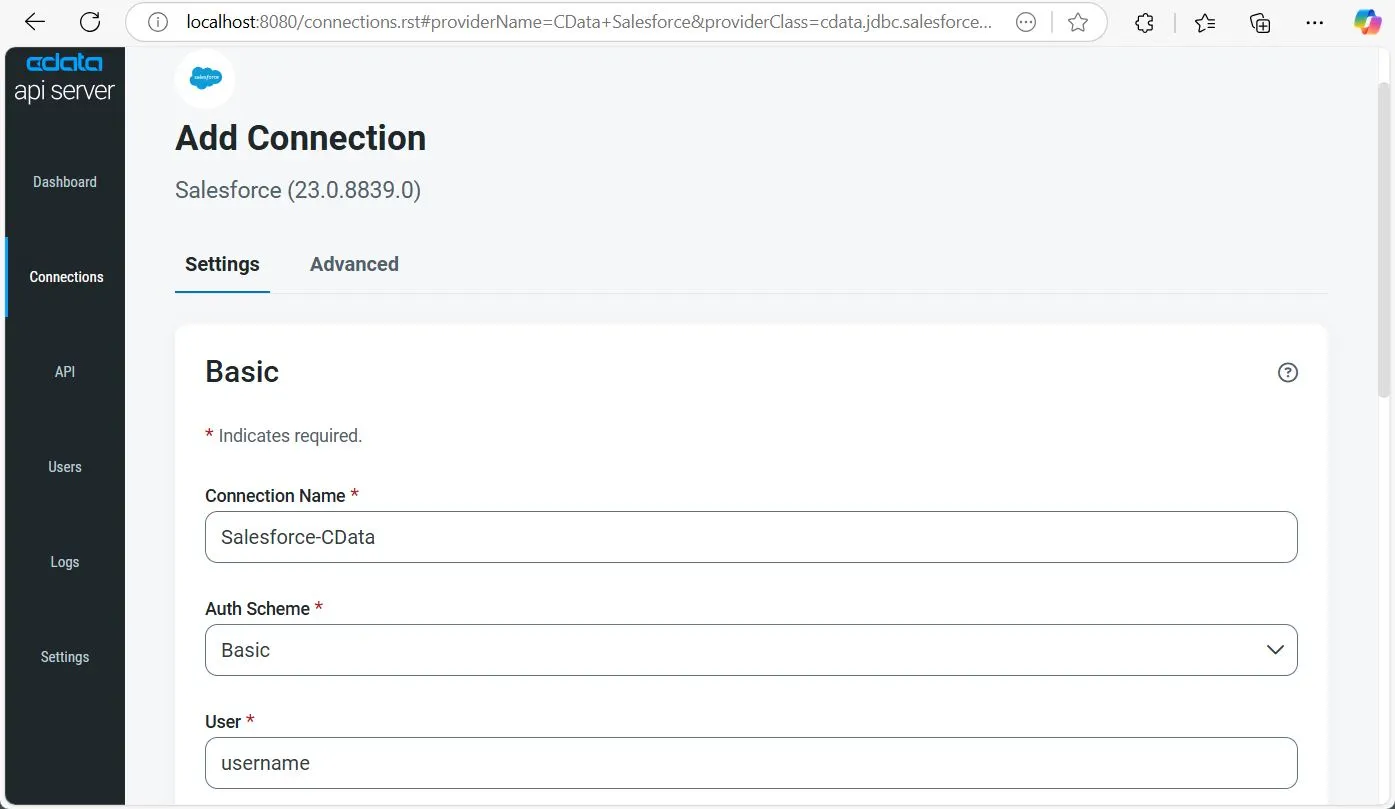
- Go to Settings and click Add Connection in the top-right.
- Select Amazon Athena. If it's not visible, toggle off Only Installed to view all connectors.
- Click Install Connector to auto-install. For manual setup, choose Manual Install and upload the ZIP file.
- Once installed, click Amazon Athena again to open its connection settings and configure using the details below.
- Sign into the IAM console.
- In the navigation pane, select Users.
- To create or manage the access keys for a user, select the user and then select the Security Credentials tab.
- Sign into the AWS Management console with the credentials for your root account.
- Select your account name or number and select My Security Credentials in the menu that is displayed.
- Click Continue to Security Credentials and expand the Access Keys section to manage or create root account access keys.
- Click Save & Test to validate and complete the connection setup.
Authenticating to Amazon Athena
To authorize Amazon Athena requests, provide the credentials for an administrator account or for an IAM user with custom permissions: Set AccessKey to the access key Id. Set SecretKey to the secret access key.
Note: Though you can connect as the AWS account administrator, it is recommended to use IAM user credentials to access AWS services.
Obtaining the Access Key
To obtain the credentials for an IAM user, follow the steps below:
To obtain the credentials for your AWS root account, follow the steps below:
Authenticating from an EC2 Instance
If you are using the CData Data Provider for Amazon Athena 2018 from an EC2 Instance and have an IAM Role assigned to the instance, you can use the IAM Role to authenticate. To do so, set UseEC2Roles to true and leave AccessKey and SecretKey empty. The CData Data Provider for Amazon Athena 2018 will automatically obtain your IAM Role credentials and authenticate with them.
Authenticating as an AWS Role
In many situations it may be preferable to use an IAM role for authentication instead of the direct security credentials of an AWS root user. An AWS role may be used instead by specifying the RoleARN. This will cause the CData Data Provider for Amazon Athena 2018 to attempt to retrieve credentials for the specified role. If you are connecting to AWS (instead of already being connected such as on an EC2 instance), you must additionally specify the AccessKey and SecretKey of an IAM user to assume the role for. Roles may not be used when specifying the AccessKey and SecretKey of an AWS root user.
Authenticating with MFA
For users and roles that require Multi-factor Authentication, specify the MFASerialNumber and MFAToken connection properties. This will cause the CData Data Provider for Amazon Athena 2018 to submit the MFA credentials in a request to retrieve temporary authentication credentials. Note that the duration of the temporary credentials may be controlled via the TemporaryTokenDuration (default 3600 seconds).
Connecting to Amazon Athena
In addition to the AccessKey and SecretKey properties, specify Database, S3StagingDirectory and Region. Set Region to the region where your Amazon Athena data is hosted. Set S3StagingDirectory to a folder in S3 where you would like to store the results of queries.
If Database is not set in the connection, the data provider connects to the default database set in Amazon Athena.
1.4. Add and Configure Users
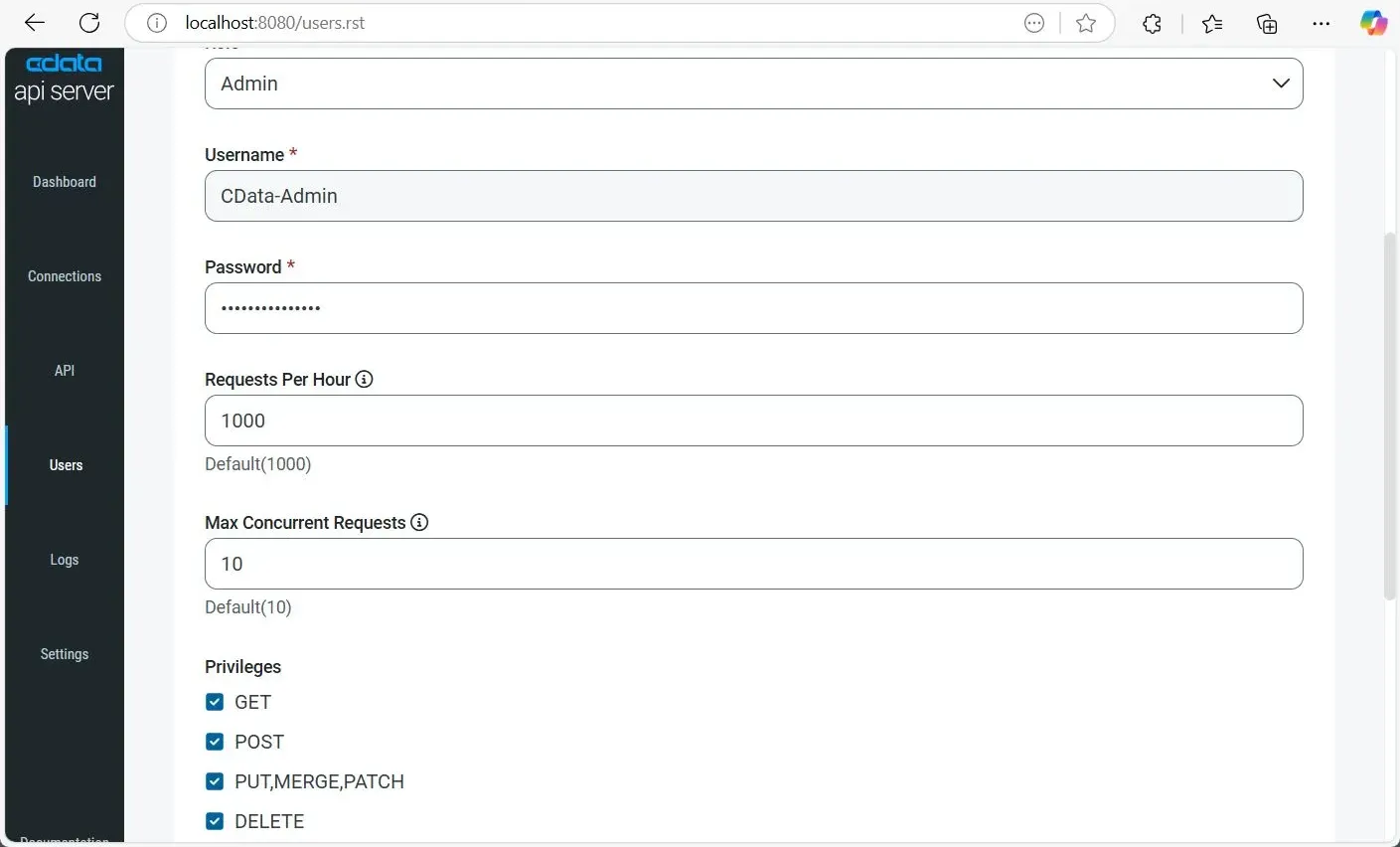
To allow secure access to the OData endpoints, you need to create and configure users in the CData API Server. Each user will have authentication credentials and role-based access control, ensuring that only authorized users can query the connected data.
- Go to Users from the navigation pane, then click Add User in the top-right corner.
- Enter a Username and set a secure Password for the user.
- Select a Role:
- Admin: Full access to all features including settings and connections.
- Query: Limited to data access via API endpoints (suitable for Slingshot use).
- (Optional) Configure rate limits:
- Requests Per Hour: Number of allowed API calls per hour (default: 1000).
- Max Concurrent Requests: Number of parallel API requests allowed (default: 10).
- Define Privileges for the user:
- GET: Allows data retrieval.
- POST: Allows creation of new records.
- PUT, MERGE, PATCH: Allows updates to existing records.
- DELETE: Allows deletion of records.
- Click Add User to save and activate the user account.
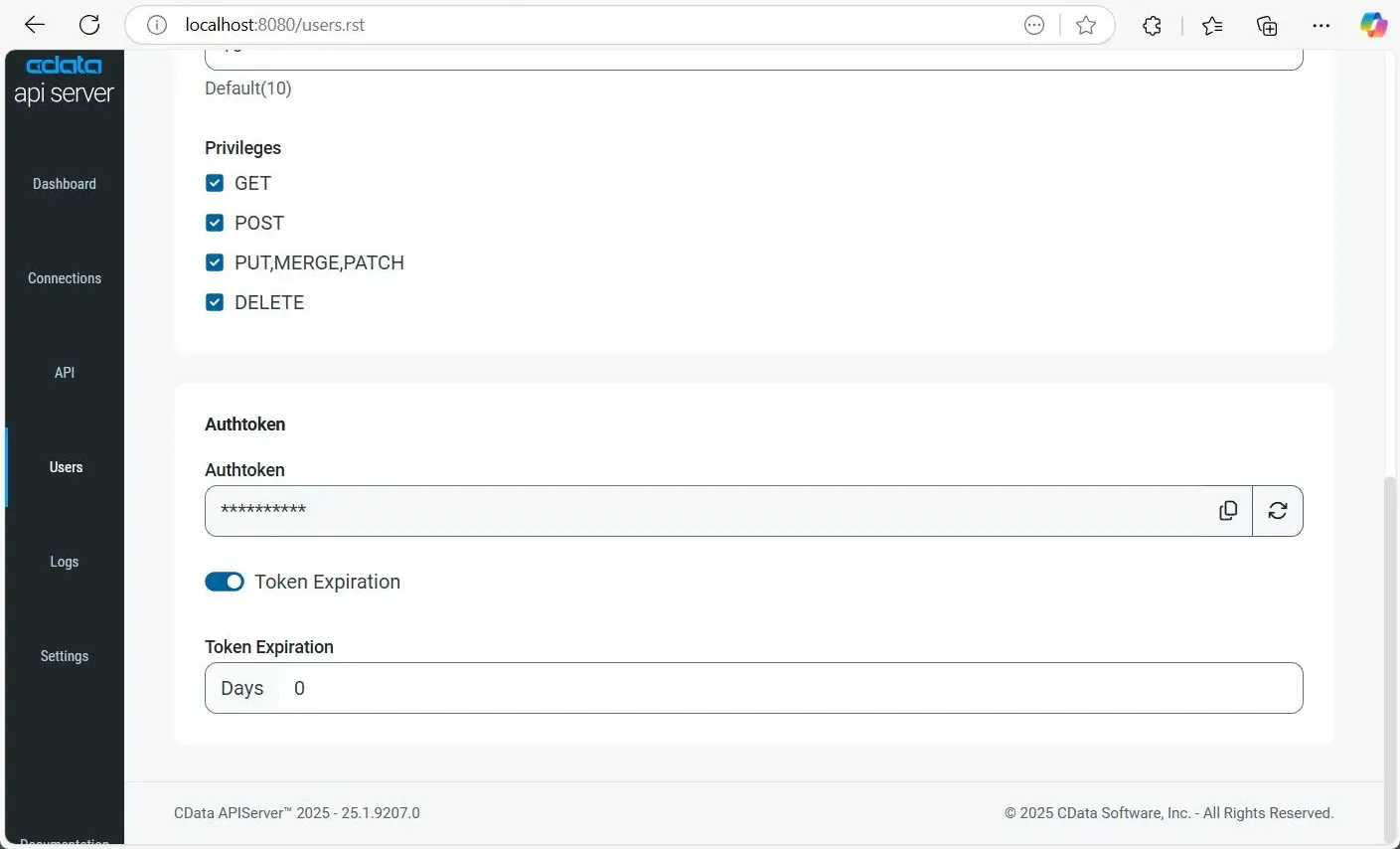
Once a user is created, an Authtoken is automatically generated. This token can be used in API requests as a secure authentication method in place of the password.
You can also refresh the Authtoken, disable it, or set expiration rules (e.g., number of days until expiry) by enabling the Token Expiration option in the user settings.
1.5. Add Tables for the Endpoint
To make your data available to Slingshot via OData, you need to expose your desired tables through the API Server:
- In the CData API Server, go to API from the left navigation, then click Add Table at the top-right.
- Select the Amazon Athena connection you configured earlier, then click Next.
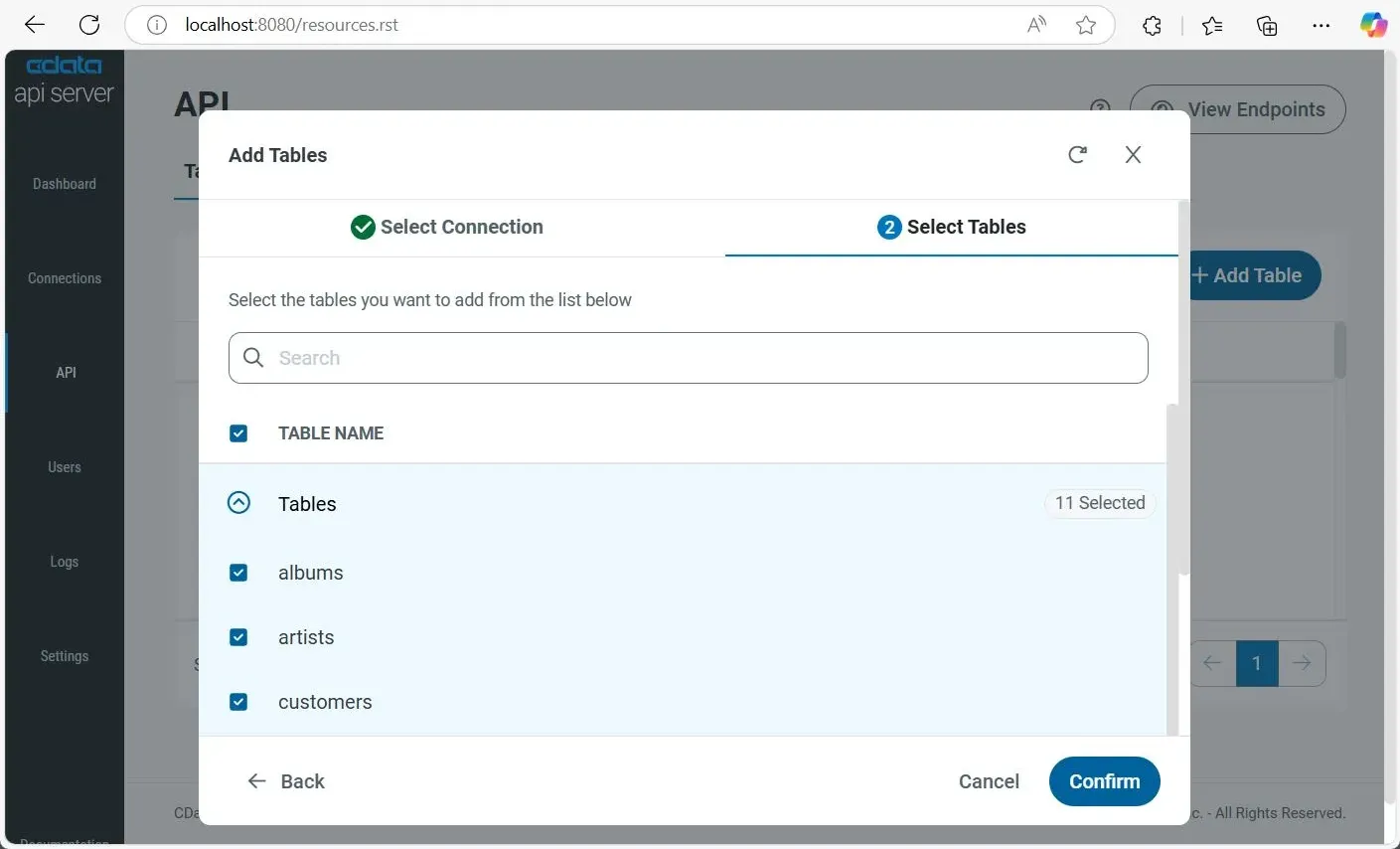
- Browse available entities and schema by expanding the Tables section. Select individual tables or click the TABLE NAME checkbox on top to select all tables. Then, click Confirm.
1.6. Access and Use Endpoints in Slingshot
Now that your API is configured, Slingshot can connect to the OData endpoints to visualize live data. Use the following endpoint URL formats to access your API resources:
| Endpoint | URL | |
|---|---|---|
| Entity List | http://address:port/api.rsc/ | |
| Table Metadata (e.g., albums) | http://address:port/api.rsc/albums/$metadata?@json | |
| Table Data (e.g., albums) | http://address:port/api.rsc/albums |
These OData endpoints can now be consumed directly in Slingshot by creating a new data source using the URL. Slingshot supports OData, so once connected, you can build dashboards and visualizations using live data from Amazon Athena.
For custom queries and filtered visualizations in Slingshot, append standard OData query parameters like $select, $filter, $orderby, $top, and $skip to your requests.
Step 2: Connect Amazon Athena Endpoints in Slingshot to Analyze Data
Now that your OData API is ready, it's time to bring it into Slingshot and start analyzing your live Amazon Athena data.
2.1 Add the OData Endpoint as a Data Source
- Log in to your Slingshot account using the desktop app or by visiting https://my.slingshotapp.io/.
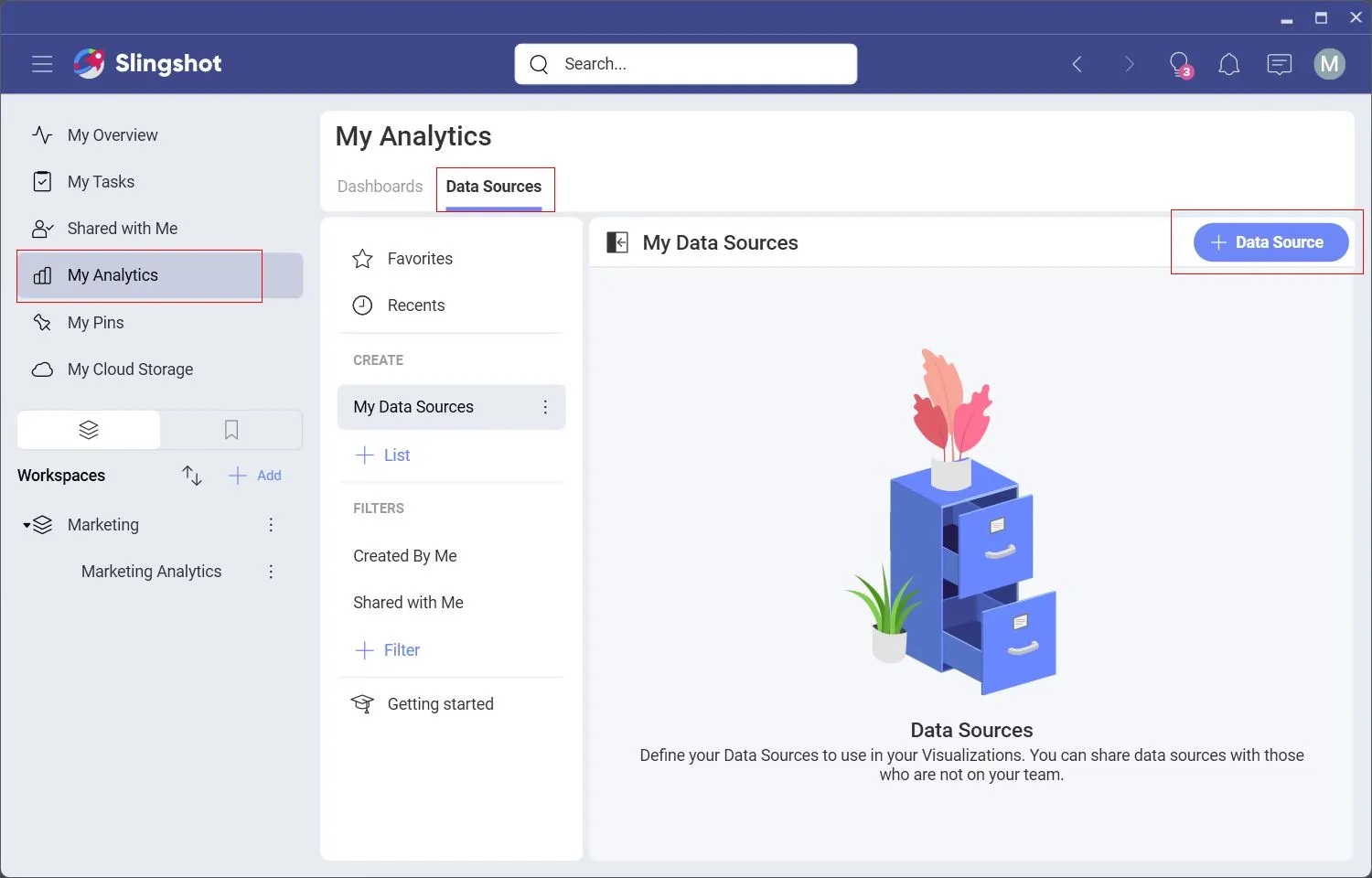
- Navigate to My Analytics on the left panel. Click Data Source on top, then click Data Source at the top-right.
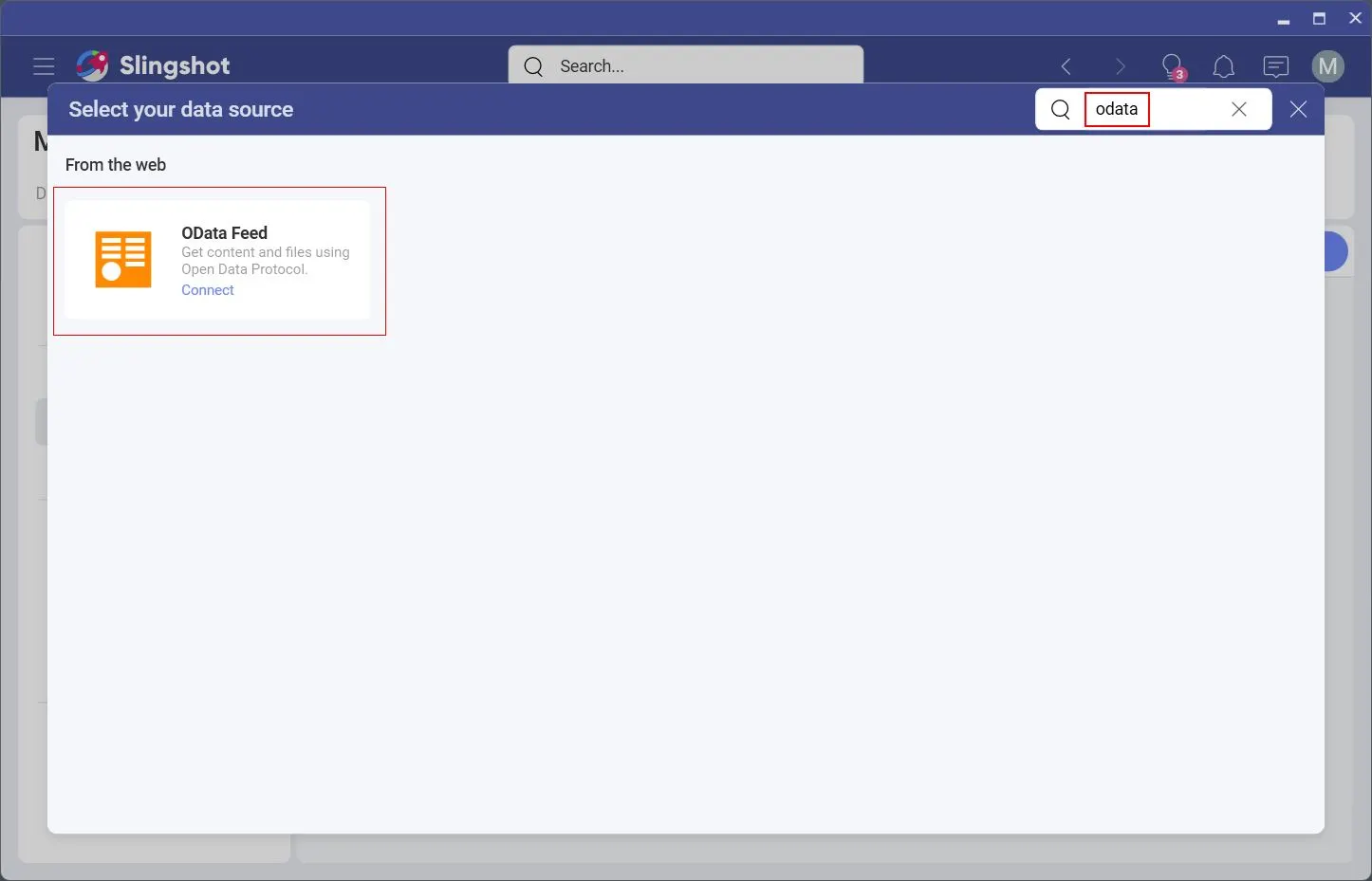
- Search for OData Feed and select it from the results.
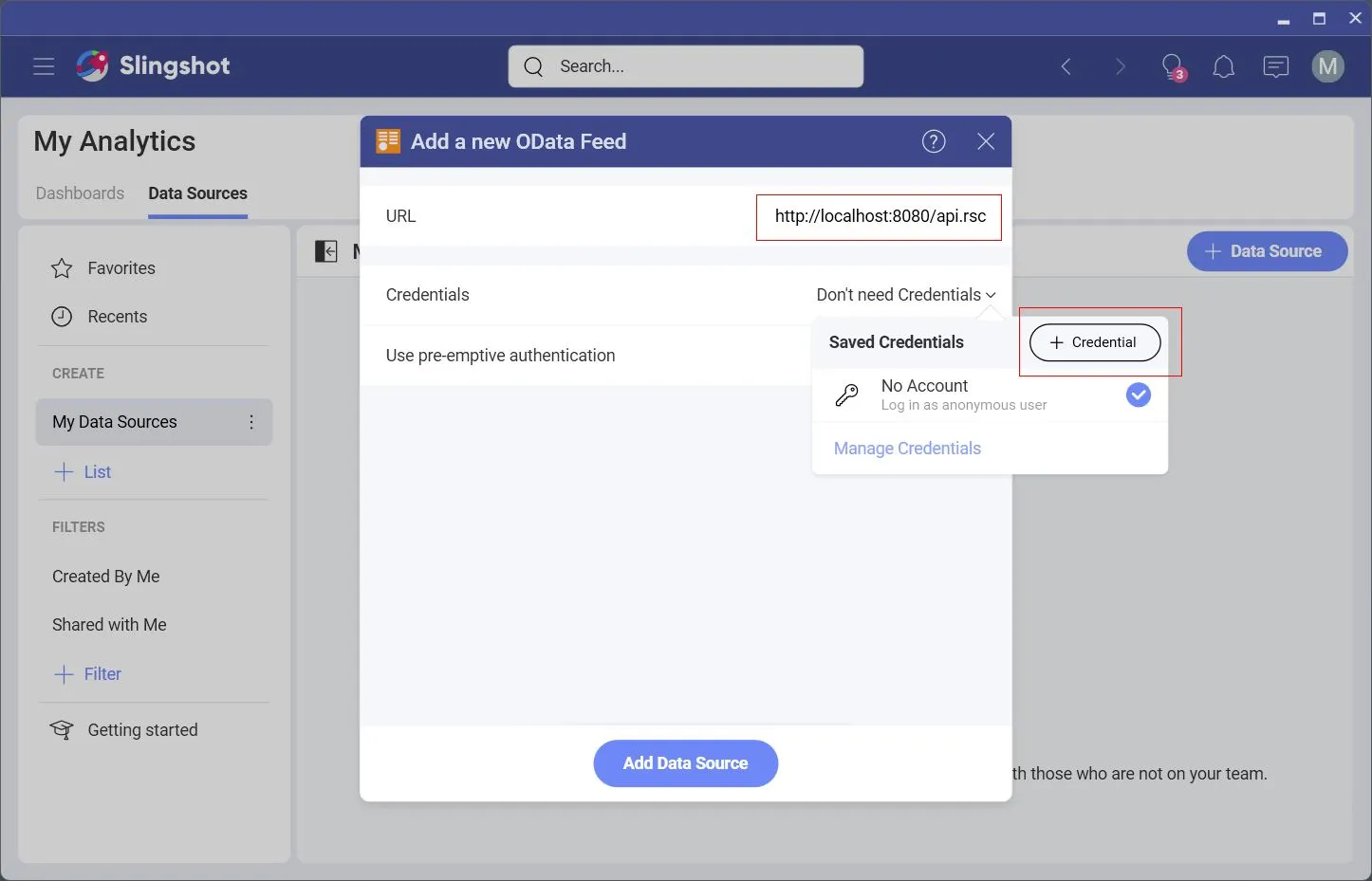
- In the URL field, enter the OData endpoint URL from your CData API Server. You can find it by navigating to API > View Endpoints in the top-right corner of the CData API Server dashboard.
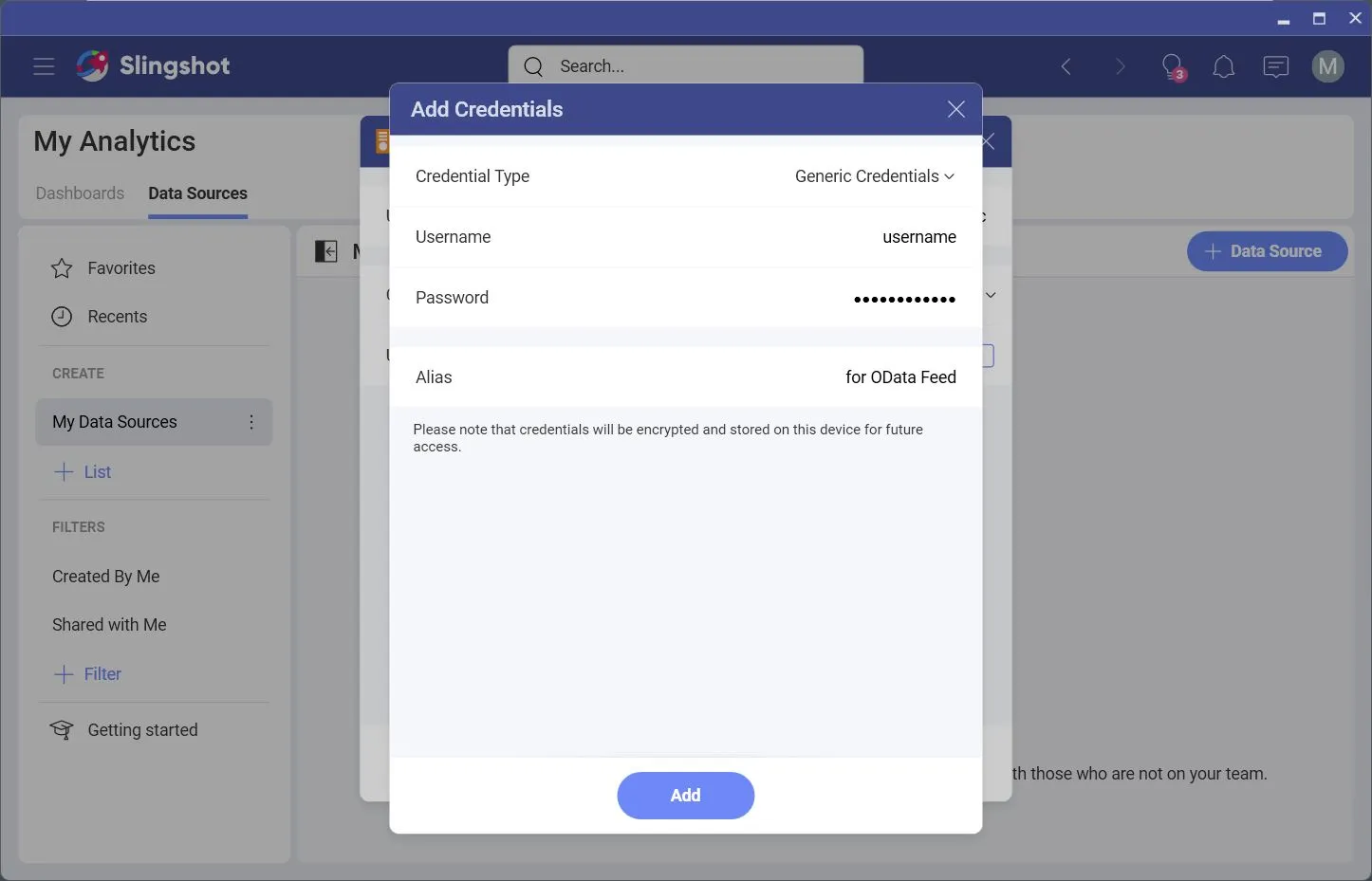
- Click on Credentials, then select the Credential button from the drop-down.
- Enter your Username and either the Password or the Auth Token of the user created in the CData API Server. Click Add, then click Add Data Source to finish.
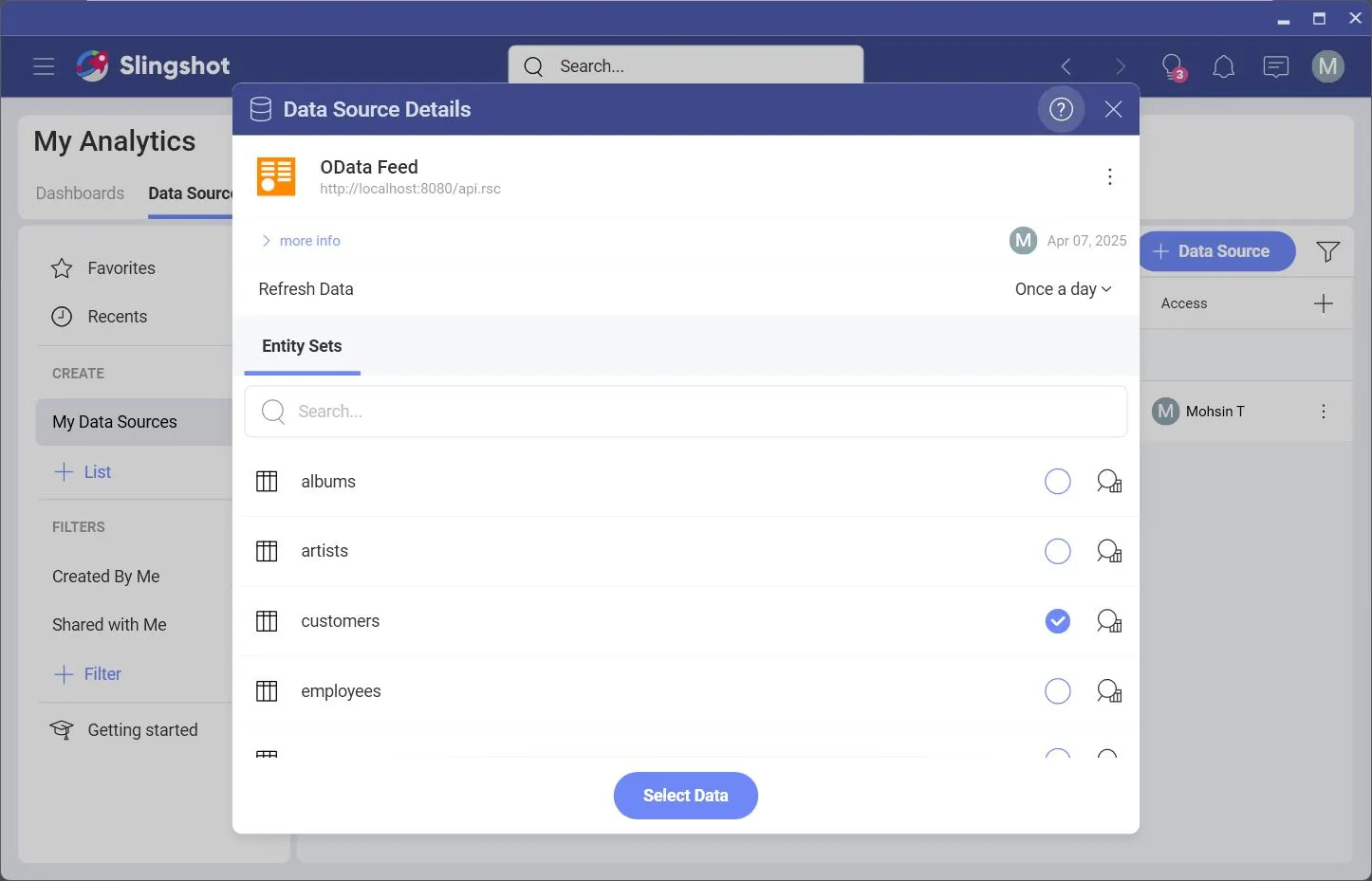
- Click the connected OData Feed, select the desired table, and click Select Data to start analyzing.
2.2 Analyze Data
Now that your OData feed is connected and available in Slingshot, you can start creating visualizations to explore and analyze your data in real-time.
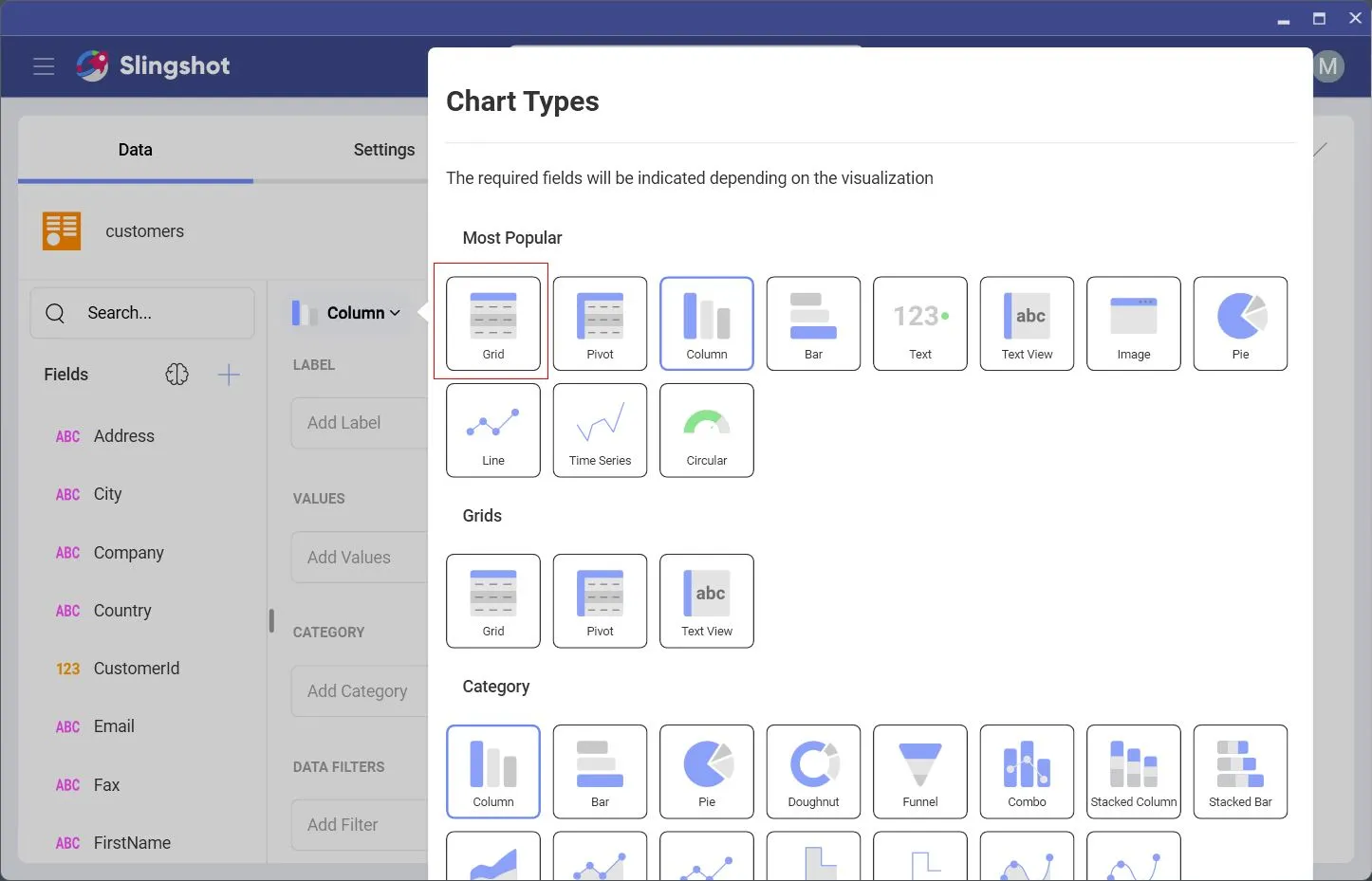
For our example, let's build a simple Grid visualization.
- Click on the Column drag-out panel, then select Grid.
- Drag and drop the desired columns from your table into the Grid. Slingshot will automatically create a live data view using those fields.
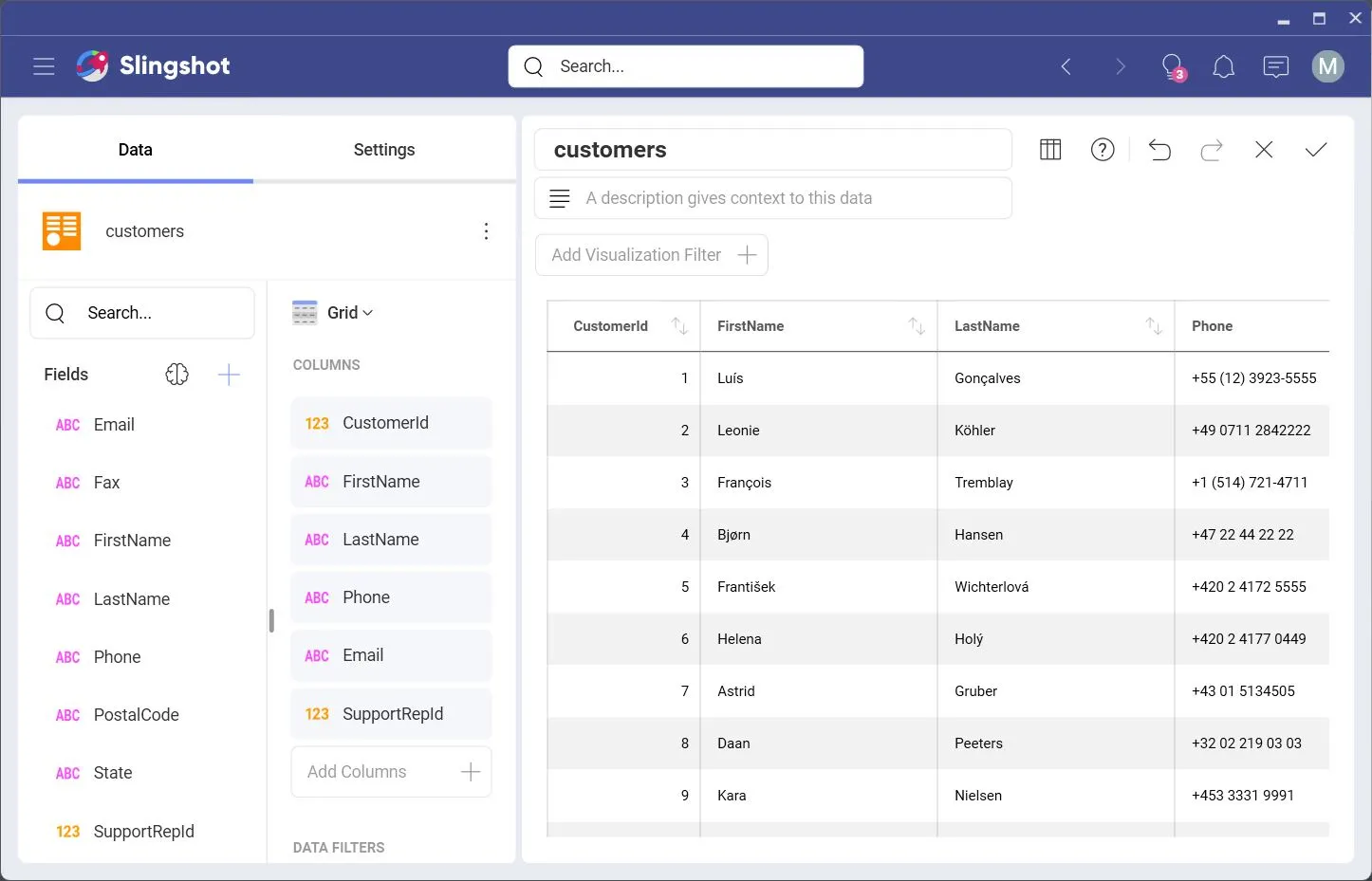
Similarly, you can create different visualizations like charts, tables, or pivot views by selecting the appropriate components from the panel. Just drag, drop, and configure as needed to explore your data from multiple angles.
You can also play with your data further by applying filters, sorting values, or grouping rows as needed. The possibilities are vast to tailor your dashboard exactly how you want it — powered by live Amazon Athena data, connected data from your OData feed.
Try the CData API Server for 30 Days Free
The CData API Server offers the fastest way to build REST APIs from 270+ live data sources — with a no/low-code, plug-and-play approach that's ready for real-time app integrations!
Start your free trial and connect instantly with tools like Slingshot. Simplify how your team accesses and interacts with data today.
