
Model Context Protocol (MCP) finally gives AI models a way to access the business data needed to make them really useful at work. CData MCP Servers have the depth and performance to make sure AI has access to all of the answers.
Try them now for free →


Automated Continuous Databricks Replication to IBM DB2
Use CData Sync for automated, continuous, customizable Databricks replication to IBM DB2.
Always-on applications rely on automatic failover capabilities and real-time data access. CData Sync integrates live Databricks data into your IBM DB2 instance, allowing you to consolidate all of your data into a single location for archiving, reporting, analytics, machine learning, artificial intelligence and more.
About Databricks Data Integration
Accessing and integrating live data from Databricks has never been easier with CData. Customers rely on CData connectivity to:
- Access all versions of Databricks from Runtime Versions 9.1 - 13.X to both the Pro and Classic Databricks SQL versions.
- Leave Databricks in their preferred environment thanks to compatibility with any hosting solution.
- Secure authenticate in a variety of ways, including personal access token, Azure Service Principal, and Azure AD.
- Upload data to Databricks using Databricks File System, Azure Blog Storage, and AWS S3 Storage.
While many customers are using CData's solutions to migrate data from different systems into their Databricks data lakehouse, several customers use our live connectivity solutions to federate connectivity between their databases and Databricks. These customers are using SQL Server Linked Servers or Polybase to get live access to Databricks from within their existing RDBMs.
Read more about common Databricks use-cases and how CData's solutions help solve data problems in our blog: What is Databricks Used For? 6 Use Cases.
Getting Started
Configure IBM DB2 as a Replication Destination
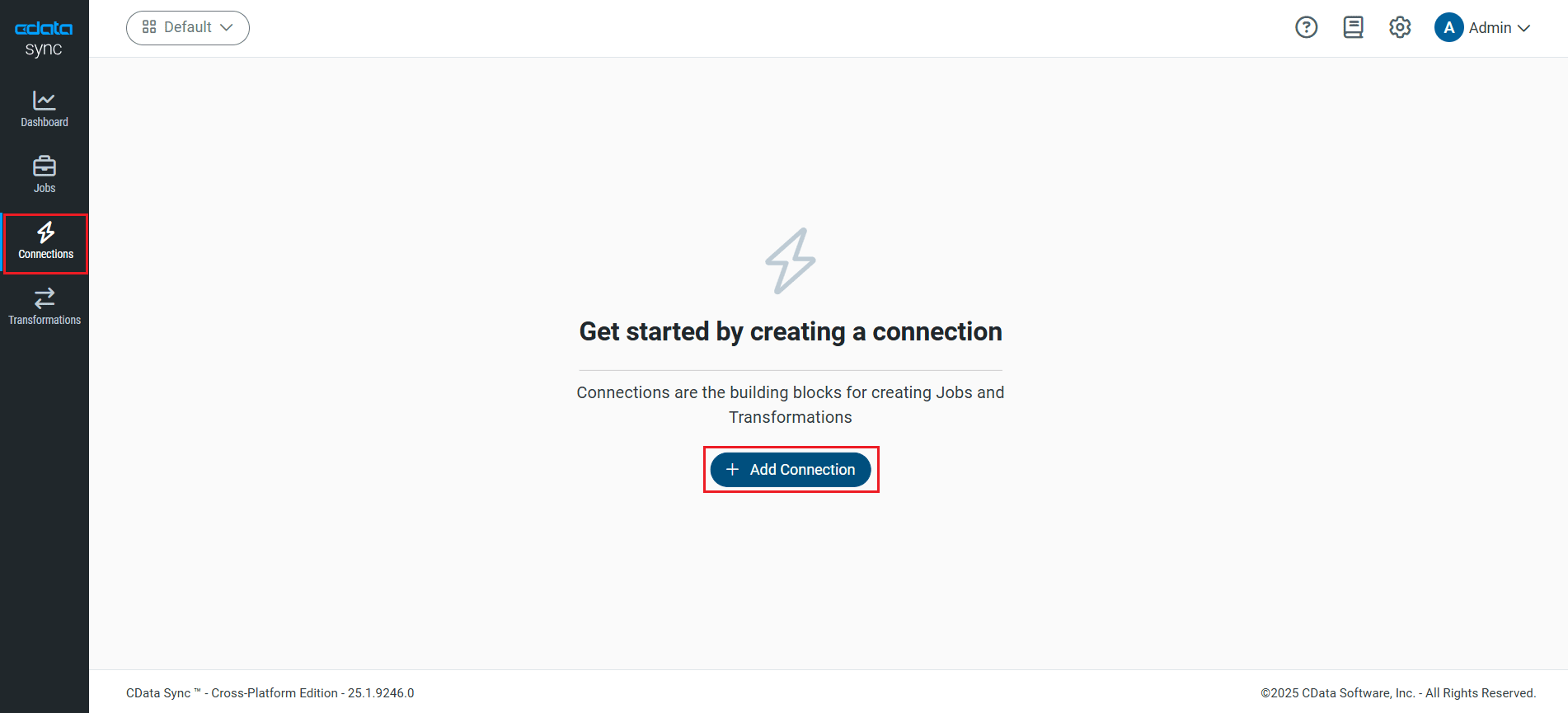
Using CData Sync, you can replicate Databricks data to IBM DB2. To add a replication destination, navigate to the Connections tab.
- Click Add Connection.
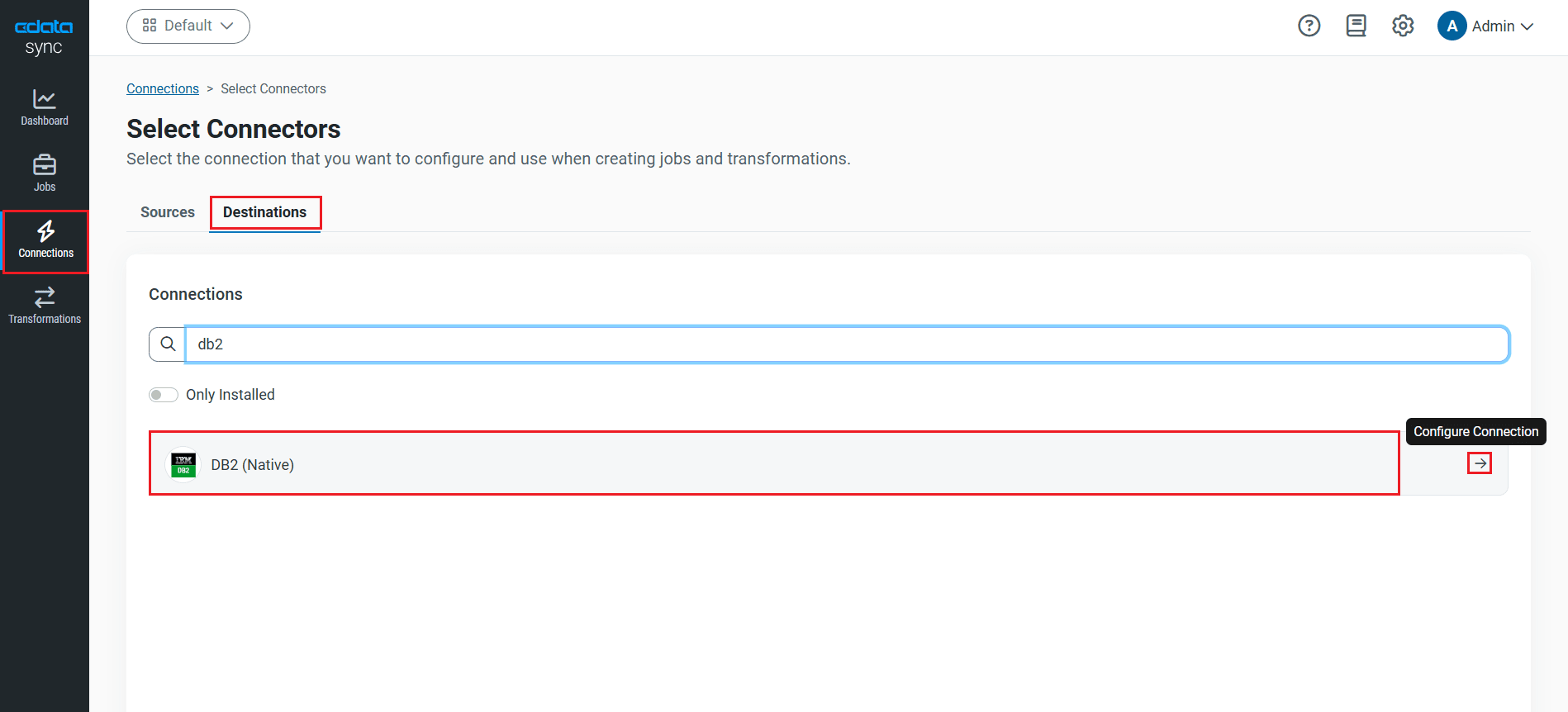
- Select the Destinations tab and locate the IBM DB2 connector.
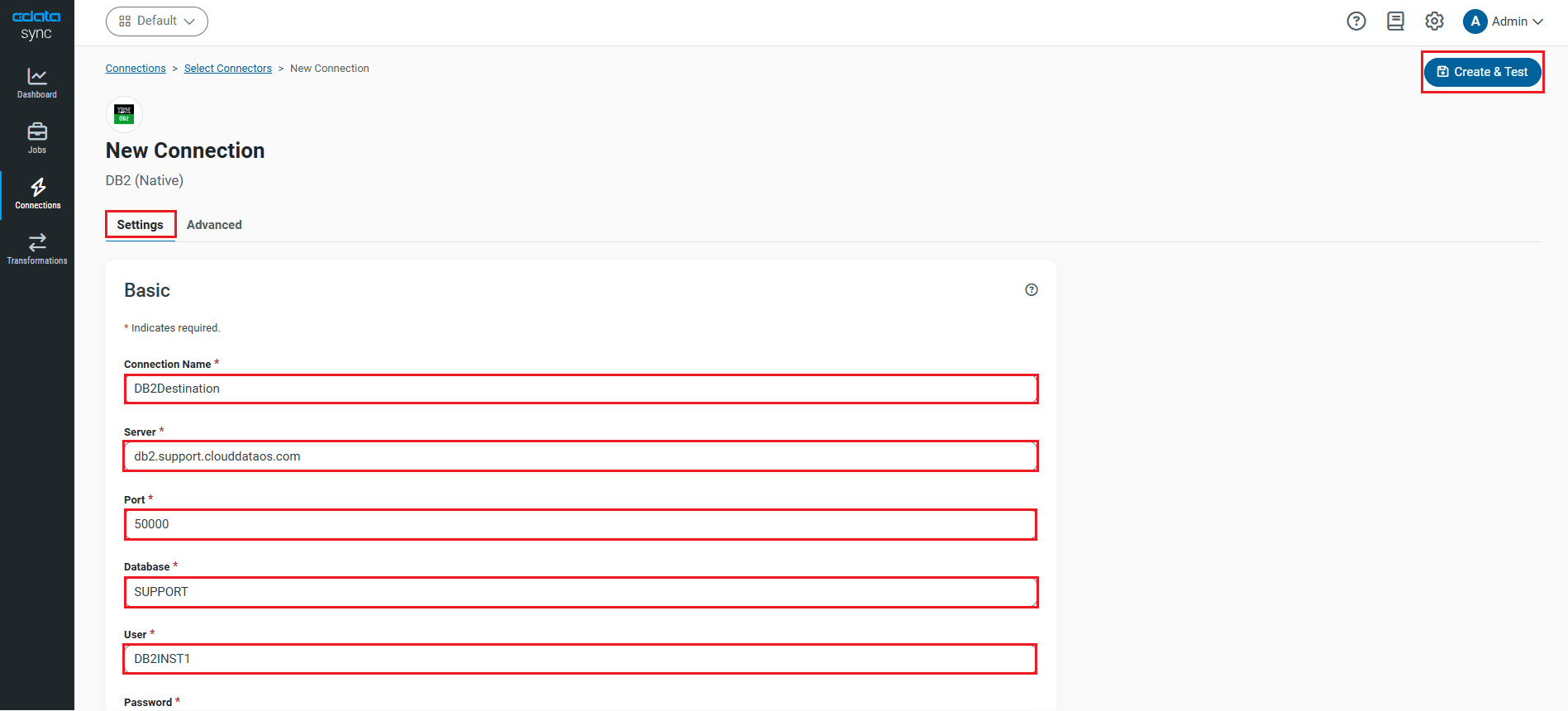
- Click the Configure Connection icon at the end of that row to open the New Connection page. Sync requires the db2jcc.jar driver to connect to your DB2 database. If you have not done so already, make sure to download the native DB2 JDBC driver from DB2 JDBC Driver Versions and Downloads web page.
- Copy the JDBC driver into the lib directory.
- Microsoft Windows: C:\Program Files\CData\CData Sync\lib
- UNIX or Mac OS X: ~/CData/CData Sync/lib
- To connect to IBM DB2, set the following connection properties:
- Connection Name: Enter a connection name of your choice for the IBM DB2 connection.
- Server: Enter either the host name or the IP address of the server that hosts your IBM DB2 instance.
- Port: Enter the port number of the server that hosts your instance of IBM DB2. The default port value is 50000.
- Database: Set this to the database you want to read from and write to.
- User: Set this to the database user.
- Password: Set this to the user's password.
- Once connected, click Create & Test to create, test and save the connection.
You are now connected to IBM DB2 and can use it as both a source and a destination.
NOTE: You can use the Label feature to add a label for a source or a destination.
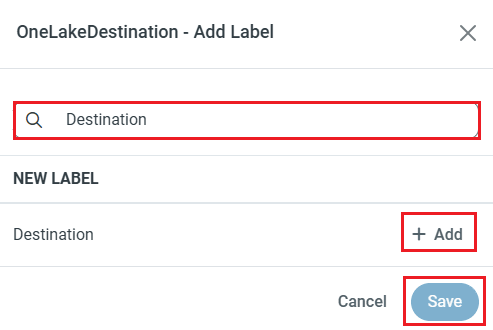
In this article, we will demonstrate how to load Databricks data into IBM DB2 and utilize it as a destination.
Configure the Databricks Connection
You can configure a connection to Databricks from the Connections tab. To add a connection to your Databricks account, navigate to the Connections tab.
- Click Add Connection.
- Select a source (Databricks).
- Configure the connection properties.
To connect to a Databricks cluster, set the properties as described below.
Note: The needed values can be found in your Databricks instance by navigating to Clusters, and selecting the desired cluster, and selecting the JDBC/ODBC tab under Advanced Options.
- Server: Set to the Server Hostname of your Databricks cluster.
- HTTPPath: Set to the HTTP Path of your Databricks cluster.
- Token: Set to your personal access token (this value can be obtained by navigating to the User Settings page of your Databricks instance and selecting the Access Tokens tab).
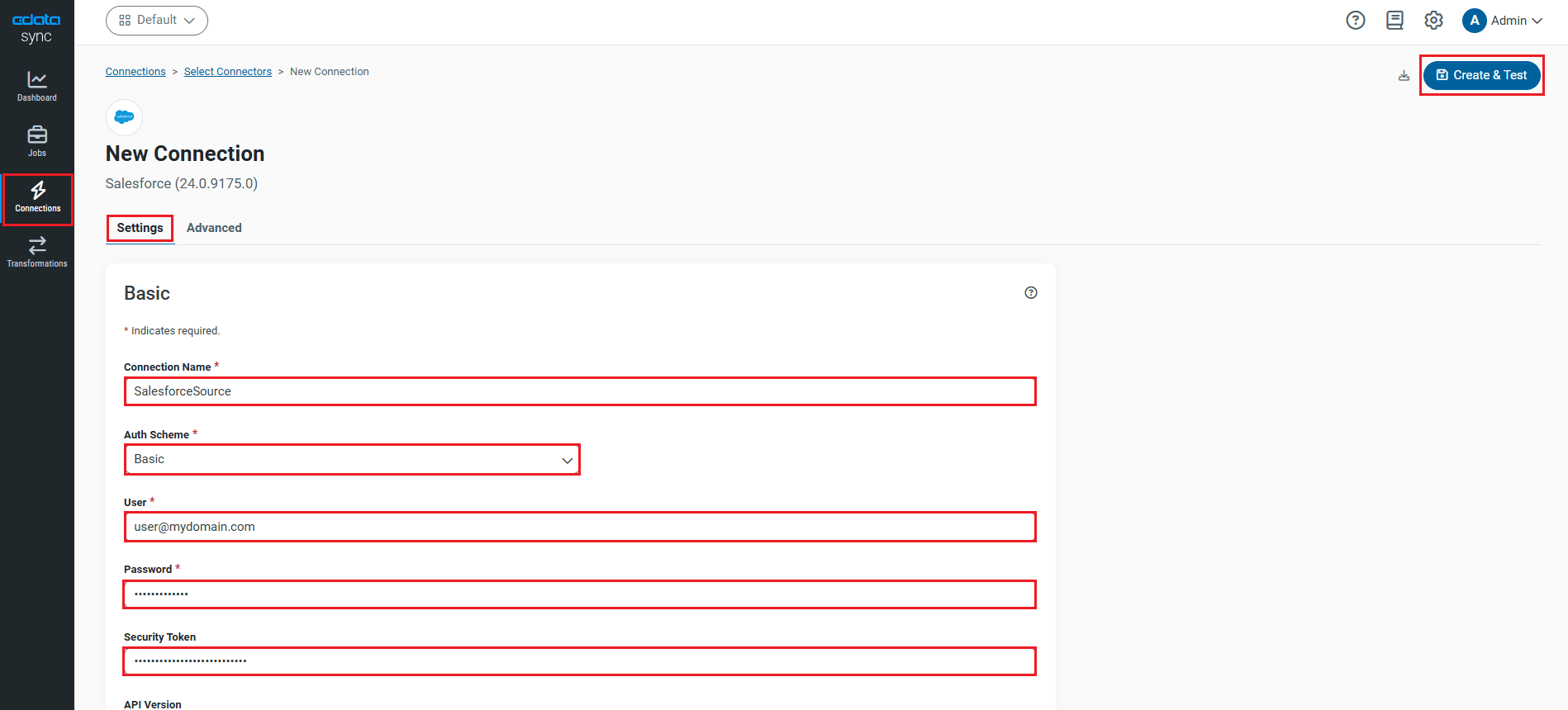
- Click Connect to Databricks to ensure that the connection is configured properly.
- Click Save & Test to save the changes.
Configure Replication Queries
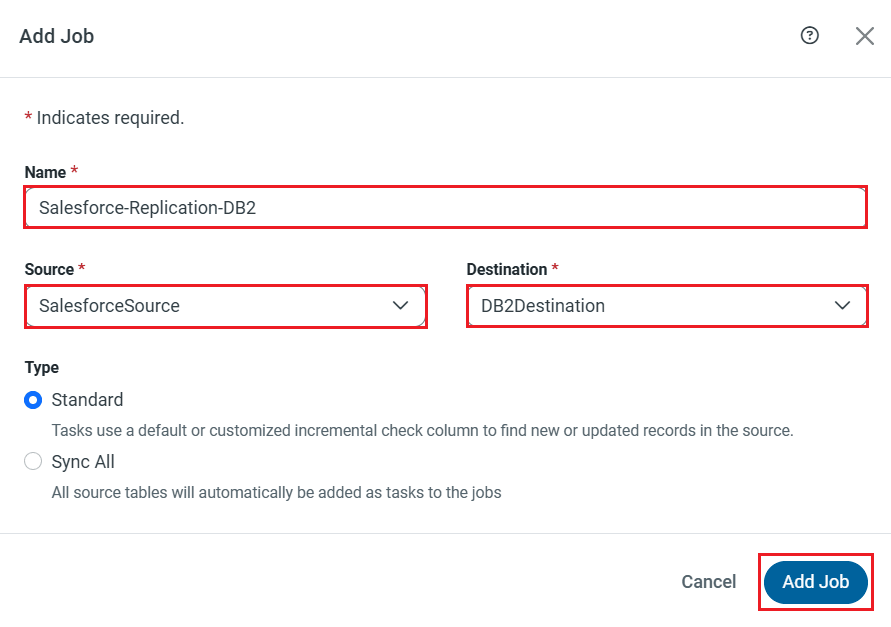
CData Sync enables you to control replication with a point-and-click interface and with SQL queries. For each replication you wish to configure, navigate to the Jobs tab and click Add Job. Select the Source and Destination for your replication.
Replicate Entire Tables
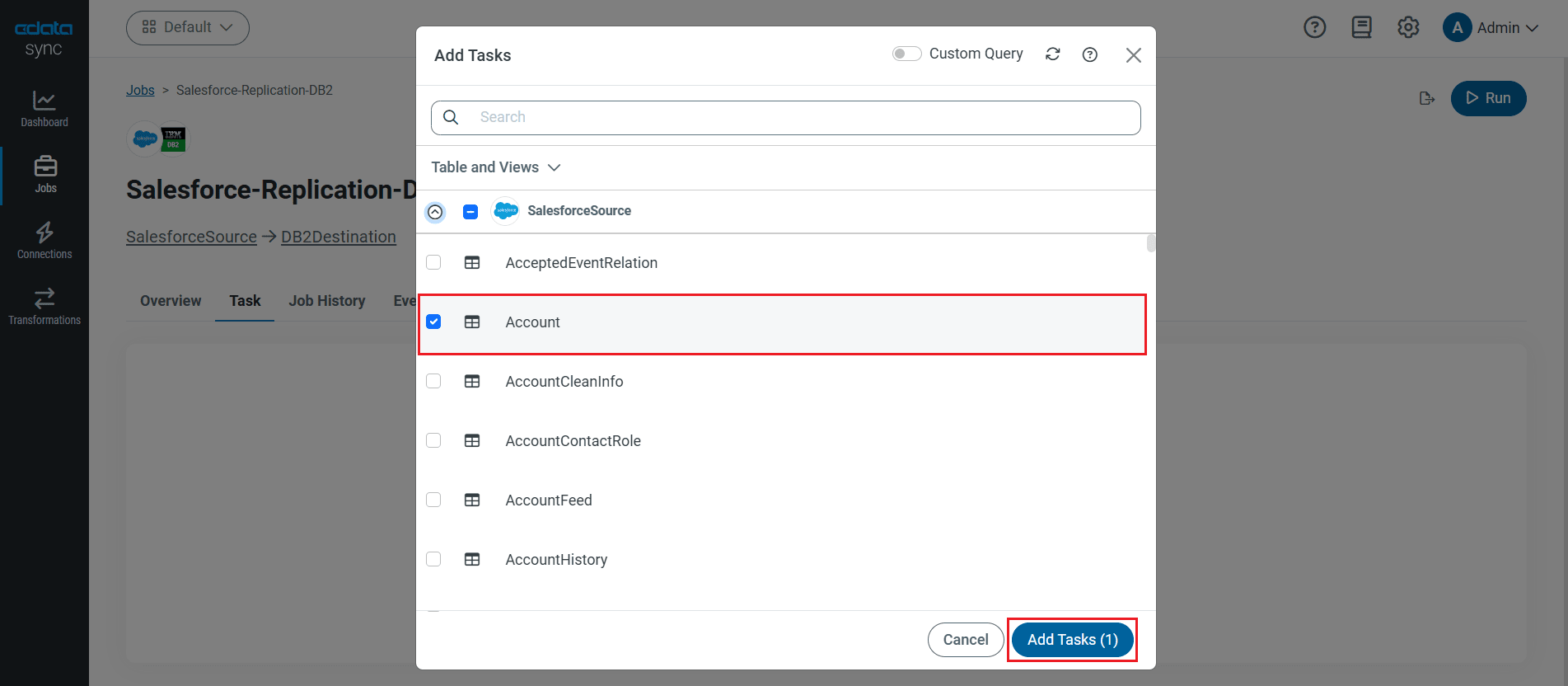
To replicate an entire table, navigate to the Task tab in the Job, click Add Tasks, choose the table(s) from the list of Databricks tables you wish to replicate into IBM DB2, and click Add Tasks again.
Customize Your Replication
You can use the Columns and Query tabs of a task to customize your replication. The Columns tab allows you to specify which columns to replicate, rename the columns at the destination, and even perform operations on the source data before replicating. The Query tab allows you to add filters, grouping, and sorting to the replication with the help of SQL queries.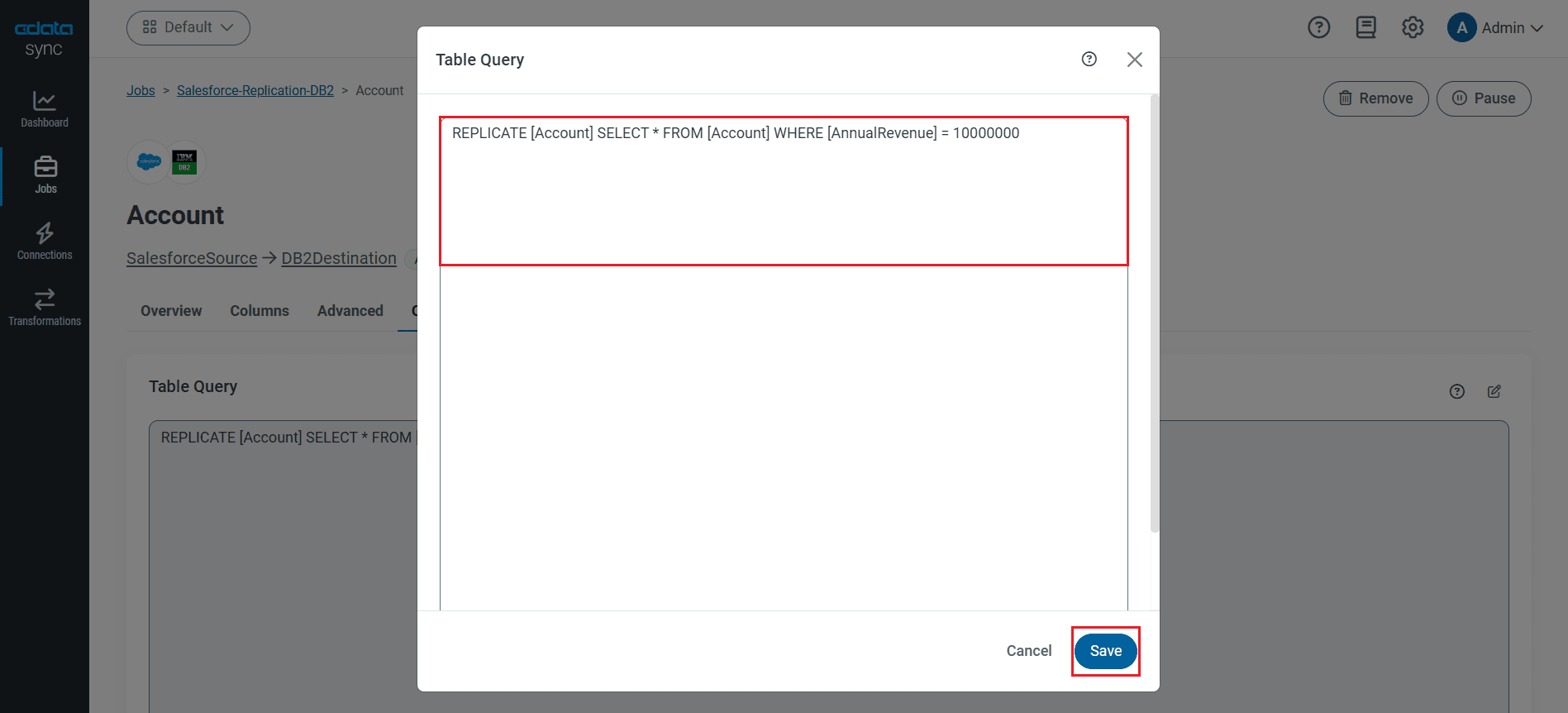
Schedule Your Replication
Select the Overview tab in the Job, and click Configure under Schedule. You can schedule a job to run automatically by configuring it to run at specified intervals, ranging from once every 10 minutes to once every month.
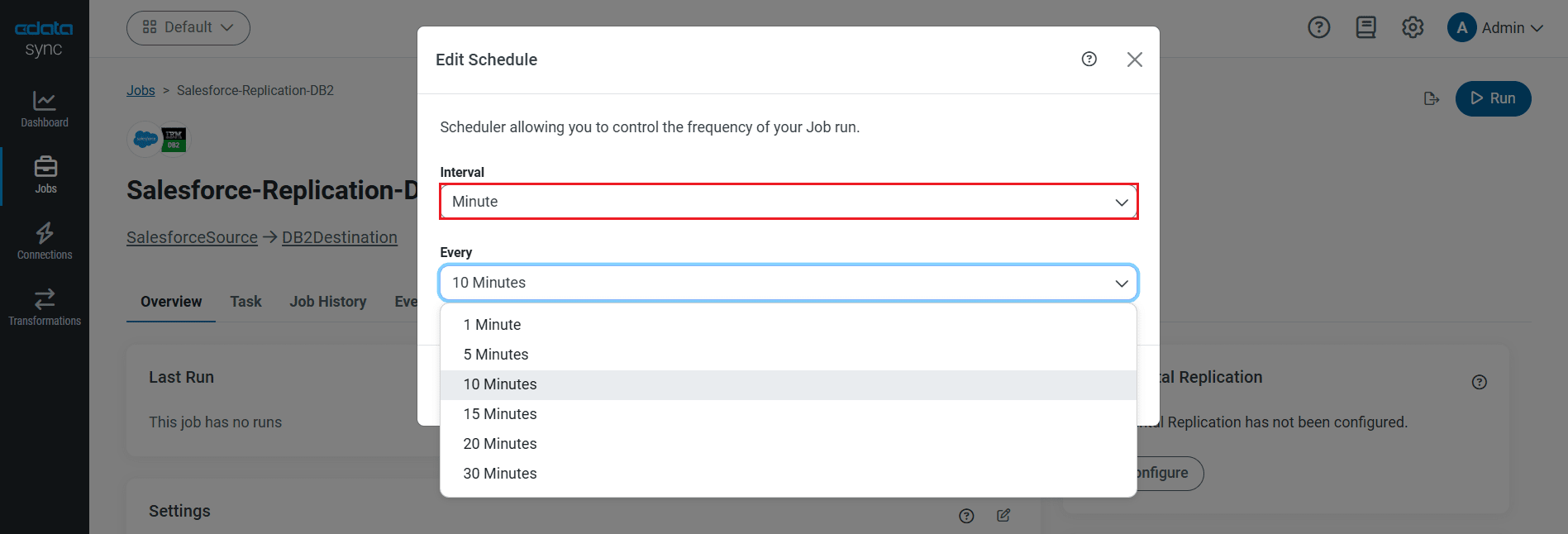
Once you have configured the replication job, click Save Changes. You can configure any number of jobs to manage the replication of your Databricks data to IBM DB2.
Run the Replication Job
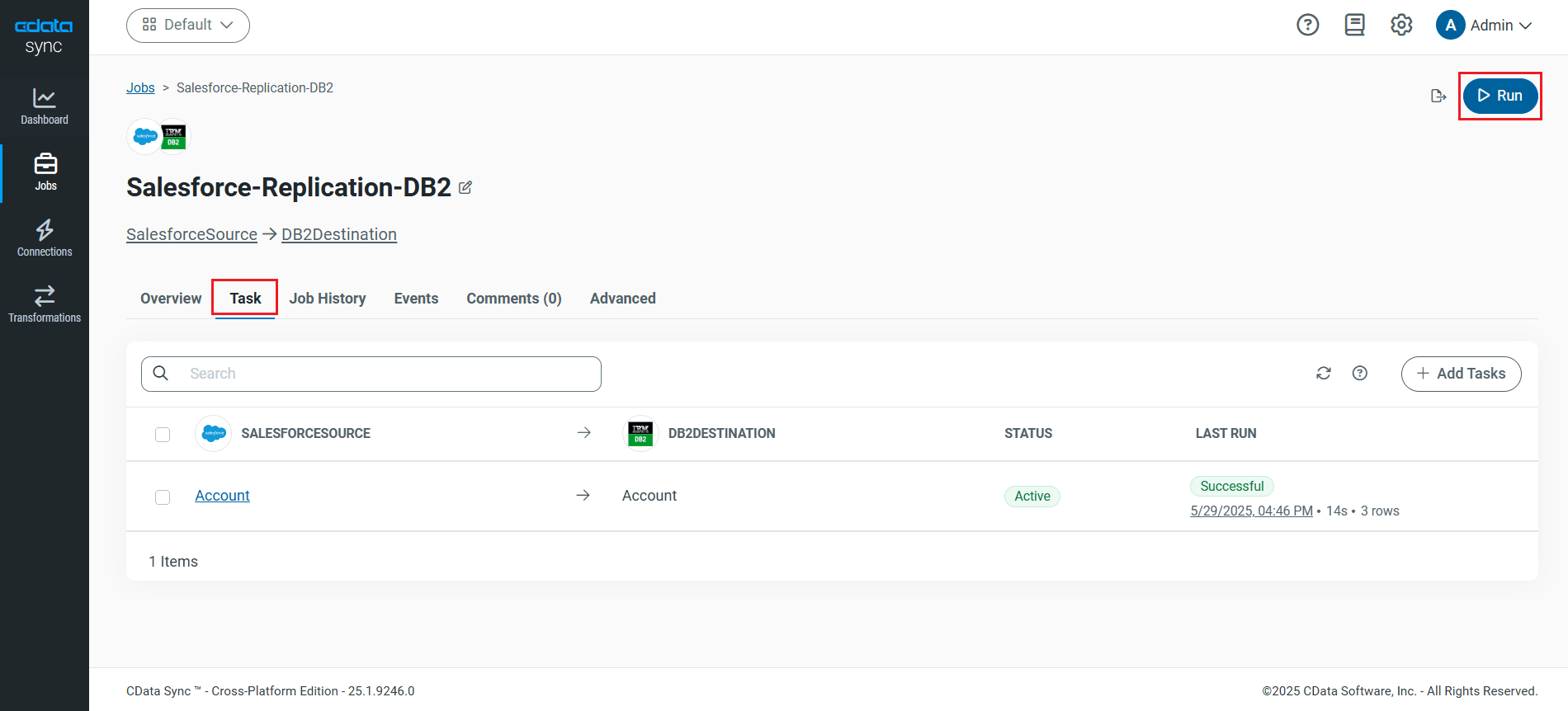
Once all the required configurations are made for the job, select the Databricks table you wish to replicate and click Run. After the replication completes successfully, a notification appears, showing the time taken to run the job and the number of rows replicated.
Free Trial & More Information
Now that you have seen how to replicate Databricks data into IBM DB2, visit our CData Sync page to explore more about CData Sync and download a free 30-day trial. Start consolidating your enterprise data today!
As always, our world-class Support Team is ready to answer any questions you may have.
