
Model Context Protocol (MCP) finally gives AI models a way to access the business data needed to make them really useful at work. CData MCP Servers have the depth and performance to make sure AI has access to all of the answers.
Try them now for free →


Excel Spreadsheet Automation on Dynamics CRM Data with the QUERY Formula
Pull data, automate spreadsheets, and more with the QUERY formula.
The CData Excel Add-In for Dynamics CRM provides formulas that can edit, save, and delete Dynamics CRM data. The following three steps show how you can automate the following task: Search Dynamics CRM data for a user-specified value and then organize the results into an Excel spreadsheet.
About Dynamics CRM Data Integration
CData simplifies access and integration of live Microsoft Dynamics CRM data. Our customers leverage CData connectivity to:
- Read and write data in the Dynamics CRM 2011+ Services and Dynamics CRM Online.
- Extend the native features of Dynamics CRM with customizable caching and intelligent query aggregation and separation.
- Authenticate securely with Dynamics CRM in a variety of ways, including Azure Active Directory, Azure Managed Service Identity credentials, and Azure Service Principal using either a client secret or a certificate.
CData customers use our Dynamics CRM connectivity solutions for a variety of reasons, whether they're looking to replicate their data into a data warehouse (alongside other data sources) or analyze live Dynamics CRMa data from their preferred data tools inside the Microsoft ecosystem (Power BI, Excel, etc.) or with external tools (Tableau, Looker, etc.).
Getting Started
The syntax of the CDATAQUERY formula is the following:
=CDATAQUERY(Query, [Connection], [Parameters], [ResultLocation]);
This formula requires three inputs:
- Query: The declaration of the Dynamics CRM data records you want to retrieve or the modifications to be made, written in standard SQL.
Connection: Either the connection name, such as DynamicsCRMConnection1, or a connection string. The connection string consists of the required properties for connecting to Dynamics CRM data, separated by semicolons.
The connection string options meet the authentication and connection requirements of different Dynamics CRM instances. To connect to your instance, set the User and Password properties, under the Authentication section, to valid Dynamics CRM user credentials and set the Url to a valid Dynamics CRM server organization root. Additionally, set the CRMVersion property to 'CRM2011+' or 'CRMOnline'. IFD configurations are supported as well; set InternetFacingDeployment to true.
Additionally, you can provide the security token service (STS) or AD FS endpoint in the STSURL property. This value can be retrieved with the GetSTSUrl stored procedure. Office 365 users can connect to the default STS URL by simply setting CRMVersion.
- ResultLocation: The cell that the output of results should start from.
Pass Spreadsheet Cells as Inputs to the Query
The procedure below results in a spreadsheet that organizes all the formula inputs in the first column.
- Define cells for the formula inputs. In addition to the connection inputs, add another input to define a criterion for a filter to be used to search Dynamics CRM data, such as FirstName.
- In another cell, write the formula, referencing the cell values from the user input cells defined above. Single quotes are used to enclose values such as addresses that may contain spaces.
- Change the filter to change the data.
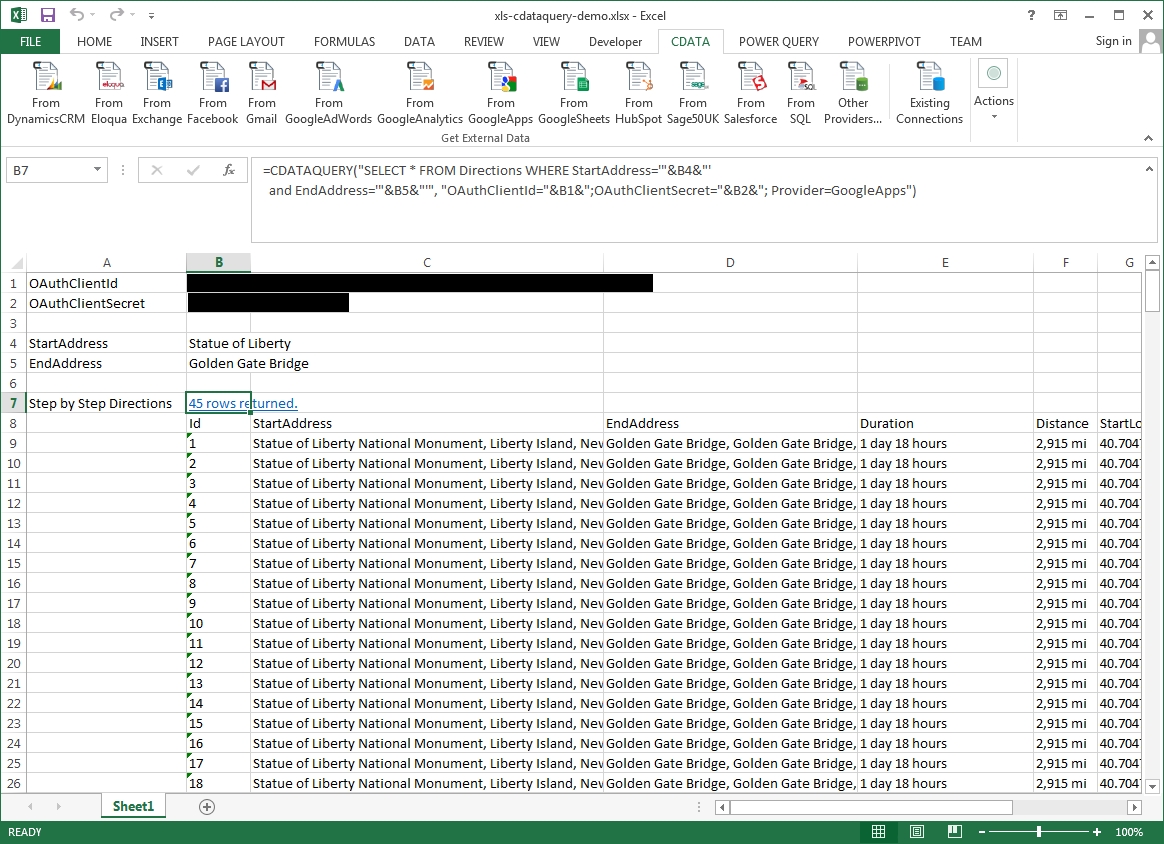
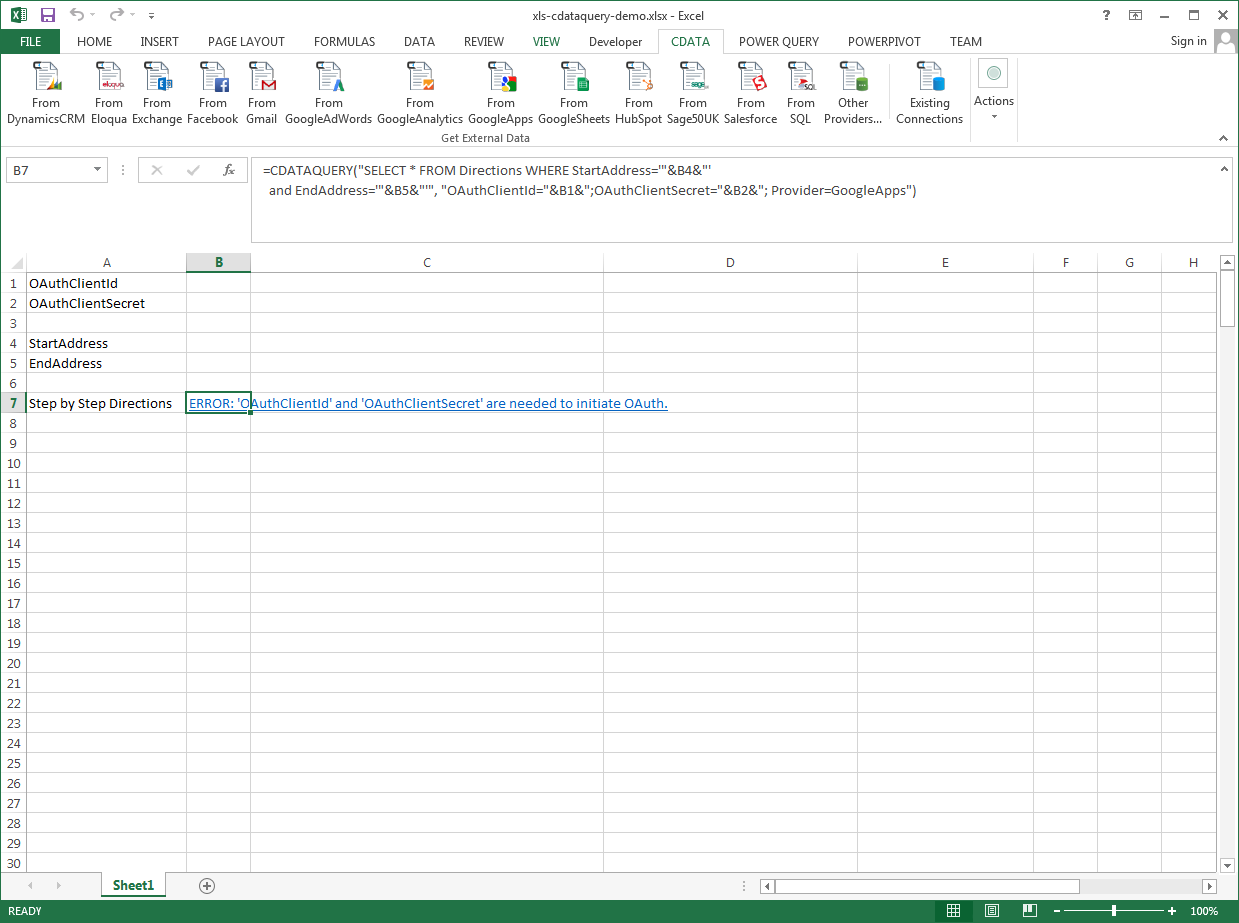
=CDATAQUERY("SELECT * FROM Account WHERE FirstName = '"&B5&"'","User="&B1&";Password="&B2&";URL="&B3&";CRM Version="&B4&";Provider=DynamicsCRM",B6)
Ready to get started?
Download a free trial of the Excel Add-In for MSCRM to get started:
Download NowLearn more:
 Excel Add-In for Dynamics CRM
The Dynamics CRM Excel Add-In is a powerful tool that allows you to connect with live Microsoft Dynamics CRM (OnPremise & Online) account data, directly from Microsoft Excel.
Use Excel to read, write, and update Leads, Contacts, Opportunities, Accounts, etc. Perfect for mass imports / exports / updates, data cleansing & de-duplication, Excel based data analysis, and more!
