
Model Context Protocol (MCP) finally gives AI models a way to access the business data needed to make them really useful at work. CData MCP Servers have the depth and performance to make sure AI has access to all of the answers.
Try them now for free →


Connect HubDB Data to Claris FileMaker via ESS using an ODBC Driver and the CData SQL Gateway
Connect to your HubDB data using the ESS feature of Claris FileMaker with MySQL ODBC driver and CData SQL Gateway.
Claris FileMaker is a low-code platform that enables users to quickly create custom apps to manage and automate data workflows. Using the CData ODBC Driver for HubDB and the CData SQL Gateway, FileMaker connects to HubDB data through its ESS (External SQL Source) feature, allowing you to work with HubDB records as if they were native FileMaker tables.
In this article, we configure and use the CData ODBC Driver for HubDB and the CData SQL Gateway, along with the MySQL ODBC Driver, to connect to HubDB data using the ESS functionality in FileMaker.
Create an ODBC Data Source for HubDB
If you have not already, first specify connection properties in an ODBC DSN (data source name). This is the last step of the driver installation. You can use the Microsoft ODBC Data Source Administrator to create and configure ODBC DSNs.
There are two authentication methods available for connecting to HubDB data source: OAuth Authentication with a public HubSpot application and authentication with a Private application token.
Using a Custom OAuth App
AuthScheme must be set to "OAuth" in all OAuth flows. Be sure to review the Help documentation for the required connection properties for you specific authentication needs (desktop applications, web applications, and headless machines).
Follow the steps below to register an application and obtain the OAuth client credentials:
- Log into your HubSpot app developer account.
- Note that it must be an app developer account. Standard HubSpot accounts cannot create public apps.
- On the developer account home page, click the Apps tab.
- Click Create app.
- On the App info tab, enter and optionally modify values that are displayed to users when they connect. These values include the public application name, application logo, and a description of the application.
- On the Auth tab, supply a callback URL in the "Redirect URLs" box.
- If you're creating a desktop application, set this to a locally accessible URL like http://localhost:33333.
- If you are creating a Web application, set this to a trusted URL where you want users to be redirected to when they authorize your application.
- Click Create App. HubSpot then generates the application, along with its associated credentials.
- On the Auth tab, note the Client ID and Client secret. You will use these later to configure the driver.
Under Scopes, select any scopes you need for your application's intended functionality.
A minimum of the following scopes is required to access tables:
- hubdb
- oauth
- crm.objects.owners.read
- Click Save changes.
- Install the application into a production portal with access to the features that are required by the integration.
- Under "Install URL (OAuth)", click Copy full URL to copy the installation URL for your application.
- Navigate to the copied link in your browser. Select a standard account in which to install the application.
- Click Connect app. You can close the resulting tab.
Using a Private App
To connect using a HubSpot private application token, set the AuthScheme property to "PrivateApp."
You can generate a private application token by following the steps below:
- In your HubDB account, click the settings icon (the gear) in the main navigation bar.
- In the left sidebar menu, navigate to Integrations > Private Apps.
- Click Create private app.
- On the Basic Info tab, configure the details of your application (name, logo, and description).
- On the Scopes tab, select Read or Write for each scope you want your private application to be able to access.
- A minimum of hubdb and crm.objects.owners.read is required to access tables.
- After you are done configuring your application, click Create app in the top right.
- Review the info about your application's access token, click Continue creating, and then Show token.
- Click Copy to copy the private application token.
To connect, set PrivateAppToken to the private application token you retrieved.
When you configure the DSN, you may also want to set the Max Rows connection property. This will limit the number of rows returned, which is especially helpful for improving performance when designing reports and visualizations.
Configuring the CData SQL Gateway
The CData SQL Gateway bridges non-SQL data sources (like SaaS applications, APIs, and NoSQL databases) with SQL-based tools (like FileMaker, MySQL clients, and BI tools).
In simple terms, it exposes any CData driver-supported source - for example, HubDB - as a standard MySQL or SQL Server endpoint.
See the SQL Gateway Overview to set up HubDB data connectivity as a virtual MySQL database. Set up a MySQL remoting service that listens for MySQL requests from clients, and configure the service through the SQL Gateway UI (as shown below). Save the user credentials (Username and Password) for future use.
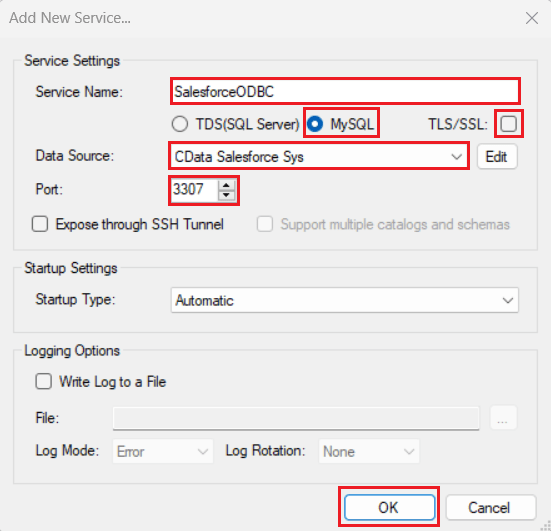
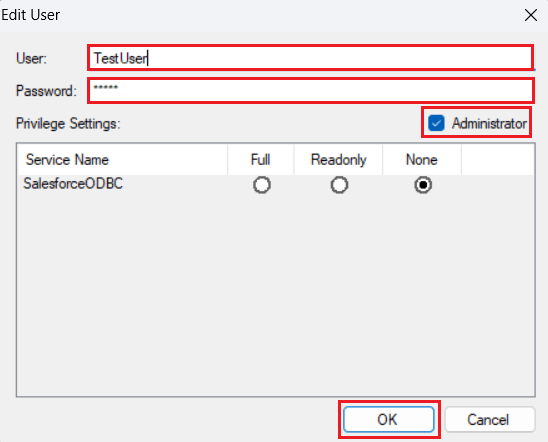
Once you establish the connection, you can use the CData SQL Gateway to access HubDB data through the MySQL protocol.
Installing the MySQL ODBC Driver
Follow the steps below to install and configure the MySQL ODBC Driver:
- Download and install the latest 64-bit Windows version of the MySQL ODBC Unicode Driver from this link.
- Launch ODBC Data Sources (64-bit) from Windows search. Open the System DSN tab, click Add, select MySQL ODBC Unicode Driver from the Create New Data Source window, and click Finish.
- Enter the following connection details in the MySQL Connector/ODBC Data Source Configuration window:
- Data Source Name: Enter a DSN of your choice
- TCP/IP Server: localhost
- Port: Enter the port set in the SQL Gateway (for this procedure, use "3307")
- User: Enter the username set in the CData SQL Gateway
- Password: Enter the password set in the CData SQL Gateway
- Database: CData HubDB Sys
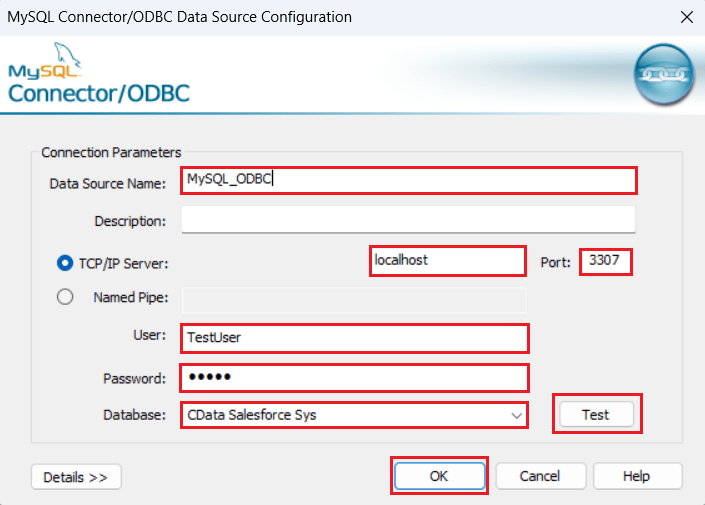
- Click Test to verify that the "Connection Successful" dialog box appears. Then click OK to save the configuration details.
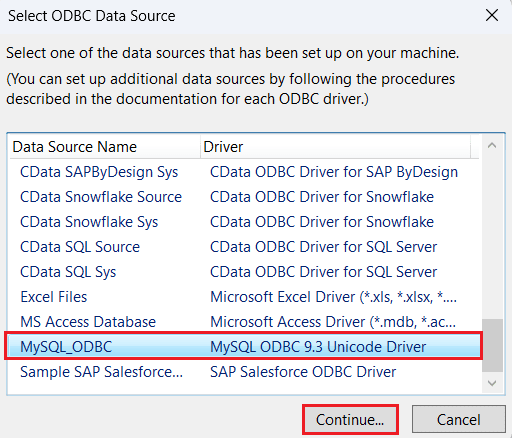
You have now successfully configured the MySQL ODBC Driver.
Use FileMaker ESS function to load HubDB data
In this section, we explore how to use the ESS (External SQL Source) feature to retrieve data in the FileMaker application. Follow the given steps to complete the process:
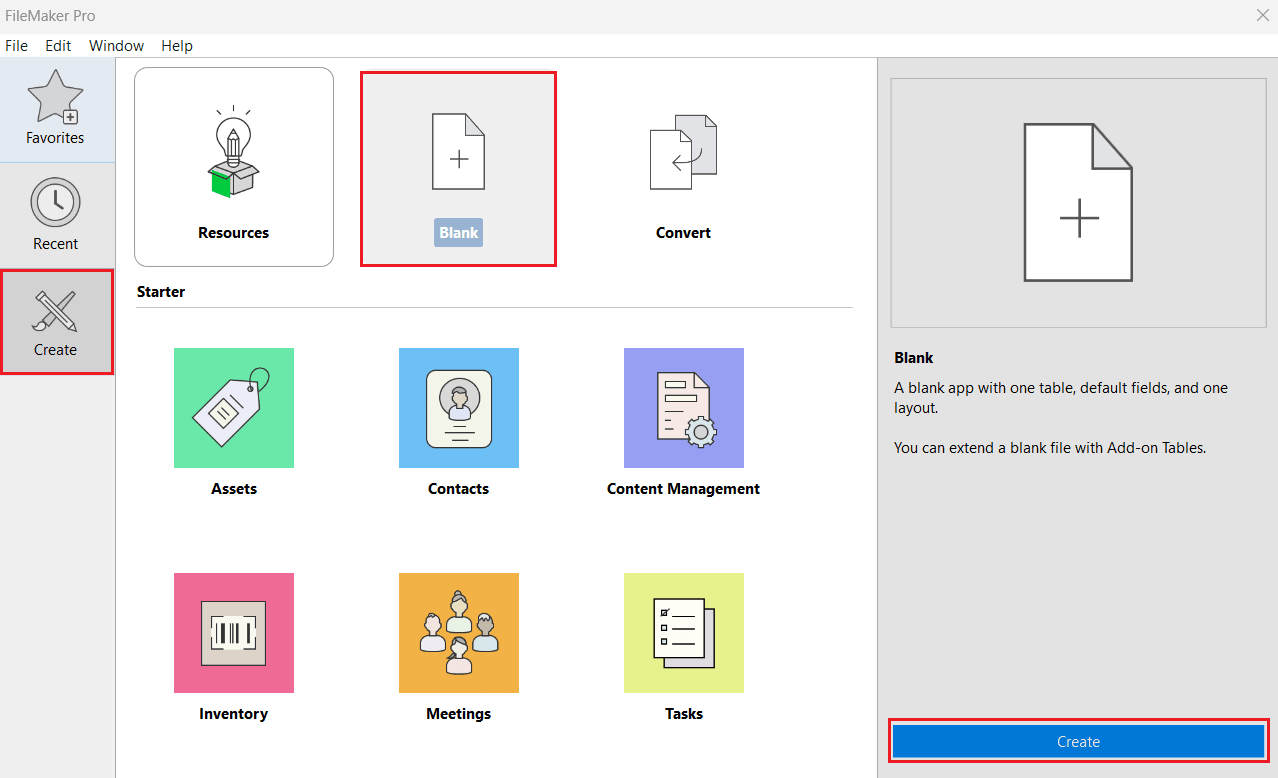
- Open FileMaker Pro. Navigate to Create from the left panel and select Blank > Create.
- Enter a desired filename and click Save.
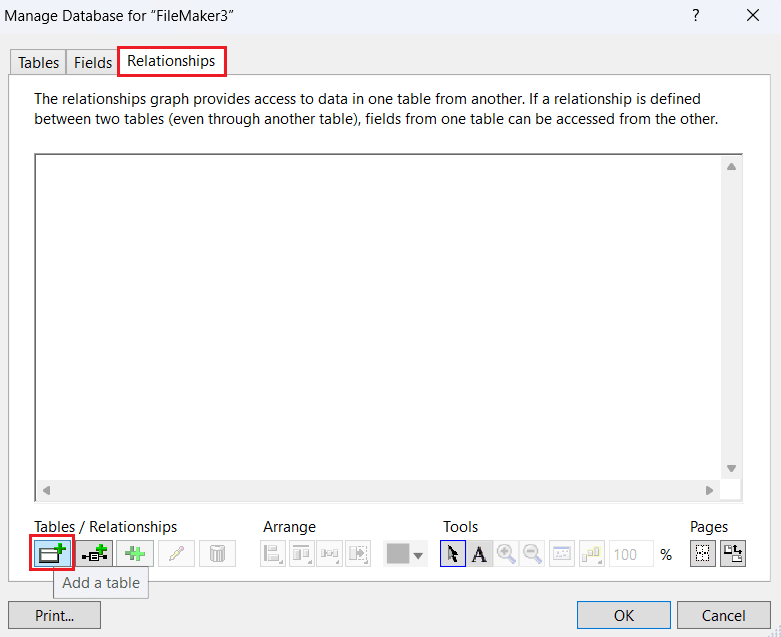
- In Manage Database, remove the Tables and Fields from the respective tabs. Select the Relationships tab and click Add Table.
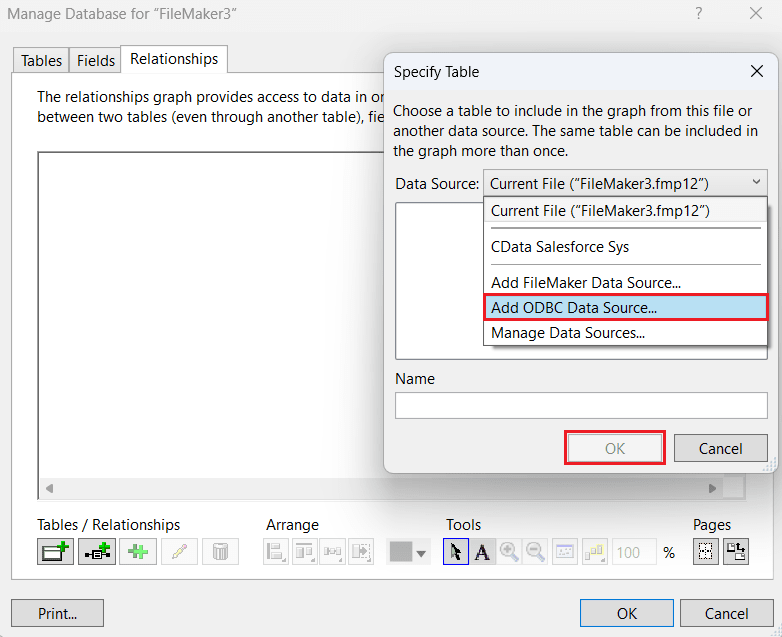
- In Specify Table, expand the Data Source dropdown menu and select Add ODBC Data Source. Click OK.
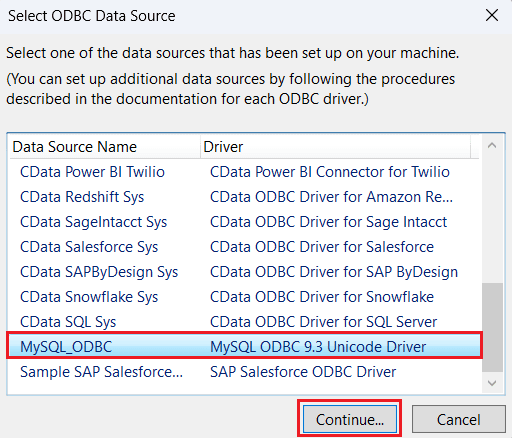
- In Select ODBC Data Source, select the previously configured MySQL ODBC driver and click Continue.
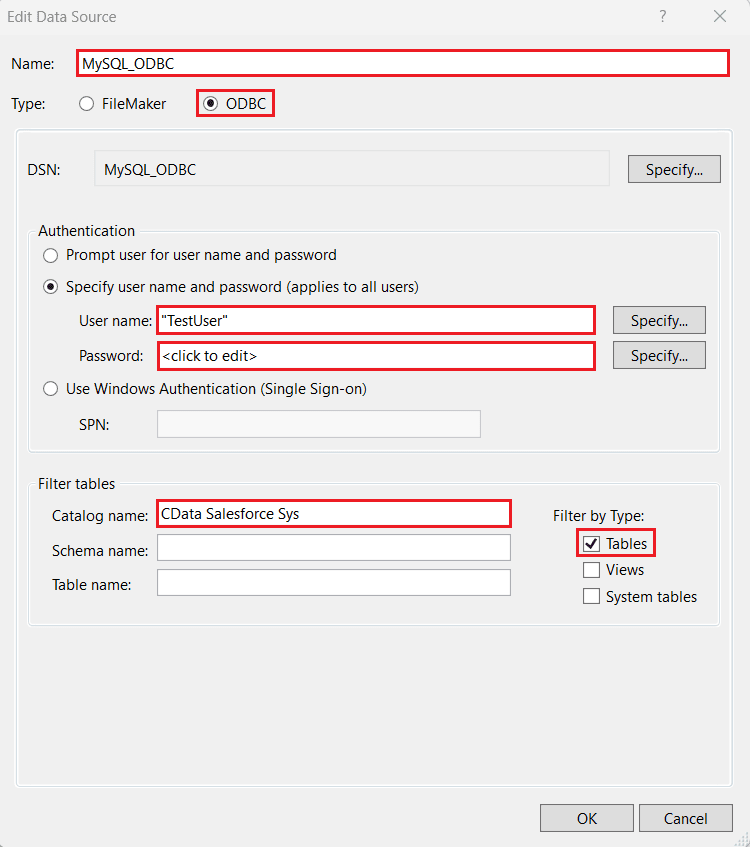
- In the Edit Data Source window, enter the following details:
- Name: This field will be auto-filled. Enter a new name of choice if necessary.
- Type: Select "ODBC".
- Under Authentication, select the Specify username and password radio button and enter the following details:
- User name: Enter the username set in the CData SQL Gateway.
- Password: Enter the password set in the CData SQL Gateway.
- Catalog Name: CData HubDB Sys
- Click OK.
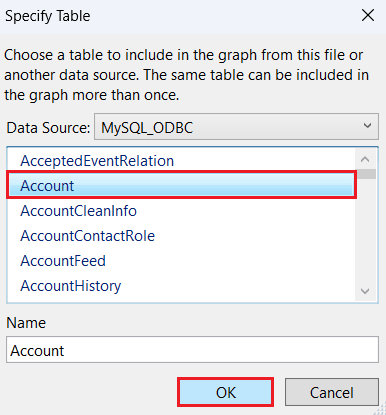
- View the tables from HubDB populated under the Data Source section. Select the table of your choice and click OK.
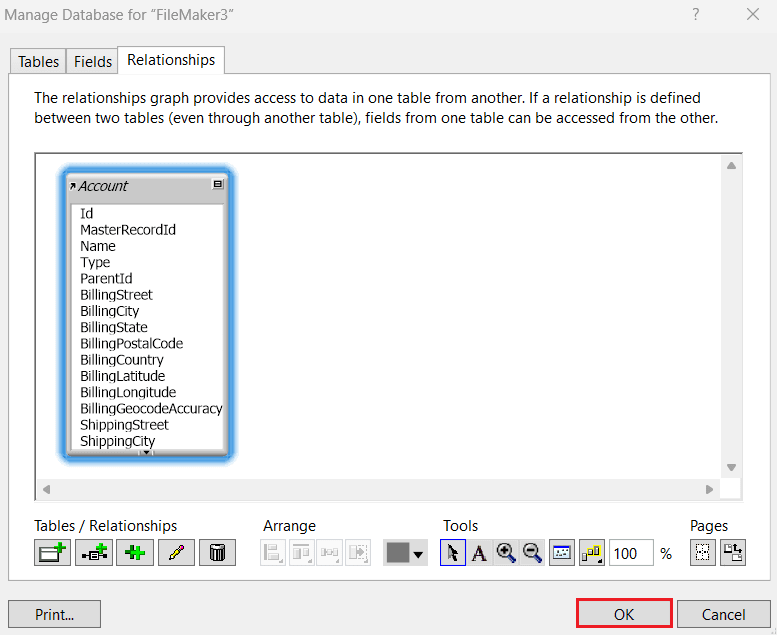
- The Relationships tab now displays the selected table and its metadata. Click OK.
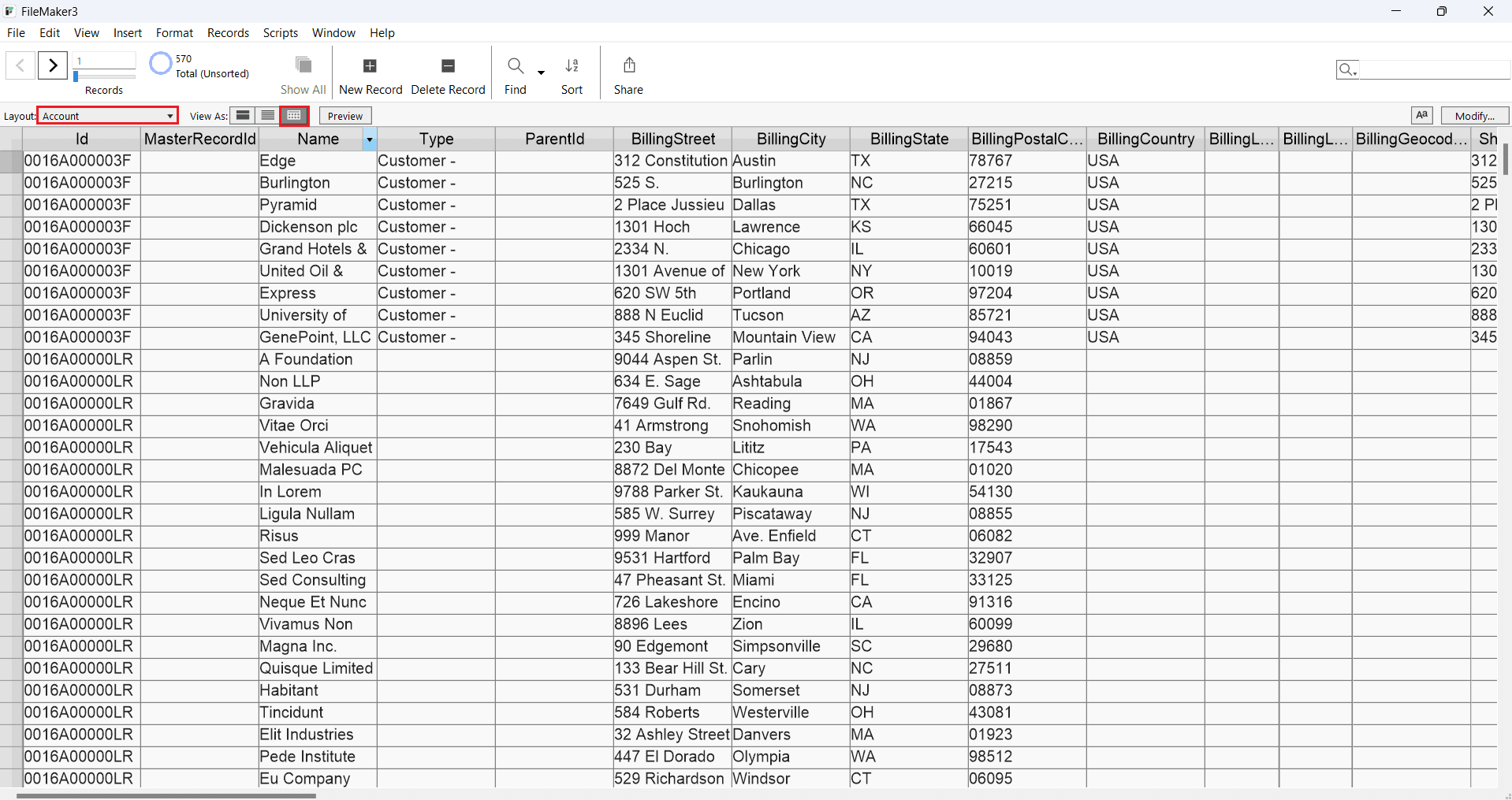
- Select the table from the Layout dropdown. The HubDB table data appears on the screen. (As shown)
Get Started Today
Download a free 30-day trial of CData ODBC Driver for HubDB to integrate HubDB data into Claris FileMaker and use HubDB data in your FileMaker applications.
Contact our Support Team if you have any questions.
Ready to get started?
Download a free trial of the HubDB ODBC Driver to get started:
Download NowLearn more:
 HubDB ODBC Driver
The HubDB ODBC Driver is a powerful tool that allows you to connect with live data from HubDB, directly from any applications that support ODBC connectivity.
Access HubDB data like you would a database - read, write, and update HubDB 0, etc. through a standard ODBC Driver interface.
