
Model Context Protocol (MCP) finally gives AI models a way to access the business data needed to make them really useful at work. CData MCP Servers have the depth and performance to make sure AI has access to all of the answers.
Try them now for free →


Easily Integrate IBM Cloud Object Storage Data in Lazarus Pascal IDE
Learn how to easily integrate live IBM Cloud Object Storage data in Lazarus Pascal IDE using the CData ODBC Driver for real-time insights.
Lazarus Pascal IDE is a powerful, free, open-source development environment for building cross-platform applications. With the CData ODBC Driver for IBM Cloud Object Storage, you can seamlessly integrate and query live IBM Cloud Object Storage data, bringing real-time insights within your Lazarus Pascal IDE applications to enhance reporting, dashboards, and workflows.
This guide provides a comprehensive walkthrough, from setting up the connection to leveraging live IBM Cloud Object Storage in Lazarus Pascal IDE. Whether you're building reports, dashboards, or complex workflows, you'll gain the tools to unlock real-time insights and functionality within your applications.
Overview
Here is an overview of the steps:
- Configure the DSN for IBM Cloud Object Storage data in the CData ODBC Driver for IBM Cloud Object Storage with the necessary connection properties.
- Set up the ODBC connection in Lazarus by configuring the TSQLConnector, TSQLQuery, TDataSource, and TDBGrid components with the required details.
- Test the connection to IBM Cloud Object Storage data by writing sample code on the Main form.
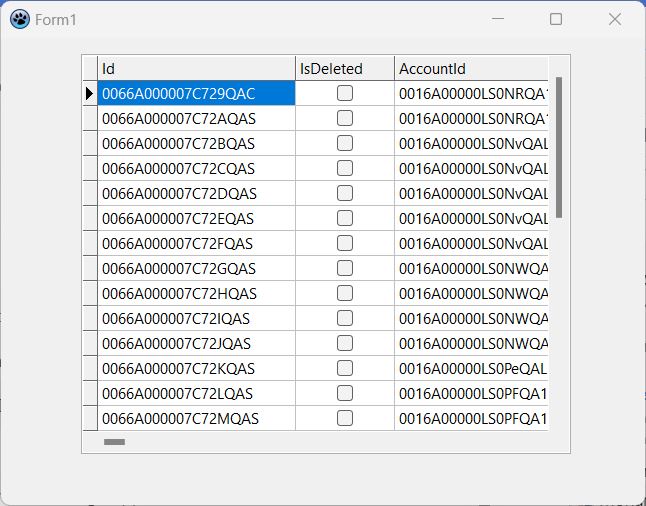
- Compile and run the application to verify the successful integration and display of live IBM Cloud Object Storage data.
Prerequisites
Before starting, ensure you have the following:
- Lazarus IDE (version 3.4 recommended). Download from here.
- CData ODBC Driver for IBM Cloud Object Storage. Download and try the latest version from here.
Configure the IBM Cloud Object Storage DSN Using the CData ODBC Driver
To start, configure the DSN (Data Source Name) for IBM Cloud Object Storage data in your system using the CData ODBC Driver for IBM Cloud Object Storage. Download and install a 30-day free trial with all the features from here.
Once installed, launch the ODBC Data Source Administrator:
- On Windows: Search for ODBC Data Source Administrator in the Start menu and open the application.
- On Mac: Open Applications, go to Utilities, and select ODBC Manager.
- On Linux: Use the command line to launch ODBC Data Source Administrator or use unixODBC if installed.
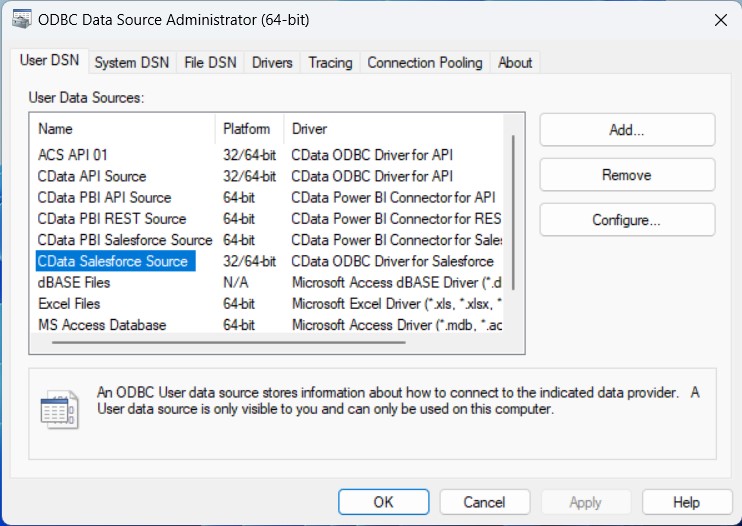
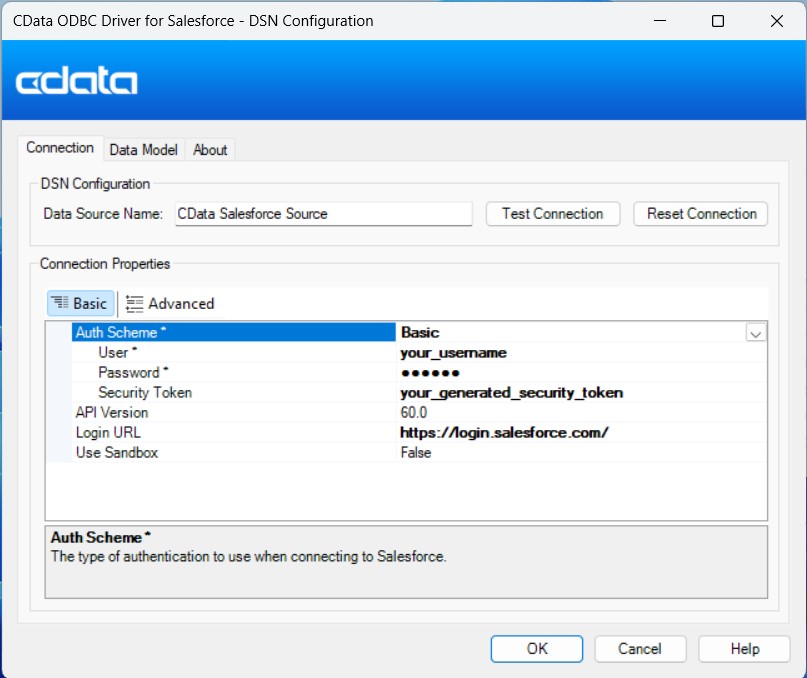
Once launched, double-click on the CData IBM Cloud Object Storage data Source and enter the required values to establish a connection:
Register a New Instance of Cloud Object Storage
If you do not already have Cloud Object Storage in your IBM Cloud account, follow the procedure below to install an instance of SQL Query in your account:
- Log in to your IBM Cloud account.
- Navigate to the page, choose a name for your instance and click Create. You will be redirected to the instance of Cloud Object Storage you just created.
Connecting using OAuth Authentication
There are certain connection properties you need to set before you can connect. You can obtain these as follows:
API Key
To connect with IBM Cloud Object Storage, you need an API Key. You can obtain this as follows:
- Log in to your IBM Cloud account.
- Navigate to the Platform API Keys page.
- On the middle-right corner click "Create an IBM Cloud API Key" to create a new API Key.
- In the pop-up window, specify the API Key name and click "Create". Note the API Key as you can never access it again from the dashboard.
Cloud Object Storage CRN
If you have multiple accounts, specify the CloudObjectStorageCRN explicitly. To find the appropriate value, you can:
- Query the Services view. This will list your IBM Cloud Object Storage instances along with the CRN for each.
- Locate the CRN directly in IBM Cloud. To do so, navigate to your IBM Cloud Dashboard. In the Resource List, Under Storage, select your Cloud Object Storage resource to get its CRN.
Connecting to Data
You can now set the following to connect to data:
- InitiateOAuth: Set this to GETANDREFRESH. You can use InitiateOAuth to avoid repeating the OAuth exchange and manually setting the OAuthAccessToken.
- ApiKey: Set this to your API key which was noted during setup.
- CloudObjectStorageCRN (Optional): Set this to the cloud object storage CRN you want to work with. While the connector attempts to retrieve this automatically, specifying this explicitly is recommended if you have more than Cloud Object Storage account.
When you connect, the connector completes the OAuth process.
- Extracts the access token and authenticates requests.
- Saves OAuth values in OAuthSettingsLocation to be persisted across connections.
Create a New GUI Project
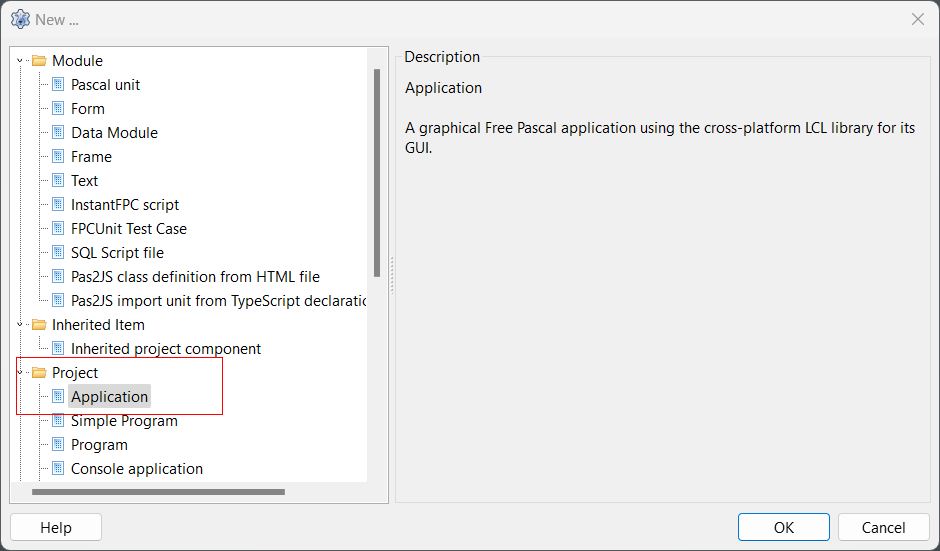
- Launch the Lazarus IDE.
- Navigate to File > New > Application to create a new GUI project with a Main form.
Add Required Connection Components to the Form
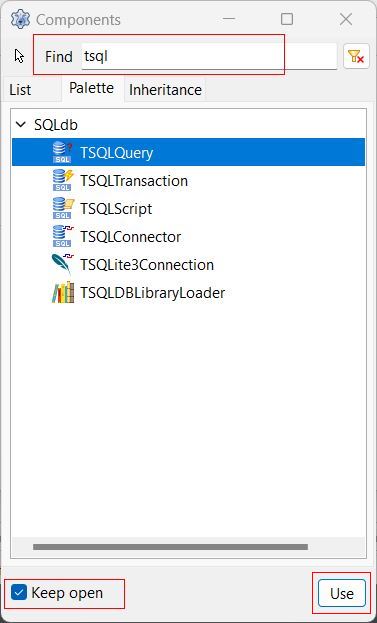
- Go to View > Component > Palette and check the Keep open at the bottom-left to keep the Components window persistently open.
-
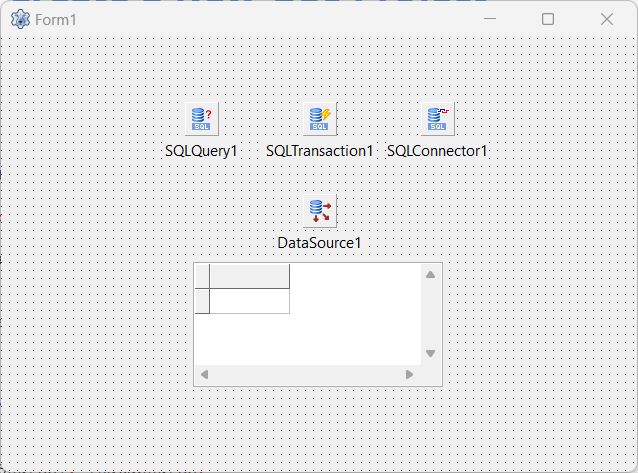
Search for the following components and add them to the Main form Form1 by clicking on Use at the bottom right.
- TSQLConnector
- TSQLTransaction
- TSQLQuery
- TDataSource
- TDBGrid

Configure the TSQLConnector Component
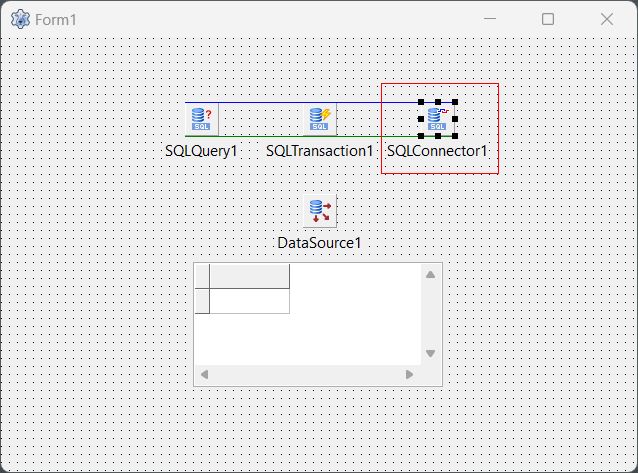
The TSQLConnector component in Lazarus Pascal IDE facilitates connections between your application and various databases or database APIs. Here's how to configure it:
- Select the TSQLConnector component on the Main form.
- Open the Object Inspector if it's not already open by going to View > Object Inspector
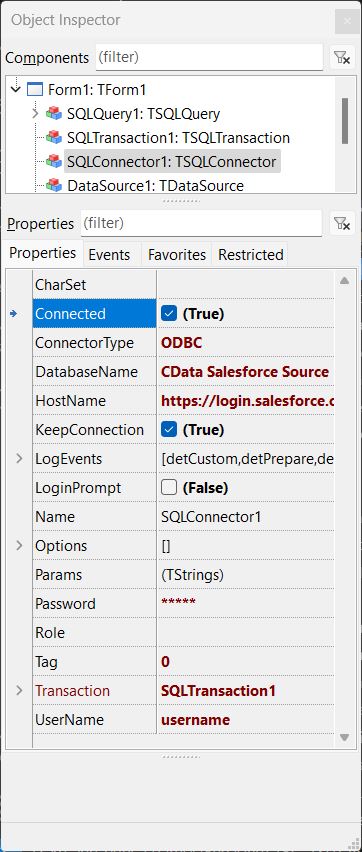
- In the Object Inspector on the left, set the following properties under the Properties section:
Property Value Connected True Driver ODBC DatabaseName Your DSN name (e.g., CData IBM Cloud Object Storage Source) UserName Your database username Password Your database password HostName IBM Cloud Object Storage URL or localhost for local databases LoginPrompt False Transaction Select your TSQLTransaction component
If your credentials require a security token, follow these steps:
- Double-click the Main Form in the Lazarus Pascal IDE to open the code editor.
- Locate the procedure TForm1.FormCreate(Sender: TObject); section.
- Paste the following code below the begin keyword. Replace 'your_security_token' with your actual security token:
SQLConnector1.Params.Values ['Password'] :=
  SQLConnector1.Params.Values ['Password'] + 'your_security_token';
Configure the TSQLQuery Component
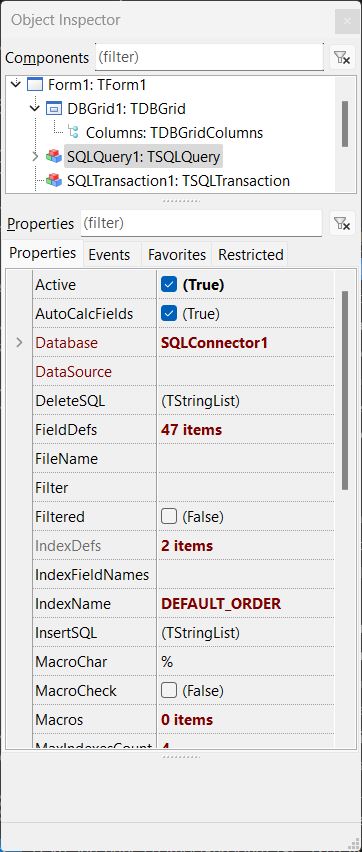
The TSQLQuery component in Lazarus Pascal IDE receives SQL code for queries and retrieves data from a database, simplifying data manipulation. Configure using the following info:
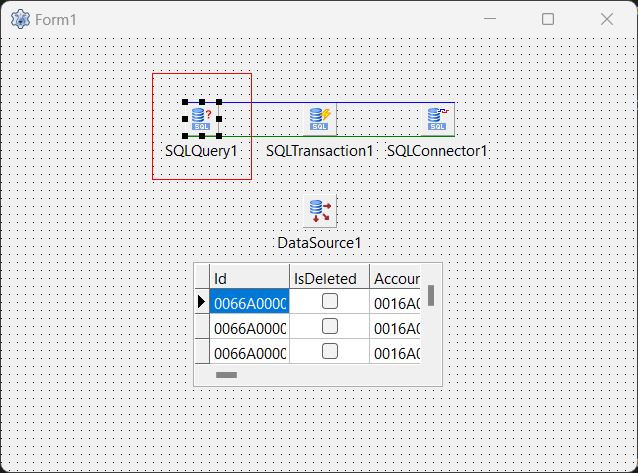
- Select the TSQLQuery component in the Main form.
- Set the following properties in the Object Inspector under the Properties section:
Property Value Active True DataBase Select the name of your TSQLConnector component SQL (Click 3 dots) Your query (e.g., SELECT * FROM Objects) Transaction Your TSQLTransaction component
Configure the TDataSource, TDBGrid, TSQLTransaction Components
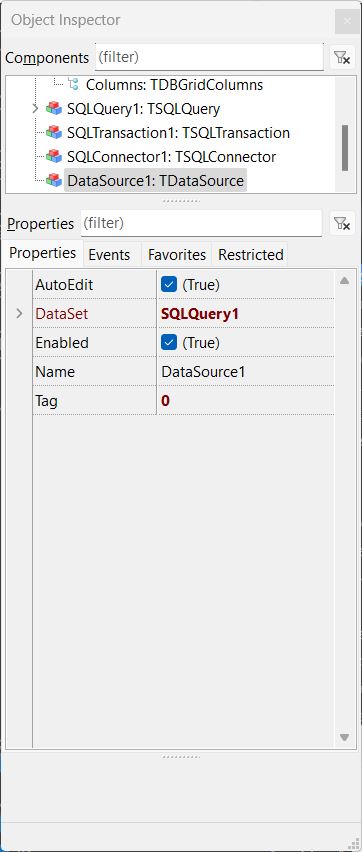
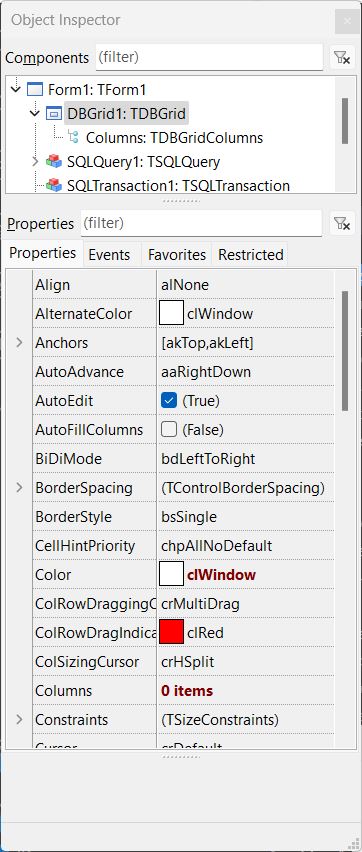
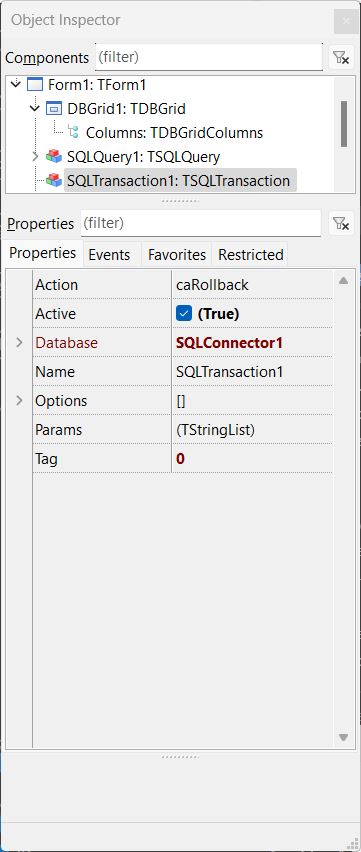
The TDataSource component in Lazarus Pascal IDE bridges a dataset (e.g., TSQLQuery) with data-aware controls like TDBGrid, allowing data to be displayed and manipulated. The TDBGrid presents the data in a tabular format, while the TSQLTransaction ensures database operations maintain data integrity by executing within a transaction. Here's how to configure all three components:
- Select the TDataSource component and set its DataSet property to the name of your TSQLQuery component.
- Select the TDBGrid component and set its DataSource property to your TDataSource component.
- Select the TSQLTransaction component. Set the following properties:
- Active: True
- Database: The name of your TSQLConnector component
Add Code to Test the Connection
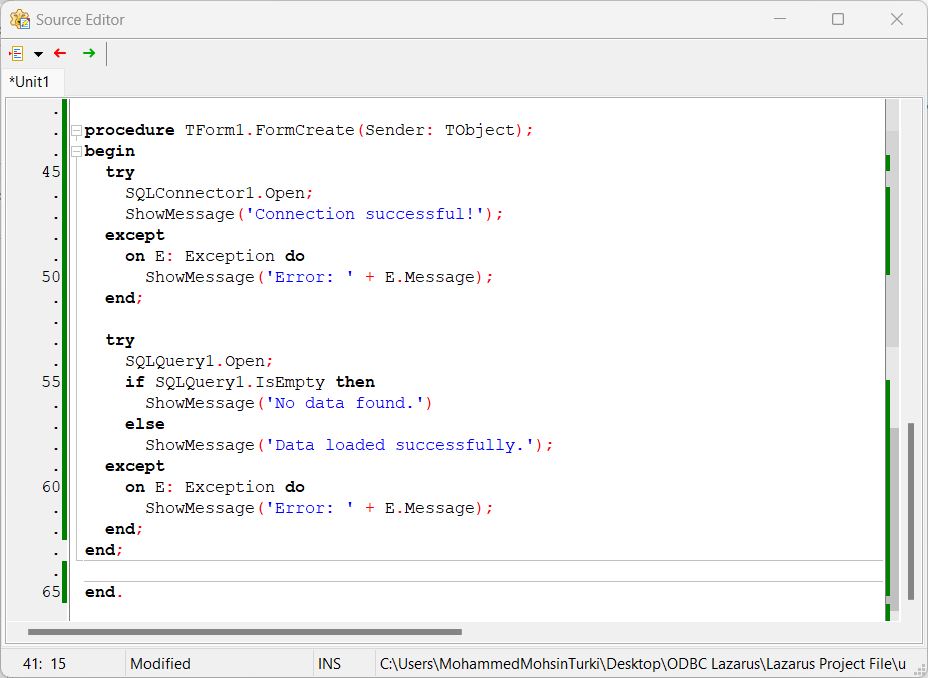
To successfully test the connection, use the following code:
- Double-click on the Main Form to open up the Source Editor.
- Add the following code under the begin keyword and before the end. keyword.
procedure TForm1.FormCreate(Sender: TObject);
begin
  // Code for your Security Token
    SQLConnector1.Params.Values ['Password'] :=
        SQLConnector1.Params.Values ['Password'] + 'your_security_token';
  try
    SQLConnector1.Open;
    ShowMessage('Connection successful!');
  except
    on E: Exception do
      ShowMessage('Error: ' + E.Message);
  end;

  try
    SQLQuery1.Open;
    if SQLQuery1.IsEmpty then
      ShowMessage('No data found.')
    else
      ShowMessage('Data loaded successfully.');
  except
    on E: Exception do
      ShowMessage('Error: ' + E.Message);
  end;
end;

end.
Compile and Run the Application
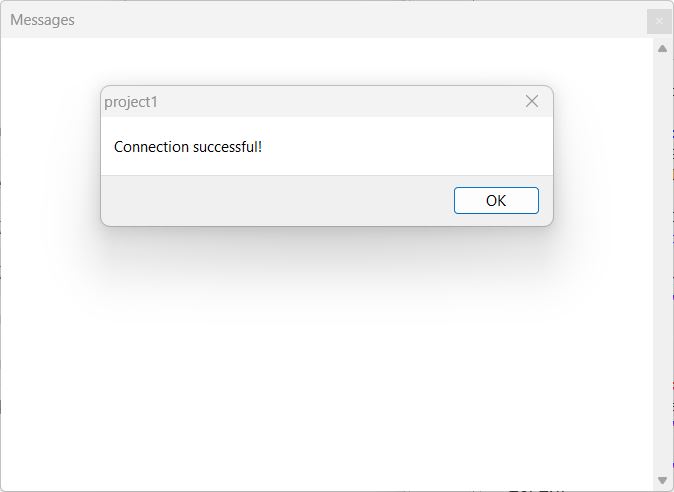
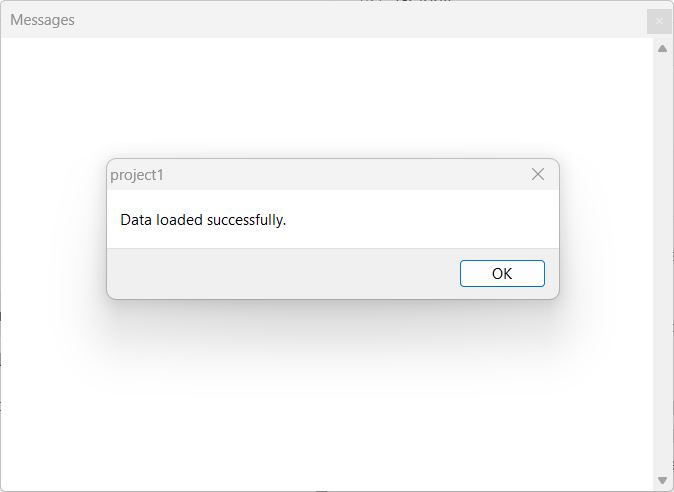
Save your project. Go to Run > Compile, then Run, or use the shortcut F9 to execute your application.
Next Steps: Play with the Data
Now that your data is successfully imported into Lazarus, here are some ideas to explore its full potential:
- Enhance Your TDBGrid: Customize your TDBGrid to enable sorting, editing, or highlighting specific rows.
- Visualize Your Data: Use components like TChart to create graphs and charts for intuitive data representation.
- Filter and Search: Use components like TDBFilter or implement custom filtering logic to allow users to quickly focus on relevant data. Add a TEdit component for user input and link it to your filtering functionality.
- Export Your Data: Utilize TSVExport or TFileStream components to save your data in formats like CSV or Excel for sharing or integration into other systems.
- Perform Calculations: Use TFPCustomDataSet or your dataset's built-in features to calculate totals, averages, or other metrics. Display results in a TLabel or add them to your TDBGrid.
- Create Forms and Reports: Design interactive forms using TForm and TDBEdit for user interaction. For reports, integrate components like RLReport or FastReport to generate and print professional-quality reports.
Take your data-driven application to the next level with these enhancements!
Simplify Data Connectivity in Lazarus with CData
Unlock the full potential of live IBM Cloud Object Storage data directly within Lazarus Pascal. Streamline your workflows, enhance productivity, and experience seamless integration like never before.
Start your free trial today and transform the way you connect and work with your data!
Ready to get started?
Download a free trial of the IBM Cloud Object Storage ODBC Driver to get started:
Download NowLearn more:
 IBM Cloud Object Storage ODBC Driver
The IBM Cloud Object Storage ODBC Driver is a powerful tool that allows you to connect with live data from IBM Cloud Object Storage, directly from any applications that support ODBC connectivity.
Access IBM Cloud Object Storage data like you would a database - read, write, and update IBM Cloud Object Storage IBMCloudObject, etc. through a standard ODBC Driver interface.
