
Model Context Protocol (MCP) finally gives AI models a way to access the business data needed to make them really useful at work. CData MCP Servers have the depth and performance to make sure AI has access to all of the answers.
Try them now for free →


Use Claude to Talk to Your IBM Informix Data via CData Connect Cloud
Leverage CData Connect Cloud Remote MCP to enable Claude to securely answer questions and take actions on your IBM Informix data for you.
Claude is a family of advanced large language models (LLMs) built by Anthropic, an AI research company founded in 2021. These models power the Claude conversational assistant and developer tools.
CData Connect Cloud offers a dedicated cloud-to-cloud interface for connecting to IBM Informix data. The CData Connect Cloud Remote MCP Server enables secure communication between Claude and IBM Informix. This allows you to ask questions and take actions on your IBM Informix data using Claude, all without the need for data replication to a natively supported database. With its inherent optimized data processing capabilities, CData Connect Cloud efficiently channels all supported SQL operations, including filters and JOINs, directly to IBM Informix. This leverages server-side processing to swiftly deliver the requested IBM Informix data.
Step 1: Configure IBM Informix Connectivity for Claude
Connectivity to IBM Informix from Claude is made possible through CData Connect Cloud Remote MCP. To interact with IBM Informix data from Claude, we start by creating and configuring a IBM Informix connection in CData Connect Cloud.
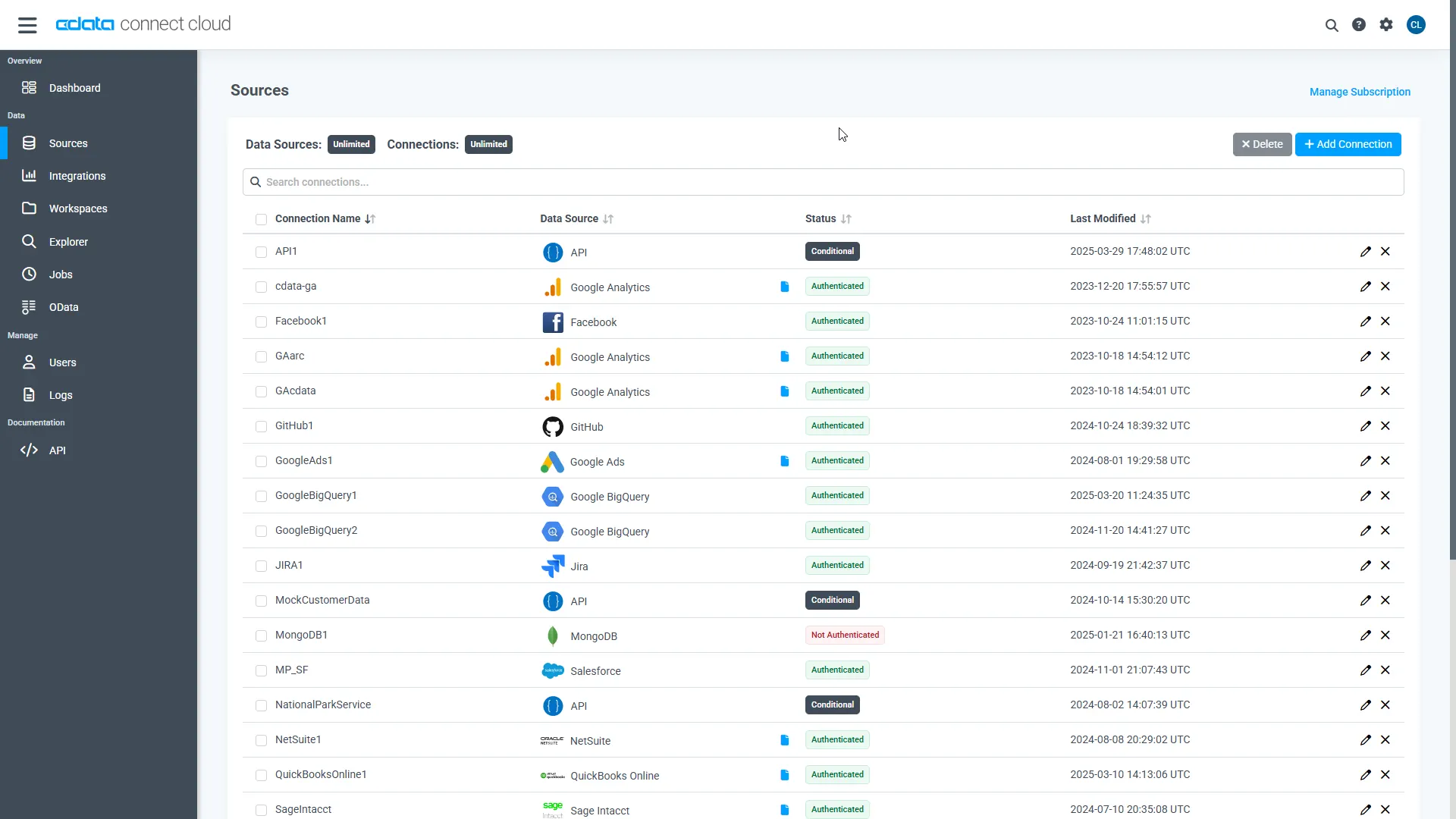
- Log into Connect Cloud, click Sources, and then click Add Connection
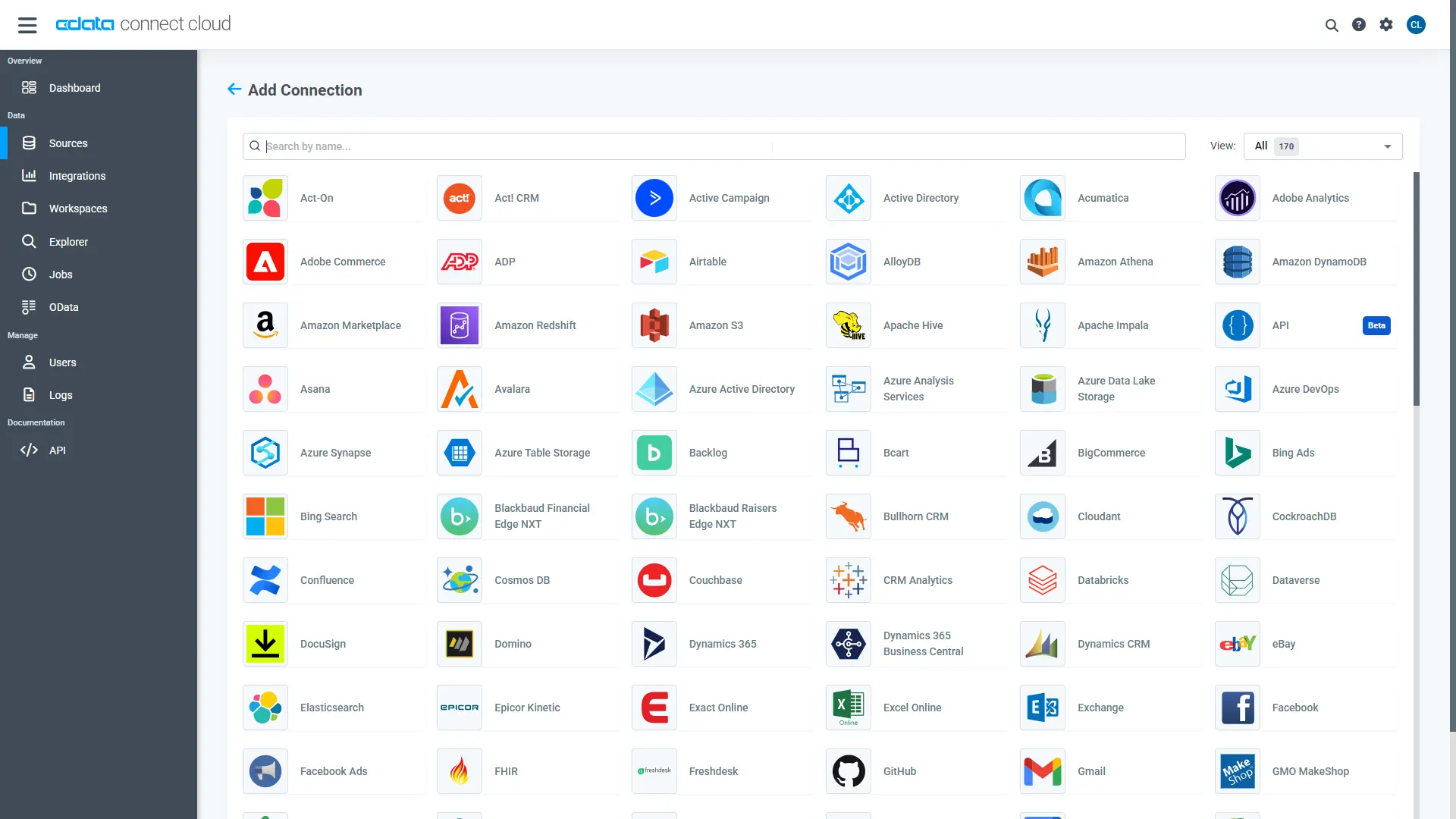
- Select "IBM Informix" from the Add Connection panel
- Enter the necessary authentication properties to connect to IBM Informix.
Set the following properties to connect to IBM Informix
- Server: Set this to the name of the server running IBM Informix.
- Port: Set this to the port the IBM Informix server is listening on.
- Database: Set this to the name of the IBM Informix database.
- User: Set this to the username of a user allowed to access the database.
- Password: Set this to the password of a user allowed to access the database.
- Click Save & Test
Step 2: Connect Claude to CData Connect Cloud
Follow these steps to add a CData Connect Cloud connector in Claude:
- Sign in to Claude.ai or create a new account.
- Expand the left navigation menu.
- In the bottom-left corner, click your user name and select Settings from the menu. The Settings screen appears.
- In the Settings screen, click Connectors.
- In the top-right corner, set your button toggle to Organization connectors.
- Click Add custom connector at the bottom of the page.
- Enter a name for the connector (such as Connect Cloud MCP).
- In the Remote MCP server URL field, enter https://mcp.cloud.cdata.com/mcp.
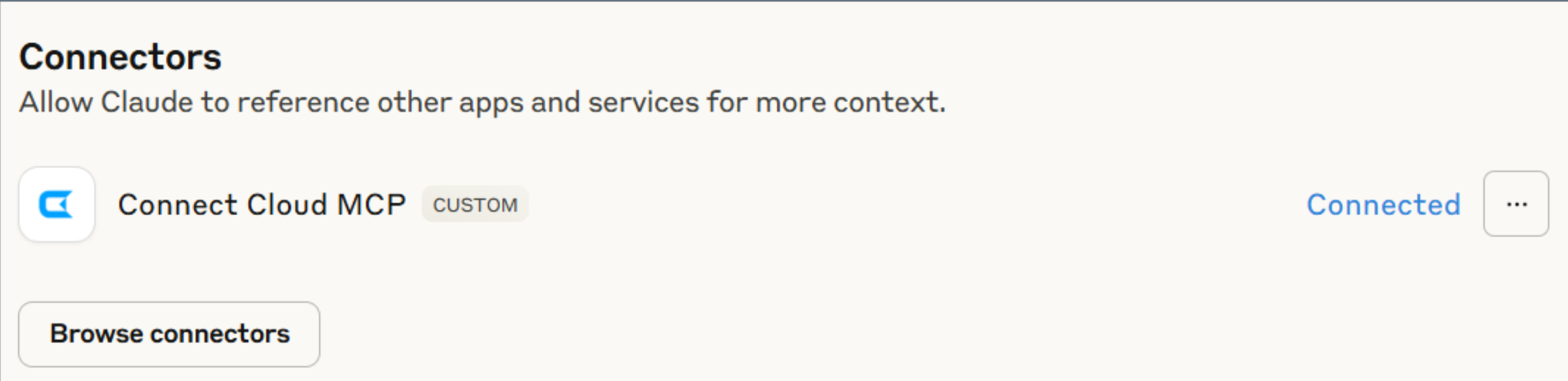
- Click Add to save the connector. The Connect Cloud MCP connector appears under Connectors.
- Click Connect to the right of the connector and enter your CData Connect Cloud user name and password. You have now connected Claude to CData Connect Cloud.
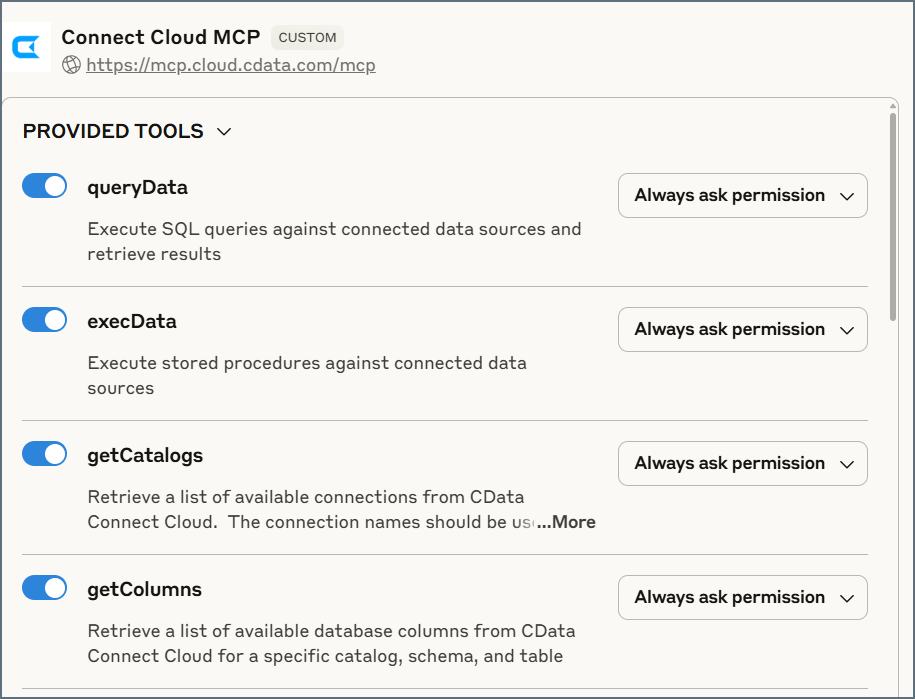
- Click the three dots after Connected and select Tools and settings.
- Review the provided tools and enable or disable specific tools made available by the server. In addition, determine whether you want unsupervised access to the tools, or whether you want Claude to ask your permission.
- Click Done when finished with your settings.
Step 3: Explore Live IBM Informix IBM Informix data with Claude
- In the left navigation menu of Claude, click New chat.
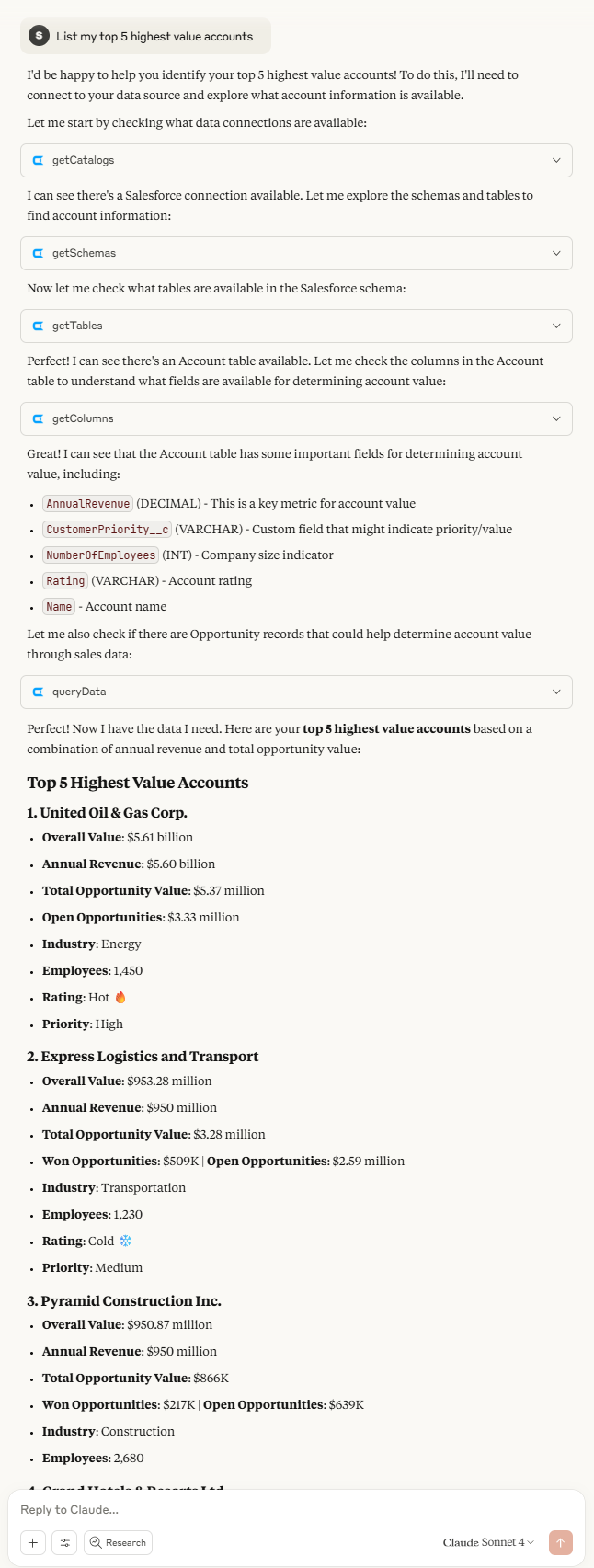
- You can now start exploring your data with natural language prompts. Claude outlines the steps it uses to retrieve data from the source in CData Connect Cloud. Refer to CData's prompt library for prompt ideas.
NOTE: Claude's setup process is subject to change. Refer to Claude's documentation for the latest setup information.
Get CData Connect Cloud
To get live data access to 100+ SaaS, Big Data, and NoSQL sources directly from your cloud applications, try CData Connect Cloud today!
