
Model Context Protocol (MCP) finally gives AI models a way to access the business data needed to make them really useful at work. CData MCP Servers have the depth and performance to make sure AI has access to all of the answers.
Try them now for free →


Visualize Sage Intacct Data in TIBCO Spotfire through ODBC
The ODBC standard has ubiquitous support and makes self-service business intelligence easy. Use the ODBC Driver to load Sage Intacct data into TIBCO Spotfire.
This article walks you through using the CData ODBC Driver for Sage Intacct in TIBCO Spotfire. You will use the data import wizard to connect to a DSN (data source name) for Salesforce and build on the sample visualizations to create a simple dashboard.
Connect to Sage Intacct as an ODBC Data Source
If you have not already, first specify connection properties in an ODBC DSN (data source name). This is the last step of the driver installation. You can use the Microsoft ODBC Data Source Administrator to create and configure ODBC DSNs.
To connect using the Login method, the following connection properties are required: User, Password, CompanyId, SenderId and SenderPassword.
User, Password, and CompanyId are the credentials for the account you wish to connect to.
SenderId and SenderPassword are the Web Services credentials assigned to you by Sage Intacct.
When you configure the DSN, you may also want to set the Max Rows connection property. This will limit the number of rows returned, which is especially helpful for improving performance when designing reports and visualizations.
About Sage Intacct Data Integration
CData provides the easiest way to access and integrate live data from Sage Intact. Customers use CData connectivity to:
- Access Sage Intacct without worrying about API updates or changes.
- Access custom objects and fields in Sage Intacct with no extra configuration steps involved.
- Write data back to Sage Intacct using embedded Web Services credentials with Basic authentication.
- Use SQL stored procedures to perform functional operations like approving or declining vendors, inserting engagements, and creating or deleting custom objects or fields.
Users frequently integrate Sage Intact with analytics tools such as Tableau, Power BI, and Excel, and leverage our tools to replicate Workday data to databases or data warehouses.
To learn about how other customers are using CData's Sage Intacct solutions, check out our blog: Drivers in Focus: Accounting Connectivity.
Getting Started
Create Visualizations of Sage Intacct Tables
Follow the steps below to connect to the DSN and create real-time data visualizations:
- Click Data -> Add Data ...
- Click Other -> Load data with ODBC, OLE DB, or ADO.NET data provider.
- In the Data Source Type menu, select ODBC Data Provider and click Configure.
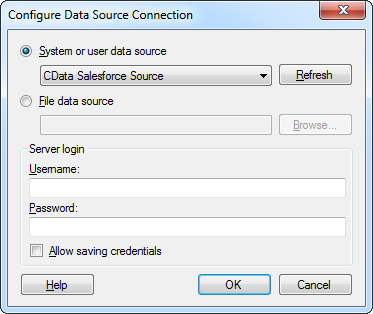
- Select the DSN.
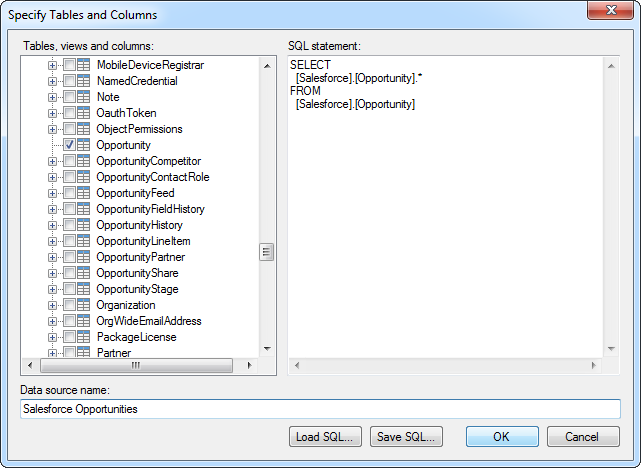
- Select the tables that you want to add to the dashboard. This example uses Customer. You can also specify an SQL query. The driver supports the standard SQL syntax.
- If you want to work with the live data, click the Keep Data Table External option. This option enables your dashboards to reflect changes to the data in real time.
If you want to load the data into memory and process the data locally, click the Import Data Table option. This option is better for offline use or if a slow network connection is making your dashboard less interactive.
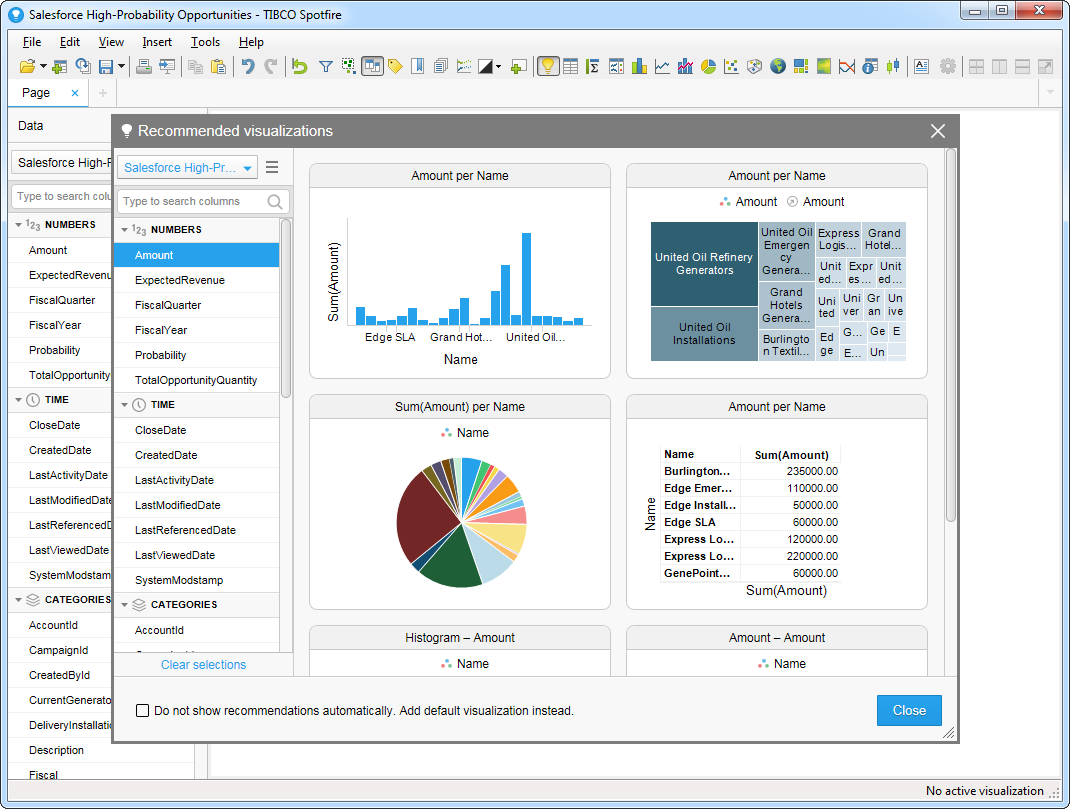
- After adding tables, the Recommended Visualizations wizard is displayed. When you select a table, Spotfire uses the column data types to detect number, time, and category columns. This example uses TotalDue in the Numbers section and Name in the Categories section.
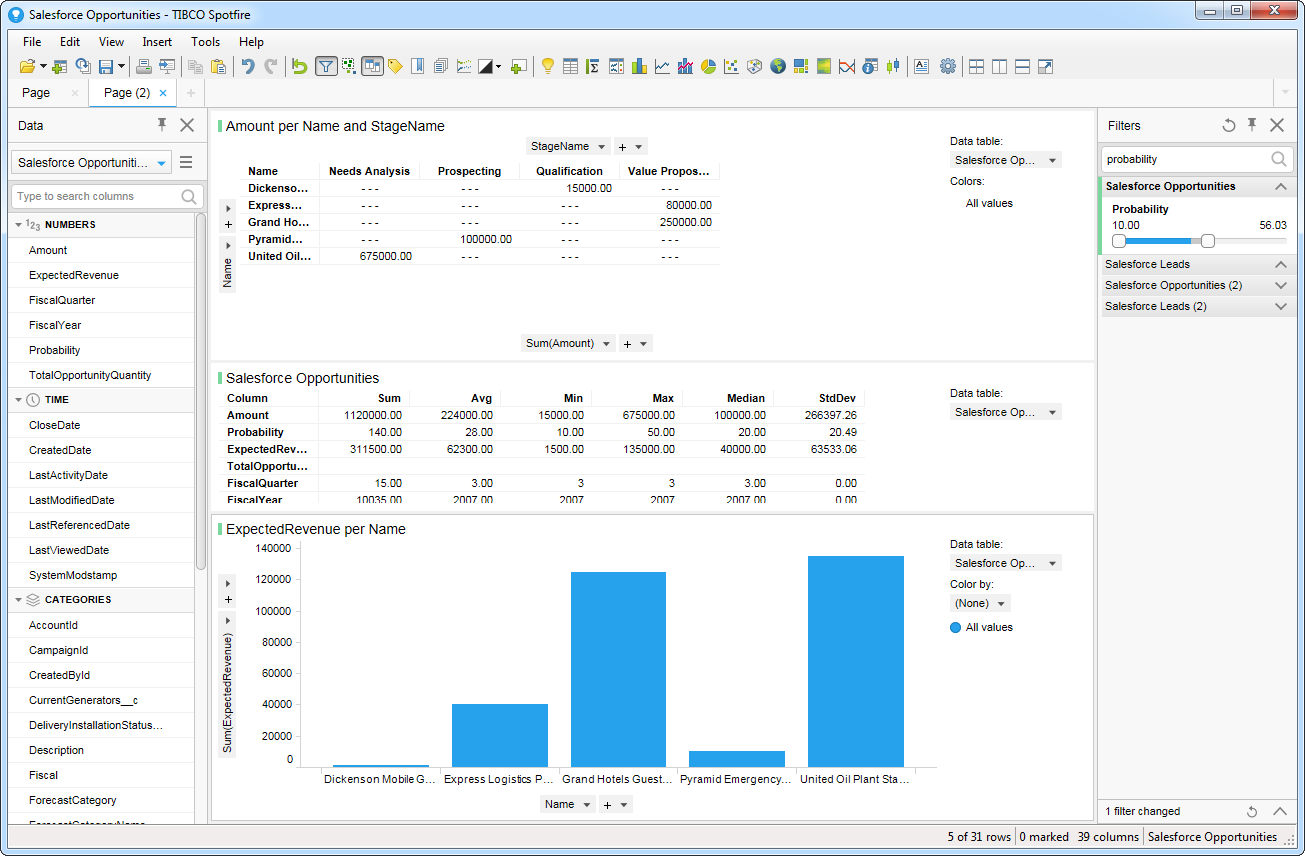
After adding several visualizations in the Recommended Visualizations wizard, you can make other modifications to the dashboard. For example, you can zoom in on high probability opportunities by applying a filter on the page. To add a filter, click the Filter button. The available filters for each query are displayed in the Filters pane.
Ready to get started?
Download a free trial of the Intacct ODBC Driver to get started:
Download NowLearn more:
 Intacct ODBC Driver
The Intacct ODBC Driver is a powerful tool that allows you to connect with live data from Intacct, directly from any applications that support ODBC connectivity.
Access Intacct data like you would a database - read, write, and update Intacct Contacts, Invoices, Transactions, Vendors, etc. through a standard ODBC Driver interface.
