
Model Context Protocol (MCP) finally gives AI models a way to access the business data needed to make them really useful at work. CData MCP Servers have the depth and performance to make sure AI has access to all of the answers.
Try them now for free →


Build Apps with Live Jira data in Adalo using CData Connect Cloud
Use CData Connect Cloud to integrate live Jira data into the Adalo platform and build custom mobile and web applications with real-time Jira data.
Adalo is a no-code platform used to build custom mobile and web applications without needing programming skills. It allows users to design interfaces, manage databases, and integrate functionality through simple drag-and-drop tools, making app development accessible and efficient. When combined with CData Connect Cloud, it provides access to Jira data to build custom applications and more.
This article explains how to use CData Connect Cloud to create a live connection to Jira and how to connect and access live Jira data from the Adalo platform.
About Jira Data Integration
CData simplifies access and integration of live Jira data. Our customers leverage CData connectivity to:
- Gain bi-directional access to their Jira objects like issues, projects, and workflows.
- Use SQL stored procedures to perform functional actions like changing issues status, creating custom fields, download or uploading an attachment, modifying or retrieving time tracking settings, and more.
- Authenticate securely using a variety of methods, including username and password, OAuth, personal access token, API token, Crowd or OKTA SSO, LDAP, and more.
Most users leverage CData solutions to integrate Jira data with their database or data warehouse, whether that's using CData Sync directly or relying on CData's compatibility with platforms like SSIS or Azure Data Factory. Others are looking to get analytics and reporting on live Jira data from preferred analytics tools like Tableau and Power BI.
Learn more about how customers are seamlessly connecting to their Jira data to solve business problems from our blog: Drivers in Focus: Collaboration Tools.
Getting Started
Configure Jira connectivity for Adalo in CData Connect Cloud
To work with Jira data in Adalo, we need to connect to Jira from Connect Cloud, provide user access to the connection, and create OData endpoints for the Jira data.
Connect to Jira from Connect Cloud
CData Connect Cloud uses a straightforward, point-and-click interface to connect to data sources.
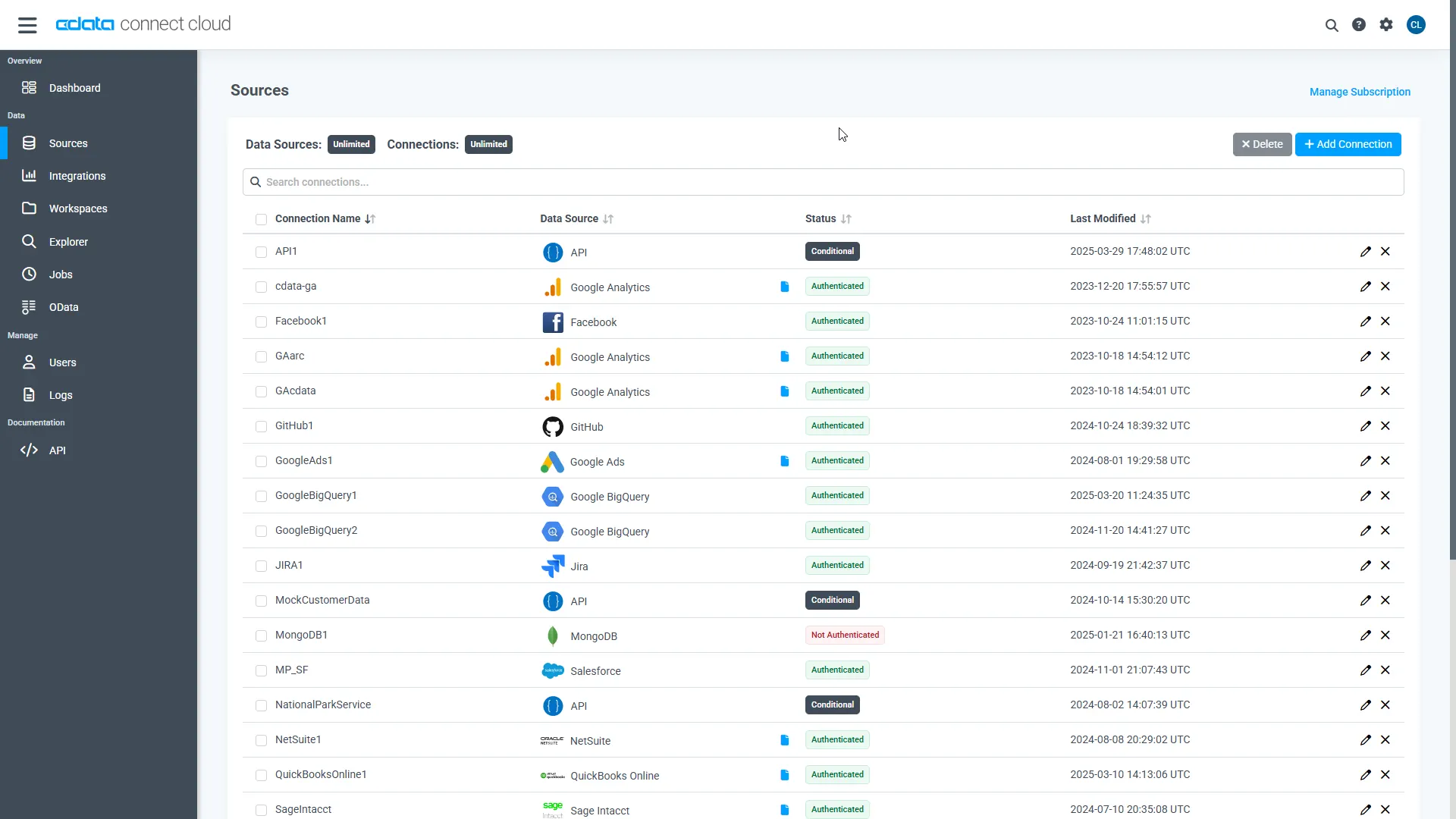
- Log into Connect Cloud, click Sources, and then click Add Connection
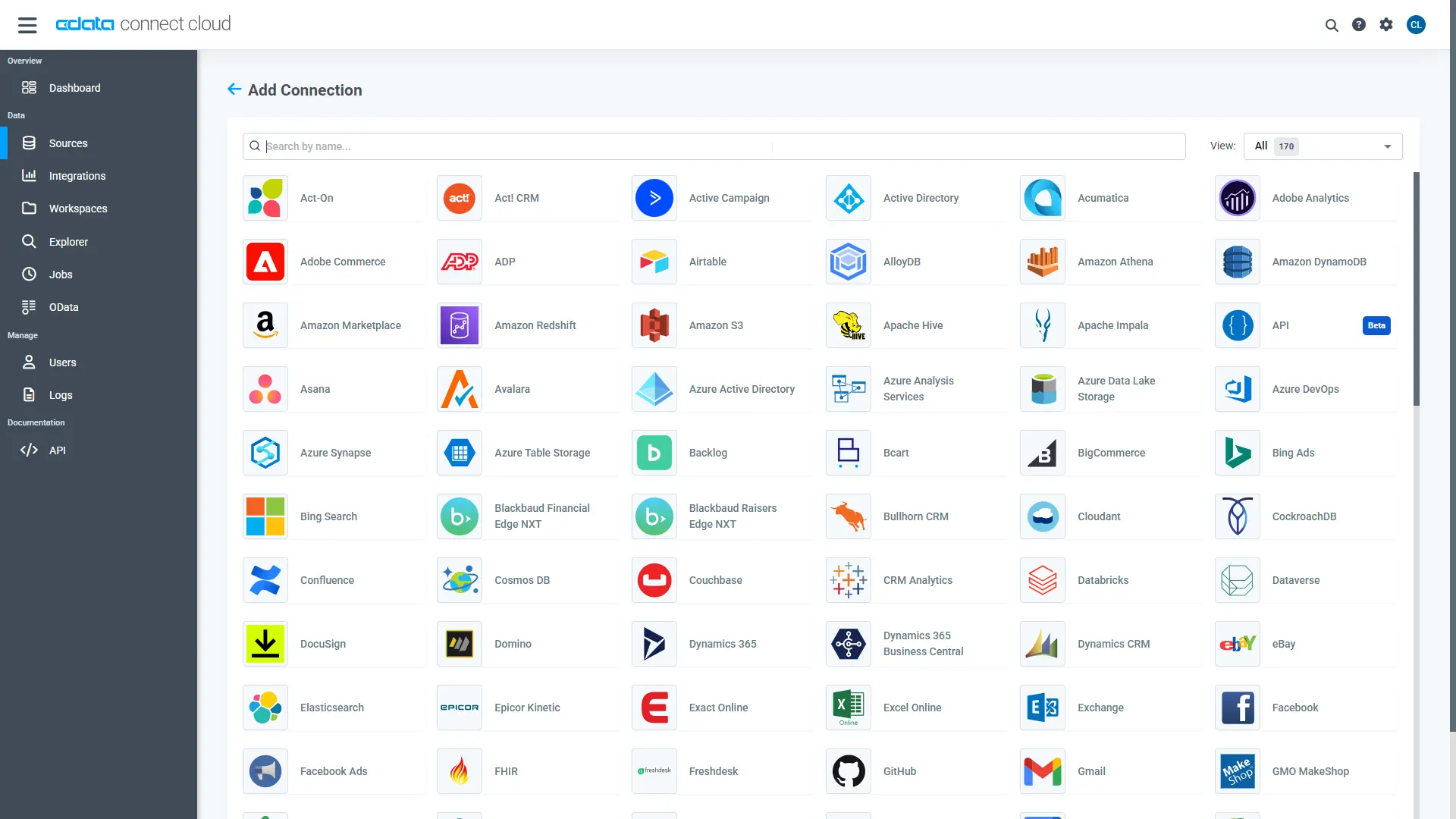
- Select "Jira" from the Add Connection panel
-
Enter the necessary authentication properties to connect to Jira.
To connect to JIRA, provide the User and Password. Additionally, provide the Url; for example, https://yoursitename.atlassian.net.
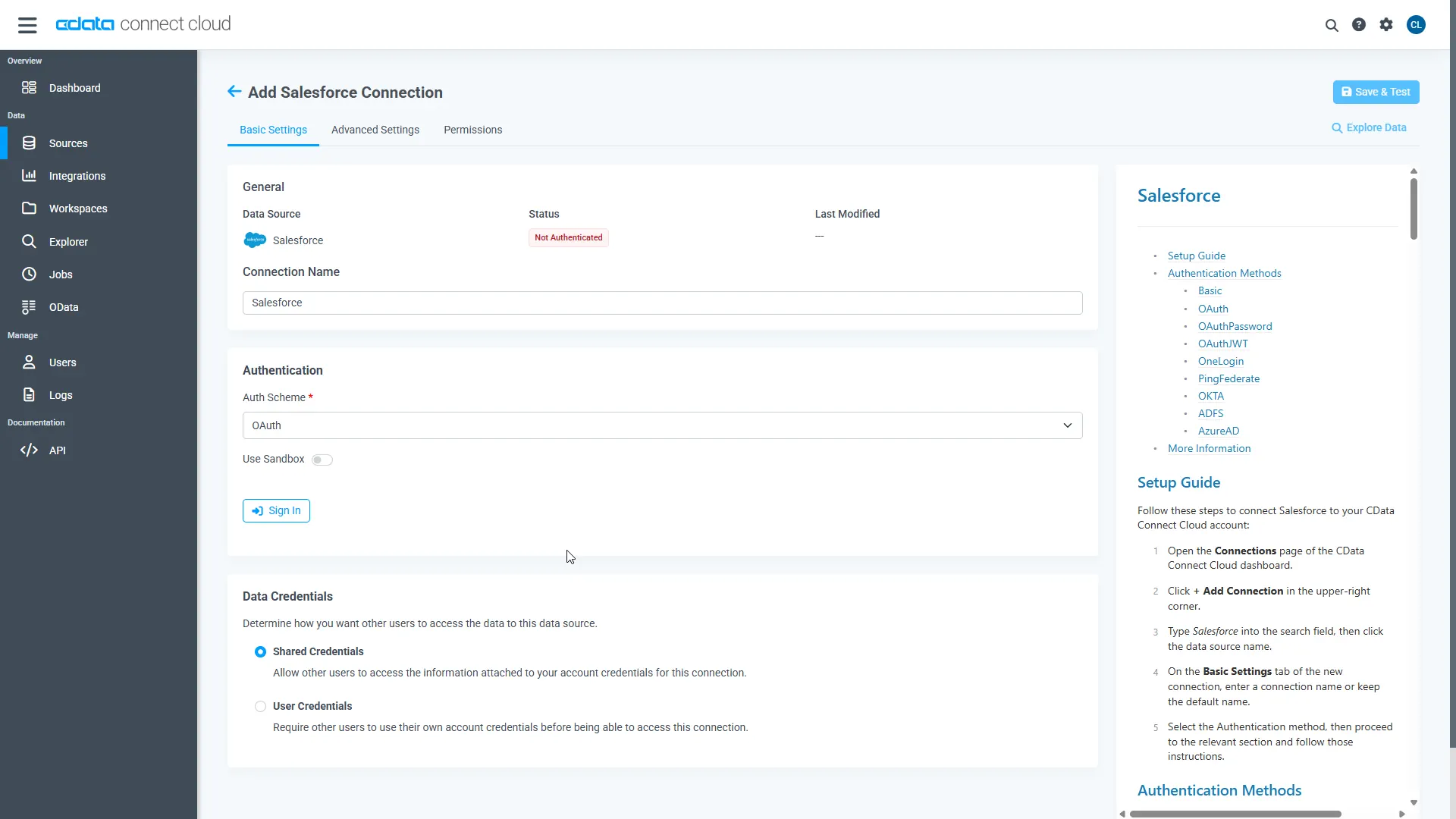
- Click Create & Test
-
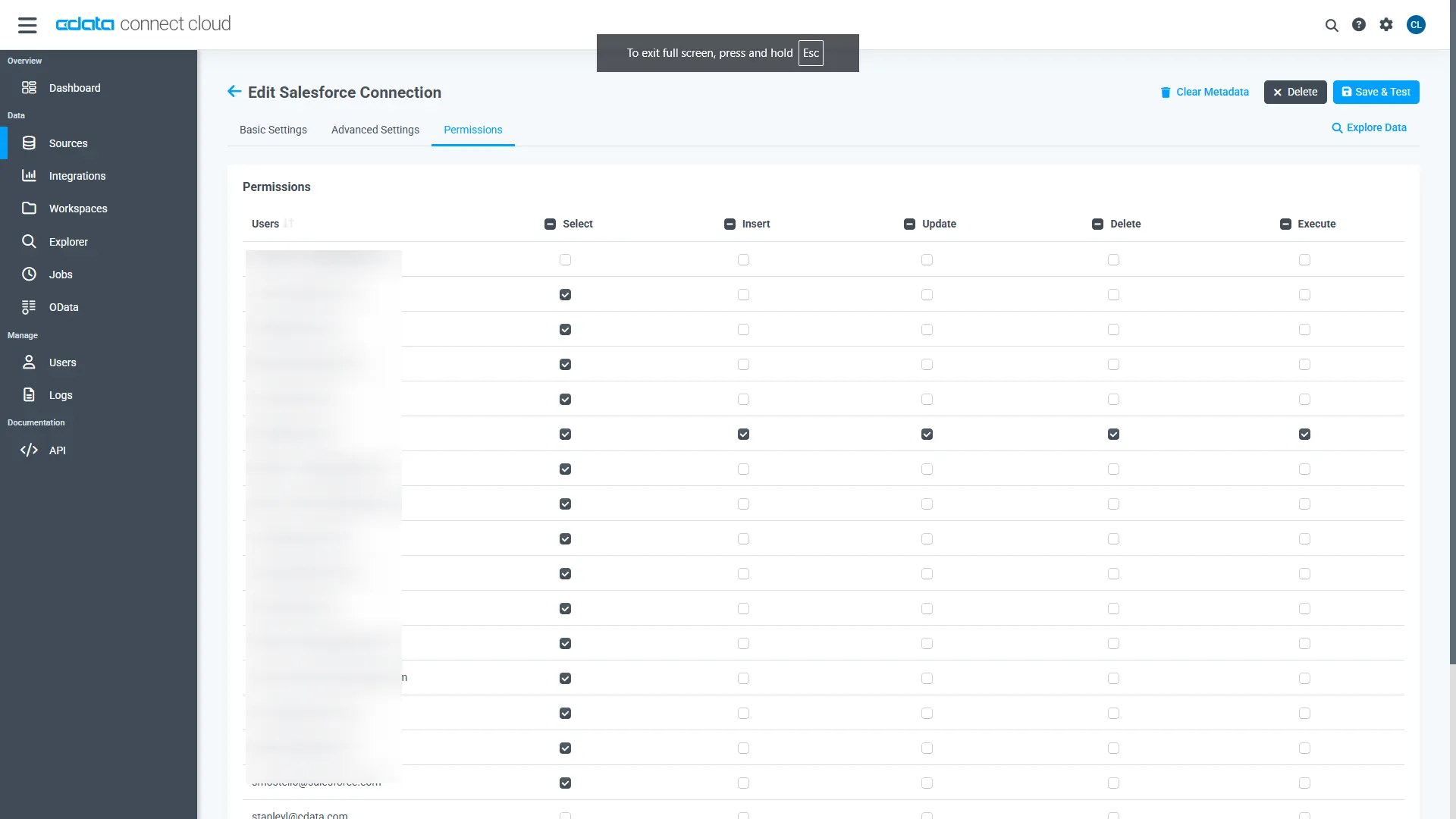
Navigate to the Permissions tab in the Add Jira Connection page and update the User-based permissions.
Add a Personal Access Token
When connecting to Connect Cloud through the REST API, Workspaces, or the Virtual SQL Server, a Personal Access Token (PAT) is used to authenticate the connection to Connect Cloud. It is best practice to create a separate PAT for each service to maintain granularity of access.
- Click on the Gear icon () at the top right of the Connect Cloud app to open the settings page.
- On the Settings page, go to the Access Tokens section and click Create PAT.
-
Give the PAT a name and click Create.
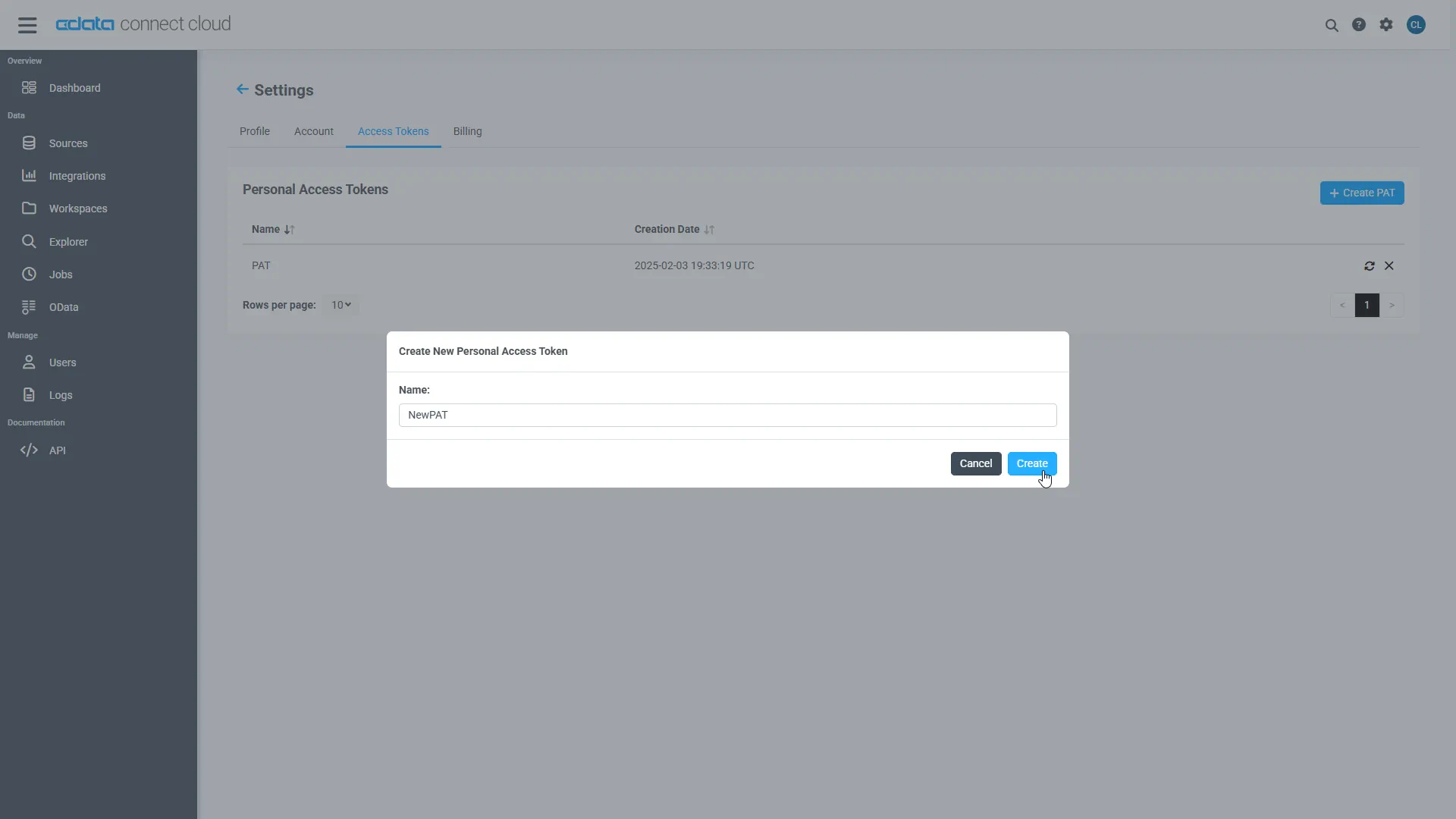
- The personal access token is only visible at creation, so be sure to copy it and store it securely for future use.
Configure Jira Endpoints for Adalo
After connecting to Jira, create a workspace for your desired table(s).
-
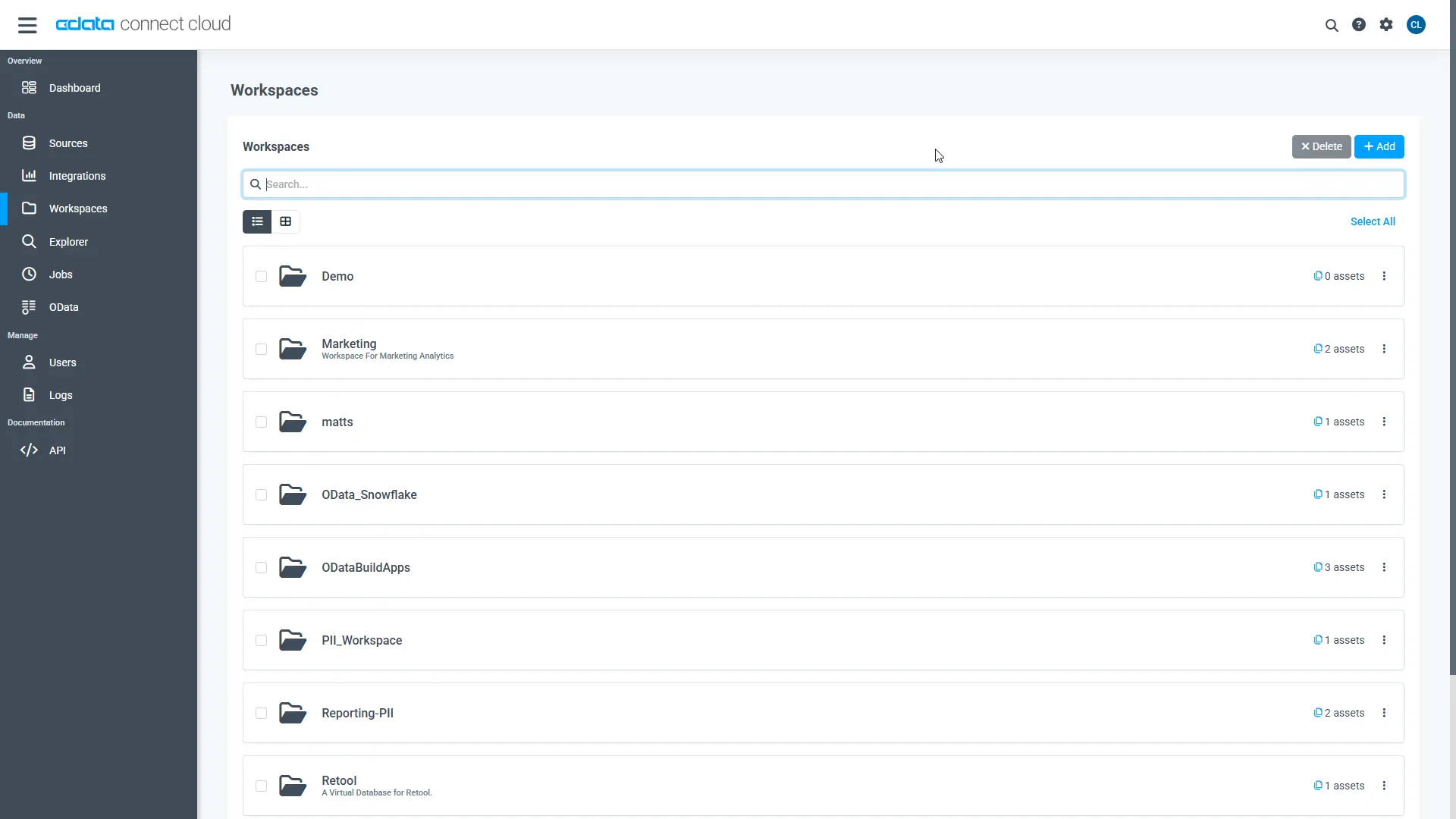
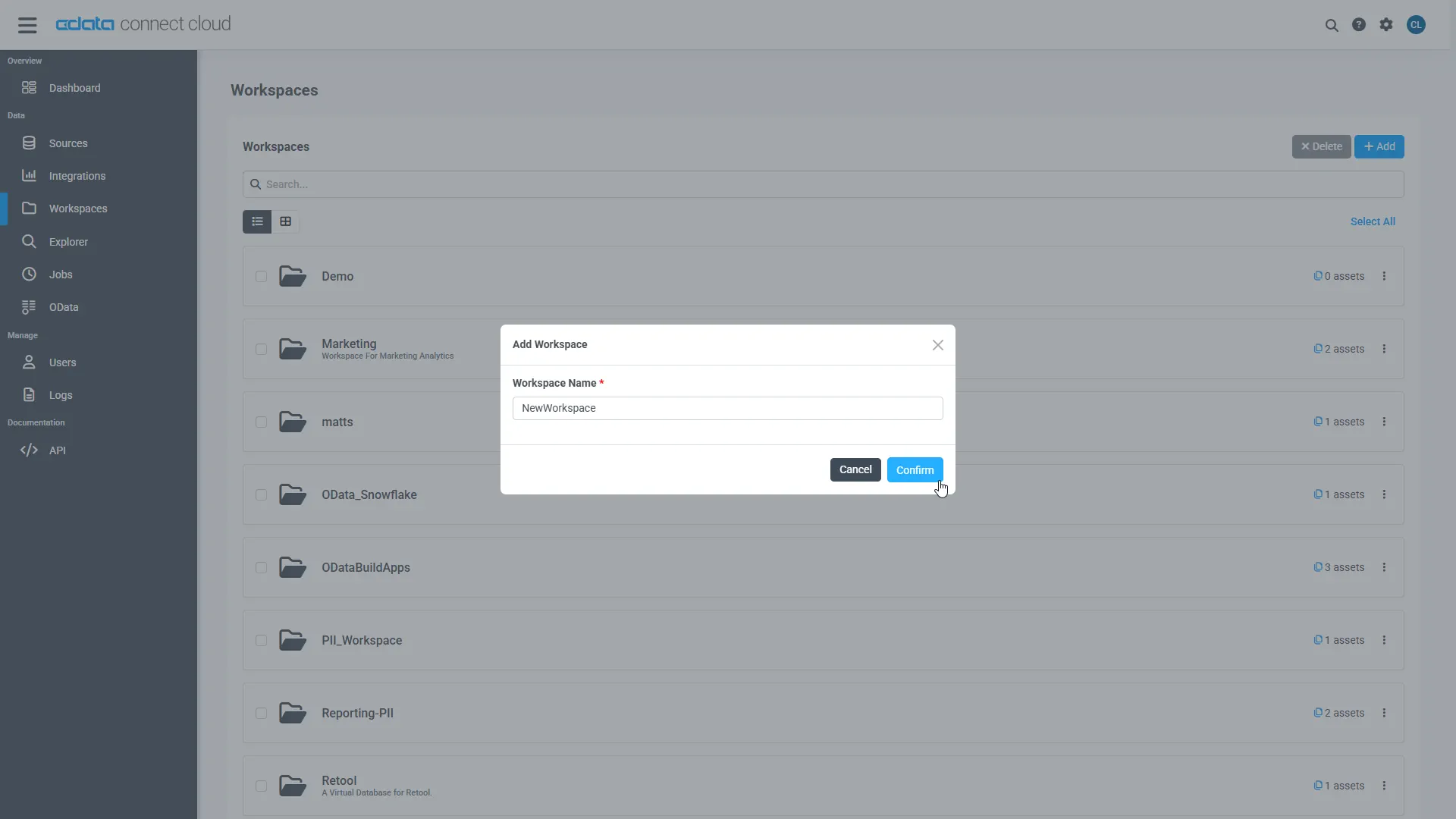
Navigate to the Workspaces page and click Add to create a new Workspace (or select an existing workspace).
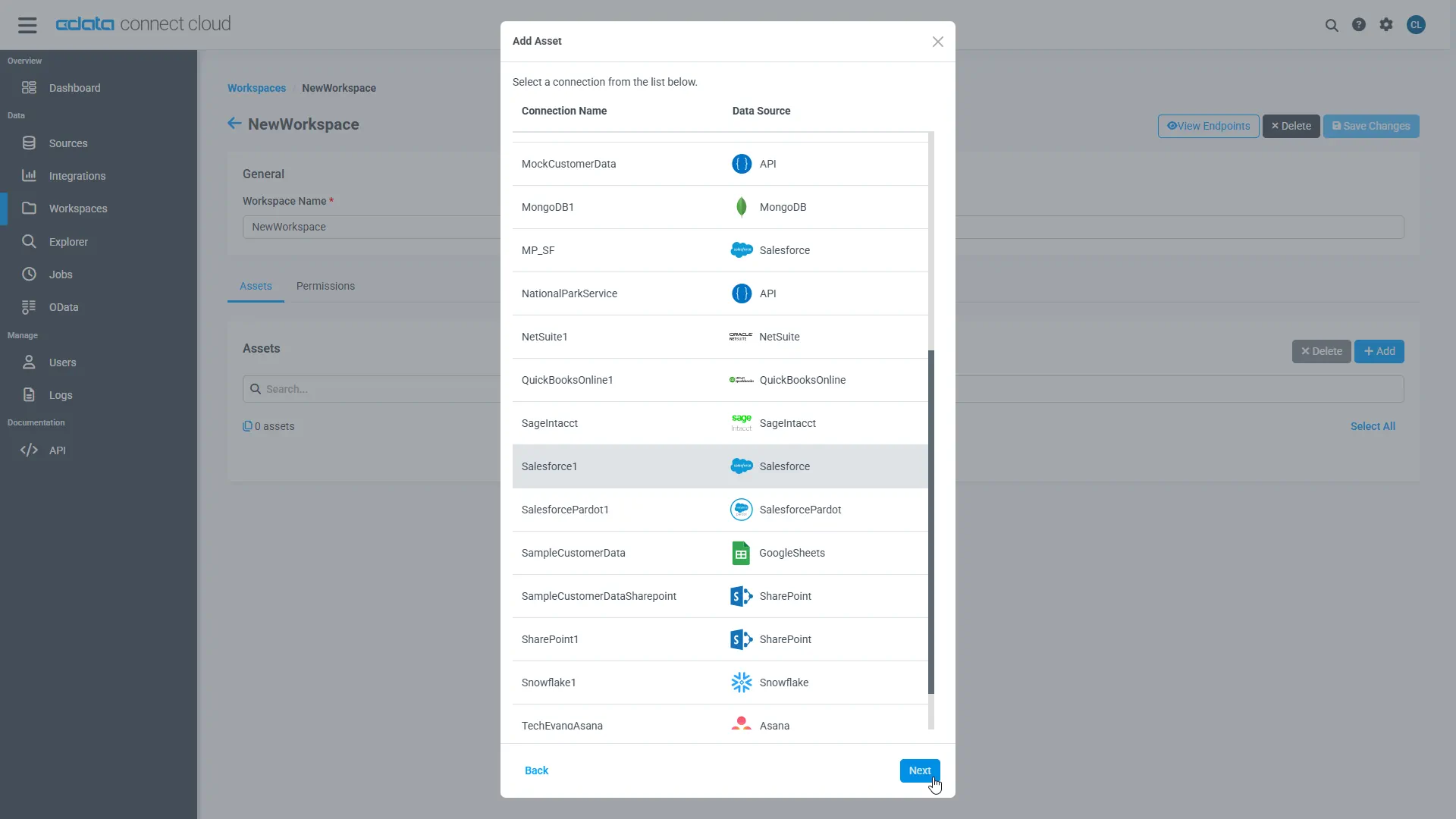
- Click Add to add new assets to the Workspace.
-
Select the Jira connection (e.g. JIRA1) and click Next.
-
Select the table(s) you wish to work with and click Confirm.
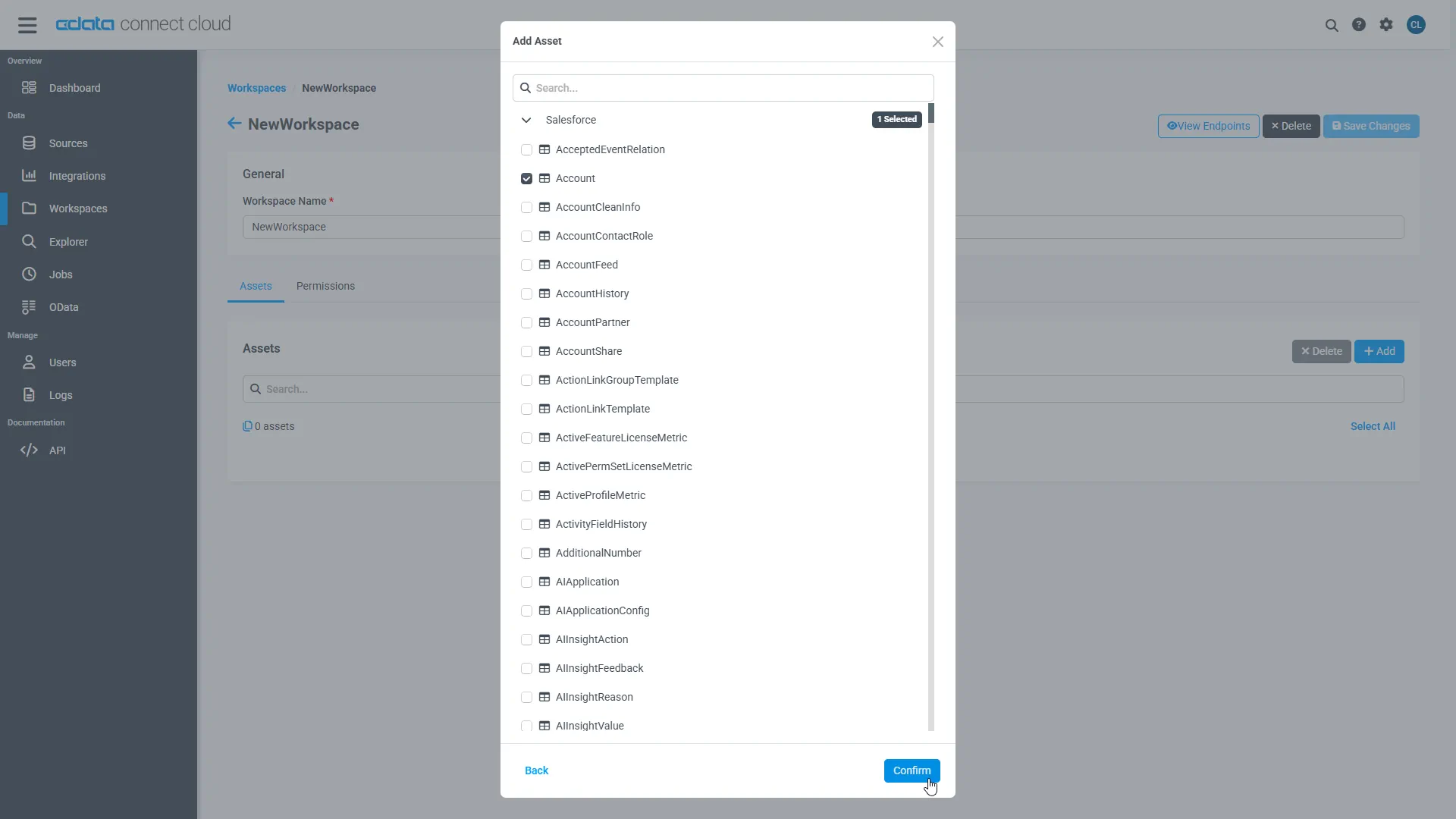
- Make note of the OData Service URL for your workspace, e.g. https://cloud.cdata.com/api/odata/{workspace_name}
With the connection, PAT, and Workspace configured, you are ready to connect to Jira data from Adalo.
Build a custom app with Adalo
After configuring CData Connect Cloud, you can begin developing the Adalo app using Jira data.
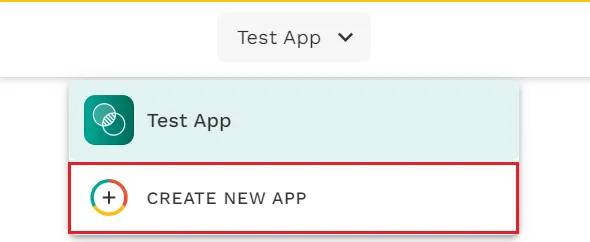
- Click on CREATE NEW APP.
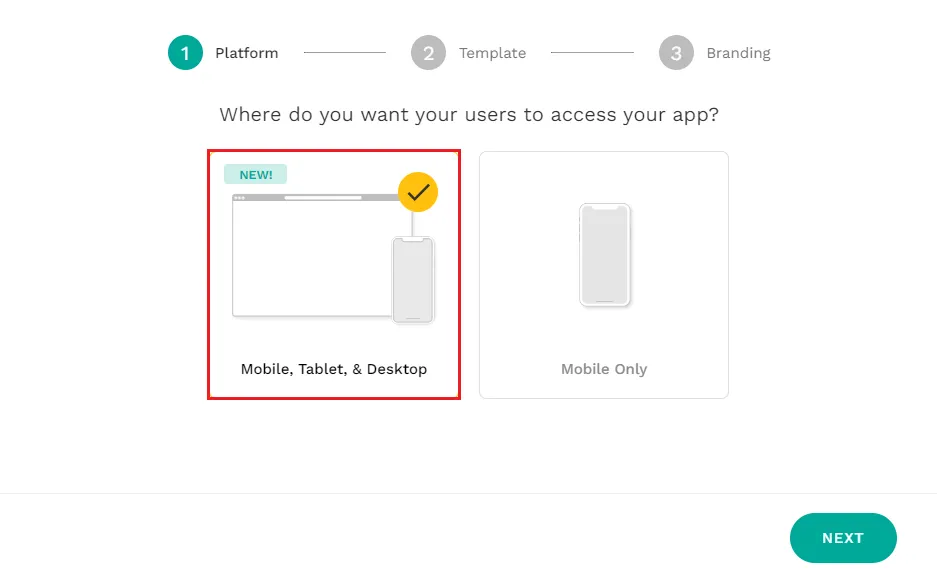
- Select Desktop Web App and click on Next.
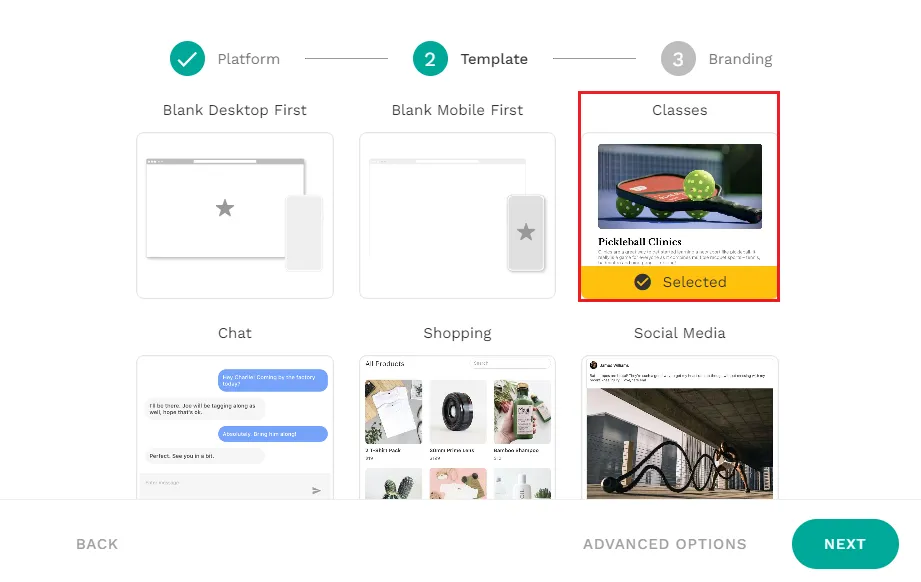
- You can choose any template, but for testing purposes, we've chosen a Blank template.
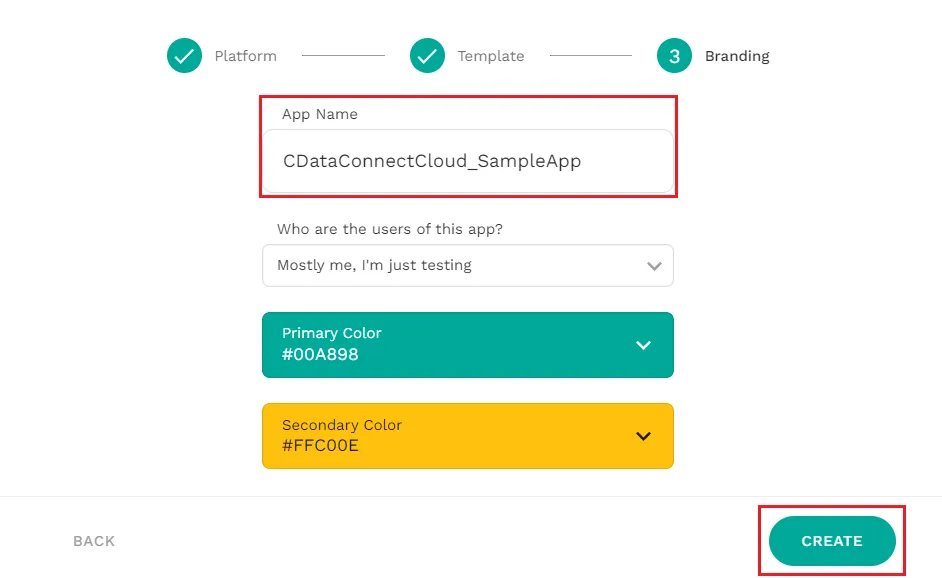
- Finally, add an app name and choose a color scheme, and your app is ready to go!
Registering external collections
Adalo uses a data structure called Collection to manage app data and offers a feature called External Collections with APIs, which lets you seamlessly integrate Collection with external APIs. Use this feature to connect to Connect Cloud.
- After creating an app, you first need to register a Collection, which is a definition for handling data within the Adalo app. There are two types of Collections: Database Collections, which are like Adalo's own internal database, and External Collections, which allow access to external APIs. In this case, we will access an external API, registering it as an External Collection.
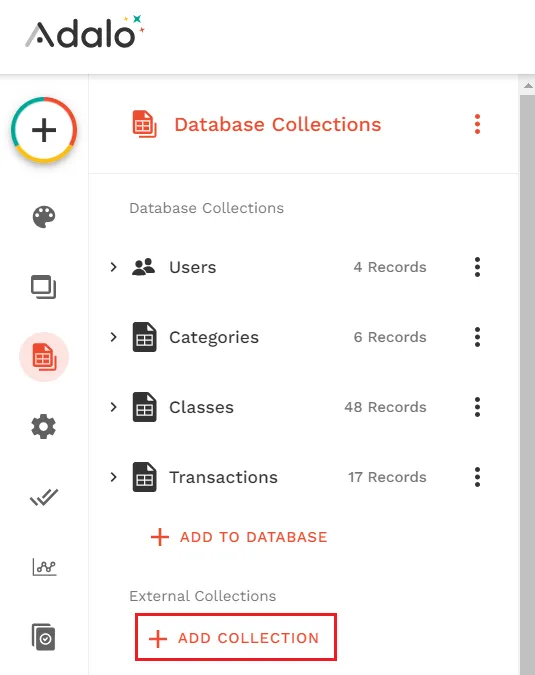
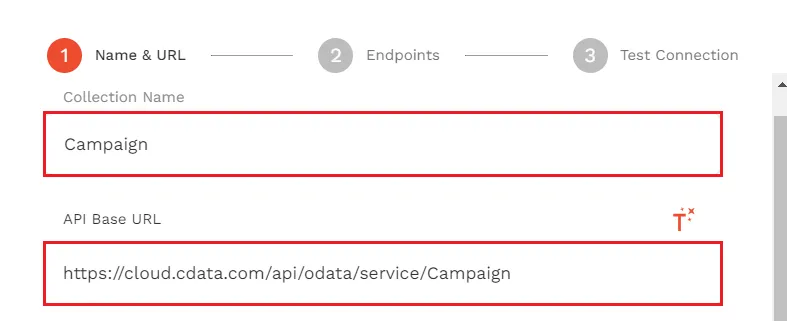
- On the External Collections registration screen, click on ADD COLLECTION to enter the collection name (any name of your choice), and provide the API base URL endpoint (OData endpoint registered on Connect Cloud). Make sure to add "/(table)" to the OData URL to access the specific endpoint. (Refer to the image given for reference)
- In order to authenticate, you need a base64 authorization header comprising your username and PAT, joined by a colon. For example, [email protected]:MY_PAT. You can use a scripting tool, web tool, or other application to create this header.
Using Postman to generate the Authorization header
- Open the Postman application. Enter the OData URL mentioned in the previous step for a GET request on Postman. Click on the Authorization tab and select Auth Type as "Basic Auth". Enter the Username and Password as follows and click on Send:
- Username: Connect Cloud Username
- Password: PAT generated on Connect Cloud
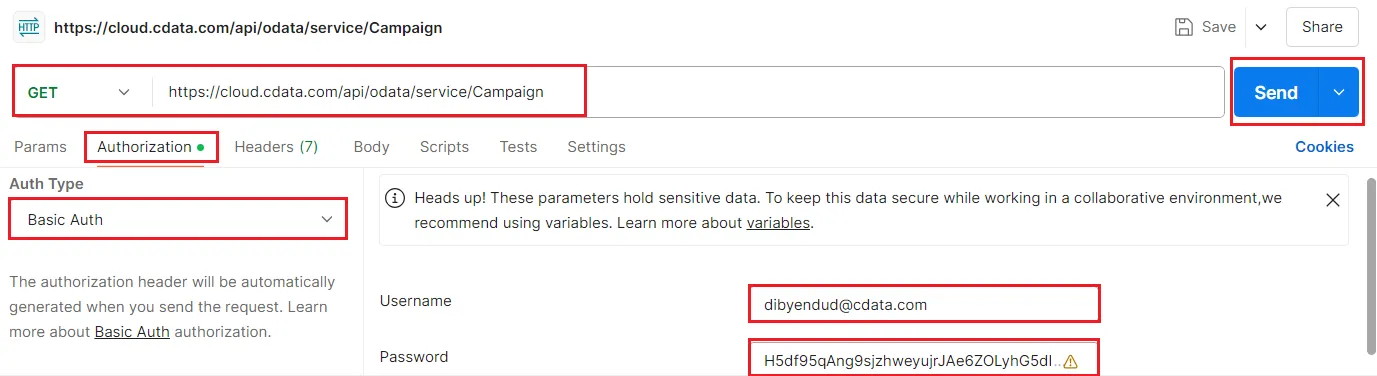
- Go to the Headers tab and copy/save the value of the Authorization key.
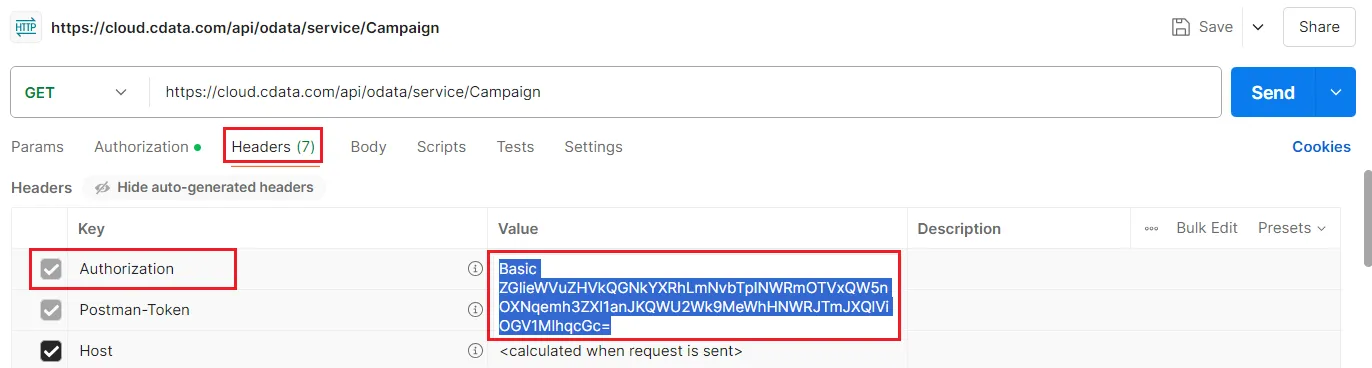
- Open the Postman application. Enter the OData URL mentioned in the previous step for a GET request on Postman. Click on the Authorization tab and select Auth Type as "Basic Auth". Enter the Username and Password as follows and click on Send:
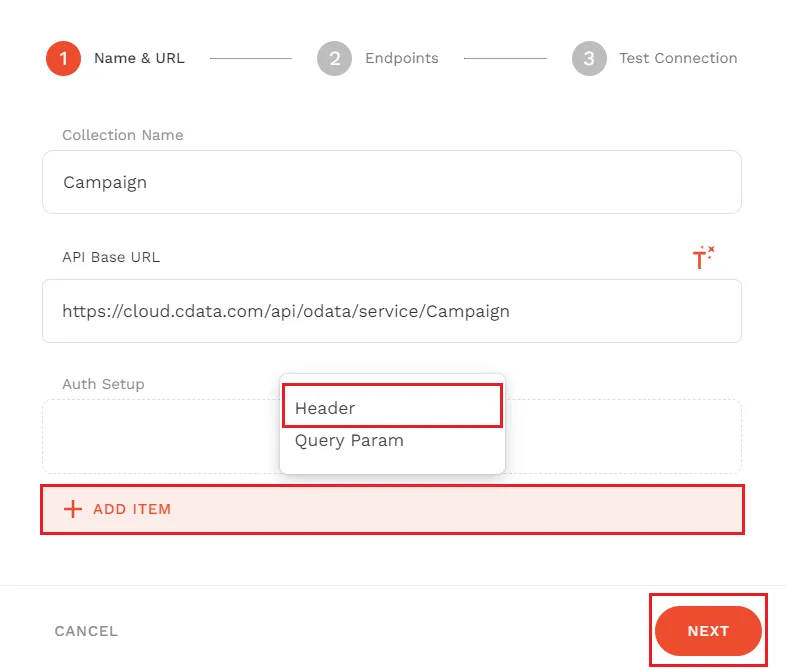
- Back in Adalo, click on ADD ITEM and select Header.
- Enter the details in the Header section as follows:
- Name: "Authorization"
- Value: Authorization key value copied in the previous step
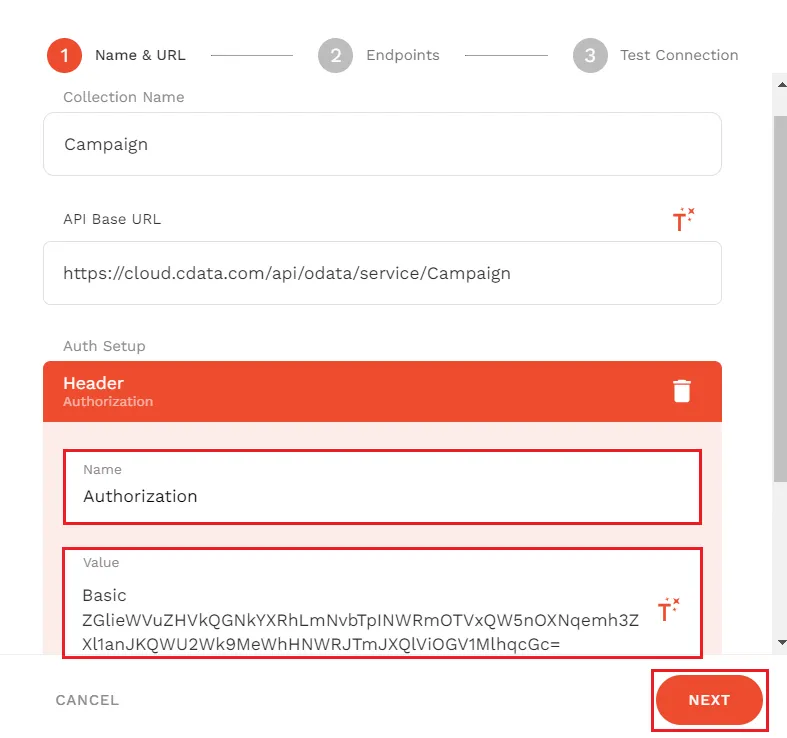
- Select Done and click on Next.
- Select Get All and enter "value" in the Results Key section. Click on Done and Next.
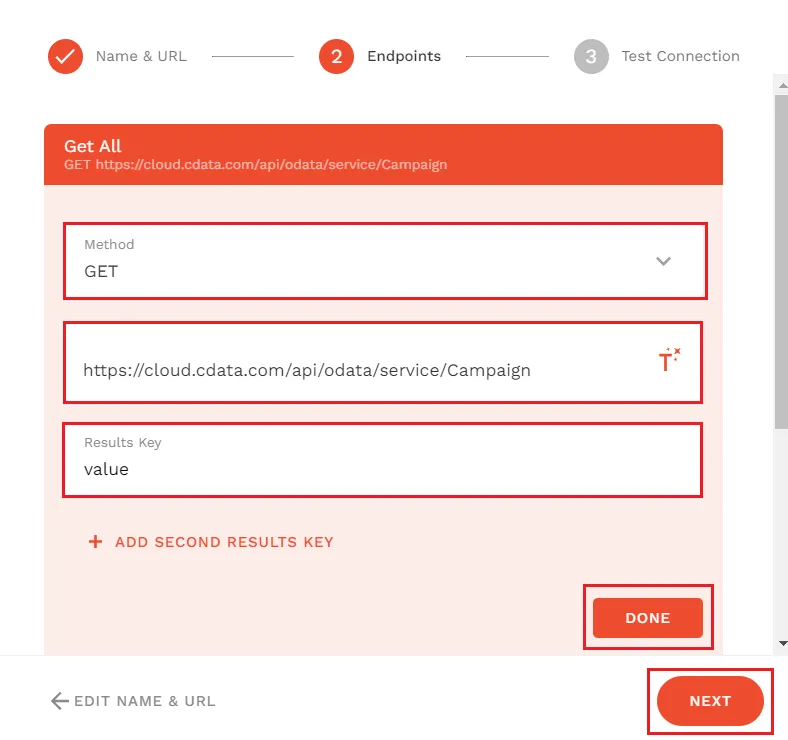
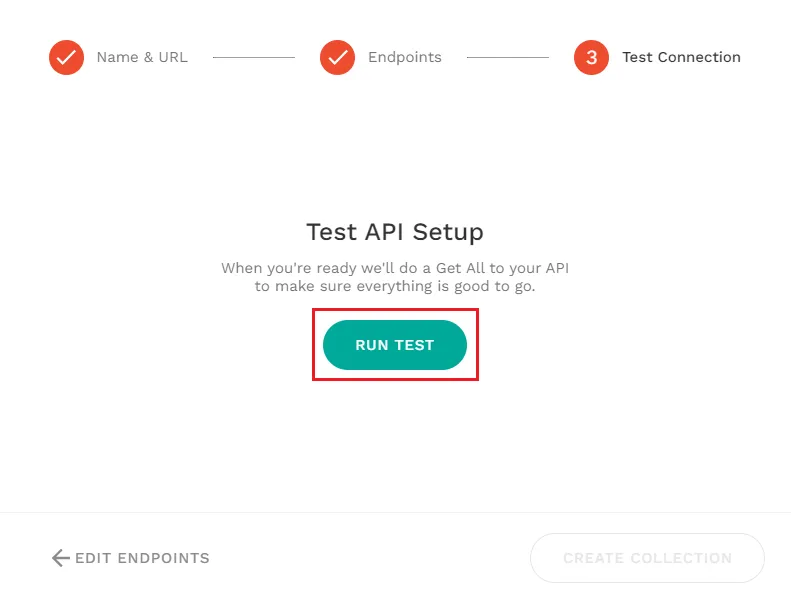
- Now, to test the API setup, click on RUN TEST. If you finally see the message and response shown below, the creation of External Collections is complete.
Creating a list screen
After configuring CData Connect Cloud, you can now begin developing the app on Adalo using Jira data.
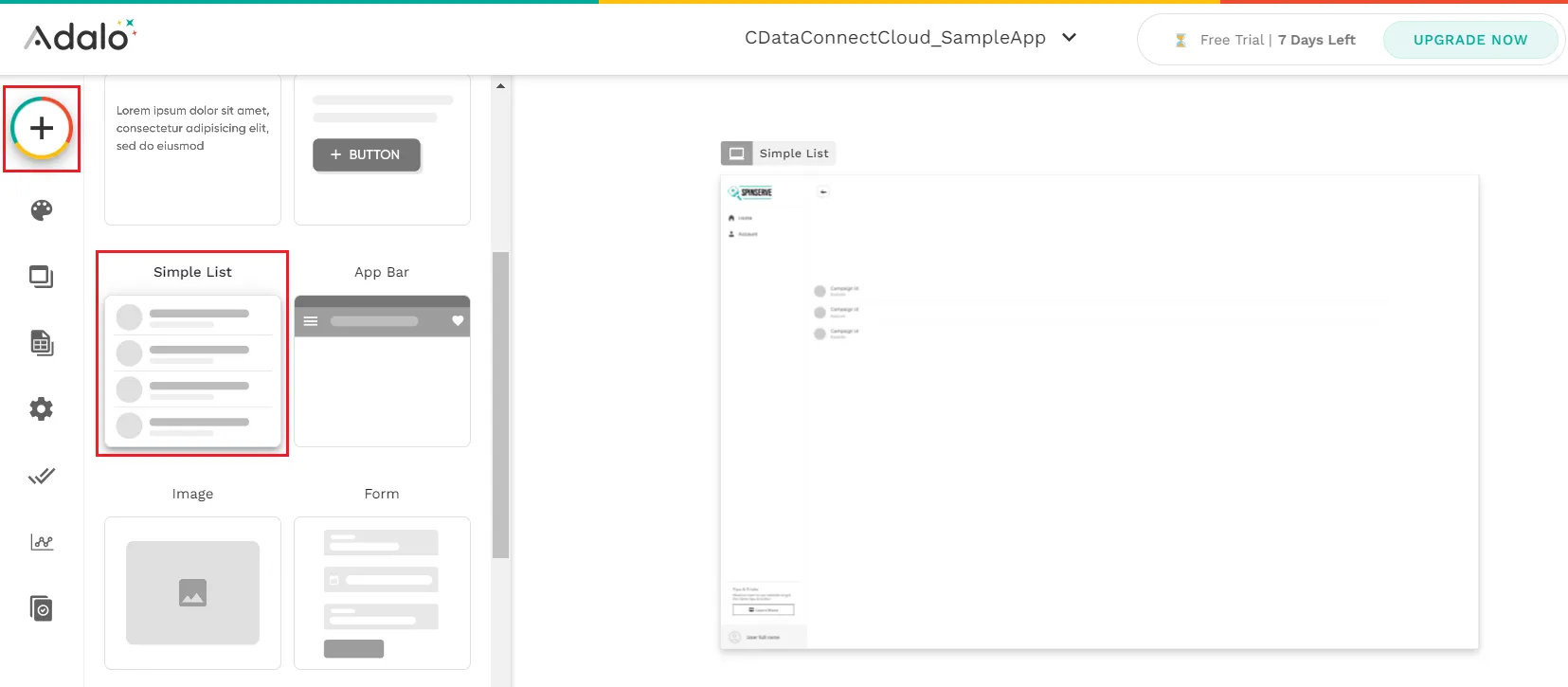
- First, click the + button in the upper right corner of the Adalo screen to display the list screen, then drag and drop "Simple List" onto the screen.
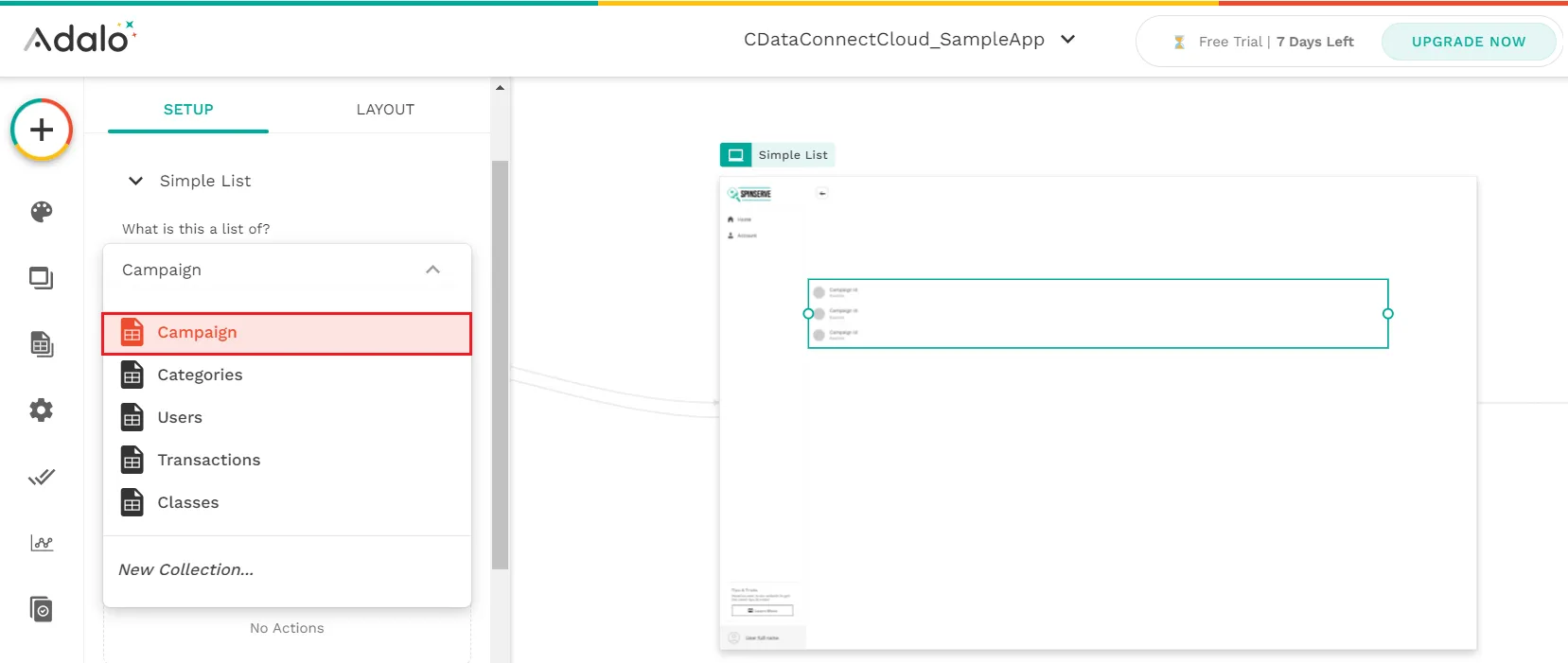
- Once the layout is complete as shown below, link the External Collections definition you created earlier to What is this a list of?
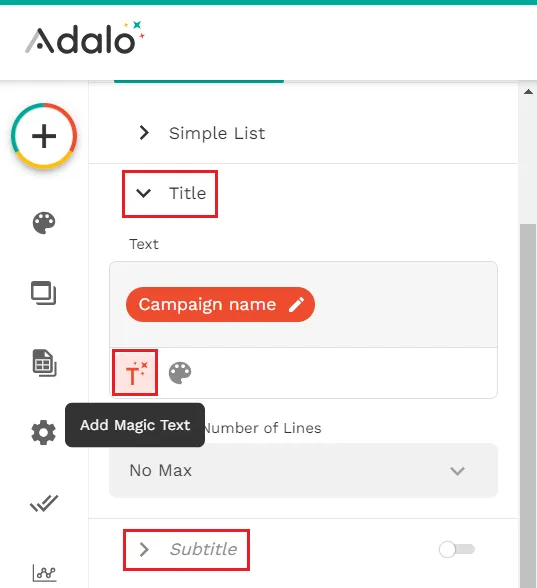
- Click on "Add Magic Text" button (as shown) to add the "Title" and "Subtitle" to the data items you want to obtain.
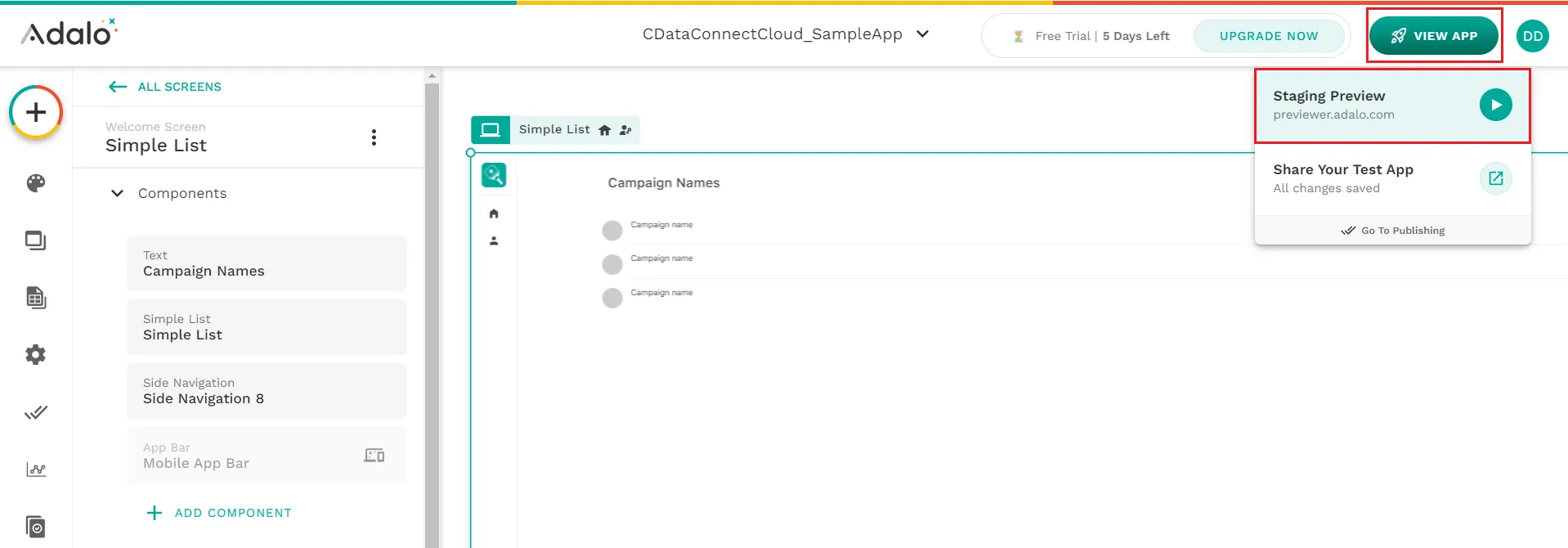
- Now, click on View App in the top right corner of the screen and select Staging Preview.
-
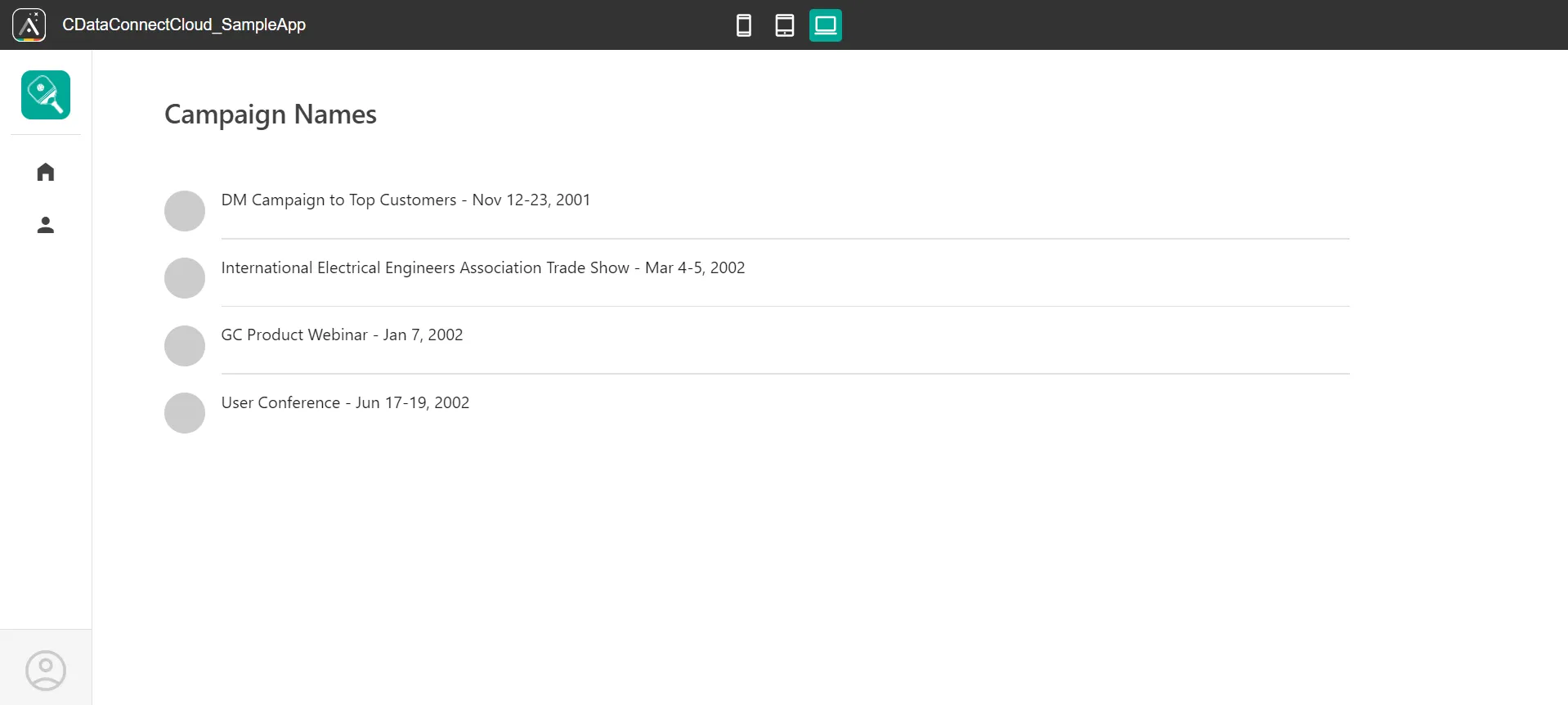
You can now view the Jira data in the app created on Adalo.
Live connections to Jira data from cloud applications
Adalo now allows you to connect to live Jira data directly, allowing you to create more connections and apps without duplicating Jira data.
To get real-time data access to over 100 SaaS, big data, and NoSQL sources directly from your cloud applications, visit CData Connect Cloud.
