
Model Context Protocol (MCP) finally gives AI models a way to access the business data needed to make them really useful at work. CData MCP Servers have the depth and performance to make sure AI has access to all of the answers.
Try them now for free →


Connect to Jira Data from a Connection Pool in JBoss
Integrate Jira data into Java servlets: Use the Management Console in JBoss to install the Jira JDBC Driver.
CData JDBC drivers can be configured in JBoss by following the standard procedure for connection pooling. This article details how to access Jira data from a connection pool in JBoss applications. This article details how to use the JBoss Management Interface to configure the CData JDBC Driver for Jira. You will then access Jira data from a connection pool.
About Jira Data Integration
CData simplifies access and integration of live Jira data. Our customers leverage CData connectivity to:
- Gain bi-directional access to their Jira objects like issues, projects, and workflows.
- Use SQL stored procedures to perform functional actions like changing issues status, creating custom fields, download or uploading an attachment, modifying or retrieving time tracking settings, and more.
- Authenticate securely using a variety of methods, including username and password, OAuth, personal access token, API token, Crowd or OKTA SSO, LDAP, and more.
Most users leverage CData solutions to integrate Jira data with their database or data warehouse, whether that's using CData Sync directly or relying on CData's compatibility with platforms like SSIS or Azure Data Factory. Others are looking to get analytics and reporting on live Jira data from preferred analytics tools like Tableau and Power BI.
Learn more about how customers are seamlessly connecting to their Jira data to solve business problems from our blog: Drivers in Focus: Collaboration Tools.
Getting Started
Create a JDBC Data Source for Jira from the Management Console
Follow the steps below to add the driver JAR and define required connection properties.
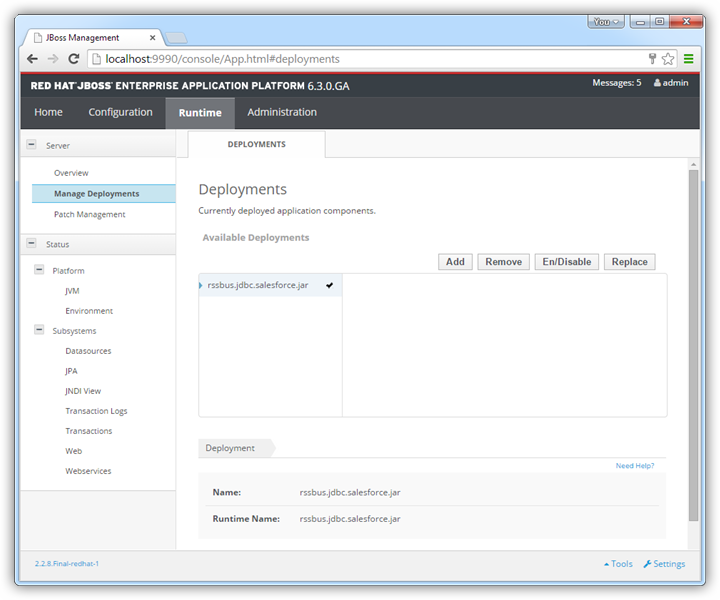
- In the Runtime menu, select the Domain or Server menu, depending on whether you are deploying to a managed domain or to a stand-alone server, and click "Manage deployments" to open the Deployments page.
- Click Add. In the resulting wizard, add the JAR file and license for the driver, located in the lib subfolder of the installation directory. Finish the wizard with the defaults, select the driver, and click Enable.
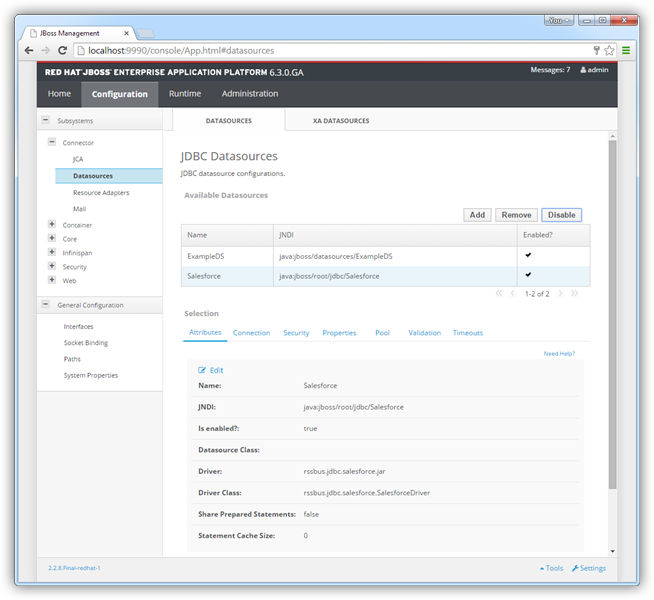
- In the Configuration menu, click Subsystems -> Connector -> Datasources. This opens the JDBC Datasources page.
- Click Add and, in the resulting wizard, enter a name for the driver and the JNDI name. For example:
java:jboss/root/jdbc/JIRA
- Select the driver that you added above.
Enter the JDBC URL and the username and password. The syntax of the JDBC URL is jdbc:jira: followed by a semicolon-separated list of connection properties.
To connect to JIRA, provide the User and Password. Additionally, provide the Url; for example, https://yoursitename.atlassian.net.
Built-in Connection String Designer
For assistance in constructing the JDBC URL, use the connection string designer built into the Jira JDBC Driver. Either double-click the JAR file or execute the jar file from the command-line.
java -jar cdata.jdbc.jira.jar
Fill in the connection properties and copy the connection string to the clipboard.
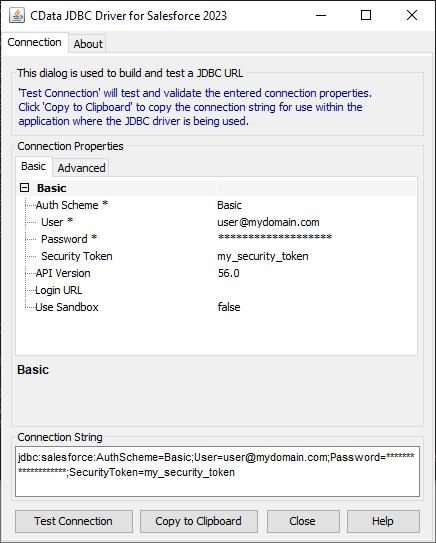
A typical connection string is below:
jdbc:jira:User=admin;Password=123abc;Url=https://yoursitename.atlassian.net;
- Test the connection and finish the wizard. Select the Jira data source and click Enable.
More JBoss Integration
The steps above show how to configure the driver in a simple connection pooling scenario. For more information, refer to the Data Source Management chapter in the JBoss EAP documentation.
Ready to get started?
Download a free trial of the Jira Driver to get started:
Download NowLearn more:
 Jira JDBC Driver
Rapidly create and deploy powerful Java applications that integrate with Jira including Customers, Inventory, Products, Orders, and more!
