
Model Context Protocol (MCP) finally gives AI models a way to access the business data needed to make them really useful at work. CData MCP Servers have the depth and performance to make sure AI has access to all of the answers.
Try them now for free →


Build Kintone Visualizations in Tableau Cloud
Use CData Connect Cloud to connect to live Kintone data and build visualizations in Tableau Cloud.
Tableau Cloud is an analytics platform fully hosted in the cloud. When paired with CData Connect Cloud, you get instant, cloud-to-cloud access to Kintone data for visualizations, dashboards, and more. This article shows how to connect to Kintone and build visualizations from Kintone data in Tableau Cloud.
CData Connect Cloud provides a pure cloud-to-cloud interface for Kintone, allowing you to easily build visualizations from live Kintone data in Tableau Cloud without installing connectors or publishing worksheets and data sources from Tableau Desktop. As you build visualizations, Tableau Cloud generates SQL queries to gather data. Using optimized data processing out of the box, CData Connect Cloud pushes all supported SQL operations (filters, JOINs, etc) directly to Kintone, leveraging server-side processing to quickly return Kintone data.
Configure Kintone Connectivity for Tableau Cloud
To work with Kintone data from Tableau Cloud, we need to connect to Kintone from Connect Cloud, provide user access to the connection, and create a Workspace for the Kintone data.
Connect to Kintone from Connect Cloud
CData Connect Cloud uses a straightforward, point-and-click interface to connect to data sources.
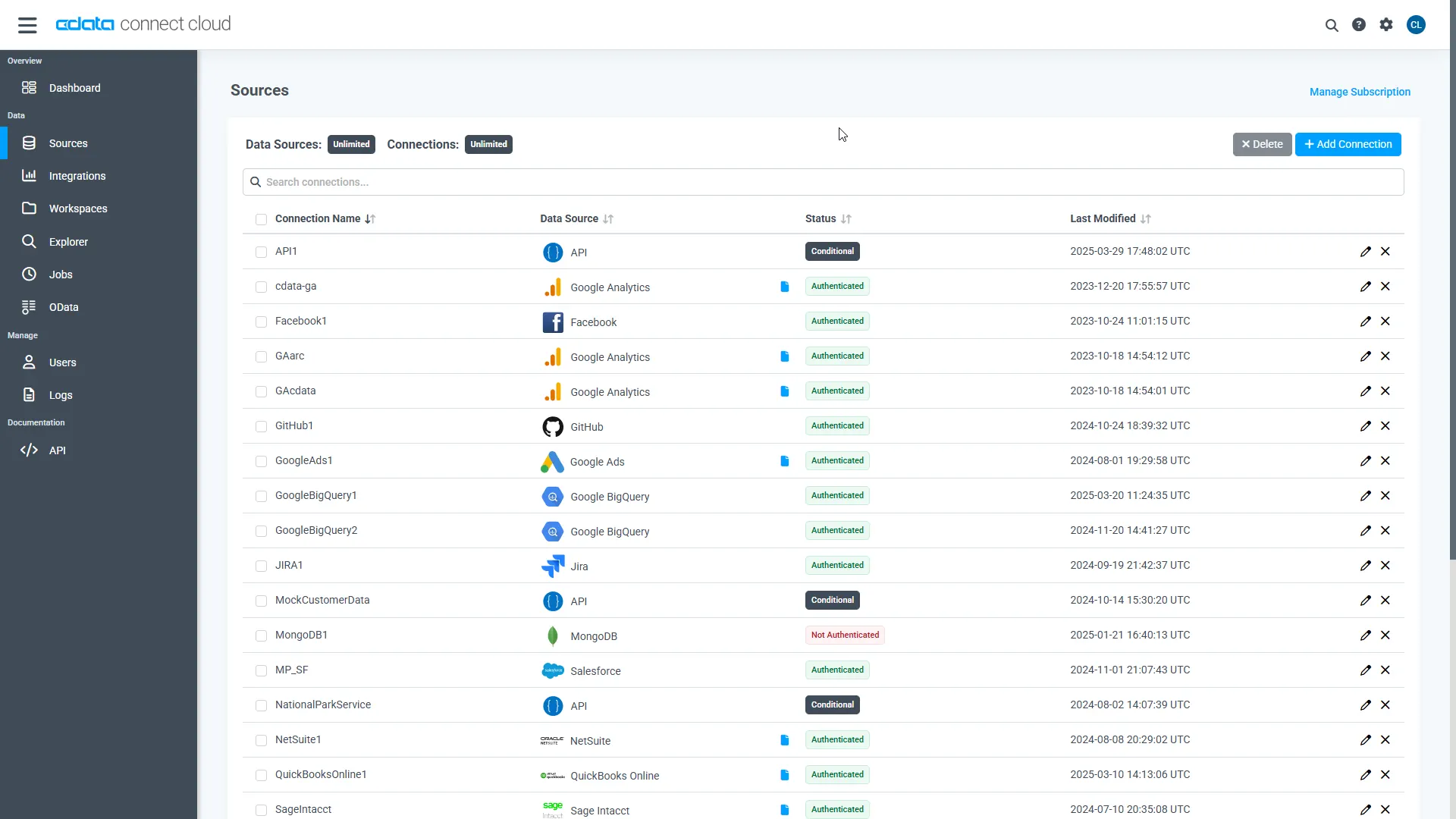
- Log into Connect Cloud, click Sources, and then click Add Connection
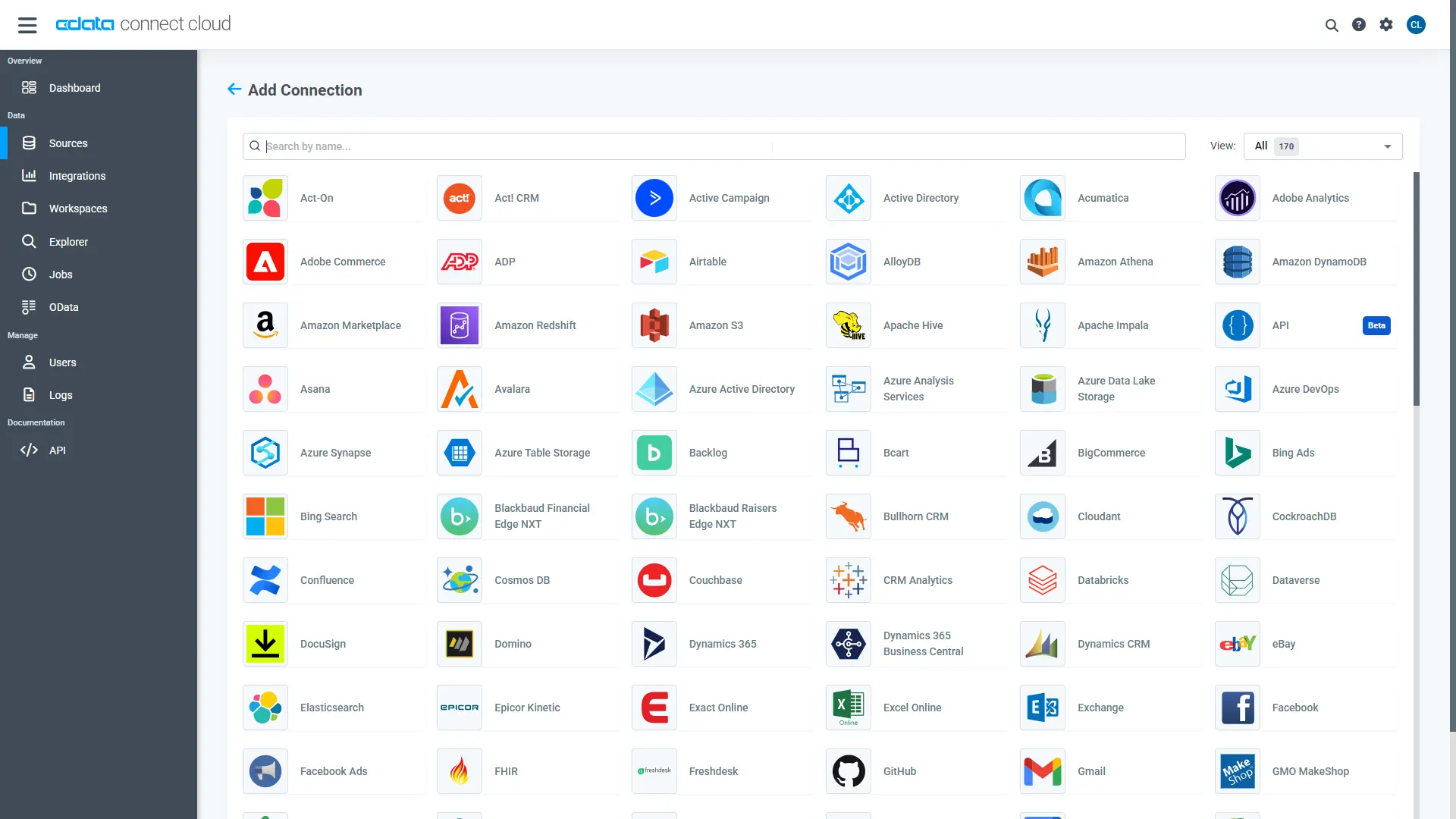
- Select "Kintone" from the Add Connection panel
-
Enter the necessary authentication properties to connect to Kintone.
In addition to the authentication values, set the following parameters to connect to and retrieve data from Kintone:
- Url: The URL of your account.
- GuestSpaceId: Optional. Set this when using a guest space.
Authenticating with Kintone
Kintone supports the following authentication methods.
Using Password Authentication
You must set the following to authenticate:
- User: The username of your account.
- Password: The password of your account.
Using Basic Authentication
If the basic authentication security feature is set on the domain, supply the additional login credentials with BasicAuthUser and BasicAuthPassword. Basic authentication requires these credentials in addition to User and Password.
Using Client SSL
Instead of basic authentication, you can specify a client certificate to authenticate. Set SSLClientCert, SSLClientCertType, SSLClientCertSubject, and SSLClientCertPassword. Additionally, set User and Password to your login credentials.
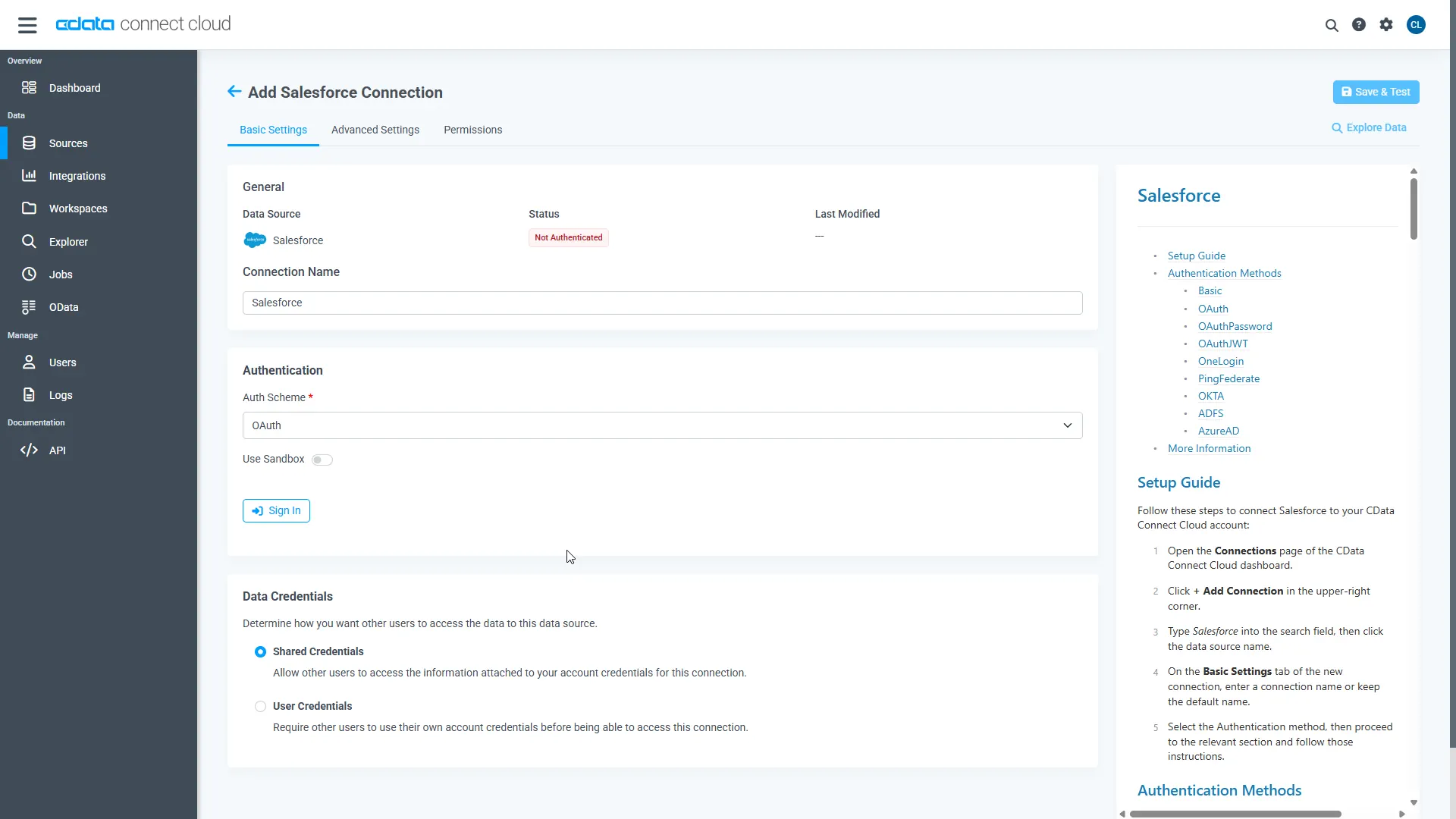
- Click Create & Test
-
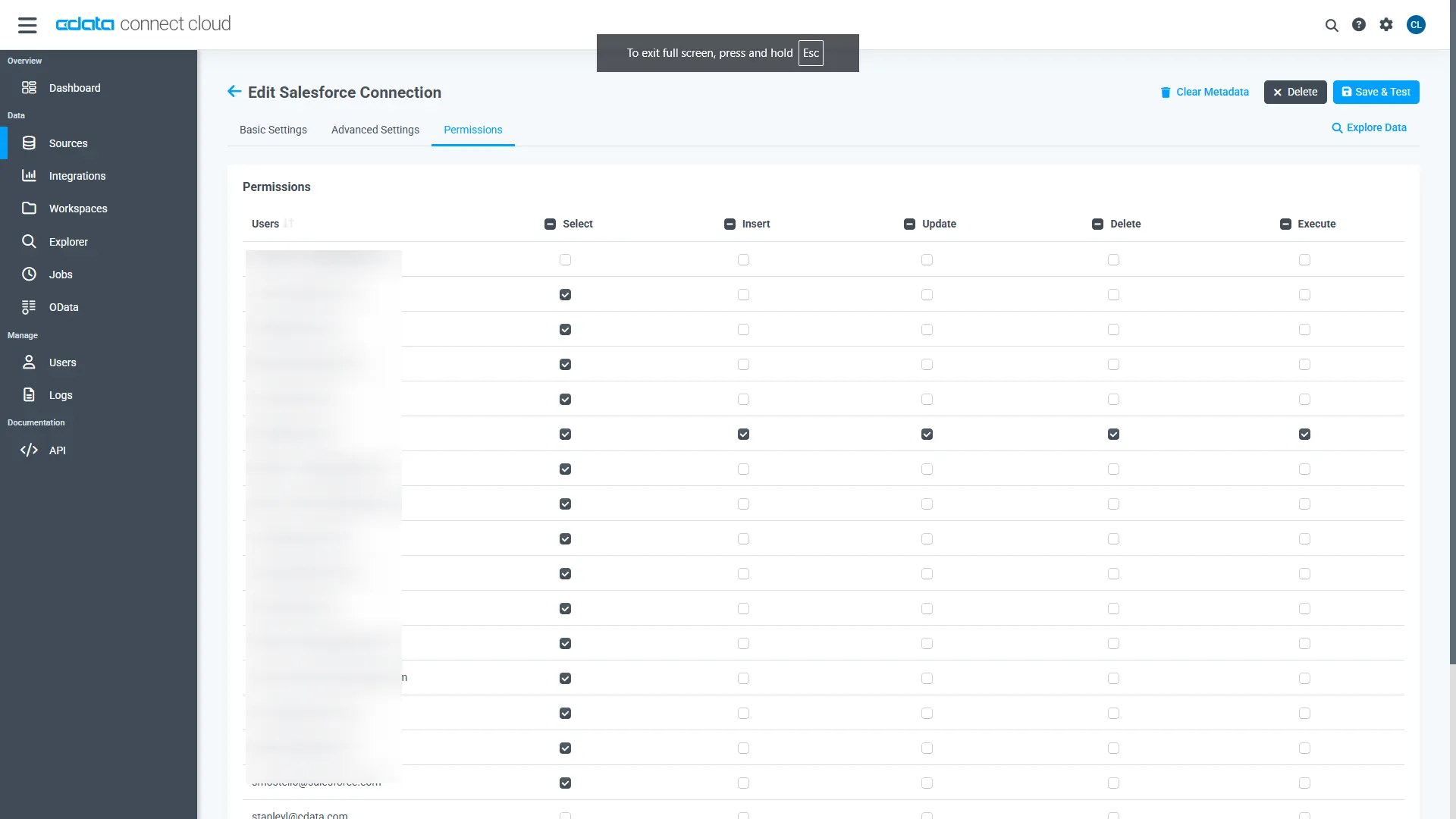
Navigate to the Permissions tab in the Add Kintone Connection page and update the User-based permissions.
Add a Personal Access Token
When connecting to Connect Cloud through the REST API, the OData API, or the Virtual SQL Server, a Personal Access Token (PAT) is used to authenticate the connection to Connect Cloud. It is best practice to create a separate PAT for each service to maintain granularity of access.
- Click on the Gear icon () at the top right of the Connect Cloud app to open the settings page.
- On the Settings page, go to the Access Tokens section and click Create PAT.
-
Give the PAT a name and click Create.
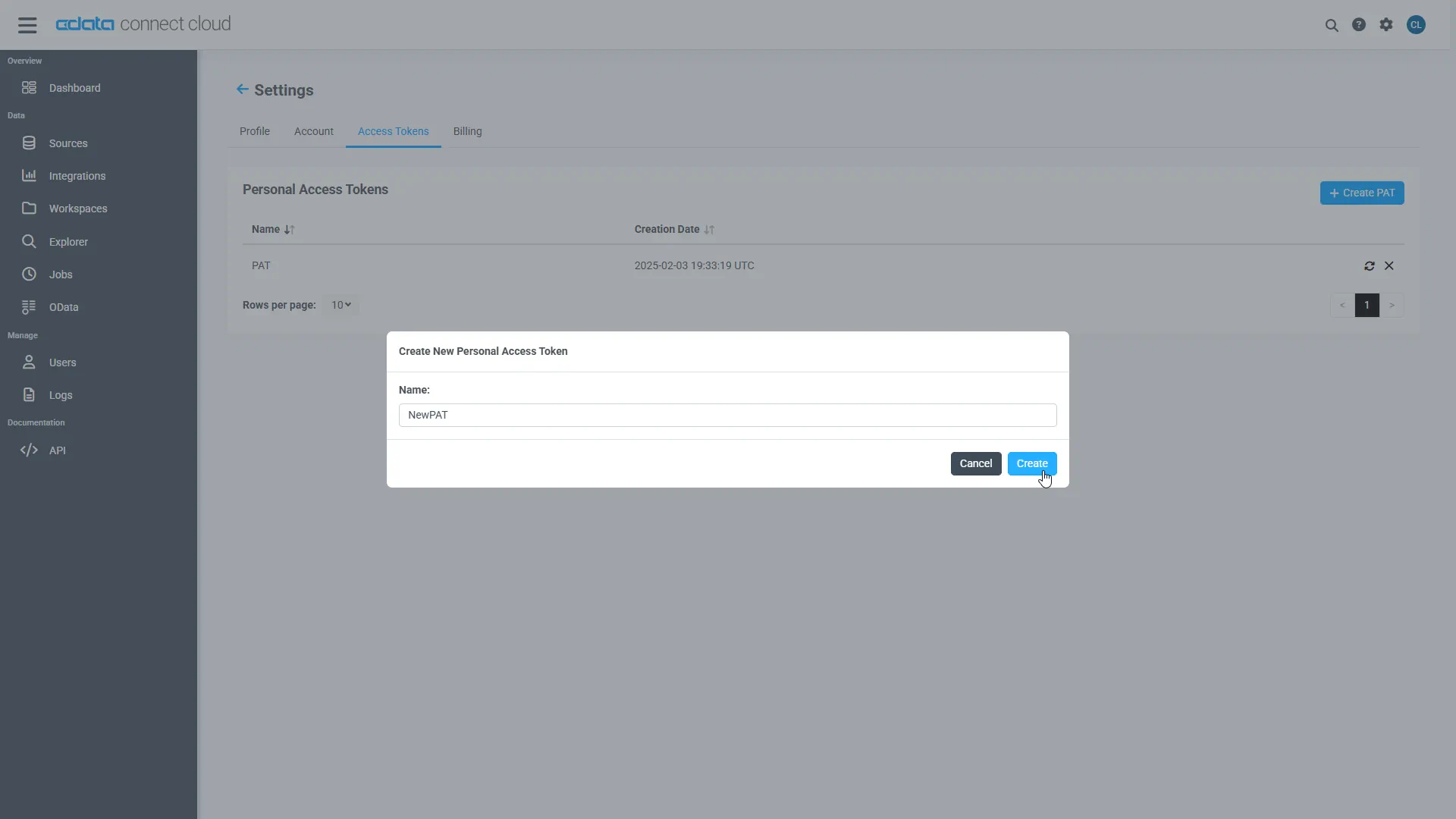
- The personal access token is only visible at creation, so be sure to copy it and store it securely for future use.
Configure Kintone Endpoints for Tableau Cloud
After connecting to Kintone, create a workspace for your desired table(s).
-
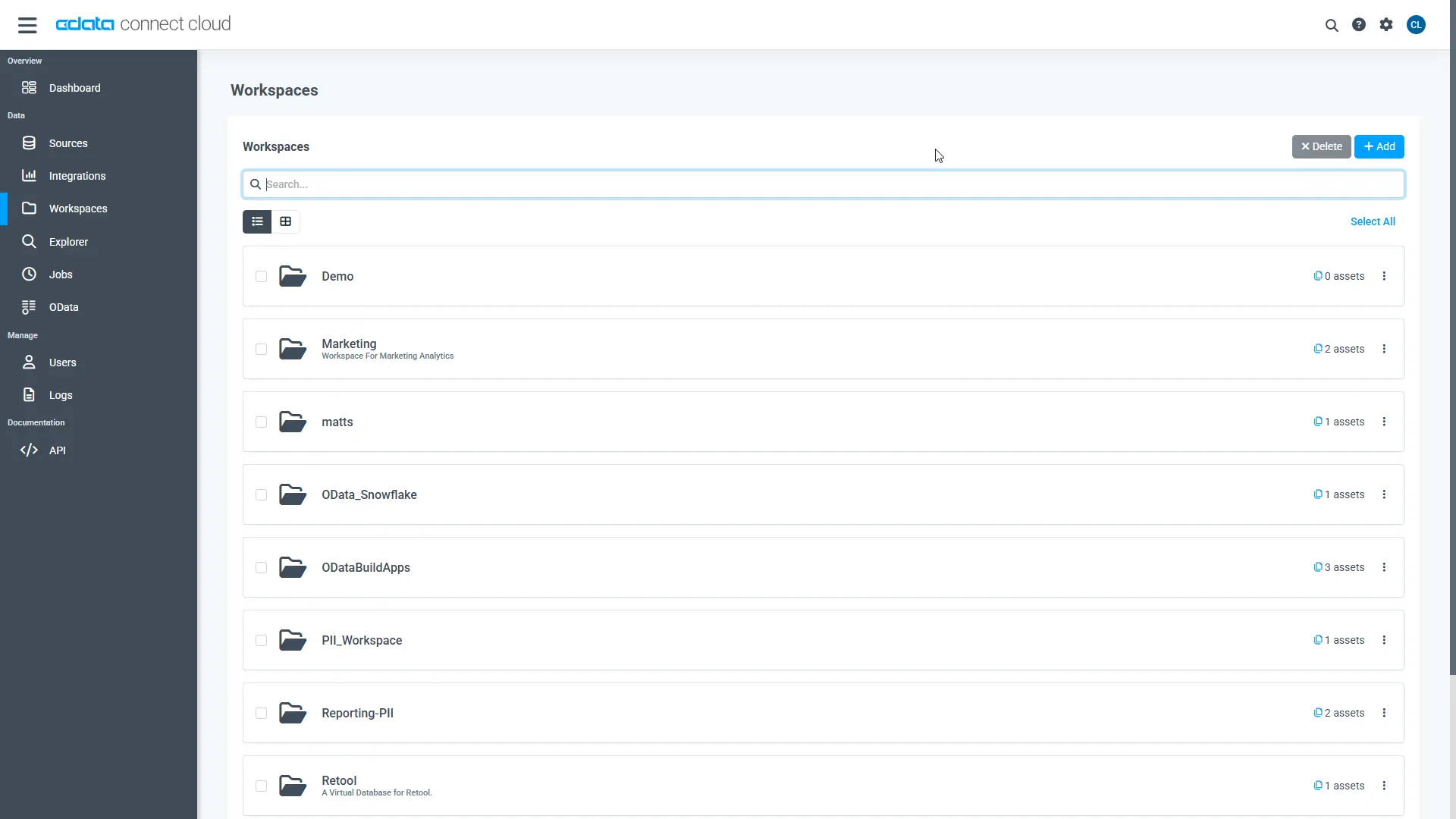
Navigate to the Workspaces page and click Add to create a new Workspace (or select an existing workspace).
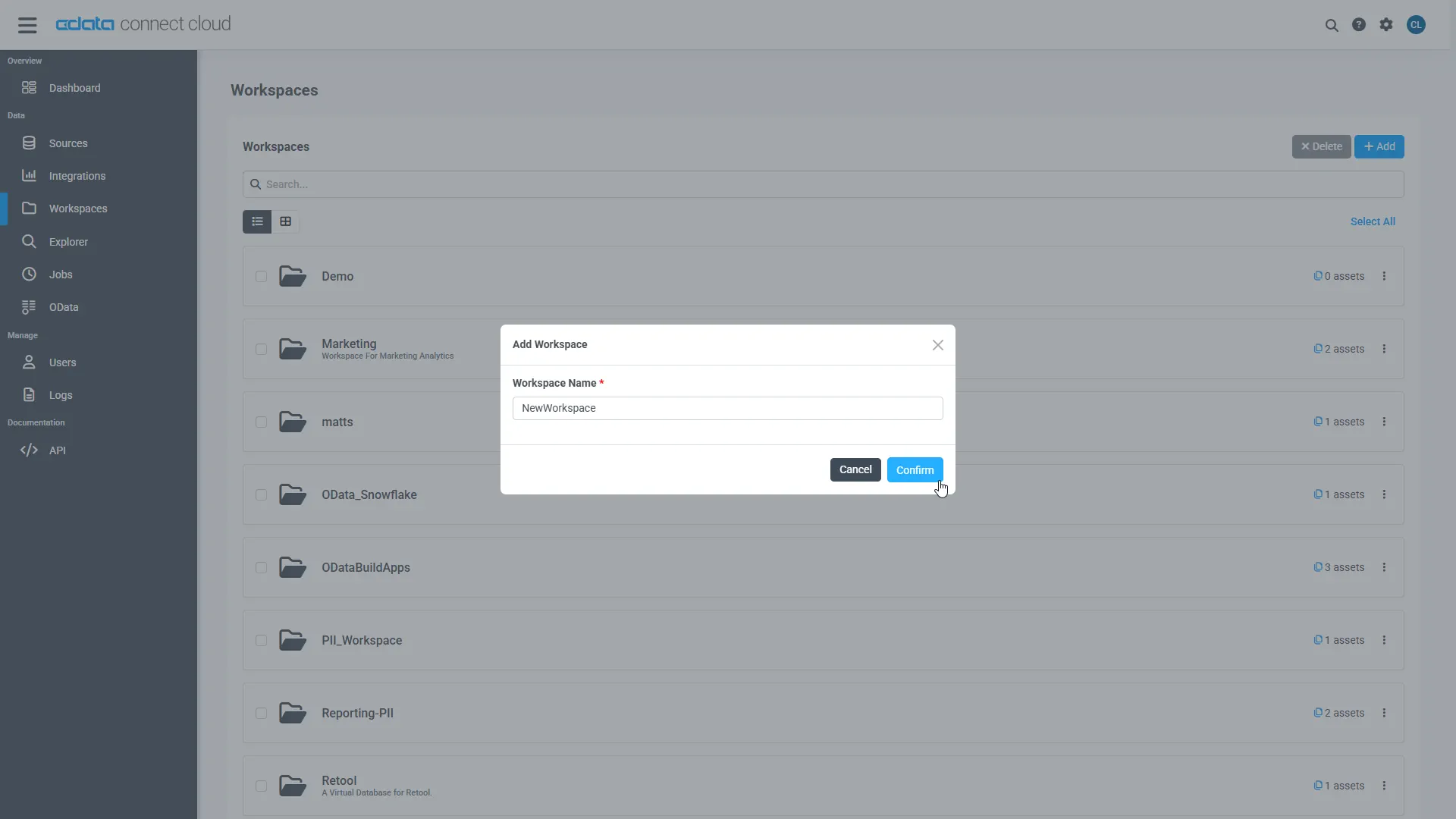
- Click Add to add new assets to the Workspace.
-
Select the Kintone connection (e.g. Kintone1) and click Next.
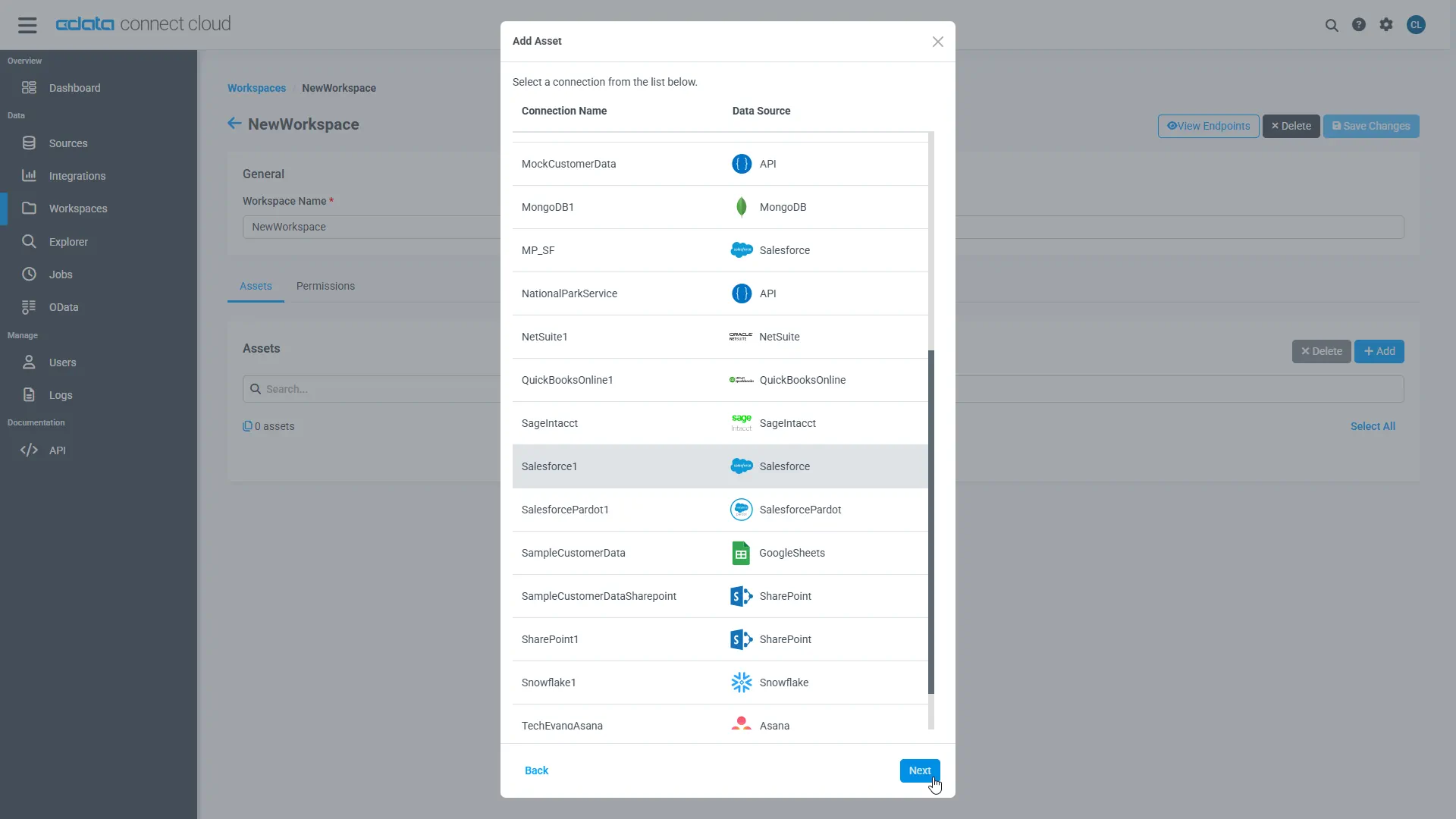
-
Select the table(s) you wish to work with and click Confirm.
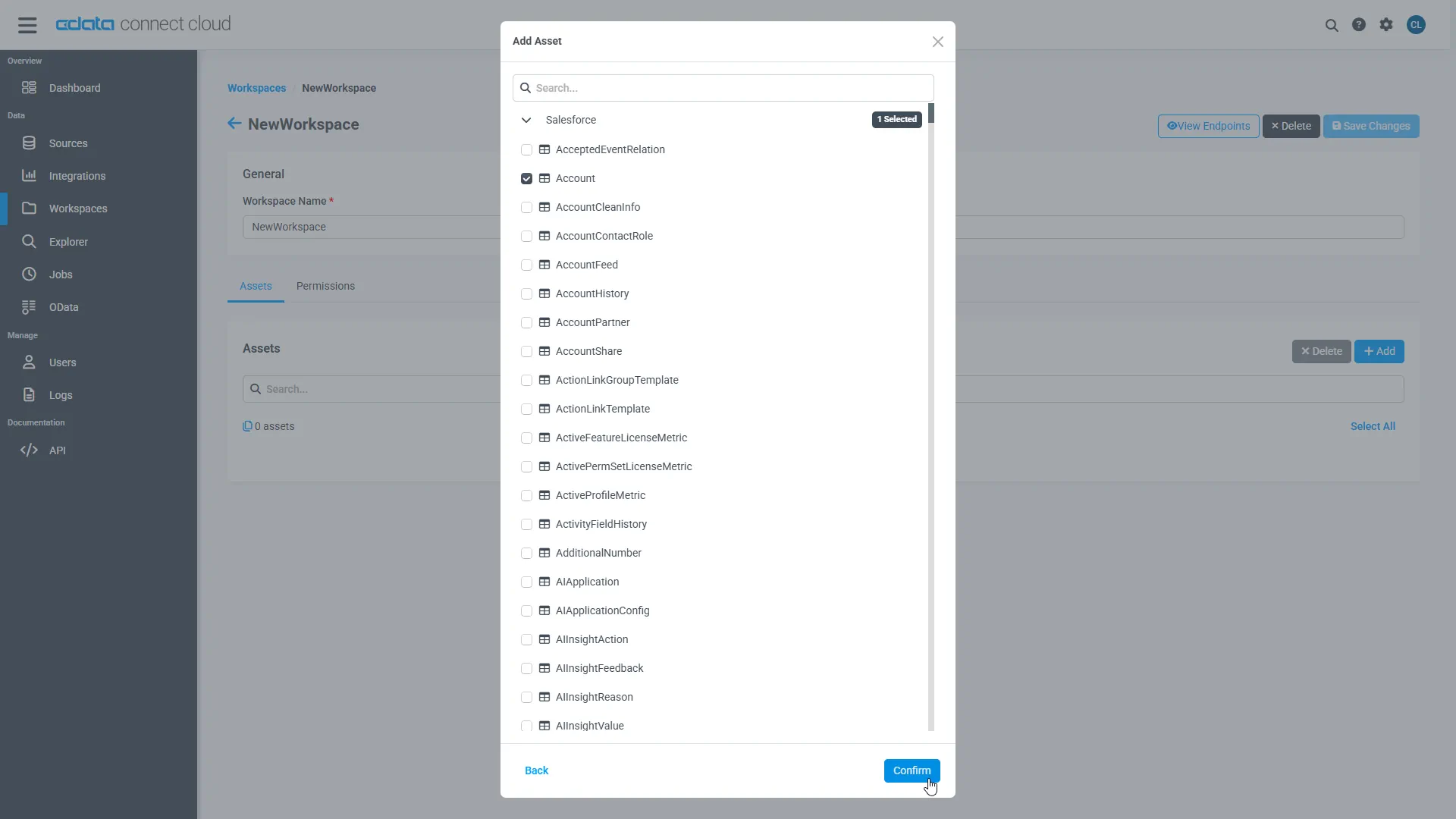
- Make note of the OData Service URL for your workspace, e.g. https://cloud.cdata.com/api/odata/{workspace_name}
With the connection, PAT, and Workspace configured, you are ready to connect to Kintone data from Tableau Cloud.
Visualize Live Kintone Data in Tableau Cloud
The steps below outline creating a new data source in Tableau Cloud based on the virtual Kintone database in Connect Cloud and building a simple visualization from the data.
- Log into Tableau Cloud, select a account, and create a new workbook.
-
In the new workbook, choose the OData Connector from the data wizard and fill in the values for your Connect Cloud instance.
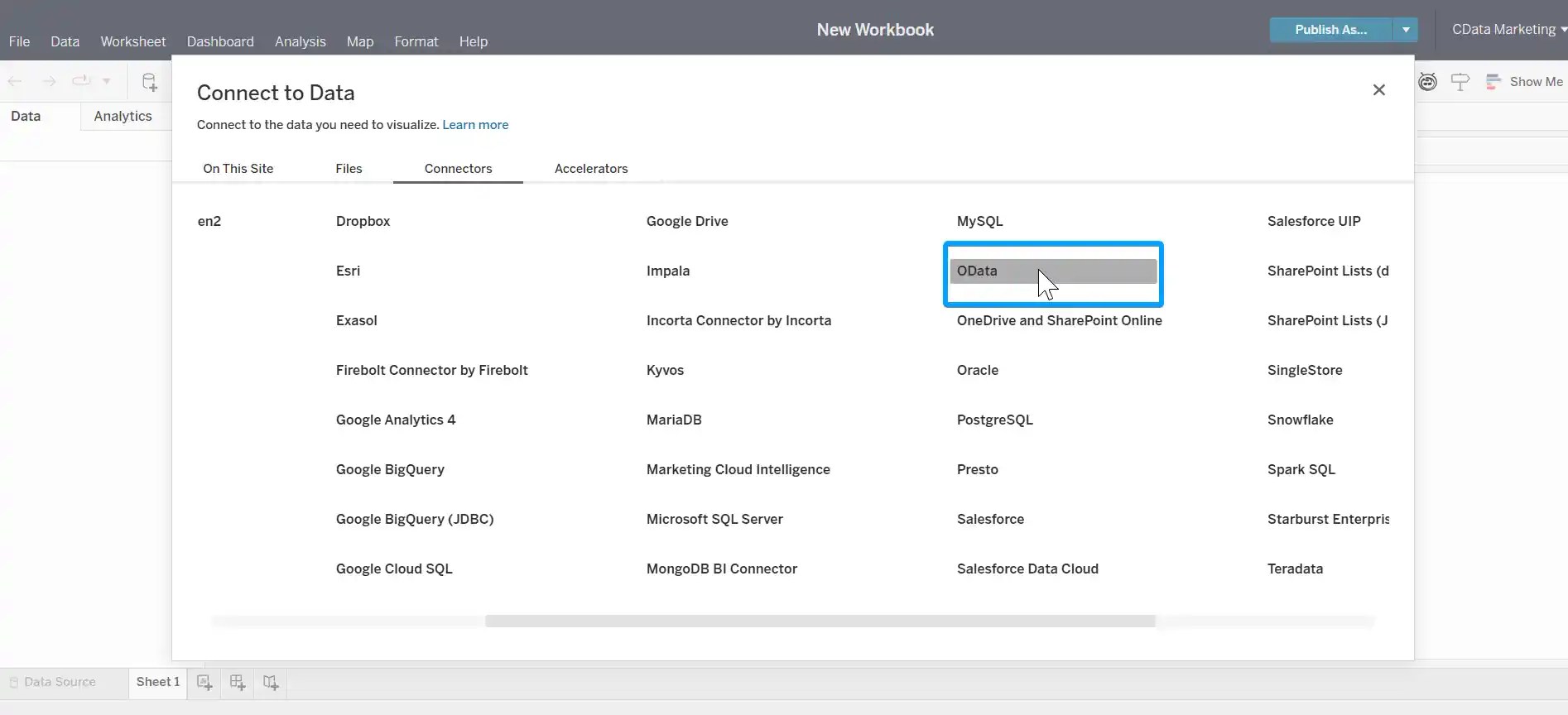
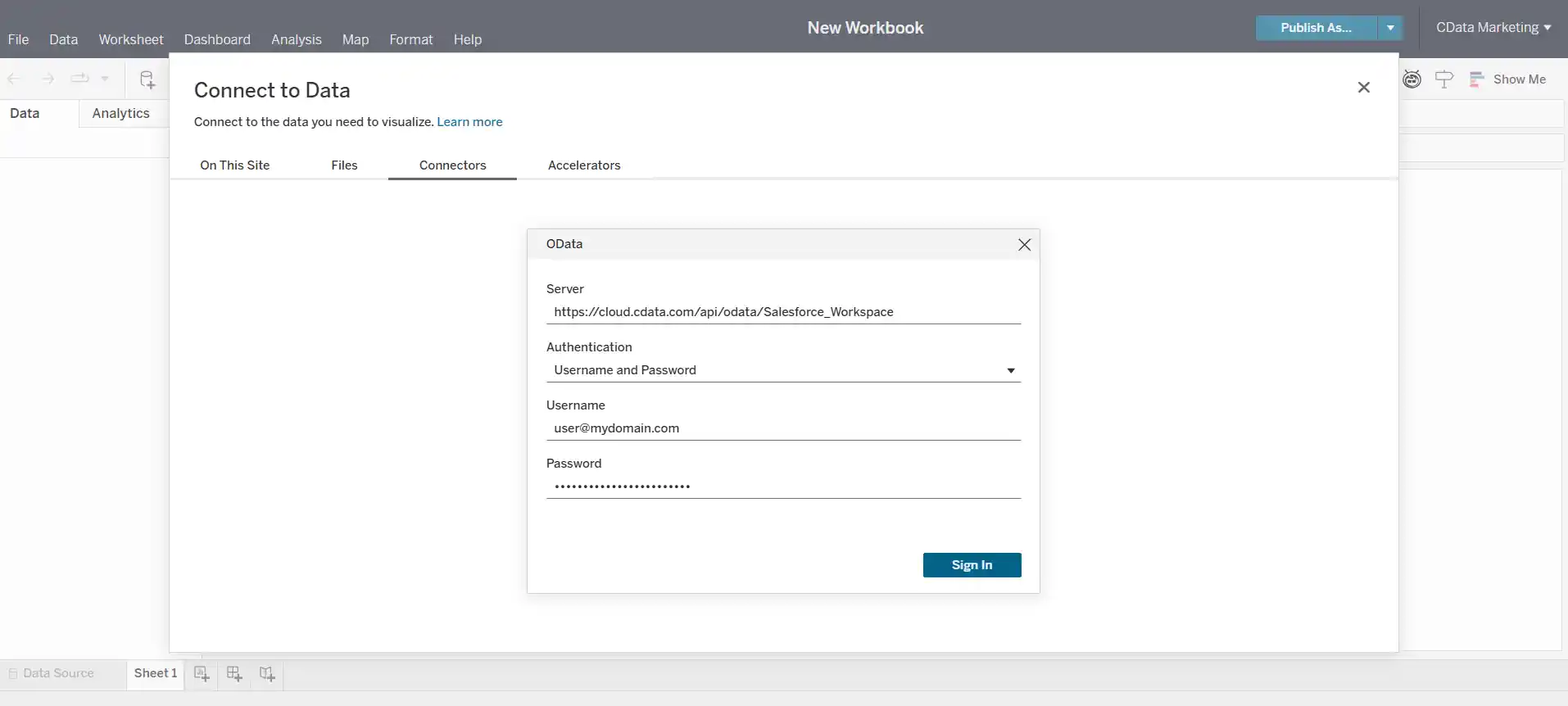
- Set Server to the OData URL for your Workspace, e.g. https://cloud.cdata.com/api/odata/{workspace_name}
- Set Authentication to Username and Password
- Set Username to your Connect Cloud username (e.g. [email protected])
- Set Password to a PAT for the above user
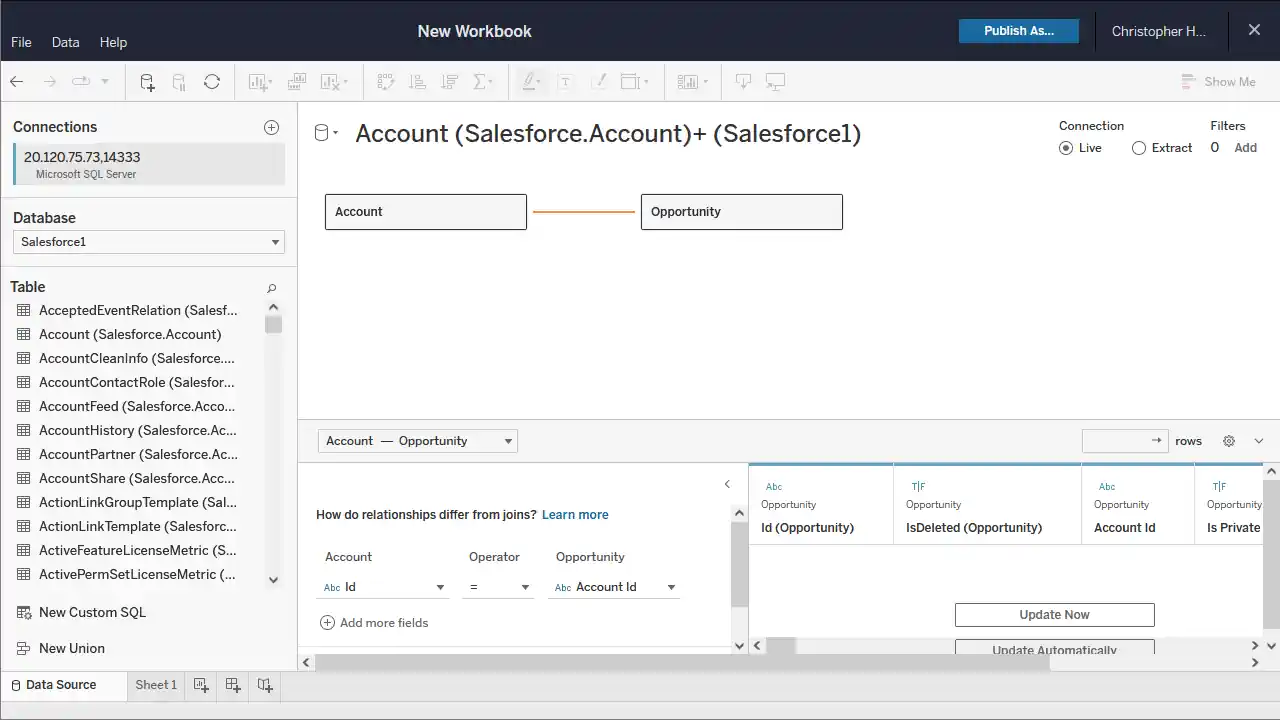
- Select your newly created database and the table(s) you wish to visualize (defining relationships for JOINad tables as needed).
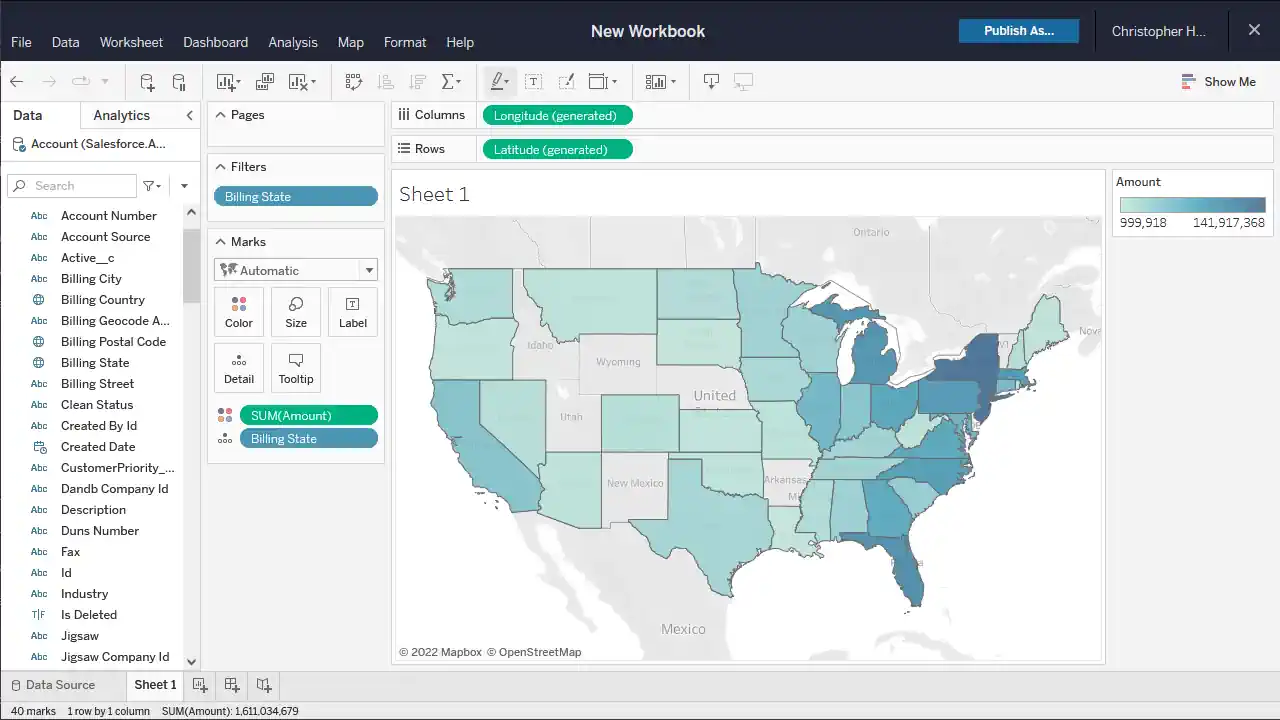
- Select Dimensions and Measures and configure your visualization.
Real-Time Access to Kintone Data from Cloud Applications
At this point, you have a direct, cloud-to-cloud connection to live Kintone data from your Tableau Cloud workbook. You can create new visualizations, build dashboards, and more, with no need to publish data sources and workbooks from Tableau Desktop. For more information on gaining live access to data from more than 100 SaaS, Big Data, and NoSQL sources from cloud applications like Tableau Cloud, refer to our Connect Cloud page.
