
Model Context Protocol (MCP) finally gives AI models a way to access the business data needed to make them really useful at work. CData MCP Servers have the depth and performance to make sure AI has access to all of the answers.
Try them now for free →


Visualize Kintone Data in TIBCO Spotfire through OData
Integrate Kintone data into dashboards in TIBCO Spotfire.
OData is a major protocol enabling real-time communication among cloud-based, mobile, and other online applications. The CData API Server provides Kintone data to OData consumers like TIBCO Spotfire. This article shows how to use the API Server and Spotfire's built-in support for OData to access Kintone data in real time.
Set Up the API Server
If you have not already done so, download the CData API Server. Once you have installed the API Server, follow the steps below to begin producing secure Kintone OData services:
Connect to Kintone
To work with Kintone data from TIBCO Spotfire, we start by creating and configuring a Kintone connection. Follow the steps below to configure the API Server to connect to Kintone data:
- First, navigate to the Connections page.
-
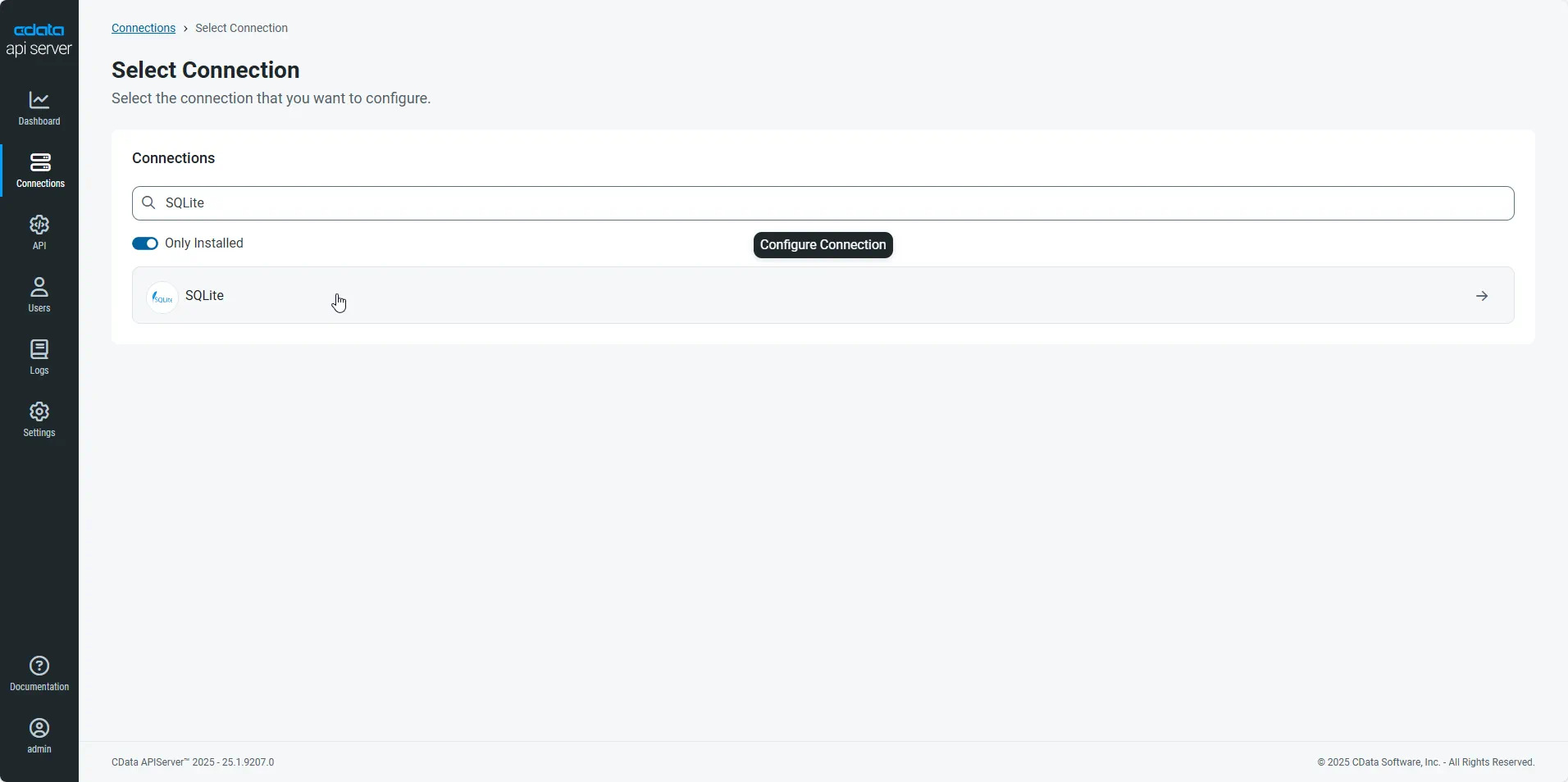
Click Add Connection and then search for and select the Kintone connection.
-
Enter the necessary authentication properties to connect to Kintone.
In addition to the authentication values, set the following parameters to connect to and retrieve data from Kintone:
- Url: The URL of your account.
- GuestSpaceId: Optional. Set this when using a guest space.
Authenticating with Kintone
Kintone supports the following authentication methods.
Using Password Authentication
You must set the following to authenticate:
- User: The username of your account.
- Password: The password of your account.
Using Basic Authentication
If the basic authentication security feature is set on the domain, supply the additional login credentials with BasicAuthUser and BasicAuthPassword. Basic authentication requires these credentials in addition to User and Password.
Using Client SSL
Instead of basic authentication, you can specify a client certificate to authenticate. Set SSLClientCert, SSLClientCertType, SSLClientCertSubject, and SSLClientCertPassword. Additionally, set User and Password to your login credentials.
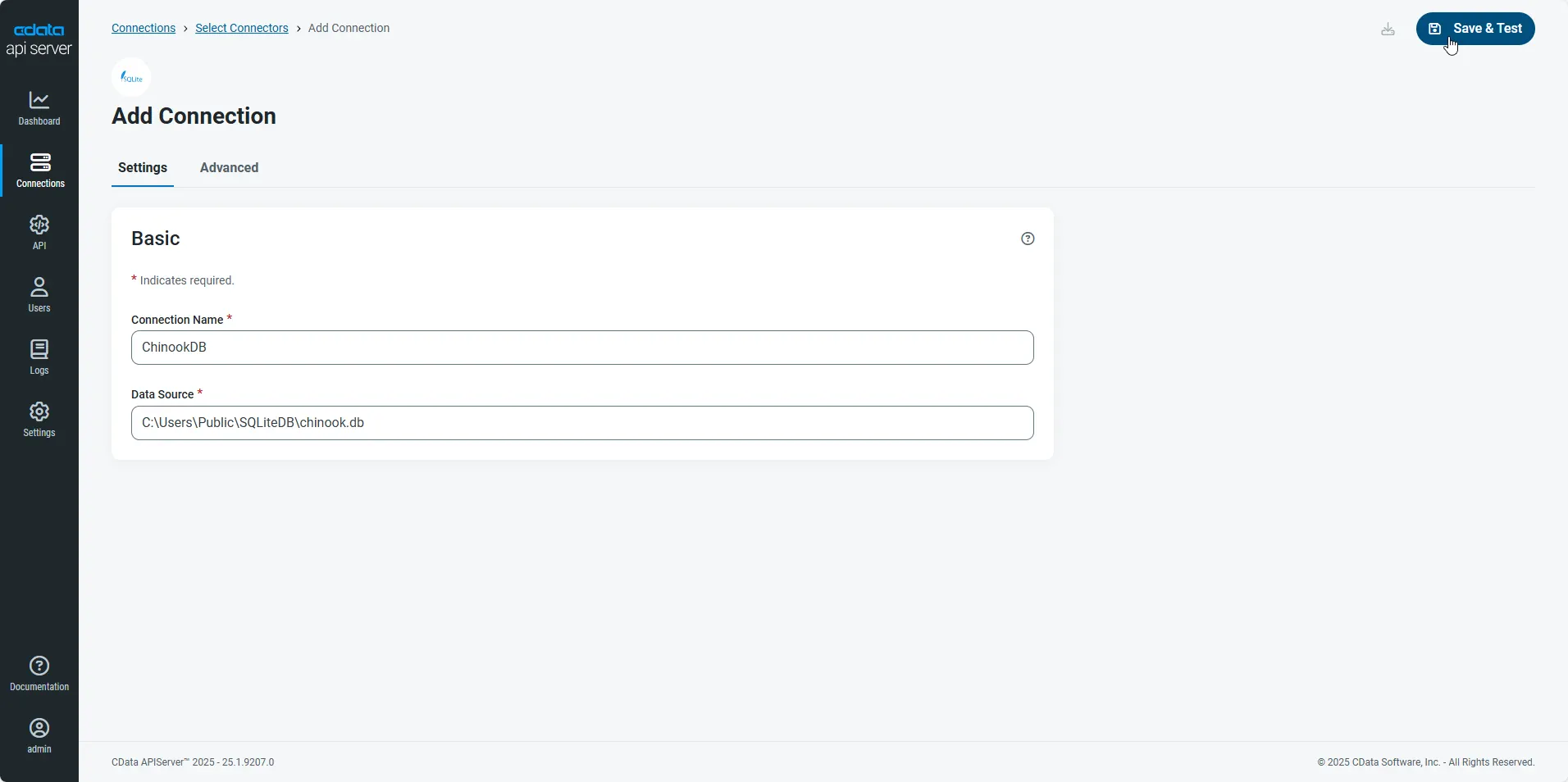
- After configuring the connection, click Save & Test to confirm a successful connection.
Configure API Server Users
Next, create a user to access your Kintone data through the API Server. You can add and configure users on the Users page. Follow the steps below to configure and create a user:
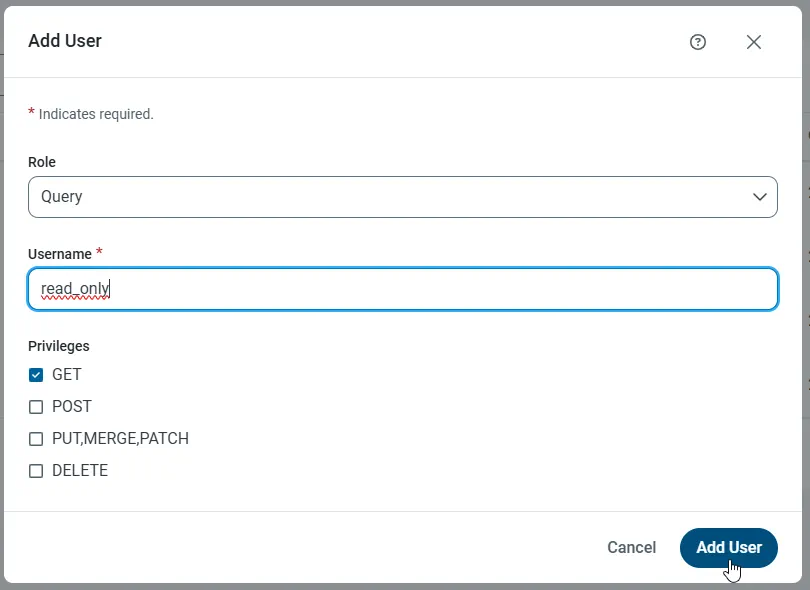
- On the Users page, click Add User to open the Add User dialog.
-
Next, set the Role, Username, and Privileges properties and then click Add User.
-
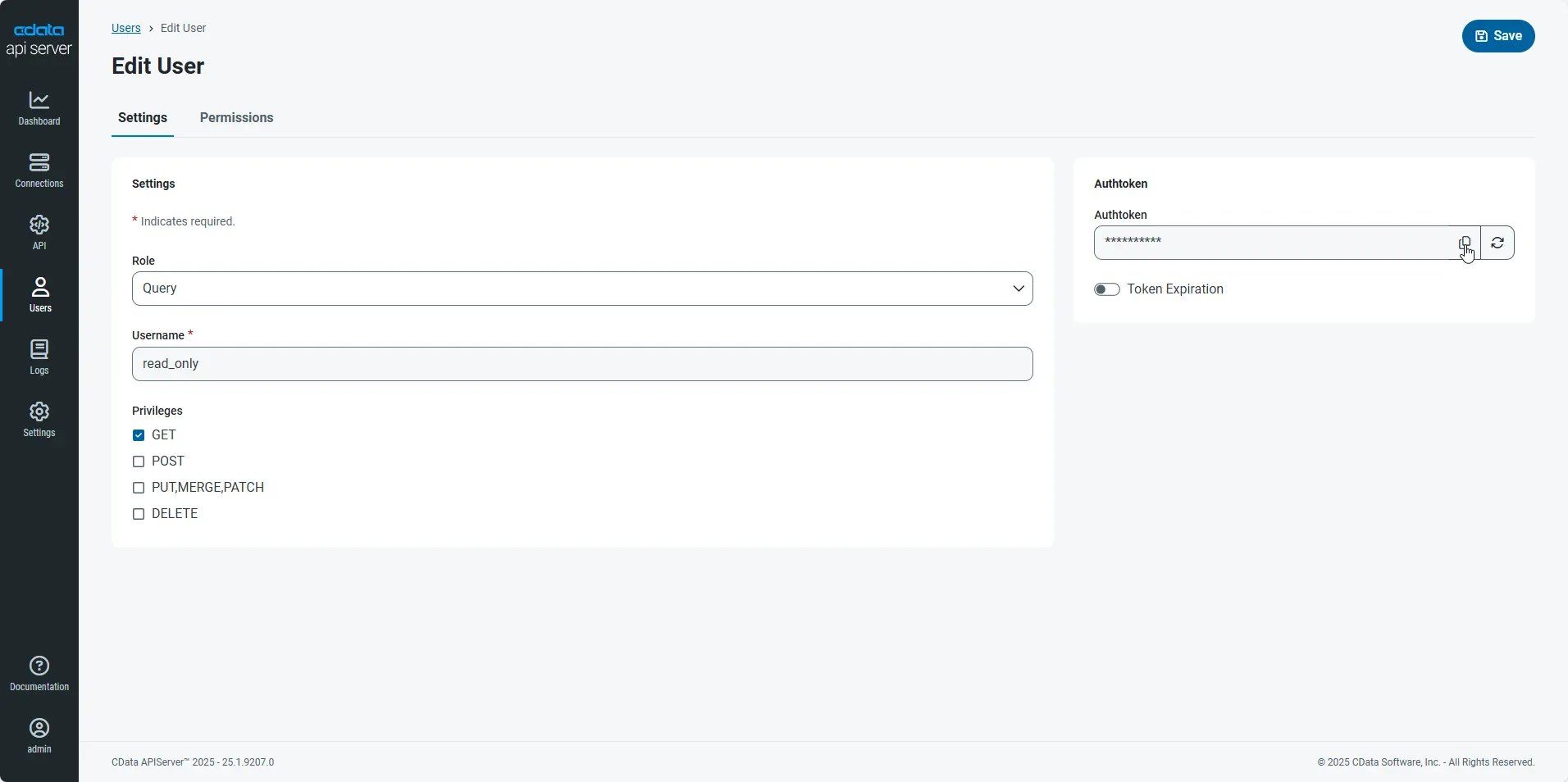
An Authtoken is then generated for the user. You can find the Authtoken and other information for each user on the Users page:
Creating API Endpoints for Kintone
Having created a user, you are ready to create API endpoints for the Kintone tables:
-
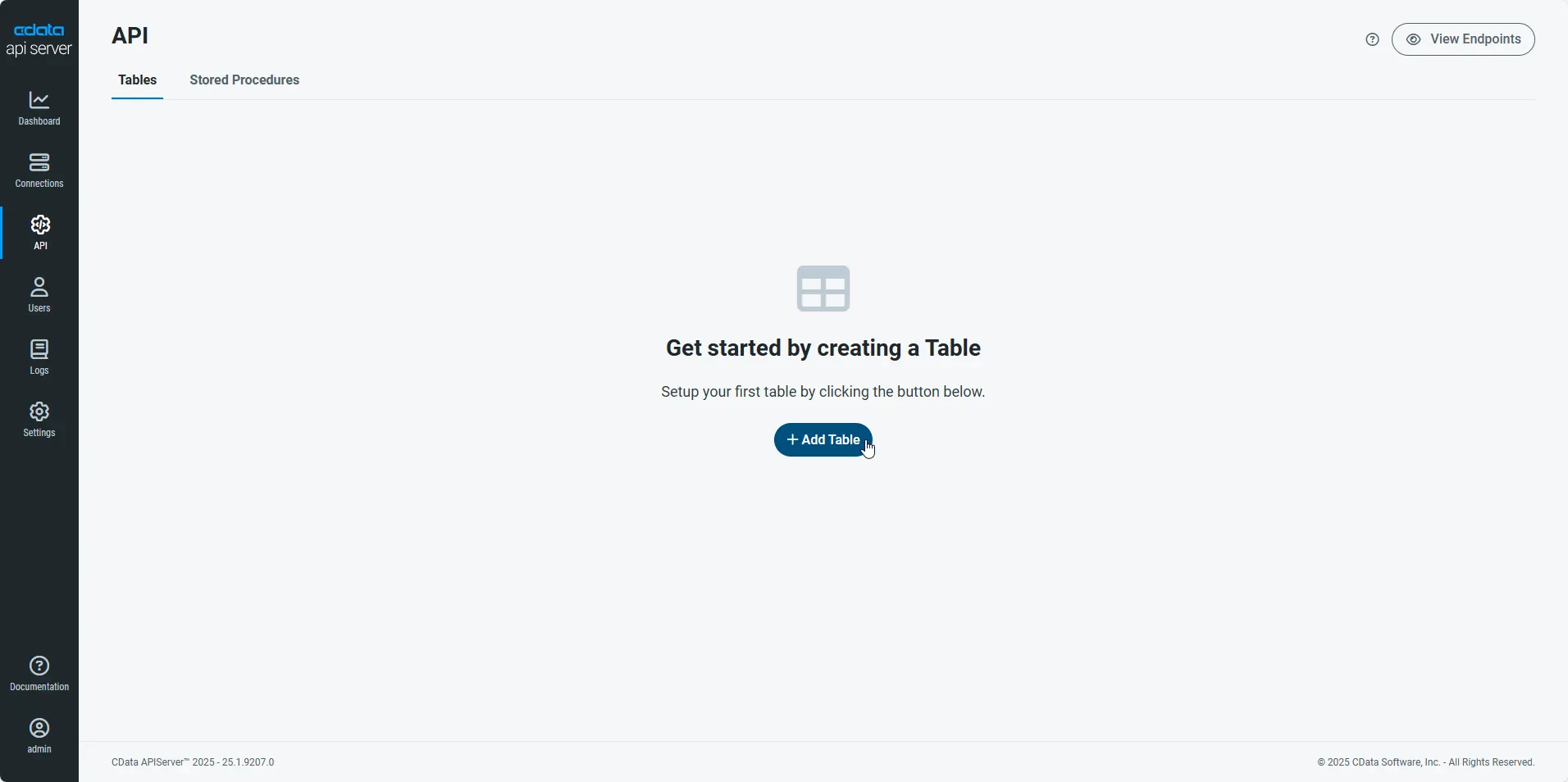
First, navigate to the API page and then click
Add Table
.
-
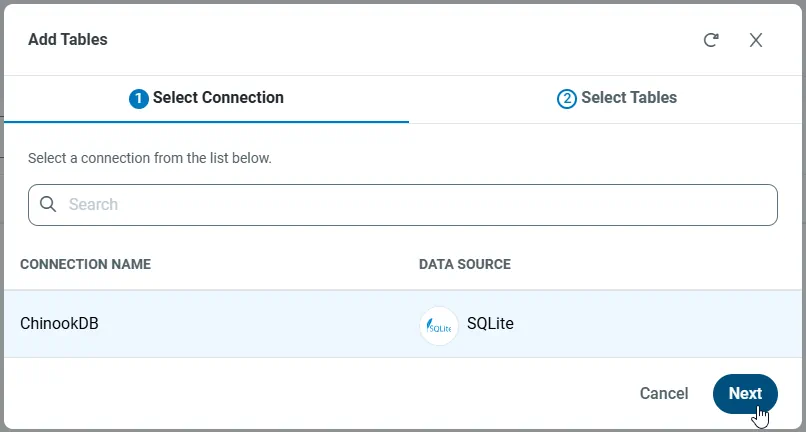
Select the connection you wish to access and click Next.
-
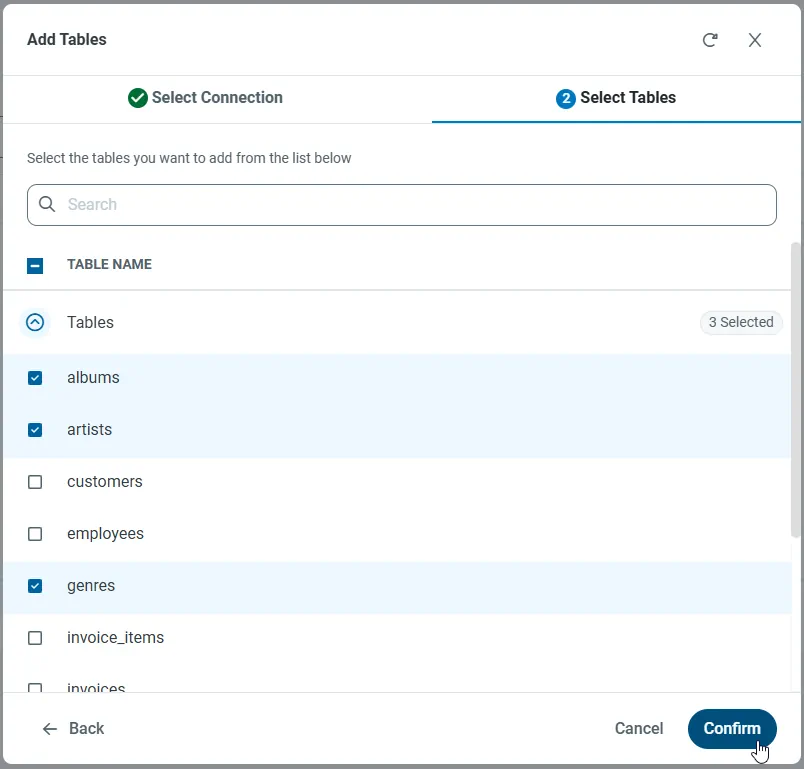
With the connection selected, create endpoints by selecting each table and then clicking Confirm.
Gather the OData Url
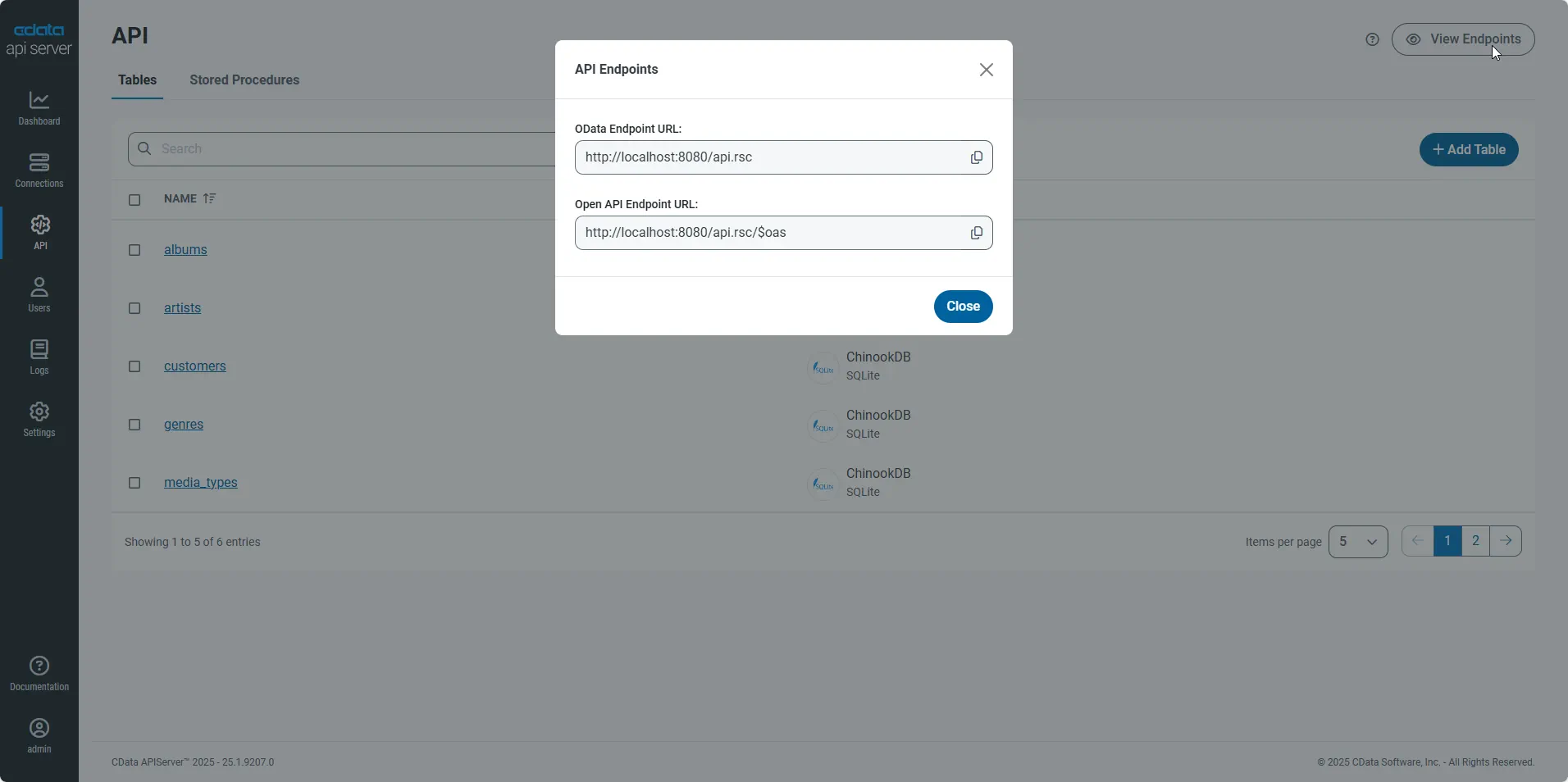
Having configured a connection to Kintone data, created a user, and added resources to the API Server, you now have an easily accessible REST API based on the OData protocol for those resources. From the API page in API Server, you can view and copy the API Endpoints for the API:
Create Data Visualizations on External Kintone Data
- Open Spotfire and click Add Data Tables -> OData.
- In the OData Connection dialog, enter the following information:
- Service URL: Enter the API Server's OData endpoint. For example:
http://localhost:8080/api.rsc
- Authentication Method: Select Username and Password.
- Username: Enter the username of an API Server user. You can create API users on the Security tab of the administration console.
- Password: Enter the authtoken of an API Server user.
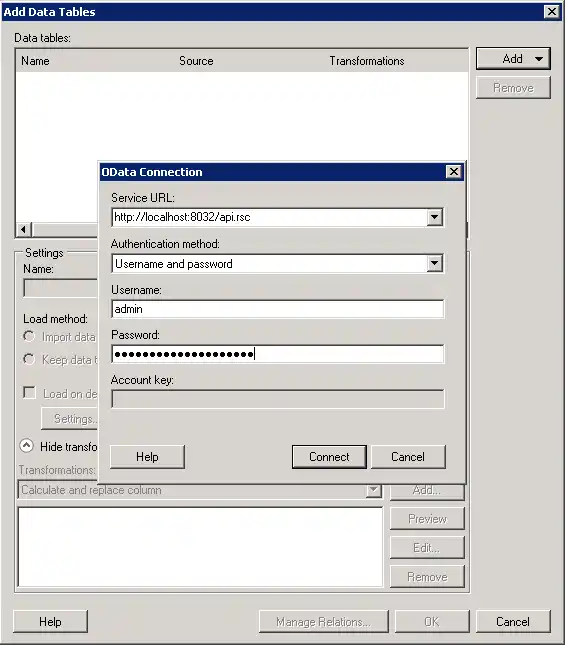
- Service URL: Enter the API Server's OData endpoint. For example:
- Select the tables and columns you want to add to the dashboard. This example uses Comments.
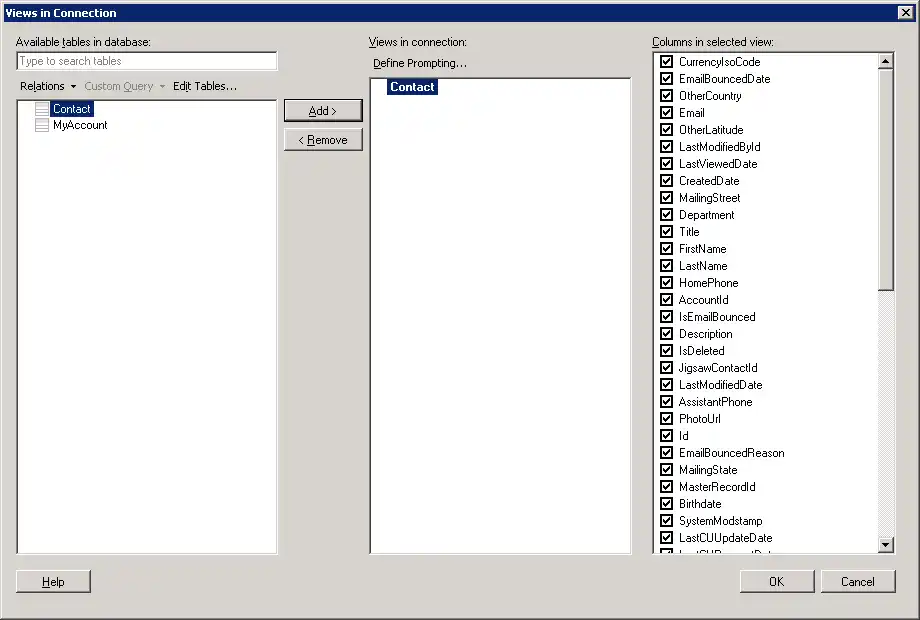
- If you want to work with the live data, click the Keep Data Table External option. This option enables your dashboards to reflect changes to the data in real time.
If you want to load the data into memory and process the data locally, click the Import Data Table option. This option is better for offline use or if a slow network connection is making your dashboard less interactive.
- After adding tables, the Recommended Visualizations wizard is displayed. When you select a table, Spotfire uses the column data types to detect number, time, and category columns. This example uses Text in the Numbers section and CreatorName in the Categories section.
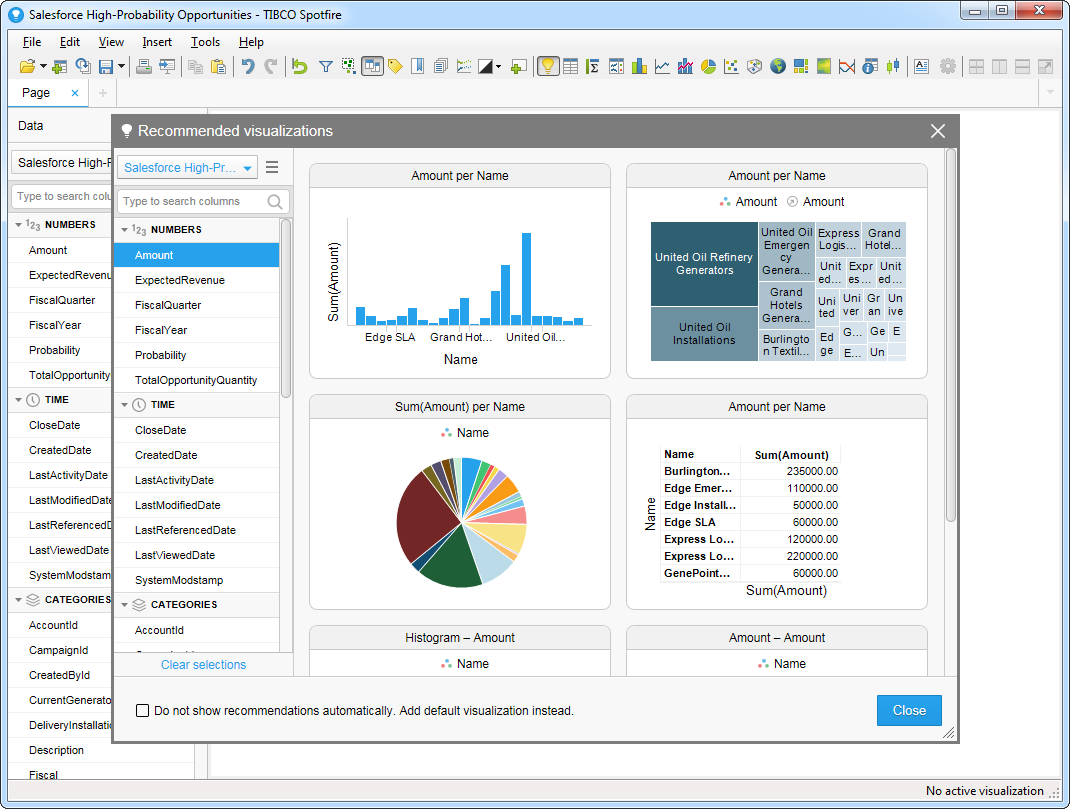
After adding several visualizations in the Recommended Visualizations wizard, you can make other modifications to the dashboard. For example, you can apply a filter: After clicking the Filter button, the available filters for each query are displayed in the Filters pane.
