
Model Context Protocol (MCP) finally gives AI models a way to access the business data needed to make them really useful at work. CData MCP Servers have the depth and performance to make sure AI has access to all of the answers.
Try them now for free →


Extend Google Sheets with Odoo Data
Make calls to the API Server from Google Apps Script.
Interact with Odoo data from Google Sheets through macros, custom functions, and add-ons. The CData API Server enables connectivity to Odoo data from cloud-based and mobile applications like Google Sheets. The API Server is a lightweight Web application that produces OData services for Odoo.
Google Apps Script can consume these OData services in the JSON format. This article shows how to create a simple add-on that populates a Google Spreadsheet with res_users data and, as you make changes, executes updates to Odoo data.
About Odoo Data Integration
Accessing and integrating live data from Odoo has never been easier with CData. Customers rely on CData connectivity to:
- Access live data from both Odoo API 8.0+ and Odoo.sh Cloud ERP.
-
Extend the native Odoo features with intelligent handling of many-to-one, one-to-many, and many-to-many data properties. CData's connectivity solutions also intelligently handle complex data properties within Odoo. In addition to columns with simple values like text and dates, there are also columns that contain multiple values on each row. The driver decodes these kinds of values differently, depending upon the type of column the value comes from:
- Many-to-one columns are references to a single row within another model. Within CData solutions, many-to-one columns are represented as integers, whose value is the ID to which they refer in the other model.
- Many-to-many columns are references to many rows within another model. Within CData solutions, many-to-many columns are represented as text containing a comma-separated list of integers. Each value in that list is the ID of a row that is being referenced.
- One-to-many columns are references to many rows within another model - they are similar to many-to-many columns (comma-separated lists of integers), except that each row in the referenced model must belong to only one in the main model.
- Use SQL stored procedures to call server-side RFCs within Odoo.
Users frequently integrate Odoo with analytics tools such as Power BI and Qlik Sense, and leverage our tools to replicate Odoo data to databases or data warehouses.
Getting Started
Set Up the API Server
If you have not already done so, download the CData API Server. Once you have installed the API Server, follow the steps below to begin producing secure Odoo OData services:
Connect to Odoo
To work with Odoo data from Google Sheets, we start by creating and configuring a Odoo connection. Follow the steps below to configure the API Server to connect to Odoo data:
- First, navigate to the Connections page.
-
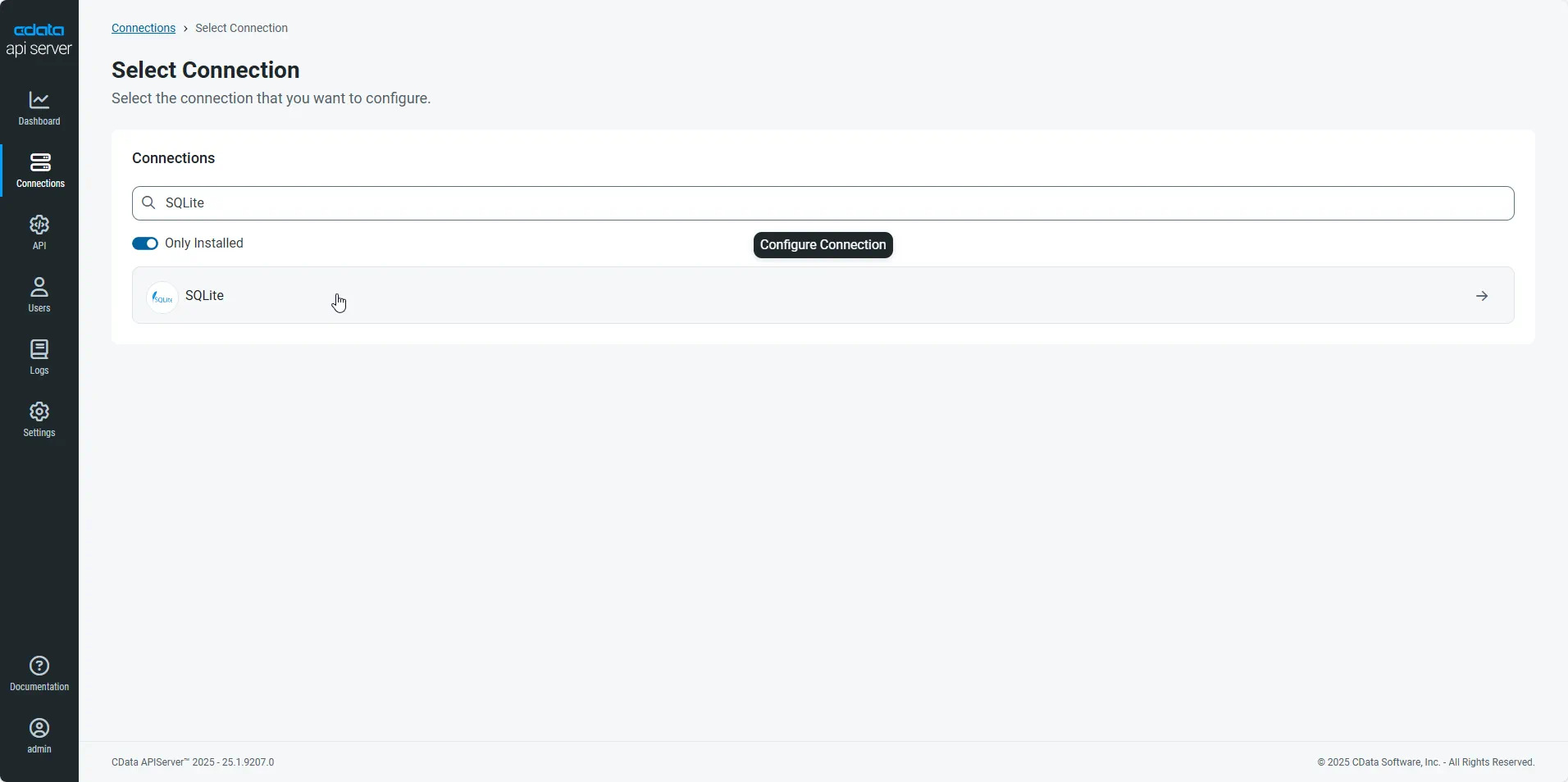
Click Add Connection and then search for and select the Odoo connection.
-
Enter the necessary authentication properties to connect to Odoo.
To connect, set the Url to a valid Odoo site, User and Password to the connection details of the user you are connecting with, and Database to the Odoo database.
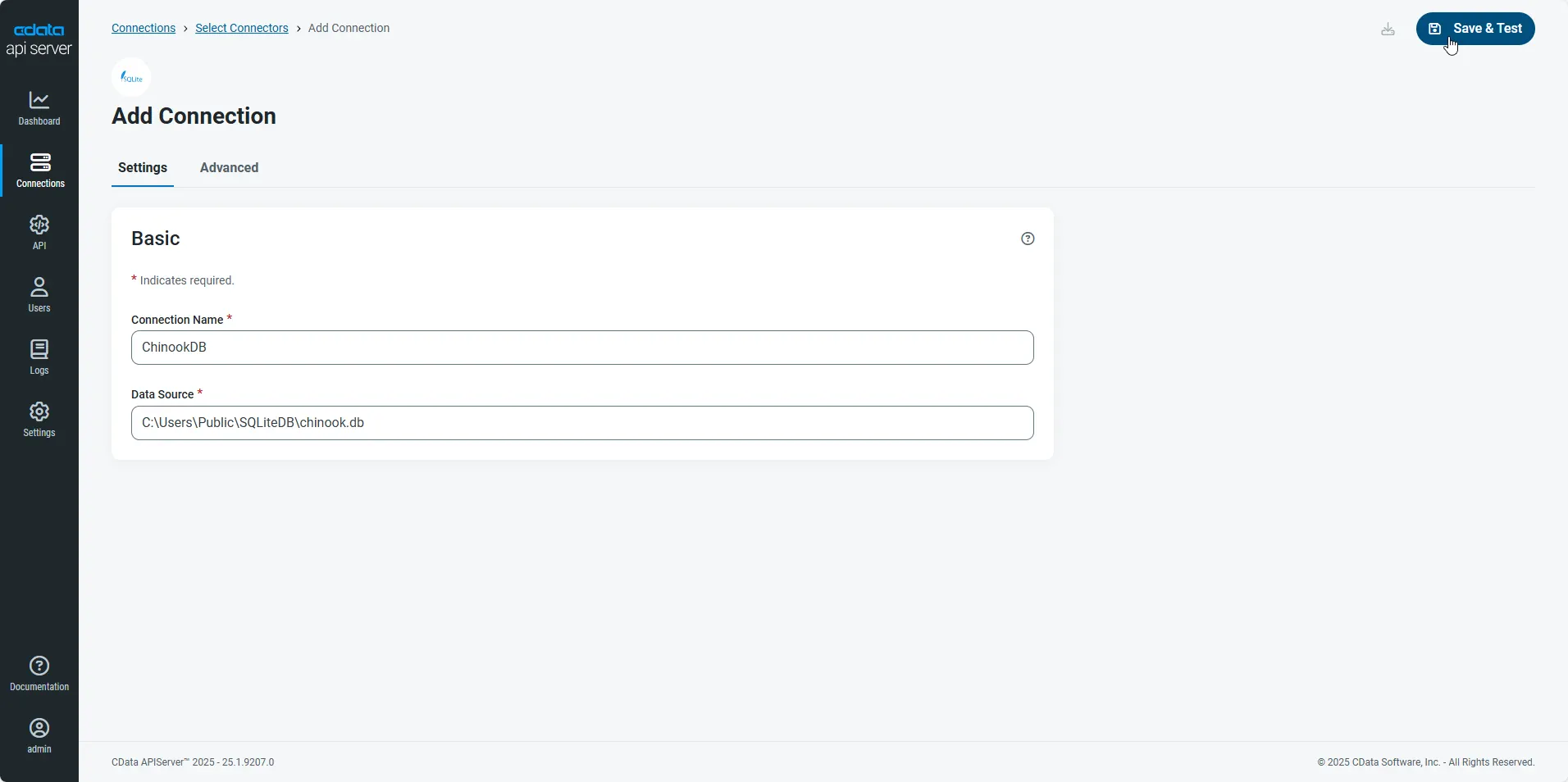
- After configuring the connection, click Save & Test to confirm a successful connection.
Configure API Server Users
Next, create a user to access your Odoo data through the API Server. You can add and configure users on the Users page. Follow the steps below to configure and create a user:
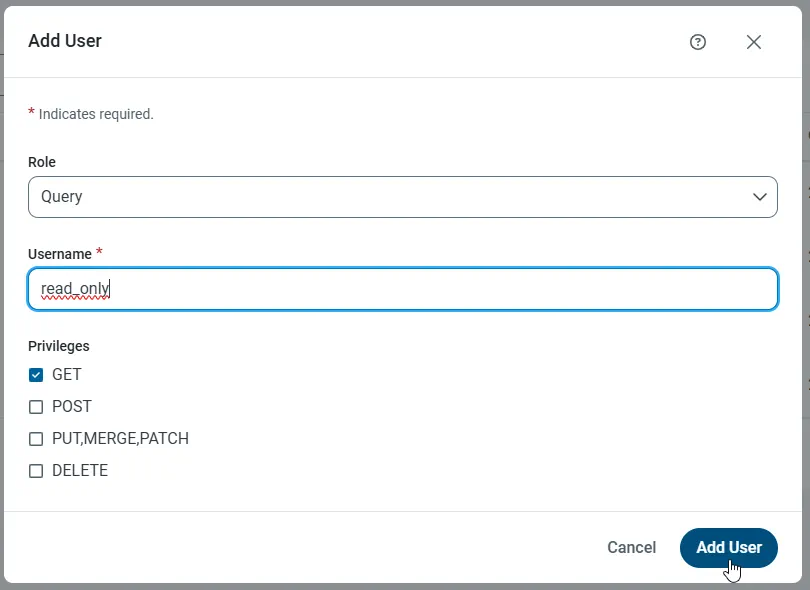
- On the Users page, click Add User to open the Add User dialog.
-
Next, set the Role, Username, and Privileges properties and then click Add User.
-
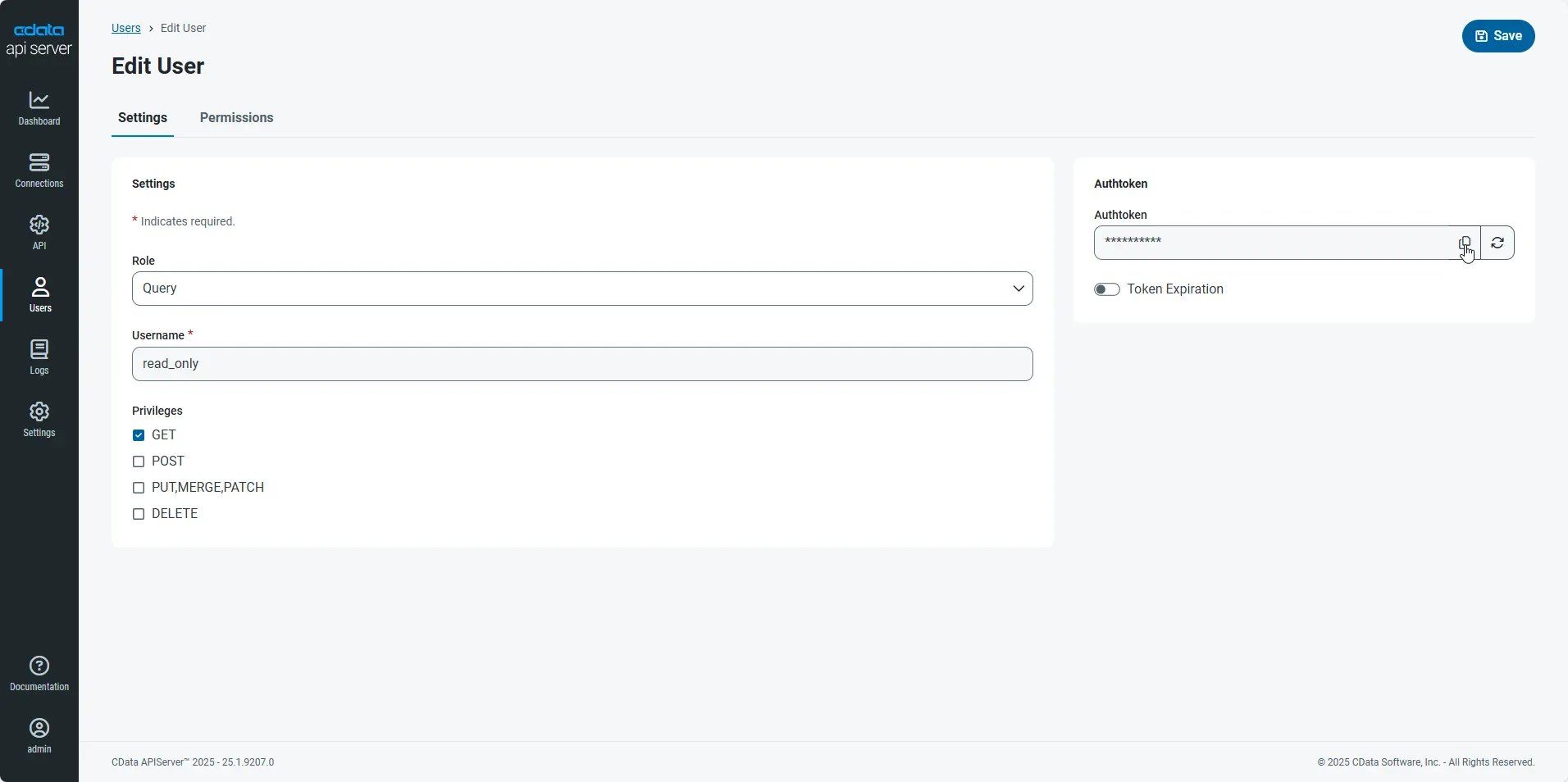
An Authtoken is then generated for the user. You can find the Authtoken and other information for each user on the Users page:
Creating API Endpoints for Odoo
Having created a user, you are ready to create API endpoints for the Odoo tables:
-
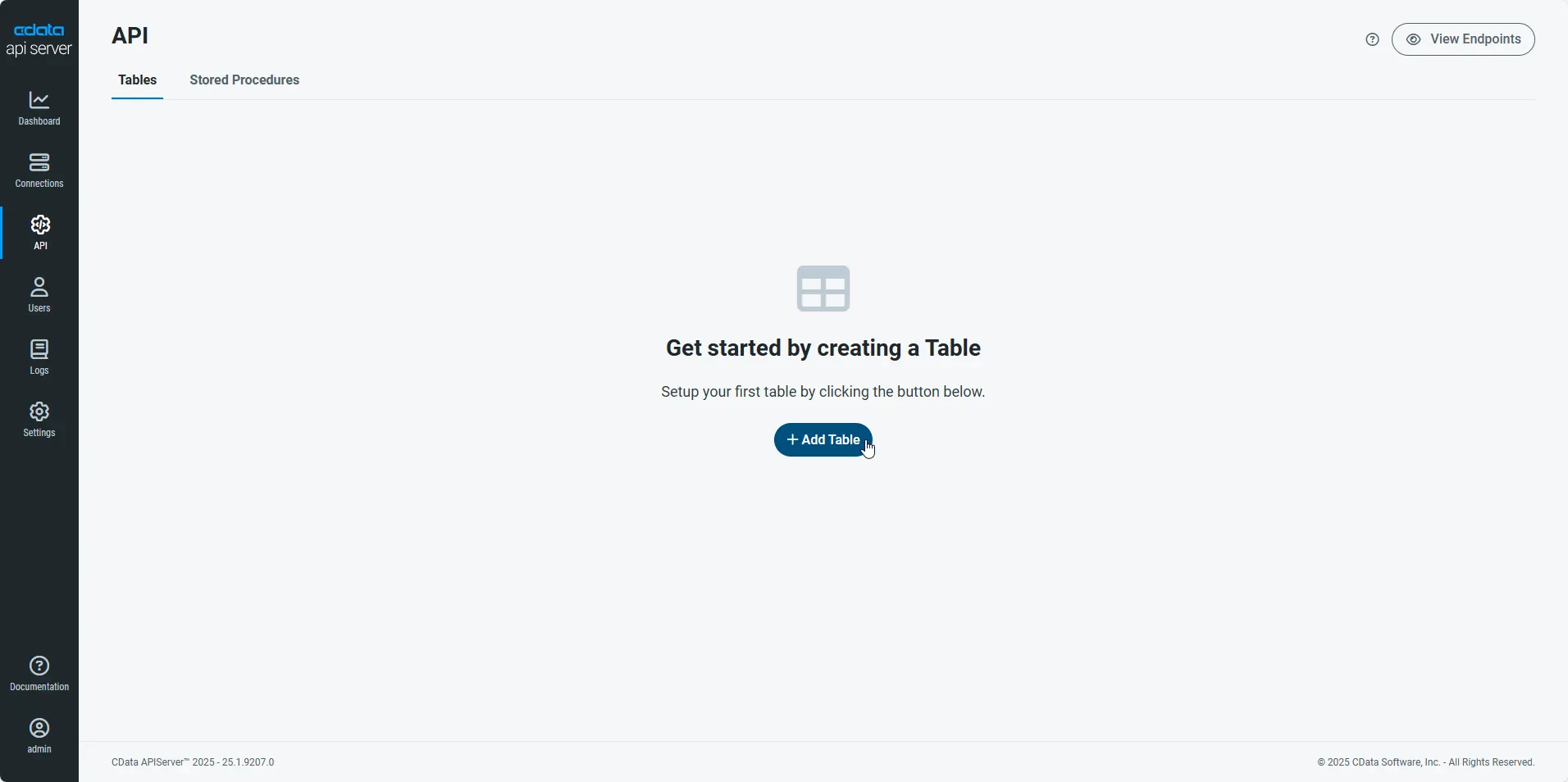
First, navigate to the API page and then click
Add Table
.
-
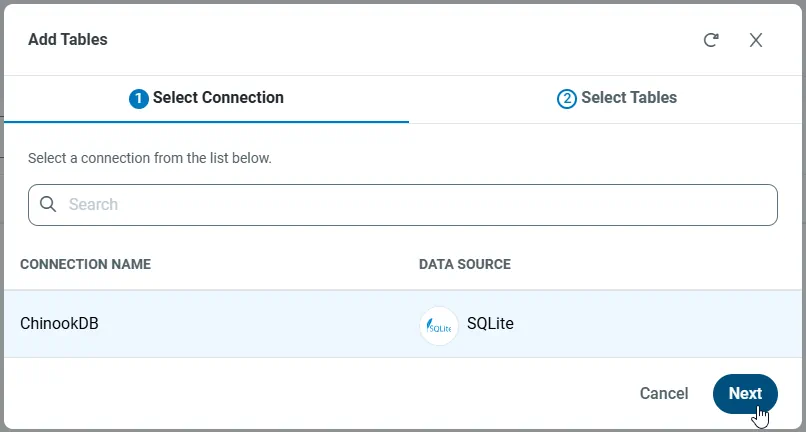
Select the connection you wish to access and click Next.
-
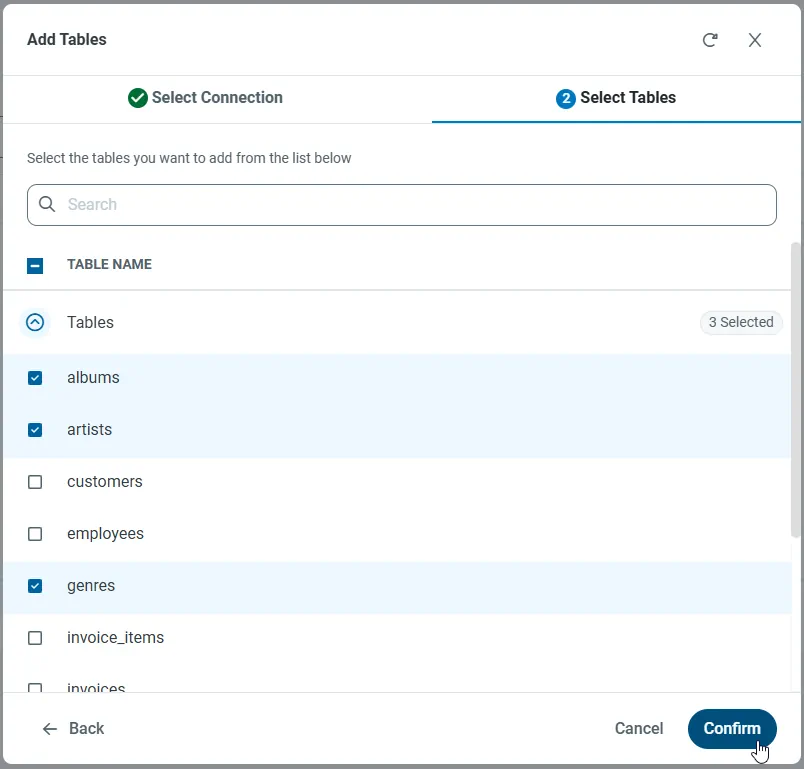
With the connection selected, create endpoints by selecting each table and then clicking Confirm.
Gather the OData Url
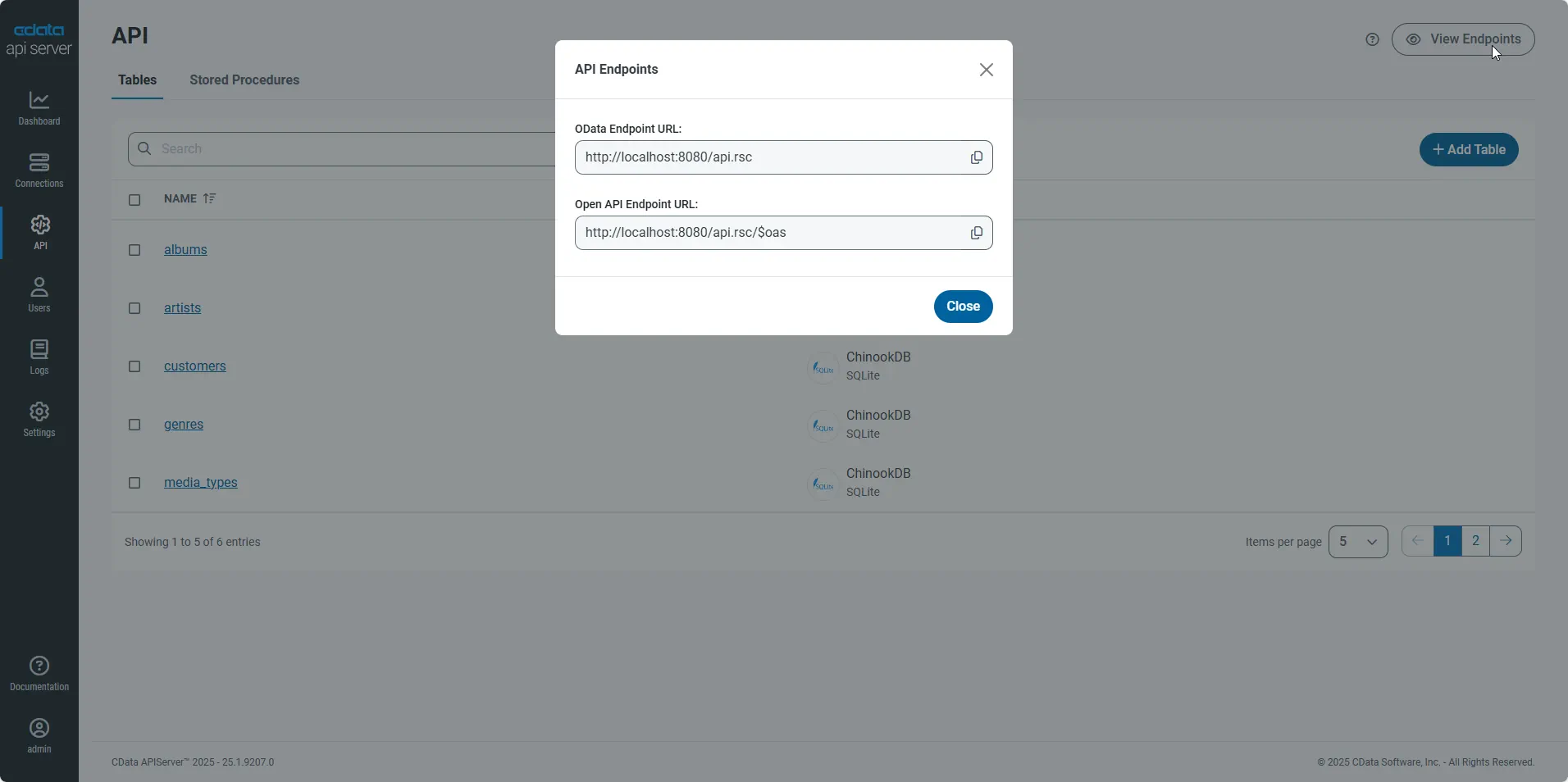
Having configured a connection to Odoo data, created a user, and added resources to the API Server, you now have an easily accessible REST API based on the OData protocol for those resources. From the API page in API Server, you can view and copy the API Endpoints for the API:
Retrieve Odoo Data
Open the Script Editor from your spreadsheet by clicking Tools -> Script Editor. In the Script Editor, add the following function to populate a spreadsheet with the results of an OData query:
function retrieve(){
  var url = "https://MyUrl/api.rsc/res_users?select=Id,name,email,id";
  var response = UrlFetchApp.fetch(url,{
    headers: {"Authorization": "Basic " + Utilities.base64Encode("MyUser:MyAuthtoken")}
  });
  var json = response.getContentText();
  var sheet = SpreadsheetApp.getActiveSheet();
  var a1 = sheet.getRange('a1');
  var index=1;
  var res_users = JSON.parse(json).value;

  var cols = [["Id","name","email","id"]];
  sheet.getRange(1,1,1,4).setValues(cols);

  row=2;
  for(var i in res_users){
    for (var j in res_users[i]) {
      switch (j) {
        case "Id":
          a1.offset(row,0).setValue(account[i][j]);
          break;
        case "name":
          a1.offset(row,1).setValue(account[i][j]);
          break;
        case "email":
          a1.offset(row,2).setValue(account[i][j]);
          break;
        case "id":
          a1.offset(row,3).setValue(account[i][j]);
          break;
      }
    }
    row++;
  }
}
Follow the steps below to add an installable trigger to populate the spreadsheet when opened:
- Click Resources -> Current Project's Triggers -> Add a New Trigger.
- Select retrieve in the Run menu.
- Select From Spreadsheet.
- Select On open.
After closing the dialog, you are prompted to allow access to the application.
Post Changes to Odoo Data
Add the following function to post changes to cells back to the API Server:
function buildReq(e){
  var sheet = SpreadsheetApp.getActiveSheet();
  var changes = e.range;
  var id = sheet.getRange(changes.getRow(),1).getValue();
  var col = sheet.getRange(1,changes.getColumn()).getValue();

  var url = "http://MyServer/api.rsc/res_users("+id+")";
  var putdata = "{\"@odata.type\" : \"CDataAPI.res_users\",  \""+col+"\": \""+changes.getValue()+"\"}";;
  UrlFetchApp.fetch(url,{
    method: "put",
    contentType: "application/json",
    payload: putdata,
    headers: {"Authorization": "Basic " + Utilities.base64Encode("MyUser:MyAuthtoken")}
  });

}
Follow the steps below to add the update trigger:
- Click Resources -> Current Project's Triggers.
- Select buildReq in the Run menu.
- Select From Spreadsheet.
- Select On edit.
You can test the script by clicking Publish -> Test as Add-On. Select the version, installation type, and spreadsheet to create a test configuration. You can then select and run the test configuration.
As you make changes to cells, the API Server executes updates to Odoo data.
