
Model Context Protocol (MCP) finally gives AI models a way to access the business data needed to make them really useful at work. CData MCP Servers have the depth and performance to make sure AI has access to all of the answers.
Try them now for free →


Build a PostgreSQL Interface for Presto Data using the CData JDBC Driver
Use the Remoting features of the Presto JDBC Driver to create a PostgreSQL entry-point for data access.
There are a vast number of PostgreSQL clients available on the Internet. From standard Drivers to BI and Analytics tools, PostgreSQL is a popular interface for data access. Using our JDBC Drivers, you can now create PostgreSQL entry-points that you can connect to from any standard client.
To access Presto data as a PostgreSQL database, use the CData JDBC Driver for Presto and a JDBC foreign data wrapper (FDW). In this article, we compile the FDW, install it, and query Presto data from PostgreSQL Server.
About Presto Data Integration
Accessing and integrating live data from Trino and Presto SQL engines has never been easier with CData. Customers rely on CData connectivity to:
- Access data from Trino v345 and above (formerly PrestoSQL) and Presto v0.242 and above (formerly PrestoDB)
- Read and write access all of the data underlying your Trino or Presto instances
- Optimized query generation for maximum throughput.
Presto and Trino allow users to access a variety of underlying data sources through a single endpoint. When paired with CData connectivity, users get pure, SQL-92 access to their instances, allowing them to integrate business data with a data warehouse or easily access live data directly from their preferred tools, like Power BI and Tableau.
In many cases, CData's live connectivity surpasses the native import functionality available in tools. One customer was unable to effectively use Power BI due to the size of the datasets needed for reporting. When the company implemented the CData Power BI Connector for Presto they were able to generate reports in real-time using the DirectQuery connection mode.
Getting Started
Connect to Presto Data as a JDBC Data Source
To connect to Presto as a JDBC data source, you will need the following:
- Driver JAR path: The JAR is located in the lib subfolder of the installation directory.
Driver class:
cdata.jdbc.presto.PrestoDriver
- JDBC URL:
The URL must start with "jdbc:presto:" and can include any of the connection properties in name-value pairs separated with semicolons.
Set the Server and Port connection properties to connect, in addition to any authentication properties that may be required.
To enable TLS/SSL, set UseSSL to true.
Authenticating with LDAP
In order to authenticate with LDAP, set the following connection properties:
- AuthScheme: Set this to LDAP.
- User: The username being authenticated with in LDAP.
- Password: The password associated with the User you are authenticating against LDAP with.
Authenticating with Kerberos
In order to authenticate with KERBEROS, set the following connection properties:
- AuthScheme: Set this to KERBEROS.
- KerberosKDC: The Kerberos Key Distribution Center (KDC) service used to authenticate the user.
- KerberosRealm: The Kerberos Realm used to authenticate the user with.
- KerberosSPN: The Service Principal Name for the Kerberos Domain Controller.
- KerberosKeytabFile: The Keytab file containing your pairs of Kerberos principals and encrypted keys.
- User: The user who is authenticating to Kerberos.
- Password: The password used to authenticate to Kerberos.
Built-in Connection String Designer
For assistance in constructing the JDBC URL, use the connection string designer built into the Presto JDBC Driver. Either double-click the JAR file or execute the jar file from the command-line.
java -jar cdata.jdbc.presto.jar
Fill in the connection properties and copy the connection string to the clipboard.
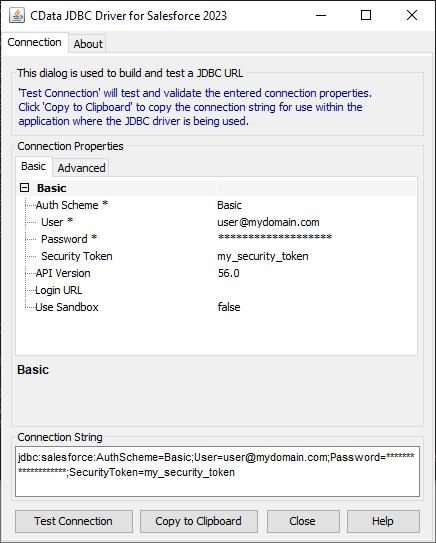
A typical JDBC URL is below:
jdbc:presto:Server=127.0.0.1;Port=8080;
Build the JDBC Foreign Data Wrapper
The Foreign Data Wrapper can be installed as an extension to PostgreSQL, without recompiling PostgreSQL. The jdbc2_fdw extension is used as an example (downloadable here).
- Add a symlink from the shared object for your version of the JRE to /usr/lib/libjvm.so. For example:
ln -s /usr/lib/jvm/java-6-openjdk/jre/lib/amd64/server/libjvm.so /usr/lib/libjvm.so
- Start the build:
make install USE_PGXS=1
Query Presto Data as a PostgreSQL Database
After you have installed the extension, follow the steps below to start executing queries to Presto data:
- Log into your database.
-
Load the extension for the database:
CREATE EXTENSION jdbc2_fdw;
-
Create a server object for Presto:
CREATE SERVER Presto
FOREIGN DATA WRAPPER jdbc2_fdw OPTIONS (
drivername 'cdata.jdbc.presto.PrestoDriver',
url 'jdbc:presto:Server=127.0.0.1;Port=8080;',
querytimeout '15',
jarfile '/home/MyUser/CData/CData\ JDBC\ Driver\ for\ Salesforce MyDriverEdition/lib/cdata.jdbc.presto.jar');
-
Create a user mapping for the username and password of a user known to the MySQL daemon.
CREATE USER MAPPING for postgres SERVER Presto OPTIONS (
username 'admin',
password 'test');
-
Create a foreign table in your local database:
postgres=# CREATE FOREIGN TABLE customer (
customer_id text,
customer_FirstName text,
customer_LastName numeric)
SERVER Presto OPTIONS (
table_name 'customer');
postgres=# SELECT * FROM customer;
Ready to get started?
Download a free trial of the Presto Driver to get started:
Download NowLearn more:
 Presto JDBC Driver
Rapidly create and deploy powerful Java applications that integrate with Presto.
