
Model Context Protocol (MCP) finally gives AI models a way to access the business data needed to make them really useful at work. CData MCP Servers have the depth and performance to make sure AI has access to all of the answers.
Try them now for free →


Replicate Multiple Presto Accounts
Replicate multiple Presto accounts to one or many databases.
CData Sync is a standalone application designed to support a variety of replication scenarios, such as replicating both sandbox and production instances into your database. It includes a web-based interface that simplifies the management of multiple Presto connections. In this article, we demonstrate how to use the web app to replicate multiple Presto accounts into a single database.
About Presto Data Integration
Accessing and integrating live data from Trino and Presto SQL engines has never been easier with CData. Customers rely on CData connectivity to:
- Access data from Trino v345 and above (formerly PrestoSQL) and Presto v0.242 and above (formerly PrestoDB)
- Read and write access all of the data underlying your Trino or Presto instances
- Optimized query generation for maximum throughput.
Presto and Trino allow users to access a variety of underlying data sources through a single endpoint. When paired with CData connectivity, users get pure, SQL-92 access to their instances, allowing them to integrate business data with a data warehouse or easily access live data directly from their preferred tools, like Power BI and Tableau.
In many cases, CData's live connectivity surpasses the native import functionality available in tools. One customer was unable to effectively use Power BI due to the size of the datasets needed for reporting. When the company implemented the CData Power BI Connector for Presto they were able to generate reports in real-time using the DirectQuery connection mode.
Getting Started
Configure Replication Destinations
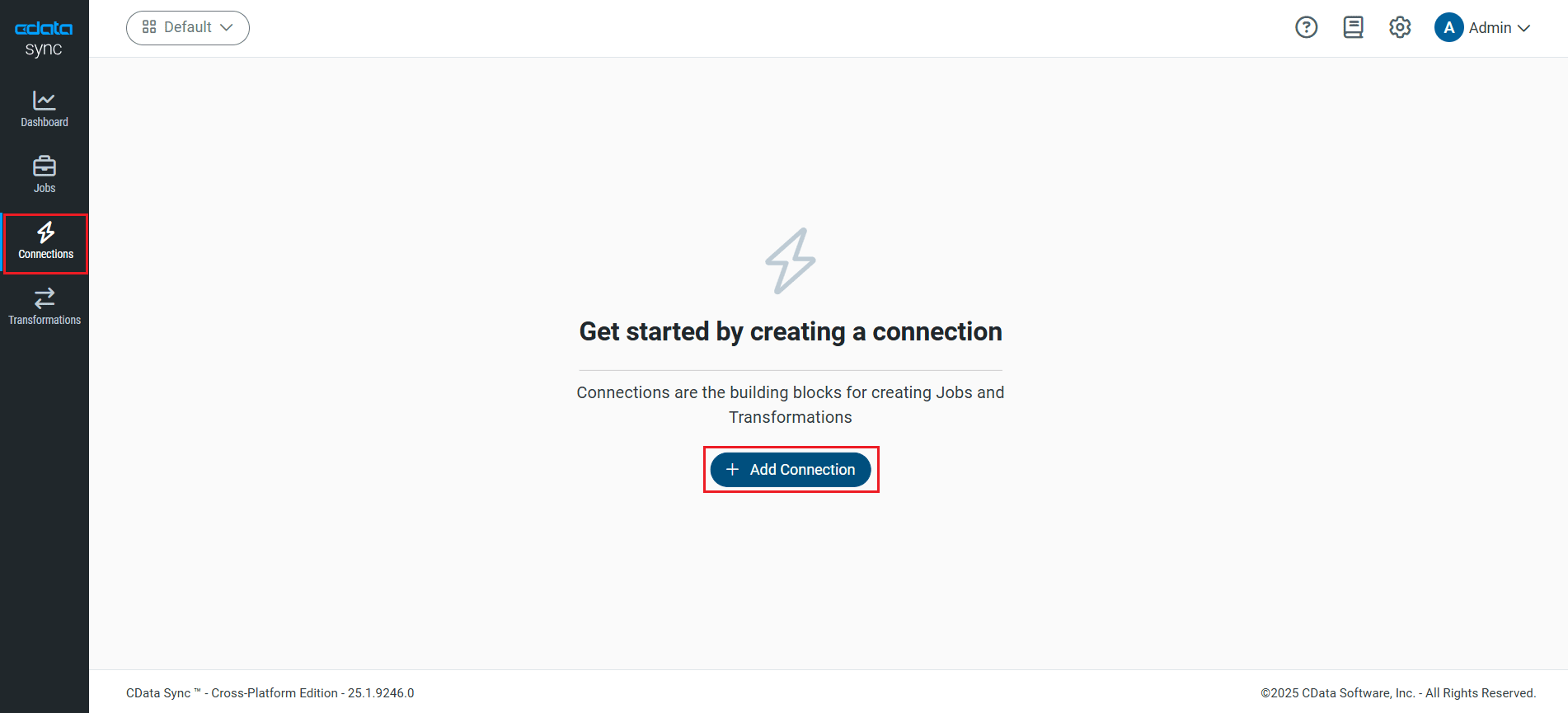
Using CData Sync, you can replicate data from Presto to any number of databases, both cloud-based and on-premises. In this example, we use SQLite as the replication destination to demonstrate the process. To add it as a destination, navigate to the Connections tab.
For each destination database:
- Click Add Connection.
- Select the Destinations tab and locate the SQLite connector.
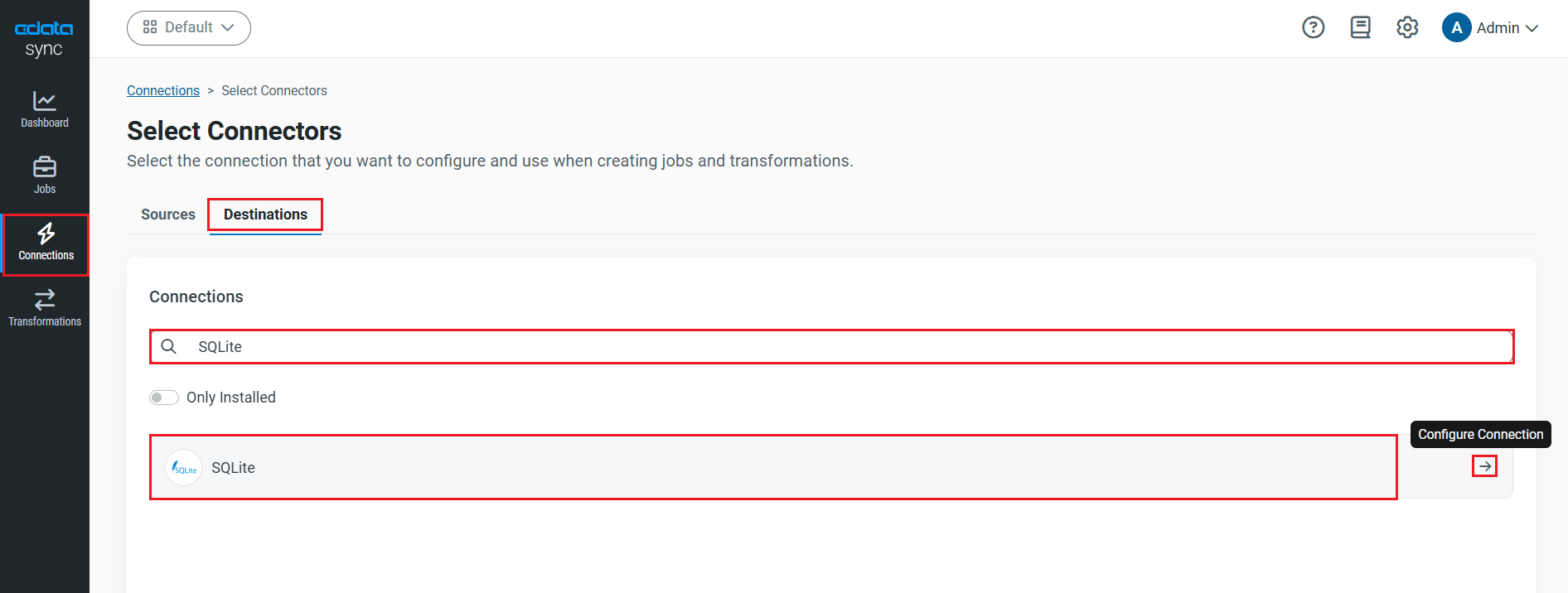
- Click the Configure Connection icon at the end of that row to open the New Connection page. If the Configure Connection icon is not available, click the Download Connector icon to install the SQLite connector. For more information about installing new connectors, see Connections in the Help documentation.
- To connect to SQLite, set the following connection properties:
- Connection Name: Enter a connection name of your choice.
- Data Source: Enter the path to the database. You can replicate to an existing database or to a new one. The application must have permission to access the database.
- Once connected, click Create & Test to create, test and save the connection.
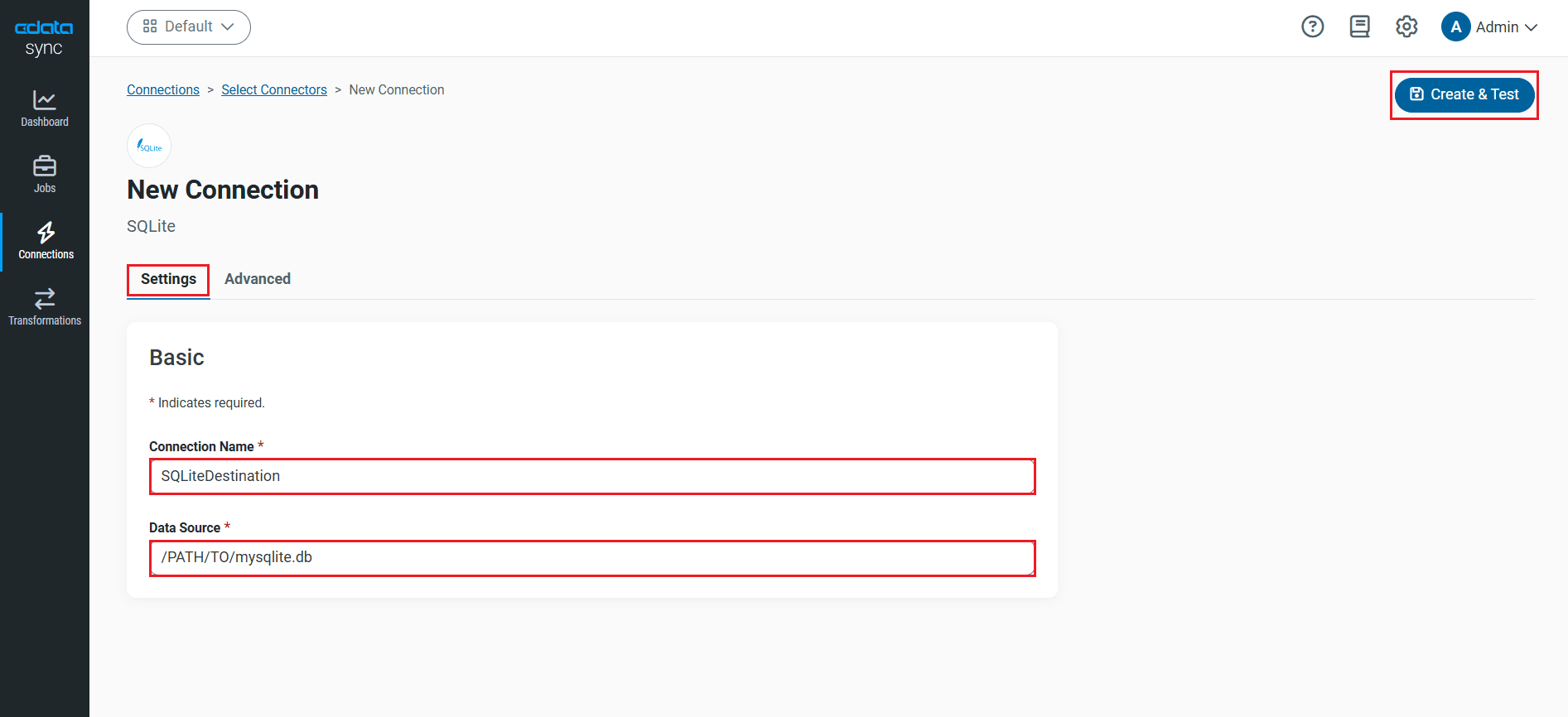
You are now connected to SQLite and can use it as both a source and a destination.
NOTE: You can use the Label feature to add a label for a source or a destination.
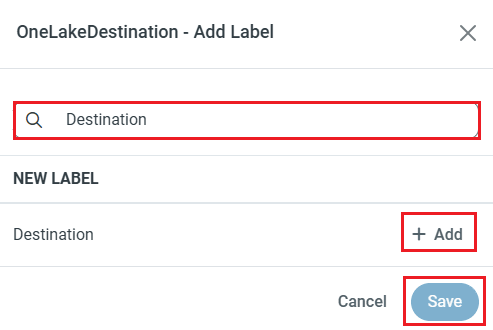
Configure the Presto Connection
You can configure a connection to Presto from the Connections tab. To add a connection to your Presto account, navigate to the Connections tab.
- Click Add Connection.
- Select a source (Presto).
- Configure the connection properties.
Set the Server and Port connection properties to connect, in addition to any authentication properties that may be required.
To enable TLS/SSL, set UseSSL to true.
Authenticating with LDAP
In order to authenticate with LDAP, set the following connection properties:
- AuthScheme: Set this to LDAP.
- User: The username being authenticated with in LDAP.
- Password: The password associated with the User you are authenticating against LDAP with.
Authenticating with Kerberos
In order to authenticate with KERBEROS, set the following connection properties:
- AuthScheme: Set this to KERBEROS.
- KerberosKDC: The Kerberos Key Distribution Center (KDC) service used to authenticate the user.
- KerberosRealm: The Kerberos Realm used to authenticate the user with.
- KerberosSPN: The Service Principal Name for the Kerberos Domain Controller.
- KerberosKeytabFile: The Keytab file containing your pairs of Kerberos principals and encrypted keys.
- User: The user who is authenticating to Kerberos.
- Password: The password used to authenticate to Kerberos.
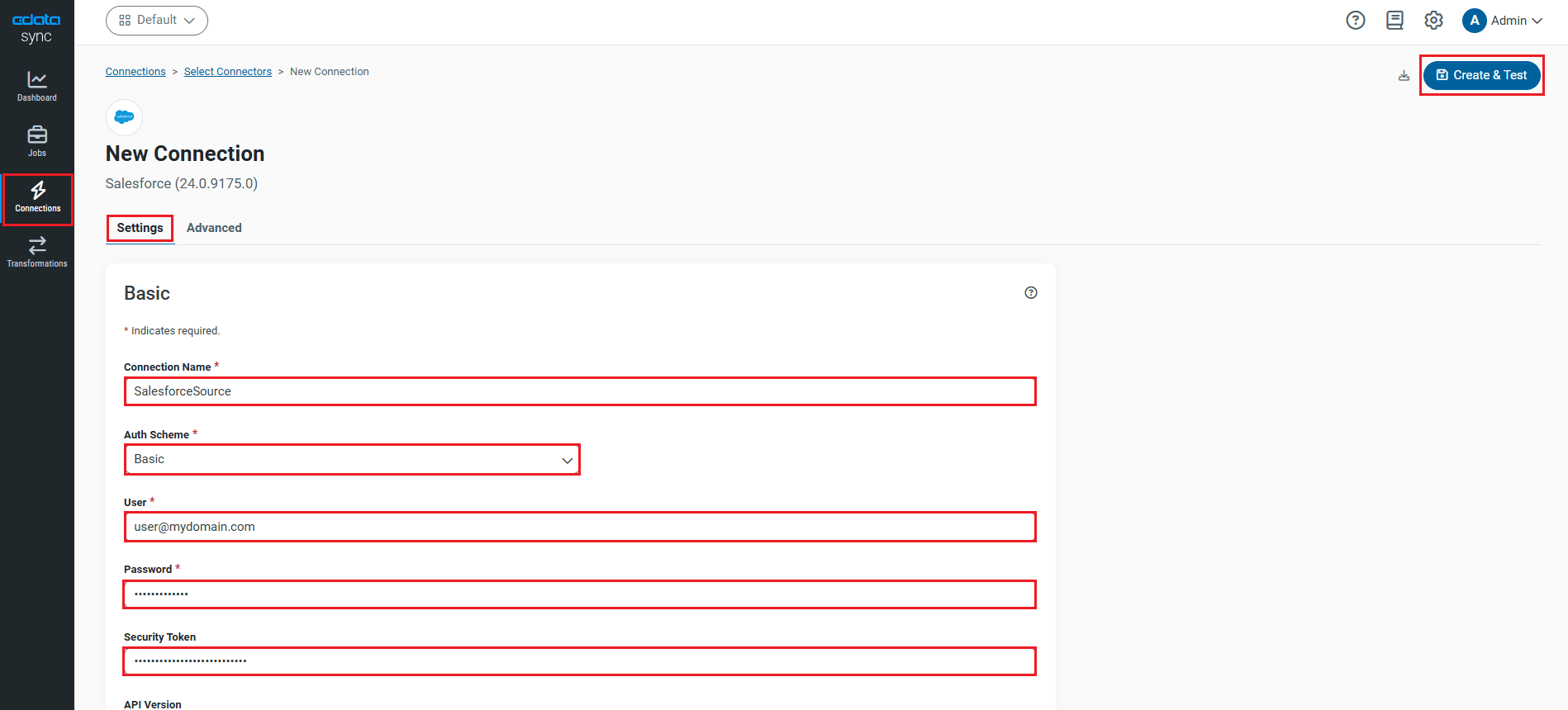
- Click Connect to Presto to ensure that the connection is configured properly.
- Click Save & Test to save the changes.
Configure Replication Queries
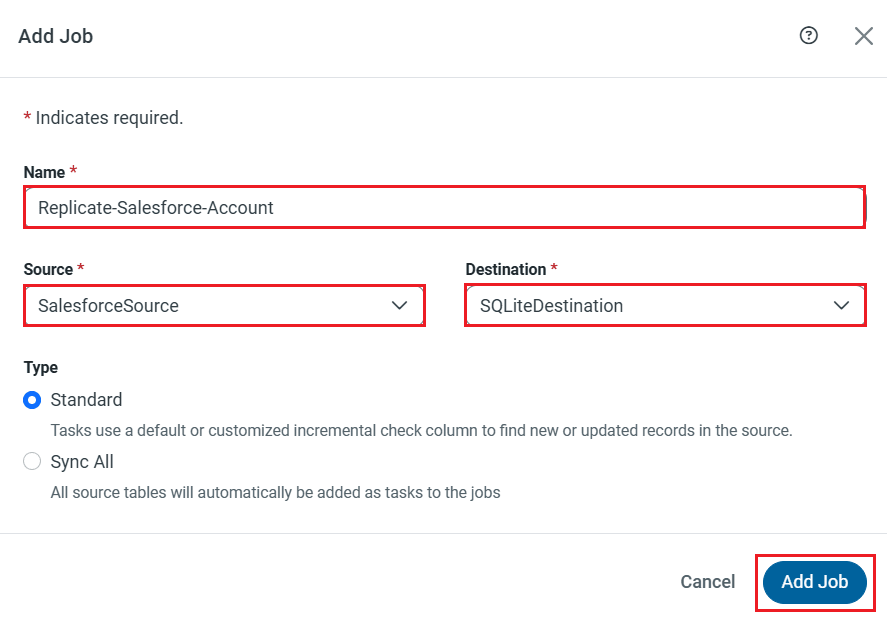
CData Sync enables you to control replication with a point-and-click interface and with SQL queries. For each replication you wish to configure, navigate to the Jobs tab and click Add Job. Select the Source and Destination for your replication.
Replicate Entire Tables
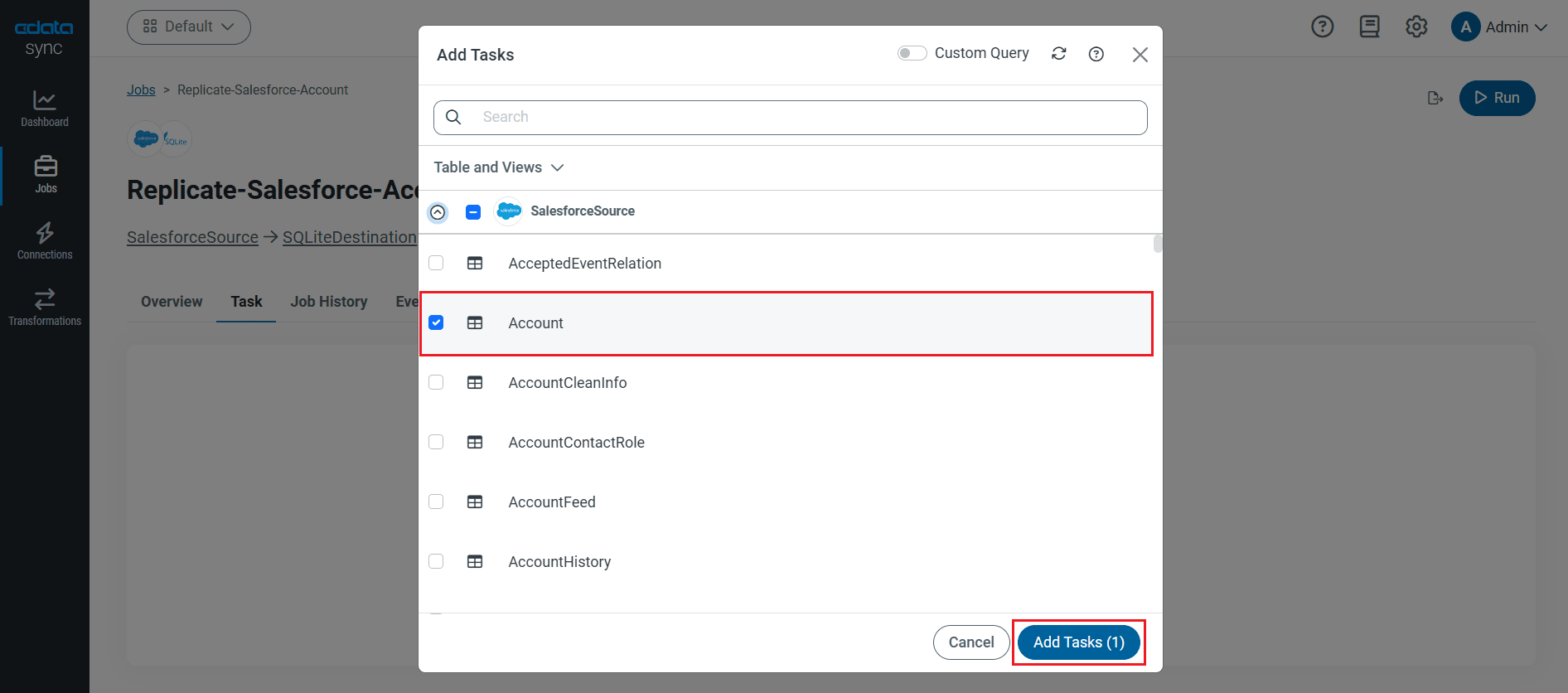
To replicate an entire table, navigate to the Task tab in the Job, click Add Tasks, choose the table(s) from the list of Presto tables you wish to replicate into SQLite, and click Add Tasks again.
Customize Your Replication
You can use the Columns and Query tabs of a task to customize your replication. The Columns tab allows you to specify which columns to replicate, rename the columns at the destination, and even perform operations on the source data before replicating. The Query tab allows you to add filters, grouping, and sorting to the replication with the help of SQL queries.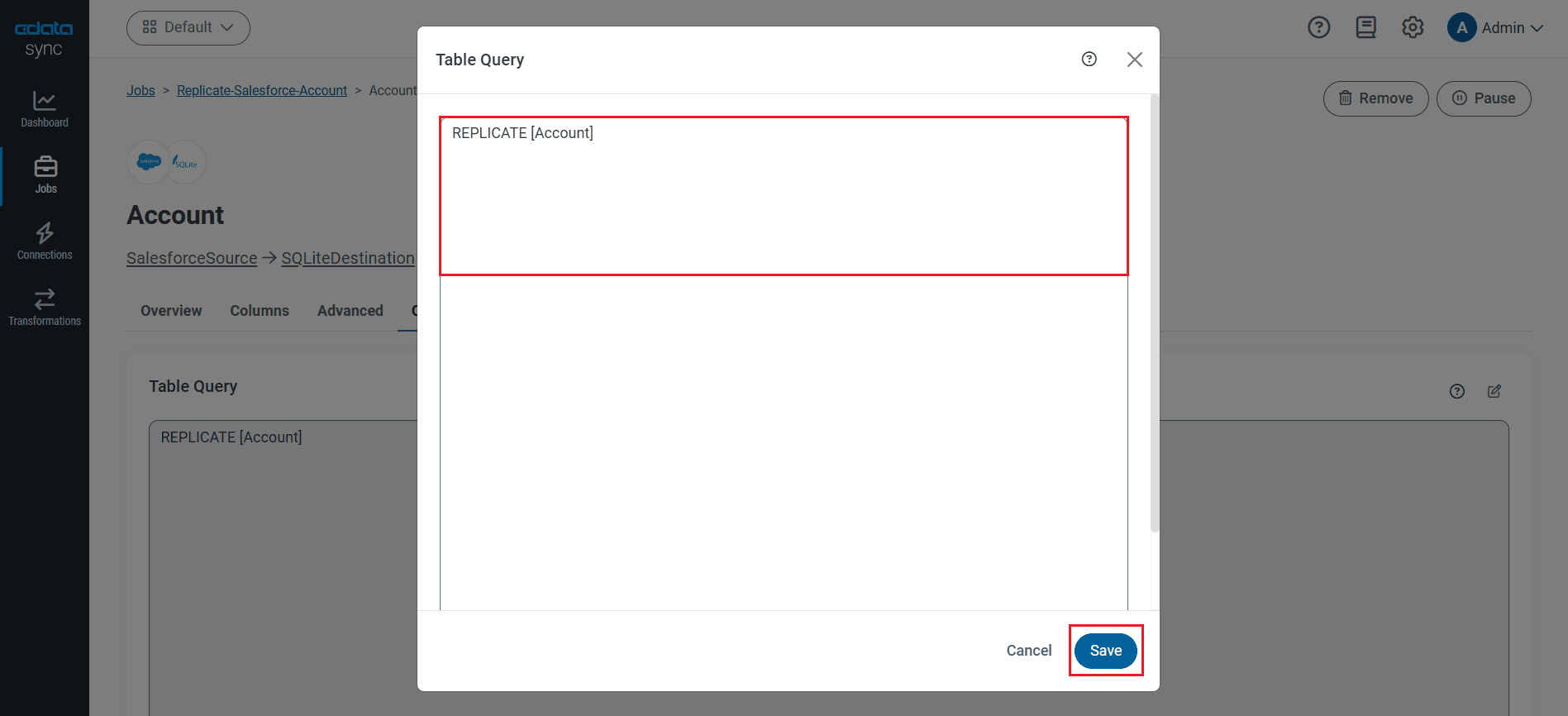
The statement below caches and incrementally updates a table of Presto data:
REPLICATE Customer;
You can specify a file containing the replication queries you want to use to update a particular database. Separate the replication statements with semicolons. The following options are useful when replicating multiple Presto accounts into the same database:
-
Use a different table prefix in the REPLICATE SELECT statement:
REPLICATE PROD_Customer SELECT * FROM Customer;
-
Alternatively, use a different schema:
REPLICATE PROD.Customer SELECT * FROM Customer;
Schedule Your Replication
Select the Overview tab in the Job, and click Configure under Schedule. You can schedule a job to run automatically by configuring it to run at specified intervals, ranging from once every 10 minutes to once every month.
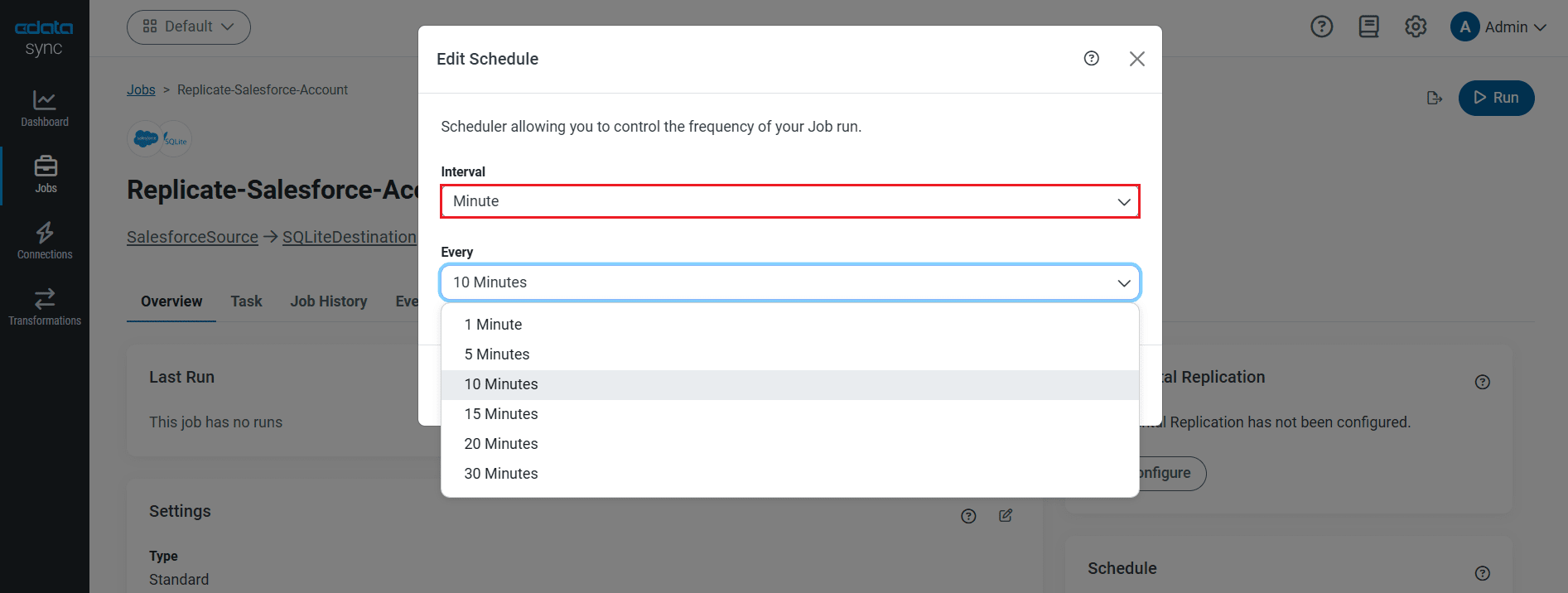
Once you have configured the replication job, click Save Changes. You can configure any number of jobs to manage the replication of your Presto data to disparate on-premises, cloud-based, and other databases.
Run the Replication Job
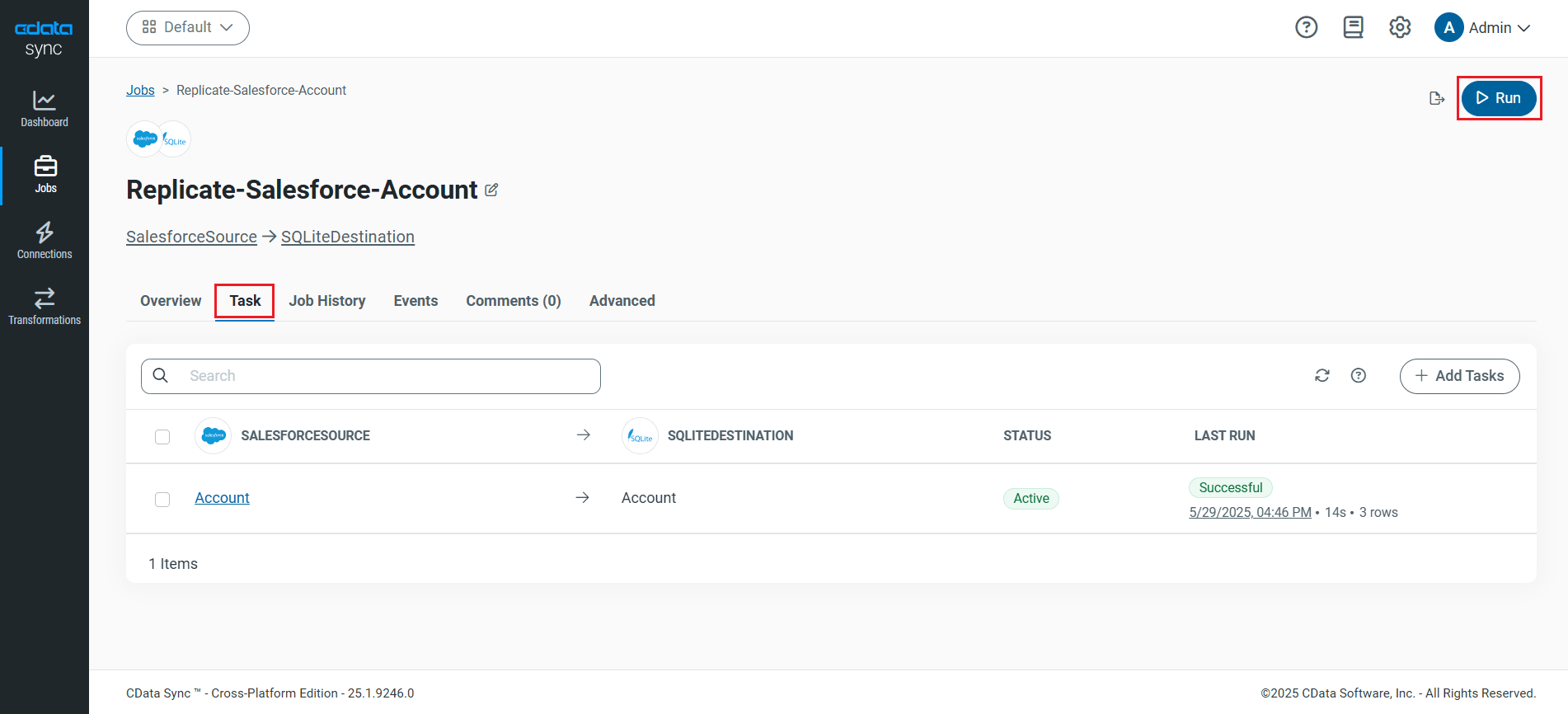
Once all the required configurations are made for the job, select the Presto table you wish to replicate and click Run. After the replication completes successfully, a notification appears, showing the time taken to run the job and the number of rows replicated.
Free Trial & More Information
Now that you've seen how to replicate and configure multiple jobs to manage the replication of your Presto data to various on-premises, cloud-based, and other databases, visit our CData Sync page to learn more and download a free 30-day trial. Start consolidating your enterprise data today!
As always, our world-class Support Team is ready to answer any questions you may have.
