
Model Context Protocol (MCP) finally gives AI models a way to access the business data needed to make them really useful at work. CData MCP Servers have the depth and performance to make sure AI has access to all of the answers.
Try them now for free →


Publish Presto-Connected Dashboards in Tableau Server
Use CData Tableau Connectors and Tableau Server to visualize live Presto data.
Tableau Server is a visual analytics platform transforming the way businesses use data to solve problems. When paired with the CData Tableau Connector for Presto, you get access to live Presto data within Tableau Server. This article shows how to connect to Presto in Tableau Desktop, publish a Data Source to Tableau Server, and build a simple chart from that data.
The CData Tableau Connectors enable high-speed access to live Presto data in Tableau Server. Once you install the connector, you simply authenticate with Presto and you can immediately start building responsive, dynamic visualizations and dashboards. By surfacing Presto data using native Tableau data types and handling complex filters, aggregations, & other operations automatically, CData Tableau Connectors grant seamless access to Presto data.
NOTE: The CData Tableau Connectors require Tableau 2020.3 or higher. If you are using an older version of Tableau, you will need to use the CData JDBC Driver. If you wish to connect to Presto data in Tableau Cloud, you will need to use CData Connect Cloud.
About Presto Data Integration
Accessing and integrating live data from Trino and Presto SQL engines has never been easier with CData. Customers rely on CData connectivity to:
- Access data from Trino v345 and above (formerly PrestoSQL) and Presto v0.242 and above (formerly PrestoDB)
- Read and write access all of the data underlying your Trino or Presto instances
- Optimized query generation for maximum throughput.
Presto and Trino allow users to access a variety of underlying data sources through a single endpoint. When paired with CData connectivity, users get pure, SQL-92 access to their instances, allowing them to integrate business data with a data warehouse or easily access live data directly from their preferred tools, like Power BI and Tableau.
In many cases, CData's live connectivity surpasses the native import functionality available in tools. One customer was unable to effectively use Power BI due to the size of the datasets needed for reporting. When the company implemented the CData Power BI Connector for Presto they were able to generate reports in real-time using the DirectQuery connection mode.
Getting Started
Enable Connectivity to Presto in Tableau Server
Start by installing the CData Tableau Connector on the machine hosting Tableau Server.
Installation on a Linux Machine:
- Unpack the setup.zip archive. Creating a directory for the connector like /opt/cdata/presto is recommended, but the exact install location does not matter.
- Navigate to the lib subdirectory under the install directory. Generate a license file by running this command and following the prompts:
java -jar cdata.tableau.presto.jar -l
- Copy cdata.tableau.presto.jar and cdata.tableau.presto.lic into the drivers directory, /opt/tableau/tableau_driver/jdbc.
- Copy cdata.presto.taco into the connectors directory, MyTableauServerRootDir/data/tabsvc/vizqlserver/Connectors. In most cases MyTableauServerRootDir is located at /var/opt/tableau/tableau_server.
- Restart Tableau Server.
If you cannot execute the java commmand from step 2, you will need to install a Java runtime environment. The name of this package differs on Red Hat-based and Debian-based systems:
| OS | Java Package |
|---|---|
| Ubuntu | openjdk-8-jre-headless |
| Debian | openjdk-8-jre-headless |
| RHEL | java-1.8.0-openjdk |
| CentOS | java-1.8.0-openjdk |
| Fedora | java-1.8.0-openjdk |
| SUSE | java-1_8_0-openjdk |
You can substitute Java 8 with a later Java release as needed.
Installation on a Windows Machine:
- Run the setup.exe installer. The driver JAR file will be automatically placed in the drivers directory, C:\Program Files\Tableau\Drivers.
- Navigate to the lib folder under the installation directory. By default the installation directory is a folder in C:\Program Files\CData.
- Copy cdata.tableau.presto.lic into the drivers directory.
- Copy cdata.tableau.presto.taco into the connectors directory, MyTableauServerRootDir/data/tabsvc/vizqlserver/Connectors. In most cases MyTableauServerRootDir is located under C:\ProgramData.
- Restart Tableau Server.
Connect to Presto in Tableau Desktop
Once the connectors are installed on the Server machine, we can configure a connection to Presto in Tableau Desktop and publish a Presto-based Data Source to Tableau Server.
- Open Tableau Desktop.
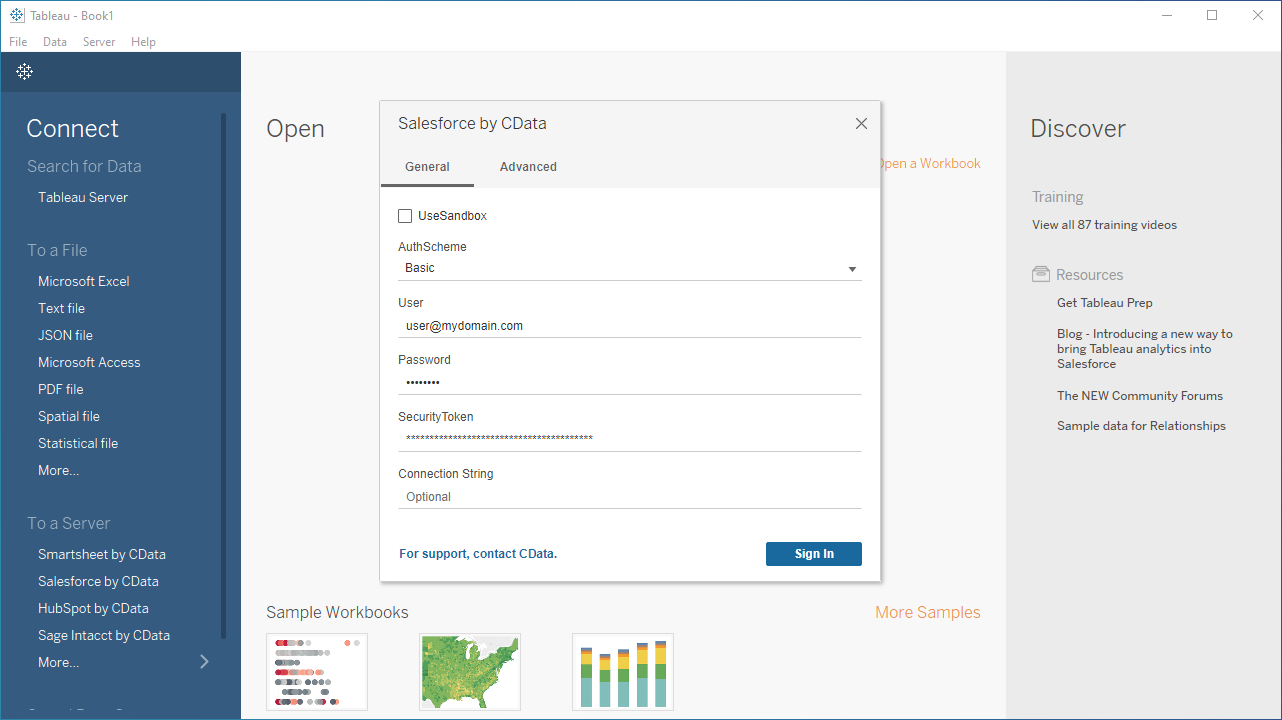
- Click More under Connect -> To a Server.
- Select "Presto by CData".
- Configure the connection to the data.
Set the Server and Port connection properties to connect, in addition to any authentication properties that may be required.
To enable TLS/SSL, set UseSSL to true.
Authenticating with LDAP
In order to authenticate with LDAP, set the following connection properties:
- AuthScheme: Set this to LDAP.
- User: The username being authenticated with in LDAP.
- Password: The password associated with the User you are authenticating against LDAP with.
Authenticating with Kerberos
In order to authenticate with KERBEROS, set the following connection properties:
- AuthScheme: Set this to KERBEROS.
- KerberosKDC: The Kerberos Key Distribution Center (KDC) service used to authenticate the user.
- KerberosRealm: The Kerberos Realm used to authenticate the user with.
- KerberosSPN: The Service Principal Name for the Kerberos Domain Controller.
- KerberosKeytabFile: The Keytab file containing your pairs of Kerberos principals and encrypted keys.
- User: The user who is authenticating to Kerberos.
- Password: The password used to authenticate to Kerberos.
- Click "Sign In".
Discover Schemas and Query Data
Once you establish the connection to Presto data, you can configure which entities to visualize.
- Select CData from the Database pull-down menu.
- Select Presto from the Schema pull-down menu.
- Drag the tables and views you wish to visualize onto the join area. You can include multiple tables.
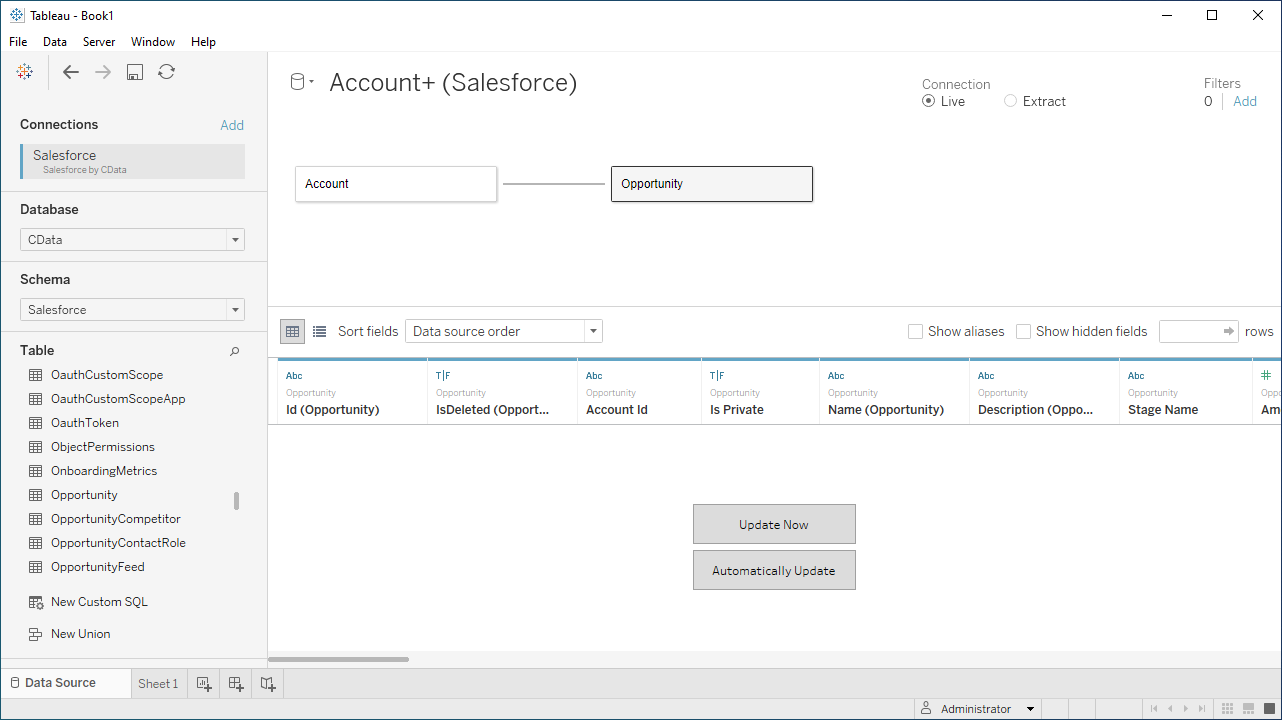
- Select Update Now or Automatically Update. Update Now lets you preview the first 10,000 rows of the data source (or enter the number of rows you want to see in the Rows text box). Automatically Update auto-loads the changes in the preview area.
Publish Data to Tableau Server
After you configure the data you wish to visualize, you can publish the Data Source to a Tableau Server instance. In Tableau Desktop:
- Click Server -> Sign In.
- Enter the URL for your Tableau Server.
- Authenticate with Tableau Server credentials.
- Click Server -> Publish Data Source and select your data source.
- Click Publish.
- Select the Project, name the Data Source, and optionally add a description.
- Click Publish.
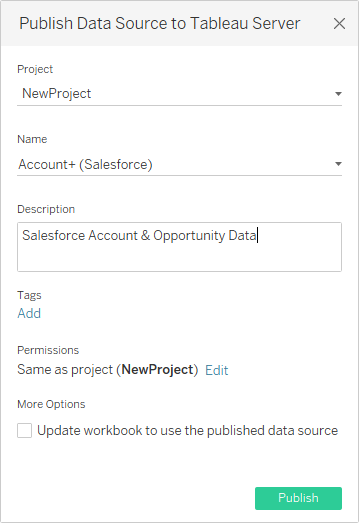
This creates a new entry under the server's data source list, from which you an change the data source's permissions, view its history, and perform other management tasks.
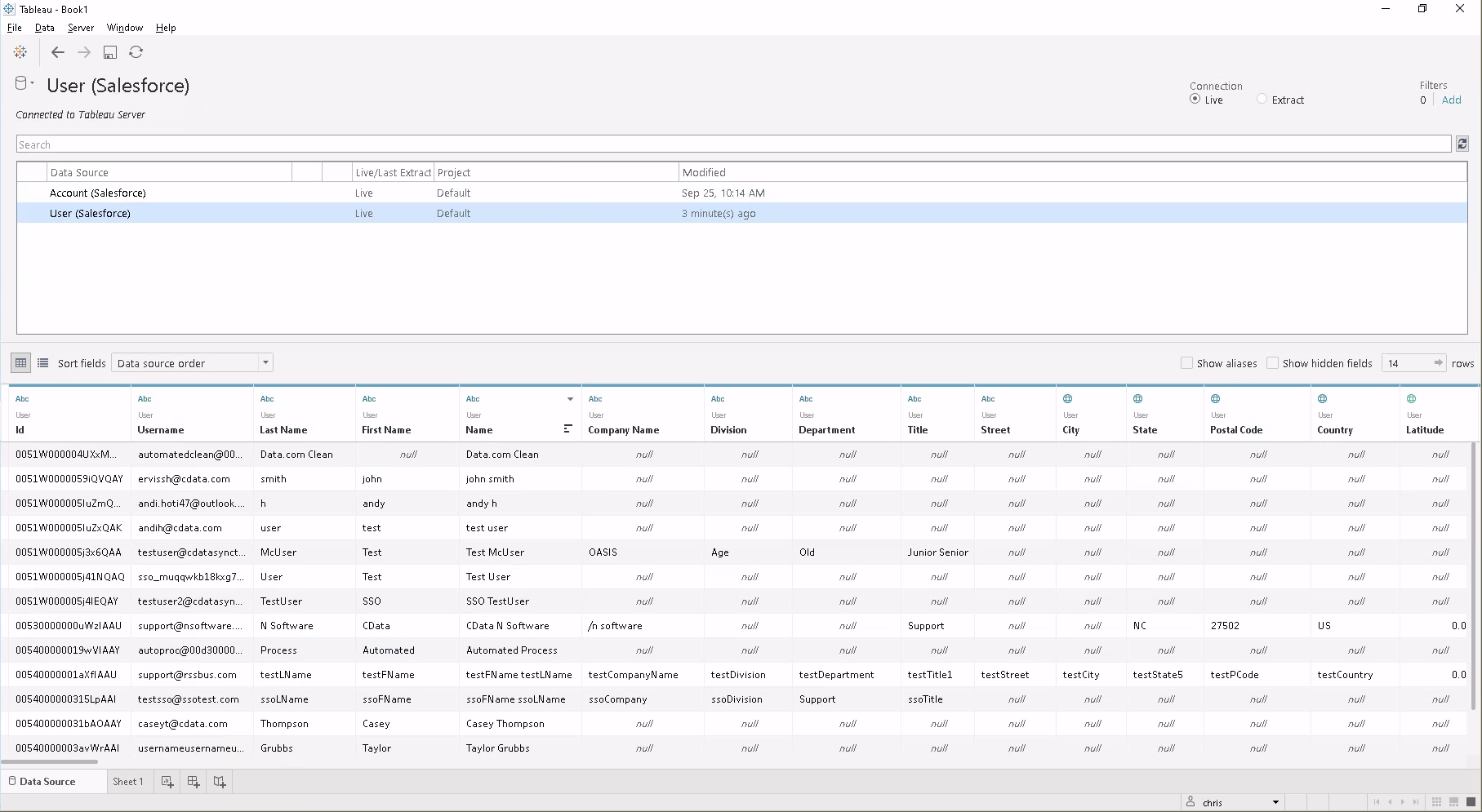
Note that workstation connected to the same server will be able to use the same source in Tableau Desktop, even if the connector isn't installed there. Also, workbooks created directly on Tableau Server (via the web interface) can use this source.
Visualize Presto Data in Tableau Server
With the Data Source published to Tableau Server, you are ready to visualize Presto data.
- Login to your Tableau Server instance.
- Connect to the remote source using the Search for Data -> Tableau Server in the Connect sidebar.
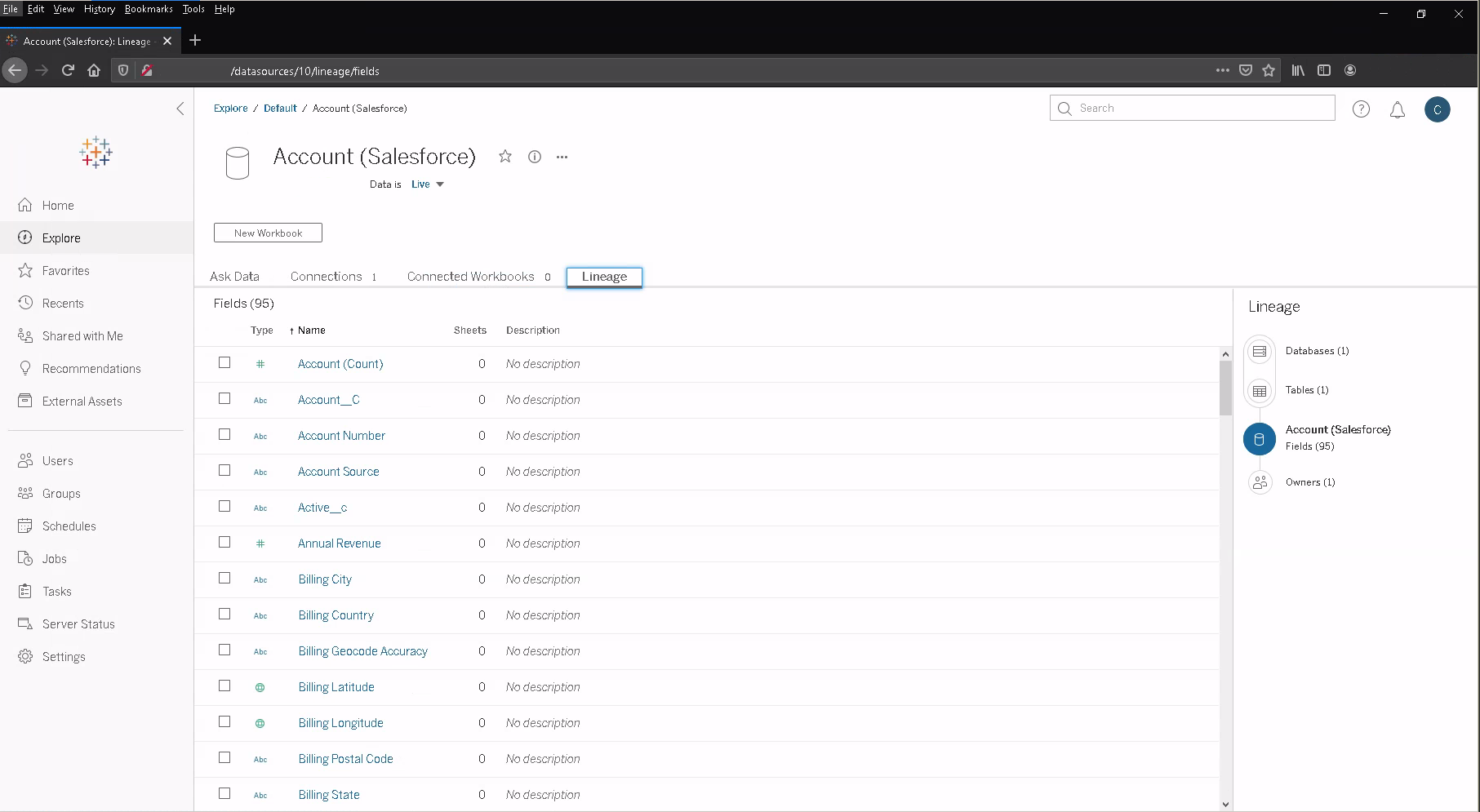
- Click the published Data Source.
- Click New Workbook.
- In the workbook, Presto fields are listed as Dimensions and Measures, depending on the data type. The CData Tableau Connector discovers data types automatically, allowing you to leverage the powerful data processing and visualization features of Tableau.
- Drag a field from the Dimensions or Measures area to Rows or Columns. Tableau creates column or row headers.
- Select one of the chart types from the Show Me tab. Tableau displays the chart type that you selected.
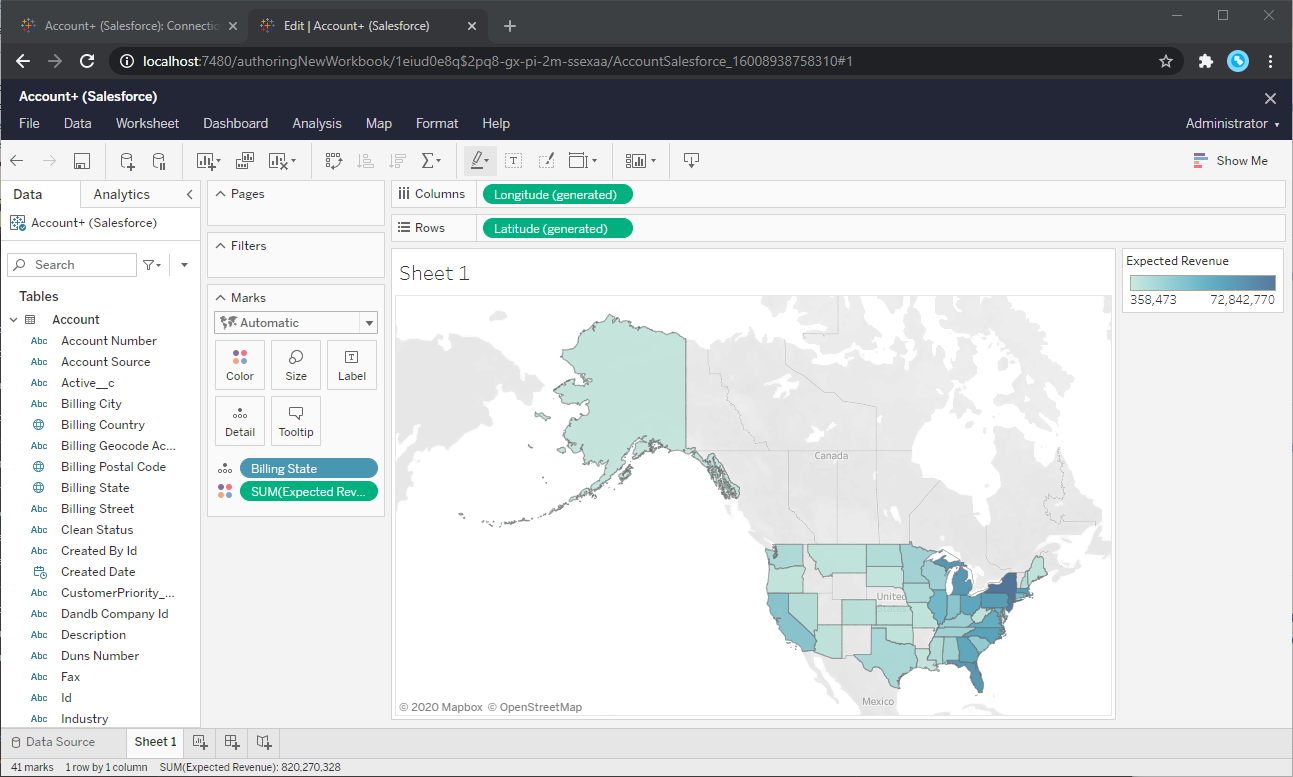
Using the CData Tableau Connector for Presto with Tableau Server, you can easily create robust visualizations and reports on Presto data. Download a free, 30-day trial and get started today.
Ready to get started?
Download a free trial of the Presto Tableau Connector to get started:
Download NowLearn more:
 Presto Tableau Connector
The fastest and easiest way to connect Tableau to Presto data. Includes comprehensive high-performance data access, real-time integration, extensive metadata discovery, and robust SQL-92 support.
