
Model Context Protocol (MCP) finally gives AI models a way to access the business data needed to make them really useful at work. CData MCP Servers have the depth and performance to make sure AI has access to all of the answers.
Try them now for free →


How to Connect to Live QuickBooks Online Data in n8n Workflows and Agents (via CData Connect Cloud)
Leverage the CData Connect Cloud Remote MCP Server to enable n8n to securely read and take actions on your QuickBooks Online data for you.
n8n is an open-source workflow automation tool that allows you to connect various applications and services to automate tasks and processes. When combined with CData Connect Cloud Remote MCP, you can leverage n8n to interact with your QuickBooks Online data in real-time. This article outlines the process of connecting to QuickBooks Online using Connect Cloud Remote MCP and creating a basic workflow in n8n to interact with your QuickBooks Online data.
CData Connect Cloud offers a dedicated cloud-to-cloud interface for connecting to QuickBooks Online data. The CData Connect Cloud Remote MCP Server enables secure communication between n8n and QuickBooks Online. This allows you to ask questions and take actions on your QuickBooks Online data using n8n, all without the need for data replication to a natively supported database. With its inherent optimized data processing capabilities, CData Connect Cloud efficiently channels all supported SQL operations, including filters and JOINs, directly to QuickBooks Online. This leverages server-side processing to swiftly deliver the requested QuickBooks Online data.
In this article, we show how to build a simple chat agent in n8n to conversational explore (or Vibe Query) your data. The connectivity principals apply to any n8n workflow. With Connect Cloud you can build workflows and agents with access to live QuickBooks Online data, plus hundreds of other sources.
About QuickBooks Online Data Integration
CData provides the easiest way to access and integrate live data from QuickBooks Online. Customers use CData connectivity to:
- Realize high-performance data reads thanks to push-down query optimization for complex operations like filters and aggregations.
- Read, write, update, and delete QuickBooks Online data.
- Run reports, download attachments, and send or void invoices directly from code using SQL stored procedures.
- Connect securely using OAuth and modern cryptography, including TLS 1.2, SHA-256, and ECC.
Many users access live QuickBooks Online data from preferred analytics tools like Power BI and Excel, directly from databases with federated access, and use CData solutions to easily integrate QuickBooks Online data with automated workflows for business-to-business communications.
For more information on how customers are solving problems with CData's QuickBooks Online solutions, refer to our blog: https://www.cdata.com/blog/360-view-of-your-customers.
Getting Started
Step 1: Configure QuickBooks Online Connectivity for n8n
Connectivity to QuickBooks Online from n8n is made possible through CData Connect Cloud Remote MCP. To interact with QuickBooks Online data from n8n, we start by creating and configuring a QuickBooks Online connection in CData Connect Cloud.
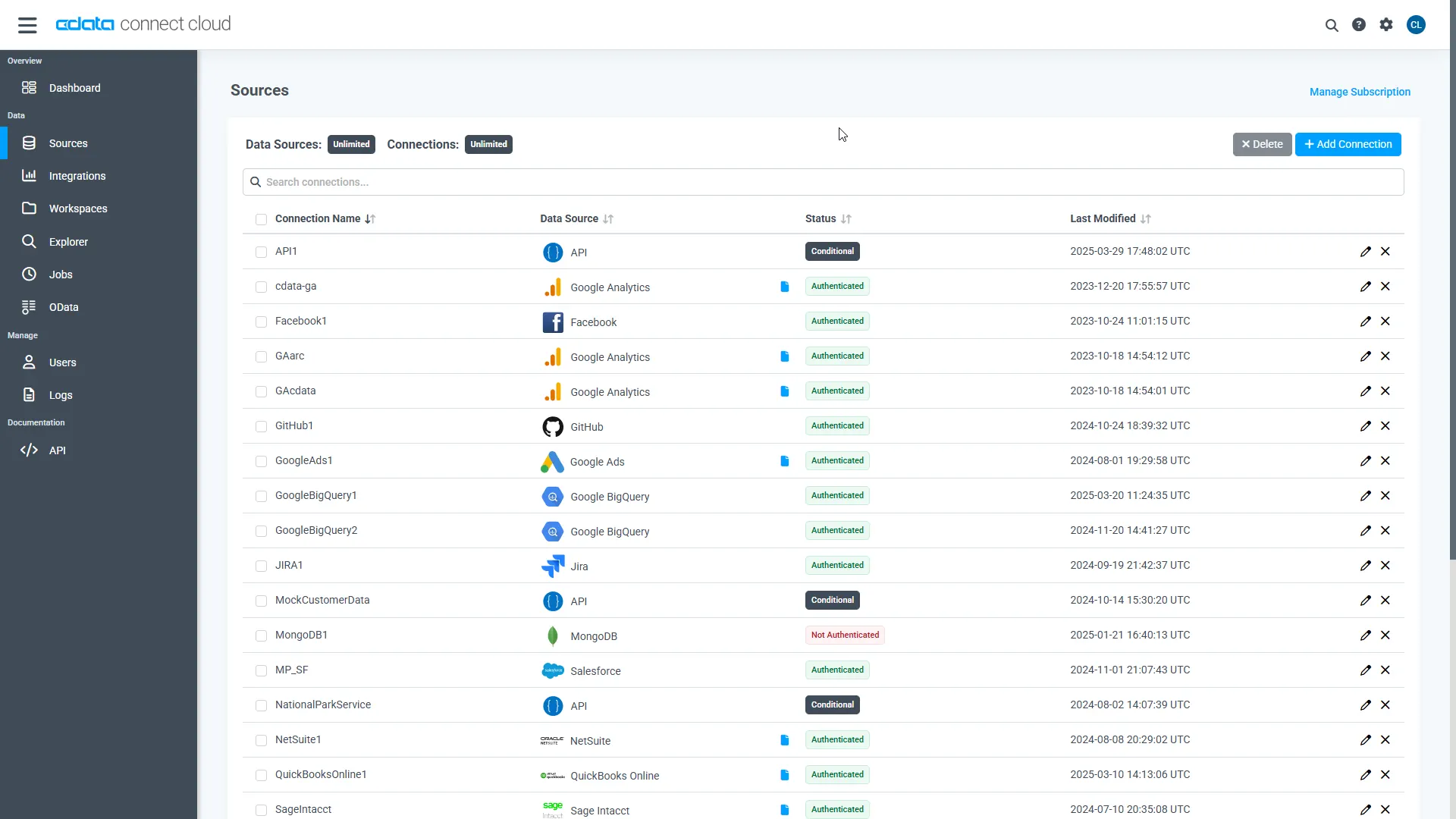
- Log into Connect Cloud, click Sources, and then click Add Connection
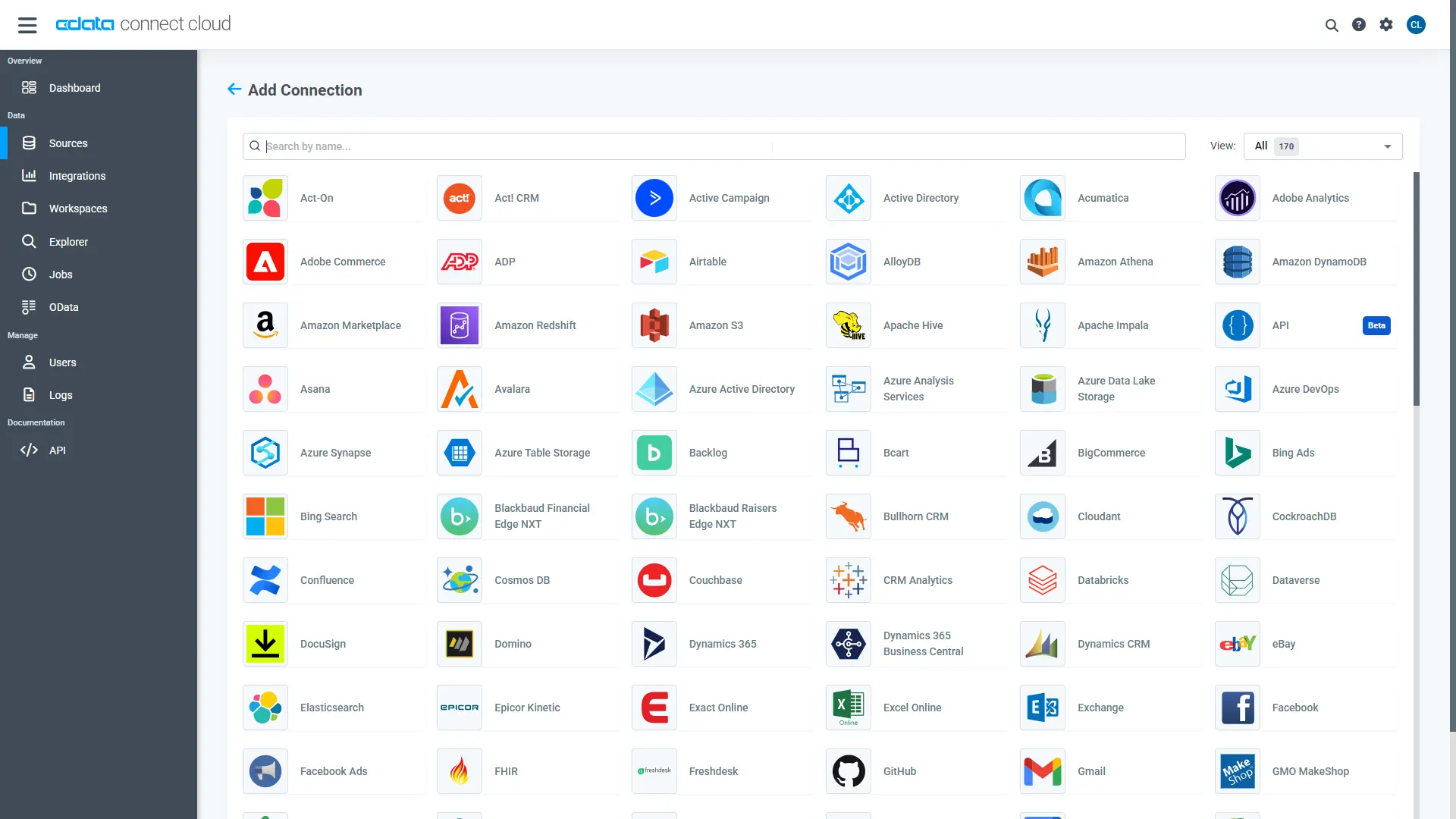
- Select "QuickBooks Online" from the Add Connection panel
-
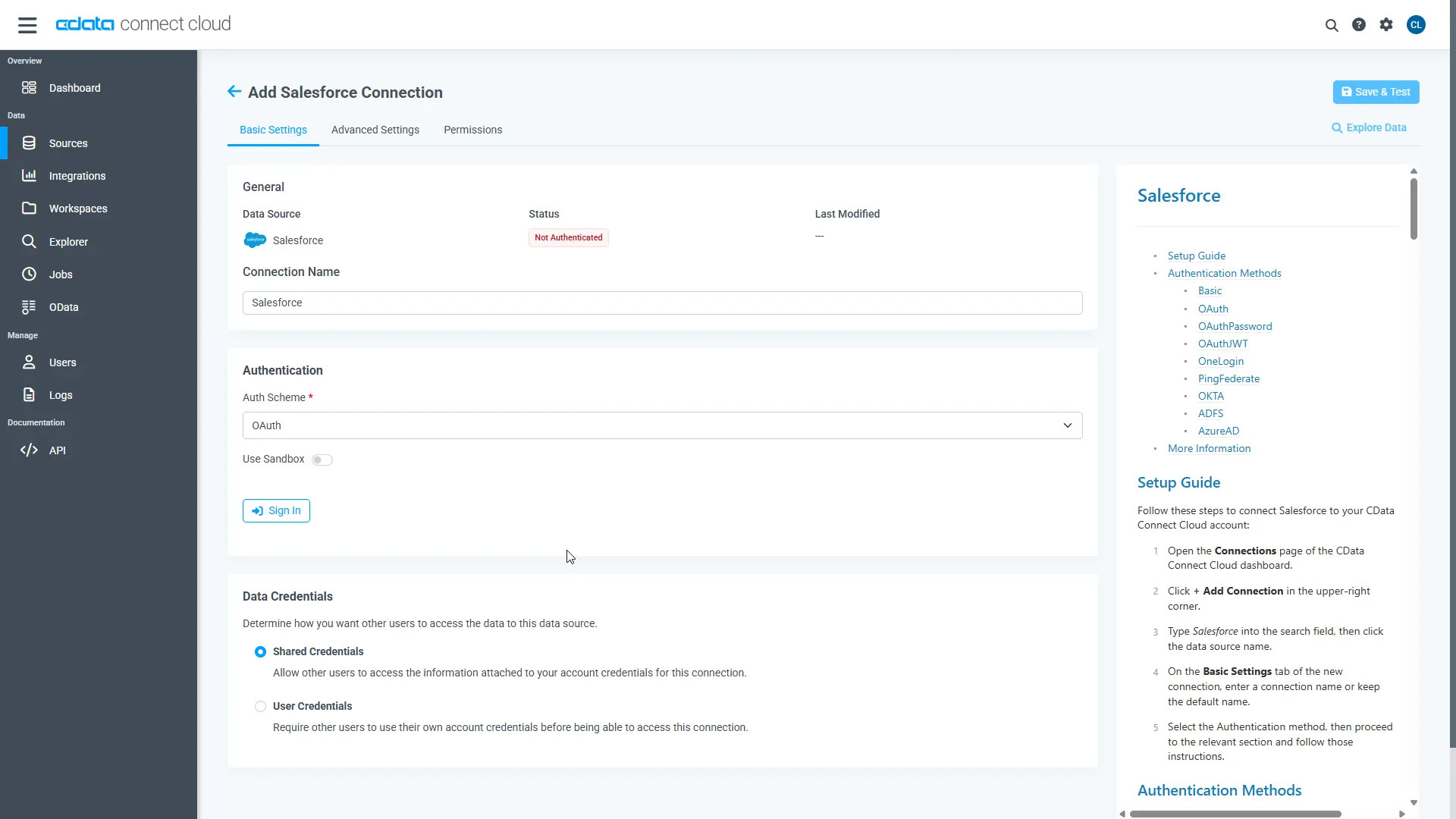
QuickBooks Online uses OAuth to authenticate. Click "Sign in" to authenticate with QuickBooks Online.
-
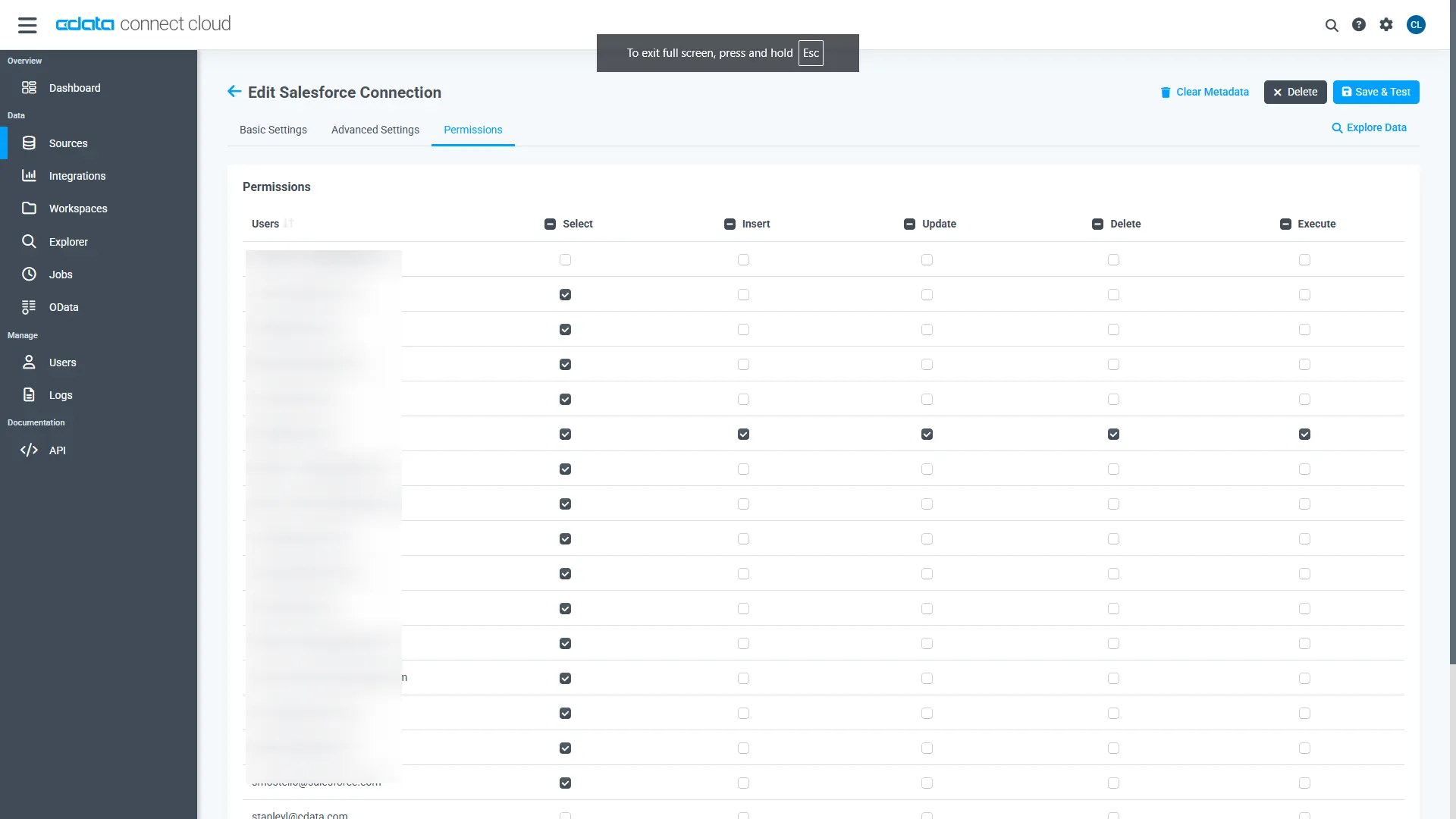
Navigate to the Permissions tab in the Add QuickBooks Online Connection page and update the User-based permissions.
Add a Personal Access Token
A Personal Access Token (PAT) is used to authenticate the connection to Connect Cloud from n8n. It is best practice to create a separate PAT for each service to maintain granularity of access.
- Click on the Gear icon () at the top right of the Connect Cloud app to open the settings page.
- On the Settings page, go to the Access Tokens section and click Create PAT.
-
Give the PAT a name and click Create.
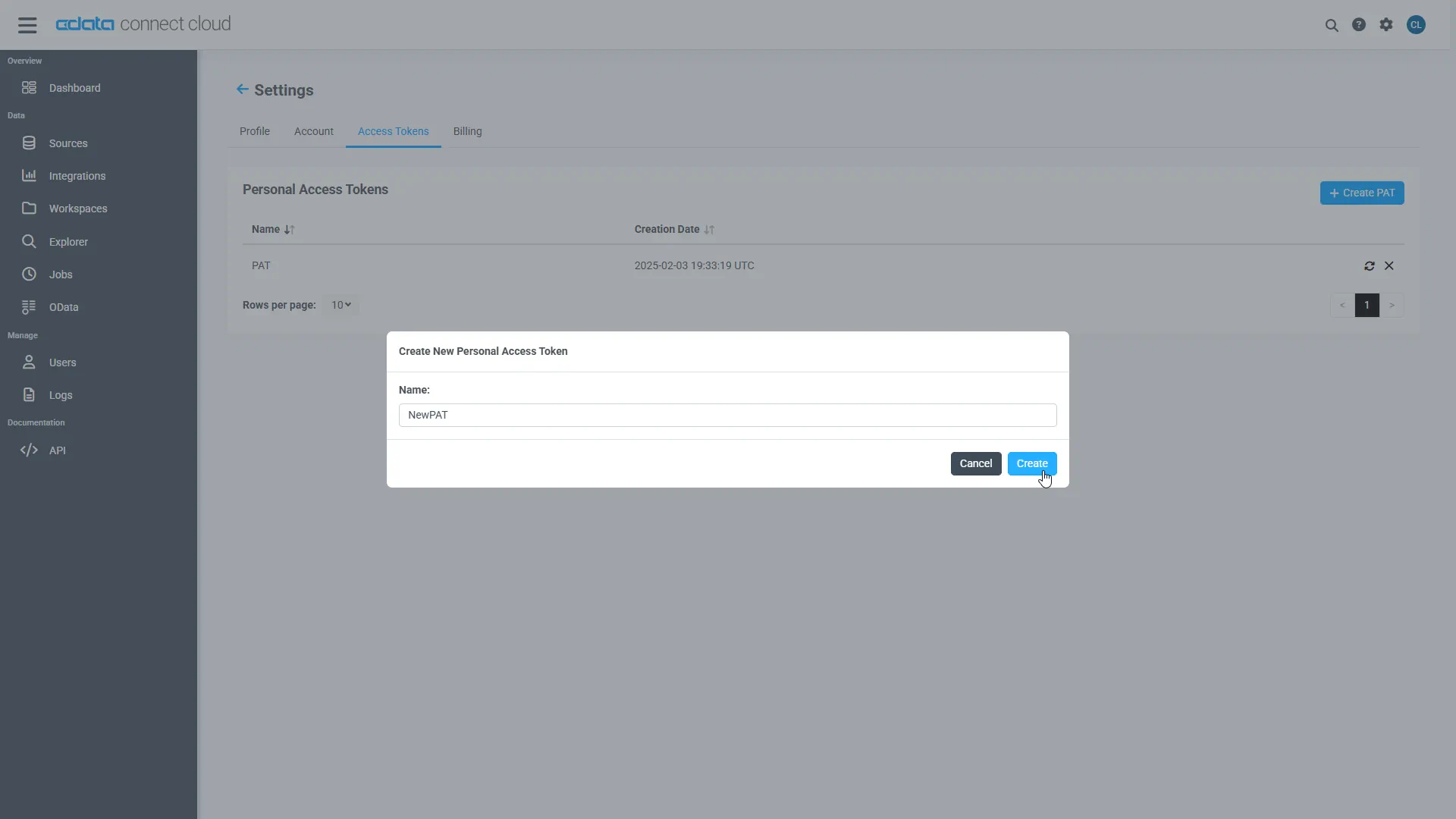
- The personal access token is only visible at creation, so be sure to copy it and store it securely for future use.
With the connection configured and a PAT generated, we are ready to connect to QuickBooks Online data from n8n.
Step 2: Connect n8n to CData Connect Cloud
Follow these steps to connect to CData Connect Cloud in n8n:
- Sign in to n8n.io or create a new account.
-
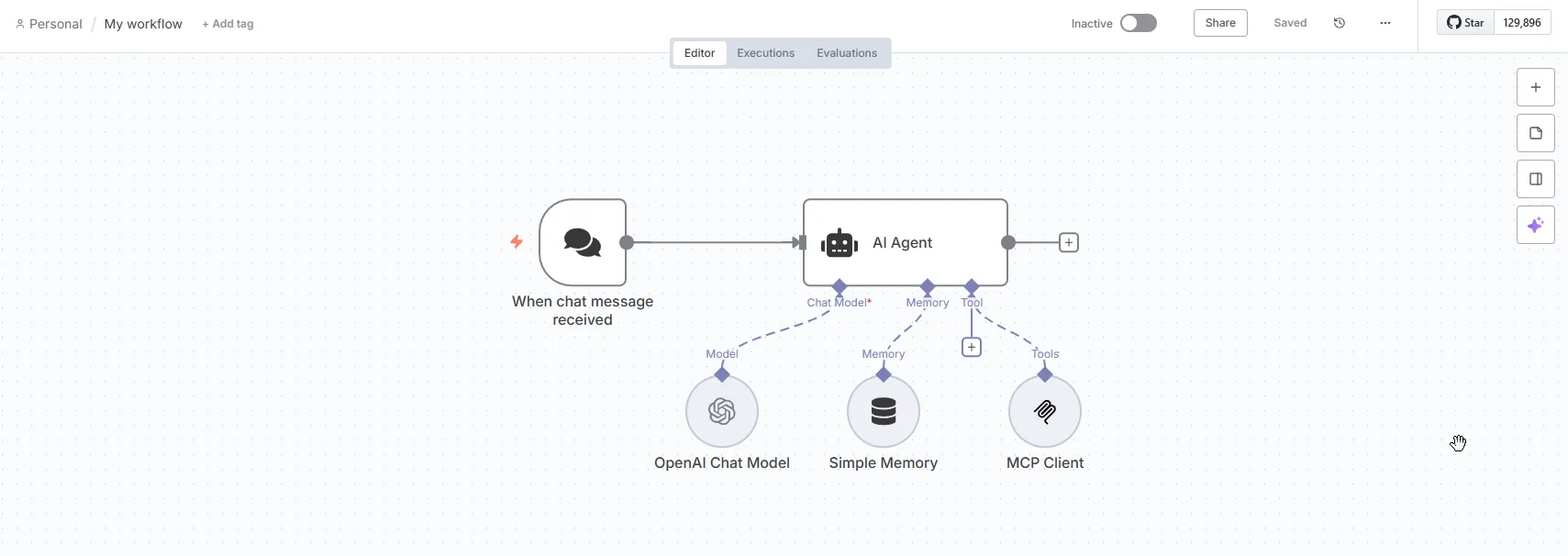
Create a Workflow in n8n that uses the MCP Client tool. The example Workflow below acts as a chatbot. OpenAI was used as the Chat Model, and Simple Memory was used for the Memory.
-
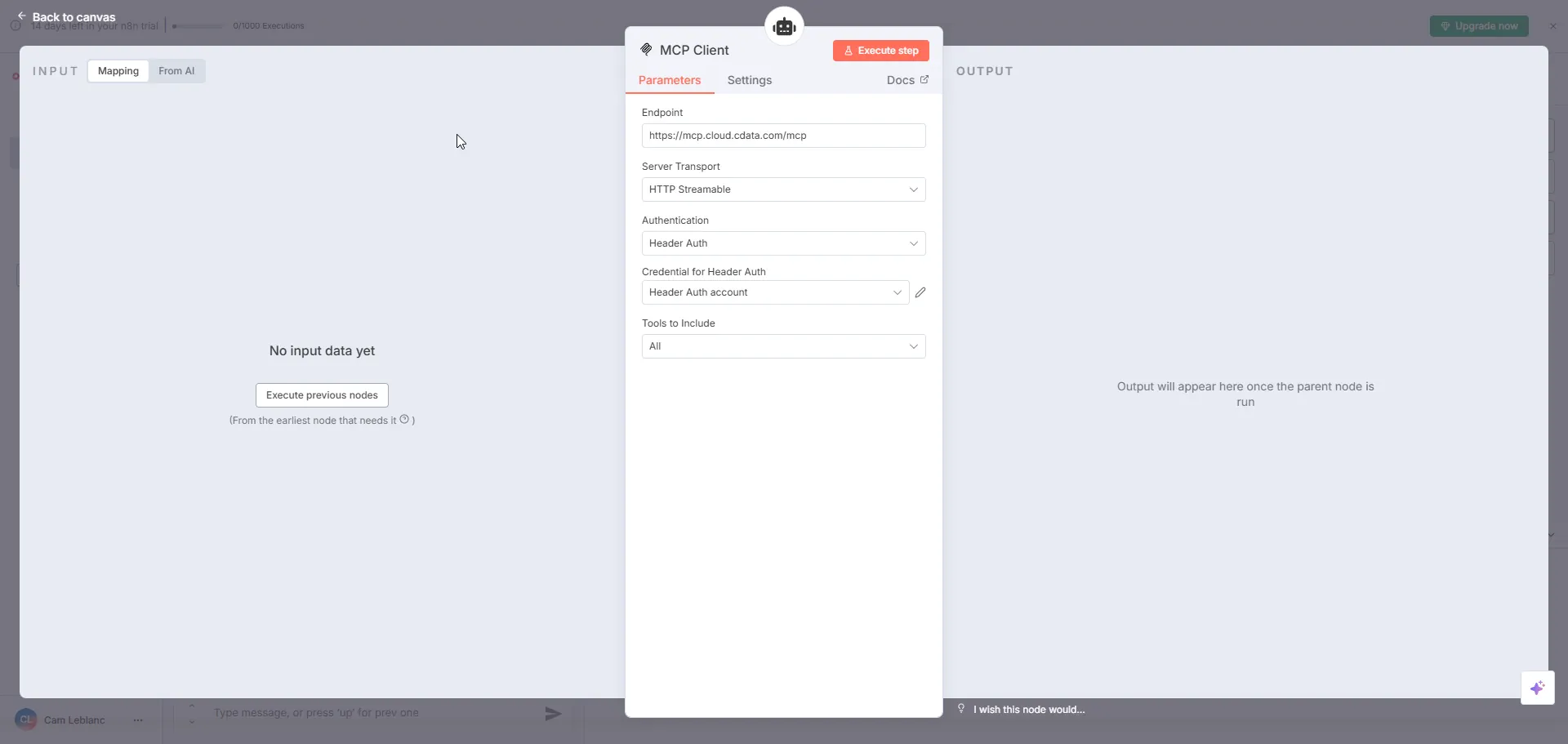
Configure the MCP Client node in the Workflow:
- Set Endpoint to https://mcp.cloud.cdata.com/mcp (found in the "Connect Data to AI" ribbon in Connect Cloud)
- Set Server Transport to HTTP Streamable
-
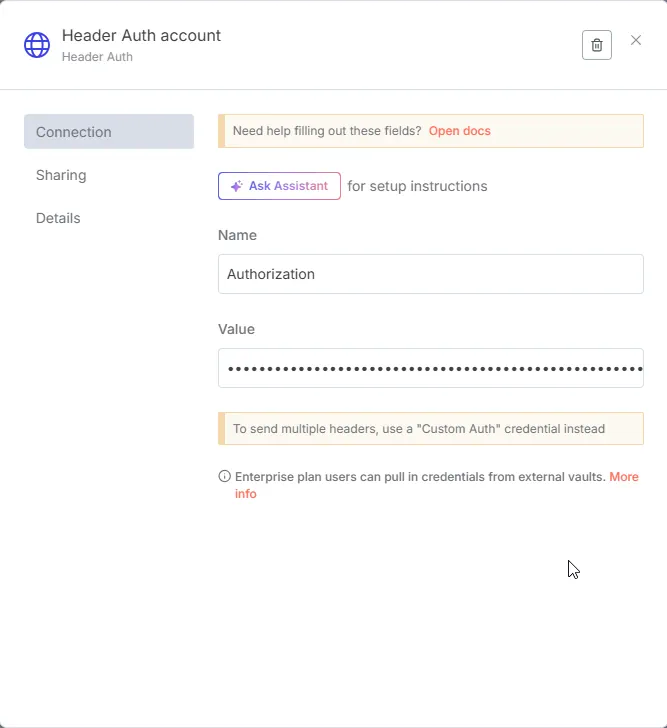
Set Authentication to Header Auth and set the following properties to use Basic authentication:
- Set Name to Authorization
- Set Value to Basic EMAIL:PAT", replacing the EMAIL and PAT with your Connect Cloud email address and the PAT created previously. For example: Basic [email protected]:Uu90pt5vEO..."
Optional Step: Give the AI Agent context
This step establishes the AI Agent's role and provides context for the conversation through the System Message parameter in the AI Agent node. By providing a system message that explicitly informs the agent about its role as an MCP Server expert and lists the available tools, you can enhance the agent's understanding and response accuracy. For example, you can set the System Message to:
You are an expert at using the MCP Client tool connected which is the CData Connect Cloud MCP Server. Always search thoroughly and use the most relevant MCP Client tool for each query. Below are the available tools and a description of each:
queryData: Execute SQL queries against connected data sources and retrieve results. When you use the queryData tool, ensure you use the following format for the table name: catalog.schema.tableName
execData: Execute stored procedures against connected data sources
getCatalogs: Retrieve a list of available connections from CData Connect Cloud. The connection names should be used as catalog names in other tools and in any queries to CData Connect Cloud. Use the `getSchemas` tool to get a list of available schemas for a specific catalog.
getColumns: Retrieve a list of available database columns from CData Connect Cloud for a specific catalog, schema, and table.
getExportedKeys: Retrieve a list of foreign key relationships from CData Connect Cloud for a specific catalog, schema, and table.
getImportedKeys: Retrieve a list of foreign key relationships from CData Connect Cloud for a specific catalog, schema, and table.
getIndexes: Retrieve a list of indexes from CData Connect Cloud for a specific catalog, schema, and table.
getPrimaryKeys: Retrieve a list of primary keys from CData Connect Cloud for a specific catalog, schema, and table.
getProcedures: Retrieve a list of stored procedures from CData Connect Cloud for a specific catalog and schema
getProcedureParameters: Retrieve a list of stored procedure parameters from CData Connect Cloud for a specific catalog, schema, and procedure.
getSchemas: Retrieve a list of available database schemas from CData Connect Cloud for a specific catalog. Use the `getTables` tool to get a list of available tables for a specific catalog and schema.
getTables: Retrieve a list of available database tables from CData Connect Cloud for a specific catalog and schema. Use the `getColumns` tool to get a list of available columns for a specific table.
Step 3: Explore Live QuickBooks Online QuickBooks Online data with n8n
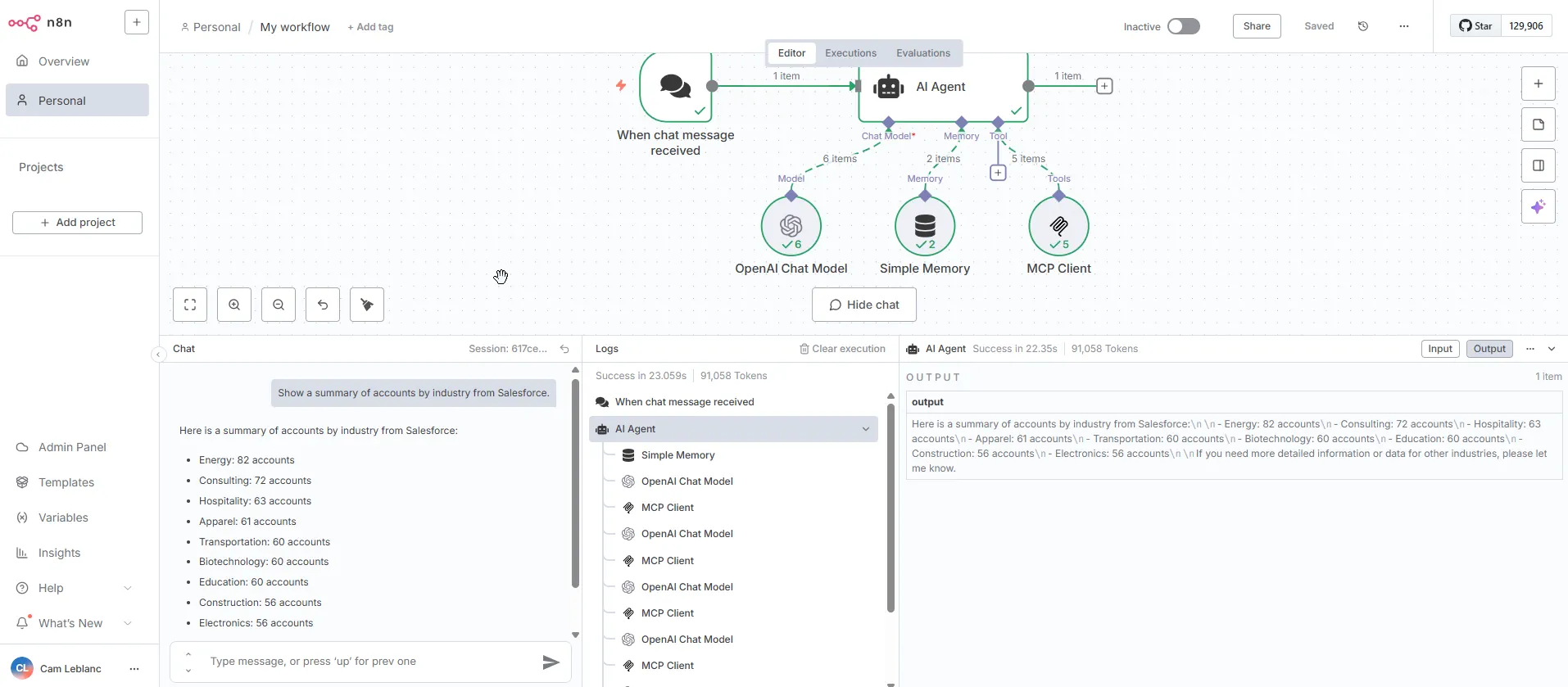
With the Workflow created in n8n and the MCP Client connected, you can now interact with your QuickBooks Online data using n8n. The MCP Client node allows you to send queries and receive responses from the QuickBooks Online data source in real-time.
Open the Workflow in n8n and execute it to start interacting with your QuickBooks Online data. You can ask questions, retrieve data, and perform actions on your QuickBooks Online data using the MCP Client node:
Get CData Connect Cloud
To get live data access to 100+ SaaS, Big Data, and NoSQL sources directly from your cloud applications, try CData Connect Cloud today!
