
Model Context Protocol (MCP) finally gives AI models a way to access the business data needed to make them really useful at work. CData MCP Servers have the depth and performance to make sure AI has access to all of the answers.
Try them now for free →


DataBind Quickbase Data to the DevExpress Data Grid
Use the CData ADO.NET Provider for Quickbase with the DevExpress Windows Forms and Web controls to provide Quickbase data to a chart.
The ADO.NET Provider for Quickbase by CData incorporates conventional ADO.NET data access components compatible with third-party controls. You can adhere to the standard ADO.NET data binding procedures to establish two-way access to real-time data through UI controls. This article will demonstrate the utilization of CData components for data binding with DevExpress UI Controls (Windows Forms and Web controls), specifically binding to a chart that visualizes live data.
User Authentication Method
To authenticate with user credentials, specify the following connection properties:
- Set the User and Password.
- If your application requires an ApplicationToken;, you must provide it otherwise an error will be thrown. You can find the ApplicationToken under SpecificApp > Settings > App management > App properties > Advanced settings > Security options > Manage Application Token.
User Token Authentication
To authenticate with a user token, specify the following connection properties:
- Set UserToken and you are ready to connect. You can find the UserToken under Quick Base > My Preferences > My User Information > Manage User Tokens.
Windows Forms Controls
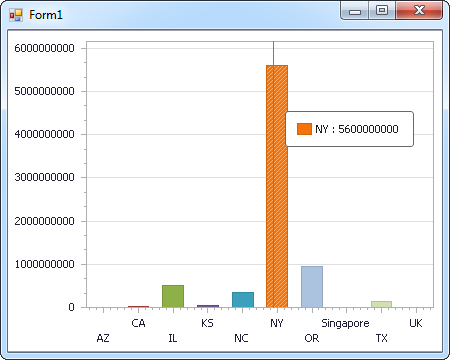
The code below shows how to populate a DevExpress chart with Quickbase data. The QuickBaseDataAdapter binds to the Series property of the chart control. The Diagram property of the control defines the x- and y-axes as the column names.
using (QuickBaseConnection connection = new QuickBaseConnection(
"[email protected];Password=password;Domain=myinstance.quickbase.com;ApplicationToken=bwkxrb5da2wn57bzfh9xn24")) {
  QuickBaseDataAdapter dataAdapter = new QuickBaseDataAdapter(
  "SELECT Id, Column1 FROM SampleTable_1 WHERE Column2 = '100'", connection);

  DataTable table = new DataTable();
  dataAdapter.Fill(table);
  DevExpress.XtraCharts.Series series = new DevExpress.XtraCharts.Series();
  chartControl1.Series.Add(series);
  series.DataSource = table;
  series.ValueDataMembers.AddRange(new string[] { "Column1" });
  series.ArgumentScaleType = DevExpress.XtraCharts.ScaleType.Qualitative;
  series.ArgumentDataMember = "Id";
  series.ValueScaleType = DevExpress.XtraCharts.ScaleType.Numerical;
  chartControl1.Legend.Visibility = DevExpress.Utils.DefaultBoolean.False;
  ((DevExpress.XtraCharts.SideBySideBarSeriesView)series.View).ColorEach = true;
}
Web Controls
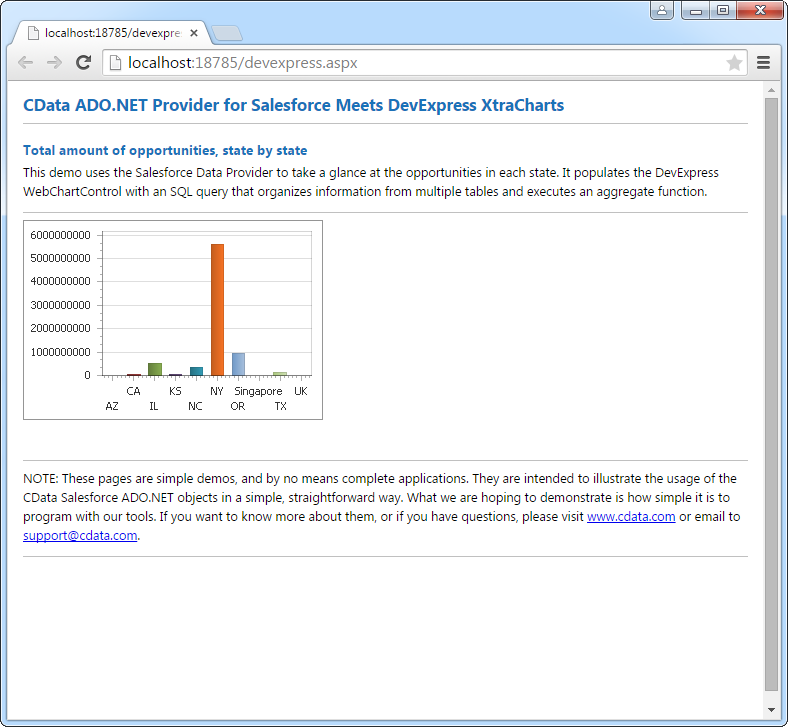
The code below shows how to populate a DevExpress Web control with Quickbase data. The QuickBaseDataAdapter binds to the Series property of the chart; the Diagram property defines the x- and y-axes as the column names.
using DevExpress.XtraCharts;

using (QuickBaseConnection connection = new QuickBaseConnection(
"[email protected];Password=password;Domain=myinstance.quickbase.com;ApplicationToken=bwkxrb5da2wn57bzfh9xn24"))
{
  QuickBaseDataAdapter QuickBaseDataAdapter1 = new QuickBaseDataAdapter("SELECT Id, Column1 FROM SampleTable_1 WHERE Column2 = '100'", connection);
  DataTable table = new DataTable();
  QuickBaseDataAdapter1.Fill(table);
  DevExpress.XtraCharts.Series series = new Series("Series1", ViewType.Bar);
  WebChartControl1.Series.Add(series);
  series.DataSource = table;
  series.ValueDataMembers.AddRange(new string[] { "Column1" });
  series.ArgumentScaleType = ScaleType.Qualitative;
  series.ArgumentDataMember = "Id";
  series.ValueScaleType = ScaleType.Numerical;
  ((DevExpress.XtraCharts.SideBySideBarSeriesView)series.View).ColorEach = true;
}
Ready to get started?
Download a free trial of the Quickbase Data Provider to get started:
Download NowLearn more:
 Quickbase ADO.NET Provider
Rapidly create and deploy powerful .NET applications that integrate with Quickbase.
