
Model Context Protocol (MCP) finally gives AI models a way to access the business data needed to make them really useful at work. CData MCP Servers have the depth and performance to make sure AI has access to all of the answers.
Try them now for free →


Bridge Sage 300 Connectivity with Apache NiFi
Access and process Sage 300 data in Apache NiFi using the CData JDBC Driver.
Apache NiFi supports powerful and scalable directed graphs of data routing, transformation, and system mediation logic. When paired with the CData JDBC Driver for Sage 300, NiFi can work with live Sage 300 data. This article describes how to connect to and query Sage 300 data from an Apache NiFi Flow.
With built-in optimized data processing, the CData JDBC driver offers unmatched performance for interacting with live Sage 300 data. When you issue complex SQL queries to Sage 300, the driver pushes supported SQL operations, like filters and aggregations, directly to Sage 300 and utilizes the embedded SQL engine to process unsupported operations client-side (often SQL functions and JOIN operations). Its built-in dynamic metadata querying allows you to work with and analyze Sage 300 data using native data types.
Connecting to Sage 300 Data in Apache NiFi
- Download the CData JDBC Driver for Sage 300 installer, unzip the package, run the .exe file to install the driver.
Copy the CData JDBC Driver JAR file (and license file if it exists), cdata.jdbc.sage300.jar (and cdata.jdbc.sage300.lic), to the Apache NiFi lib subfolder, for example, C:\nifi-1.3.0-bin\nifi-1.3.0\lib.
On Windows, the default location for the CData JDBC Driver is C:\Program Files\CData\CData JDBC Driver for Sage 300.
Start Apache NiFi by running the run-nifi.bat file in bin subfolder, for example, C:\nifi-1.3.0-bin\nifi-1.3.0\bin.
(OR)
Use the command prompt to navigate to the particular directory and run the run-nifi.bat file for example:
cd C:\nifi-1.3.0-bin\nifi-1.3.0\bin
.\run-nifi.bat
Navigate to the Apache NiFi UI in your web browser: It should be https://localhost:8443/nifi.
Note: If users are utilizing an older version of Apache NiFi, they should access it via http://localhost:8080/nifi. In earlier versions, HTTP was the protocol employed. However, in the most recent version, HTTPS is the standard. By default, HTTP operates on port 8080, while HTTPS uses port 8443.
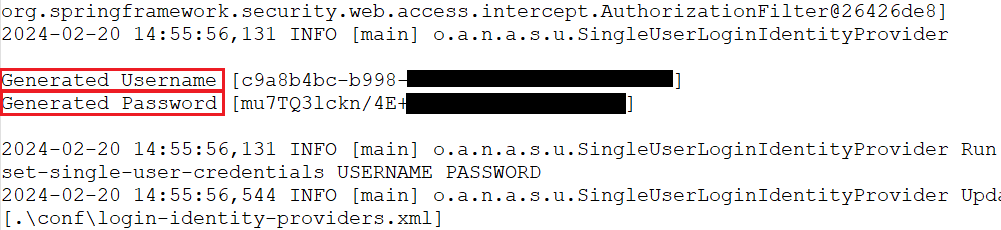
When accessing Apache NiFi via a URL, it prompts you to enter a username and password for login.
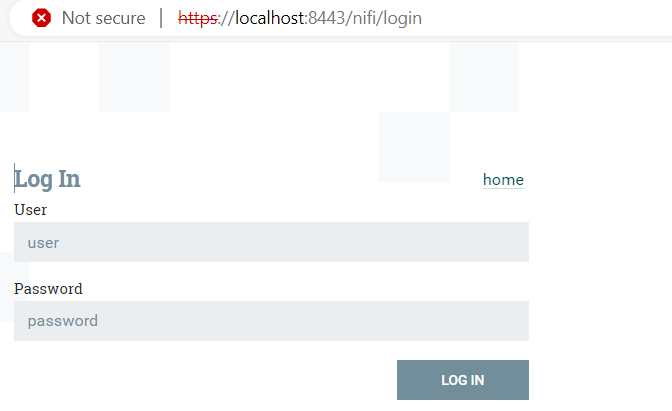
To retrieve login credentials, users should consult the 'App.log' file located within the log directory of their NiFi installation. This file typically contains the necessary details for accessing the NiFi interface.
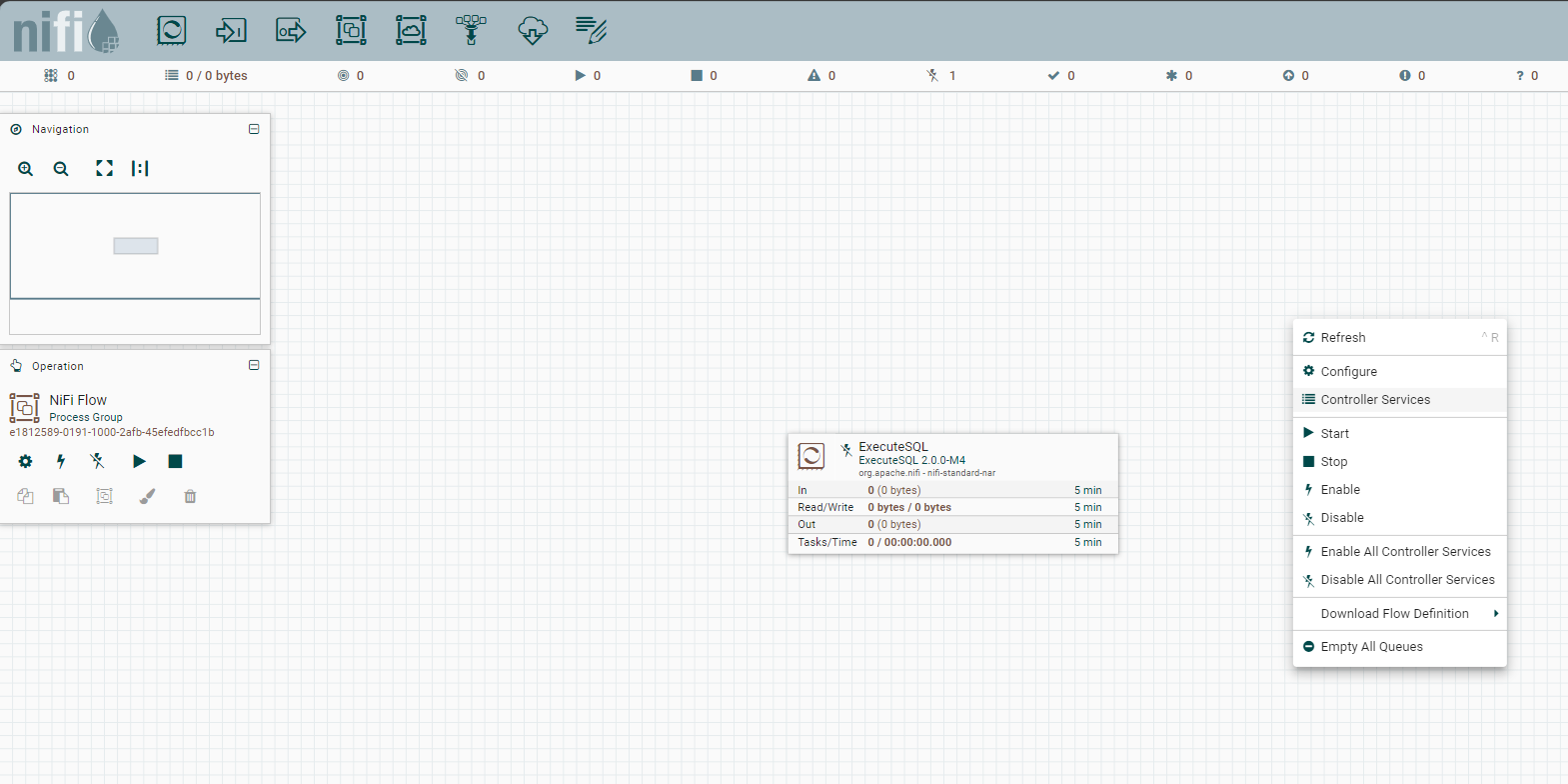
- Right-click on the Nifi Flow's workspace and click "Controller Services"
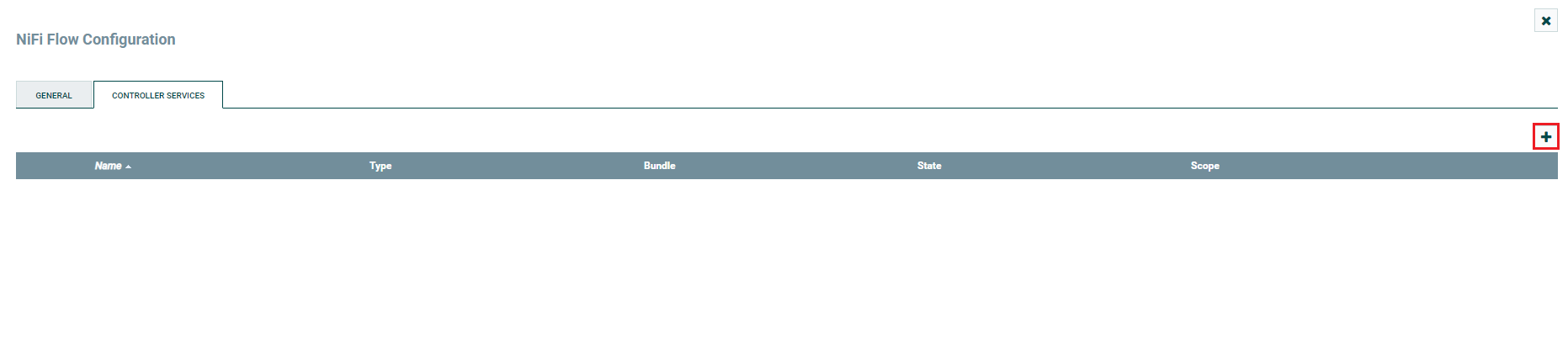
- Click the button to create a new controller service.
- In the Controller Services section, location the newly created "DBCPConnection Pool" and click the menu () >> Edit to configure the new connection.
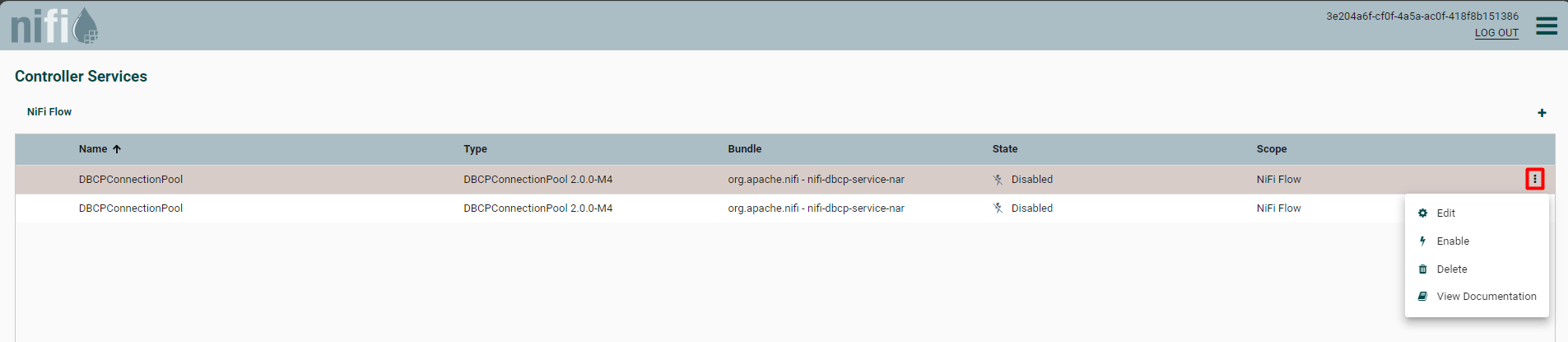
Fill in the properties:
- Database Connection URL: jdbc:sage300:User=SAMPLE;Password=password;URL=http://127.0.0.1/Sage300WebApi/v1/-/;Company=SAMINC;
- Database Driver Class Name: cdata.jdbc.sage300.Sage300Driver
- Database Driver Location(s): Path to your Apache NiFi's lib folder where the JAR files are present.
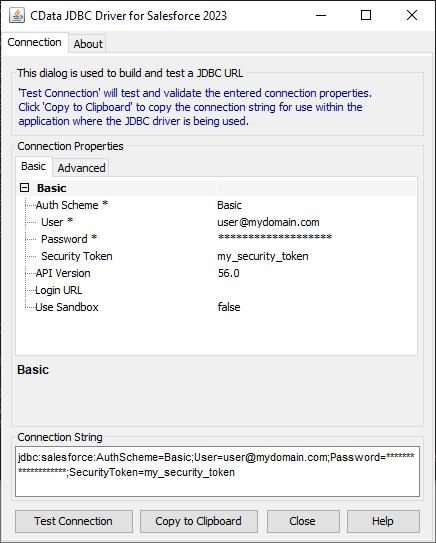
Built-in Connection String Designer
For assistance in constructing the JDBC URL, use the connection string designer built into the Sage 300 JDBC Driver. Either double-click the JAR file or execute the JAR file from the command-line.
java -jar cdata.jdbc.sage300.jar
Fill in the connection properties and copy the connection string to the clipboard.
Sage 300 requires some initial setup in order to communicate over the Sage 300 Web API.
- Set up the security groups for the Sage 300 user. Give the Sage 300 user access to the
option under Security Groups (per each module required). - Edit both web.config files in the /Online/Web and /Online/WebApi folders; change the key AllowWebApiAccessForAdmin to true. Restart the webAPI app-pool for the settings to take.
- Once the user access is configured, click https://server/Sage300WebApi/ to ensure access to the web API.
Authenticate to Sage 300 using Basic authentication.
Connect Using Basic Authentication
You must provide values for the following properties to successfully authenticate to Sage 300. Note that the provider reuses the session opened by Sage 300 using cookies. This means that your credentials are used only on the first request to open the session. After that, cookies returned from Sage 300 are used for authentication.
- Url: Set this to the url of the server hosting Sage 300. Construct a URL for the Sage 300 Web API as follows: {protocol}://{host-application-path}/v{version}/{tenant}/ For example, http://localhost/Sage300WebApi/v1.0/-/.
- User: Set this to the username of your account.
- Password: Set this to the password of your account.
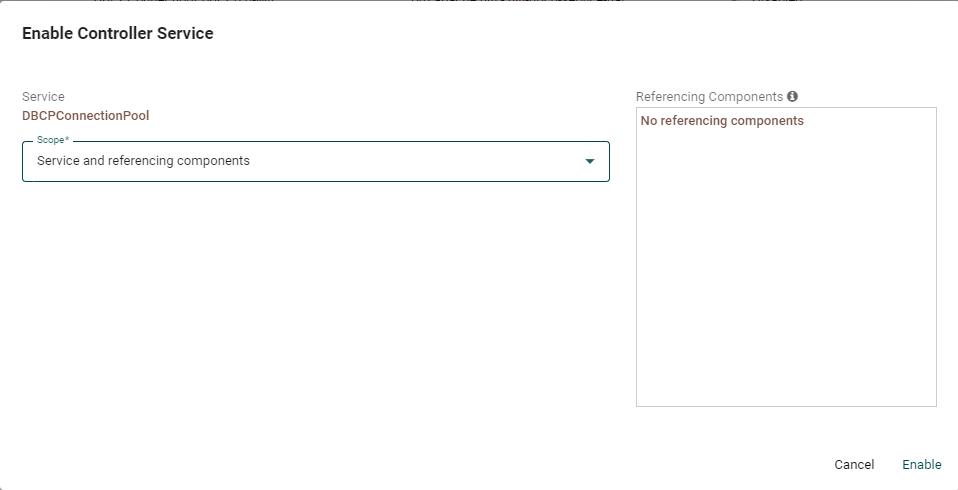
- In the Controller Services section, locate the newly created DBCPConnection Pool and click the menu () >> Enable to enable the new connection.
- In the "Enable Controller Service" window, set Scope to "Service and referencing components"
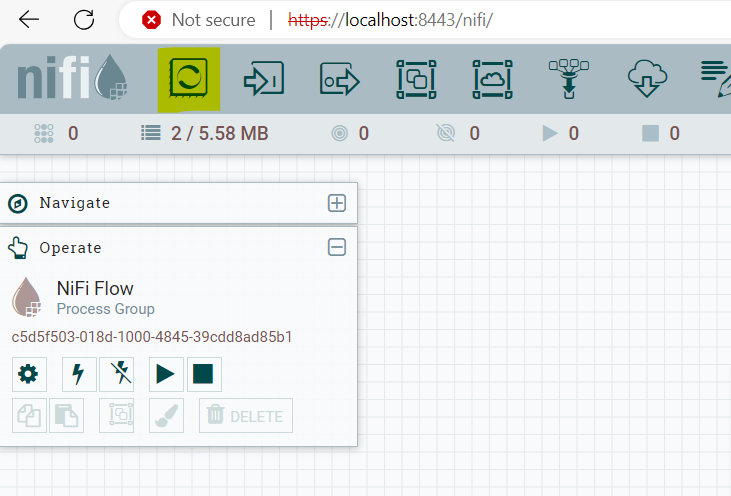
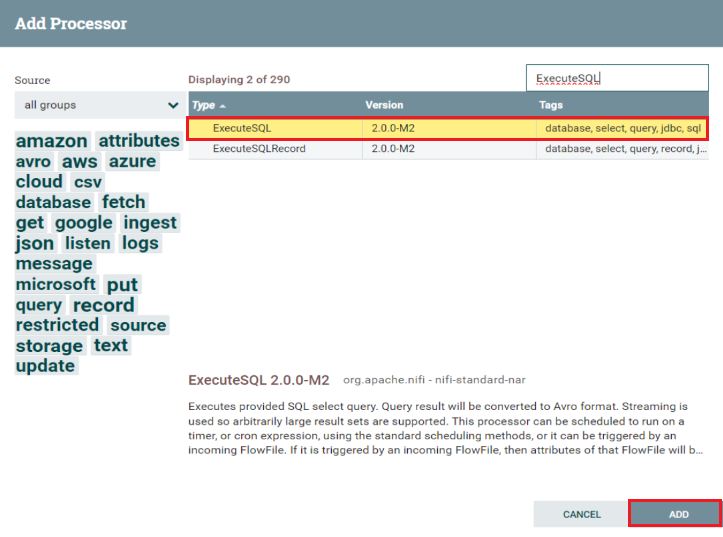
- To establish a connection and execute a select query, simply drag and drop the processor (indicated by the yellow highlight) into the workspace.
- Select the 'ExecuteSQL' processor and click the 'Add' button to make it visible in the workspace.
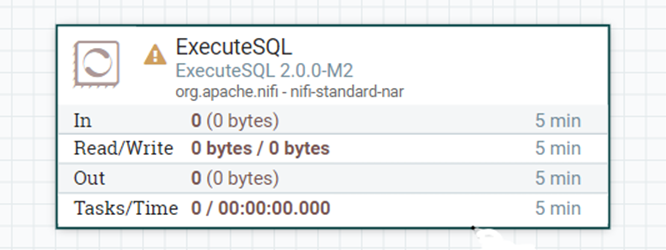
- Double-click on the added processor (ExecuteSQL)to open the connection page.
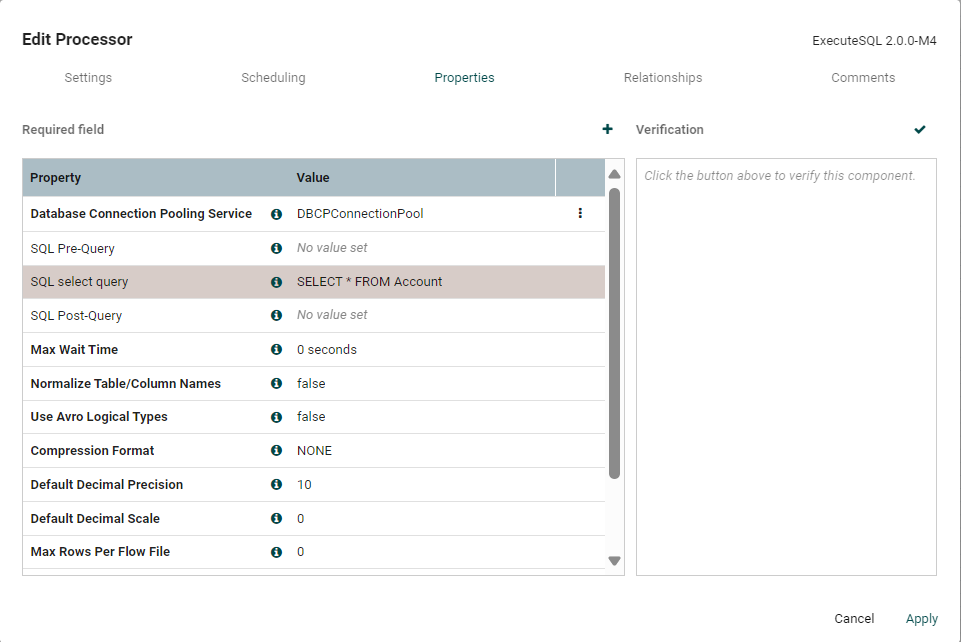
- In the Properties section, fill in the required information. Make sure to set the Database Connection Pooling Service to match the DBCPConnectionPool that you have created, and set your desired SQL query that you want to get executed in the SQL select query section.
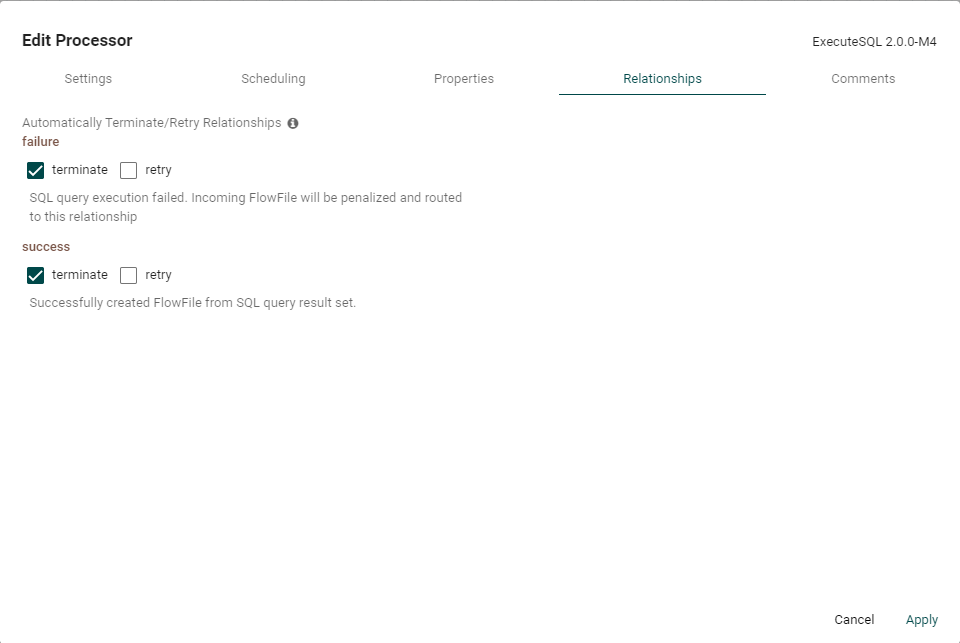
- Go to Relationships and make sure to select an option on how the component should proceed in case of success and failure of the execution process.
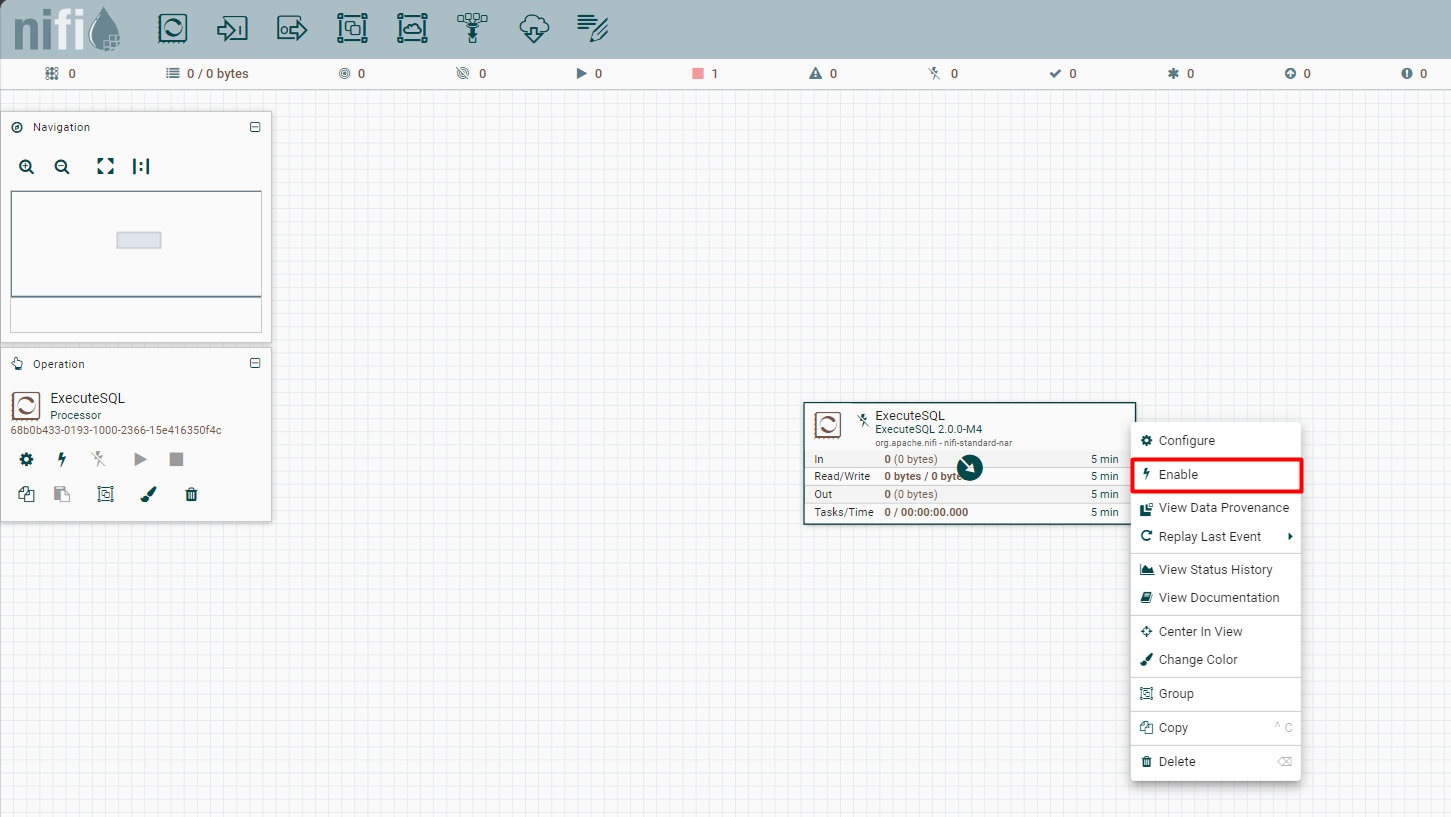
- You can enable the ExecuteSQL component by either selecting it and clicking Enable on the Operation section, or by right-clicking it and selecting Enable.
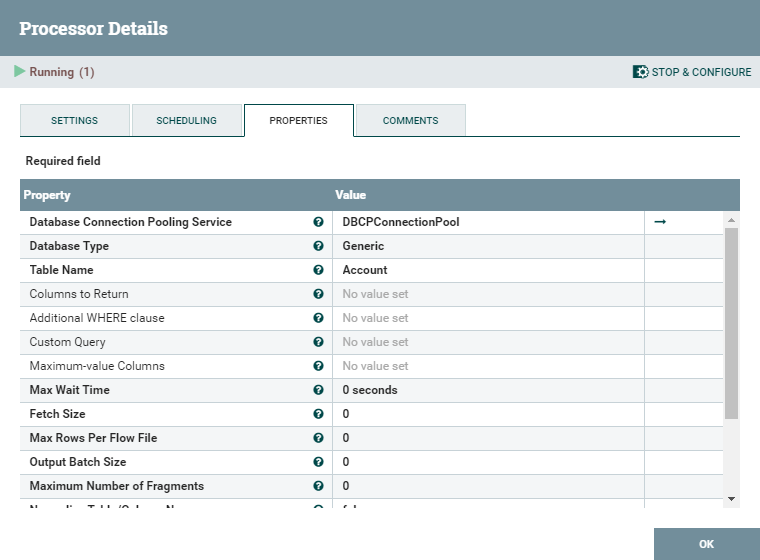
Your Sage 300 data is now available for use in Apache NiFi. For example, you can use the DBCPConnection Pool as the source for a QueryDatabaseTable processor (shown below).
Download a free, 30-day trial of the CData JDBC Driver for Sage 300 and start working with your live Sage 300 data in Apache NiFi. Reach out to our Support Team if you have any questions.
Ready to get started?
Download a free trial of the Sage 300 Driver to get started:
Download NowLearn more:
 Sage 300 JDBC Driver
Rapidly create and deploy powerful Java applications that integrate with Sage 300.
