
Model Context Protocol (MCP) finally gives AI models a way to access the business data needed to make them really useful at work. CData MCP Servers have the depth and performance to make sure AI has access to all of the answers.
Try them now for free →


How to Access Live SAP Data in Visual Studio Code via Cline
Run the CData MCP Server for SAP on Windows Subsytem for Linux (WSL) and connect to live SAP data from the Cline extension in Visual Studio Code.
Cline is an autonomous coding agent right in your IDE, capable of creating/editing files, running commands, using the browser, and more with your permission every step of the way. When paired with the CData MCP Server for SAP, you get live access to CRM data within your IDE, enabling you to build, test, and validate data-driven features using real-time schema and records without ever leaving your development environment.
This article outlines how to run the CData MCP Server for SAP on WSL (Windows Subsystem for Linux) and connect to it from the Cline extension in Visual Studio Code on Windows.
Background
CData MCP Servers are typically designed for clients like Claude Desktop. However, when attempting to use the server via the Cline extension in Windows VS Code, the following error occurred:
MCP error -32000: Connection closed
This issue is suspected to be caused by I/O handling problems in the stdio transport implementation on the Windows version of the Cline extension.
- Related GitHub Issue: https://github.com/cline/cline/issues/3464
- Additionally, environment variables such as PATH may not be inherited correctly when launching processes like Java or Node.
Prerequisites
- Visual Studio Code installed on Windows
- Cline extension installed and configured in VS Code
- Windows Subsystem for Linux (WSL) installed with a working Linux distribution (e.g., Ubuntu)
- Java 21+ JRE installed in WSL
- CData MCP Server for SAP installed on Windows
Step 1: Authenticate with SAP (on Windows)
Before running the MCP Server in WSL, you must complete authentication flow in a Windows environment. This ensures all necessary credentials are generated and stored properly. Find and run the "CData MCP Server for SAP" or execute the MCP Server JAR file to open the configuration wizard.
java -jar "C:\Program Files\CData\CData MCP Server for SAP 2024\lib\cdata.mcp.saperp.jar"
Connecting to SAP
You can connect to SAP systems using either librfc32.dll, librfc32u.dll, NetWeaver, or Web Services (SOAP). Set the ConnectionType connection property to CLASSIC (librfc32.dll), CLASSIC_UNICODE (librfc32u.dll), NETWEAVER, or SOAP.
If you are using the SOAP interface, set the Client, RFCUrl, SystemNumber, User, and Password properties, under the Authentication section.
Otherwise, set Host, User, Password, Client, and SystemNumber.
Note: We do not distribute the librfc32.dll or other SAP assemblies. You must find them from your SAP installation and install them on your machine.
For more information, see this guide on obtaining the connection properties needed to connect to any SAP system.
Configuring the CData MCP Server
Name your MCP Server (e.g. cdatasaperp), enter the required connection properties, and click "Connect."
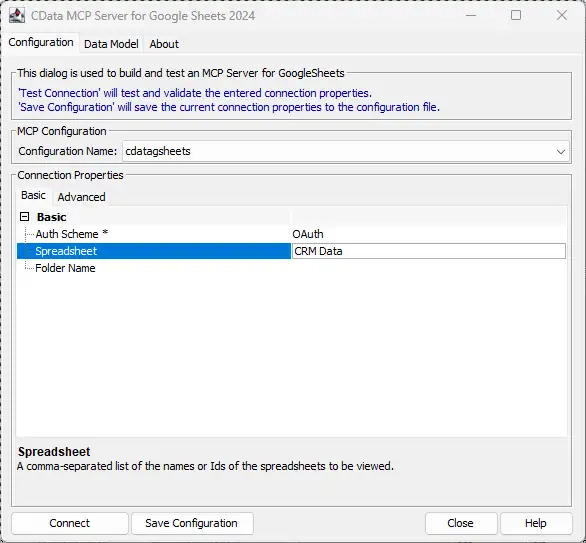
Upon successful connection, the following directory and files will be created:
C:\Users\<username>\AppData\Roaming\CData\saperp Provider\
 |-- cdatasaperp.mcp
 |-- (other supporting config files)
Step 2: Copy the MCP Server Configuration into WSL
Next, copy the entire configuration folder from Windows into your WSL environment.
mkdir -p ~/.config/CData/
cp -r /mnt/c/Users/<username>/AppData/Roaming/CData/"saperp Provider" ~/.config/CData/
Ensure the destination path matches exactly: ~/.config/CData/saperp Provider/.
Step 3: Install the MCP Server on WSL
Install Java and place the MCP Server JAR in the desired location within WSL:
sudo apt update
sudo apt install openjdk-21-jre-headless
sudo mkdir -p /opt/cdata/mcp_saperp/lib
sudo cp /mnt/c/Program\ Files/CData/CData\ MCP\ Server\ for\ SAP\ 2024/lib/cdata.mcp.saperp.jar /opt/cdata/mcp_saperp/lib/
Step 4: Configure Cline
Now, configure the Cline extension to launch the MCP Server inside WSL using the wsl command.
Create or update cline_mcp_settings.json with the following content:
{
  "mcpServers": {
    "cdatasaperp": {
      "autoApprove": ["*"],
      "disabled": false,
      "timeout": 60,
      "type": "stdio",
      "command": "wsl",
      "args": [
        "-d",
        "Ubuntu", // Replace with your installed WSL distro name
        "--",
        "/usr/bin/java",
        "-jar",
        "/opt/cdata/mcp_saperp/lib/cdata.mcp.saperp.jar",
        "cdatasaperp"
      ],
      "env": {
        "JAVA_TOOL_OPTIONS": "-Xmx2g"
      }
    }
  }
}
Note: Replace Ubuntu with your actual WSL distribution name (e.g., Ubuntu-22.04). Run wsl -l in PowerShell or CMD to confirm.
Step 5: Interact with Live Data in Cline
From within Visual Studio Code, you can now run MCP commands through the Cline extension.
cdatasaperp_get_tables
cdatasaperp_get_columns MARA
If configured correctly, these commands will return a list of available SAP objects and metadata, allowing you to interact with your CRM schema in real time.
Try natural language prompts like:
- "Generate a React form to create a new SAP Lead."
- "Write a Python function to pull Opportunities closed this quarter."
Connect your AI to your data today!
CData MCP Servers make it easier than ever for LLMs to work with live enterprise data. To explore the technology hands-on, download a free MCP Server or visit the CData Community to share insights, ask questions, and help shape the future of enterprise-ready AI.
Ready to get started?
Download a free SAP ERP MCP Server to get started:
Download NowLearn more:
 SAP ERP MCP Server
The CData MCP Server for SAP ERP allows you to connect with live SAP ERP data, directly from LLMs that support MCP.
