
Model Context Protocol (MCP) finally gives AI models a way to access the business data needed to make them really useful at work. CData MCP Servers have the depth and performance to make sure AI has access to all of the answers.
Try them now for free →


Automate Snowflake Data Replication to Azure Synapse
Use CData Sync to customize and automate Snowflake data replication to Azure Synapse.
Always-on applications rely on automatic failover capabilities and real-time data access. CData Sync integrates live Snowflake data into your Azure Synapse instance, allowing you to consolidate all of your data into a single location for archiving, reporting, analytics, machine learning, artificial intelligence and more.
About Snowflake Data Integration
CData simplifies access and integration of live Snowflake data. Our customers leverage CData connectivity to:
- Reads and write Snowflake data quickly and efficiently.
- Dynamically obtain metadata for the specified Warehouse, Database, and Schema.
- Authenticate in a variety of ways, including OAuth, OKTA, Azure AD, Azure Managed Service Identity, PingFederate, private key, and more.
Many CData users use CData solutions to access Snowflake from their preferred tools and applications, and replicate data from their disparate systems into Snowflake for comprehensive warehousing and analytics.
For more information on integrating Snowflake with CData solutions, refer to our blog: https://www.cdata.com/blog/snowflake-integrations.
Getting Started
Configure Azure Synapse as a Replication Destination
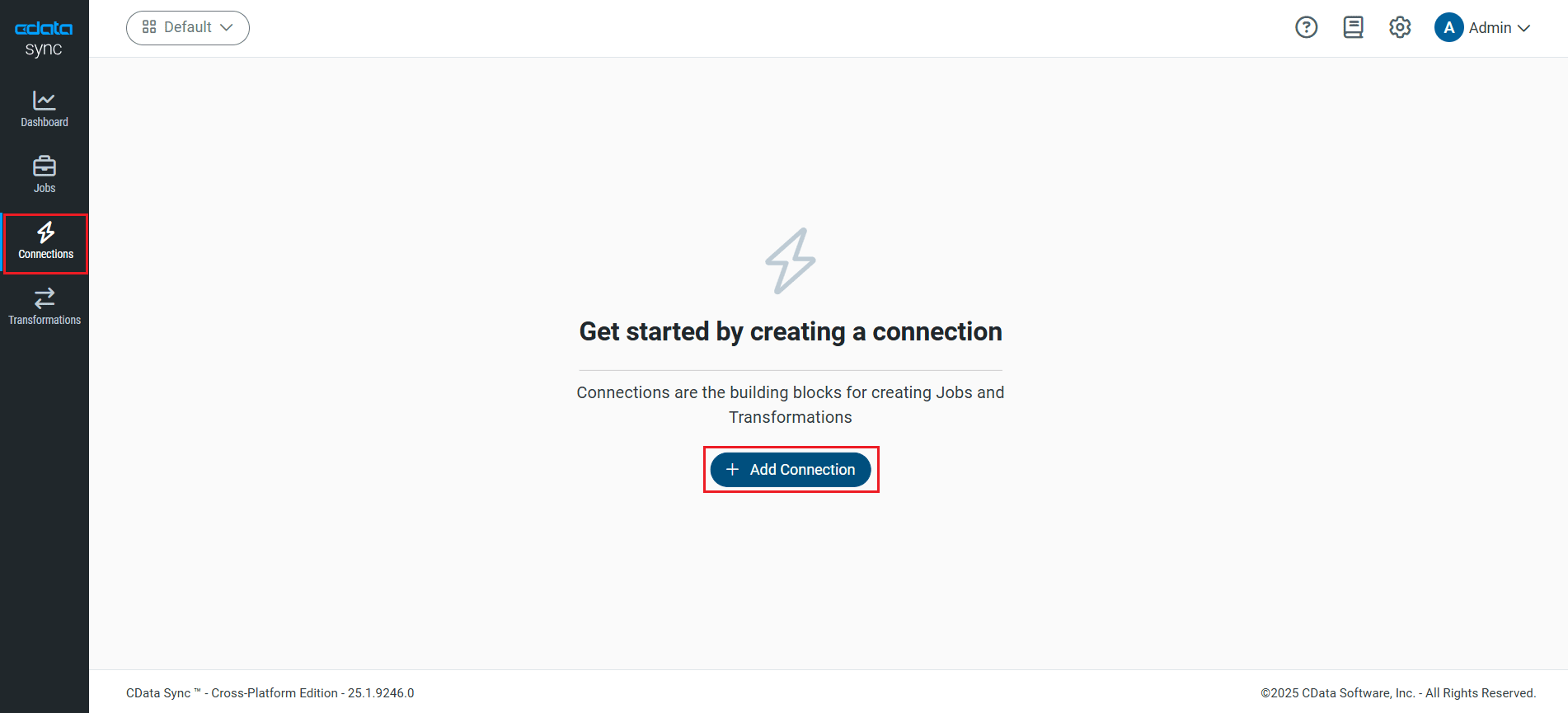
Using CData Sync, you can replicate Snowflake data to Azure Synapse. To add a replication destination, navigate to the Connections tab.
- Click Add Connection.
- Select the Destinations tab and locate the Azure Synapse connector.
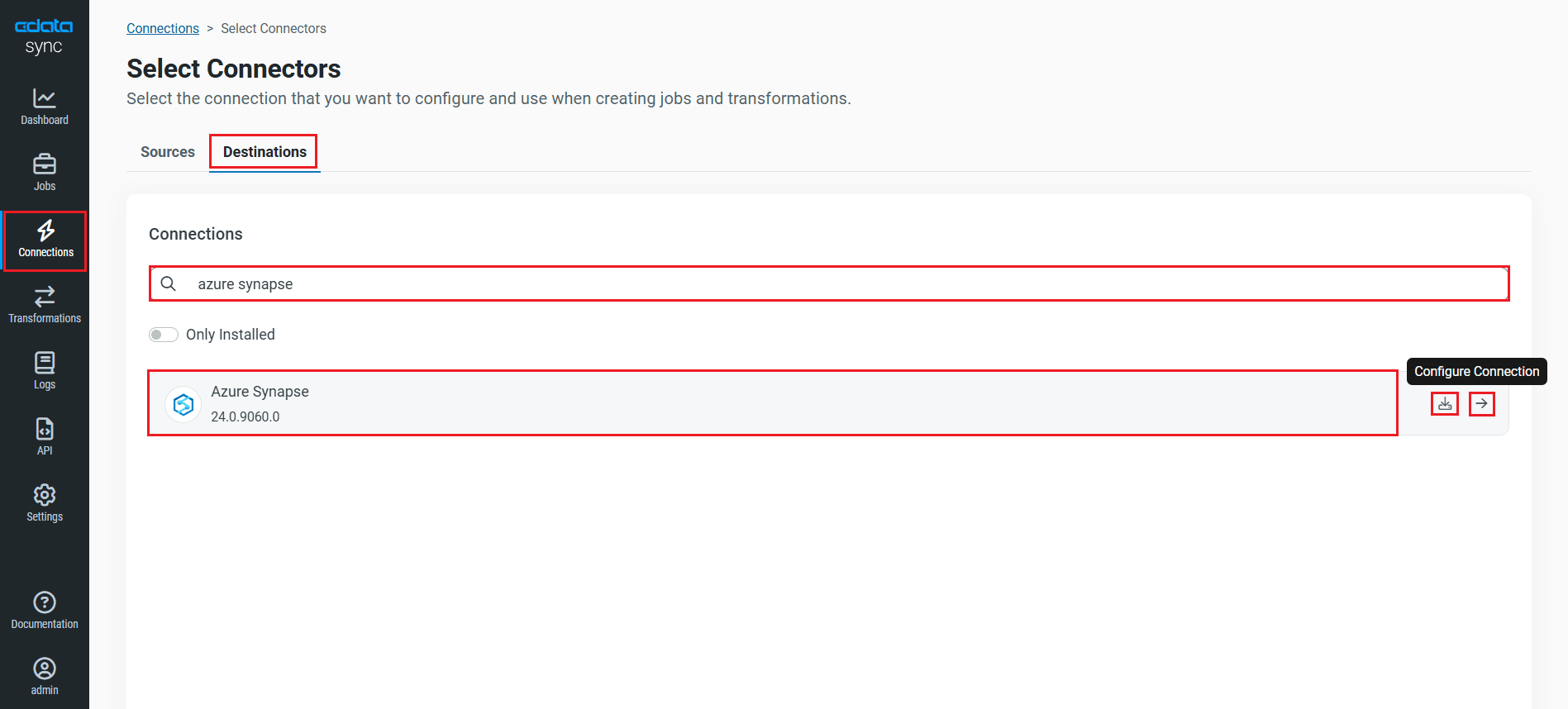
- Click the Configure Connection icon at the end of that row to open the New Connection page. If the Configure Connection icon is not available, click the Download Connector icon to install the Azure Synapse connector. For more information about installing new connectors, see Connections in the Help documentation.
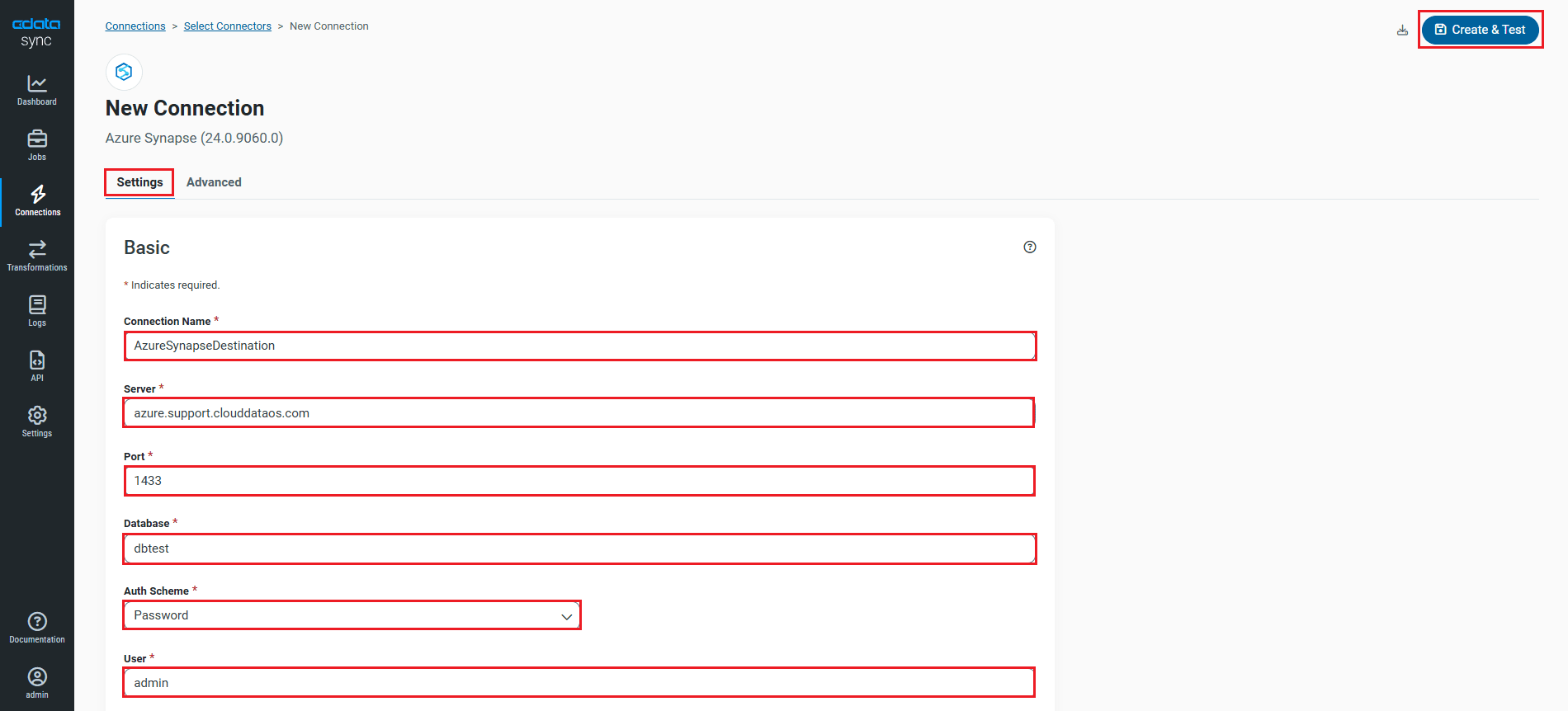
- To connect to Azure Synapse, set the following connection properties:
- Connection Name: Enter a connection name of your choice for the Azure Synapse connection.
- Server: Enter the name of the server that runs Azure Synapse.
- Port: Enter the port number for Azure Synapse. The default port value is 1433.
- Database: Enter the name of the Azure Synapse database.
- Auth Scheme:
- Auth Scheme: Select the Auth Scheme as Password. The available auth schmes for Azure Synapse are AzureAD, Azure MSI, AzureServicePrincipal, AzureServicePrincipalCert, Azure Password, and Password.
- User: Enter the username that you use to authenticate to your Azure Synapse account.
- Password: Enter the password that you use to authenticate to your Azure Synapse account.
- Once connected, click Create & Test to create, test and save the connection.
You are now connected to Azure Synapse and can use it as both a source and a destination.
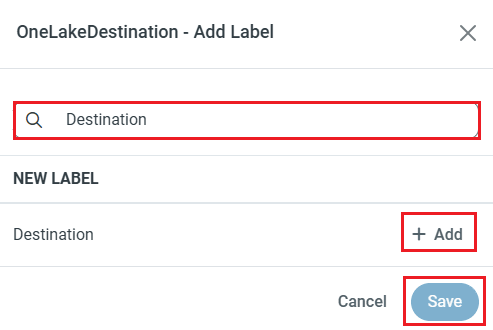
NOTE: You can use the Label feature to add a label for a source or a destination.
In this article, we will demonstrate how to load Snowflake data into Azure Synapse and utilize it as a destination.
Configure the Snowflake Connection
You can configure a connection to Snowflake from the Connections tab. To add a connection to your Snowflake account, navigate to the Connections tab.
- Click Add Connection.
- Select a source (Snowflake).
- Configure the connection properties.
To connect to Snowflake:
- Set User and Password to your Snowflake credentials and set the AuthScheme property to PASSWORD or OKTA.
- Set URL to the URL of the Snowflake instance (i.e.: https://myaccount.snowflakecomputing.com).
- Set Warehouse to the Snowflake warehouse.
- (Optional) Set Account to your Snowflake account if your URL does not conform to the format above.
- (Optional) Set Database and Schema to restrict the tables and views exposed.
See the Getting Started guide in the CData driver documentation for more information.
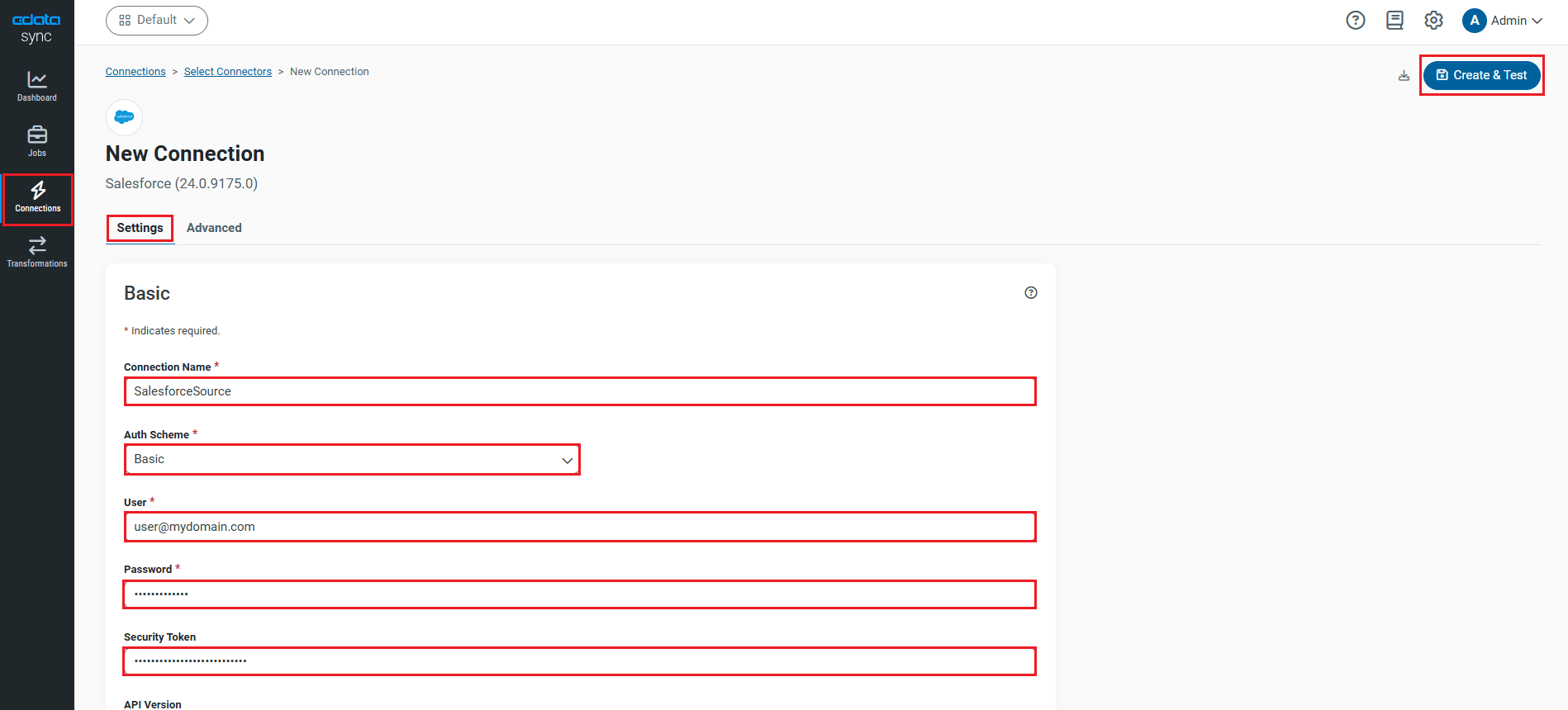
- Click Connect to Snowflake to ensure that the connection is configured properly.
- Click Save & Test to save the changes.
Configure Replication Queries
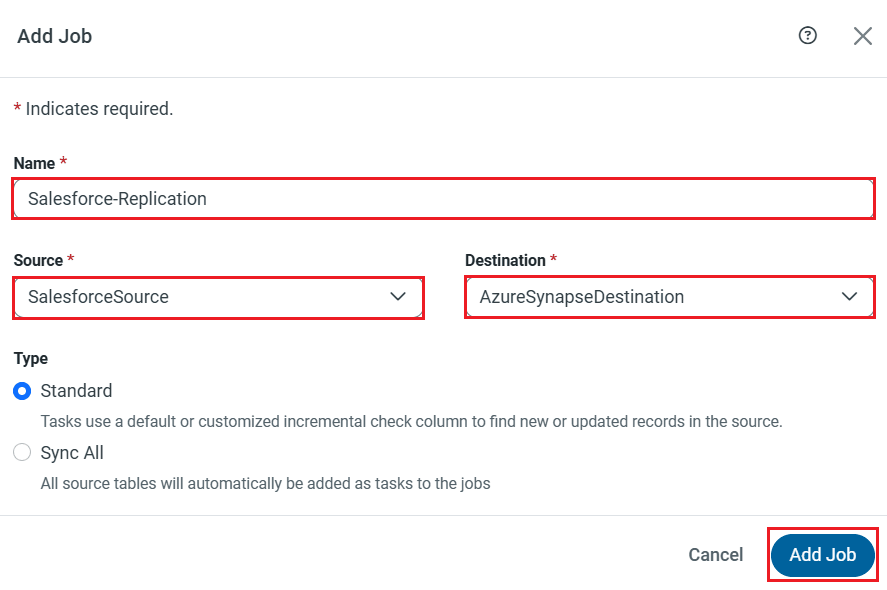
CData Sync enables you to control replication with a point-and-click interface and with SQL queries. For each replication you wish to configure, navigate to the Jobs tab and click Add Job. Select the Source and Destination for your replication.
Replicate Entire Tables
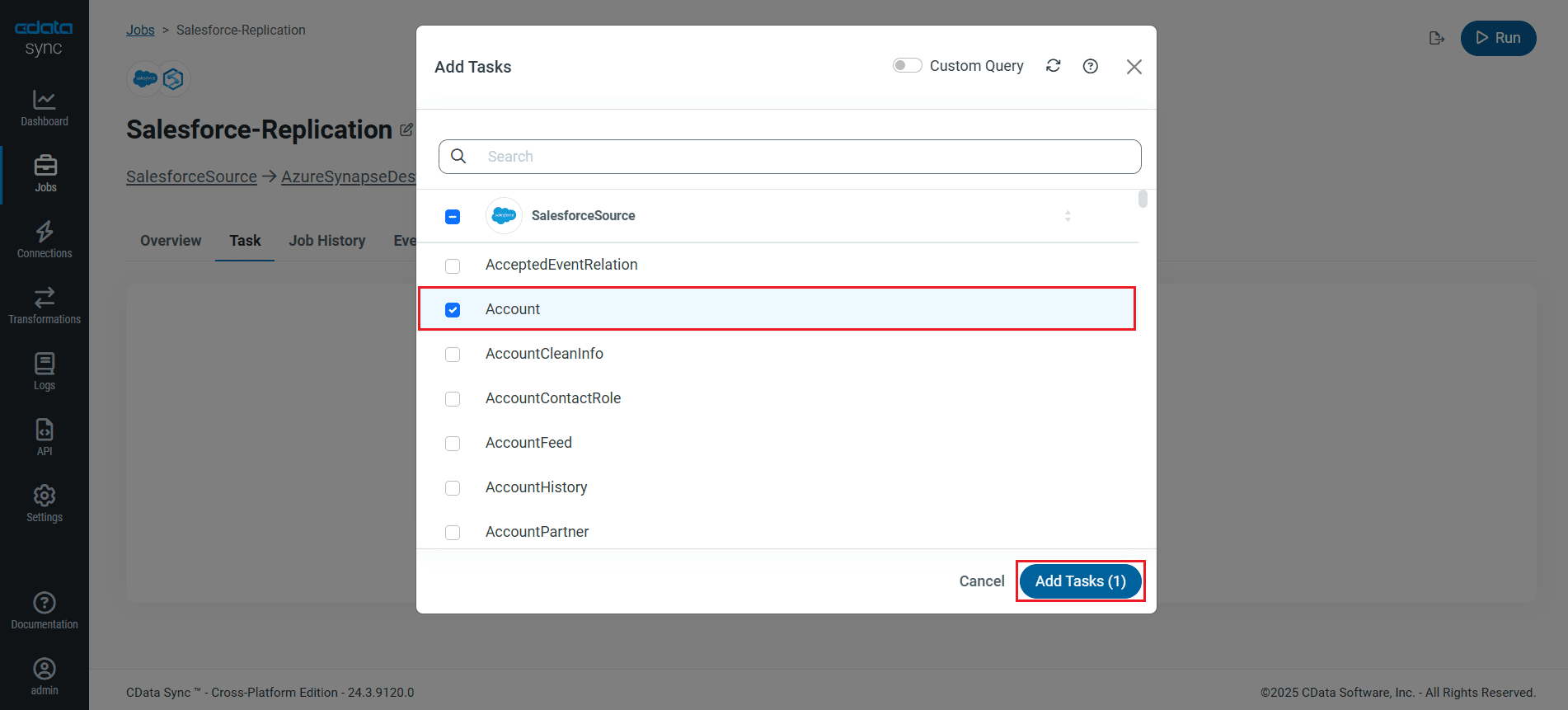
To replicate an entire table, navigate to the Task tab in the Job, click Add Tasks, choose the table(s) from the list of Snowflake tables you wish to replicate into Azure Synapse, and click Add Tasks again.
Customize Your Replication
You can use the Columns and Query tabs of a task to customize your replication. The Columns tab allows you to specify which columns to replicate, rename the columns at the destination, and even perform operations on the source data before replicating. The Query tab allows you to add filters, grouping, and sorting to the replication with the help of SQL queries.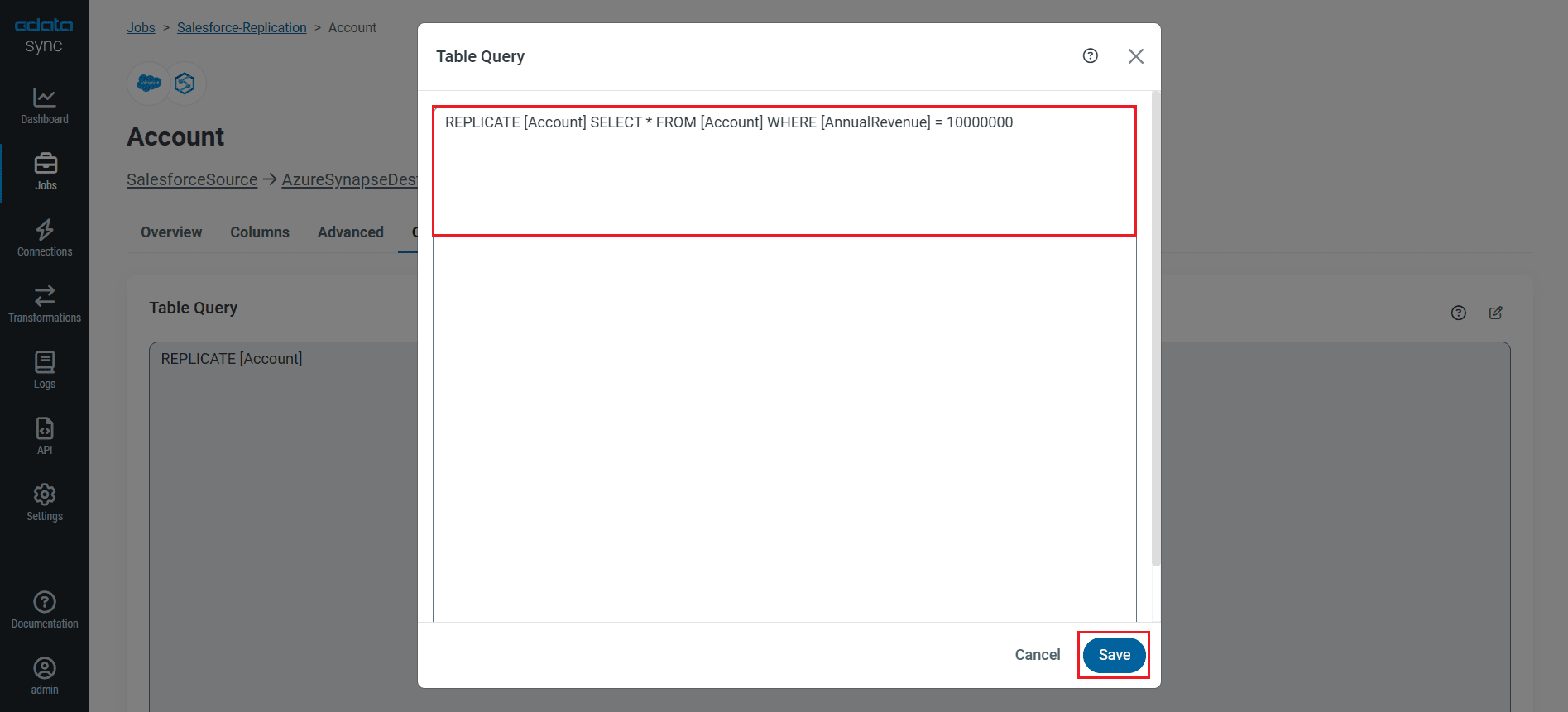
Schedule Your Replication
Select the Overview tab in the Job, and click Configure under Schedule. You can schedule a job to run automatically by configuring it to run at specified intervals, ranging from once every 10 minutes to once every month.
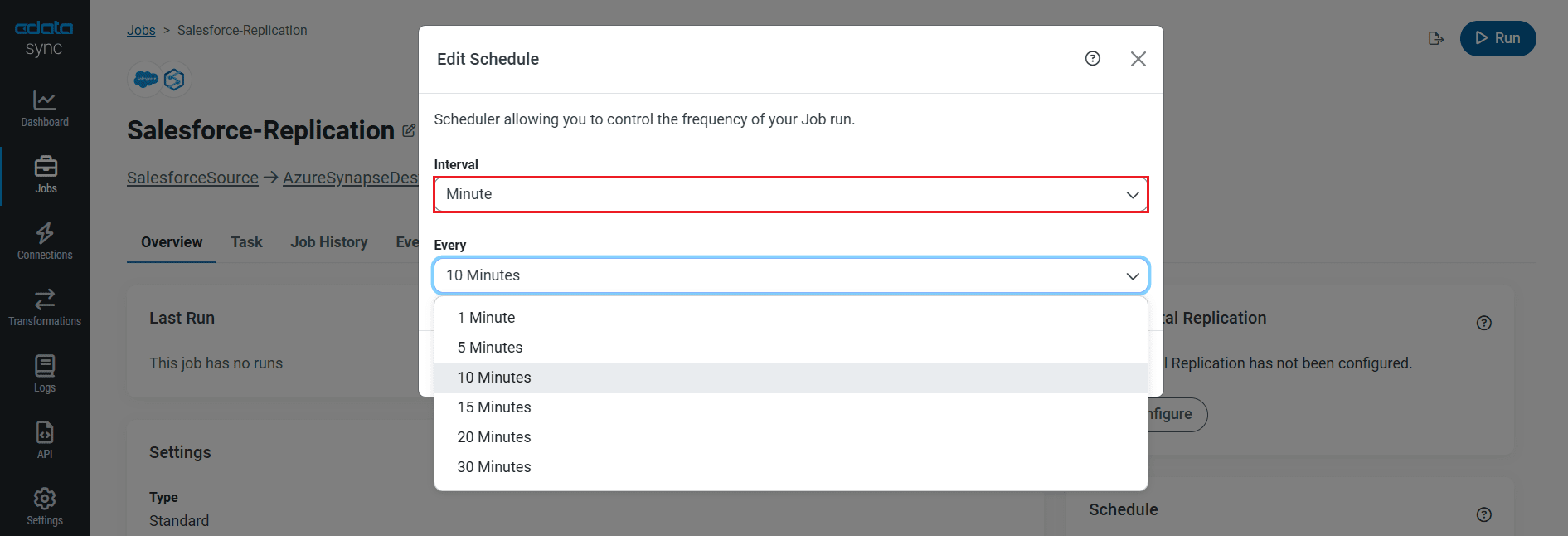
Once you have configured the replication job, click Save Changes. You can configure any number of jobs to manage the replication of your Snowflake data to Azure Synapse.
Run the Replication Job
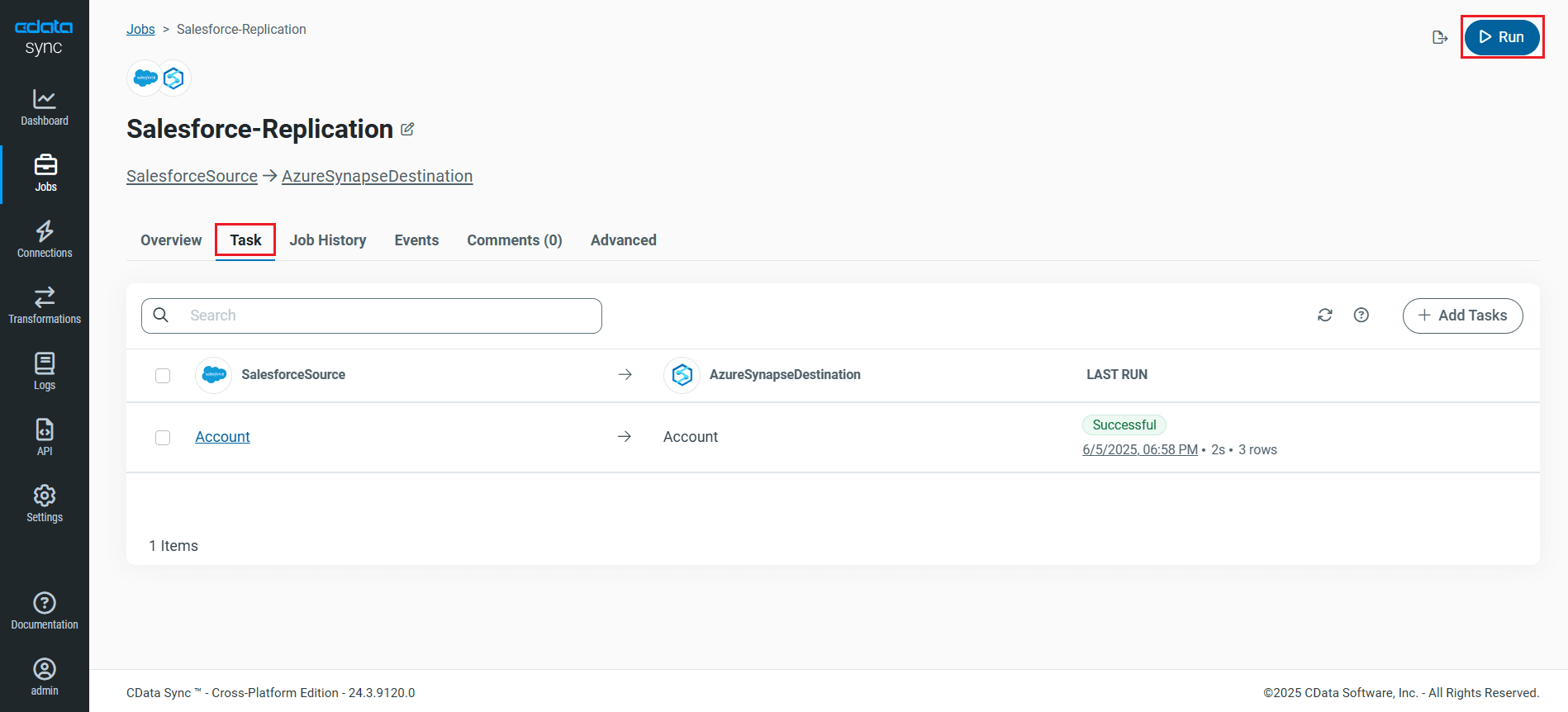
Once all the required configurations are made for the job, select the Snowflake table you wish to replicate and click Run. After the replication completes successfully, a notification appears, showing the time taken to run the job and the number of rows replicated.
Free Trial & More Information
Now that you have seen how to replicate Snowflake data into Azure Synapse, visit our CData Sync page to explore more about CData Sync and download a free 30-day trial. Start consolidating your enterprise data today!
As always, our world-class Support Team is ready to answer any questions you may have.
