
Model Context Protocol (MCP) finally gives AI models a way to access the business data needed to make them really useful at work. CData MCP Servers have the depth and performance to make sure AI has access to all of the answers.
Try them now for free →


Build SQL Server-Connected Web Apps with Axios and CData Connect Cloud
Use CData Connect Cloud to connect to live SQL Server data and build SQL Server-connected web apps with Axios.
Axios is a JavaScript library that allows developers to make HTTP requests to servers from a web browser or Node.js. When paired with CData Connect Cloud, you get access to live SQL Server data for your web apps. This article shows how to connect to SQL Server and build web apps in Axios with access to live SQL Server data.
Connect to SQL Server from Axios
To work with SQL Server in Axios, we need to connect to SQL Server from Connect Cloud, provide user access to the connection, and create a Workspace for the SQL Server data.
Connect to SQL Server from Connect Cloud
CData Connect Cloud uses a straightforward, point-and-click interface to connect to data sources.
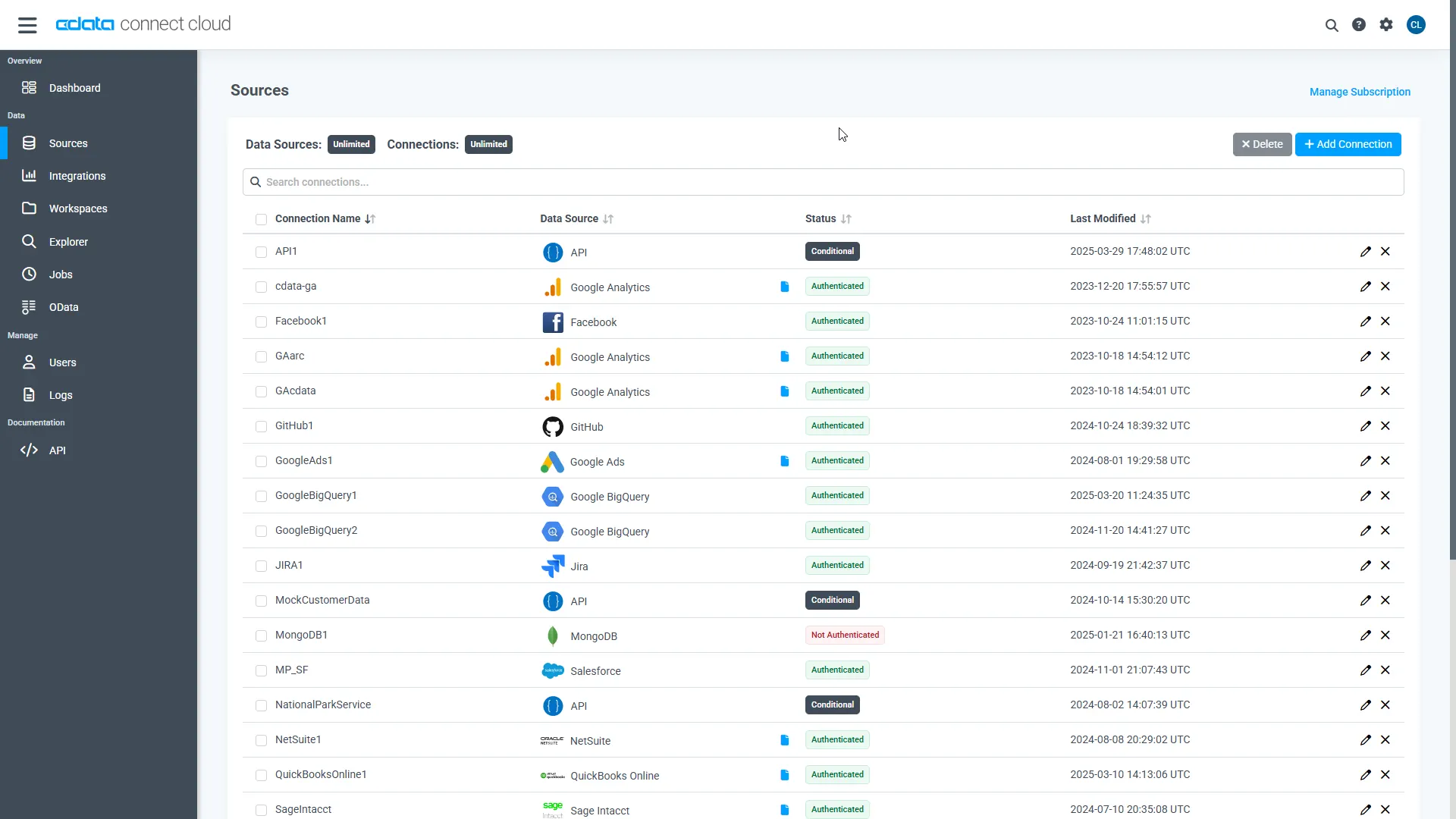
- Log into Connect Cloud, click Sources, and then click Add Connection
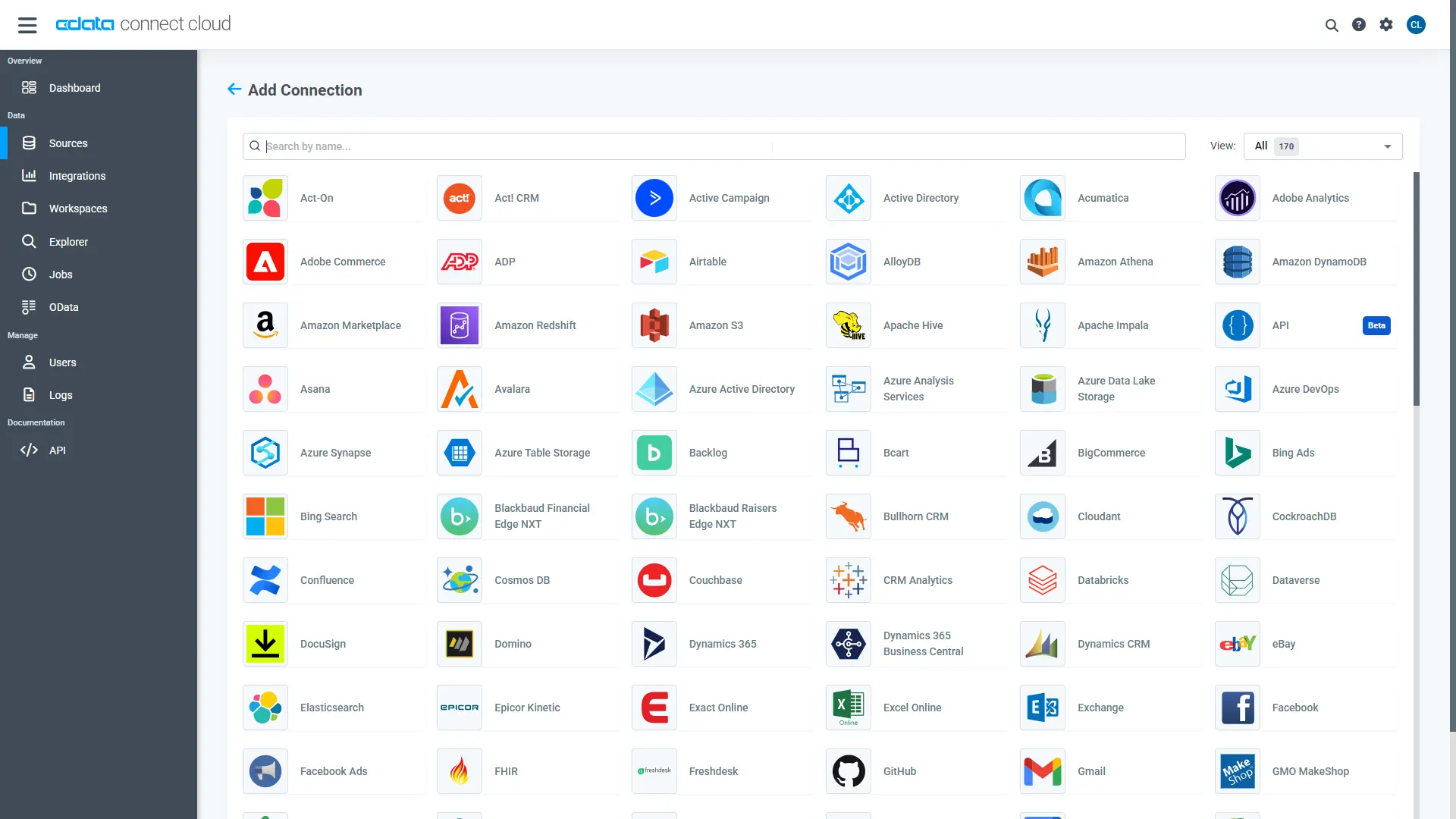
- Select "SQL Server" from the Add Connection panel
-
Enter the necessary authentication properties to connect to SQL Server.
Connecting to Microsoft SQL Server
Connect to Microsoft SQL Server using the following properties:
- Server: The name of the server running SQL Server.
- User: The username provided for authentication with SQL Server.
- Password: The password associated with the authenticating user.
- Database: The name of the SQL Server database.
Connecting to Azure SQL Server and Azure Data Warehouse
You can authenticate to Azure SQL Server or Azure Data Warehouse by setting the following connection properties:
- Server: The server running Azure. You can find this by logging into the Azure portal and navigating to "SQL databases" (or "SQL data warehouses") -> "Select your database" -> "Overview" -> "Server name."
- User: The name of the user authenticating to Azure.
- Password: The password associated with the authenticating user.
- Database: The name of the database, as seen in the Azure portal on the SQL databases (or SQL warehouses) page.
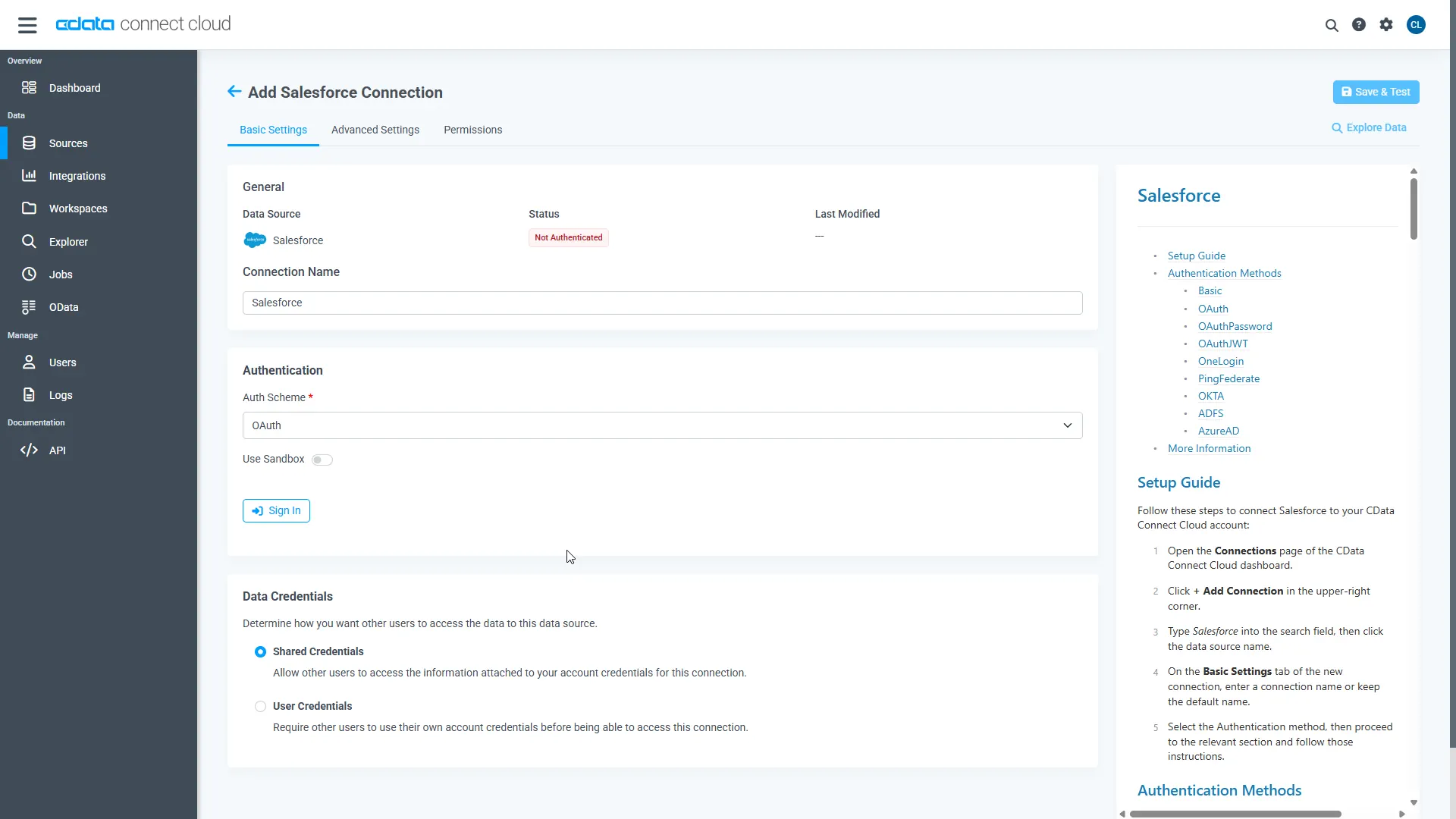
- Click Create & Test
-
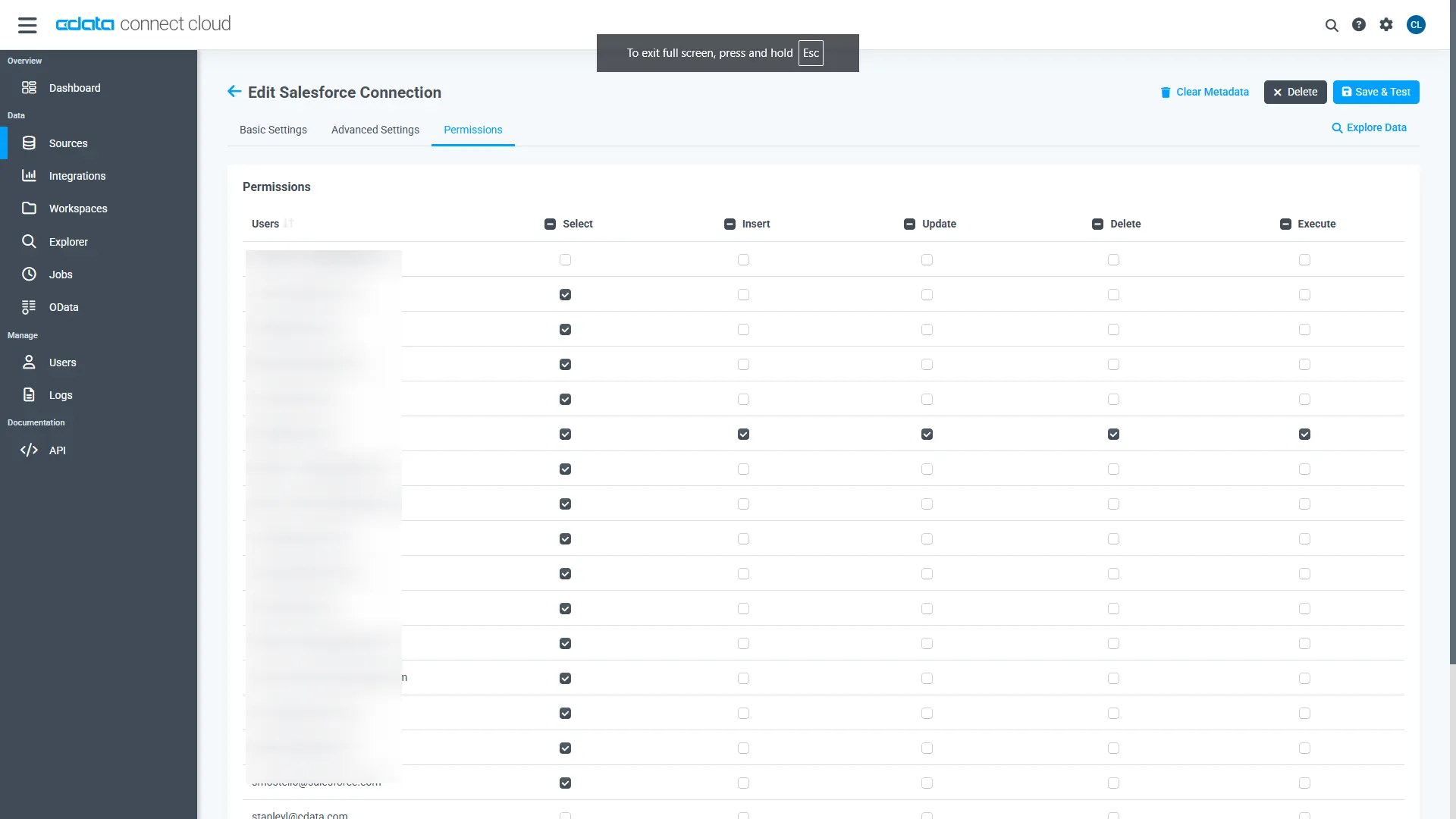
Navigate to the Permissions tab in the Add SQL Server Connection page and update the User-based permissions.
Add a Personal Access Token
When connecting to Connect Cloud through the REST API, the OData API, or the Virtual SQL Server, a Personal Access Token (PAT) is used to authenticate the connection to Connect Cloud. It is best practice to create a separate PAT for each service to maintain granularity of access.
- Click on the Gear icon () at the top right of the Connect Cloud app to open the settings page.
- On the Settings page, go to the Access Tokens section and click Create PAT.
-
Give the PAT a name and click Create.
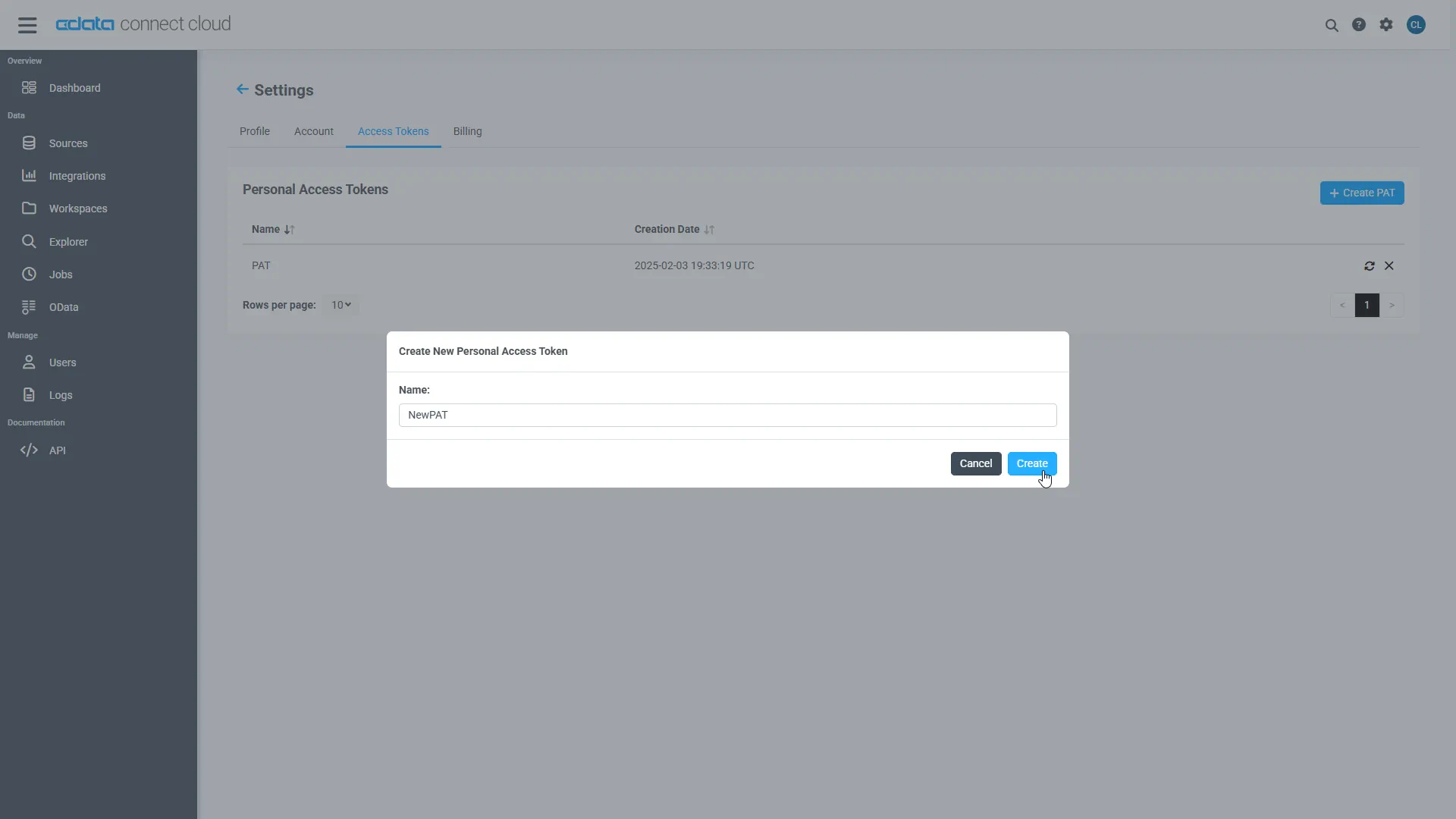
- The personal access token is only visible at creation, so be sure to copy it and store it securely for future use.
Configure SQL Server Endpoints for Axios
After connecting to SQL Server, create a workspace for your desired table(s).
-
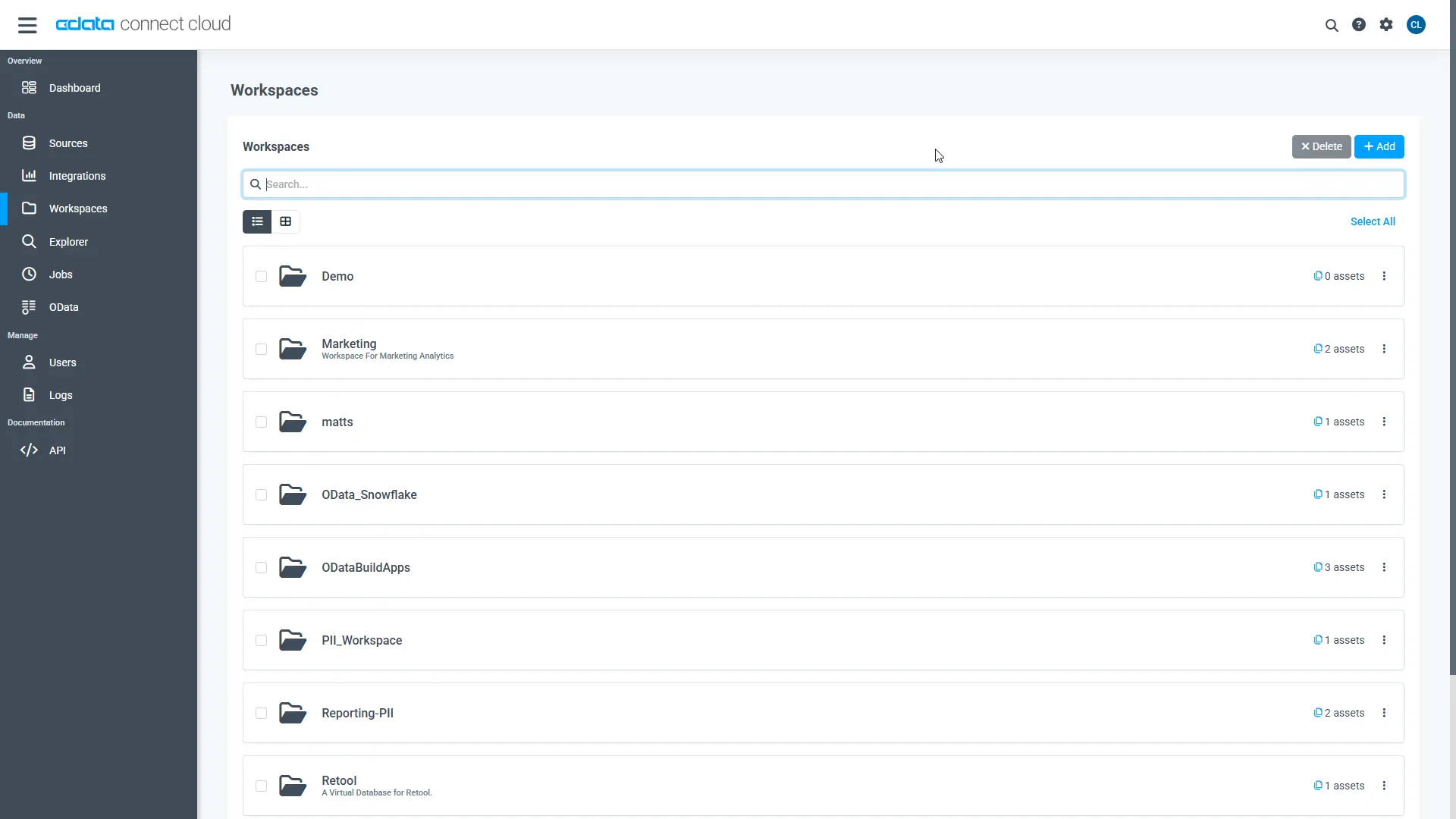
Navigate to the Workspaces page and click Add to create a new Workspace (or select an existing workspace).
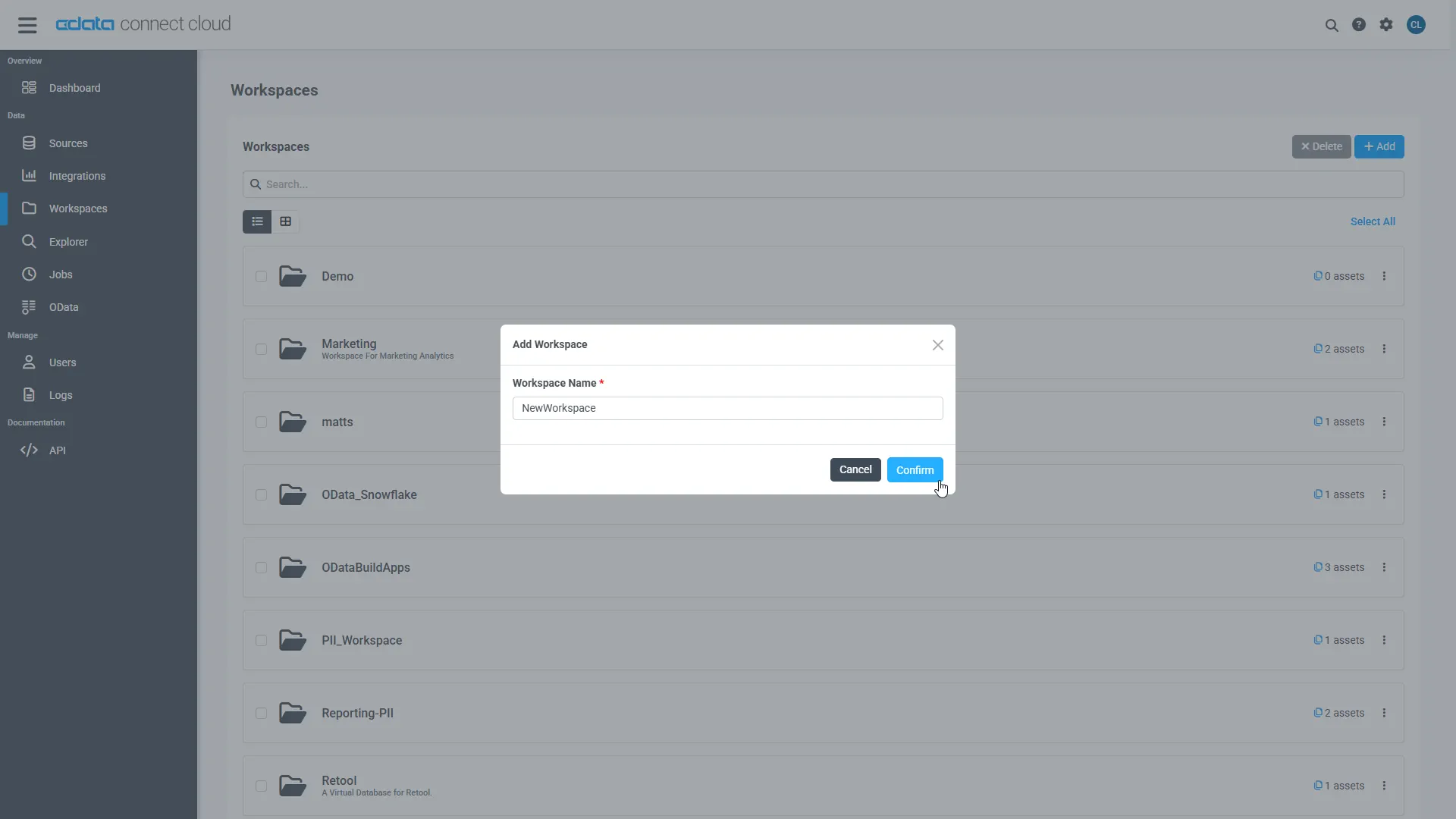
- Click Add to add new assets to the Workspace.
-
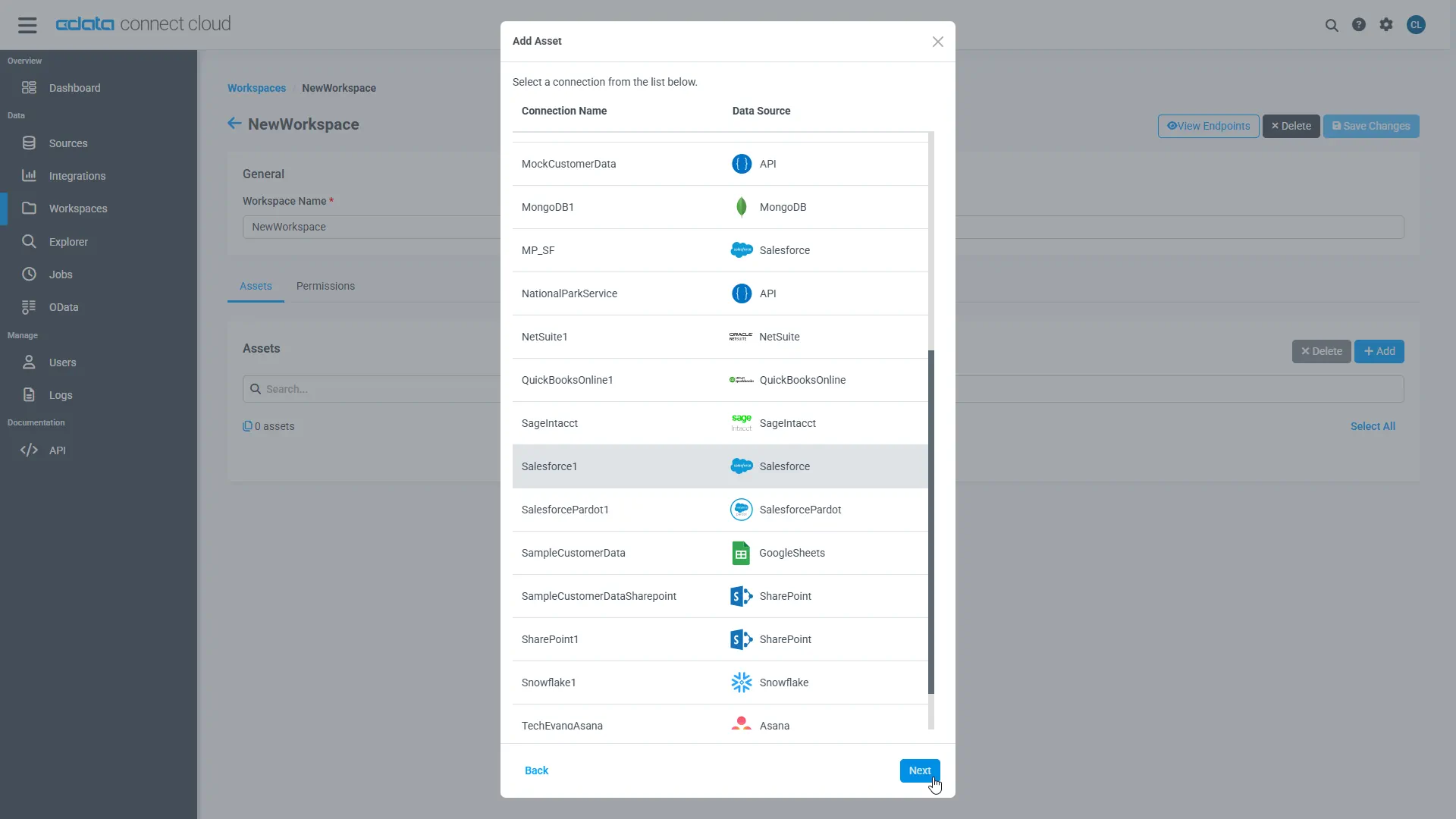
Select the SQL Server connection (e.g. SQL1) and click Next.
-
Select the table(s) you wish to work with and click Confirm.
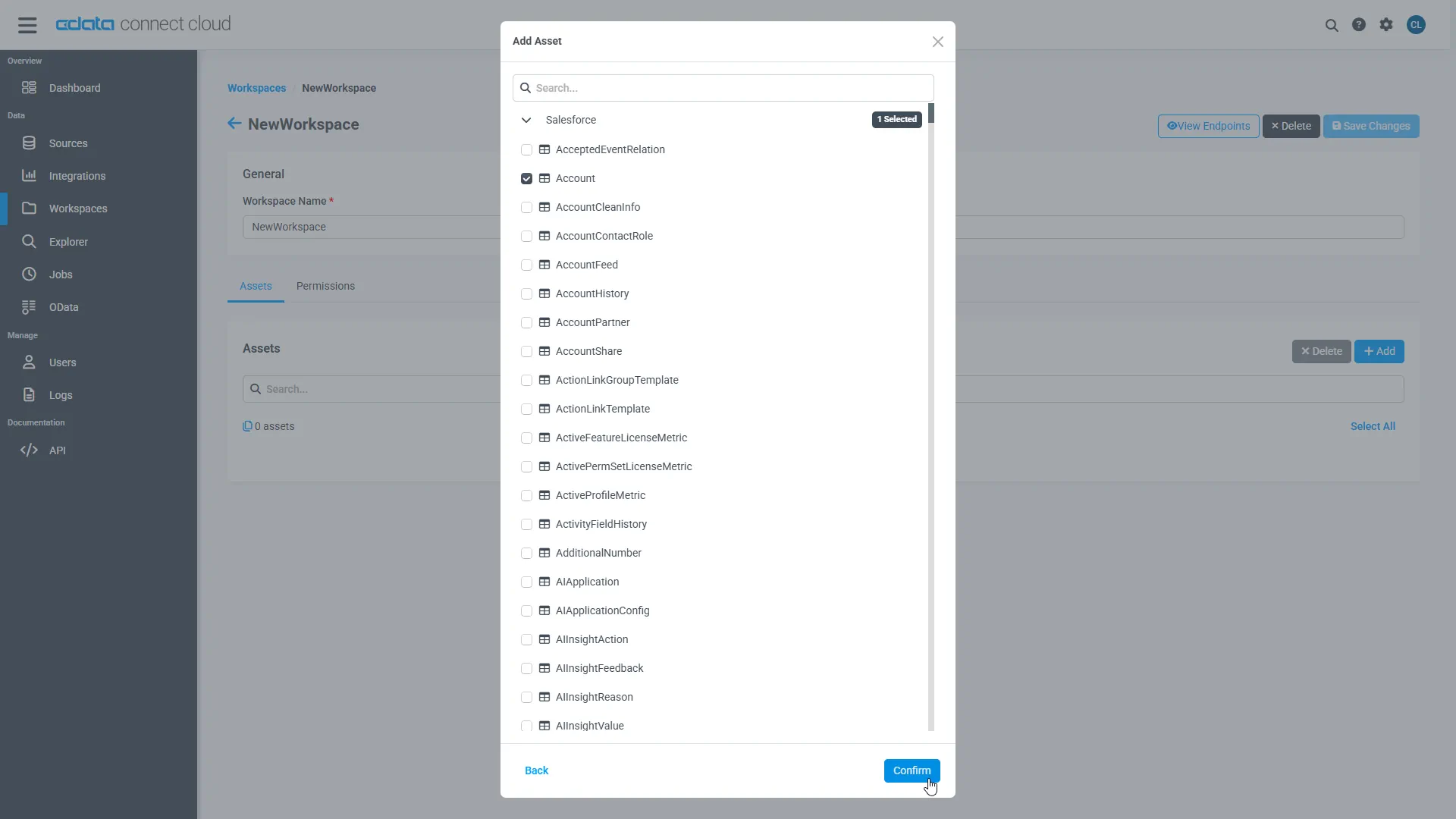
- Make note of the OData Service URL for your workspace, e.g. https://cloud.cdata.com/api/odata/{workspace_name}
With the connection, PAT, and Workspace configured, you are ready to connect to SQL Server data from Axios.
Connect to SQL Server Data in Axios Workflows
To establish a connection from Axios to CData Connect Cloud using the OData protocol, follow these steps.
- Create a project directory for your web app. For example: ~/connect_cloud/
- Open a terminal, navigate the the project directory and initialize a node project using the command:
npm init -y
- Install the Axios dependency in the project using the following command:
npm install axios
In your project directory, create a file called server.js that contains the following code. Provide your CData Connect Cloud username (e.g. [email protected]) and PAT (the PAT you created in the prerequisites). You must also provide a query for your data, such as SELECT * FROM SQL1.SCHEMA.Orders.
server.js code
const axios = require('axios') const user = '[email protected]' const pat = '***********************************'; //Your API endpoint const url = 'https://cloud.cdata.com/api/odata/{workspace_name}'; //Your data to be sent in the POST request const data = { "query":"SELECT * FROM {workspace_name}.SCHEMA.Orders" }; axios.post(url, data, { auth: { username: user, password: pat } }) .then(response => { const rows = response.data.results[0].rows; const schema = response.data.results[0].schema; //Create an array of column names const columnNames = schema.map(col => col.columnName); //Loop through each row and log the column name with its value rows.forEach(row => { const rowObject = {}; row.forEach((value, index) => { const columnName = columnNames[index]; rowObject[columnName] = value; }); console.log(rowObject); }) }) .catch(error => { console.error('Error:', error); });- In the terminal, execute the following command to run the server:
node server.js
The query results will appear:{ ID: 1, VALUE: -2 } { ID: 2, VALUE: 1 } { ID: 11, VALUE: null } { ID: 3, VALUE: 2 } { ID: 4, VALUE: 5 } ...
Simplified Access to SQL Server Data from Cloud Applications
At this point, you have a direct connection to live SQL Server data from Axios. For more information on gaining simplified access to data from more than 100 SaaS, Big Data, and NoSQL sources in cloud applications like Axios, refer to our Connect Cloud page.
