
Model Context Protocol (MCP) finally gives AI models a way to access the business data needed to make them really useful at work. CData MCP Servers have the depth and performance to make sure AI has access to all of the answers.
Try them now for free →


Search Zuora External Objects in Salesforce Connect (API Server)
Use the API Server to securely provide OData feeds of Zuora data to smart devices and cloud-based applications. Use the API Server and Salesforce Connect to create Zuora objects that you can access from apps and the dashboard.
The CData API Server enables you to access Zuora data from cloud-based applications like the Salesforce console and mobile applications like the Salesforce1 Mobile App. In this article, you will use the API Server and Salesforce Connect to access Zuora external objects alongside standard Salesforce objects.
Set Up the API Server
If you have not already done so, download the CData API Server. Once you have installed the API Server, follow the steps below to begin producing secure Zuora OData services:
Connect to Zuora
To work with Zuora data from Salesforce Connect, we start by creating and configuring a Zuora connection. Follow the steps below to configure the API Server to connect to Zuora data:
- First, navigate to the Connections page.
-
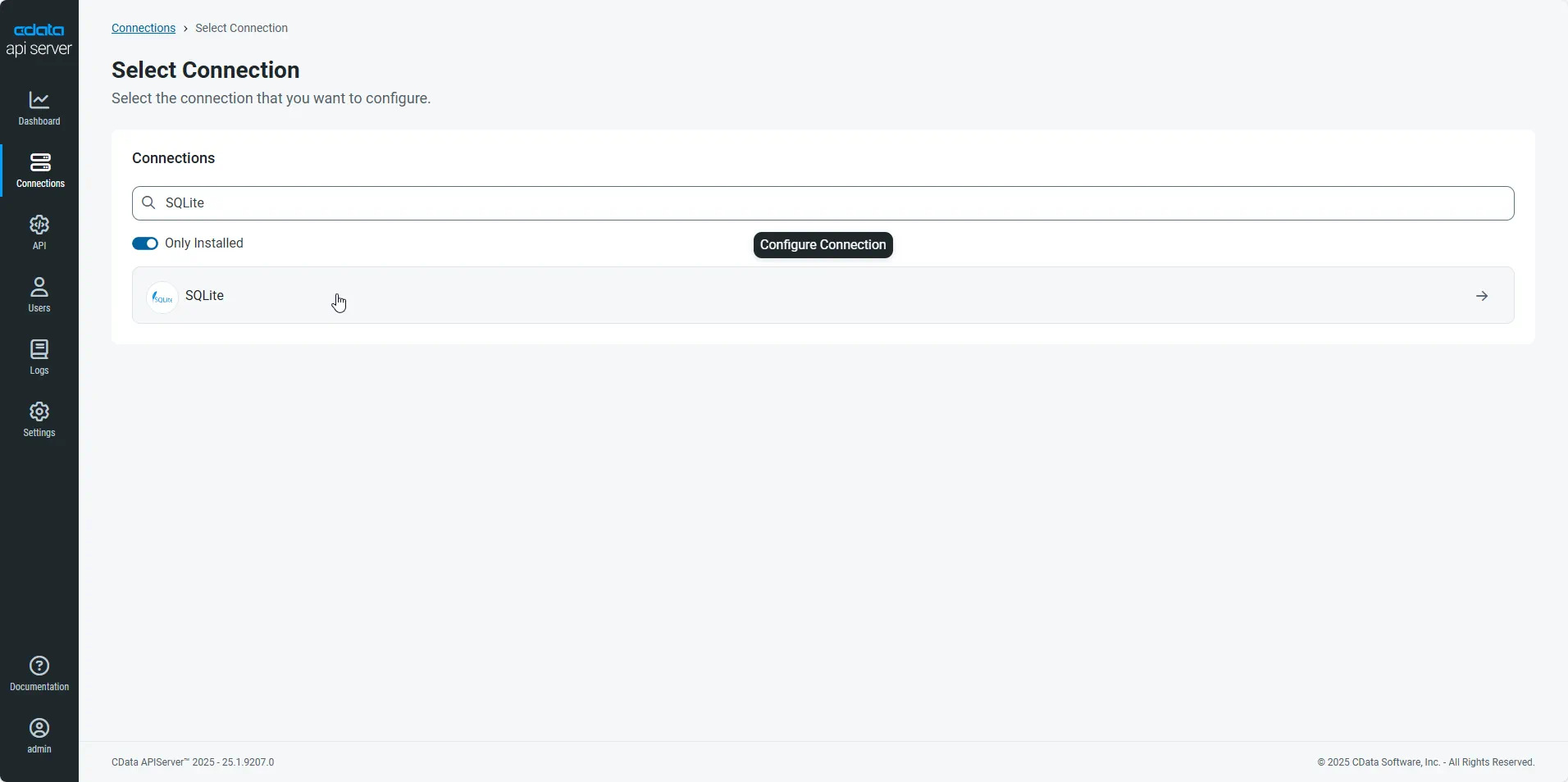
Click Add Connection and then search for and select the Zuora connection.
-
Enter the necessary authentication properties to connect to Zuora.
Zuora uses the OAuth standard to authenticate users. See the online Help documentation for a full OAuth authentication guide.
Configuring Tenant property
In order to create a valid connection with the provider you need to choose one of the Tenant values (USProduction by default) which matches your account configuration. The following is a list with the available options:
- USProduction: Requests sent to https://rest.zuora.com.
- USAPISandbox: Requests sent to https://rest.apisandbox.zuora.com"
- USPerformanceTest: Requests sent to https://rest.pt1.zuora.com"
- EUProduction: Requests sent to https://rest.eu.zuora.com"
- EUSandbox: Requests sent to https://rest.sandbox.eu.zuora.com"
Selecting a Zuora Service
Two Zuora services are available: Data Query and AQuA API. By default ZuoraService is set to AQuADataExport.
DataQuery
The Data Query feature enables you to export data from your Zuora tenant by performing asynchronous, read-only SQL queries. We recommend to use this service for quick lightweight SQL queries.
Limitations- The maximum number of input records per table after filters have been applied: 1,000,000
- The maximum number of output records: 100,000
- The maximum number of simultaneous queries submitted for execution per tenant: 5
- The maximum number of queued queries submitted for execution after reaching the limitation of simultaneous queries per tenant: 10
- The maximum processing time for each query in hours: 1
- The maximum size of memory allocated to each query in GB: 2
- The maximum number of indices when using Index Join, in other words, the maximum number of records being returned by the left table based on the unique value used in the WHERE clause when using Index Join: 20,000
AQuADataExport
AQuA API export is designed to export all the records for all the objects ( tables ). AQuA query jobs have the following limitations:
Limitations- If a query in an AQuA job is executed longer than 8 hours, this job will be killed automatically.
- The killed AQuA job can be retried three times before returned as failed.
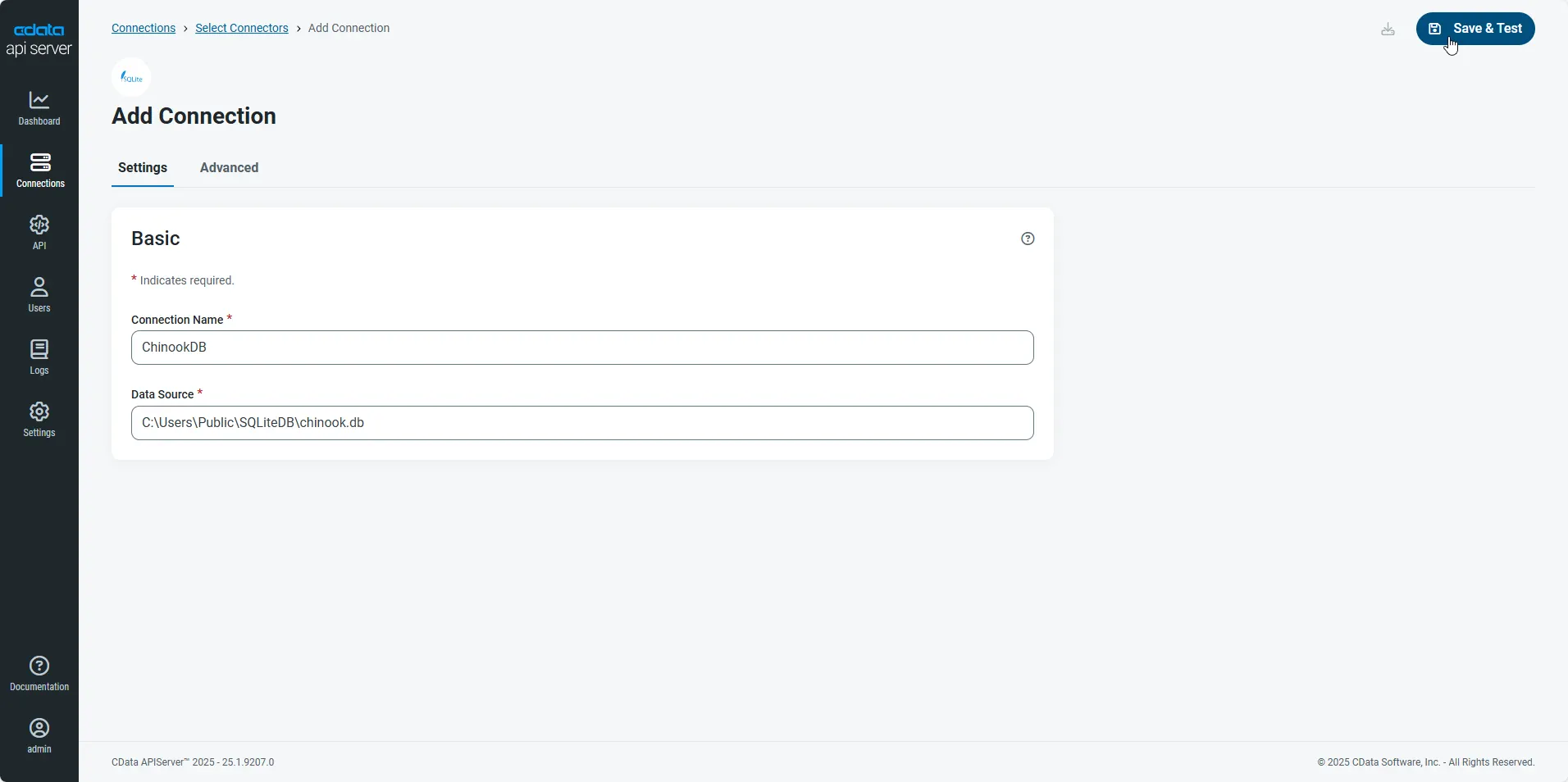
- After configuring the connection, click Save & Test to confirm a successful connection.
Configure API Server Users
Next, create a user to access your Zuora data through the API Server. You can add and configure users on the Users page. Follow the steps below to configure and create a user:
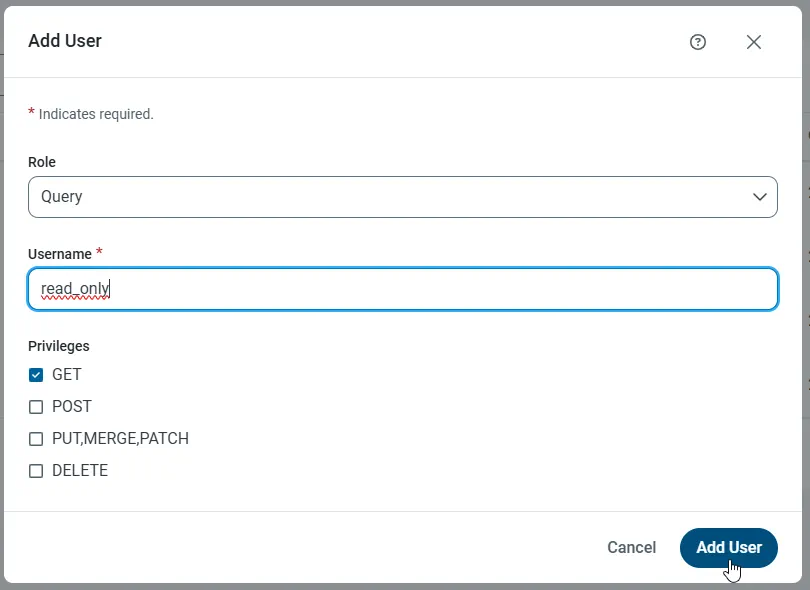
- On the Users page, click Add User to open the Add User dialog.
-
Next, set the Role, Username, and Privileges properties and then click Add User.
-
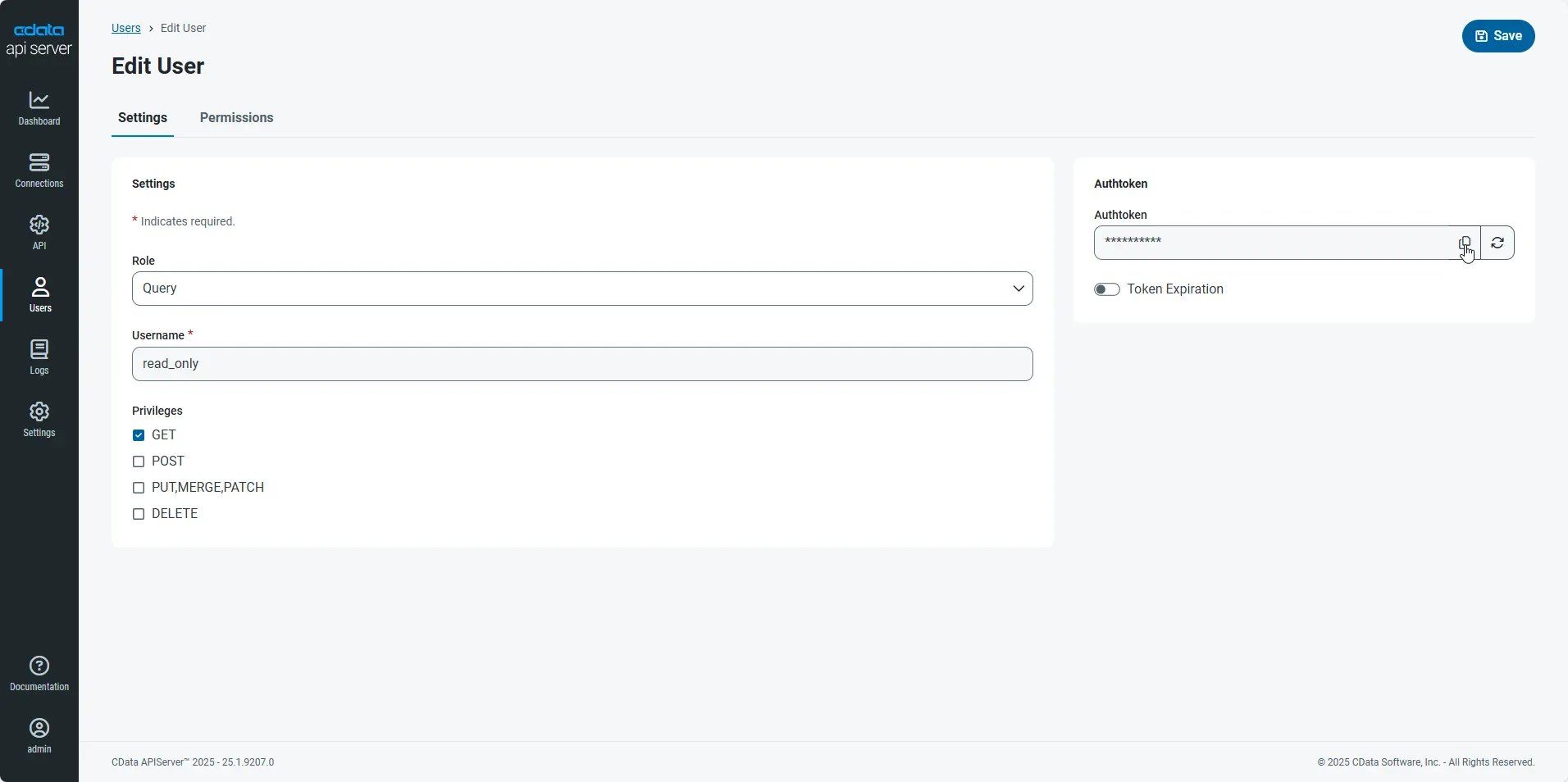
An Authtoken is then generated for the user. You can find the Authtoken and other information for each user on the Users page:
Creating API Endpoints for Zuora
Having created a user, you are ready to create API endpoints for the Zuora tables:
-
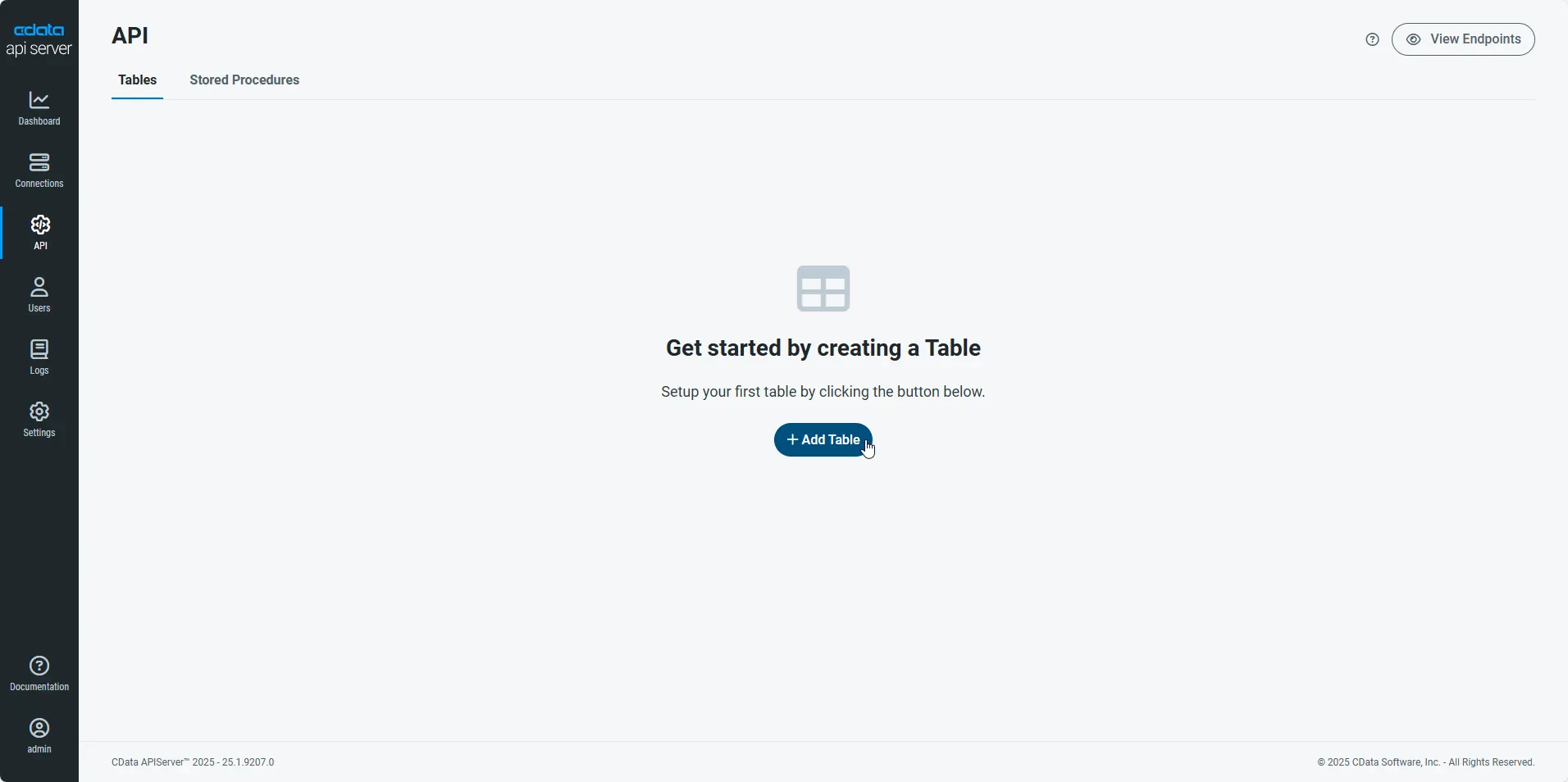
First, navigate to the API page and then click
Add Table
.
-
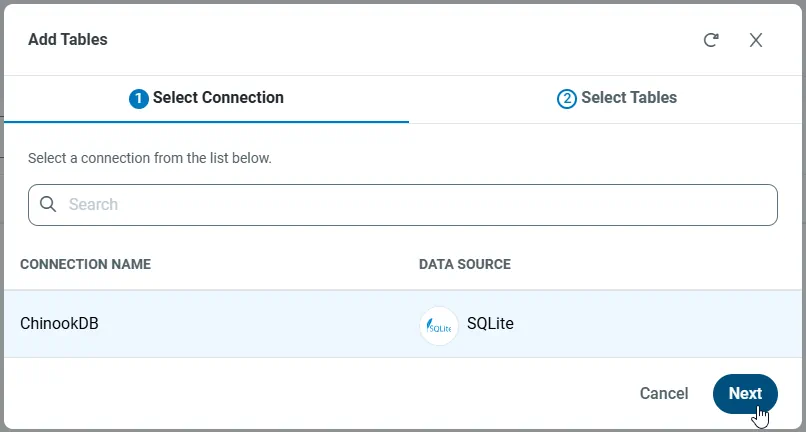
Select the connection you wish to access and click Next.
-
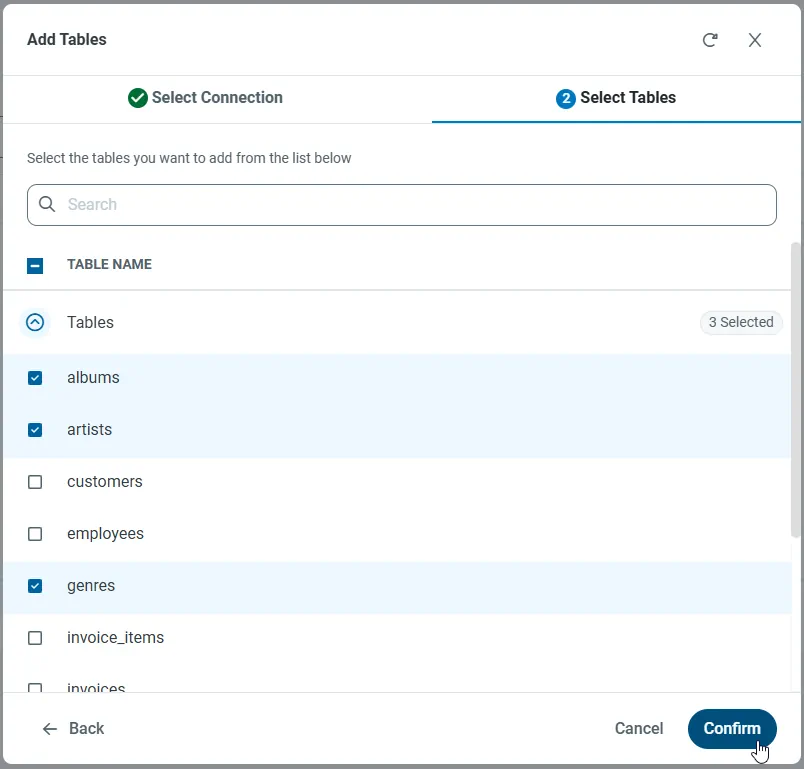
With the connection selected, create endpoints by selecting each table and then clicking Confirm.
Gather the OData Url
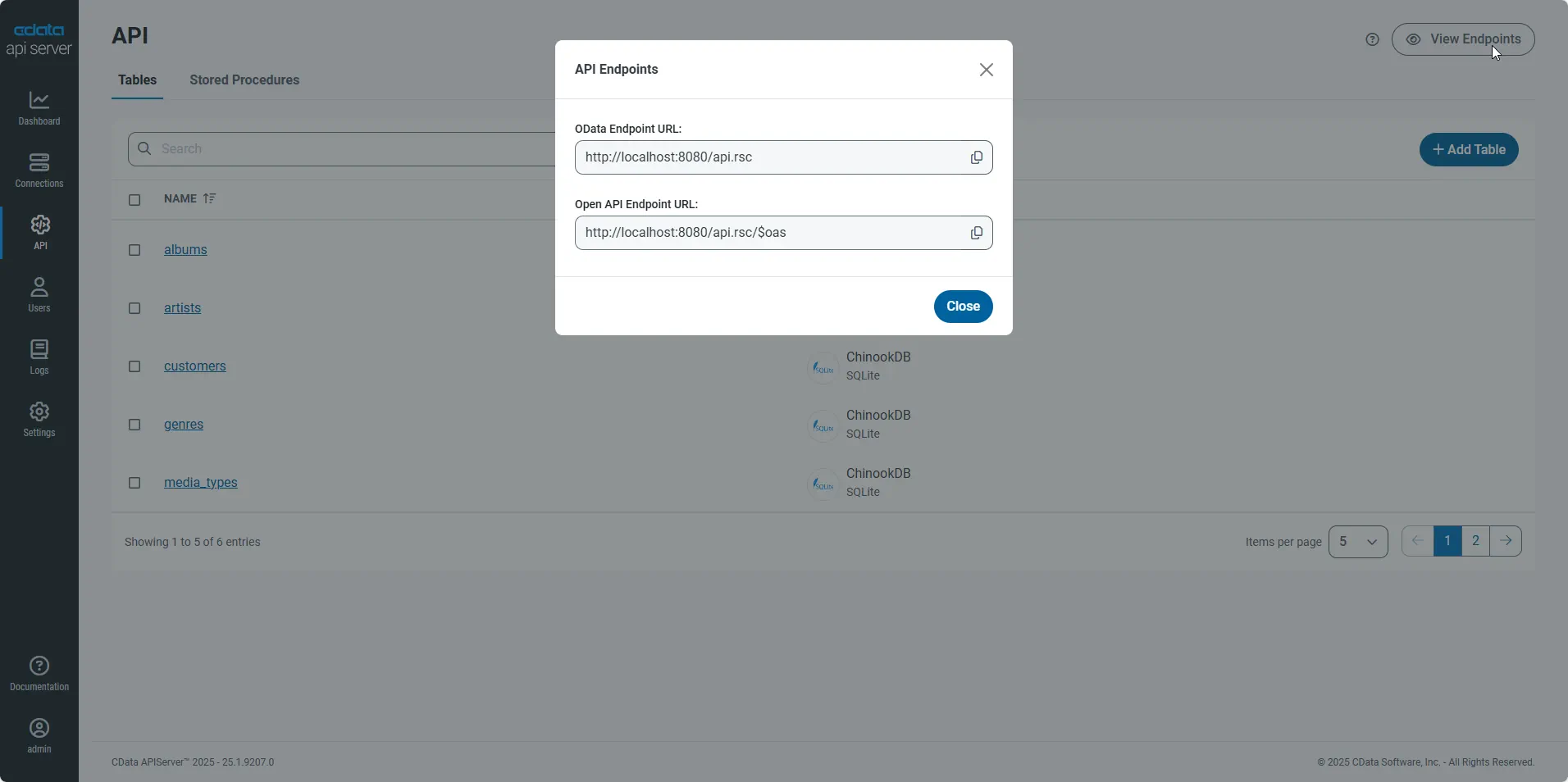
Having configured a connection to Zuora data, created a user, and added resources to the API Server, you now have an easily accessible REST API based on the OData protocol for those resources. From the API page in API Server, you can view and copy the API Endpoints for the API:
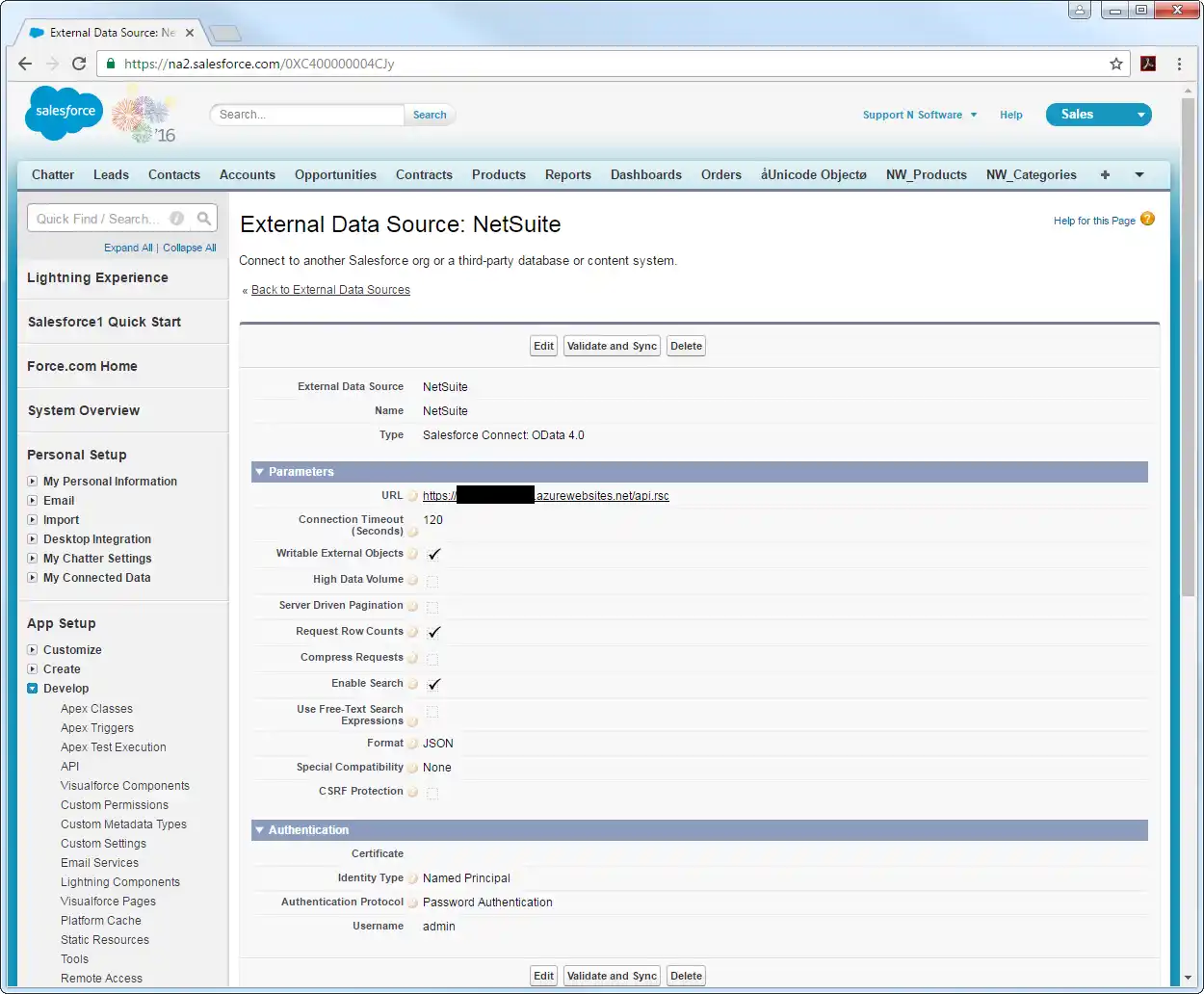
Connect to Zuora Data as an External Data Source
Follow the steps below to connect to the feed produced by the API Server.
- Log into Salesforce and click Setup -> Develop -> External Data Sources.
- Click New External Data Source.
- Enter values for the following properties:
- External Data Source: Enter a label to be used in list views and reports.
- Name: Enter a unique identifier.
- Type: Select the option "Salesforce Connect: OData 4.0".
URL: Enter the URL to the OData endpoint of the API Server. The format of the OData URL is https://your-server:your-port/api.rsc.
Note that plain-text is suitable for only testing; for production, use TLS.
Select JSON in the Format menu.
- In the Authentication section, set the following properties:
- Identity Type: If all members of your organization will use the same credentials to access the API Server, select "Named Principal". If the members of your organization will connect with their own credentials, select "Per User".
- Authentication Protocol: Select Password Authentication to use basic authentication.
- Certificate: Enter or browse to the certificate to be used to encrypt and authenticate communications from Salesforce to your server.
- Username: Enter the username for a user known to the API Server.
- Password: Enter the user's authtoken.
Synchronize Zuora Objects
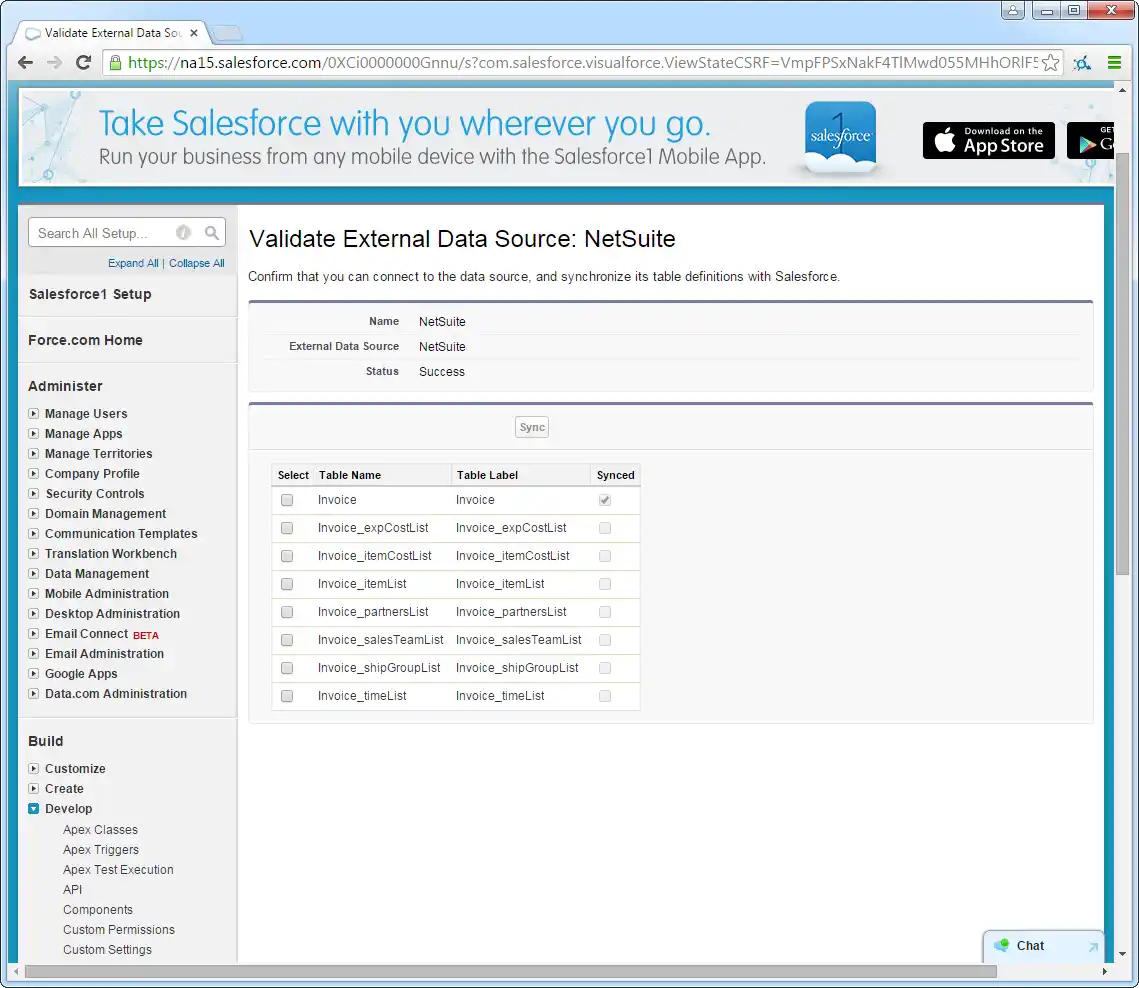
After you have created the external data source, follow the steps below to create Zuora external objects that reflect any changes in the data source. You will synchronize the definitions for the Zuora external objects with the definitions for Zuora tables.
- Click the link for the external data source you created.
- Click Validate and Sync.
- Select the Zuora tables you want to work with as external objects.
Access Zuora Data as Salesforce Objects
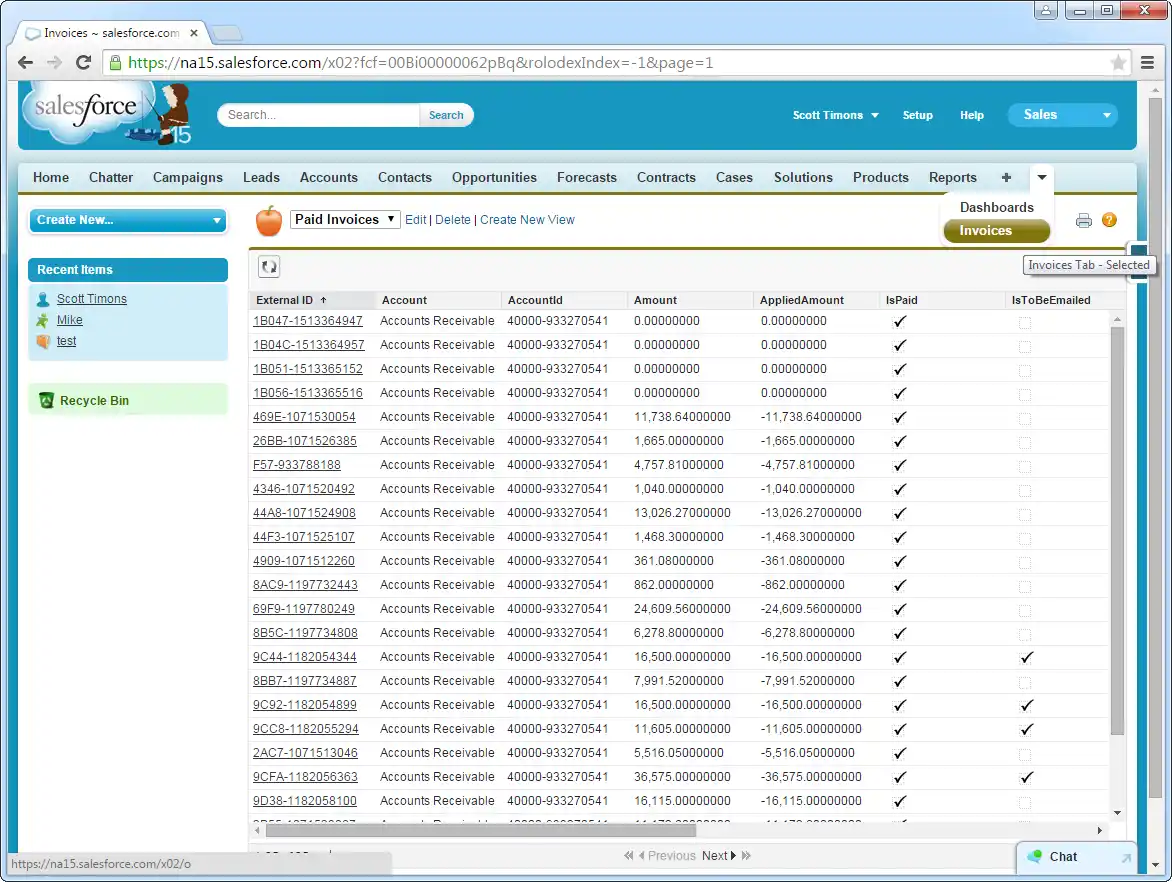
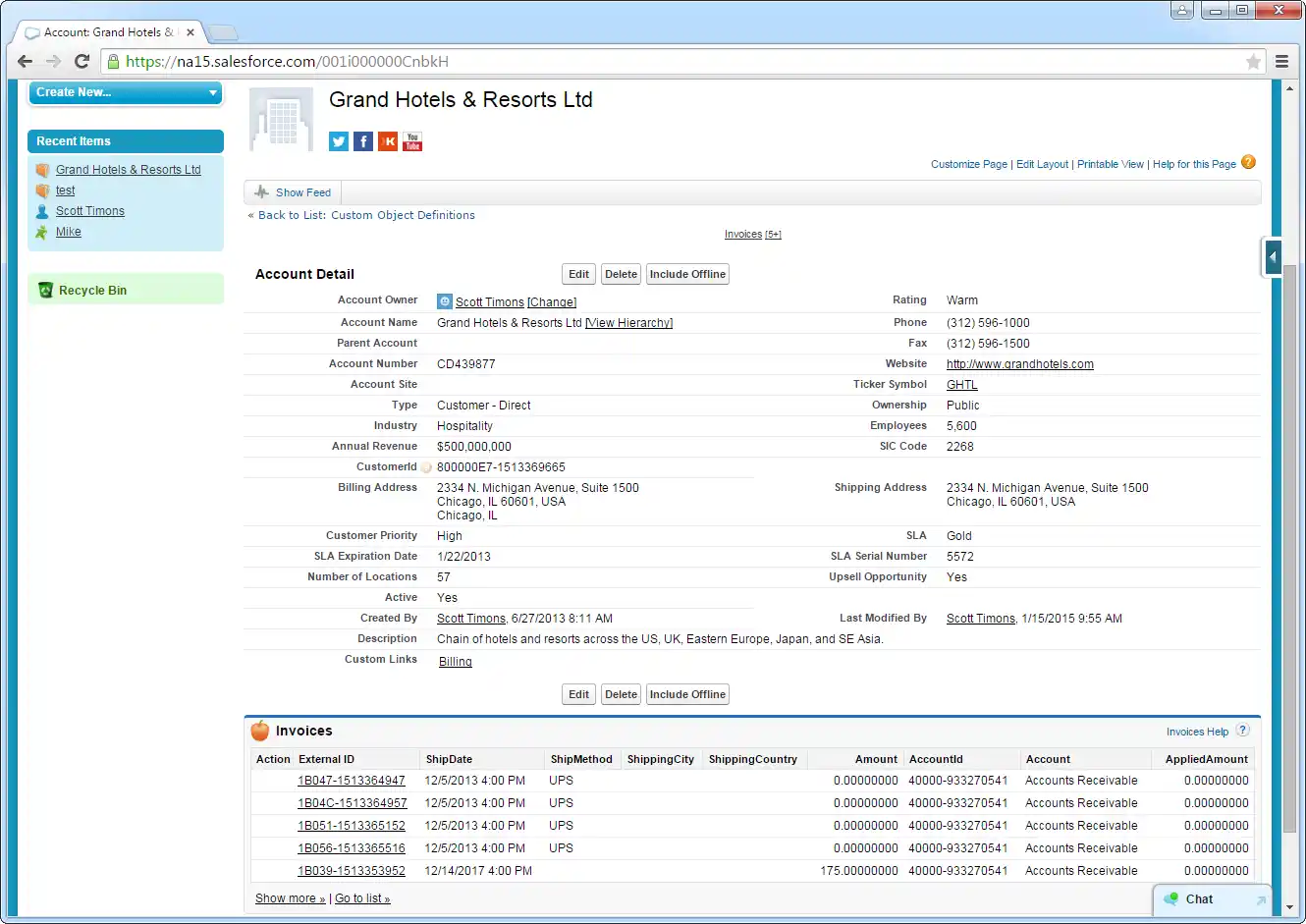
After adding Zuora data as an external data source and syncing Zuora tables with Zuora external objects, you can use the external objects just as you would standard Salesforce objects.
-
Create a new tab with a filter list view:
-
Display related lists of Zuora external objects alongside standard Salesforce objects:
Troubleshooting
You can use the following checklist to avoid typical connection problems:
- Ensure that your server has a publicly accessible IP address. Related to this check, but one layer up, at the operating system layer, you will also need to ensure that your firewall has an opening for the port the API Server is running on. At the application layer, ensure that you have added trusted IP addresses on the Settings -> Security tab of the administration console.
- Ensure that you are using a connection secured by an SSL certificate from a commercial, trusted CA. Salesforce does not currently accept self-signed certificates or internal CAs.
Ensure that the server you are hosting the API Server on is using TLS 1.1 or above. If you are using the .NET API Server, you can accomplish this by using the .NET API Server's embedded server.
If you are using IIS, TLS 1.1 and 1.2 are supported but not enabled by default. To enable these protocols, refer to the how-to on MSDN and the Microsoft technical reference.
If you are using the Java edition, note that TLS 1.2 is enabled by default in Java 8 but not in Java 6 or 7. If you are using these earlier versions, you can refer to this this Oracle how-to.
