
Model Context Protocol (MCP) finally gives AI models a way to access the business data needed to make them really useful at work. CData MCP Servers have the depth and performance to make sure AI has access to all of the answers.
Try them now for free →


Node-RED Flow: New Accounts in SQLite Add or Update Accounts in a Snowflake Warehouse
Node-RED is a tool that allows you to create data flows that incorporate hardware devices, APIs, and online services. The API Server creates REST APIs for 250+ data sources, ranging from on-premises databases to cloud-based services to flat files. By connecting to the API Server from Node-RED, you can create useful data flows for your business. This article walks through creating a flow that will query an operational system (SQLite) for new accounts and then create a new account (or update an existing one) in using the same data.
Install Node-RED
To run Node-RED, you need to install Node.js. More information on this process is available from the Node.js Website. Once you have Node.js installed, the simplest way to install Node-RED is to use npm (see below). Refer to the Node-RED installation page for more information, including other methods of installation,
sudo npm install -g --unsafe-perm node-red
Set Up the API Server
To build a flow working with data from any of the 250+ supported sources, install and run the API Server. Then configure connection(s) to your data source(s). For this article, we configure connections to a SQLite database and a Snowflake data warehouse. Follow the steps below to begin producing secure web services on top of SQLite and Snowflake:
Deploy
The API Server runs on your own server. On Windows, you can deploy using the stand-alone server or IIS. On a Java servlet container, drop in the API Server WAR file. See the help documentation for more information and how-tos.
The API Server is also easy to deploy on Microsoft Azure, Amazon EC2, and Heroku.
Connect to SQLite
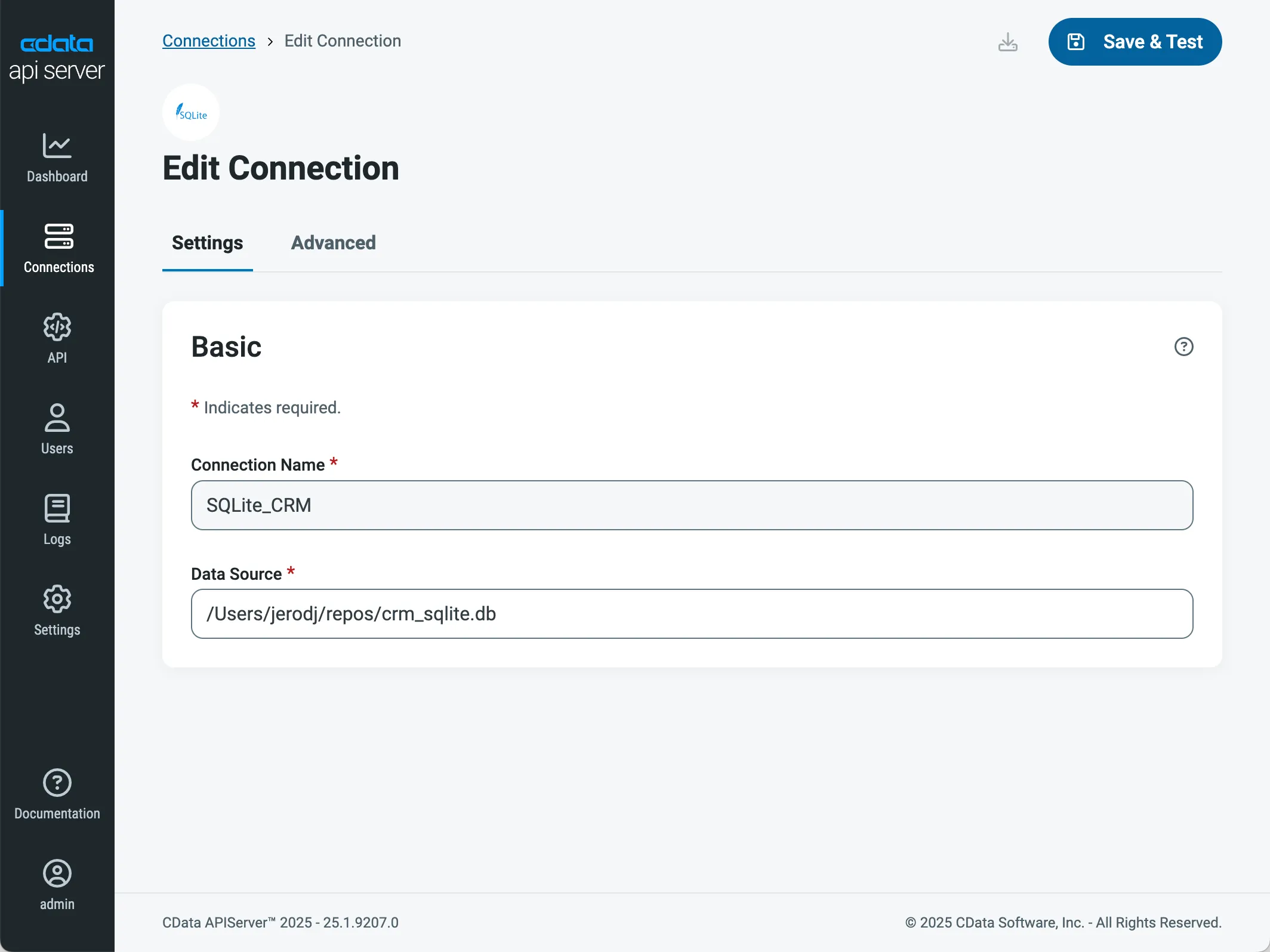
Provide the connection properties needed to connect to SQLite by clicking Connections and adding a new connection.
To connect to a SQLite database, you simply need the Path to path of the database file.
Connect to Snowflake
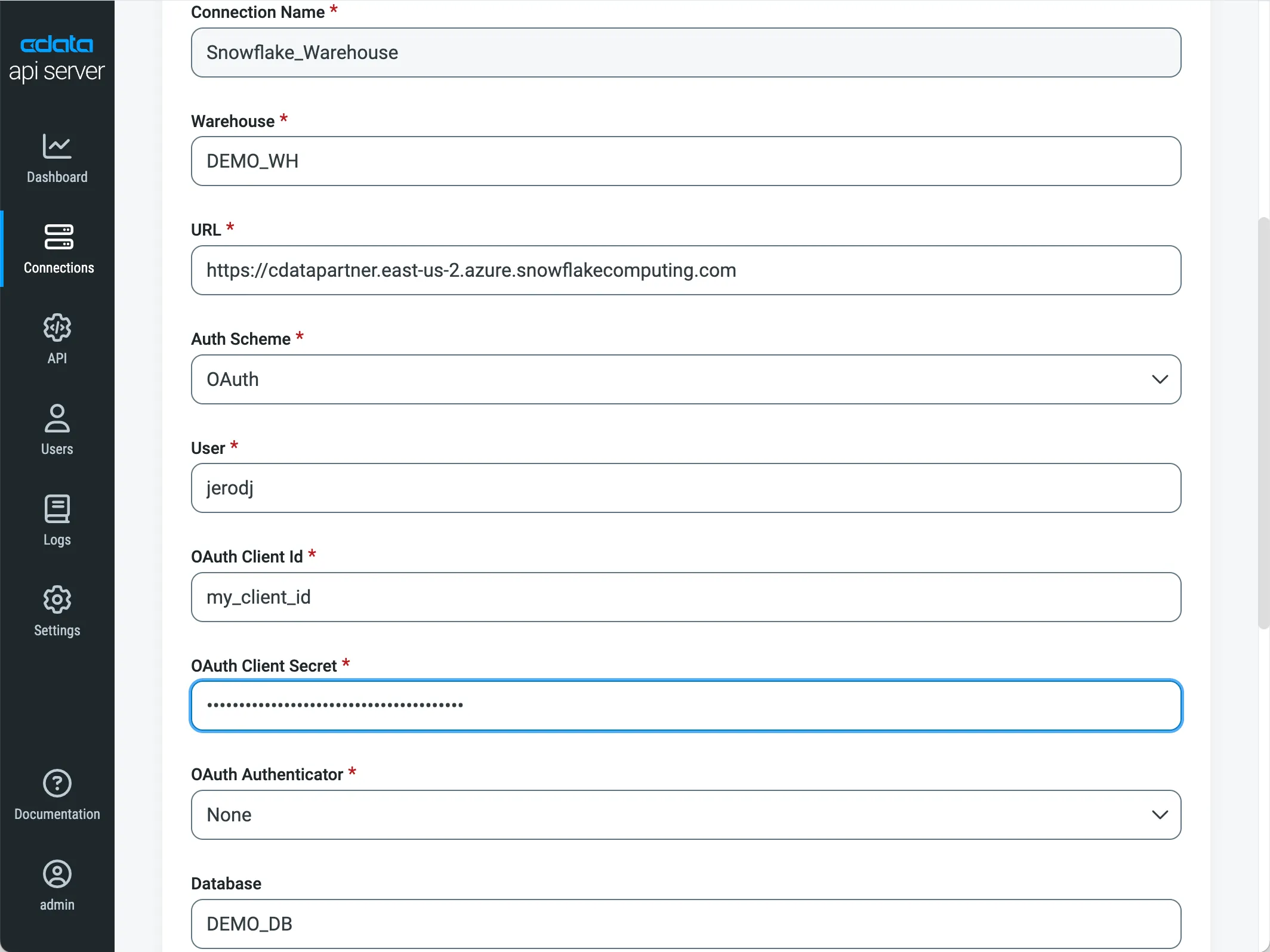
Provide the authentication values and other connection properties needed to connect to your Snowflake data warehouse by clicking Connections and adding a new connection.
Snowflake uses the OAuth authentication standard. OAuth requires the authenticating user to log in through the browser. To authenticate using OAuth, set the OAuthClientId, OAuthClientSecret, and CallbackURL properties based on a Snowflake security integration. You also need to specify the URL of your Snowflake account along with the User, the Warehouse, the Database, and (optionally) the Schema.
See the Getting Started chapter of the help documentation for a guide to using OAuth.
Create Endpoints
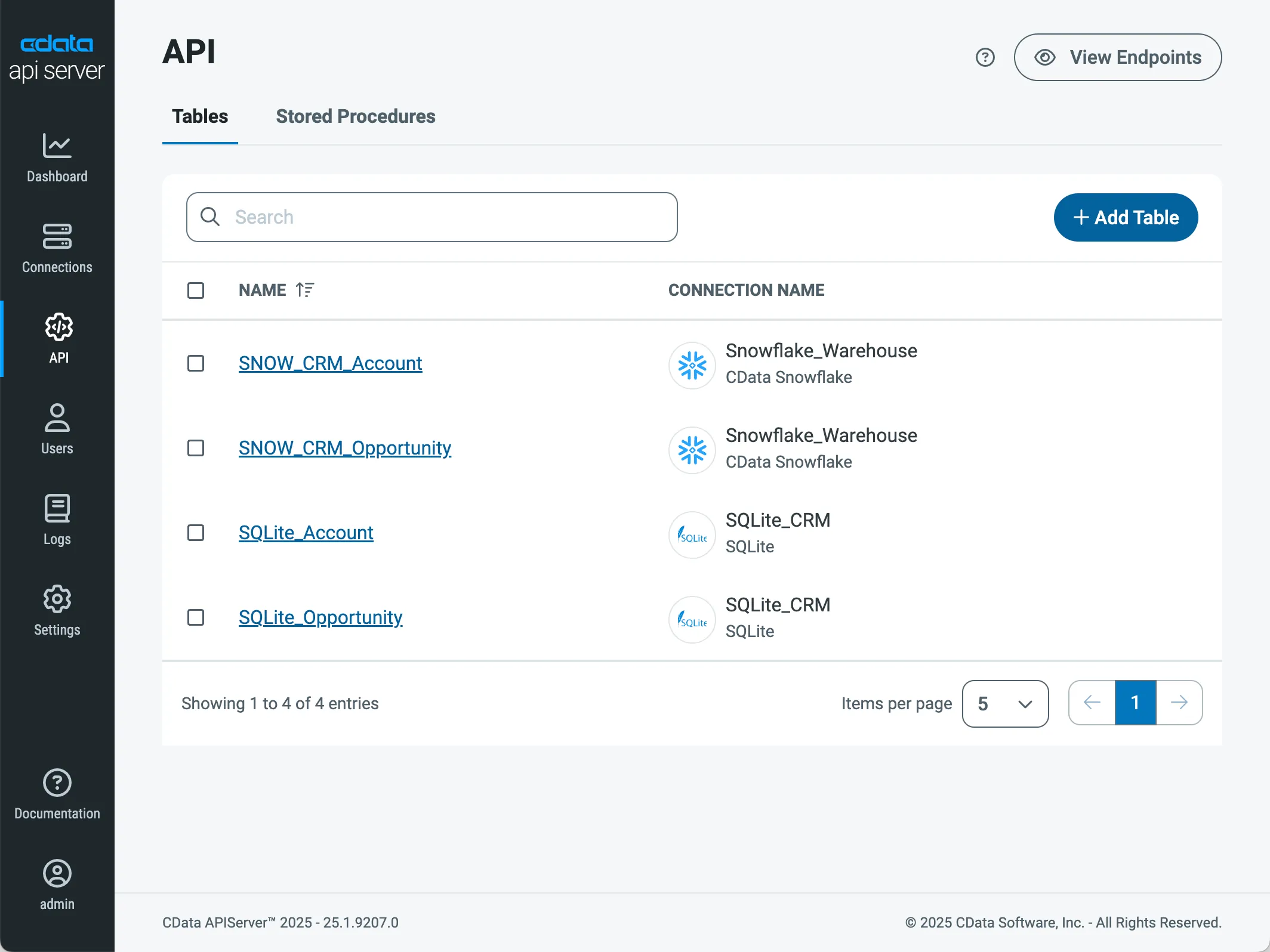
With the connections configured, choose the SQLite and Snowflake tables you want to allow the API Server to access by clicking API -> Add Table. For this article, create endpoints for the SQLite Account table and the Snowflake Online Account table.
Build a Node-RED Flow
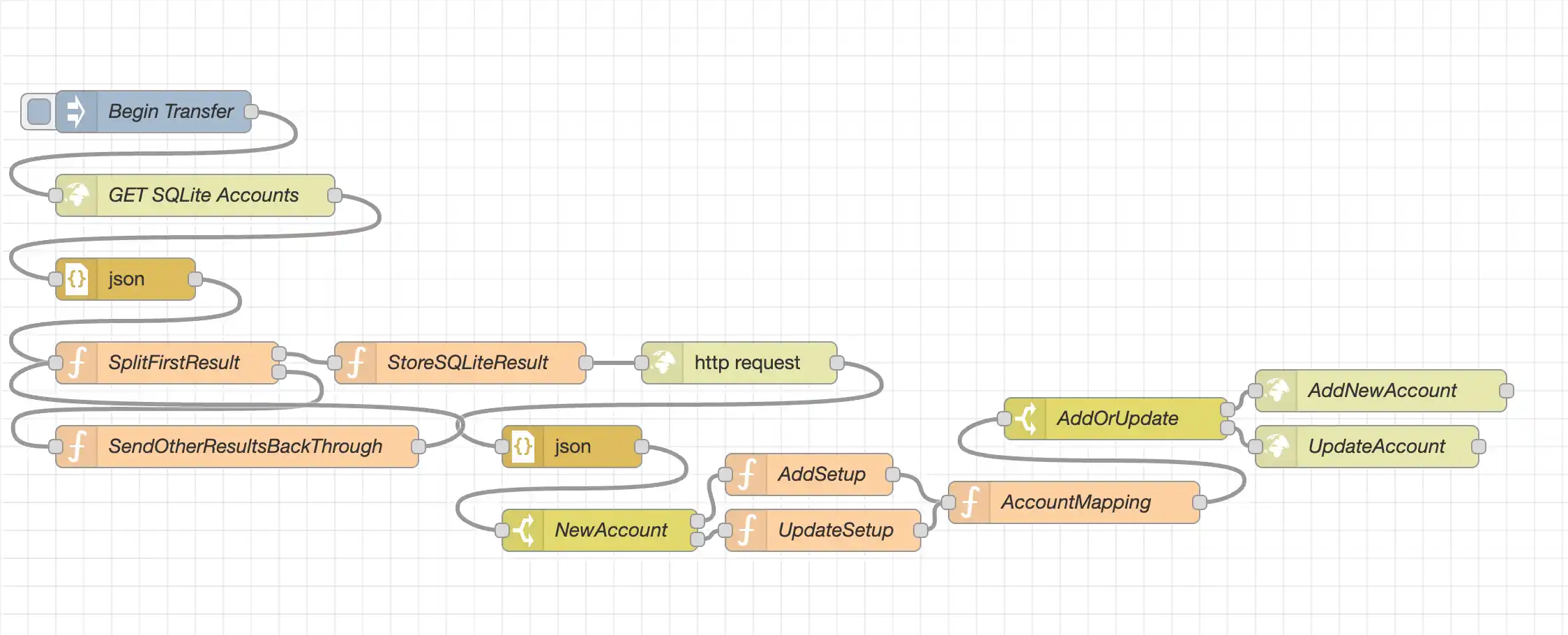
Building a Node-RED Flow to connect to and use data from the API Server is as simple as dragging and dropping components in the Node-RED interface. To start Node-RED, simply call node-red from the command line. If this is the first time you are creating a flow, you will see a blank workspace.
Create the flow using the instructions below or download the complete flow and follow along with the walkthrough.
Get SQLite Account Data
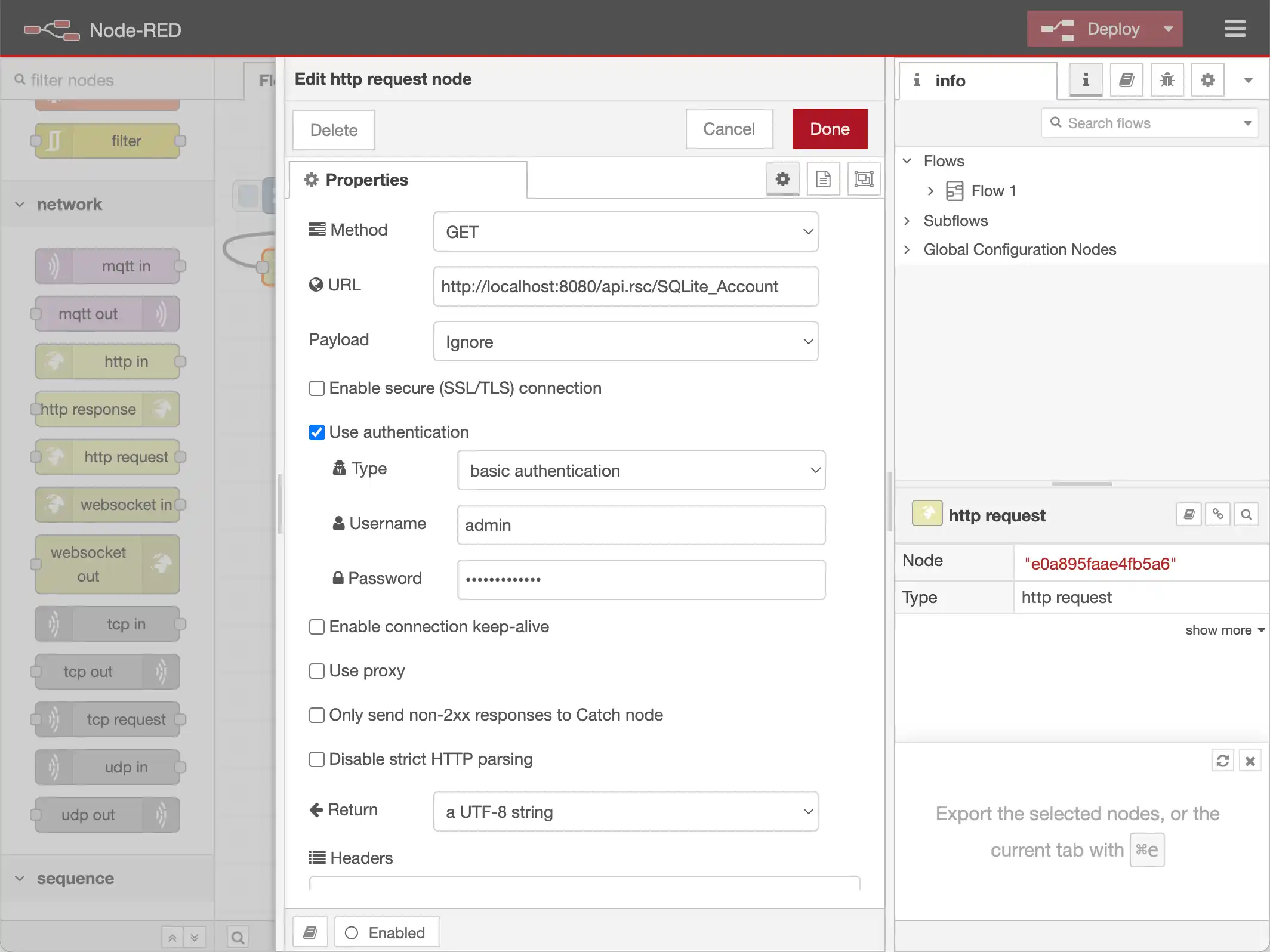
Drag an inject node onto the workspace. This is the node that is used to begin our flow. Double click the node to name it. Next, drag an http request node onto the workspace. This is the node that sends the request to the API Server to see if there are any new SQLite accounts. Double-click the node to configure the properties of the node. In this case the node sends an HTTP GET request to the endpoint for SQLite Account table (for incremental searching, add a $filter parameter to the URL, based on the last time you searched for accounts). For security, we're using basic authentication, based on a user we created within API Server (Users). Connect the two nodes with a wire.
Process the SQLite Accounts
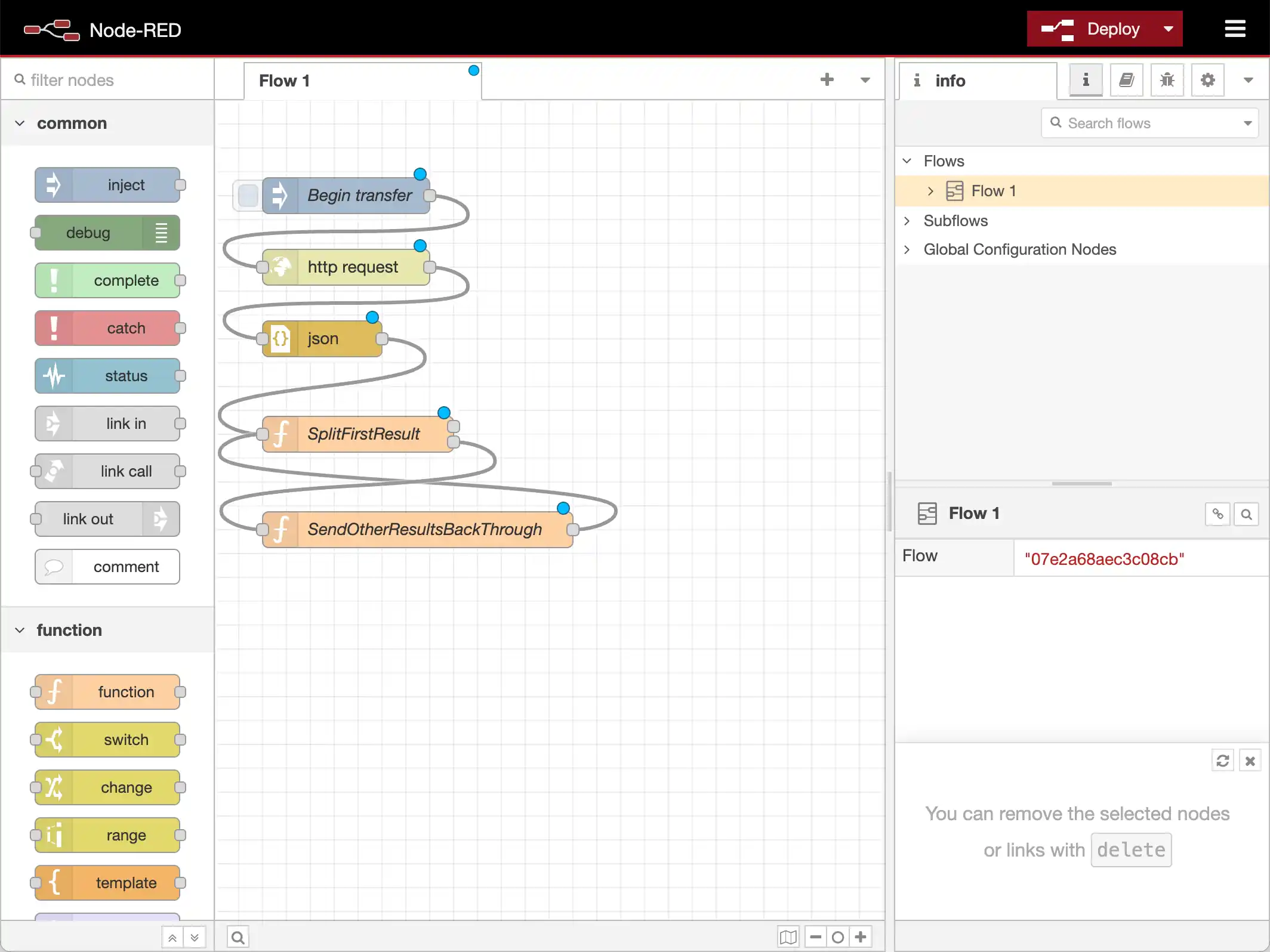
Next, place a json node and two function nodes onto the dashboard. The json node is used to parse the response from the API Server into a JSON object. The two function nodes push the results from the HTTP request through the rest of the flow, one at a time.
var arrLen = msg.payload.value.length;
if(arrLen > 1) {
    var msg2 = {};
    msg2.payload = msg.payload.value.slice(1,arrLen);
    msg.payload = msg.payload.value[0];
    return [msg,msg2];
} else if (arrLen == 1) {
    msg.payload = msg.payload.value[0];
    //remove API Server response headers
    msg.headers = {};
    return [msg, null];
}
return [null, null];
The second of our new functions re-factors the array of remaining values into a message that matches the input for the previous function. This allows the flow to process each of the results of our HTTP request for SQLite accounts, one at a time. Double-click the node and copy the following JavaScript into the function:
var payload = msg.payload;
msg.payload = {}
msg.payload.value = payload;
return msg;
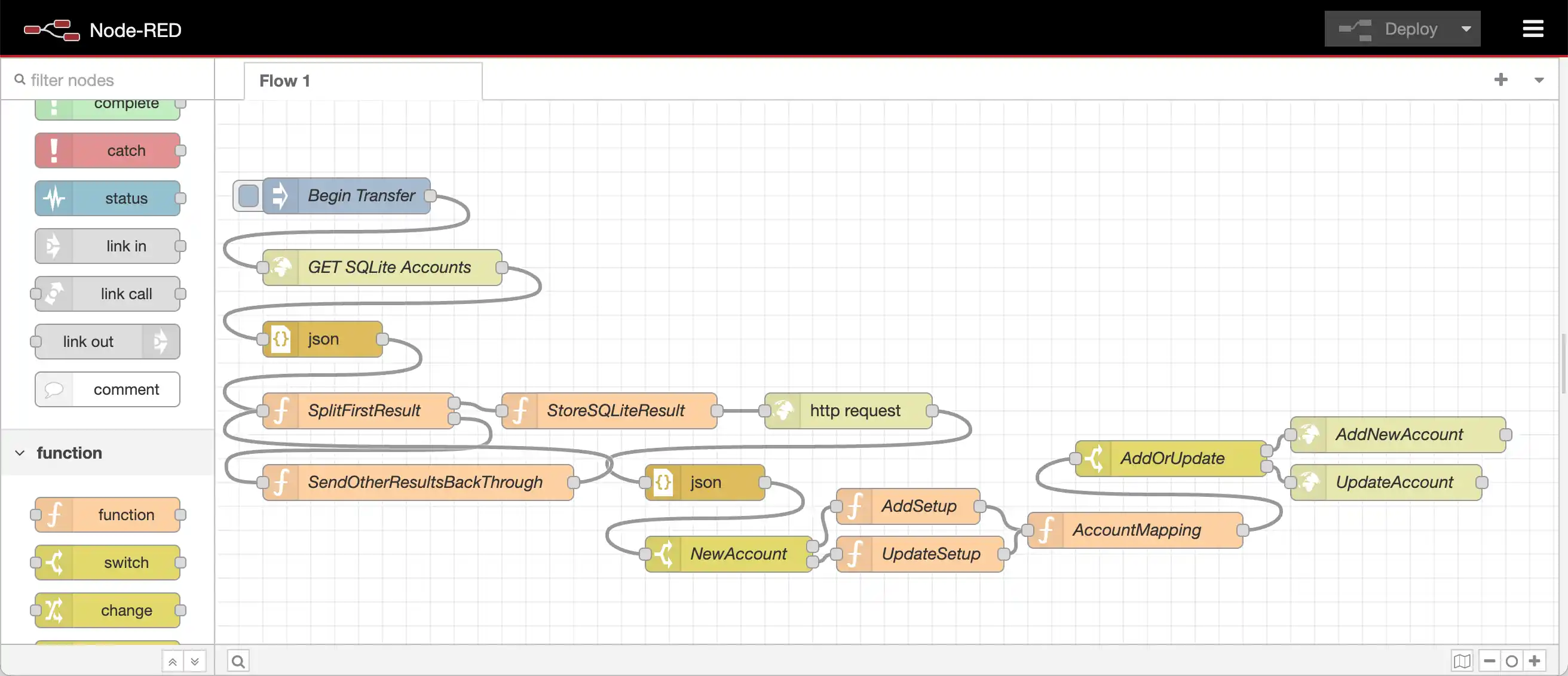
Create wires from the output of the json node to the input of the first new function node (SplitFirstResult), from the second output of SplitFirstResult to the input of our second new function node (SendOtherResultsBackThrough), and from the output of SendOtherResultsBackThrough to the input of SplitFirstResult.
Search for Existing Accounts in Snowflake
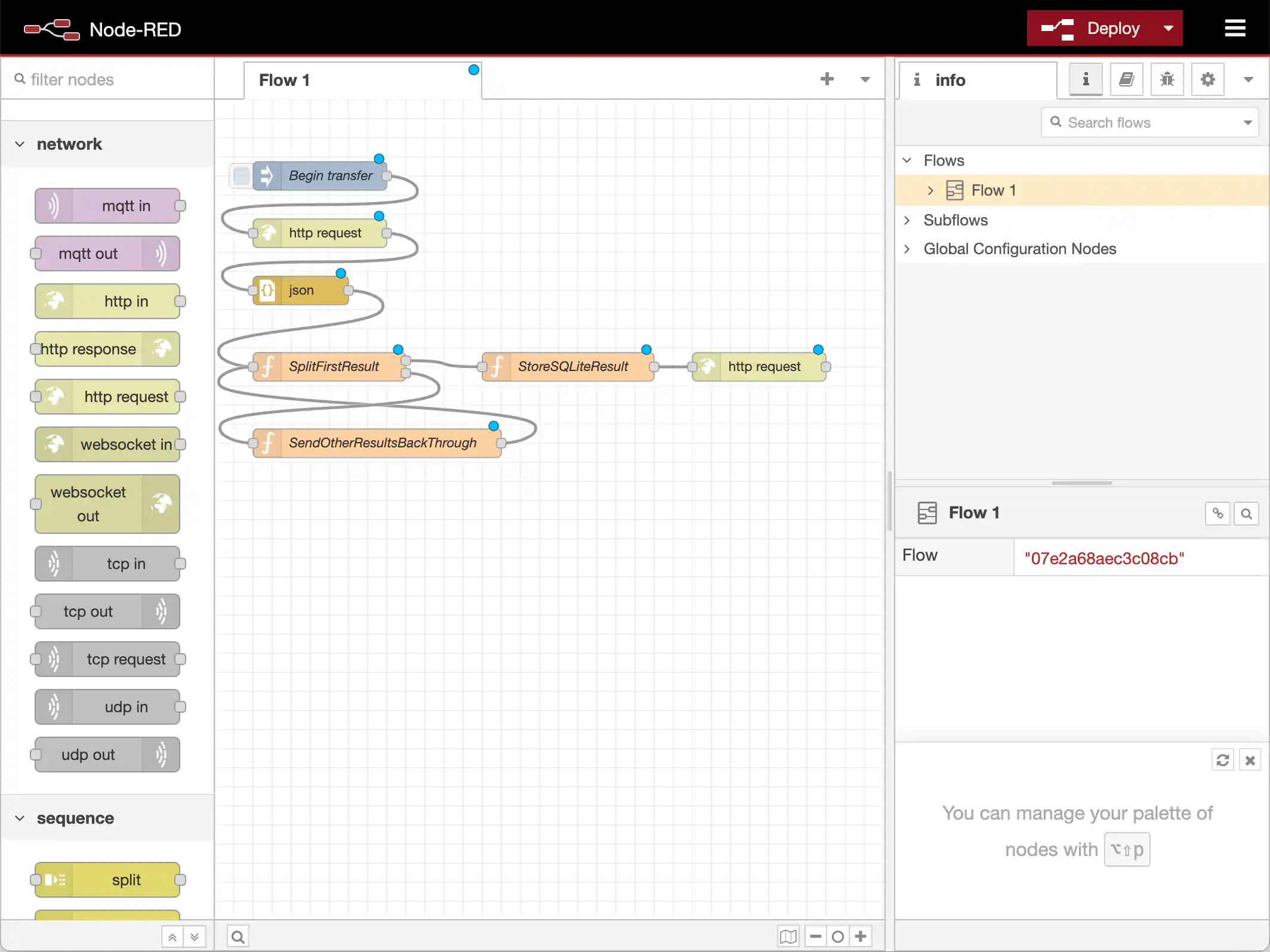
Drag another function node and another http request node onto the workspace. The function node moves the SQLite Account information from msg.payload to msg.sqliteResult. Copy the following JavaScript into the function:
msg.headers = {};
msg.sqliteResult=msg.payload;
return msg;
The http request node searches Snowflake for any existing accounts with the same name as the SQLite account. Configure the URL for the node to point to the Snowflake Account endpoint, using an OData $filter parameter to look for any existing accounts (note the triple-bracket around Name in the filter), and set the username and password as you did for the previous http request node.
Snowflake Accounts Endpoint with Filter
http://localhost:8153/api.rsc/SNOW_CRM_Account/?$filter=(Id eq '{{{Id}}}')
Create a wire from the first output of the SplitFirstResult function to the input your new function (StoreSnowResult) and from the output of StoreSnowResult to your new http request node.
Determine Whether to Add or Update
Next, drag a json node, a switch node, and two new function nodes onto the dashboard. The json node is there to parse the response from the API Server and the switch splits our flow based on whether we found an existing account in Snowflake or not:
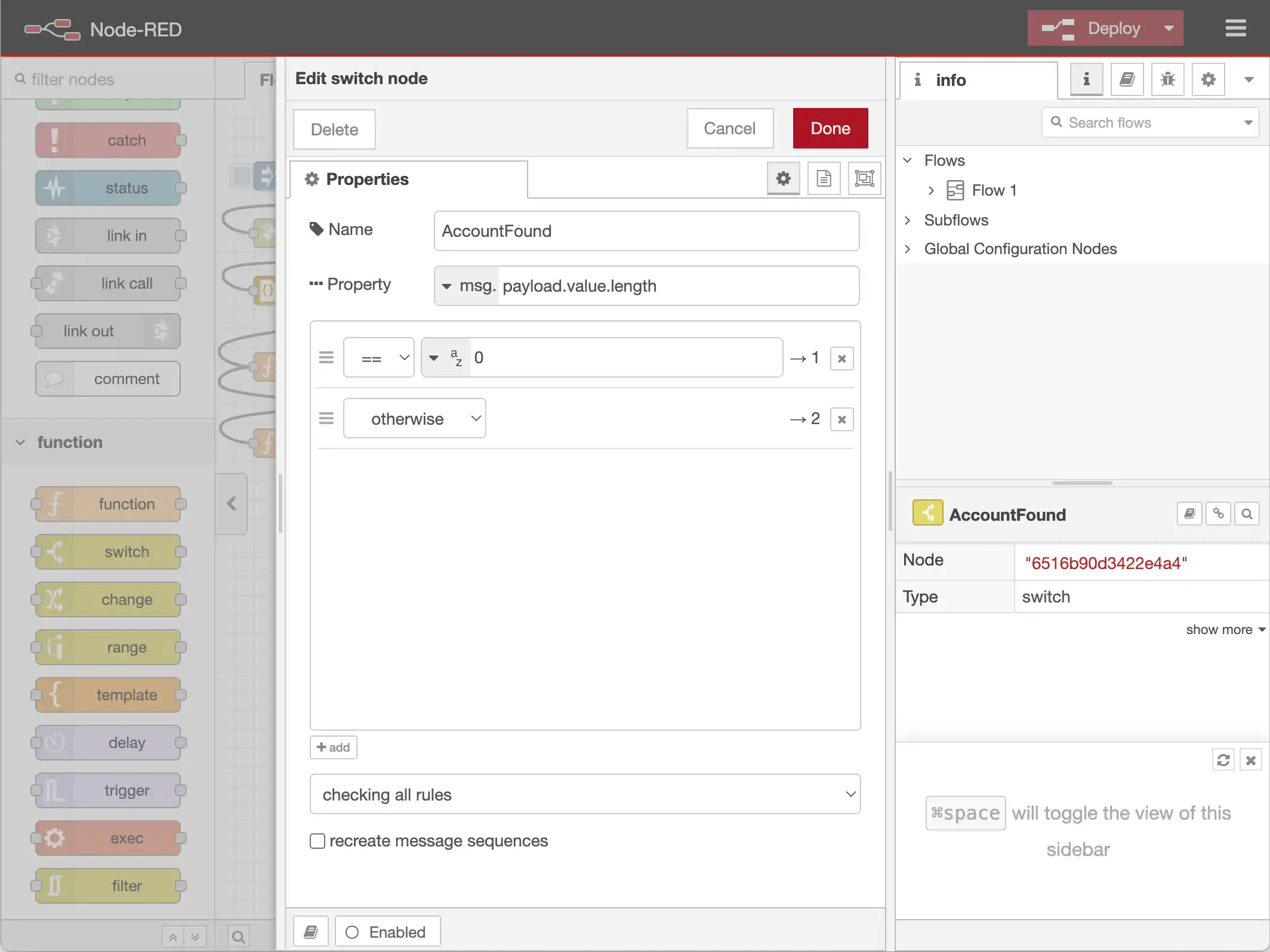
The first function node (AddSetup) simply clears existing headers in preparation for the next HTTP request and sets a flag to add to true. Copy the following JavaScript into the function:
if (msg.sqliteResult) {
  msg.headers = {};
  msg.add = true;
  return msg;
}
return null;
The second function node (UpdateSetup) clears the existing headers, stores the existing account's ID, and sets the flag to add to false. Copy the following JavaScript into the function:
if (msg.sqliteResult &&
    (typeof msg.payload.value[0].Id == 'string')) {
  msg.headers = {};
  msg.Id = msg.payload.value[0].Id ;
  msg.add = false;
  return msg;
}
return null;
Create a wire from the output of the http request node to the input of the json node, from the output of the json node to the input of the AddAccount switch node, and from output 1 and 2 of AddAccount to the input of AddSetup and UpdateSetup, respectively.
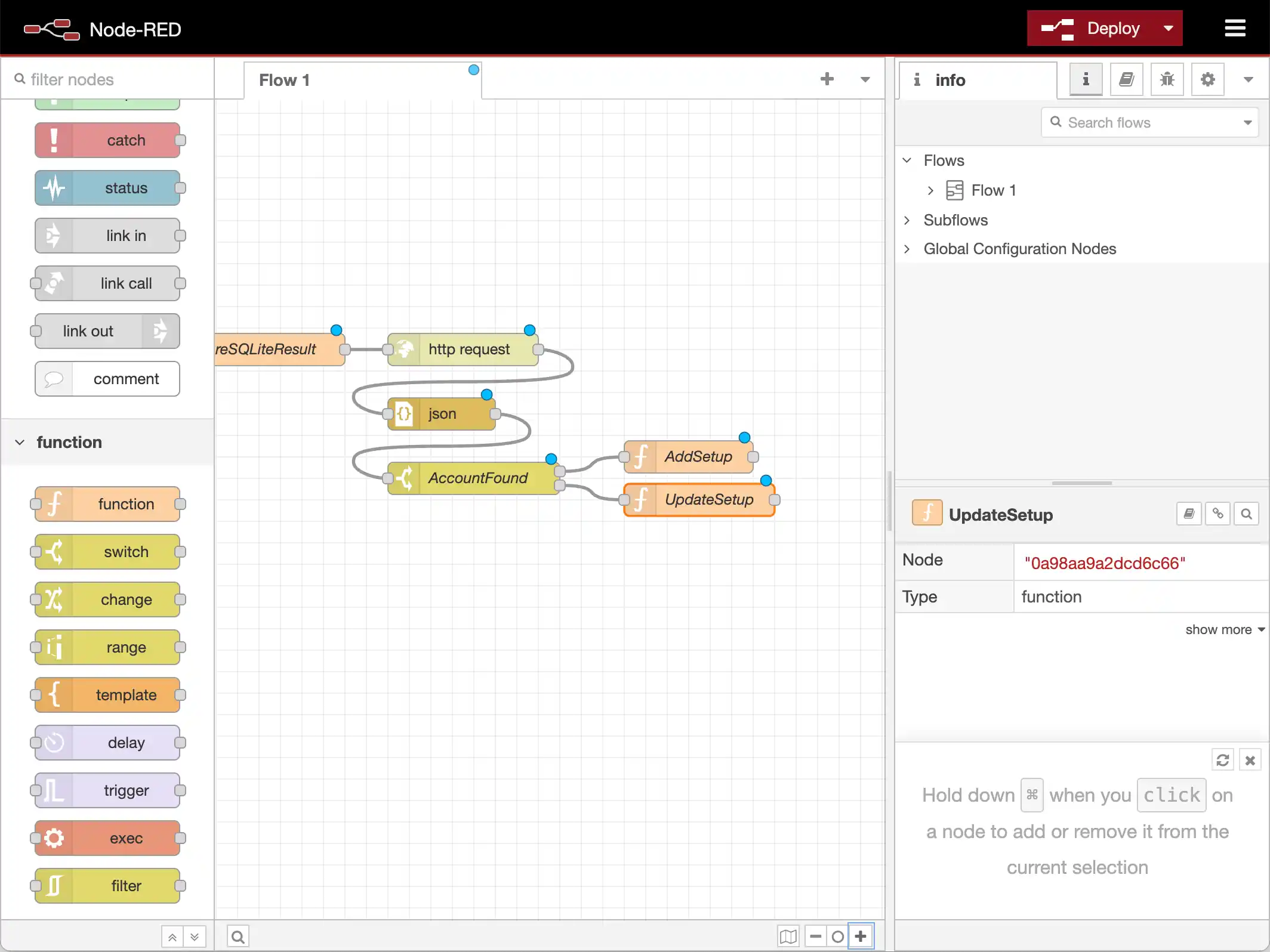
Map the SQLite Account to a Snowflake Account
Drag a new function node to the workspace. This function maps the relevant fields from a SQLite Account to a Snowflake Account. If the Account is new, then the Name is included, otherwise it is ignored. Copy the following JavaScript to the new function node (AccountUpdate):
var up_account = {};
var account = msg.SQLiteResult;

if (account.Id && (msg.add))
  up_account.Id = account.Id;

if (account.Active__c)
  up_account.Active__c = account.Active__c;
if (account.BillingCity)
  up_account.BillingCity = account.BillingCity;
if (account.BillingCountry)
  up_account.BillingCountry = account.BillingCountry;
if (account.BillingState)
  up_account.BillingState = account.BillingState;
if (account.BillingLatitude)
  up_account.BillingLatitude = account.BillingLatitude;
if (account.BillingStreet)
  up_account.BillingStreet = account.BillingStreet;
if (account.BillingLongitude)
  up_account.BillingLongitude = account.BillingLongitude;
if (account.BillingPostalCode)
  up_account.BillingPostalCode = account.BillingPostalCode;
if (account.CurrencyIsoCode)
  up_account.CurrencyIsoCode = account.CurrencyIsoCode;
if (account.fax)
  up_account.fax = account.fax;
if (account.Phone)
  up_account.Phone = account.Phone;
if (account.ShippingCity)
  up_account.ShippingCity = account.ShippingCity;
if (account.ShippingCountry)
  up_account.ShippingCountry = account.ShippingCountry;
if (account.ShippingState)
  up_account.ShippingState = account.ShippingState;
if (account.ShippingLatitude)
  up_account.ShippingLatitude = account.ShippingLatitude;
if (account.ShippingStreet)
  up_account.ShippingStreet = account.ShippingStreet;
if (account.ShippingLongitude)
  up_account.ShippingLongitude = account.ShippingLongitude;
if (account.ShippingPostalCode)
  up_account.ShippingPostalCode = account.ShippingPostalCode;
if (account.Website)
  up_account.Website = account.Website;

msg.payload = up_account;
return msg;
Create wires from the outputs of AddSetup and UpdateSetup to the input of SQLiteToSnowflake:
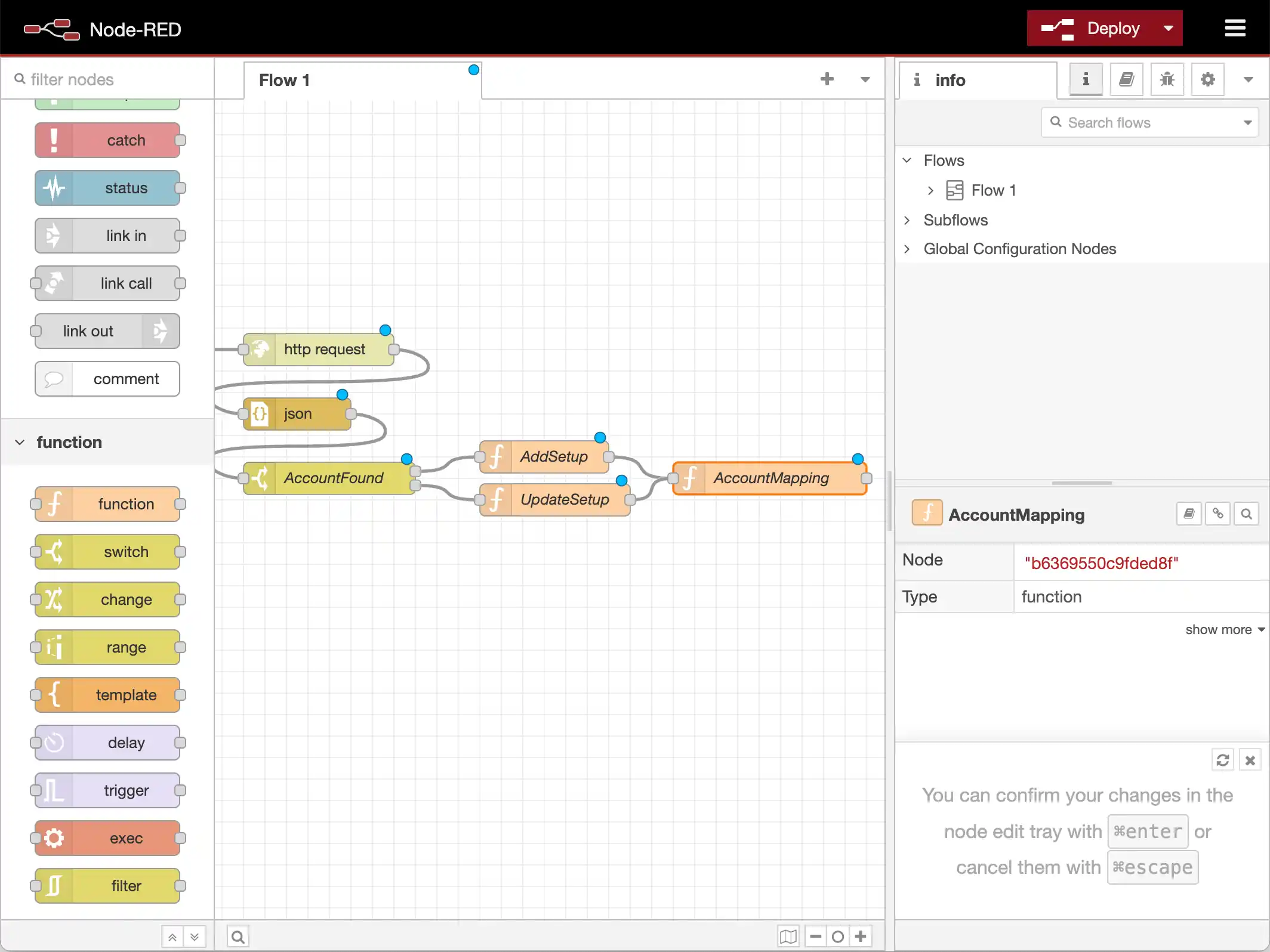
Create a New Account or Update an Existing Account
Drag a new switch node and two new http request nodes onto the dashboard. The switch node determines whether the flow sends an HTTP request to the API Server to add a new Snowflake account or an HTTP request to update an existing one.
To determine whether to add or update, configure the switch node based on msg.add:
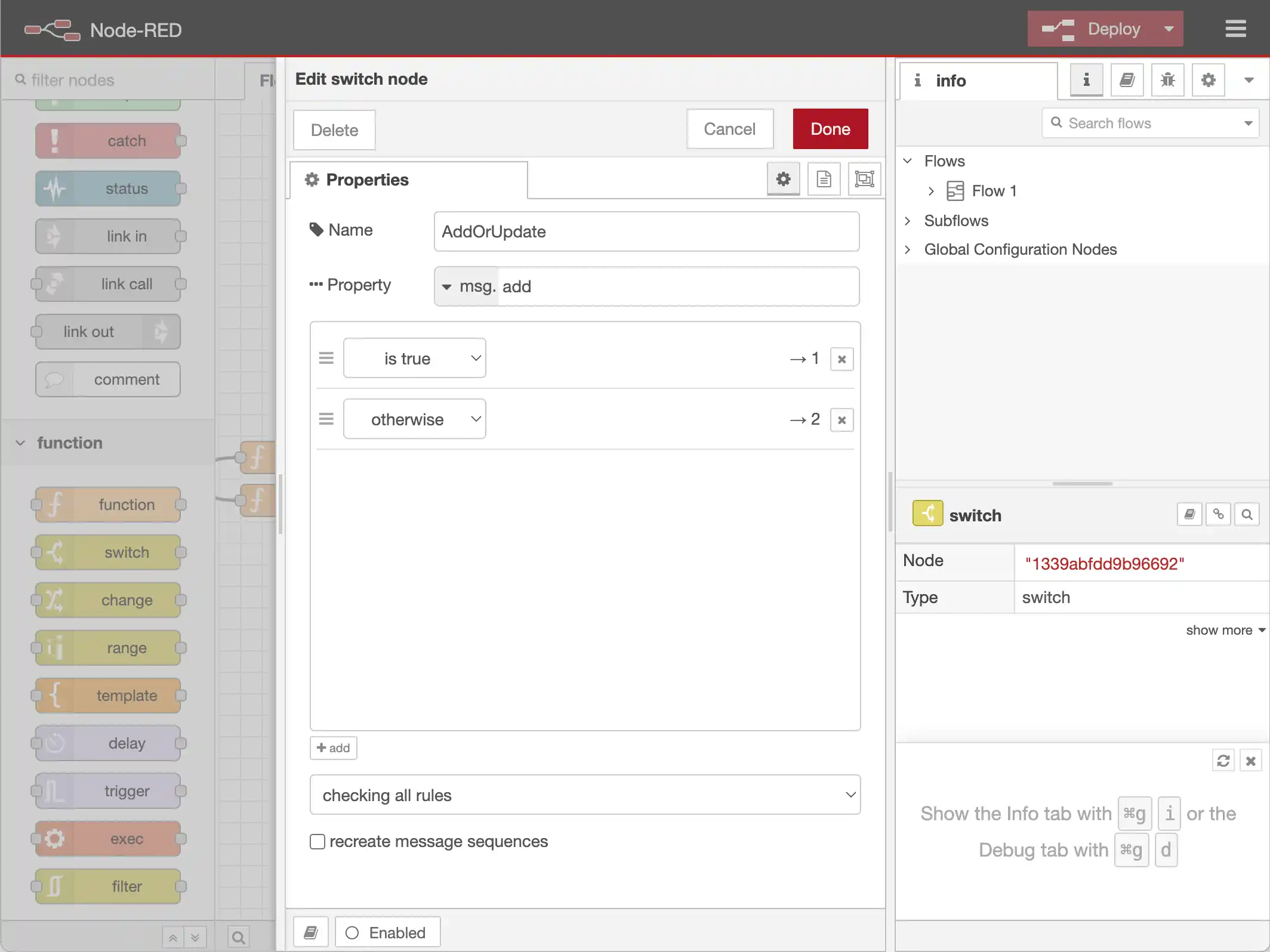
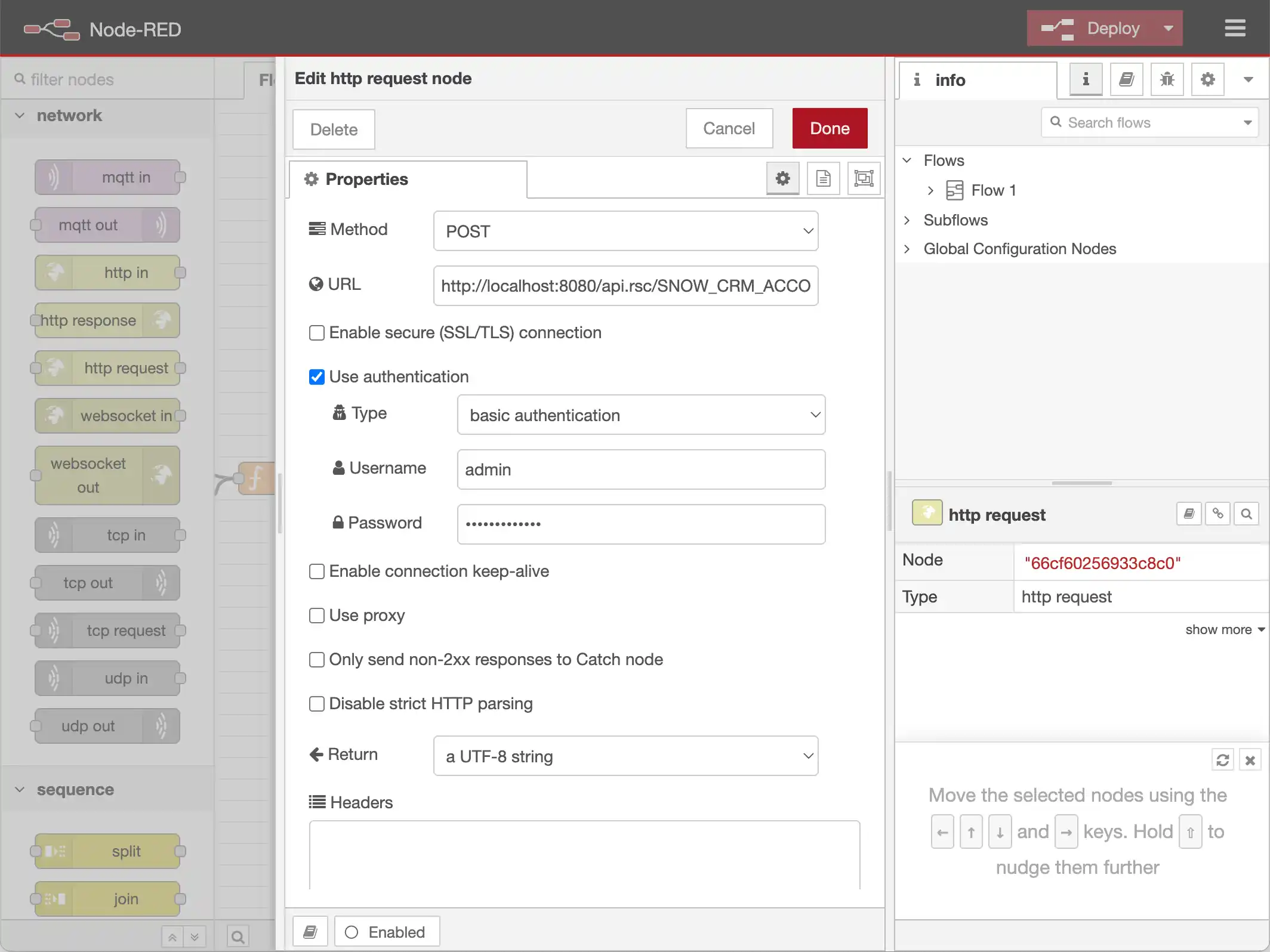
The first http request node adds a new account to Snowflake. To do so, send an HTTP POST request to the Snowflake Account endpoint on the API Server, where msg.payload is the request body.
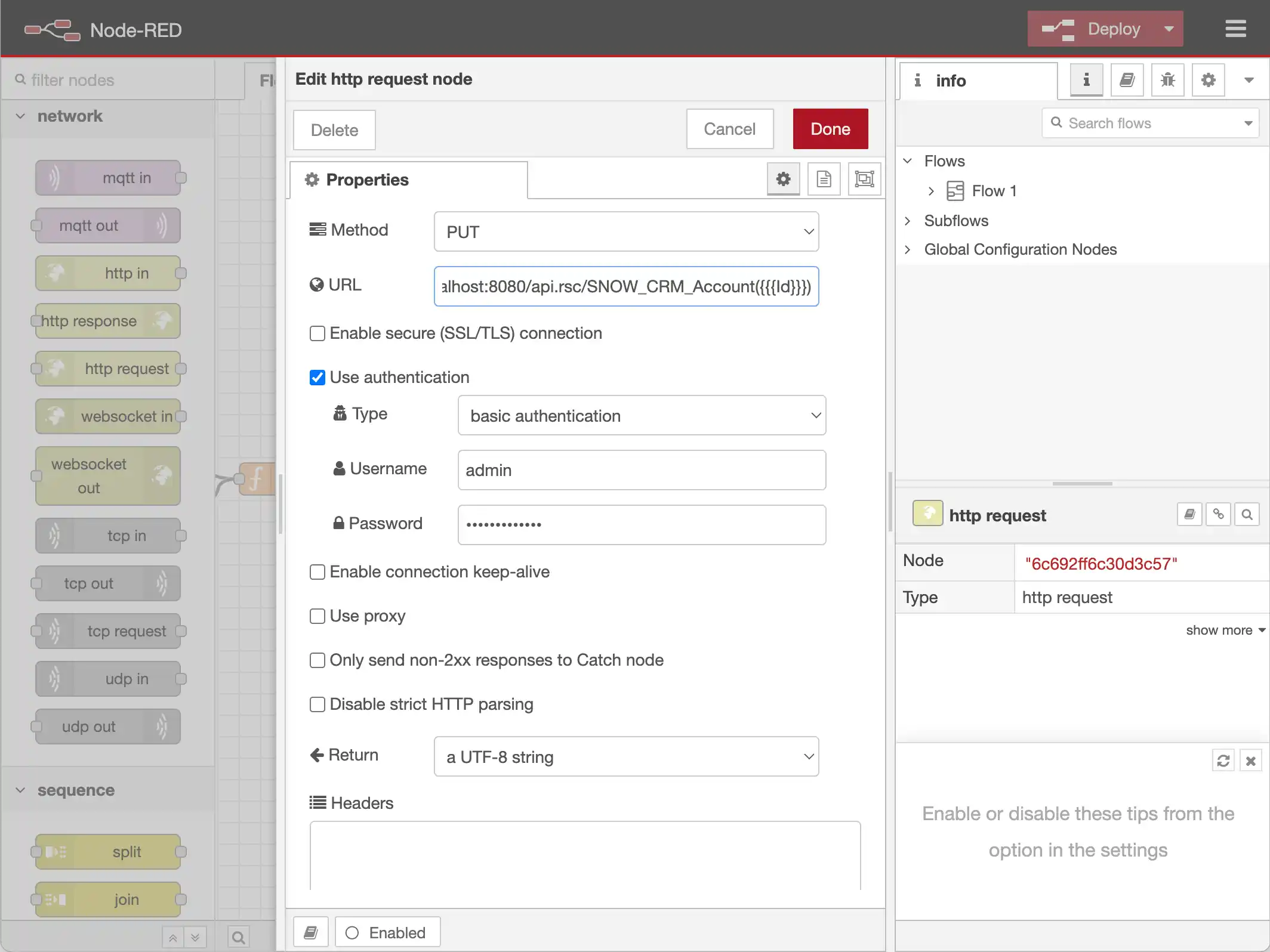
To update a Snowflake account, send an HTTP PUT request to the Snowflake Account endpoint on the API Server, with msg.Id used to designate which account to update. Again msg.payload is the request body.
Complete the Flow by creating wires from the output of AccountMapping to the input of AddOrUpdate, from the first output of AddOrUpdate to the input of the http request node used to add, and from the second output of AddOrUpdate to the input of the http request node used to update.
The Flow could easily be modified to work with any of the other data sources that are supported by the API Server
More Information & Free Trial
With all of the nodes and wires configured, deploy the flow and click the inject node to start the flow (or set a schedule to trigger the flow repeatedly). For more information on the API Server, check out our Knowledge Base article. Refer to the API Server landing page to download a free, 30 day trial. If you have any questions, our world-class support team is ready to help.
