
Model Context Protocol (MCP) finally gives AI models a way to access the business data needed to make them really useful at work. CData MCP Servers have the depth and performance to make sure AI has access to all of the answers.
Try them now for free →


Back Up PingOne data to SQL Server through SSIS
Effortlessly backup data to SQL Server by utilizing the CData ADO.NET Provider for PingOne. In this article, we will employ an SSIS workflow to populate a database with PingOne data data.
This article illustrates using the PingOne ADO.NET Data Provider within a SQL Server SSIS workflow for the direct transfer of PingOne data to a Microsoft SQL Server database. It's worth noting that the identical process detailed below is applicable to any CData ADO.NET Data Providers, enabling the direct connection of SQL Server with remote data through SSIS.
- Open Visual Studio and create a new Integration Services project.
- Add a new Data Flow task from the toolbox onto the Control Flow screen.
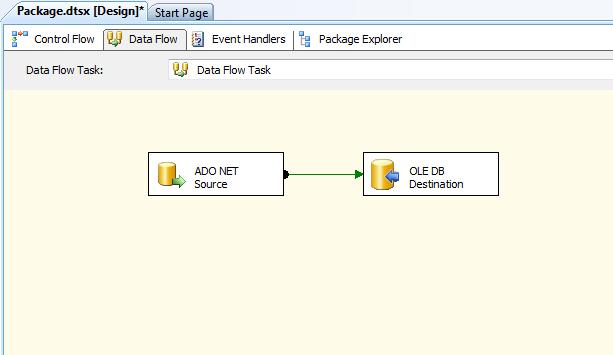
In the Data Flow screen, add an ADO.NET Source and an OLE DB Destination from the toolbox.
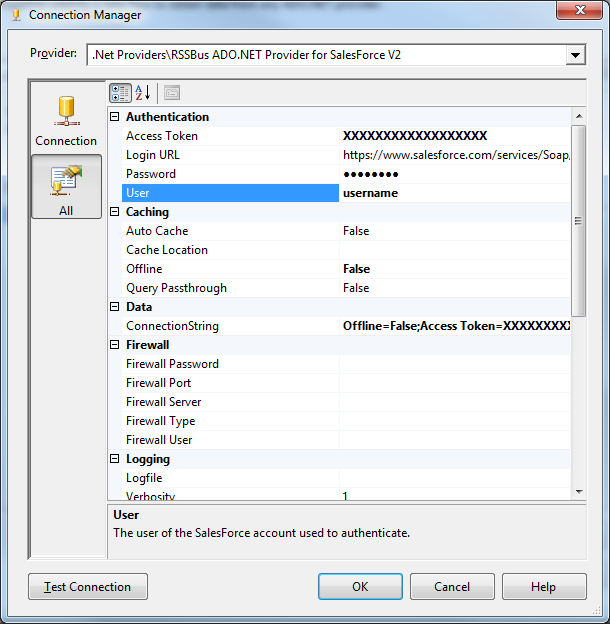
- Add a new connection and select .NET Providers\CData ADO.NET Provider for PingOne.
In the connection manager, enter the connection details for PingOne data.
To connect to PingOne, configure these properties:
- Region: The region where the data for your PingOne organization is being hosted.
- AuthScheme: The type of authentication to use when connecting to PingOne.
- Either WorkerAppEnvironmentId (required when using the default PingOne domain) or AuthorizationServerURL, configured as described below.
Configuring WorkerAppEnvironmentId
WorkerAppEnvironmentId is the ID of the PingOne environment in which your Worker application resides. This parameter is used only when the environment is using the default PingOne domain (auth.pingone). It is configured after you have created the custom OAuth application you will use to authenticate to PingOne, as described in Creating a Custom OAuth Application in the Help documentation.
First, find the value for this property:
- From the home page of your PingOne organization, move to the navigation sidebar and click Environments.
- Find the environment in which you have created your custom OAuth/Worker application (usually Administrators), and click Manage Environment. The environment's home page displays.
- In the environment's home page navigation sidebar, click Applications.
- Find your OAuth or Worker application details in the list.
-
Copy the value in the Environment ID field.
It should look similar to:
WorkerAppEnvironmentId='11e96fc7-aa4d-4a60-8196-9acf91424eca'
Now set WorkerAppEnvironmentId to the value of the Environment ID field.
Configuring AuthorizationServerURL
AuthorizationServerURL is the base URL of the PingOne authorization server for the environment where your application is located. This property is only used when you have set up a custom domain for the environment, as described in the PingOne platform API documentation. See Custom Domains.
Authenticating to PingOne with OAuth
PingOne supports both OAuth and OAuthClient authentication. In addition to performing the configuration steps described above, there are two more steps to complete to support OAuth or OAuthCliet authentication:
- Create and configure a custom OAuth application, as described in Creating a Custom OAuth Application in the Help documentation.
- To ensure that the driver can access the entities in Data Model, confirm that you have configured the correct roles for the admin user/worker application you will be using, as described in Administrator Roles in the Help documentation.
- Set the appropriate properties for the authscheme and authflow of your choice, as described in the following subsections.
OAuth (Authorization Code grant)
Set AuthScheme to OAuth.
Desktop Applications
Get and Refresh the OAuth Access Token
After setting the following, you are ready to connect:
- InitiateOAuth: GETANDREFRESH. To avoid the need to repeat the OAuth exchange and manually setting the OAuthAccessToken each time you connect, use InitiateOAuth.
- OAuthClientId: The Client ID you obtained when you created your custom OAuth application.
- OAuthClientSecret: The Client Secret you obtained when you created your custom OAuth application.
- CallbackURL: The redirect URI you defined when you registered your custom OAuth application. For example: https://localhost:3333
When you connect, the driver opens PingOne's OAuth endpoint in your default browser. Log in and grant permissions to the application. The driver then completes the OAuth process:
- The driver obtains an access token from PingOne and uses it to request data.
- The OAuth values are saved in the location specified in OAuthSettingsLocation, to be persisted across connections.
The driver refreshes the access token automatically when it expires.
For other OAuth methods, including Web Applications, Headless Machines, or Client Credentials Grant, refer to the Help documentation.
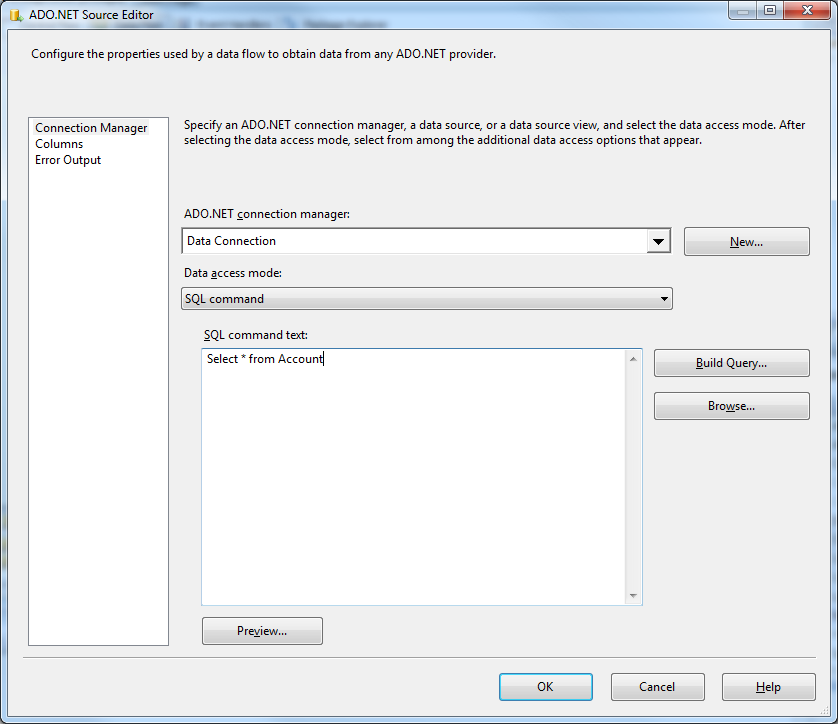
Open the DataReader editor and set the following information:
- ADO.NET connection manager: In the Connection Managers menu, select the Data Connection you just created.
- Data access mode: Select 'SQL command'.
- SQL command text: In the DataReader Source editor, open the Component Properties tab and enter a SELECT command, such as the one below:
SELECT Id, Username FROM [CData].[Administrators].Users WHERE EmployeeType = 'Contractor'
- Close the DataReader editor and drag the arrow below the DataReader Source to connect it to the OLE DB Destination.
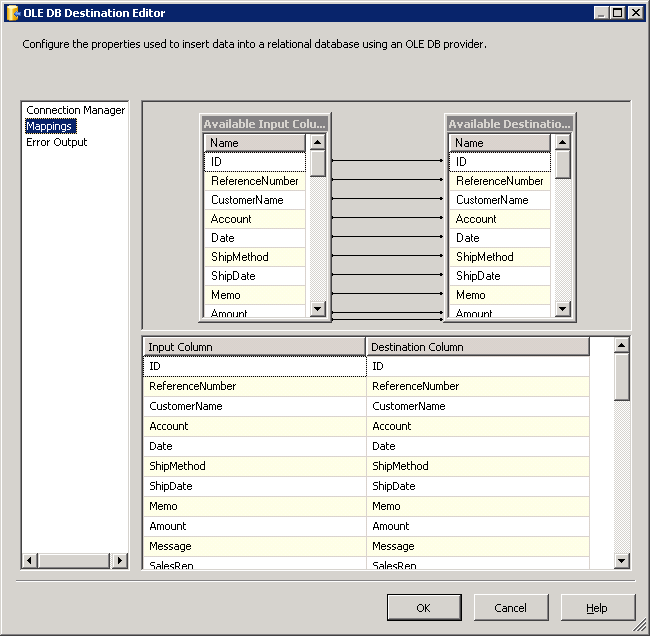
Open the OLE DB Destination and enter the following information in the Destination Component Editor.
- Connection manager: Add a new connection. Enter your server and database information here. In this example, SQLExpress is running on a separate machine.
- Data access mode: Set your data access mode to "table or view" and select the table or view to populate in your database.
Configure any properties you wish on the Mappings screen.
- Close the OLE DB Destination Editor and run the project. After the SSIS task has finished executing, your database will be populated with data obtained from PingOne data.
Ready to get started?
Download a free trial of the PingOne Data Provider to get started:
Download NowLearn more:
 PingOne ADO.NET Provider
Rapidly create and deploy powerful .NET applications that integrate with PingOne.
